Scratch-gui: Phase 2 - Library design and filter system

I think it would be helpful to be able to sort libraries.
Costume options:
- People
- Animals
- Objects
- Letters
- Food
- Music
- Flying
- Space
- Walking
Backdrop options:
- Indoors
- Outdoors
- Patterns
- Space
- Music
- Holiday
Sound options:
- Human
- Percussion
- Instrument
- Sound Effects
- Computer
- Animal
- Dance
Extension options:
- Hardware
- Software
- Sound
- LEGO
 kyleplo
All 3 comments
We are working on some tagging schemes and other ideas for the libraries. I'm going to rescope this to be about the larger design effort surrounding this feature.
 thisandagain
on 16 Jan 2018
thisandagain
on 16 Jan 2018
Libraries Phase 2 - Tags/Filters
Overview
Currently we only have the ability to keyword search our libraries. This search only based on the name of the media, e.g. Searching the sprite "dog" will only return "dog1" and "dog2" as results.
Tags: We would like to add a way to tag media (Sprites, Costumes, Backdrops, Sounds, Extensions). Typically these tags will be relatively fine grained, so that when searching things like "puppy", search will also return "dog1", "dog2", etc. At first this will be a manual process of adding tags to media.
Filters: We would like to use the same tagging system for higher-level groupings. These groupings will be exposed as toggle-able UI filters. For example, having the a "Animals" tag to put on "dog1", "cat1", "octopus", etc.
At first applying Search and Filter(s) will be limited to one at a time. See sketches below (specifically Step 4) for more info.
Sprite / Costume Tags
- Animals
- People
- Fantasy
- Dance
- Music
- Sports
- Food
- Fashion
Backdrops Tags
- Fantasy
- Music
- Sports
- Outdoors
- Indoors
- Space
- Underwater
- Patterns
Sounds Tags
- Loops
- TBD - @ericrosenbaum - Would you mind suggesting ~6-8 high-level filters?
Extensions Tags
Since the Extension Library is not as extensive as other libraries, exposing tags as filters feels a bit like overkill. That said, it we should begin to tag Extensions. One thought would be to tag things with requirements, e.g. "Bluetooth", "Internet Connection", etc.
Sketches
These sketches only show the Sprite Library, but the same system should be applied to the Costume, Backdrop, and Sound Libraries.
Here is an InVision prototype to click through: https://invis.io/7HGK8NA6SMX
1) Add Sprite

2) Toggling on "Animals" Filter
For now, filters can only be applied one at a time.
Another detail to note: We would like to move away from a "close" button in the Libraries, but use a "back" button instead. The "back" button will return back to the editor. We should also capture when the browser back button is clicked and do the same, and return to the editor. Currently the back button exits the editor which has been confusing.
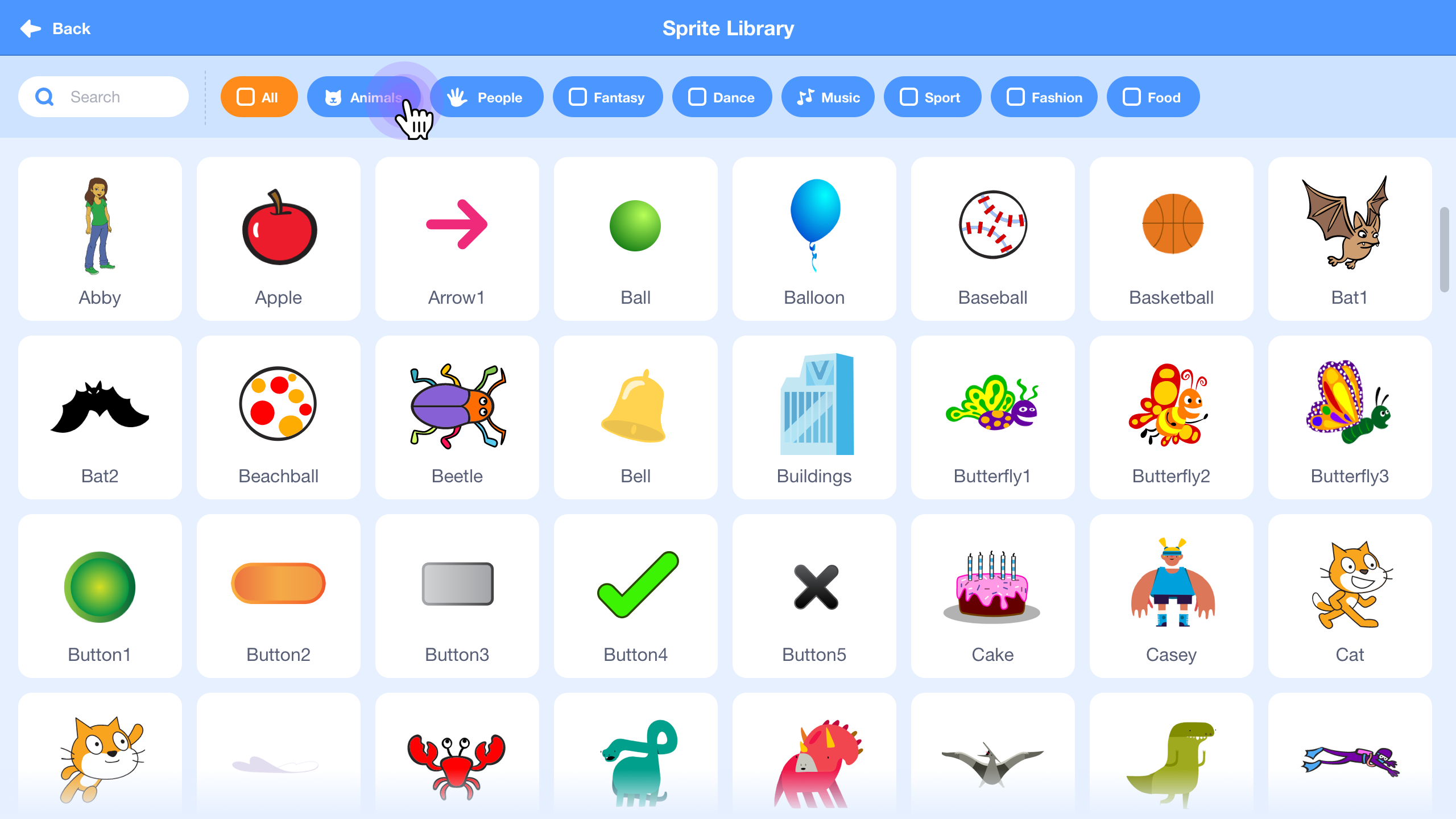
3) Filtered Results for "Animals"
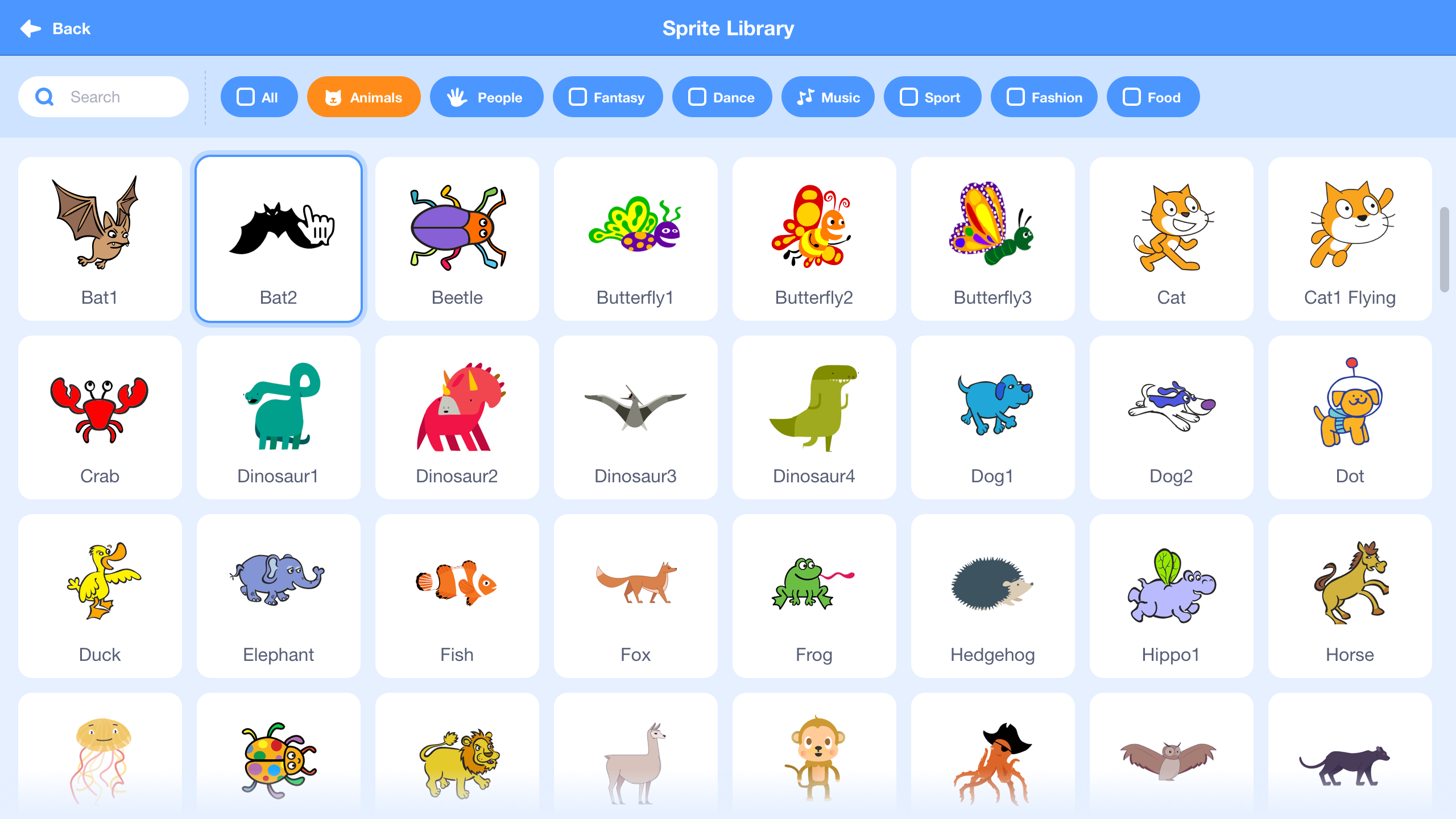
4) Clicking into Search
For now, Searching and Filtering will act exclusively. For example, one cannot apply the "Animals" and then search the filtered sprites for "Puppy", instead searching for "Puppy" will clear the active filter and act as it's own filter on all the sprites.
To prevent a jarring jump to when clearing a filter, the filter should remain on "Animals" until the first keystroke in search bar.

5) Searching for "puppy"
The search bar should grow horizontally upon focus, but toggle off the "Animals" filter until the first keystroke.
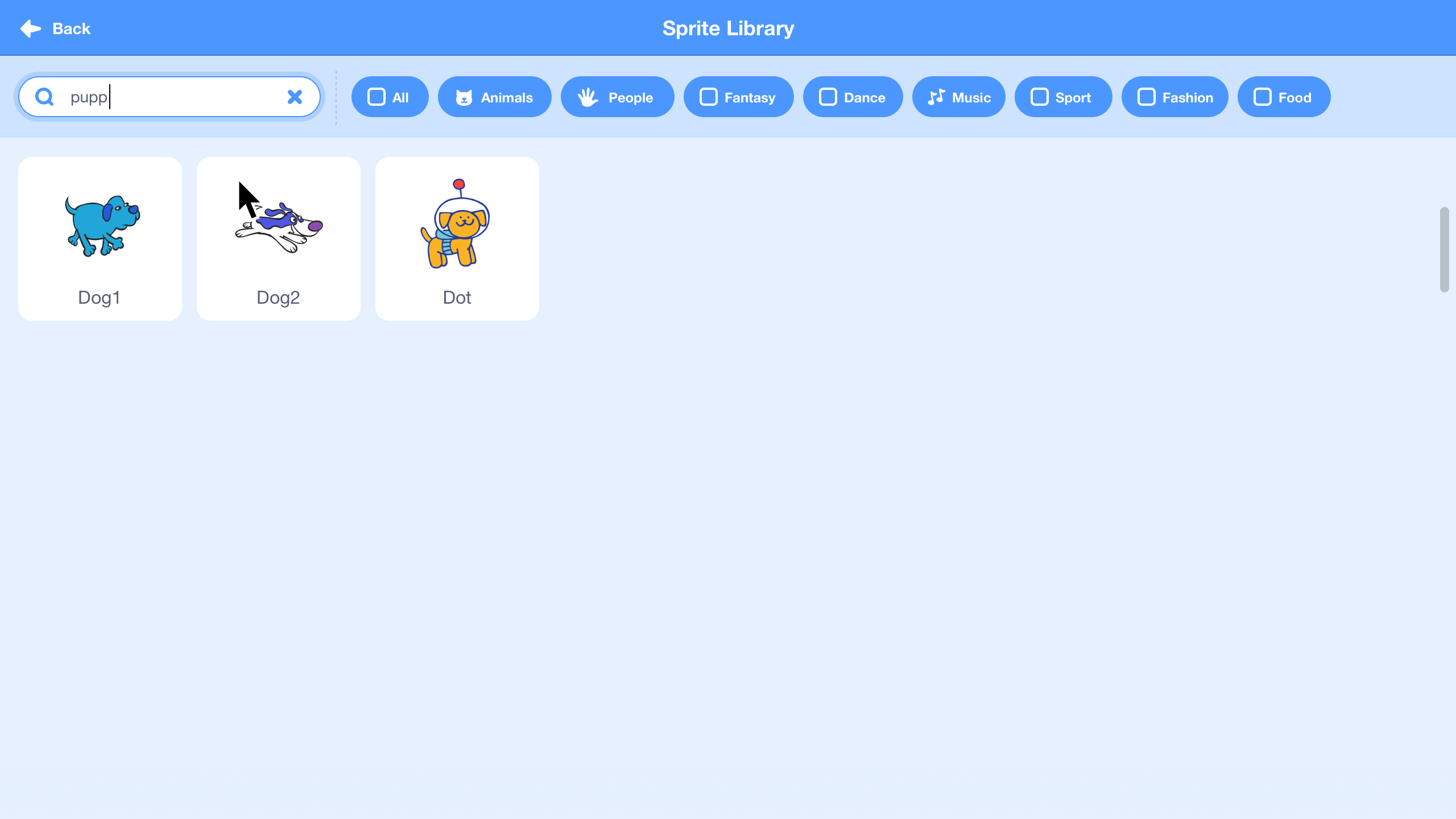
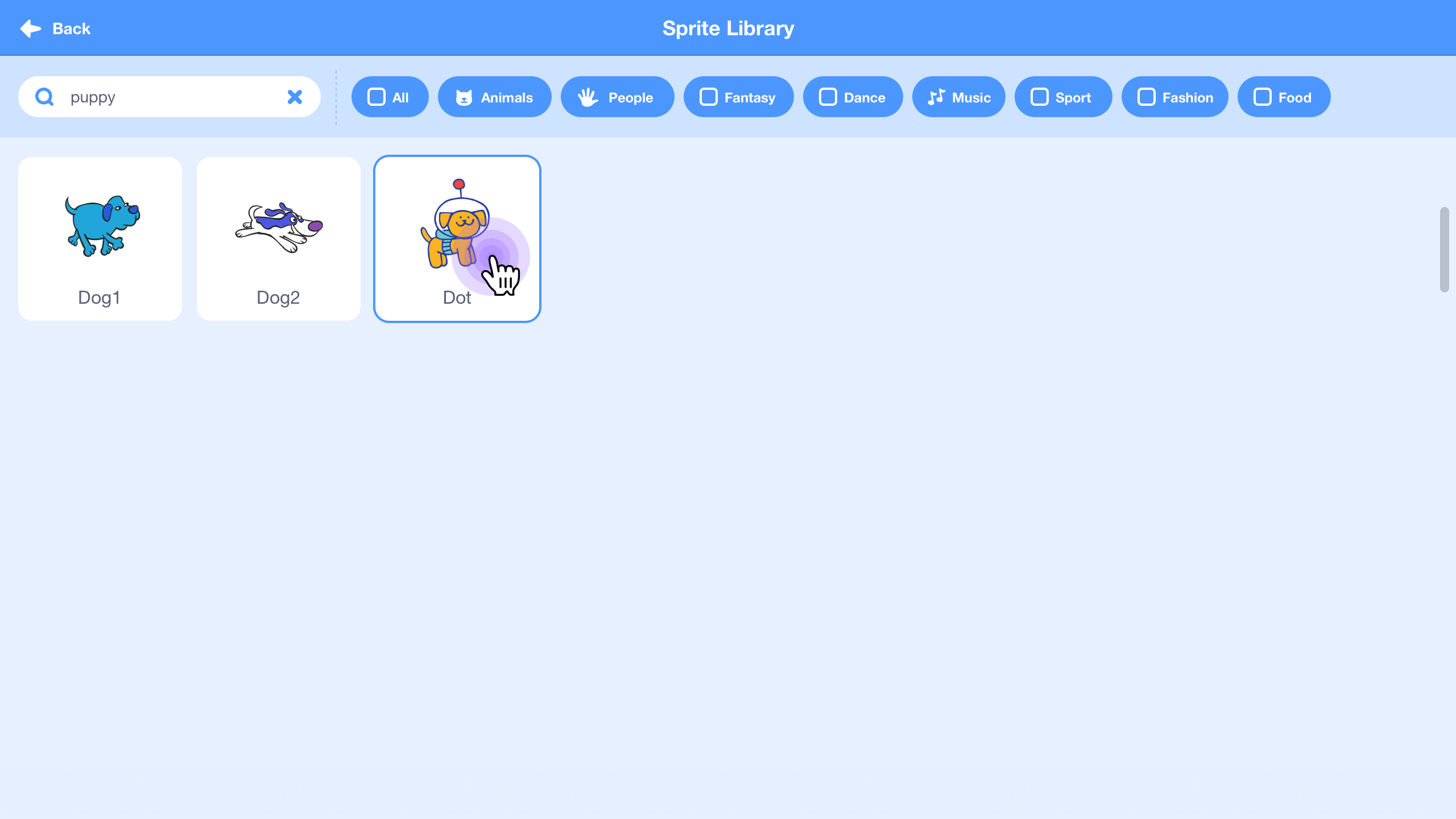
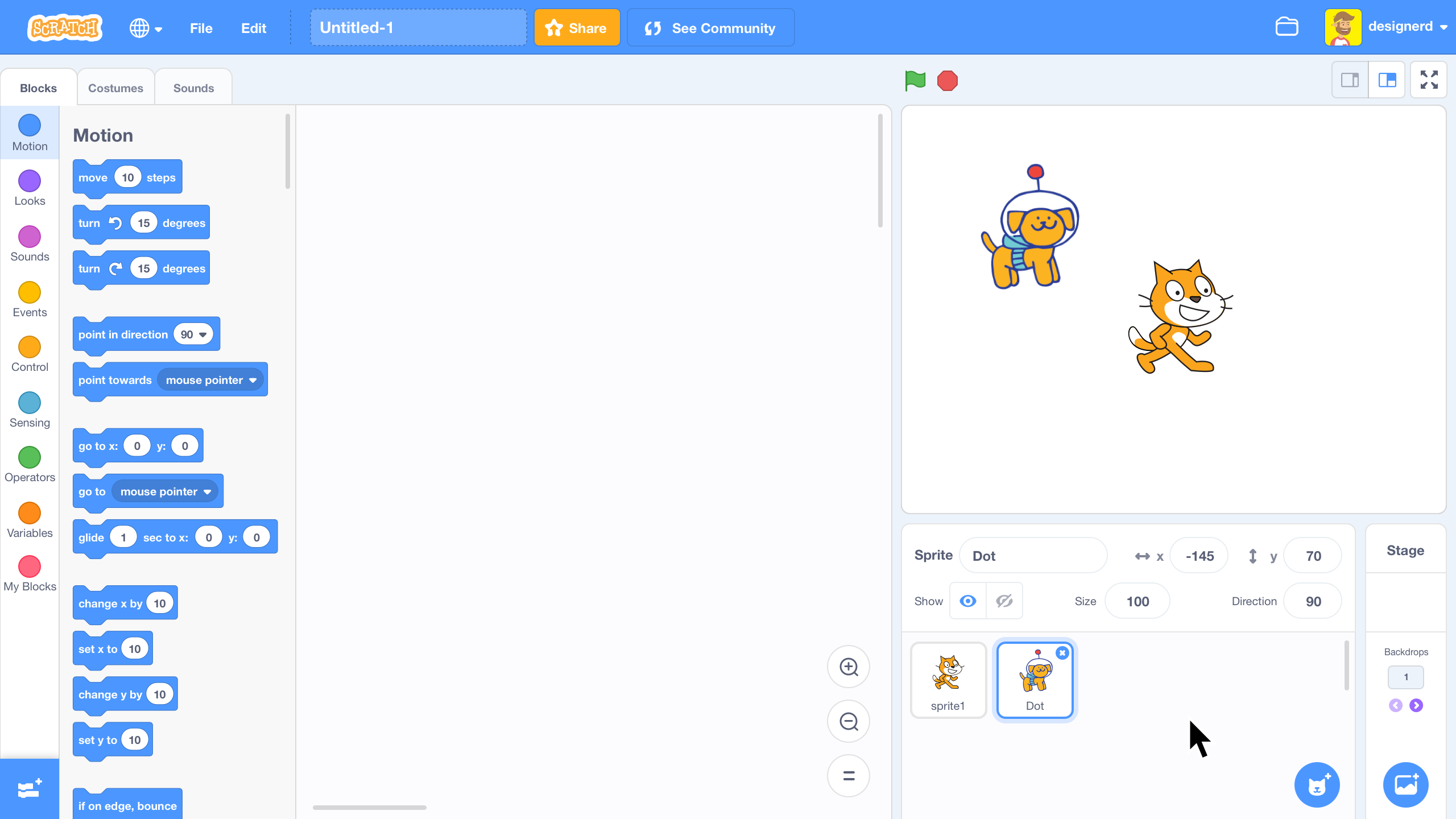
6) Clicking to Add "Dot"
7) Dot Added to Project
 carljbowman
on 27 Mar 2018
carljbowman
on 27 Mar 2018
Here are some sound filters:
- Animal
- Effects
- Loops
- Notes
- Percussion
- Space
- Sports
- Voice
- Wacky
 ericrosenbaum
on 19 Apr 2018
ericrosenbaum
on 19 Apr 2018
Related issues
 cyx2015s
·
4Comments
cyx2015s
·
4Comments
 apple502j
·
4Comments
apple502j
·
4Comments
 chrisgarrity
·
4Comments
thisandagain
·
3Comments
ericrosenbaum
·
4Comments
chrisgarrity
·
4Comments
thisandagain
·
3Comments
ericrosenbaum
·
4Comments
Most helpful comment
Libraries Phase 2 - Tags/Filters
Overview
Currently we only have the ability to keyword search our libraries. This search only based on the name of the media, e.g. Searching the sprite "dog" will only return "dog1" and "dog2" as results.
Tags: We would like to add a way to tag media (Sprites, Costumes, Backdrops, Sounds, Extensions). Typically these tags will be relatively fine grained, so that when searching things like "puppy", search will also return "dog1", "dog2", etc. At first this will be a manual process of adding tags to media.
Filters: We would like to use the same tagging system for higher-level groupings. These groupings will be exposed as toggle-able UI filters. For example, having the a "Animals" tag to put on "dog1", "cat1", "octopus", etc.
At first applying Search and Filter(s) will be limited to one at a time. See sketches below (specifically Step 4) for more info.
Sprite / Costume Tags
Backdrops Tags
Sounds Tags
Extensions Tags
Since the Extension Library is not as extensive as other libraries, exposing tags as filters feels a bit like overkill. That said, it we should begin to tag Extensions. One thought would be to tag things with requirements, e.g. "Bluetooth", "Internet Connection", etc.
Sketches
These sketches only show the Sprite Library, but the same system should be applied to the Costume, Backdrop, and Sound Libraries.
Here is an InVision prototype to click through: https://invis.io/7HGK8NA6SMX
1) Add Sprite
2) Toggling on "Animals" Filter
For now, filters can only be applied one at a time.
Another detail to note: We would like to move away from a "close" button in the Libraries, but use a "back" button instead. The "back" button will return back to the editor. We should also capture when the browser back button is clicked and do the same, and return to the editor. Currently the back button exits the editor which has been confusing.

3) Filtered Results for "Animals"
4) Clicking into Search
For now, Searching and Filtering will act exclusively. For example, one cannot apply the "Animals" and then search the filtered sprites for "Puppy", instead searching for "Puppy" will clear the active filter and act as it's own filter on all the sprites.
To prevent a jarring jump to when clearing a filter, the filter should remain on "Animals" until the first keystroke in search bar.

5) Searching for "puppy"
The search bar should grow horizontally upon focus, but toggle off the "Animals" filter until the first keystroke.

6) Clicking to Add "Dot"
7) Dot Added to Project