Notepad3: Find Text->Focused View, then just view the result? meaningless, while cut/copy/paste them(the result itself) is expected.
Hi Team,
version: Notepad3 (x64) v5.20.1001.1 beta
scenario:
via Find Text->Focused View, i want to focus the searched out result only;
issue:
current Find Text->Focused View can only view the result on the screen, i.e.: when i try to cut/copy/paste them into the clicpboard/new file, no, the whole unrelated lines are pasted out also.
expect:
can cut/copy/paste the Focused result (the result that is searched out) into the clicpboard/new file(yup, just as UltraEdit handled, which is too heavy though, compared with NP3).
thanks for consideration.
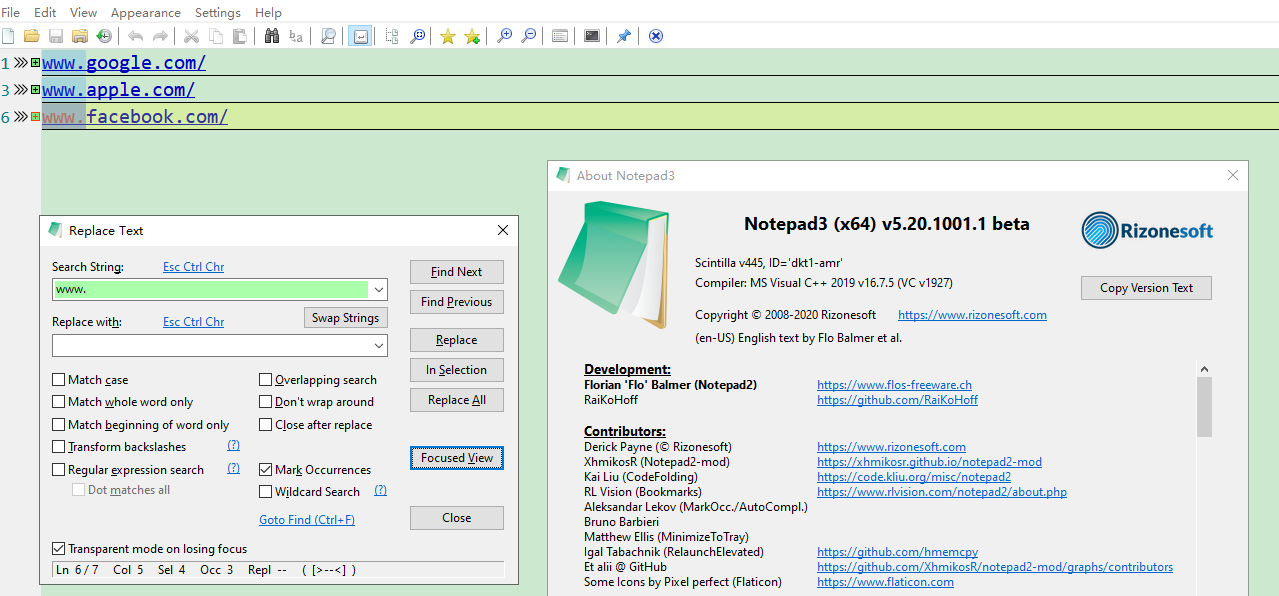
 roger125
All 24 comments
Hello @roger125 ,
copy to clipboard is selection oriented (with some special cases if selection is empty).
The "Focused-View" is not a "Give-Me-Search/Find-Results-Only", but it supports a condensed or focused view on the complete document. So, the focused view is based on folding (can also be based on Bookmarks/Line-Highlight w/o folding).
For folding, you have to distinguish between selecting the folded line only or selection to next line.
In 1st case, you get only the fold head line (selection until CR/LF), in 2nd case, selection beyond CR/LF, you will get the complete folder selected - this is what happened to you (This behavior will not be changed).
In your case, you should use another workflow:
The Focused-View is based on on the Occurrences-Marker, you can use the Focused-View to get a condensed view on what have been marked.
- To get all markers selected (for copying) you should use
Menu->Edit->Miscellaneous->Multi-Select All MatchesorCtrl+Shift+Space. Now all Occurrences are selected and editable. - In your use-case, you should use
Shift-EndShortcut to extend the selection until End-Of-Line (EOL). - Now you can copy these lines to clipboard. they are joined w/o line-breaks.
- If you want to have the line-breaks too, you should add a
Shift+RightArrowin Step 2.
But beware of Folding/Focused-Mode: Including the line-breaks in Folding-Mode, you select the complete folder including content - to avoid that unfold/"unfocus" the selections before selecting the line-breaks.
 RaiKoHoff
on 2 Oct 2020
RaiKoHoff
on 2 Oct 2020
hi @RaiKoHoff
i tried to understand fully what you said, hence i even googled what "CR/LF" means. ^^
copy to clipboard is selection oriented (with some special cases if selection is empty).
don't see the logic here, what you mean is selection first normally, then copy to clipboard, while when i see "Focused View", literally it means focusing the searched result, then, i think it makes sense for the program to obtain those lines directly, that's what "Focused View" means for me, or, maybe it can be renamed into "Focused" to understand and operate more precisely;
The "Focused-View" is not a "Give-Me-Search/Find-Results-Only", but it supports a condensed or focused view on the complete document. So, the focused view is based on folding (can also be based on Bookmarks/Line-Highlight w/o folding).
this is what currently it does, i think my suggestion is a feature suggestion, it enhances the functionality of NP3 in this point, when compared with UltraEdit.
For folding, you have to distinguish between selecting the folded line only or selection to next line.
as the scrrenshot shows the original text file, there's no whatever kind of folding appeared/displayed/related, i mean, the folding in your reply is more the coding aspect for me, while what i expect is only coping the searched out lines.
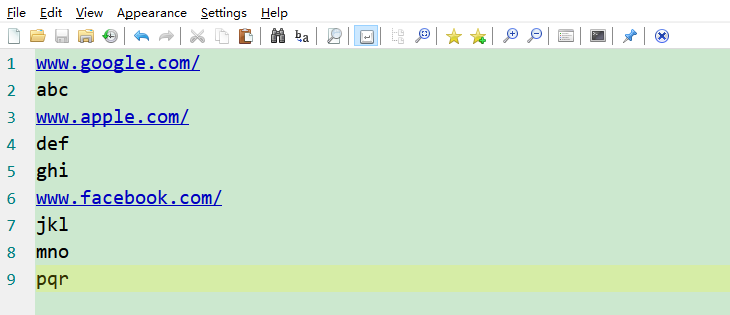
In 1st case, you get only the fold head line (selection until CR/LF),
i tried it, if what it states is only 1 line, while this doesn't make sense, since what the workflow here is not 1 line, it's the several lines via searched out.
in 2nd case, selection beyond CR/LF, you will get the complete folder selected - this is what happened to you (This behavior will not be changed).
actually from a user's point of view, the hidden lines are hidden already, there's no need for the hidden parts to be selected still.
In your case, you should use another workflow:
The Focused-View is based on on the Occurrences-Marker, you can use the Focused-View to get a condensed view on what have been marked.
- To get all markers selected (for copying) you should use
Menu->Edit->Miscellaneous->Multi-Select All MatchesorCtrl+Shift+Space. Now all Occurrences are selected and editable.
i tried this, and it works, but still, makes no sense, i.e.: what i search is "www", then here get "wwwwwwwww";
- In your use-case, you should use
Shift-EndShortcut to extend the selection until End-Of-Line (EOL).
i tried this, but it only works in 1 line(or i can't figure it out how to operate in all the searched out lines), as above mentioned, still makes no sense.
- Now you can copy these lines to clipboard. they are joined w/o line-breaks.
yup, as you said, w/o line-breaks;
- If you want to have the line-breaks too, you should add a
Shift+RightArrowin Step 2.
again, i tried this, but it only works in 1 line(or i can't figure it out how to operate in all the searched out lines), as above mentioned, still makes no sense.
But beware of Folding/Focused-Mode: Including the line-breaks in Folding-Mode, you select the complete folder including content - to avoid that unfold/"unfocus" the selections before selecting the line-breaks.
all in all, there's no folding as i mentioned/expected, what's more, how "to avoid that unfold/"unfocus" the selections before selecting the line-breaks"?
thanks.
roger125
on 2 Oct 2020
expect:
can cut/copy/paste the Focused result (the result that is searched out) into the clicpboard/new file(yup, just as UltraEdit handled, which is too heavy though, compared with NP3).
Hi @RaiKoHoff ,
I thing that with his first picture, @roger125 is trying to find an easy manner to copy only of "What you see is what you get" (and not all of the lines in between) ?
 hpwamr
on 2 Oct 2020
hpwamr
on 2 Oct 2020
Prerequisite: CR/LF means Carriage-Return Line-Feed characters (also called line-break, Windows usually has 2, others OS may have only 1 of them, can be visualized via Menu->View->Show Line Endings)
Yes I know what you mean ;-) but this a File-Editor, not a Word-Processor in WYSIWYG mode.
If you grab a folder with some labeling (head line) in a file cabinet, you will not get the label or envelope only, you also get the content of that folder - this is what happened here.
Using "Focused View" the code base folding is turned into a "Occurrences Marker" based folding, but it is still a folding.
This means it behaves as normal folding copy-paste behaves: selecting only the head line of the fold, copies only the headline, selecting the complete folder, you get the folder including hidden(enveloped) content.
How to select the focused view label/envelope only:
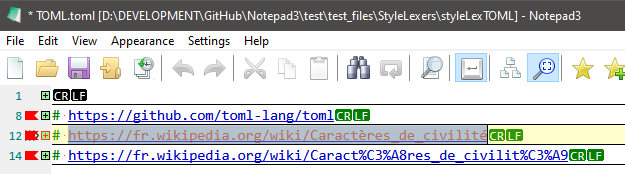
(WYSIWYG: only headline is selected)
How to select the complete folder (label/envelope + content):
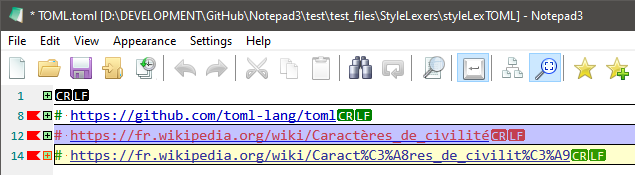
(see selection caret is beyond the CR/LF at the beginning of next line
(WYSIWYG: complete folder is selected)
Now drawing the selection over all folded lines will select the complete document - of cause - this is what should happen.
Maybe some misunderstanding is related to the similar colors of Marked Occurrences (light transparent blue) and Selection (middle transparent blue). @hpwamr : we should use a green default color for occurrences 🤔.
Searching for a pattern will only "select" the first finding and the active "Occurrences Marking" will automatically mark other occurrences of the single selected pattern (they are not "selected" only "marked").
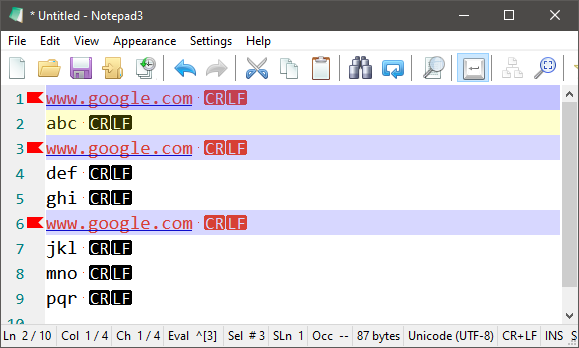
So your workflow in detail:
- Search for your pattern "www." -> the first finding is selected, other occurrences are marked.
- Use "Focused View" to check other occurrences, then deactivate focused view.
- Press
Ctrl+Shift+Spacebar-> this will now multi-select all occurrences (and make them editable) - Press
Shift+Endthis will extend all multi-selections until line-break. - Press
Shift+RightArrow-> this will extend the selection beyond line-breaks (make sure not to be in folded view!) - Press
Ctrl-C-> This will copy all selections including line-breaks to clipboard - and voila, here we are.
OR:
1.
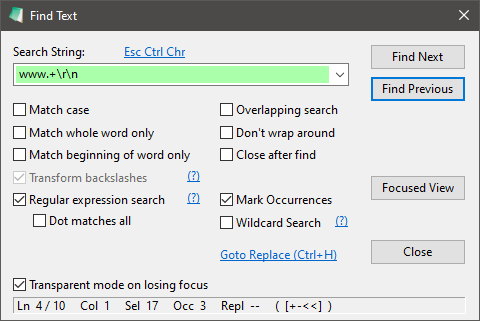
- Press
Ctrl+Shift+Spacebar - Press
Ctrl+C
RaiKoHoff
on 2 Oct 2020
pattern "www."
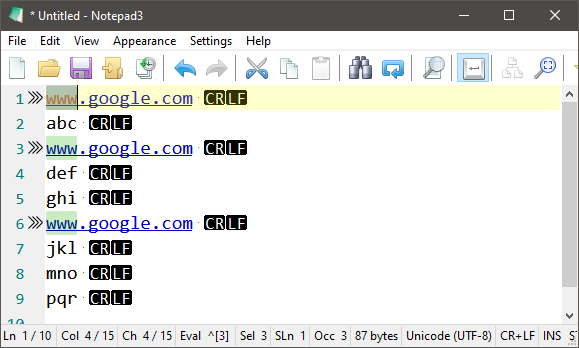
Ctrl+Shift+Spacebar
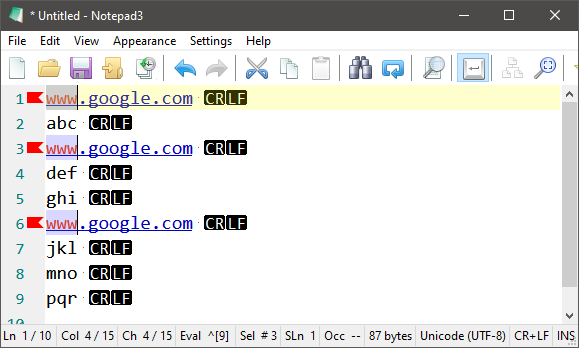
Shift+End
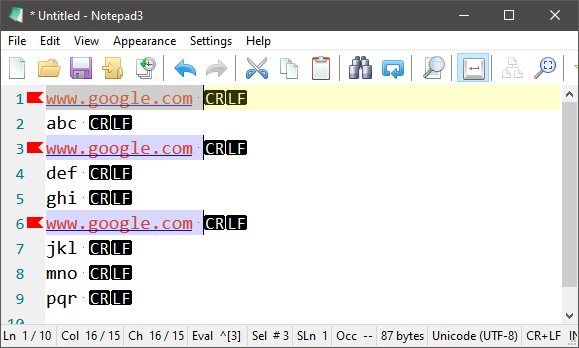
Shift+RightArrow
RaiKoHoff
on 2 Oct 2020
yup, what i expect here is:WYSIWYG.
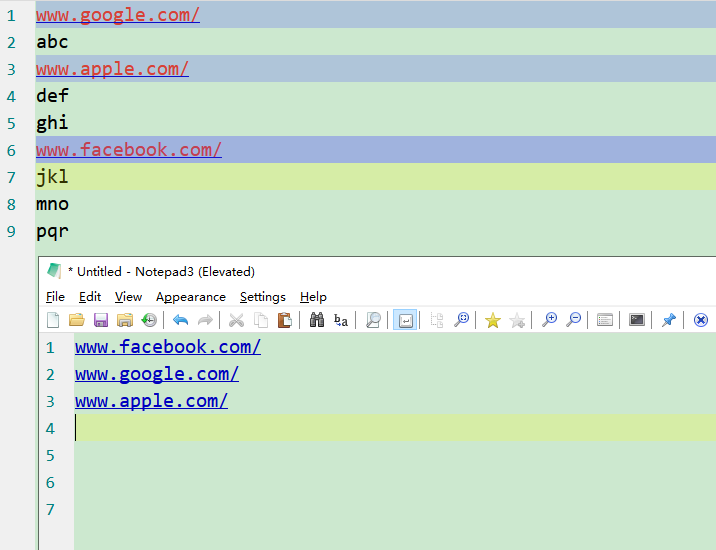
ok, follow your workflow in detail, i fiinally make it and get what's expected here.
but honestly, 6 steps to get it, it's really too much steps, compared with Ultraedit. ^^
all in all, while, i don't see too much difference betwen File-Editor & Word-Processor, thoguh i know Microsoft Word style, regardng the style here, by the way, the column mode of NP3 is not yet so powerful as Ultraedit, e.g.; add the serial number in each line, or left-align, middle-align, right-align, etc.
so maybe NP3 is ok not to add this or that, otherwise, it's another Ultraedit or Microsoft Word. ^^
roger125
on 3 Oct 2020
but honestly, 6 steps to get it, it's really too much steps, compared with Ultraedit. ^^
Hello @roger125 ,
I would like to draw your attention to the fact that you are comparing 2 different products : 🤔
- a "Free Open Source Application of 4MB" developed and maintained by volunteers (Rizonesoft.com/Notepad3).
with - a "Commercial Application of min 94MB" to buy for $119.95 or subscribe for $79.95 annually (UltraEdit.com).
hpwamr
on 3 Oct 2020
- pattern "www."
Hello @RaiKoHoff ,
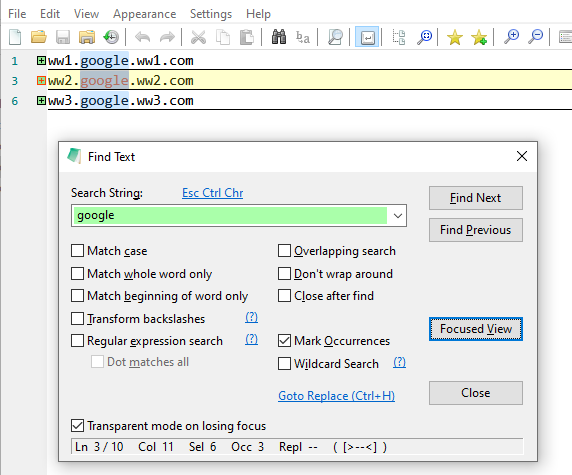
It looks like your procedure above shows a limitation of "row selection" with here "google" as pattern "eg: Pattern_google.txt" ? 😏
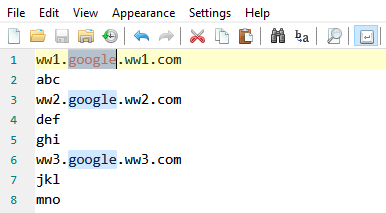
Edit: Below @jupester describes a correct and faster way that removes this limitation. 👍
hpwamr
on 3 Oct 2020
Just press the Home key before the Shift+End.
ed: actually you can replace the Home then Shift+End then RightArrow with Home, Shift+Down instead for line selection.
 jupester
on 3 Oct 2020
jupester
on 3 Oct 2020
ed: actually you can replace the Home then Shift+End then RightArrow with Home, Shift+Down instead for line selection.
Hi @jupester
Yes, your procedure is the faster way with my example above and Notepad3. 💯
1. Patern: "google"       (selection of a "google" occurrence)
2. Ctrl+Shift+Spacebar    (selection of all "google" occurrences)
3. Home                   (go to the beginning of the lines with the occurrences "goggle")
4. Shift+Down             (selection of all complete lines with "google" occurrences)
5. Ctrl+C or Ctrl+X       (copy or cut all selected lines with "google" occurrences)
6. Paste                  (paste all the selected lines with "google" occurrences at the location of your choice)
A enhancement would be an optional flag "append line-break to every single item of a multi-selection while copying to clipboard" 🤔 Not sure if we need a line-break already selected detection, to avoid double line-breaks 🤔
RaiKoHoff
on 4 Oct 2020
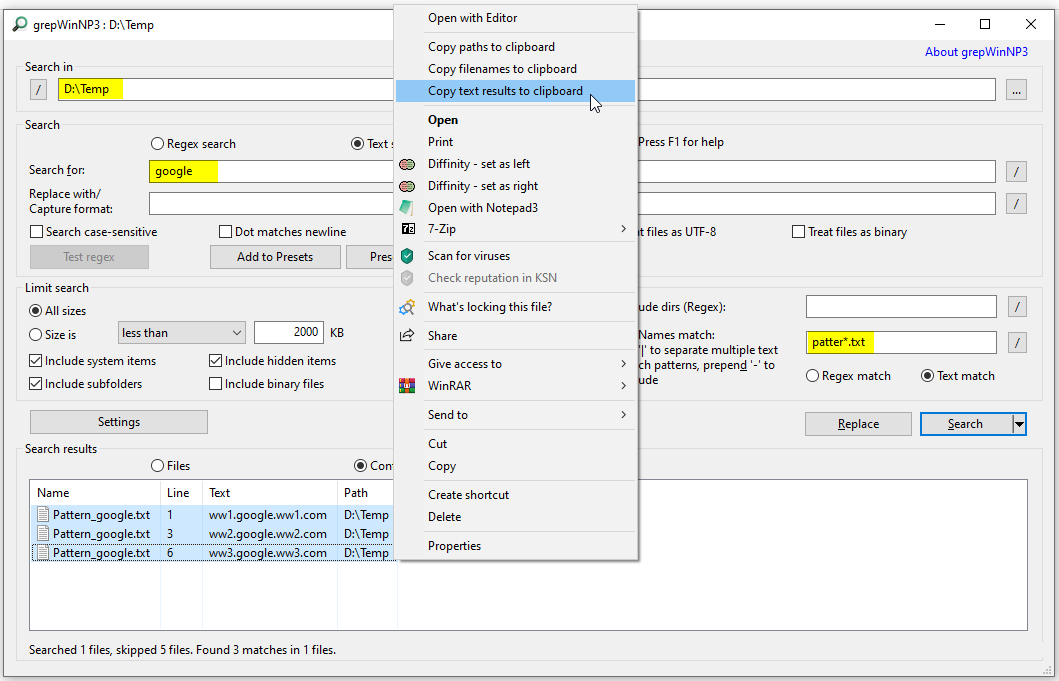
Also a fast alternative is to use our powerful external tool "grepWinNP3" 😃
1. Open "grepWinNP3"  (Search in Files "Ctrl+Shift+F")
2. Search for "google"
3. Select all results
4. Open the "Context Menu" (right click Mouse on selected text) and select "Copy text results to clipboard"
5. Paste the content of Clipboard in Notepad3

hpwamr
on 4 Oct 2020
A enhancement would be an optional flag "append line-break to every single item of a multi-selection while copying to clipboard" 🤔 Not sure if we need a line-break already selected detection, to avoid double line-breaks 🤔
Hello @RaiKoHoff ,
It seems to me that the simplest and fastest alternative would be: "to allow a WYSIWYG copy of the selected lines of the search result when the focused view is activated" (maybe in a Context Menu in results as grepWinNP3) ? 🤔
hpwamr
on 4 Oct 2020
@hpwamr : This breaks the long lasting behavior for copying folded code segments. As mentioned, it is as if you try to grab a folder from file cabinet and the content of the folder stays in file cabinet. Or you ask your colleague: Please copy this folder and he comes back with a copy of the envelope.
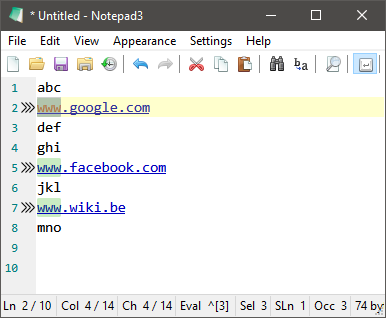
Find "www":
Focused View:

What I see is: "Selection of line 2 until start of line 7"
What I expect on copy to clipboard: line 2 until and including line 6 should be in clipboard!
So perfect WYSIWYG 👍
RaiKoHoff
on 4 Oct 2020
Open the "Context Menu" (right click Mouse on selected text) and select "Copy text results to clipboard"
Well, I was just hoping there was a quick way to get the same results as "grepWinNP3" with a "Copy text results to clipboard" context menu. 🤔
But if that is not possible, I accept it...
hpwamr
on 4 Oct 2020
It seems to me that the simplest and fastest alternative would be: "to allow a WYSIWYG copy of the selected lines of the search result when the focused view is activated"
i feel that you were me@hpwamr, because what you mentioned in last 2 replies is 100% exactly what i mentioned as previously, that makes me feel empathic(we're on the same page). ^^
and i totally understand what @RaiKoHoff replied now, anyway, as for the possible enhancement: maybe one optional flag:
for those who want the full content, click A;
for those who want the focused content, click B;
can choose the default option, F7 to save it;
logic here: for specific user, i assume it won't change from this to that frequently, as this is kind of work flow to remember, every user's daily work won't change frequently, i.e.: i don't have the scenario to get the full content here, what i expect frequently is the focused content only, that's why i need focus them firstly. ^^
obviously, what i need is B here.
roger125
on 4 Oct 2020
 Mitezuss
on 4 Oct 2020
Mitezuss
on 4 Oct 2020
Hello @RaiKoHoff ,
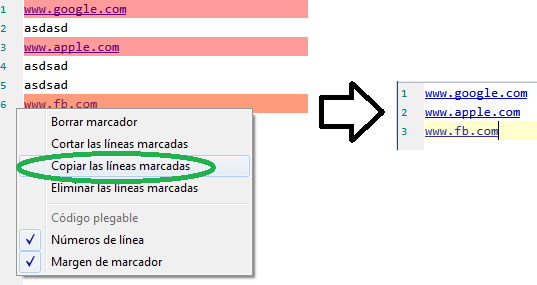
As @Mitezuss mentions it, a simple solution already exists. 👍
This solution works with bookmarked or highlighted occurrences.
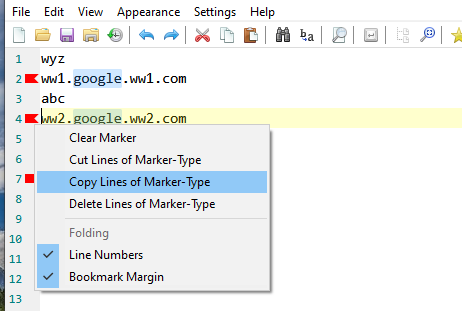
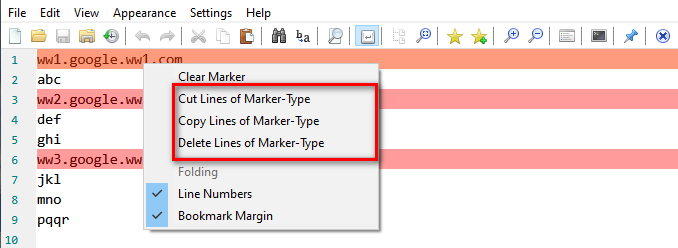
When occurrences are bookmarked, a context menu allows to cut or copy the highlighted lines.
PS: it seems to have a small bug because cutting the highlighted lines works correctly, by copying the highlighted lines, no. 🤔
hpwamr
on 5 Oct 2020
@RaiKoHoff @hpwamr , not sure why you guys didn't mentioned what @Mitezuss mentioned, it's quite beautiful as i expected. ^^
roger125
on 5 Oct 2020
🤣 totally lost in "copy of folded blocks" I forgot, that I already implemented this a short time ago - not able to see the wood for the trees 🤣 It is just not working for Focused View "folded mode only", you need the Bookmark/Highlight (or combined) mode.
@hpwamr : What do you mean by " by copying the non-highlighted lines" - there is no context-menu entry for this ?
RaiKoHoff
on 5 Oct 2020
it seems to have a small bug because cutting the highlighted lines works correctly, by copying the non-highlighted lines, no.
Correction: by copying the highlighted lines, no. 😬
Hello @rizonesoft ,
More explanation for the small bug:
When you test with my file "eg: Pattern_google.txt" :
If the first line is "ww1.google.ww1.com"
- Copy all bookmarked or highlighted occurrences seems to work correctly
- But Cut all bookmarked or highlighted occurrences cut and copy in clipboard only the first line ?
If the first line is NOT "ww1.google.ww1.com"
- Cut all bookmarked or highlighted occurrences seems to work correctly
- But Copy all bookmarked or highlighted occurrences seems to copy in clipboard only one line ?
hpwamr
on 5 Oct 2020
... @hpwamr : Yes, I have to talk to the Q-Department ... 😉
RaiKoHoff
on 5 Oct 2020
Hello @roger125 , @jupester ,
The procedure in details and pictures:
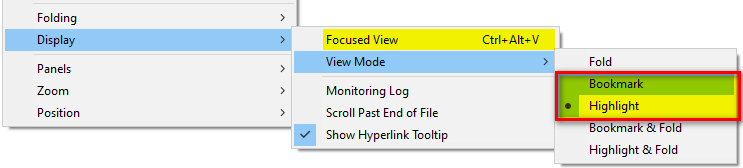
- Make sure that
BookmarkorHighlightedis selected (it doesn't work withFold)
- Select your word and
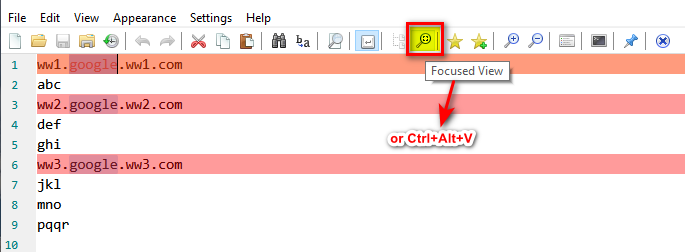
Press Focused VieworCtrl+Alt+V
PS: If your selection is not a whole word, use either theFind Dialog Ctrl+Fand itsPress Focused View
orView-->Mark Occurrences-->Match Whole Word Only-->OFF
- Call the "Context Menu" by right-clicking on a highlighted line.
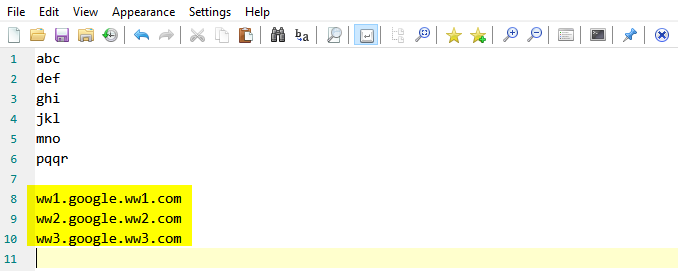
- Paste the result where you want it... 😃
Feel free to test the "BETA/RC paf" version "Notepad3Portable_5.20.1012.2_beta.paf" or higher, see below or issue #1129.
"Notepad3Portable BETA/RC paf" version can be used with or without ".7z" extension.
To update your "Notepad3 Setup" version with the latest features/fixes from the "BETA/RC" version, see issue #1105.
Also, feel free to test the "BETA/RC Setup" version "Notepad3_5.20.1012.2_beta_Setup" or higher, see below or issue #1129.
Comments and suggestions are welcome... 😃
hpwamr
on 6 Oct 2020
thank you team, wonderful.
roger125
on 7 Oct 2020
Related issues
 vvyoko
·
3Comments
vvyoko
·
3Comments
 dlong500
·
3Comments
hpwamr
·
3Comments
dlong500
·
3Comments
hpwamr
·
3Comments
 zb-z
·
3Comments
zb-z
·
3Comments
 blackcrack
·
3Comments
blackcrack
·
3Comments
Most helpful comment
🤣 totally lost in "copy of folded blocks" I forgot, that I already implemented this a short time ago - not able to see the wood for the trees 🤣 It is just not working for Focused View "folded mode only", you need the Bookmark/Highlight (or combined) mode.
@hpwamr : What do you mean by " by copying the non-highlighted lines" - there is no context-menu entry for this ?