Files: Most Settings unavailable in version 0.7.0.0
Describe the bug
Most options in the new Settings page are greyed-out, i.e. unavailable.
To Reproduce
Steps to reproduce the behavior:
- Install the latest pre-release using the Install.ps1 script.
- Open Files and grant File Access permission.
- Open File->Settings.
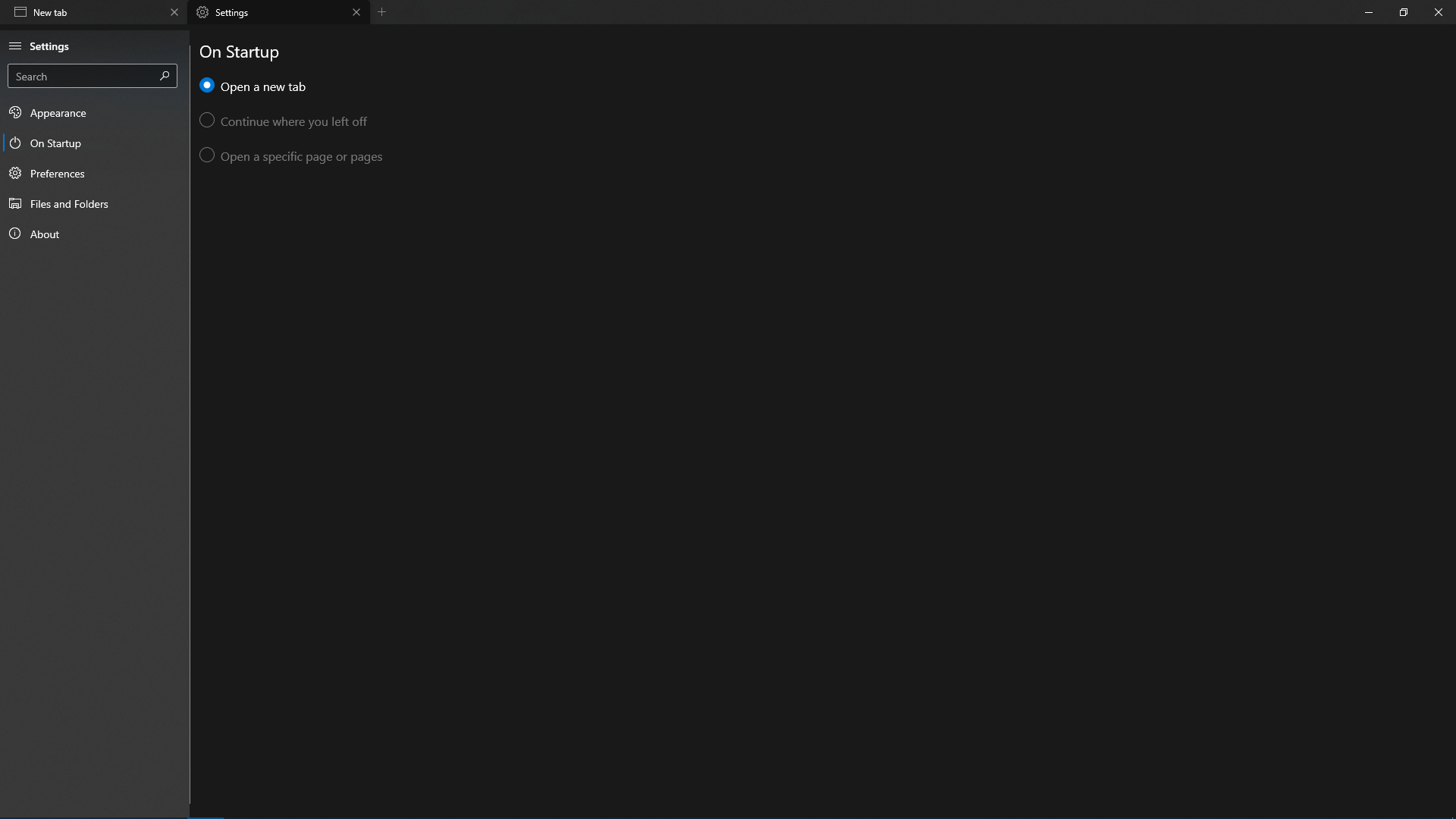
- Go to On Startup tab. Only the first option 'Open a new tab' is available. 'Continue where you left off' and 'Open a specific page or pages' are unavailable.
- Go to Preferences tab. The 'Pin Onedrive to the sidebar' option is unavailable. Also, clicking on 'Replace common locations' button breaks the app and makes it unusable. I had to reinstall it.
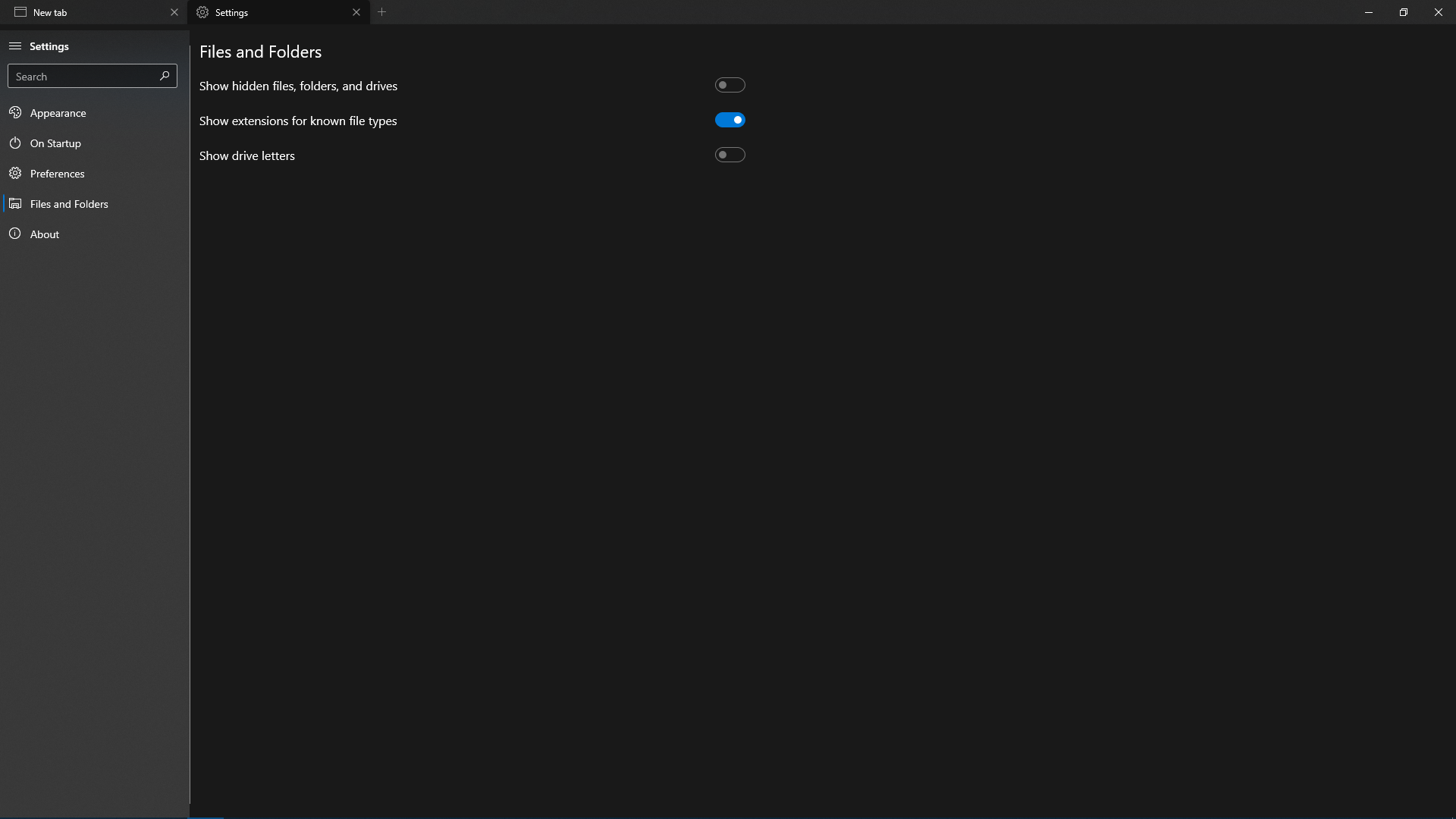
- Go to Files and Folders tab. Here, all the options are unavailable. Refer the screenshot below.
Screenshot
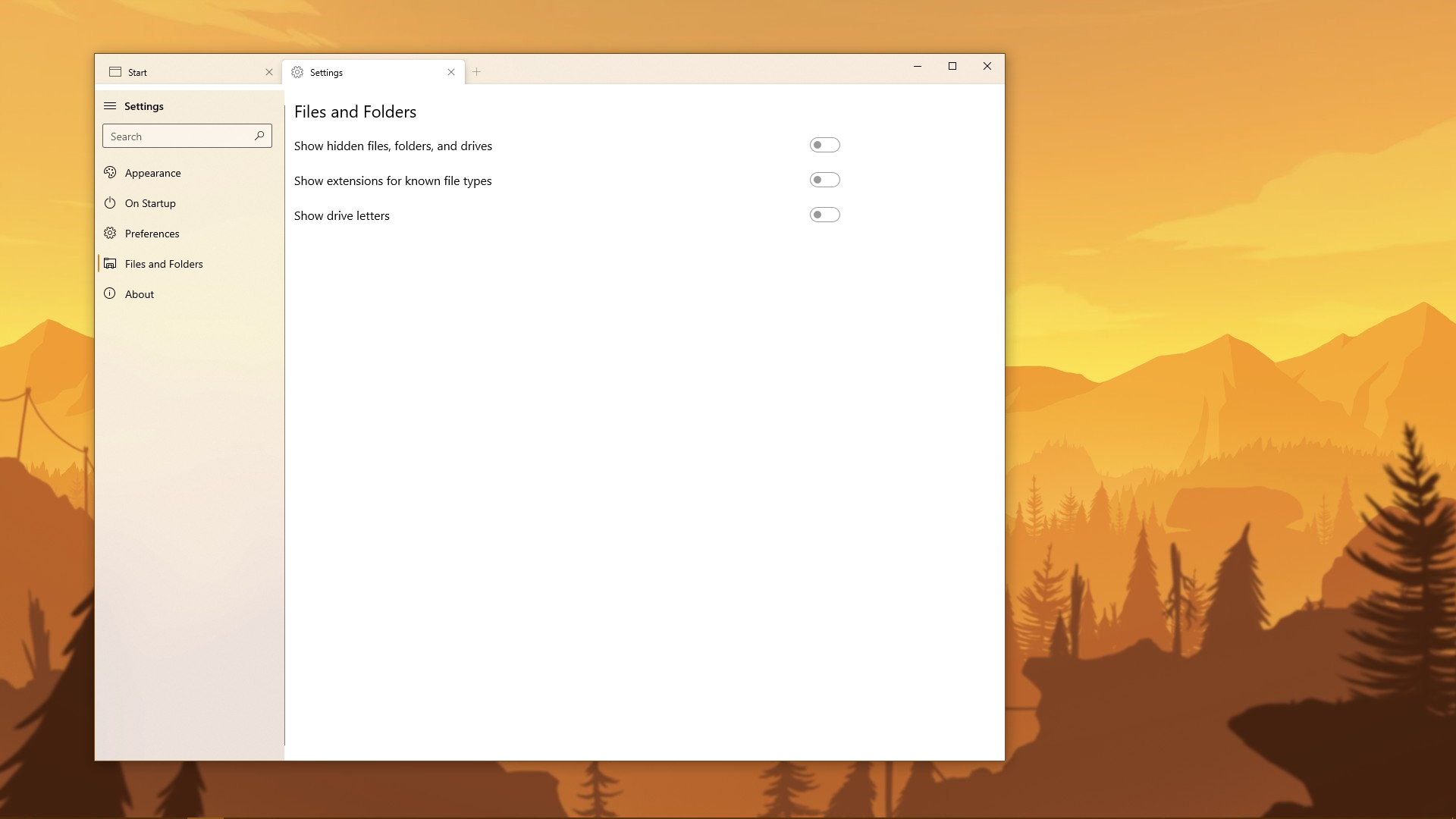
Desktop:
- Windows 10 Home Version 1909 (OS Build 18363.657)
- Files UWP Version 0.7.0.0
 rashil2000
All 24 comments
The options that are grayed out are ones that have not been implemented but are coming in the future.
Can you show a screenshot of how the pin to OneDrive option looks?
 yaichenbaum
on 23 Feb 2020
yaichenbaum
on 23 Feb 2020
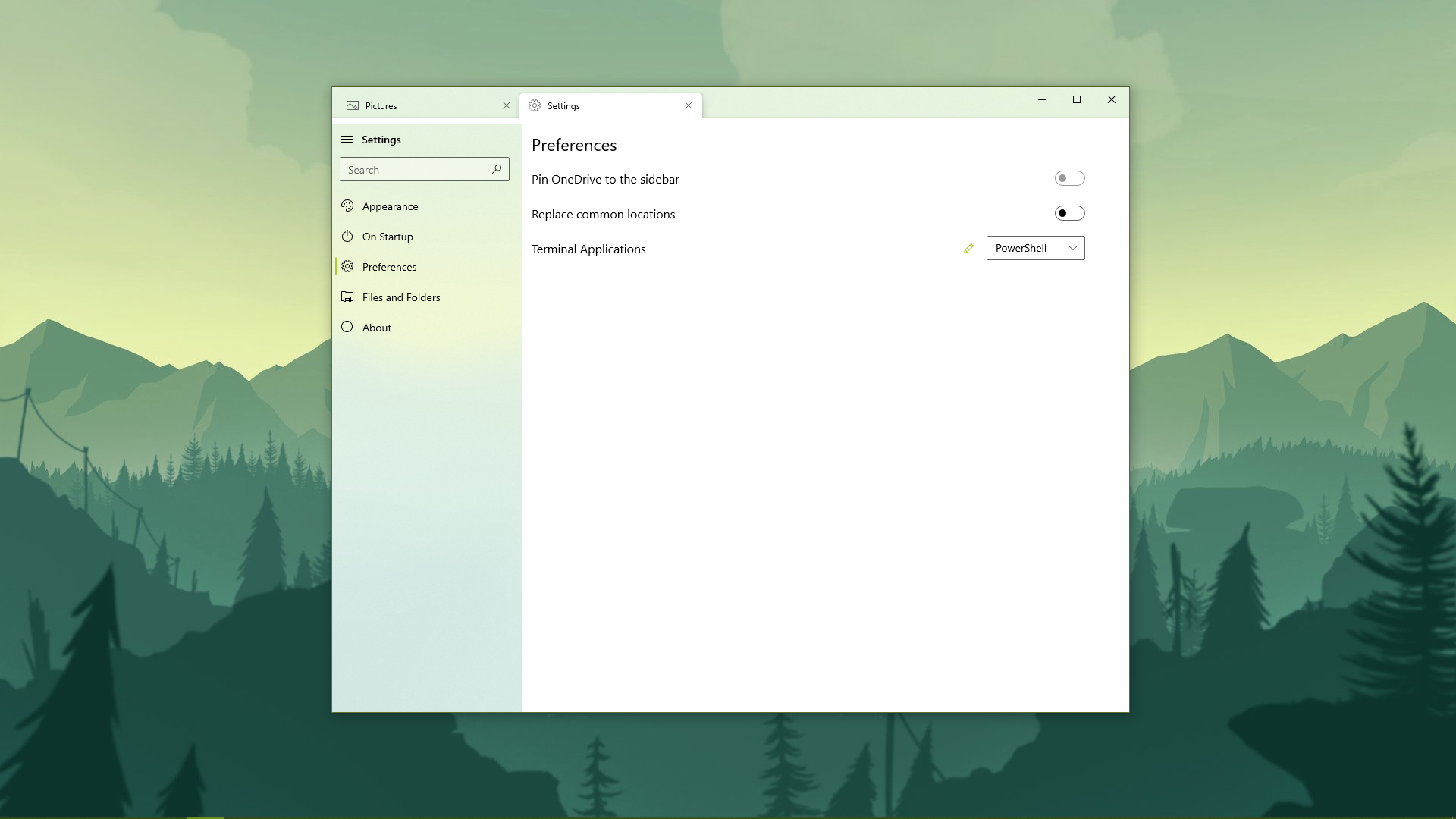
All three options here have some problem. The first one is greyed out, the second breaks the app as I mentioned earlier, and the third, after uncommenting the PowerShell Core 6 part in terminal.json and replacing it with powershell.exe as I only have the legacy PowerShell, the terminal opens initially with a blank screen and then hangs up.
rashil2000
on 23 Feb 2020
@rashil2000 For the legacy powershell you need a different argument:
-noexit -command "cd '{0}'"
 lampenlampen
on 24 Feb 2020
lampenlampen
on 24 Feb 2020
Oh, thanks for that!
Also, could you please include the instructions in the Readme file as to how to build the app from source?
rashil2000
on 24 Feb 2020
@rashil2000 There is an open issue for that already 🙂
Its something we plan on doing in the next few days.
yaichenbaum
on 24 Feb 2020
In Short:
- Install Visual Studio 2019 & UWP Development Kit link.
- Clone the source and open the
Files.slnin VS. - VS installs all missing dependencies for you.
- Make sure you are on the
developbranch if you want the latest, otherwise you can usemasterfor the stable version. - Launch the package project.
PS: I don't recommend changing the install path of Visual Studio.
Edit 1: Assuming you have some knowledge about git and Visual Studio.
lampenlampen
on 24 Feb 2020
PS: I don't recommend changing the install path of Visual Studio.
That's exactly the problem I have. The UWP Development Workload costs around 10GB, but I only have around 15GB available in my SSD (C drive). I'm looking for workarounds though.
rashil2000
on 24 Feb 2020
So i changed my normal installation path and managed to get it to work 👍.
The only problem I had, was that VS couldn't find the Desktop Expansion SDK.
On some microsoft post someone suggested to copy the expansion sdk to the normal folder and than it worked.
lampenlampen
on 24 Feb 2020
This should be fixed with the v0.7.2 release, which is currently in certification in the Microsoft Store.
yaichenbaum
on 20 Mar 2020
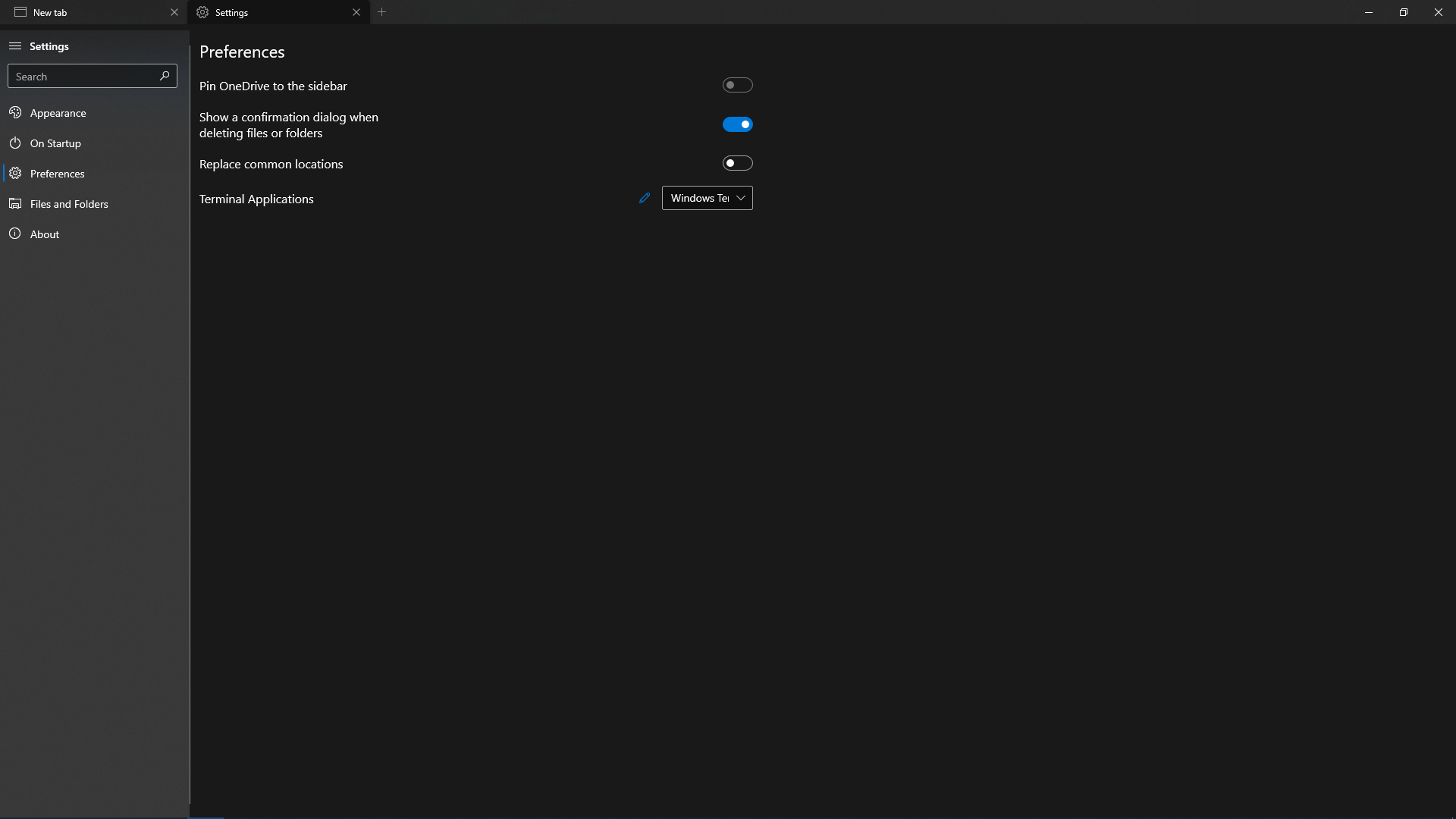
Looks like many of them are still unavailable.
rashil2000
on 23 Mar 2020
@rashil2000 Can you clarify what you mean by unavailable?
yaichenbaum
on 23 Mar 2020
The options are greyed out.
rashil2000
on 23 Mar 2020
The options that are grayed out are ones that have not been implemented but are coming in the future.
I am not sure why the OneDrive option is not enabled for you but I will do some investigations.
yaichenbaum
on 23 Mar 2020
Okay.
By the way I have the OneDrive app installed too.
rashil2000
on 23 Mar 2020
It shouldn't make a difference, the only thing that toggle does is remove the OneDrive option from the sidebar.
yaichenbaum
on 23 Mar 2020
I noticed very strange behavior here.
I reinstalled the app. The OneDrive option was already there this time. Clicking on it just crashed the app.
Also, when I switched the Date format in Settings to System, the OneDrive sidebar option disappeared. 😐
rashil2000
on 23 Mar 2020
@rashil2000 Would you be able to get information from the log file so we can investigate this?
yaichenbaum
on 23 Mar 2020
@rashil2000 Do you have the classic OneDrive app installed or the Microsoft Store one?
 duke7553
on 23 Mar 2020
duke7553
on 23 Mar 2020
@rashil2000 Sure, I'll be happy to help. I just don't know how to get those logs. Can you tell how?
@duke7553 I think I have the Store version, since in the Store I can see it installed, and in the Control Panel I can't see it. Is there any other way to check?
rashil2000
on 24 Mar 2020
You can get the log file by going to the folder %localappdata%/Packages, search there for the folder Files and there in the folder LocalState should be a file debug.txt, which contains a stacktrace.
yaichenbaum
on 24 Mar 2020
@rashil2000 Yep. Our app is only compatible with the version of OneDrive that ships with Windows instead of the Store app.
Please download this here: https://products.office.com/en-us/onedrive/download
duke7553
on 24 Mar 2020
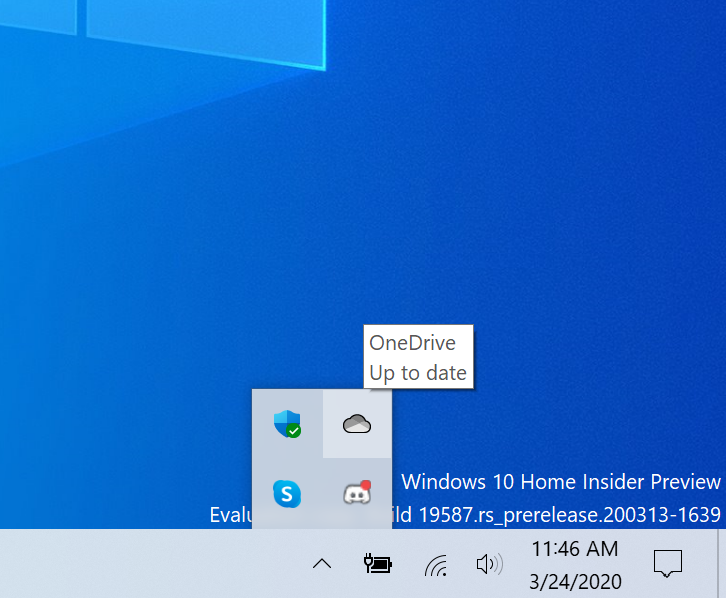
If you want to see if the correct version of OneDrive is installed, check the system tray for the icon
duke7553
on 24 Mar 2020
2020-03-24 22:29:02.1329|INFO|Files.App|App launched
2020-03-24 22:29:04.2303|ERROR|Files.App|Value cannot be null.
Parameter name: path
2020-03-24 22:30:27.5235|INFO|Files.App|App launched
2020-03-24 22:30:45.3662|INFO|Files.App|App launched
2020-03-24 22:31:22.9186|INFO|Files.App|App launched
2020-03-24 22:32:05.4078|INFO|Files.App|App launched
2020-03-24 22:32:19.5099|INFO|Files.App|App launched
2020-03-24 22:32:50.4351|INFO|Files.App|App launched
2020-03-24 22:33:08.5943|INFO|Files.Filesystem.DrivesManager|Drive added: C:\, Fixed
2020-03-24 22:33:08.6132|INFO|Files.Filesystem.DrivesManager|Drive added: D:\, Fixed
2020-03-24 22:33:08.6332|INFO|Files.Filesystem.DrivesManager|Drive added: E:\, Fixed
2020-03-24 22:33:08.6481|INFO|Files.App|App launched
2020-03-24 22:33:29.1000|INFO|Files.Filesystem.DrivesManager|Drive added: C:\, Fixed
2020-03-24 22:33:29.1180|INFO|Files.Filesystem.DrivesManager|Drive added: D:\, Fixed
2020-03-24 22:33:29.1409|INFO|Files.Filesystem.DrivesManager|Drive added: E:\, Fixed
2020-03-24 22:33:29.1559|INFO|Files.App|App launched
@yaichenbaum Here's the log file.
At 22:32:05.4078, I opened Settings, but didn't change anything. Then I opened a new tab (without exiting). In the new tab, the OneDrive option was gone. Then at 22:32:19.5099, I reopened the app. The OneDrive option was still not there.
@duke7553 Oh, I was just using the version that came with my Windows 10 installation. It was the Store version.
rashil2000
on 24 Mar 2020
@rashil2000 For OneDrive functionality to work in Files, please download the program linked above.
duke7553
on 24 Mar 2020
Related issues
 p0nkr4t
·
38Comments
p0nkr4t
·
38Comments
 XPoppyX
·
18Comments
XPoppyX
·
18Comments
 R3voA3
·
26Comments
XPoppyX
·
36Comments
R3voA3
·
26Comments
XPoppyX
·
36Comments
 ArttuLai
·
24Comments
ArttuLai
·
24Comments