Docksal: VirtualBox installation fails on macOS High Sierra 10.13
macOS High Sierra 10.13 introduces a new feature that requires user approval before loading newly-installed third-party kernel extensions (KEXTs). When a request is made to load a KEXT that the user has not yet approved, the load request is denied. Apps or installers that treat a KEXT load failure as a hard error will need to be changed to handle this new case.
Approval is automatically granted to third-party KEXTs that were already present when upgrading to macOS High Sierra.
This issue affects anyone installing VirtualBox for the first time on a fresh macOS High Sierra 10.13.
This effectively breaks our fully automated installation process on macOS, since the user now has to perform a manual approval and then restart the installation (reboot and rerun the installation in some cases)
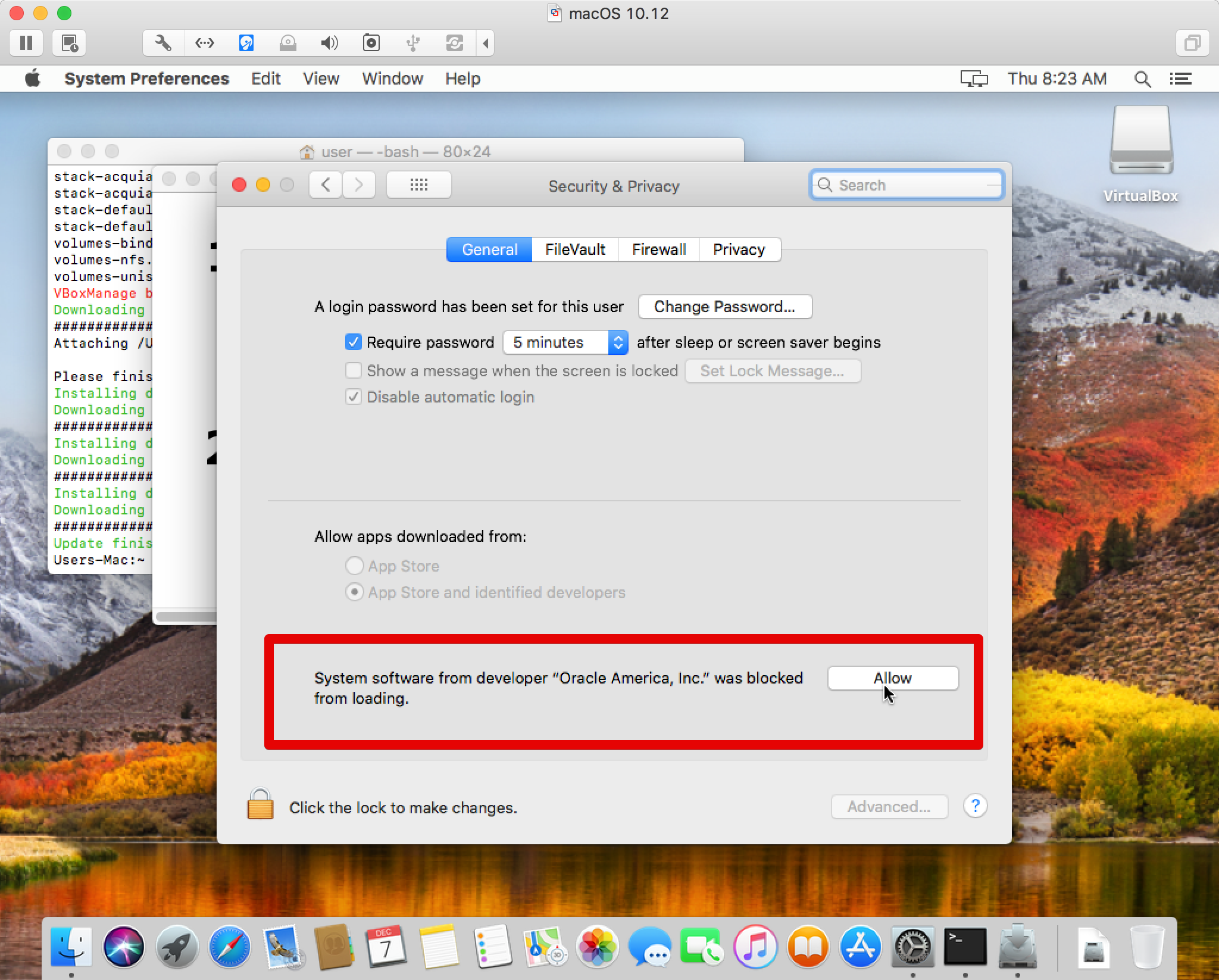
Note: If the Allow button does not show up, run sudo kextcache -system-caches
Note: If the Allow button is there but clicking it does nothing, use the Tab key to focus on it and the Space key to press (you will need Full Keyboard Access enabled for this method to work).
References:
- Originally posted with details in https://github.com/docksal/docksal/issues/377#issuecomment-349978511
- Official note from Apple: Technical Note TN2459: User-Approved Kernel Extension Loading
- StackExchange: VirtualBox 5.1.28 fails to install on MacOS 10.13 due to KEXT security
- Homebrew/Cask: Cannot install virtualbox on macOS High Sierra
- VirtualBox forums: VirtualBox fails to run on macOS High Sierra - kernel driver not loaded
- VirtualBox forums: 10.13 Failing installation; Kernel driver not loaded
- Comments in this issue: Getting the Allow button to show up
- Comments in this issue: If the Allow button is there but clicking it does not work (yes, for even that is an issue)
- Additional advanced reading: User Approved Kernel Extension Loading
This video covers the manual steps necessary to install VirtualBox successfully.
 lmakarov
All 49 comments
Thanks!! You saved me :)
 gyucheonheo
on 9 Jan 2018
gyucheonheo
on 9 Jan 2018
We should update installation/troubleshooting docs and reference this issue.
lmakarov
on 12 Jan 2018
Found this during a search for something else. Probably not viable to most, but before you install Virtual Box, if the Mac is enrolled in an MDM (any). It disables the need for user authorisation in the preference panel.
After enrolling, you can push install VB and it installs fine. Just fyi. (I've tested).
 andrewpurvis
on 24 Jan 2018
andrewpurvis
on 24 Jan 2018
@andrewpurvis could you elaborate on what "enrolled in an MDM" means?
 achekulaev
on 24 Jan 2018
achekulaev
on 24 Jan 2018
MDM = Mobile device management. (such as JAMF, or MS Intune) Which is why I said it wasn't viable for most. Just thought I would leave it here in case anyone was trying multiple deployments.
andrewpurvis
on 24 Jan 2018
@lmakarov literally everyone who installs with VirtualBox will meet this issue. I think we need to update installation docs for macOS to say 1. Install VirtualBox and enable extension (screenshot) 2. curl...
achekulaev
on 17 Feb 2018
literally everyone who installs with VirtualBox will meet this issue
Only those installing VirtualBox for the first time. There is a big warning box in the installation instructions for macOS users (http://take.ms/7puBW) with links to how to solve the issue (including a screencast of the process). Should be enough IMO and does not clutter the installation instructions.
lmakarov
on 18 Feb 2018
@lmakarov do you have any arguments against having a documentation item to install VirtualBox and enable extension first or you just do feel like doing it?
achekulaev
on 19 Feb 2018
Thank you SO much! I wasn't able to find this anywhere for the longest time!
 Ghast505
on 28 Feb 2018
Ghast505
on 28 Feb 2018
Thanks you !!!
 josejayesh
on 8 Mar 2018
josejayesh
on 8 Mar 2018
Actually, it isn't just for the first time. I've had VirtualBox installed for quite a while.. It took a lot of steps to get to this Issue, but the short of it is this:
I had VirtualBox installed.
I upgraded to 10.13.4
I ran vagrant up on a new VM. It failed to launch.
I attempted to reinstall vagrant. I attempted to install an update for VirtualBox (which kept failing to install properly.)
I found this issue. I reinstalled the update, accepted the security exception, and now the rest is good.
TL;DR: This impacts existing installations as well.
 DoingTheNeedful
on 3 Apr 2018
DoingTheNeedful
on 3 Apr 2018
Should be enough IMO and does not clutter the installation instructions.
Sadly not - and I'm a reasonably careful reader-of-the-doco. But today I'm in a rush, it's the usual installer program, I just click next. Google led me here.
You need to update the process, I'm afraid.
 johnnydecimal
on 5 Apr 2018
johnnydecimal
on 5 Apr 2018
To add on - I understand that this cannot be automated, but it should be highlighted in the installation process. There should be a prompt to tell the user to go approve the exception. While some of us do read the docs, many do not. This is a necessary part of the installation, I'm uncertain why you'd expect the average user to not attempt the installation without scanning the docs for gotchas.
DoingTheNeedful
on 5 Apr 2018
Re-opened to consider updating documentation / process.
achekulaev
on 5 Apr 2018
Docs updated in https://github.com/docksal/docksal/commit/68a1cc19e12400be6e87e181ca4a23b992233ba1
Leaving open for possible automation to wait for kernel extension allowance
achekulaev
on 6 Apr 2018
Lesson learned/remembered: I was clicking "allow" and nothing was happening... so just to confirm, you can only click it locally (not remotely via vnc).
 north27
on 16 Apr 2018
north27
on 16 Apr 2018
thank you~~!!!!
 audtjddld
on 17 Apr 2018
audtjddld
on 17 Apr 2018
We have several Mac slaves that are used as part of our Jenkins CI infrastructure that are configured in a fully automated manner using Ansible. We don't have physical access to the boxes, they are locked in a cage in a datacenter 100s of miles away. Is there any way to do this remotely, even using Screen Sharing / VNC?
 brandon-fryslie
on 27 Apr 2018
brandon-fryslie
on 27 Apr 2018
@brandon-fryslie this is not VirtualBox repository, but as stated above if you make your workstation part of MDM you will be able to whitelist extensions.
achekulaev
on 28 Apr 2018
Clicking _Allow_ in System Preferences after the initial install failing did not allow it and the button persisted even after several clicks. Had to reboot, use system settings authenticate before the _Allow_ would register, and install succeeded.
 bchertel
on 2 Jun 2018
bchertel
on 2 Jun 2018
All the leftover activities are moved into https://github.com/docksal/docksal/issues/610
achekulaev
on 13 Jun 2018
@lmakarov thank you for original post 👍
 graeme-winter
on 20 Jun 2018
graeme-winter
on 20 Jun 2018
I resorted to disabling System Integrity Protection to get past this installation failure, but I later figured out what was causing my VirtualBox installation to repeatedly fail. TL;DR — remote access or ANY 3rd party mouse or keyboard software may trigger High Sierra to ignore your mouse click on the "Allow" button.
The VirtualBox installation may repeatedly fail if clicking the "Allow" button in System Preferences appears to have no effect. High Sierra seems very paranoid about only accepting mouse clicks from the local computer and will reject mouse clicks over VNC / Remote Desktop, and ALSO for locally attached mice/keyboards if any 3rd party mouse/keyboard/touchpad software is installed. In my case I believe the small keyboard app "High Sierra Media Keys" (which has no mouse-related functionality) was causing OS X High Sierra to ignore my mouse clicks on the "Allow" button. So the VirtualBox kext was never allowed and repeated installation attempts would never report success, even after rebooting. VirtualBox appeared to be installed but would fail when trying to boot a virtual machine, saying the kext was not loaded.
I was able to install VirtualBox after disabling SIP (restart from Recovery partition and run csrutil disable at the Terminal) and it remained functional after re-enabling SIP. However subsequently experiencing the same unresponsive "Allow" button when trying to install a different kext made me realize this issue was not limited to VirtualBox. Following dansanduleac's advice in this thread I was able to finally click the "Allow" button using the keyboard. Other people have had success triggering the button click with AppleScript, but that did not work for me.
If you can't get the "Allow" button to register, you probably have some mouse/keyboard software that is causing High Sierra to ignore your click!
 daniel-toman
on 25 Jun 2018
daniel-toman
on 25 Jun 2018
High Sierra seems very paranoid about only accepting mouse clicks from the local computer and will reject mouse clicks over VNC / Remote Desktop, and ALSO for locally attached mice/keyboards if any 3rd party mouse/keyboard/touchpad software is installed.
That's by design. Apple enabled only local mouse clicks for High Sierra inside 10.13.4 which blocks out clicking via any remote interface. So the user in front of the machine has to accept what is happening. It's annoying as crap, but I guess it's their way of stopping malware, etc..
Edit: I've also noticed that the remote block trigger sometimes gets prompted if you have some form of wacom driver installed, as I tried clicking with a wacom pen one day and it wouldn't. Switched to the mouse attached, and it went straight through.. So clearly Apple still have issues with this function.
andrewpurvis
on 25 Jun 2018
What if the allow doesn't pop up? I was upgrading to the latest virtual box and i'm still encountering a failure to install.
 tristiandodd
on 27 Jun 2018
tristiandodd
on 27 Jun 2018
@tristiandodd it does not pop up on Mac. You have to manually go to System Preferences > Security & Privacy - General tab and click Allow there (as in the screenshot in this issue's description)
lmakarov
on 27 Jun 2018
I’m saying the allow button doesn’t show at all, maybe because it recognizes it from when i installed it before. I was upgrading to the latest, not installing for the first time.
tristiandodd
on 27 Jun 2018
Same, I have no clue how to fix it. I really need to run paint.net on my mac but I can't figure out anything.
 NieColon
on 2 Jul 2018
NieColon
on 2 Jul 2018
That's by design. Apple enabled only local mouse clicks for High Sierra inside 10.13.4 which blocks out clicking via any remote interface. So the user in front of the machine has to accept what is happening. It's annoying as crap, but I guess it's their way of stopping malware, etc..
It's even worse.
I'm physically in this machine and I can't click the "allow" button.

More info here:
 PierBover
on 4 Jul 2018
PierBover
on 4 Jul 2018
"Have you tried turning off and on again?" (c) IT Crowd
achekulaev
on 5 Jul 2018
For those who are still struggling, I was able to press the button by enabling Mouse Keys in accessibility settings.
- Use the track pad to hover over the button. (For some reason mouse movement doesn't work for me.)
- Click the button using the "I" key on the keyboard.
- Great success.
 skhilko
on 6 Jul 2018
skhilko
on 6 Jul 2018
@skhilko thanks for this, it did the trick! Never had to use Mouse Keys before but at least it worked.
 mattjshannon
on 13 Jul 2018
mattjshannon
on 13 Jul 2018
I had the same problem as PierBover but the solution from skhilko didn't work for me. So I remembered another similar method I used when I tried to install a blocked safari extension:
- Open System Preferences/Keyboard/Shortcuts
- Activate "all controls" at the bottom
- Now go back to Security/General and press tab until the allow button is highlighted (maybe you have to unlock all settings first)
- Press Space to simulate a mouse click
- The allow button now should have disappeared
- Run
brew cask reinstall virtualbox --forcein Terminal or run the installation again
 kennymc-c
on 15 Jul 2018
kennymc-c
on 15 Jul 2018
@kennymc-c, you're a life saver!
 alertor
on 17 Jul 2018
alertor
on 17 Jul 2018
- Boot into recovery using command+R
- Open terminal when in recovery
- Run
csrutil disable; reboot - Install VirtualBox again
This drove me nuts for hours today. I tried to install, I was prompted in Security and Privacy to allow Oracle. I allowed it to install the KEXTS, but to no avail I couldn't get it running using any known method. So I thought this really might be a VirtualBox issue, and ended up buying Parallels Desktop for Mac. That didn't work to my surprise, and contacted their support team. They told me to run that command at recovery and it worked for both Parallels and the VirtualBox installation. I cannot comment on what this implies as far as the security vulnerabilities you may be introducing to your machine, but it gets the job done.
 ColinLaws
on 20 Jul 2018
ColinLaws
on 20 Jul 2018
@ColinLaws Dude, you're a lifesaver! I've been fighting with this for weeks man! Thanks!
tristiandodd
on 20 Jul 2018
if you install VirtualBox by disabling System Integrity Protection rather than the (preferable) mouse keys method, then after installation re-enable SIP by booting into recovery mode again and running csrutil enable. VirtualBox will continue to work fine and your system will be protected again.
daniel-toman
on 20 Jul 2018
@daniel-toman Thanks for that, I had no idea what csrutil was doing, but I assumed that it likely was disabling some form of system protection. Thanks for the clarification.
ColinLaws
on 23 Jul 2018
For me the solution was going to that button with Tabs and pressing Space! Omg...!
 Gennnji
on 26 Jul 2018
Gennnji
on 26 Jul 2018
Well nothing much to be done as mentioned above. Just copy-paste the virtualbox.pkg file to your mac directory. Then run it.
 srwiser
on 27 Jul 2018
srwiser
on 27 Jul 2018
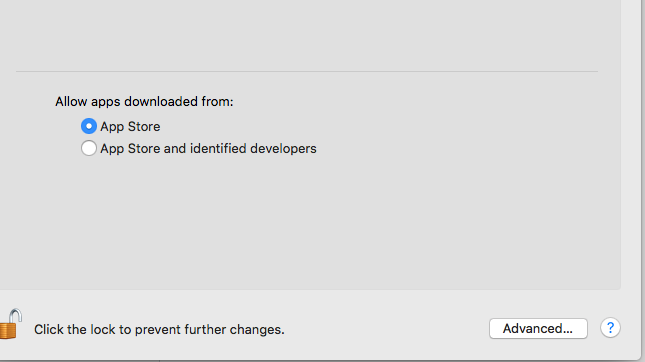
I could not see the Anywhere ,Mac OS version 10.13.6 (17G65)
 rsimbu89
on 27 Aug 2018
rsimbu89
on 27 Aug 2018
Same problem as @rsimbu89
 arielfr
on 27 Aug 2018
arielfr
on 27 Aug 2018
@arielfr @rsimbu89 please stop posting updates that do not solve the issue to this ticket. This repo does not control VirtualBox. We can not do anything to make it work. Please contact VirtualBox developers on the issues installing VirtualBox. Thanks.
achekulaev
on 28 Aug 2018
on macOS High Sierra 10.13.4 i was able to install Virtualbox after csrutil disable and succesfully create a VM through vagrant but the problem with loading kexts comes up again after enabling csrutil and thus can't create a VM consequently.Any solutions ?
 aditya232
on 28 Sep 2018
aditya232
on 28 Sep 2018
Hi :)
Am i the only where the "ALLOW" Button do not appear ?
Mojave 10.14.5.
So far i tried:
-https://github.com/Homebrew/homebrew-cask/issues/39369
disabling gatekeepr
sacrificing a virgin
unicorn blood
but still nothing....
Virtualbox 6.0.8-130520
 pazDontExist
on 23 May 2019
pazDontExist
on 23 May 2019
- A user has 30 minutes to accept the request, or the extension is not loaded.
- Restarting the Mac should bring up the prompt again.
@pazDontExist
- Verify you have virtualbox kexts pending approval
$ sudo sqlite3 /var/db/SystemPolicyConfiguration/KextPolicy 'SELECT bundle_id, allowed FROM kext_policy WHERE bundle_id LIKE "%virtualbox%"'

org.virtualbox.kext.VBoxDrv|1
org.virtualbox.kext.VBoxNetAdp|1
org.virtualbox.kext.VBoxNetFlt|1
org.virtualbox.kext.VBoxUSB|1
In the example above, there are 4 kexts and all are approved (1 in the second colum).
If there is anything to be approved for VirtualBox, you'll see 0 in the second column.
- Restart you mac and go to System Preferences > Security & Privacy > General tab - the Allow button will be there.
lmakarov
on 23 May 2019
Bummer... I had a different kext (not VirtualBox) that I'm intensionally not approving. After a reboot the Allow button did not show up.
I ran sudo kextcache -system-caches and there button showed up again 🎉
$ sudo kextcache -system-caches

Kext rejected due to system policy: <OSKext 0x7fc4de2e5af0 [0x7fff9920b8e0]> { URL = "file:///Library/StagedExtensions/Library/Extensions/SecureAnywhere.kext/", ID = "com.webroot.driver.WebrootSecureAnywhere" }

lmakarov
on 23 May 2019
@lmakarov tried that too... didnt appear.
Anyway...i guess is a bug of virtualbox 6.0.8... i don't know...
Here is how i solved:
- Download virtualbox 5.2
- Install
- The "Allow" Button finally come out
- Install Virtualbox 6.0.8
pazDontExist
on 24 May 2019
I believe my issue may have been that I recently restored from a time machine backup. I tried every solution I could find, including everything mentioned in this thread. In the end, I was able to install 5.2. Still unable to get 6.0 working, but 5.2 is fine for my needs.
 AustinW
on 30 Sep 2019
AustinW
on 30 Sep 2019
Related issues
lmakarov
·
18Comments
 tbtmuse
·
22Comments
tbtmuse
·
22Comments
 ijf8090
·
69Comments
ijf8090
·
69Comments
 loopy3025
·
30Comments
loopy3025
·
30Comments
 frederickjh
·
33Comments
frederickjh
·
33Comments
Most helpful comment
I had the same problem as PierBover but the solution from skhilko didn't work for me. So I remembered another similar method I used when I tried to install a blocked safari extension:
brew cask reinstall virtualbox --forcein Terminal or run the installation again