Dash-to-dock: Black bar when on adaptive/dynamic opacity [v64]
Today I began to see black bars whenever the dash to dock is in its "low opacity" state while on adaptive or dynamic opacity.
Screenshot of settings and the working state (no window behind the dock):

Moving the settings behind the dash to dock should increase its opacity, but I get a black bar left and right:
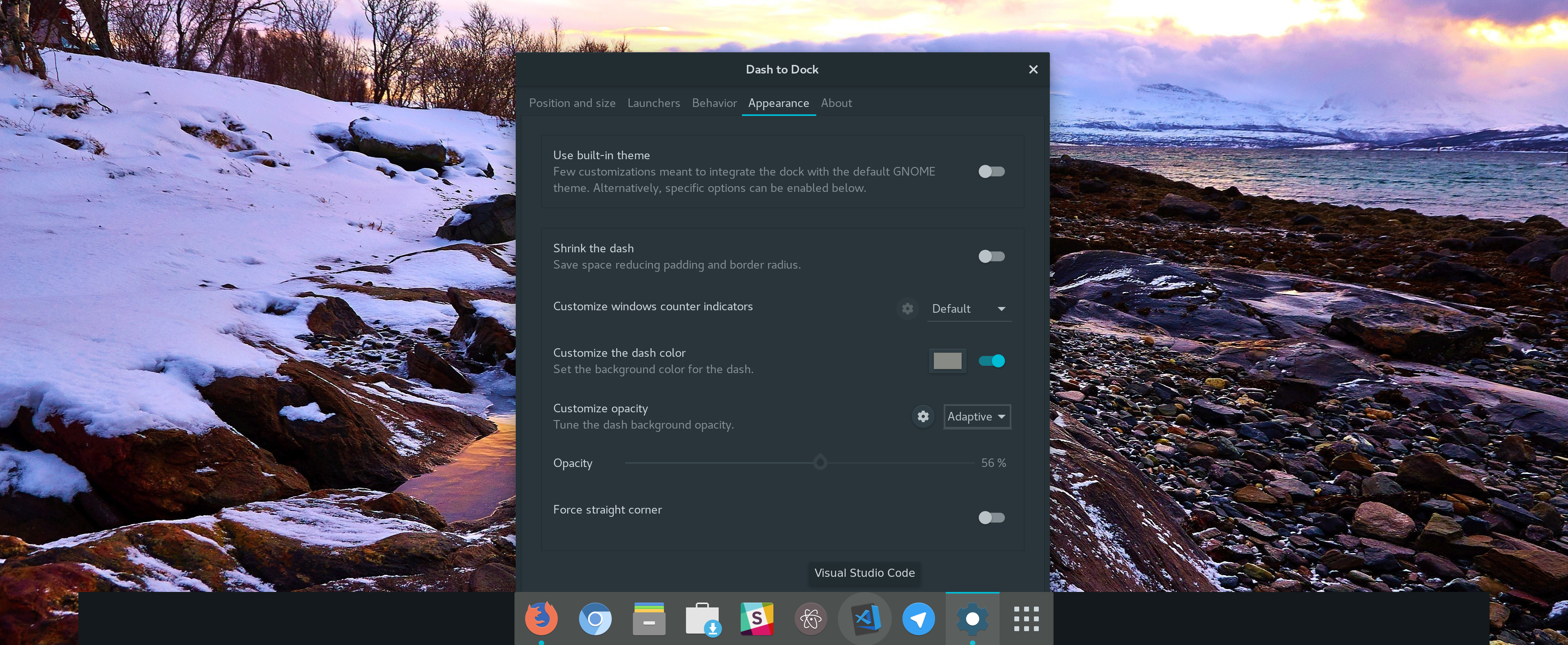
I noticed that the window actually does not have to be behind the dock to trigger this (although I believe this has more to with the implementation of when the high opacity is triggered instead of the bug itself):

Switching to fixed opacity fixes the issue IF I changed it while the black bars are NOT present (e.g. screenshot 1) but they remain if switch to fixed while the black bars are already visible (e.g while on screenshot 2).
Another thing I noticed - not sure if it helps - is when I keep my mouse over the dock so that it stays open, and I then switch workspace where no application is behind, the black bars fade out. So I assume its actually an deliberately rendered block (div? Not sure how extensions work) with the wrong background instead of an rendering bug.
System info:
- Fedora 28 with Gnome 3.28
- I have a 4K screen, maybe it's an resolution issue?
- Dash To Dock is on version 64
- Installed theme is Adapta-Nokto-Eta
List of active Gnome Extensions:
- AlternateTab
- Applications Menu
- Background Logo
- cpufreq
- Dash to Dock
- GSConnect
- Launch new instance
- No Title Bar
- Quick Close in Overview
- Refresh Wifi Connections
- Removable Drive Menu
- TopIcons Plus
- User Themes
 Znert
Znert
All 23 comments
I also face the same issue after upgrading dash to dock extension today. There is a black bar or div on the left and right side of the dock. I switched to fixed opacity instead of dynamic temporarily. Please fix it.
 prashu20
on 28 Sep 2018
prashu20
on 28 Sep 2018
Also facing this issue, Gnome 3.28 on Ubuntu 18.04 with Dash-to-Dock v64
 ScapeGoatUK
on 6 Oct 2018
ScapeGoatUK
on 6 Oct 2018
Reproducible with gnome-tweaks 3.30.1 on Arch Linux 4.18.12.
 lukasbash
on 16 Oct 2018
lukasbash
on 16 Oct 2018
For those having this issue on Ubuntu, see here for a workaround: https://askubuntu.com/questions/1084966/ubuntu-18-10-visual-artifacts-black-bar-in-dock-if-extend-height-is-disabled/1085622#1085622
 igor-krupenja
on 20 Oct 2018
igor-krupenja
on 20 Oct 2018
@krupenja This is actually not a workaround as it would not match the setting of the theme.
Of course setting it to fixed hides the issue XD
lukasbash
on 20 Oct 2018
Does the problem occur only with the Adapta-Nokto-Eta theme?
 micheleg
on 28 Oct 2018
micheleg
on 28 Oct 2018
Same issue with Adwaita.
Znert
on 29 Oct 2018
I can reproduce the problem with Equilux theme.
 rafalcieslak
on 30 Oct 2018
rafalcieslak
on 30 Oct 2018
I found the same issue with Yaru theme. (Ubuntu 18.10 default theme)
 Phongsathron
on 3 Nov 2018
Phongsathron
on 3 Nov 2018
Is someone able to reproduce the bug in a a clean ubuntu session (e.g. create a new user or in a newly installe, maybe virtualised, system). I cannot reproduce the bug.
micheleg
on 2 Dec 2018
I am facing the same issue with clean install of Ubuntu 18.10. It's gnome 3.30.1 with Nvidia proprietary drivers.
 michaelmyc
on 15 Dec 2018
michaelmyc
on 15 Dec 2018
Reproducible with a clean install of Ubuntu 18.10 inside a VM with Yaru theme.
igor-krupenja
on 13 Jan 2019
Seeing this behavior with a fresh default install of Ubuntu 18.10 as well. Fixed opacity seems to work fine.
 DominoTree
on 5 Mar 2019
DominoTree
on 5 Mar 2019
I messed with the Dash-to-Dock internal settings for a while and somehow fixed the issue. Unfortunately, I can't seem to reproduce what I had before. I'm honestly so confused.
 xarkenz
on 15 Mar 2019
xarkenz
on 15 Mar 2019
Alright, I found what works for me is indeed switching to FIXED and using the restart command (Alt+F2, r, Enter). The black box goes away, leaving the glorious alpha. However, of course, this is fixed transparency. Perhaps change dash-to-dock.background-opacity to make it look cleaner.
xarkenz
on 15 Mar 2019
This problem happens when setting opacity as dynamic.
Ubuntu 18.04.2. Gnome 3.28. Community theme.
 ruathudo
on 17 Mar 2019
ruathudo
on 17 Mar 2019
Same issue here. I have almost a clean isntall on Ubuntu 18.04.2 LTS (using it for about 3 months). I didn't change anything in the OS. I use the default theme and only downloaded the Tweaks and the Dash to Dock utility. The dock works fine with the default and fixed opacity setting, unfortunately the adaptive (which I want to use to match the top bar) and the dynamic one results in the same issue. When I set it to one of these options either a wide and continous black bar appears as shown above or instead becomes transparent as the dock itself but with the width of the black bar. So either it's black or transparent but really wide (almost as I didn't use the Dash to Dock utility, which of course I want).
 CitromLovacska
on 18 Mar 2019
CitromLovacska
on 18 Mar 2019
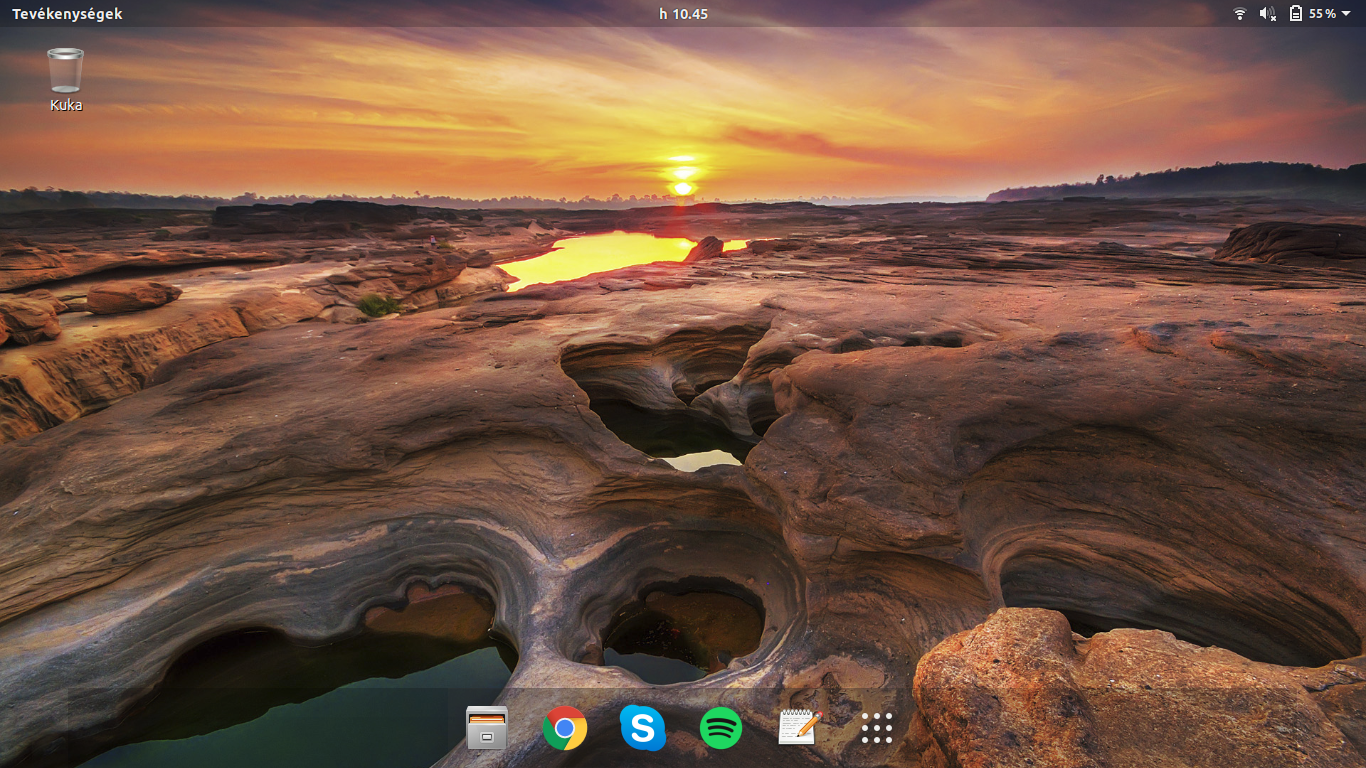
Uploading the picture so you can see what it looks like when it's transparent instead of black. It really annoyes me. I wish I could use it in adaptive mode with the Dash to Dock look.
CitromLovacska
on 18 Mar 2019
This https://askubuntu.com/questions/1133517/dash-to-dock-how-to-remove-these-black-stripes solves the issue.
 davidmpc
on 20 Apr 2019
davidmpc
on 20 Apr 2019
Don't forget to reboot your computer.
davidmpc
on 20 Apr 2019
@krupenja link to the workaround works great. I am not referring to the "best answer" but the edit of stylesheet.css (answered by PRATAP).
 benkap
on 16 Sep 2019
benkap
on 16 Sep 2019
@davidmpc 's solution fixes it (the one with stylesheet.css edit). You don't need to reboot the computer, just turn off the extension and then back on.
Tested on Pop!OS 19.10
 TermoZour
on 8 Jan 2020
TermoZour
on 8 Jan 2020
For those having this issue on Ubuntu, see here for a workaround: https://askubuntu.com/questions/1084966/ubuntu-18-10-visual-artifacts-black-bar-in-dock-if-extend-height-is-disabled/1085622#1085622 @krupenja
I think this is the only workaround available right now. Of course you don't have to reboot your machine. Just logout and log back in.
 jmziya
on 14 May 2020
jmziya
on 14 May 2020
Related issues
 ynx1800
·
6Comments
ynx1800
·
6Comments
 killown
·
3Comments
killown
·
3Comments
 fealv
·
6Comments
fealv
·
6Comments
 k0rbendallas
·
7Comments
k0rbendallas
·
7Comments
 guenter-r
·
6Comments
guenter-r
·
6Comments
Most helpful comment
Alright, I found what works for me is indeed switching to FIXED and using the restart command (Alt+F2, r, Enter). The black box goes away, leaving the glorious alpha. However, of course, this is fixed transparency. Perhaps change dash-to-dock.background-opacity to make it look cleaner.