Conemu: Arrow keys not working in Bash for Windows
The new Bash for Windows has just been released in the latest Windows 10 Insider Preview. I have added bash.exe in a new task in ConEmu, and it launches just fine. However, the arrow keys do not work in the bash environment (they work fine when launching bash.exe normally). I have tried revealing RealConsole by pressing Ctrl+Win+Alt+Space, and the arrow keys work just fine in that environment. My ConEmu configuration is the default one.
I am not sure what other information I can provide, feel free to request any additional info, I will do my best to provide such.
 Ordspilleren
All 151 comments
Is it your question? http://stackoverflow.com/q/36467150/1405560
I'm not sure. Perhaps the switch -new_console:p1 may help. Add it afer bash.exe -l -i.
 Maximus5
on 7 Apr 2016
Maximus5
on 7 Apr 2016
Yes, that is the issue. When bash is launched through ConEmu, the arrow keys never work, not for command history or in Vim / Nano. Adding -new_console:p1 did not work.
Ordspilleren
on 7 Apr 2016
I also get this message when opening the console:
mesg: /dev/tty: Operation not permitted
I wonder if it's related?
 reflog
on 7 Apr 2016
reflog
on 7 Apr 2016
I have absolutely no idea yet, how "bash in Windows" was implemented. But last message looks like a luck of implementation.
Maximus5
on 7 Apr 2016
The arrow keys work running Windows 10 bash in a cmd window... and it would appear as though whatever is in between bash.exe and the actual executable is pretty substantial... within the bash shell, there's full-on apt-get (pointed at trusty repos), the windows %PATH% isn't on $PATH, and trying to run notepad.exe from inside bash.exe (...inside cmd.exe) reports that the binary has an unsupported format.
Seems that windows 10 bash is leveraging some of the "new terminal features" that cmd.exe has options for, as it refuses to run if cmd.exe is set to legacy mode... the gist of those features is outlined (for windows server 2016) @ https://technet.microsoft.com/en-us/library/mt427362.aspx
 nuclearmistake
on 7 Apr 2016
nuclearmistake
on 7 Apr 2016
As far as I know, the C:\Windows\System32\bash.exe is just a wrapper and installer which is used to extract tarball called lxss.tar.gz to C:\Users\<name>\AppData\Local\lxss\rootfs.
It's not an actually Bash at all.
So I don't think adding options like bash.exe -l -i will work, since Microsoft may not have plan to make it compatible with the MSYS2 bash.exe.
Microsoft bash.exe only can be fed one option for now like C:\Windows\System32\bash.exe ~ to start with path navigated to you home directory.
I tried the RealConsole of ConEmu, arrow keys does work in the real console window.
I also read https://github.com/Maximus5/ConEmu/issues/183 and https://github.com/docker/docker/issues/13817, the problem is similar but it seems having different reason.
 lennylxx
on 8 Apr 2016
lennylxx
on 8 Apr 2016
@lennylxx It is not just a wrapper, it IS bash. Try typing bash.exe --help. Many of the traditional bash options found in there will work. As for installing / uninstalling, bash doesn't do that at all. A separate utility called lxrun does all of that with i.a. lxrun /install and lxrun /uninstall. As such, since bash.exe is quite literally bash ported to a windows executable, options like -l -i will work fine in theory. However, as @reflog found out, the -l command will return mesg: /dev/tty: Operation not permitted, probably because Microsoft hasn't implemented handling for that yet.
To resolve this issue, I have personally tried to change most of the keyboard configuration options inside Ubuntu itself to see if it is simply because Ubuntu itself doesn't know how to handle the inputs, but nothing seems to work. I'd assume the issue is that bash.exe expects a format of inputs that only the improved Windows Console Host in this Insider Preview can provide. Adding to that, it's not only the arrow keys that don't work, the del, end, home etc. keys don't work either.
Ordspilleren
on 8 Apr 2016
@Ordspilleren Yes, you're correct about the installer, I've double checked that. I'm surprised you found the lxrun.exe, didn't notice it before.
But bash.exe IS a wrapper of /bin/bash and feeds all the options to the real bash, because I checked the disassembly of it and I found that it will first launch an installer and then execute /bin/bash in rootfs. You can see a string /bin/bash at address 0xAFA0 using a hex editor.
The 'kernel' which is LxssManager is already running, so we don't need to fully re-implement a bash using WinAPI, just run it on the 'kernel'.
lennylxx
on 8 Apr 2016
I'm also having this issue
 watzon
on 8 Apr 2016
watzon
on 8 Apr 2016
btw, all readline features also not working
 pandada8
on 8 Apr 2016
pandada8
on 8 Apr 2016
That all looks like a bash.exe bug. But I can't insist until I check it.
Maximus5
on 9 Apr 2016
I'm having this issue as well. Any left/right/up/down cursor key usage doesn't work, but does work in bash when running it via cmd.exe. Cursor keys in ConEmu before launching bash.
 alexleonard
on 9 Apr 2016
alexleonard
on 9 Apr 2016
And do not work Function keys (F1-F12)
 Hooter
on 10 Apr 2016
Hooter
on 10 Apr 2016
Thanks for your awesome work. Would just like to comment that I also am experiencing this and would love to see it fixed.
Thanks again for conemu. It's awesome.
 ivanarnold
on 10 Apr 2016
ivanarnold
on 10 Apr 2016
It's a little frustrating reading the thread from the last time people had this issue, which was months ago. I have no idea why there's an insistence to place the blame on the programs having this issue. Bash On Windows has working arrow keys when I run it through:
- cmd
- powershell
- cmd called from powershell
- powershell called from cmd
- arbitrarily nested instances of powershell and cmd
Since this program is supposed to emulate the behavior of a Windows console, why is this behavior not clearly a problem with this program as opposed to the programs that are working correctly in the default console?
Edit: Also works as expected on Console2
 SelaliAdobor
on 10 Apr 2016
SelaliAdobor
on 10 Apr 2016
@ErrantErinaceinae Are you kidding? Months??? The issue was created four days ago! This is absolutely new feature of Windows 10! It's beta at last and may have bugs!
Maximus5
on 10 Apr 2016
thread from the last time people had this issue
referred to https://github.com/Maximus5/ConEmu/issues/183, which has comments that outline this exact issue but with another shell (the git-bash shell). The referenced issue in that thread fixed Docker but there was no further talk of the issue with git-bash.
I don't think it's unreasonable to assume they're related. And again, I fail to see how expected behavior applying in all the contexts I mentioned but failing in this one program is a bug with the feature unless I'm misunderstanding something about the meaning of "Windows console emulator".
And there's no need for the excessive punctuation and bolded excerpts, I can follow what you say just fine without them.
SelaliAdobor
on 11 Apr 2016
Issue #183 was related to the bug of Docker. The problem of this (#629) issue has not been located yet, but of course it's different, because Bash-for-Windows is absolutely new product.
Maximus5
on 11 Apr 2016
As I said in that comment, the referenced issue in that thread fixed Docker but there was no further talk of the issue with git-bash, not Docker. The issue with git-bash that a series of comments in that thread mentioned mirrors the exact behavior I'm seeing now.
SelaliAdobor
on 11 Apr 2016
The only workaround: Build 160411 (or higher) and start bash as following:
%windir%\system32\bash.exe -cur_console:p1
I'm sorry, I tryed that and it still doesn't work for me :(
 interpeix
on 12 Apr 2016
interpeix
on 12 Apr 2016
@Maximus5 Thanks! It works!
@interpeix,
default Bash task in Build 160411 doesn't set -cur_console:p1 by default.
 KayLeung
on 12 Apr 2016
KayLeung
on 12 Apr 2016
Sorry, my bad. I see what you say @KayLeung, thanks @Maximus5 works fine.
interpeix
on 12 Apr 2016
@Maximus5 Thank you very much for the workaround, it seems to work beautifully!
The only issue that remains is the lack of support for international characters like æøå. This does not work in the official Bash on Ubuntu on Windows either, so I imagine it's up to Microsoft to fix that.
Ordspilleren
on 12 Apr 2016
Disability to type characters with codebase >127 is definitely bash problem. Even chcp 65001 doesn't help. The problem should be reported on BashOnWindows.
Maximus5
on 12 Apr 2016
BTW, what do you think, what name should be given to the task? {Bash::Bash on Ubuntu} is rather long...
Maximus5
on 12 Apr 2016
@Maximus5 I have personally just named mine {Bash::bash} since that is the most descriptive, short name I could come up with. The actual name is _Bash on Ubuntu on Windows_, but that is of cause hopelessly long.
Ordspilleren
on 12 Apr 2016
Arrows in vim dont work after the workaround, when pressing left arrow it shows: E388: Couldn't find definition. Other arrows do nothing.
 lemourin
on 12 Apr 2016
lemourin
on 12 Apr 2016
@Maximus5 I named it {GNU/Windows::Bash}. Not too short, not too long I think.
 gazben
on 12 Apr 2016
gazben
on 12 Apr 2016
There's a workaround for vim, both local and remote
make sure ctrl+v isn't bound to paste in conemu... use ctrl+shift+v or something.
in local (AND? remote) .bashrc:
if [ -d /mnt/c/WINDOWS ] || [ $LC_WINDOWS10 ]; then
  export WINDOWS10=0
fi
if [ $WINDOWS10 ]; then
  export LC_WINDOWS10=$WINDOWS10
fi
in local (AND? remote) .vimrc:
let windows10=$WINDOWS10
if windows10 == '0'
  set t_ku=(ctrl+v , UP arrow)
  set t_kd=(ctrl+v , DOWN arrow)
  set t_kr=(ctrl+v , RIGHT arrow)
  set t_kl=(ctrl+v , LEFT arrow)
endif
in vim, this will appear as "set t_ku=^[[A" or something like that.
With both the bashrc and vimrc changes in place, local and remote vim both have working arrow keys, without breaking arrow keys in non-windows10 shells.
nuclearmistake
on 12 Apr 2016
Thanks for the update! Arrow keys work like a charm now.
But ctrl+a won't bring the cursor to the beginning of a line as normally does in bash. I already checked that it is not set to any hotkey. I guess it is related to the problem of arrow key as well.
Is there any work around?
 ycrichard
on 12 Apr 2016
ycrichard
on 12 Apr 2016
not that I've found... maybe in the vanilla windows bash.exe defaults/properties... ctrl+a is similarly ignored for remote byobu+screen sessions :-(
nuclearmistake
on 12 Apr 2016
LOLFML: "showkey -a" produces NO output for ctrl+a presses.
nuclearmistake
on 12 Apr 2016
@nuclearmistake You are right, just notice that...it is not a problem of ConEmu. Just ignore it...
ycrichard
on 12 Apr 2016
aye. neither was the vim stuff though LOL. - seems the vim arrow-handling is weird in the same way cygwin's is.
Anyways: ctrl+a issue = https://github.com/Microsoft/BashOnWindows/issues/156
nuclearmistake
on 12 Apr 2016
Thanks for the feedback. Support for Ctrl+A has been fixed in the code, but the build is not yet publicly available through flighting. No ETA on when that will be available, sorry.
 sunilmut
on 12 Apr 2016
sunilmut
on 12 Apr 2016
%windir%system32\bash.exe -cur_console:p1
Help for bash, but doesn't work in mc
 KindDragon
on 12 Apr 2016
KindDragon
on 12 Apr 2016
If that issue occurs in both conemu and vanilla windows bash, open a ticket on github.com/Microsoft/bashonwindows . there may be a way to work around it through MC's configuration facilities
nuclearmistake
on 13 Apr 2016
mc in "vanilla windows bash" works without problems with arrow keys
EDIT: Doesn't work in "vanilla windows bash" also after more testing https://github.com/Microsoft/BashOnWindows/issues/26
KindDragon
on 13 Apr 2016
I noticed the function keys (F10, etc.) are working in mc after setting -cur_console:p1, but as @KindDragon said, not the arrow keys.
 scovetta
on 13 Apr 2016
scovetta
on 13 Apr 2016
I suppose that mc, same as vim, requests DECCKM mode, but ConEmu has no chance to know that.
Well, I'll make another workaround to give user ability to switch keyboard mode manually...
Really weird, because with cygwin or on native linux terminals, this change is done automatically. But in the current Windows release there is no way to do that.
Maximus5
on 13 Apr 2016
-cur_console:p1 works for bash, but vim beeps and prints nothing (but nano works!)
 mainnika
on 13 Apr 2016
mainnika
on 13 Apr 2016
@mainnika https://github.com/Maximus5/ConEmu/issues/629#issuecomment-209482472
Maximus5
on 13 Apr 2016
@Maximus5 @mainnika I've centralized the work-around on a wiki page: https://github.com/Maximus5/ConEmu/wiki/Bash-For-Windows-and-VIM-Arrow-Keys
nuclearmistake
on 13 Apr 2016
It does not look like handy solution due to hotkey limitation.
If there is a way to force vim to understand, for example, \e[A instead of expected \eOA for UpArrow, it would be handy.
Maximus5
on 13 Apr 2016
Hey @nuclearmistake, I'm having some trouble implementing the fix you've suggested -- I keep getting a error akin to "Error detected while processing /root/.vimrc:
line 4:
E518: Unknown option: ,"
Anyone else having this problem/anyone have suggestions? I've been barking up this tree all day today without making much progress.
 peterdolan
on 15 Apr 2016
peterdolan
on 15 Apr 2016
You need to literally "press Ctrl+v", then " press the appropriate arrow key" on each line. (Ctrl+v, ___ arrow) are the steps for inserting the magic character for the ____ arrow key.
nuclearmistake
on 15 Apr 2016
@nuclearmistake that worked!!! Thank you so much, my god. Really appreciate it!!!
peterdolan
on 17 Apr 2016
Generally I dislike chords of keys when simpler solution exists.
Update to 160416, it's expected to be working properly. Just fix your existing task.
Maximus5
on 17 Apr 2016
@Maximus5 Just updated to 160416. Task starting with: %windir%\system32\bash.exe -cur_console:p works well for both bash and vi. (without @nuclearmistake 's workaround, and no need to do manual switch)
Is that what you mean as a final solution? It feels great!
ycrichard
on 17 Apr 2016
I suppose it's a final workaround for the current insider build.
We have absolutely no idea, what may be changed in the next insider build...
Maximus5
on 17 Apr 2016
just say thanks for quick fix
 helloyan
on 21 Apr 2016
KindDragon
on 25 Apr 2016
helloyan
on 21 Apr 2016
KindDragon
on 25 Apr 2016
@nuclearmistake This works! i think you should add it to the wiki page. for the sake of clarity.
thanks!
 omerbenamram
on 13 May 2016
omerbenamram
on 13 May 2016
Not sure what I'm doing wrong. I have ConEmu 160504 and I run %windir%\system32\bash.exe -cur_console:p1 to enter the Linux subsystem bash. In the ConEmu settings I've set "Paste mode 2" to "Do nothing".
Arrow keys are working fine (in e.g. nano), but not in vim. When in "insert" mode and I hit the arrow keys, nothing happens. I can use the hjkl keys in "command" mode as a workaround.
So I followed the wiki instructions and edited .bashrc and .vimrc. Still no arrow keys in vim. What am I missing?
 fredrikaverpil
on 17 May 2016
fredrikaverpil
on 17 May 2016
Does vim works in Bash4Windows started outside of ConEmu? Have you set xterm for vim term? Have you even change proper vimrc?
Anyway I have no ideas about vim. Its code is complicated and configuration is entangled.
Maximus5
on 17 May 2016
Also, the wiki page is obsolete, has no use in current ConEmu build, and most probably have to be deleted.
Browse official website for vim related issues.
Maximus5
on 17 May 2016
Does vim works in Bash4Windows started outside of ConEmu?
Yes. And arrow keys works fine when running vim in the Microsoft-bundled "Bash on Ubuntu on Windows" console. I'm only have this issue when using ConEmu.
Have you set xterm for vim term?
In bash, echo $TERM yields xterm. But I don't have this set explicitly in my .vimrc. I now tried setting set term=xterm in my .vimrc but that didn't make any difference.
Have you even change proper vimrc?
Not sure what you mean. I've started out from an empty .vimrc and entered stuff one by one. Never have the arrow keys worked when using the vim/Bash4Windows/ConEmu combo, regardless of the .vimrc contents.
fredrikaverpil
on 18 May 2016
Not sure what you mean. I've started out from an empty .vimrc
What does :echo $MYVIMRC print? Anyway, what did you entered in vimrc? It runs from the box.
Maximus5
on 18 May 2016
What does :echo $MYVIMRC print?
That points to my .vimrc: /home/fredrik/.vimrc.
Anyway, what did you entered in vimrc?
It's completely empty, to make it easier to find what's causing this.
I realized just now, that when I'm in vim's "insert" mode and I hit any of the arrow keys, I'm taken out of "insert" mode and into "command" mode. So basically, the arrow keys do the same thing as the Esc key.
That's strange!
fredrikaverpil
on 18 May 2016
Not so strange, the arrow keys send a sequence that starts with 0x1B (ASCII ESC).
Vim doesn't seem to recognise the sequence as one, hence it acts on each byte separately.
 xylographe
on 18 May 2016
Maximus5
on 3 Jun 2016
xylographe
on 18 May 2016
Maximus5
on 3 Jun 2016
FWIW, I just noticed the same problem affecting winpty (https://github.com/rprichard/winpty/issues/82). It looks like there's a new (undocumented) console input mode flag, 0x200. When it's enabled, and when certain keys are pressed down, the console generates an escape sequence (encoded as multiple key event records) rather than generate a single bKeyDown=TRUE event record. The bKeyDown=FALSE record is generated normally, as before.
 rprichard
on 5 Jun 2016
rprichard
on 5 Jun 2016
@rprichard Ah, I see, bash sets 0x200 flag when it starts. Thanks for the hint
Maximus5
on 5 Jun 2016
Is it possible to get 256 colors as well?
 musm
on 8 Jul 2016
musm
on 8 Jul 2016
Is it possible to get 256 colors as well?
It's off-topic in the issue. Anyway, you should ask Microsoft to change the implementation:
https://github.com/Microsoft/BashOnWindows/issues/406
Maximus5
on 8 Jul 2016
I have arrow keys working with the following settings on a new task. Also, I'm using the mini version of cmder.
Task parameters:
/icon "%USERPROFILE%\AppData\Local\lxss\bash.ico"
Commands:
%WINDIR%\System32\bash.exe ~

 hello-jason
on 23 Jul 2016
hello-jason
on 23 Jul 2016
My previous task setup worked for some time, then it did not.
I'm not sure why this issue is closed. It is not resolved.
hello-jason
on 5 Aug 2016
My previous task setup worked for some time, then it did not.
I'm not sure why this issue is closed. It is not resolved.
@hello-jason I downloaded the lastest version of Cmder and applied your solution which enables me to use arrow keys in bash.exe, but not vim (nano works).
 kleinfreund
on 8 Aug 2016
kleinfreund
on 8 Aug 2016
I got arrow key working on latest relaese, with task defination
>*%SYSTEMROOT%\System32\bash.exe -c zsh -new_console:a:s:p:n
but sometimes the arrowkey won't work and output wired stuff
^[OA^C
^[OA^[OA^[OD^[OC^[OD^[OB^[
ctrl + c could fix it, but why ?
 Ehekatl
on 8 Aug 2016
Ehekatl
on 8 Aug 2016
@Maximus5 I see your commit gh-629, however, the problem is not just with the Bash process. For example, running the new docker integration, you'll have the exact same issue in those bash variants. So I suggest you do a more general fix, than a fix which does explicit gbIsBashProcess checking.
Shouldn't the work around be done for all processes which use the new 0x200 undocumented input flag?
Or at least some way of being able to manually set the override on a given console task/tab.
 mstormo
on 10 Aug 2016
mstormo
on 10 Aug 2016
tested the workaround and it looks good, except when running TMUX
when splitting a window into multiple panels, the escape sequence with arrows to move between panels won't work but it will just give output:
up arrow --> OA
down arrow --> OB
 elfosardo
on 12 Aug 2016
elfosardo
on 12 Aug 2016
When WSL bypassed ANSI to ConEmu, than ConEmu would be able to change keyboard mode.
I see no sense in discussing the problem at the moment.
Maximus5
on 12 Aug 2016
Ehekatl thanks so much!
I get workaround too.I set %SYSTEMROOT%\System32\bash.exe -new_console:a:p:n
(I can't use zsh and I won't use split window...)
In vim and nano recognize cursor key.
 insight1111
on 17 Aug 2016
insight1111
on 17 Aug 2016
Working with this simple configuration:
- Task parameters
/icon "%USERPROFILE%\AppData\Local\lxss\bash.ico"
- Commands
C:\windows\system32\bash.exe -l -i -cur_console:p1 -new_console:p:n
@insight1111 thanks for your workaround 👍
 sevir
on 17 Aug 2016
sevir
on 17 Aug 2016
Unfortunately I stopped using ConEmu because of this issue. Workaround doesn't work in my case (with git bash).
 borgdrone7
on 5 Sep 2016
borgdrone7
on 5 Sep 2016
Workaround doesn't work in my case (with git bash).
This issue not about bash that included in Git for Windows
KindDragon
on 23 Sep 2016
This issue not about bash that included in Git for Windows
Maybe it is not, but I get exactly the same issue in bash and not in normal command line inside ConEmu.
borgdrone7
on 26 Sep 2016
ConEmu implemented xterm keys emulation long-long ago. When ConEmu detects the flag 0x200 in console, xterm is turned on automatically.
To check, one may do simple steps:
- Run
ConEmu64.exe -basic -run {bash}. - Reveal StatusBar column
Terminal modesand ensure it showsXA. - Execute in started bash prompt few commands like
cd ~andls -a. - Try arrow keys, history and navigation are expected to be working.
Maximus5
on 26 Sep 2016
I get invalid switch specified -run. Can you show an example please? Or what can I add to ConEmu to add it as new console (bash with working cursor keys).
borgdrone7
on 26 Sep 2016
@borgdrone7 are you sure you are running actual ConEmu version? Old Builds
The command line provided above is the working example. It runs ConEmu 64bit GUI with working Bash from WSL inside.
Maximus5
on 26 Sep 2016
Thanks, I will update to the latest version and try again.
borgdrone7
on 26 Sep 2016
@borgdrone7 try to
bash -cur_console:p
without "1"
 SowingSadness
on 8 Nov 2016
SowingSadness
on 8 Nov 2016
I stopped using conemu a while back because I couldn't get arrow keys to work in vim (bash on Windows) and decided to return today to give it another go. Still doesn't work for me out of the box with a fresh install of conemu 64-bit + vim in bash.
The arrow keys work fine in bash itself, and in other editors such as nano. But when in vim, I can't move around using the arrow keys. Am I the only one experiencing this?
fredrikaverpil
on 30 Nov 2016
@fredrikaverpil In my test it only works if I run the {bash} task. It does _not_ work by running bash -cur_console:p from cmd.
 camsteffen
on 30 Nov 2016
camsteffen
on 30 Nov 2016
Up/Down arrow keys don't work as expected in FAR Manager. When panels are hidden, they are supposed to browse through command history, but now they have no effect. They move the cursor in panels when panels are shown though.
 kerabromsmu
on 5 Dec 2016
kerabromsmu
on 5 Dec 2016
Why have you posted the problem of native Windows application (which Far is) in the issue about Linux subsystem?
Anyway, I'm not a Far author, therefore can't accept Far Manager bug reports.
Maximus5
on 5 Dec 2016
How would I figure out this is an issue about Linux when it is called "Arrow keys not working in Bash for Windows"?
Also, this is not a FAR issue. Arrow keys stopped working as expected after ConEmu update.
kerabromsmu
on 5 Dec 2016
How Bash for Windows related with Far?
KindDragon
on 5 Dec 2016
Apparently, the symptoms are the same under ConEmu - that's how
kerabromsmu
on 6 Dec 2016
@kerabromsmu FYI arrows are working as expected with Far Manager. Regards of ConEmu version.
Maximus5
on 6 Dec 2016
Just updated to the newest version of ConEmu, and the problem still persists with Far 3.0 4774. Updated Far to the last nightly build. No change in behavior. Tried to run Far without plugins - no change.
kerabromsmu
on 7 Dec 2016
@kerabromsmu I've said already:
- Don't post Far Manager problems (which is native Windows application) in the issue about Linux subsustem!
- Arrow keys are working properly in Far. Especially for you just tested ConEmu 161203 + Far 4774.
- Read this: https://conemu.github.io/en/BadIssue.html
Maximus5
on 7 Dec 2016
I use ConEmu 161206[64]
kerabromsmu
on 8 Dec 2016
@kerabromsmu It does not matter, because you are bombing me since previous build. Please read my messages, stop post offtopic, and explain (to yourself at least) why do you think that the problem is with ConEmu.
Maximus5
on 8 Dec 2016
@kerabromsmu uninstall ConEmu and try Far without it
KindDragon
on 8 Dec 2016
Sorry, I didn't mean to be rude. Tried Far without ConEmu. Arrows still work wrong. Tried removing all the plugins. Still no effect. But. Arrows worked perfectly before updating ConEmu with the same version of Far, and they stopped working after updating ConEmu a few days ago. Also, you say that arrows work correctly in Far for you. So perhaps I was wrong or perhaps the update permanently changed something on my system. Looks like some exotic case to me.
kerabromsmu
on 8 Dec 2016
ConEmu installer/updater never changes any files of third-party programs.
All off-topic would be cleaned from the issue...
Maximus5
on 9 Dec 2016
Build 161206
I'm starting Bash with the command %windir%\system32\bash.exe -cur_console:p1 but the problem is still there.
 nikolaikopernik
on 29 Dec 2016
nikolaikopernik
on 29 Dec 2016
bash.exe -cur_console:p
without 1 - fix the problem for me! Thanks guys! Special thanks to @Maximus5 for developing the best terminal for windows
nikolaikopernik
on 29 Dec 2016
Sadly, I'm still running into this issue even with setting -cur_console:p1 or with -cur_console:p. I've always reopened whole ConEmu. Using 170118.
 lordgreg
on 21 Feb 2017
lordgreg
on 21 Feb 2017
@lordgreg hard to believe
- Press
Win+R - Type in the dialog
ConEmu64.exe -basic -run {bash} - Check arrows
Maximus5
on 21 Feb 2017
@Maximus5
You are right, I'm sorry. Next time I should open the file that doesn't have just newline in first line and try to press right. -.-
lordgreg
on 21 Feb 2017
-cur_console:p1 works fine with conemu-connector.thx your guys
 hell0world
on 31 Mar 2017
hell0world
on 31 Mar 2017
None of the solution works for me.
However, Ctrl+B = Up and Ctrl+N = Down.
I am still looking for a good solution. I want to press ArrowUp to get back my previous command in bash as well..
$ bash --version
GNU bash, version 4.3.11(1)-release (x86_64-pc-linux-gnu)
 windhamwong
on 4 Apr 2017
windhamwong
on 4 Apr 2017
I have the exact same issue but it seems that the arrow keys for bash do not work in a standard windows command prompt and if you are using a terminal emulator like cmder the problem will occur if you select a regular command prompt.
to fix the issue just open bash in a power shell prompt. (or an emulated powershell prompt)
 rmoro
on 8 Apr 2017
rmoro
on 8 Apr 2017
Hello from ConEmu 161206 on Windows 10 1703.
%windir%\system32\bash.exe ~ -c "zsh -l" -cur_console:p works perfectly fine in my "bash" task (which actually launches a zsh shell). arrow keys work fine in vim and the shell, no workarounds required.
 origintopleft
on 10 Apr 2017
origintopleft
on 10 Apr 2017
Hello from ConEmu 161206 on Windows 10 1703.
%windir%system32\bash.exe ~ -c "zsh -l" -cur_console:p works perfectly fine in my "bash" task (which actually launches a zsh shell). arrow keys work fine in vim and the shell, no workarounds required.
I can confirm that this works without any problems and without any workarounds. Just add the task and execute/open it. Of course, install (oh-my-)zsh first.
 SeriousM
on 17 May 2017
SeriousM
on 17 May 2017
I can confirm it works as well @lavacano201014 . I also had to restart ConEMU once I installed zsh. For those troubleshooting even after a restart, press the green "+" and see if it works there. If so, follow https://github.com/cmderdev/cmder/issues/1312#issuecomment-294630922
 Yoshi9143
on 6 Jul 2017
Yoshi9143
on 6 Jul 2017
I've just downloaded the latest Alpha 170910[64] and I still had the issues described on this ticket.
Thanks to this discussion, I've been able to find what I hope is my fix for this issue.
I have created a new default task with this command:
%windir%\system32\bash.exe ~ -c "bash -l" -cur_console:pm:/mnt
It seems to work OK so far for me, before (with the other shell task) I could reproduce my issue consistently if I edited a long text file in nano and moved about in it. So far, no issues so I still get all the lovely features of Bash, but without the limitation of cursor presses inserting random A (or B) letters or blanking out parts of the screen.
 richard-scott
on 20 Sep 2017
richard-scott
on 20 Sep 2017
win10, conemu 170807, git bash (_https://git-scm.com/) The cursor does not select menu items but prints the characters https://prnt.sc/gqietn
 Aldans
on 27 Sep 2017
Aldans
on 27 Sep 2017
@Aldans Why do you post git-bash problem in WSL topic? Anyway, your description is unclear.
Maximus5
on 28 Sep 2017
(I know this comment might look silly, but I have spent 2 days trying to figure out how to setup bash.exe -cur_console:p in Cmder. So I think sharing it here would help someone who is not familiar with ConEmu)
If you want to have WSL bash (with arrow keys issue fixed) as default when Cmder is opened, do the following:
- Create a task called whatever you like, e.g. {bash}, in Settings--Tasks, with command
%windir%\system32\bash.exe -cur_console:p - In Settings--Startup, select the task you just created as "Specified named task"
- Save settings, now every time you open Cmder, it automatically runs
bash.exe -cur_console:pfor you
 jonathanlxy
on 4 Oct 2017
jonathanlxy
on 4 Oct 2017
I can get the arrow keys to work using some of the above suggestions, but can't press ENTER to change values.
 EwolBash
on 24 Feb 2018
EwolBash
on 24 Feb 2018
@Esux Your message is obscure.
Maximus5
on 8 Mar 2018
Still having this issue. Randomly after months of working fine. IT CAME BACK.
 diveyez
on 23 Mar 2018
diveyez
on 23 Mar 2018
To fix this, Add -cur_console:p to the end of default task
Thats the only way, as WSL now has distro switcher built in
diveyez
on 23 Mar 2018
Maximus5
on 25 Mar 2018
None of that works now, since Microsoft really screwed up the WSL distros
diveyez
on 3 Apr 2018
I have no way to change terminal mode to xterm following solution 2, bad instructions
diveyez
on 3 Apr 2018
@diveyez Keys are working in ConEmu from the box. You have not described what have you tried and where was the problem.
Maximus5
on 3 Apr 2018
Arrows do not work in iex, the interactive Elixir shell. Also ^w deletes the entire line in MySQL instead of just one word as it does in shell (although the latter is fixable https://unix.stackexchange.com/a/253178/9452 )
 chx
on 14 Apr 2018
chx
on 14 Apr 2018
@chx Why do you post their problems here?
Third-party application problems
Maximus5
on 14 Apr 2018
These are broken because of the WSL+Conemu combo and this issue is about arrow keys and WSL? Should I open a new issue?
chx
on 14 Apr 2018
Keys are working in WSL that's why this issue is closed.
Maximus5
on 14 Apr 2018
They do in shell but they don't in iex and MySQL has some issues too which in Linux typically surface over SSH when term is mismatched.
chx
on 14 Apr 2018
@chx Did you try to compare iex behavior with other terminals? Which? What ConEmu version do you use? How do you start the WSL?
Maximus5
on 14 Apr 2018
I have a shortcut to "C:\Program Files\ConEmu\ConEmu64.exe" wsl but I also tried conemu-cyg-64.exe --wsl -cur_console:pm:/mnt to the same results. Arrows work when I start bash then iex from a plain cmd window. Apparently I am on 180114 preview.
chx
on 14 Apr 2018
Here is a simplified bug report: if I start a plain cmd and I run bash then cat then I get ^[[D when pressing the left arrow. Under conemu I get ^[OD. No iex needed.
chx
on 14 Apr 2018
Maximus5
on 14 Apr 2018
Maximus5
on 14 Apr 2018
YES! Switching off Appkeys helped. Nothing else. How do I get it to stay switched off across terminals, reboots and such?
chx
on 14 Apr 2018
How can I do that AppKeys will be enabled by default? Turning on AppKeys helped me.
 rahar
on 24 May 2018
rahar
on 24 May 2018
Run default task for your shell
Maximus5
on 24 May 2018
In case this helps, in one of the newer versions of ConEmu, I wasn't getting the default AppKeys settings for a new custom task. I changed my custom task to include -new_console:p5 and that fixed it for me. See
https://conemu.github.io/en/NewConsole.html for p[N] - pty modes meaning.
 elijahgagne
on 24 May 2018
elijahgagne
on 24 May 2018
Thanks, that helped! I had to add "-l" param to the exec so that my login (zsh) shell will run
rahar
on 24 May 2018
In current builds in you use default tasks (with connector) AppKeys must be activated when console request them. Otherwise it may be a bug (of ConEmu or shell).
Maximus5
on 24 May 2018
The out of the box behaviour for ConEmu 180626 [64] and latest WSL with latest ubuntu didn't work for me.
After trying all kind of different command line options adding -new_console:p5 did it for me.
Thanks elijahgagne!
 yellow-sock
on 17 Jul 2018
yellow-sock
on 17 Jul 2018
@yellow-sock The default ConEmu behavior is exposed by command
ConEmu64.exe -basic -run {bash}
I doubt you have tried it
Maximus5
on 18 Jul 2018
@Maximus5 I didnt try it. I was assuming that it does the same as when I select Bash::bash from the menue. When I try it i get:

The above picture was made with my current bash config (which is the one that works for me):
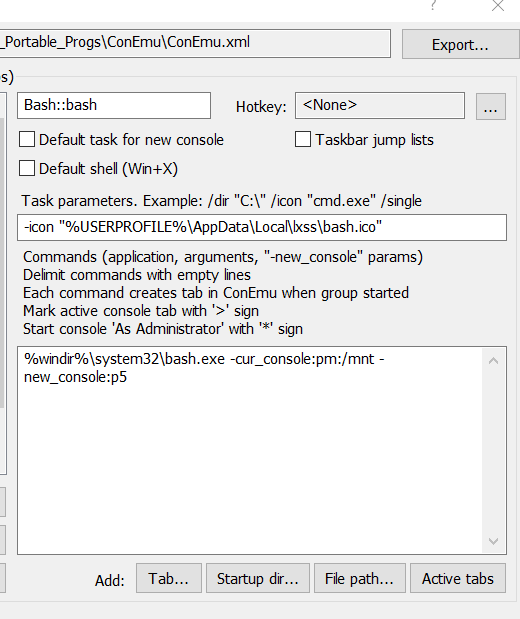
Something wrong with my installation ?
yellow-sock
on 18 Jul 2018
when I select Bash::bash from the menue. When I try it i get:
On your screenshot you run absolutely different task than you show on the second screenshot.
Maximus5
on 18 Jul 2018
Hey everyone, digit the number of the line and hit enter, works for me
 lucaswunder
on 21 Jul 2018
lucaswunder
on 21 Jul 2018
I just added the vim command :set term=builtin_ansi and then the arrows works. Therefore, I have added the command to my .vimrc file. cd $HOME && printf '"# Fix the use of keyboard arrows in vim. \n:set term=builtin_ansi' >> .vimrc
 PeterFogh
on 25 Jul 2018
PeterFogh
on 25 Jul 2018
See if tput rmkx helps: it turns off "application mode" which causes the arrow keys to behave differently.
 sunaku
on 5 Dec 2018
sunaku
on 5 Dec 2018
Hey everyone, digit the number of the line and hit enter, works for me
Thank you Lucas!
 iam3fun
on 3 Oct 2019
iam3fun
on 3 Oct 2019
I faced the same problem while using eslint on git bash, I found this workaround useful - https://stackoverflow.com/a/58521883/11261701
 calra123
on 23 Oct 2019
calra123
on 23 Oct 2019
I'm experiencing the non-working arrow keys issue with ConEmu 191912 (Preview) while running Cygwin BASH (using the default {Bash::CygWin bash} task on Windows 10 version 1909.
 picorealm
on 15 Jan 2020
picorealm
on 15 Jan 2020
I'm experiencing the non-working arrow keys issue with ConEmu 191912 (Preview) while running Cygwin BASH (using the default {Bash::CygWin bash} task on Windows 10 version 1909.
me too
 ravermeister
on 15 Jan 2020
ravermeister
on 15 Jan 2020
Same here, arrow keys not working in Bash::CygWin. Adding p5 did not help.
 danijeldomazetprivate
on 22 Jan 2020
danijeldomazetprivate
on 22 Jan 2020
For those with recent comments on this closed issue. Problem is different - Issue with a change in cygwin. See https://github.com/Maximus5/ConEmu/issues/2035
 pccasto
on 26 Jan 2020
pccasto
on 26 Jan 2020
-new_console:p5 fixed the issue for me.
 asuiu
on 24 Jun 2020
asuiu
on 24 Jun 2020
Related issues
 vampiricwulf
·
5Comments
vampiricwulf
·
5Comments
 rfgamaral
·
3Comments
rfgamaral
·
3Comments
 pyhedgehog
·
3Comments
pyhedgehog
·
3Comments
 wildeyes
·
4Comments
wildeyes
·
4Comments
 jrcharney
·
5Comments
jrcharney
·
5Comments
Most helpful comment
@ErrantErinaceinae Are you kidding? Months??? The issue was created four days ago! This is absolutely new feature of Windows 10! It's beta at last and may have bugs!