Windows-build-tools: Stuck after installing Visual Studio Build Tools
Seems to be stuck after installing Visual Studio Build Tools
Running for 3-4 hours.
Stopped and tried again many times but still the issue is there
> [email protected] postinstall C:\Users\Arpit Jain\AppData\Roaming\npm\
node_modules\windows-build-tools
> node ./lib/index.js

Downloading BuildTools_Full.exe
[>                                            ] 0.0% (0 B/s)
Downloading python-2.7.11.msi
[>                                            ] 0.0% (0 B/s)
Downloaded python-2.7.11.msi. Saved to C:\Users\Arpit Jain\.windows-build-tools\
python-2.7.11.msi.
Starting installation...
Launched installers, now waiting for them to finish.
This will likely take some time - please be patient!
Waiting for installers... \Successfully installed Visual Studio Build Tools.
Waiting for installers... \
Python 2.7 is installed and PATH variables are set.
 antimatter96
All 90 comments
Same here. I let it run for the whole night (cause after all, it reads "please be patient") but still stuck.
Any solution will be very helpful
 BabaBarash
on 1 Feb 2017
BabaBarash
on 1 Feb 2017
Did anybody found a workaround for this?
 Ritesh955
on 16 Mar 2017
Ritesh955
on 16 Mar 2017
Same happened for me.

Any solution or help would be really appreciated.
 mnrafg
on 17 Mar 2017
mnrafg
on 17 Mar 2017
same happening here
 n0f3
on 27 Mar 2017
n0f3
on 27 Mar 2017
Problem
I guess most of us who faced this issue the user accounts we are using contain space(s) or maybe other special character(s) so this is the problem.
Solution
In my case, the solution for this issue was just create another user with a username which doesn't contain any space or special character in it, then install the build tools and go on for testing it.
My Case
My previous user was "Muhammad Nasir" so the home directory for that user was C:\Users\Muhammad Nasir, then I created another user by the name of "Dev" so the home directory is C:\Users\Dev for this current user and there is no such problem or issue happening anymore in same PC.
mnrafg
on 27 Mar 2017
I'm having the same issue, but my windows username has no spaces nor special characters (just plain-old ascii letters)
 jkurei
on 3 Apr 2017
jkurei
on 3 Apr 2017
@jkurei I'm sorry that I did not figured out any other cases, so please share your case with the community after resolution :)
Thanks
mnrafg
on 3 Apr 2017
Same here, my username doesn't contain spaces and installation is stuck after Waiting for installers... |Successfully installed Visual Studio Build Tools.
 D-Andreev
on 13 Apr 2017
D-Andreev
on 13 Apr 2017
exactly same case for windows7/x64(inside-vmware)
 mgttt
on 16 Apr 2017
mgttt
on 16 Apr 2017
So how to fix this? I'm crazy~
 mzvast
on 18 Apr 2017
mzvast
on 18 Apr 2017
same here... any solution?
 jacobcyl
on 25 Apr 2017
jacobcyl
on 25 Apr 2017
I find the solution. It suck because I have installed Python before so this step waiting for installing was sucked because Python install fail. You can check the log file here (C:\Users\Administrator.windows-build-tools\python-log.txt). So the solution is uninstall your python installed in your computer first or change the script code in C:\Users\Administrator\AppData\Roaming\npm\node_modules\windows-build-tools\lib\install\index.js
function install(cb) {
  utils.log(chalk.green('Starting installation...'));

  launchInstaller().then(function () {
    return launchSpinner();
  }).then(function () {
    return Promise.all([installBuildTools()]); // here remove installPython() funciton
  }).then(function (paths) {
    stopSpinner();

    var variables = {
      buildTools: paths[0]
     // python: paths[1]   // here remove this line
    };
    cb(variables);
  }).catch(function (error) {
    stopSpinner();

    utils.log(error);
  });
}
and change this file: C:\Users\Administrator\AppData\Roaming\npm\node_modules\windows-build-tools\lib\environment.js like below:
function setEnvironment(variables) {
  var pythonPath = path.join('C:\\Python27'); // here replace with your origin python env path
  var pythonExePath = path.join(pythonPath, 'python.exe');
  var scriptPath = path.join(__dirname, '..', 'ps1', 'set-environment.ps1');
  var maybeAddToPath = process.env.npm_config_add_python_to_path ? ' -AddPythonToPath' : '';
  var psArgs = '& {& \'' + scriptPath + '\' -pythonPath \'' + pythonPath + '\' -pythonExePath \'' + pythonExePath + '\'' + maybeAddToPath + ' }';
  var args = ['-ExecutionPolicy', 'Bypass', '-NoProfile', '-NoLogo', psArgs];

  return utils.executeChildProcess('powershell.exe', args);
}
and it is ok, just run:
> cd C:\Users\Administrator\AppData\Roaming\npm\node_modules\windows-build-tools\lib
> node index.js
It works!
Maybe the path above is not same with yours, you can change by yourself
jacobcyl
on 25 Apr 2017
Always stuck after unstalling my python :(
 WindBlades
on 26 Apr 2017
WindBlades
on 26 Apr 2017
Was the same for me, uninstalling python made it work. it typed "Sucessfully installed python" whereas before it didnt. Thanks!
 george-aprozeanu
on 21 Jun 2017
george-aprozeanu
on 21 Jun 2017
We can try to fix this by
a) checking for Python before attempting installation
b) allowing you to skip python installation.
I'll add a PR
 felixrieseberg
on 21 Jun 2017
felixrieseberg
on 21 Jun 2017
Looking forward to that fix, @felixrieseberg! @jacobcyl fix did the trick. :)
 pojda
on 12 Jul 2017
pojda
on 12 Jul 2017
yeah its stuck after python install, is it fixed???
 jacobbogers
on 22 Jul 2017
jacobbogers
on 22 Jul 2017
oh it seems to work, just took a demn long time (look at the amount of seconds)
Starting installation...
Launched installers, now waiting for them to finish.
This will likely take some time - please be patient!
Waiting for installers... \Successfully installed Python 2.7
Waiting for installers... |Successfully installed Visual Studio Build Tools.
+ [email protected]
added 127 packages in 1226.741s
In my case, it's waiting for the installer to stop writing to a specific log file even though the log file being written to was an entirely different one in the same directory, appended by a number suffix.
 ssimo3lsuhsc
on 1 Aug 2017
ssimo3lsuhsc
on 1 Aug 2017
Worked for me!
It just takes a long time to finish.
 yacxn
on 2 Sep 2017
yacxn
on 2 Sep 2017
just took a demn long time
couldnt agree more 😂
 lyzs90
on 25 Oct 2017
lyzs90
on 25 Oct 2017
Ive tried all your solutions.. even of https://github.com/felixrieseberg/windows-build-tools/issues/70
but nothing is working... Windows 10 x64
Starting installation...
Launched installers, now waiting for them to finish.
This will likely take some time - please be patient!
Waiting for installers... \Successfully installed Visual Studio Build Tools.
Waiting for installers...
 Sadi-1992
on 21 Nov 2017
Sadi-1992
on 21 Nov 2017
just took a demn long time
+1
 kirincc
on 8 Dec 2017
kirincc
on 8 Dec 2017
+1 I am letting it run for an hour now. We shall see how far it gets
 bgarrison25
on 8 Dec 2017
bgarrison25
on 8 Dec 2017

i'm waiting
 xabeng
on 11 Dec 2017
xabeng
on 11 Dec 2017
Same: Windows 10 x64
npm --add-python-to-path='true' --debug install --global --production windows-build-tools

 jccrofty30
on 13 Dec 2017
jccrofty30
on 13 Dec 2017
Facing the same issue on windows 7 64 bit ...
Been running it since many days but it still seems to be stuck after successfully installing visual studio
Here's what I did.
1)open powershell as admin
2)Run any of these commands
npm install --global windows-build-tools
(or)
npm --add-python-to-path='true' --debug install --global --production windows-build-tools
but both of them don't work as the command window shows it always get stuck after visual studio @installation.

I even tried uninstalling existing python,removed it from path and deleting .windows-build-tools file from my directory but none of these seem to work.I'm really struggling at this...
Please is there any workaround for this issue?
Thanks
Giridhar
 giridhari1
on 30 Dec 2017
giridhari1
on 30 Dec 2017
I'm having the same issue, same with @giridhari1 information. Windows 10 Fall Creators Update though.
What the heck is going on? No way to fix?
 darkguy2008
on 4 Jan 2018
darkguy2008
on 4 Jan 2018
Here's a possible fix.
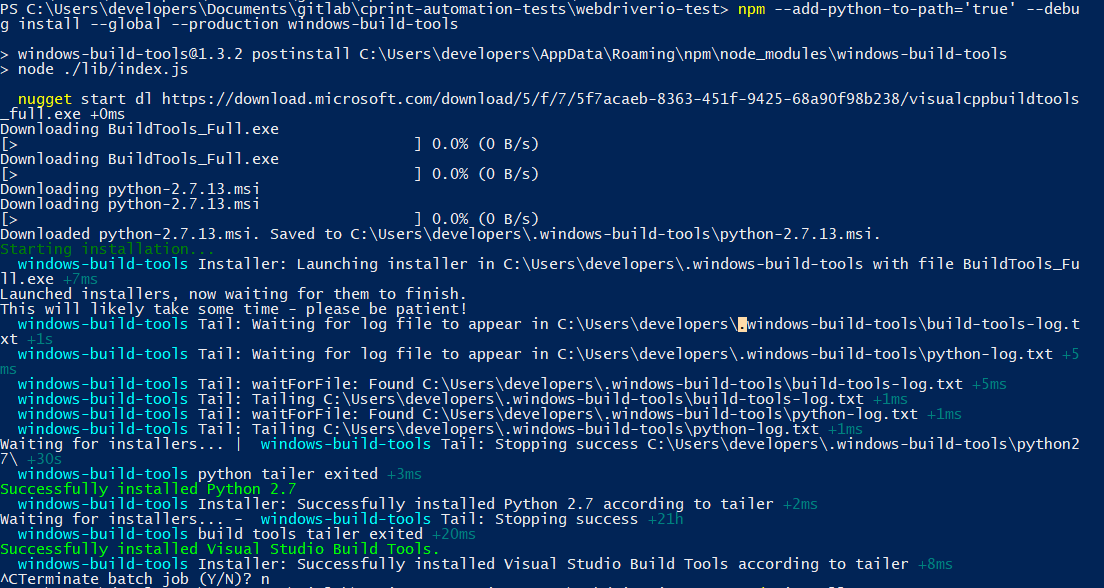
I ran the command npm --add-python-to-path='true' --debug --global --production windows-build-tools. This produced no difference in the outcome. But I then just set the terminal aside for 1 day while it stood stuck after the python install message. When I came back it was still stuck, but then I pressed Control-C to exit the process. Instead of exiting process, the successfully installed visual studio build tools appeared. I answered n to confirm not to exit, but it exited anyways with the build tools completed and installed.
It looks like the installation is working behind the scenes. It just takes a while, and doesn't print out when it finishes.
 lance13c
on 4 Jan 2018
lance13c
on 4 Jan 2018
Yeah, I found out something else as well:
If the installer takes too long, just kill it with taskkill /f /im buildtools_full.exe and then run the whole process again. Sometimes the installer just hangs after some tries and if you retry and this process is zombie it will get stuck. That will force a reset so you can start fresh again.
I also noticed that the whole process takes around 30 minutes with a download speed of around 300Kb/s. I managed to see the consumption by process using NetLimiter.
I was also able to view some of the progress: The commandline for buildtools_full.exe has a folder path where to store logs. If this app parses the Python log, I'm sure it can also parse those logfiles too and at least display some feedback to the user. A spinner just won't cut it.
Thanks :)
darkguy2008
on 4 Jan 2018
@darkguy2008 Well it looks like i don't even have the python log file in .windows-build-tools file in my directory and i even tried what @lance13c did i even killed all the windows-build-tools task nothing seems to work the result is same.But what i did is i edited the index.js code in C:\Users\Administrator\AppData\Roaming\npm\node_modules\windows-build-tools\lib\install\index.js
to only install python and executed the file but the result still seems to be the same...python won't install.
giridhari1
on 7 Jan 2018
I have the same issue. Build tools install doesn't finish.
 sys9kdr
on 8 Jan 2018
sys9kdr
on 8 Jan 2018
Here is what i did--
1)Installed python 2.7
2)Visual studio 2015
3)Set path for both python and visual studio
4)Ran npm install --global --production windows-build-tools on an elevated powershell
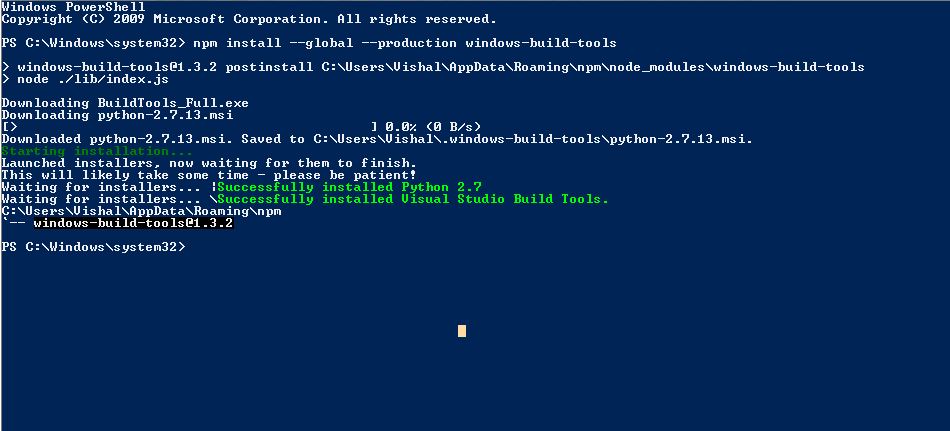
5)And its done
Weird! Since i already did the above steps before countless times to achieve no success but all of sudden everything ran perfect this morning!
giridhari1
on 9 Jan 2018
I'm hitting this too. To try and isolate the issue, I tried it again on a brand new VM with a fresh Windows 10 install. Username was nfriedly, so no problems with spaces or special characters. I installed Firefox, Node.js (8.9.4), and then ran npm install --global --production windows-build-tools in an administrator power shell and let it spin for an hour or two. This is where it left off:
PS C:\Windows\system32> npm install --global --production windows-build-tools

> [email protected] postinstall C:\Users\nfriedly\AppData\Roaming\npm\node_modules\windows-build-tools
> node ./lib/index.js

Downloading BuildTools_Full.exe
Downloading python-2.7.14.amd64.msi
[============================================>] 100.0% of 20.17 MB (2.6 MB/s)
Downloaded python-2.7.14.amd64.msi. Saved to C:\Users\nfriedly\.windows-build-tools\python-2.7.14.amd64.msi.
Starting installation...
Launched installers, now waiting for them to finish.
This will likely take some time - please be patient!
Waiting for installers... -Successfully installed Visual Studio Build Tools.
Waiting for installers... |
Windows is running inside of VMware Fusion on top of a mid 2015 Macbook Pro; I gave the windows system 2 CPU cores and 4GB of RAM. Internet is 50~60mb. Windows is version is Windows 10 Pro (build 1709 - September 2017) downloaded from MSDN. It hasn't installed any updates yet, although I'll let that run over night and try again in the morning.
I'll also try it with the debug flag when I run this tomorrow to see if that sheds any light.
 nfriedly
on 31 Jan 2018
nfriedly
on 31 Jan 2018
Hi all,
I found out that the MS build tools require you to install .NET Framework 4.5.1 or else the npm install won't take long and it thinks it finished but it isn't
darkguy2008
on 31 Jan 2018
I just finished windows updates and tried again with debug on; it looks like maybe the python installer isn't the right one?
PS C:\Windows\system32> npm install --debug --global --production windows-build-tools

> [email protected] postinstall C:\Users\nfriedly\AppData\Roaming\npm\node_modules\windows-build-tools
> node ./lib/index.js

  nugget start dl https://download.microsoft.com/download/5/f/7/5f7acaeb-8363-451f-9425-68a90f98b238/visualcppbuildtools_full.exe +0ms
Downloading BuildTools_Full.exe
[>                                            ] 0.0% (0 B/s)
Downloading BuildTools_Full.exe
[>                                            ] 0.0% (0 B/s)
Downloading python-2.7.14.amd64.msi
Downloading python-2.7.14.amd64.msi
[>                                            ] 0.0% (0 B/s)
Downloaded python-2.7.14.amd64.msi. Saved to C:\Users\nfriedly\.windows-build-tools\python-2.7.14.amd64.msi.
Starting installation...
  windows-build-tools Installer: Launching installer in C:\Users\nfriedly\.windows-build-tools with file BuildTools_Full.exe +0ms
Launched installers, now waiting for them to finish.
This will likely take some time - please be patient!
  windows-build-tools Tail: Waiting for log file to appear in C:\Users\nfriedly\.windows-build-tools\build-tools-log.txt +0ms
  windows-build-tools Tail: Waiting for log file to appear in C:\Users\nfriedly\.windows-build-tools\python-log.txt +0ms  windows-build-tools Tail: waitForFile: Found C:\Users\nfriedly\.windows-build-tools\build-tools-log.txt +0ms
  windows-build-tools Tail: Tailing C:\Users\nfriedly\.windows-build-tools\build-tools-log.txt +0ms
  windows-build-tools Tail: waitForFile: Found C:\Users\nfriedly\.windows-build-tools\python-log.txt +15ms
  windows-build-tools Tail: Tailing C:\Users\nfriedly\.windows-build-tools\python-log.txt +0ms
  windows-build-tools Installer: Stdout from launch-installer.ps1: T h i s   i n s t a l l a t i o n   p a c k a g e    o u l d   n o t   b e   o p e n e d .     V e r i f y   t h a t   t h e   p a c k a g e   e x i s t s   a n d   t h a t   y o u   c a n   a c c e s s   i t ,   o r   c o n t a c t   t h e   a p p l i c a t i o n   v e n d o r   t o   v e r i f y   t h a t   t h i s   i s   a   v a l i d   W i n d o w s   I n s t a l l e r   p a c k a g e .
  +3sdows-build-tools
Waiting for installers... /  windows-build-tools Tail: Stopping success +1m
  windows-build-tools build tools tailer exited +0ms
Successfully installed Visual Studio Build Tools.
  windows-build-tools Installer: Successfully installed Visual Studio Build Tools according to tailer +0ms
Waiting for installers... -
Here's that error without all the spaces:
windows-build-tools Installer: Stdout from launch-installer.ps1: This installation package ould not be opened. Verify that the package exists and that you can access it, or contact the application vendor to verify that this is a valid Windows Installer package.
Not sure why it's missing the 'c' in 'could'.
Also, just to see if It'd make a difference, I downloaded the .net Framework 4.5.1 installer, but it wouldn't install:
The .NET Framework 4.5 and this update are already installed on your computer.
nfriedly
on 1 Feb 2018
Alright now I'm back at home and I can provide more info:
Try deleting the contents of your %TEMP% folder and then use the Everything app ( https://www.voidtools.com/downloads/ ) to find the build tools executable file and remove its containing folder as well. I made a clean install for node-gyp which needed this in a Server 2012 VM, here's my steps:
- Download this .NET Framework update: https://www.microsoft.com/en-US/download/details.aspx?id=40773
- Download Node 9.x (maybe this is your problem?): https://nodejs.org/dist/v9.4.0/node-v9.4.0-x64.msi
- Open PowerShell as Admin
- npm --add-python-to-path='true' --debug install --global --production windows-build-tools
That should work, hopefully.
darkguy2008
on 1 Feb 2018
Nevermind my last comment. I just needed to redo these instructions in a clean VM and I'm getting the same error. Could it be a problem in MS's servers? How do we report this? Is there any alternative when this doesn't work?
Nevermind I ended up using Option #2
* Install VS Build Tools (http://go.microsoft.com/fwlink/?LinkId=691126&fixForIE=.exe)
* Install Python 2.7 (https://www.python.org/ftp/python/2.7.14/python-2.7.14.msi)
* npm config set python python2.7
* (If using yarn): yarn config set msvs_version 2015 --global
I was experiencing this issue and looked in the log at %userprofile%\.windows-build-tools\build-tools-log.txt
There was an interesting block:
[3E6C:2C1C][2018-01-31T22:42:06]i000: MUX:  Setup update feature is enabled. Evaluating conditions to determine whether to run setup update.
[3E6C:2C1C][2018-01-31T22:42:06]i000: MUX:  Checking http://go.microsoft.com/fwlink/?LinkID=659005 for update.
[3E6C:2C1C][2018-01-31T22:42:07]e000: MUX:  Exception: Info: Could not download update data.
[3E6C:2C1C][2018-01-31T22:42:07]e000: MUX:  WARNING: For security reasons DTD is prohibited in this XML document. To enable DTD processing set the ProhibitDtd property on XmlReaderSettings to false and pass the settings into XmlReader.Create method.
[3E6C:2C1C][2018-01-31T22:42:07]e000: MUX:  Stack:    at System.Xml.XmlTextReaderImpl.Throw(Exception e)
   at System.Xml.XmlTextReaderImpl.ThrowWithoutLineInfo(String res, String arg)
   at System.Xml.XmlTextReaderImpl.ParseDoctypeDecl()
   at System.Xml.XmlTextReaderImpl.ParseDocumentContent()
   at System.Xml.XmlTextReaderImpl.Read()
   at System.Xml.XmlLoader.Load(XmlDocument doc, XmlReader reader, Boolean preserveWhitespace)
   at System.Xml.XmlDocument.Load(XmlReader reader)
   at Microsoft.Devdiv.Bootstrapper.DownloadManager.DownloadXml(String url, Int32& returnCode)
[3E6C:2C1C][2018-01-31T22:42:07]i000: MUX:  Failed to download the update xml file from http://go.microsoft.com/fwlink/?LinkID=659005 Setup will not be updated.
[3E6C:2C1C][2018-01-31T22:42:07]i052: Condition '( (CommunityCheck_DetectKey = 1) ) AND (CurrentOperation = "Install") ' evaluates to true.
[3E6C:2C1C][2018-01-31T22:42:07]i052: Condition '((WDExpress_DetectKey = 1) ) AND (CurrentOperation = "Install")' evaluates to false.
[3E6C:2C1C][2018-01-31T22:42:07]i052: Condition '( (VSWinExpress_DetectKey = 1) ) AND (CurrentOperation = "Install")' evaluates to false.
[3E6C:2C1C][2018-01-31T22:42:07]i052: Condition '(VersionNT < v6.3) and ((not netfxfullredist_43_DetectKey_Exists) or (netfxfullredist_43_DetectKey_Version < v4.5.50709) or (netfxfullredist_43_DetectKey_Release < 378758))' evaluates to false.
[3E6C:2C1C][2018-01-31T22:42:07]i052: Condition '(VersionNT = v6.3) AND (netfxfullredist_43_DetectKey < v4.5.25000)' evaluates to false.
[3E6C:2C1C][2018-01-31T22:42:07]i000: MUX:  Stop Block: CommunityBlock : Visual Studio 2015 is currently installed on this machine. Please uninstall Visual Studio 2015 and retry.
And so the underlying cause for me is that this cannot install if you have Visual Studio 2015. You will have to modify your Visual Studio 2015 installation to get this work.
 johnbindel
on 1 Feb 2018
johnbindel
on 1 Feb 2018
We found same issue when trying to rebuild a windows container. I tried on my physical machine failed in the same place. This package was working few weeks back. Does anyone have work around?
 hyan36
on 1 Feb 2018
hyan36
on 1 Feb 2018
@hyan36 read my post above, you need to download the tools manually and install them
darkguy2008
on 1 Feb 2018
@hyan36 Could you try locking the version to 1.3.2 and try rebuilding the image?
npm install --global --production [email protected]
It seems like the latest release (1.4.0) is unstable ( https://ci.appveyor.com/project/felixrieseberg/windows-build-tools/build/107 )
And the last stable release seems to be 1.3.2 (https://ci.appveyor.com/project/felixrieseberg/windows-build-tools/build/97 )
PRs for fixing this are already in place
https://github.com/felixrieseberg/windows-build-tools/pull/79
https://github.com/felixrieseberg/windows-build-tools/pull/80
Until they are available, I guess downgrading the version to a stable release might help.
 scriptnull
on 1 Feb 2018
scriptnull
on 1 Feb 2018
@scriptnull Thank you so much! After being stuck for days just installing version 1.3.2 solved it all!
 Rick-Luke
on 1 Feb 2018
Rick-Luke
on 1 Feb 2018
@scriptnull This post made my day. I was also stuck for days!! Thanks a ton!!!!!
 TobiWo
on 1 Feb 2018
TobiWo
on 1 Feb 2018
@scriptnull yeah it worked ....thnx
 ayush2654
on 1 Feb 2018
ayush2654
on 1 Feb 2018
1.3.2 installed for me, although it seems like python isn't always available, at least when things are executed via npx:
gyp ERR! stack Error: Can't find Python executable "python", you can set the PYTHON env variable.
 npx node-gyp  configure --module=C:\Users\nfriedly\common-node-minizip\lib\binding\node-v57-win32-x64\node-minizip.node --module_name=node-minizip --module_path=C:\Users\nfriedly\common-node-minizip\lib\binding\node-v57-win32-x64
npx: installed 1 in 2.187s
Path must be a string. Received undefined
C:\Users\nfriedly\common-node-minizip\node_modules\node-gyp\bin\node-gyp.js
gyp info it worked if it ends with ok
gyp info using [email protected]
gyp info using [email protected] | win32 | x64
gyp ERR! configure error
gyp ERR! stack Error: Can't find Python executable "python", you can set the PYTHON env variable.
gyp ERR! stack     at PythonFinder.failNoPython (C:\Users\nfriedly\common-node-minizip\node_modules\node-gyp\lib\configure.js:483:19)
gyp ERR! stack     at PythonFinder.<anonymous> (C:\Users\nfriedly\common-node-minizip\node_modules\node-gyp\lib\configure.js:508:16)
gyp ERR! stack     at C:\Users\nfriedly\common-node-minizip\node_modules\graceful-fs\polyfills.js:284:29
gyp ERR! stack     at FSReqWrap.oncomplete (fs.js:152:21)
gyp ERR! System Windows_NT 10.0.16299
gyp ERR! command "C:\\Program Files\\nodejs\\node.exe" "C:\\Users\\nfriedly\\common-node-minizip\\node_modules\\node-gyp\\bin\\node-gyp.js" "configure" "--module=C:Usersnfriedlycommon-node-miniziplibbindingnode-v57-win32-x64node-minizip.node" "--module_name=node-minizip" "--module_path=C:Usersnfriedlycommon-node-miniziplibbindingnode-v57-win32-x64"
gyp ERR! cwd C:\Users\nfriedly\common-node-minizip
gyp ERR! node -v v8.9.4
gyp ERR! node-gyp -v v3.6.2
gyp ERR! not ok
Installing python 2 (via chocolatey) seemed to fix it for me.
nfriedly
on 1 Feb 2018
For me the problem was that my Comodo automatically contained the installers...
 therealwolf42
on 1 Feb 2018
therealwolf42
on 1 Feb 2018
Copied _python-2.7.14.amd64.msi_ and pasted into the same directory. Renamed the file to _python-2.7.13.msi_ and run _npm install --debug --global --production windows-build-tools_
worked for me!
 bnikkhah
on 2 Feb 2018
bnikkhah
on 2 Feb 2018
Here is how I solved the issue on my machine:
From what I can tell there is an error in the launch-installer.ps1 script. For me the main installer downloads a Python installer with the filename python-2.7.14.amd64.msi in C:\Users\YourPCName.windows-build-tools. I made a copy of this file in the same directory and renamed it python-2.7.13.msi which is the filename the launch-installer.ps1 script is expecting. Run the npm install again and it should complete successfully.
 Slushnas
on 2 Feb 2018
Slushnas
on 2 Feb 2018
Using the stable version 1.3.2 solved it for me as well, installed within seconds. Thank you @scriptnull!
 s-lawrence
on 3 Feb 2018
s-lawrence
on 3 Feb 2018
This should be fixed in 1.4.1 thanks to @pmacn. Sorry for the trouble!
felixrieseberg
on 3 Feb 2018
It just takes a long time to finish.
😂
 jinhuiWong
on 6 Feb 2018
jinhuiWong
on 6 Feb 2018
@felixrieseberg:
Is this issue resolved in any way?
Using npm install --global --production windows-build-tools, I get this:
Successfully installed Python 2.7
Using npm install --global --production [email protected], I get this:
Waiting for installers... \Successfully installed Python 2.7
Waiting for installers... (followed by a rotating line)
In both cases, it appears to last forever (i.e., the process never ends).
My env is:
- Windows 10
- node 8.11.2
- npm 6.1.0
I initially tried it with node 8.9.3, but experienced the same problem there.
Thanks
 barakman
on 9 Jun 2018
barakman
on 9 Jun 2018
Update:
If I uninstall MS Build Tools from my system beforehand (as well as Python 2.7, though I'm not sure it's a must in this case), then npm install --global --production windows-build-tools appears to be progressing (hasn't finished yet, but certainly not stuck on Apply complete, result: 0x0, restart: None, ba requested restart: No).
Update #2:
Well, this was simply because after uninstalling MS Build Tools, npm really did have "a lot of work to do".
But at the end of the day, it is stuck on:
---------- Visual Studio Build Tools ----------
[34D0:2980][2018-06-10T09:52:14]i371: Updating session, registration key: SOFTWARE\Microsoft\Windows\CurrentVersion\Uninstall\{a9528995-e130-4501-ae19-bbfaddb779cc}, resume: ARP, restart initiated: No, disable resume: No
[31B0:3164][2018-06-10T09:52:14]i399: Apply complete, result: 0x0, restart: None, ba requested restart:  No

------------------- Python --------------------
Successfully installed Python 2.7
However, I'm pretty sure that unlike before, the C:\Users\my_username\.windows-build-tools folder now contains many more files which weren't there when I started npm install --global --production windows-build-tools with MS Build Tools already installed on my system.
So perhaps now all left to do is adding a system environment variable PYTHON and setting it to C:\Users\my_username\.windows-build-tools\python27\python.exe.
Will give it a try...
BTW, when stopping the process via Ctrl+C, the printout is:
npm ERR! code ELIFECYCLE
npm ERR! errno 3221225786
npm ERR! [email protected] postinstall: `node ./dist/index.js`
npm ERR! Exit status 3221225786
npm ERR!
npm ERR! Failed at the [email protected] postinstall script.
npm ERR! This is probably not a problem with npm. There is likely additional logging output above.

npm ERR! A complete log of this run can be found in:
npm ERR!     C:\Users\my_username\AppData\Roaming\npm-cache\_logs\2018-06-10T07_41_25_714Z-debug.log
And in the log file pointed above:
4287 verbose stack Error: [email protected] postinstall: `node ./dist/index.js`
4287 verbose stack Exit status 3221225786
4287 verbose stack     at EventEmitter.<anonymous> (C:\Users\my_username\AppData\Roaming\npm\node_modules\npm\node_modules\npm-lifecycle\index.js:304:16)
4287 verbose stack     at emitTwo (events.js:126:13)
4287 verbose stack     at EventEmitter.emit (events.js:214:7)
4287 verbose stack     at ChildProcess.<anonymous> (C:\Users\my_username\AppData\Roaming\npm\node_modules\npm\node_modules\npm-lifecycle\lib\spawn.js:55:14)
4287 verbose stack     at emitTwo (events.js:126:13)
4287 verbose stack     at ChildProcess.emit (events.js:214:7)
4287 verbose stack     at maybeClose (internal/child_process.js:925:16)
4287 verbose stack     at Process.ChildProcess._handle.onexit (internal/child_process.js:209:5)
4288 verbose pkgid [email protected]
4289 verbose cwd C:\WINDOWS\system32
4290 verbose Windows_NT 10.0.16299
4291 verbose argv "C:\\Program Files\\nodejs\\node.exe" "C:\\Users\\my_username\\AppData\\Roaming\\npm\\node_modules\\npm\\bin\\npm-cli.js" "install" "--global" "--production" "windows-build-tools"
4292 verbose node v8.11.2
4293 verbose npm  v6.1.0
4294 error code ELIFECYCLE
4295 error errno 3221225786
4296 error [email protected] postinstall: `node ./dist/index.js`
4296 error Exit status 3221225786
4297 error Failed at the [email protected] postinstall script.
4297 error This is probably not a problem with npm. There is likely additional logging output above.
Same as @barakman here
 jkomyno
on 13 Jun 2018
jkomyno
on 13 Jun 2018
I also have the same problem as @barakman.
 ghost
on 13 Jun 2018
ghost
on 13 Jun 2018
I see the same problem as @barakman
My env is
Windows 7node v8.11.2npm v6.1.0
 achyutgp
on 15 Jun 2018
achyutgp
on 15 Jun 2018
Same as @barakman
win10x64/node 10.4.1/npm 6.1.0
 vsDizzy
on 19 Jun 2018
vsDizzy
on 19 Jun 2018
I used some of the flags in the documentation to use VS2017 instead of VS2015
npm --add-python-to-path='true' --vs2017 --debug install --global --production windows-build-tools
The same behavior as before continued until I opened up "Visual Studio Installer" and noticed from the debug output that something changed. I modified my VS2017 community installation to add Node.js and some other build tools, and then opened VS2017 after the installation. The install was still hanging so I closed VS2017 and things finished up correctly.
 LesterCovax
on 21 Jul 2018
LesterCovax
on 21 Jul 2018
@barakman @vsDizzy and @achyutgp solution is to close visual studio instances. as soon as you close it it finishes.
 nukec
on 14 Sep 2018
nukec
on 14 Sep 2018
---------- Visual Studio Build Tools ----------
Successfully installed Visual Studio Build Tools.
------------------- Python --------------------
Python 2.7.15 is already installed, not installing again.
Now configuring the Visual Studio Build Tools..
All done!
after trying all solution none of them worked but then i thought about restarting windows and it worked.
 devjaypatel
on 29 Dec 2018
devjaypatel
on 29 Dec 2018
Hey, thanks for this thread. I was having a similar issue to the original post where the install seemed to stick after the "Installing visualstudio2017-workload-vctools... (See asterisk in image). After reading the posts from others I decided to right click the powershell window and select properties. That seemed to wake it up and the upgrade/install was successful.

 TechnoSayge
on 8 Jan 2019
TechnoSayge
on 8 Jan 2019
Does this mean successful, or something is missing. Please I need help!

 rooseveltAI
on 27 Feb 2019
rooseveltAI
on 27 Feb 2019
Does this mean successful, or something is missing. Please I need help!
DId you get any message like this?
"Successfully installed Visual Studio Build Tools."
look like python is installed but Visual studio build tools is not.
devjaypatel
on 28 Feb 2019
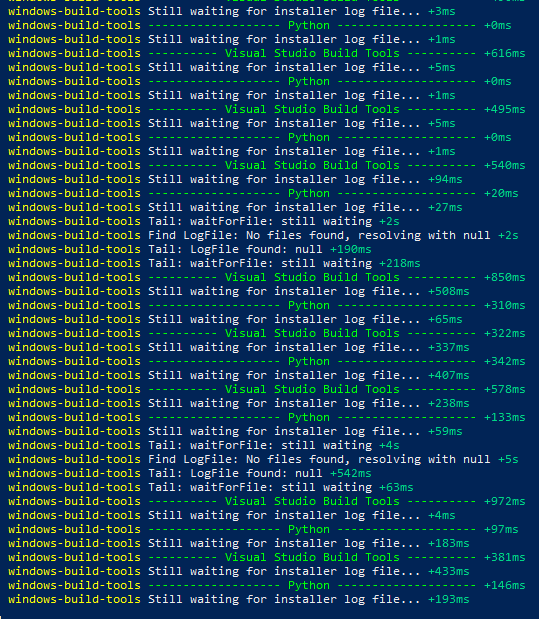
I cant find the file C:\Users\Administrator\AppData\Roamingnpmnode_modules\windows-build-tools\lib\install\index.js because i dont have a \lib in the folder and thats mypowershell error
 Mr-KayJayDee
on 22 Apr 2019
Mr-KayJayDee
on 22 Apr 2019
I solve this problem by installing .net 4.6
 crazyjj
on 20 Aug 2019
crazyjj
on 20 Aug 2019
I would like to add that, in my case, installation stuck at
---------- Visual Studio Build Tools ----------
Successfully installed Visual Studio Build Tools.
------------------- Python --------------------
when I was using Git Bash (run as admin). I switched to node.js command prompt (run as admin) and it worked fine.
 micuat
on 18 Jan 2020
micuat
on 18 Jan 2020
Thank you @TechnoSayge, I was having that exact issue and your solution worked.
 nateq314
on 26 Feb 2020
nateq314
on 26 Feb 2020
I had the same issue, I uninstalled Python but I also had Android Studio running. So I closed this down and it seemed to help. So it could be that other programs have a lock on certain files? I would try and close everything down and then rerun the installer.
 R3dXIII
on 17 Apr 2020
R3dXIII
on 17 Apr 2020
Problem
I guess most of us who faced this issue the user accounts we are using contain space(s) or maybe other special character(s) so this is the problem.
Solution
In my case, the solution for this issue was just create another user with a username which doesn't contain any space or special character in it, then install the build tools and go on for testing it.
My Case
My previous user was "Muhammad Nasir" so the home directory for that user was
C:\Users\Muhammad Nasir, then I created another user by the name of "Dev" so the home directory isC:\Users\Devfor this current user and there is no such problem or issue happening anymore in same PC.
I have no spaces on any directories names and the thing is still stuck.
 laisbsc
on 19 Apr 2020
laisbsc
on 19 Apr 2020
Allow me to share my truth with this installation:
Similar to @lance13c , I thought the installer had hung after an hour, ctrl+c'd and it exited with a successful installation message.

 cshape
on 3 May 2020
cshape
on 3 May 2020
Hi , can anybody tell me what is the minimum space requirement in c-drive for windows-build-tools to install
 AshishKadyan
on 6 May 2020
AshishKadyan
on 6 May 2020
Hi , can anybody tell me what is the minimum space requirement in c-drive for windows-build-tools to install
Mine is 1.17gb. I don't know what the minimum size is (recently installed).
R3dXIII
on 6 May 2020
 yunkido
on 11 May 2020
yunkido
on 11 May 2020
yunkido
on 11 May 2020
yunkido
on 11 May 2020
If we are installing Visual Studio Build Tools as part of other installation using powershell command line, we should ensure the PowerShell is opened in Admin mode.
I too got stuck while installing Visual Studio Build Tools, then i closed the powershell window, reopened in Administrator mode and ran the below command
------choco install visualstudio2017-workload-vctools--------
 SivaRapolu
on 6 Jun 2020
SivaRapolu
on 6 Jun 2020
If we are installing Visual Studio Build Tools as part of other installation using powershell command line, we should ensure the PowerShell is opened in Admin mode.
I too got stuck while installing Visual Studio Build Tools, then i closed the powershell window, reopened in Administrator mode and ran the below command
------choco install visualstudio2017-workload-vctools--------
Did it installed, if so then how long does it take?
 sohaib3335
on 7 Jun 2020
sohaib3335
on 7 Jun 2020
My installation had stuck in "Successfully installed Python 2.7". Stopped script with Ctl+C
I uninstalled all Python versions from system and ran the script "npm install --global windows-build-tools" again and it installed successfully.
 tejasvih
on 12 Jun 2020
tejasvih
on 12 Jun 2020
It does take some time to install if you do not have python pre-installed.
 sareem666
on 13 Jun 2020
sareem666
on 13 Jun 2020
On my machine, the VS Studio require update. Once updated and reboot, I installed the VS Build Tools again and now everything finished in few seconds.
In the settings > app, launch the VS Studio installer, you will get the GUI to update your VS and then asked for rebooting. After reboot, continue with the VS Build Tools installation.
I guess, when install the Build Tools via the command line, Windows cannot ask for reboot, therefore stuck their.
 boogiebug
on 21 Jun 2020
boogiebug
on 21 Jun 2020
In my case I had to wait about 10 mins, and then all of a sudden it worked when I pressed the enter button. So just keep waiting for a while guys and it will work.
 jalbissimo
on 1 Jul 2020
jalbissimo
on 1 Jul 2020
It is now resolved. Thank you for your support.
yunkido
on 11 Jul 2020
Hey, thanks for this thread. I was having a similar issue to the original post where the install seemed to stick after the "Installing visualstudio2017-workload-vctools... (See asterisk in image). After reading the posts from others I decided to right click the powershell window and select properties. That seemed to wake it up and the upgrade/install was successful.
thanks for giving the best solution
 Atharjoyia
on 14 Jul 2020
Atharjoyia
on 14 Jul 2020
As of JULY 16, 2020:
Just keep pressing enter maybe every after 30 minutes to refresh POWER SHELL. It should finish installation very soon.
I waited for maybe 1 HOUR and kept pressing letters, spacebar and enter and it worked. I have a low-end windows10 laptop.
Reason for getting stuck on it is maybe the download file size is huge or that the download speed of that particular file is small.
 ryap12
on 16 Jul 2020
ryap12
on 16 Jul 2020
I left it for 2.5 hours, and luckily, it successfully installed. Wish you all luck!
(Sept,2020)
 coffeeCoder69
on 6 Sep 2020
coffeeCoder69
on 6 Sep 2020
I also faced problem as stuck at Installing visualstudio2017-workload-vctools.. Only right click on Power shell will solve the problem and it will show all successful package installation.
 ervaibhavmalani
on 11 Nov 2020
ervaibhavmalani
on 11 Nov 2020
It took me about 3 hours to complete the download and installation process. It is a challenge of positive altitude and hope.

 XiayidanAlimu
on 28 Nov 2020
XiayidanAlimu
on 28 Nov 2020
Worked for me!
It just takes a long time to finish.
how much time taken in your case ?
 Mushkan123
on 9 Dec 2020
Mushkan123
on 9 Dec 2020
Hey, thanks for this thread. I was having a similar issue to the original post where the install seemed to stick after the "Installing visualstudio2017-workload-vctools... (See asterisk in image). After reading the posts from others I decided to right click the powershell window and select properties. That seemed to wake it up and the upgrade/install was successful.
That worked! Thx!
 AhmedPro2013
on 17 Dec 2020
AhmedPro2013
on 17 Dec 2020
Still have this issue
 Nikolay-Uvarov
on 21 May 2021
Nikolay-Uvarov
on 21 May 2021
Related issues
 keithnbrown
·
12Comments
keithnbrown
·
12Comments
 DanielNaaman
·
3Comments
DanielNaaman
·
3Comments
 anaisbetts
·
4Comments
anaisbetts
·
4Comments
 kittaakos
·
8Comments
kittaakos
·
8Comments
 DieselGaming
·
5Comments
DieselGaming
·
5Comments
Most helpful comment
@hyan36 Could you try locking the version to 1.3.2 and try rebuilding the image?
It seems like the latest release (1.4.0) is unstable ( https://ci.appveyor.com/project/felixrieseberg/windows-build-tools/build/107 )
And the last stable release seems to be 1.3.2 (https://ci.appveyor.com/project/felixrieseberg/windows-build-tools/build/97 )
PRs for fixing this are already in place
https://github.com/felixrieseberg/windows-build-tools/pull/79
https://github.com/felixrieseberg/windows-build-tools/pull/80
Until they are available, I guess downgrading the version to a stable release might help.