Vscode-remote-release: Can't connect through jumpbox
Some users may leverage ~/.ssh/config to set up ProxyJump and ProxyCommands to get to their endpoints. Currently, it appears that VSCode Remote only supports a direct connection.
 Stephen9s
All 52 comments
I'm able to connect to a JumpHost endpoint. Mine are configured in my config file. The only thing I had to do was copy my SSH key to the remote endpoint (and jump hosts). For example, if my config was:
local -> jump1 -> jump2 -> server
Then I'd have to run "ssh-copy-id" for jump1, then for jump2, then for server. After that, VSCode connected just fine.
 tralston
on 3 May 2019
tralston
on 3 May 2019
I am able to do the same, but what I found was that I could do the following:
local -> server = OK
local -> jump1 -> server = able to authenticate, but unable to connect.
I do know that when VSC connects to the remote server, it attempts to install or run a service. My suspicion is that by jumping through from X to Y to Z, the service ends up installing on Y and not X. Perhaps maybe there’s a better way to pivot using JumpHost as you said rather than ProxyCommand.
I’ll give ProxyJump a shot.
Stephen9s
on 3 May 2019
@TheStoof for what it's worth, here's an excerpt from my config file (sanitized):
host jump1-alias
  HostName jump1
  User myUser
  Port 2202

host server-alias
  HostName server
  User myUser
  Port 2202
  ProxyCommand ssh -W %h:%p jump1-alias
@TheStoof I just attempted the same connection, but from a Windows 10 machine with WSL, and it didn't work (same problem as #34). It did work though from my Mac.
tralston
on 3 May 2019
Yea, tried various options and nothing succesful to far. I was able to connect once by creating a tunnel in WSL and pointing the Hostname and Port to the tunnel but wasn't able to repeat.
 msalvaris
on 7 May 2019
msalvaris
on 7 May 2019
Ran into this issue while trialing Remote SSH as an alternative to local development. Connecting from a Windows 10 machine to a remote box works, but only when connecting directly. We cannot connect to any hosts via a jumpbox. In other words:
local -> jumpboxworkslocal -> jumpbox -> remotedoesn't work
Here's my (sanitized) config:
Host jumpbox
    HostName    12.34.56.78
    Port        22
    User        user

Host remote
    Hostname    172.16.0.1
    Port        22
    User        user
    ProxyJump   jumpbox
There is no way for us to SSH into a remote machine without tunneling through a jumpbox, so this functionality it absolutely necessary for us to use Remote - SSH.
 pd93
on 9 May 2019
pd93
on 9 May 2019
I'm trying to solve this issue by writing a new RemoteAuthorityResolver, which the Remote SSH and Remote Container based on. But there is no document about this API...
 LeuisKen
on 10 May 2019
LeuisKen
on 10 May 2019
Anyone solve this issue?
 suanrong
on 20 May 2019
suanrong
on 20 May 2019
@suanrong
Anyone solve this issue?
I was able to overcome the issue by using this method
https://github.com/microsoft/vscode-remote-release/issues/117
I create the proxy in wsl and simply make sure that my ssh config points to localhost and the correct port.
msalvaris
on 20 May 2019
I decided to try SSHing (with the same config as above) to my remote boxes via Powershell today. This should use the same version of SSH as the Remote - SSH extension (rather than the WSL version of SSH).
Unsurprisingly, I got exactly the same result, but a better error message
local -> jumpboxworkslocal -> jumpbox -> remotefails with the error:
CreateProcessW failed error:2
posix_spawn: No such file or directory
A quick search of the error found https://github.com/PowerShell/Win32-OpenSSH/issues/1185.
Not 100% sure if related, but that issue was fixed in Jan which implies that if that issue is the problem, this would be fixed in 1903. Unfortunately, we're still on 1809 at work, so I can't test.
A bit more searching also found https://github.com/PowerShell/Win32-OpenSSH/issues/1172. This issue seems more relevant than 1185, but is still open 😢
pd93
on 30 May 2019
I have copyed my SSH key to the remote endpoint and jump hosts as @tralston suggested. But I still met the issue like @pd93 . I added more information.
My config:
Host jumpbox
    HostName example.edu.cn
    User U
    Port xxx
    IdentityFile xxx.id_rsa


Host remote
    HostName remote
    User U
    Port xx
    ProxyCommand ssh -q -W %h:%p jumpbox
On Git Bash(windows)
$ ssh -V
OpenSSH_7.9p1, OpenSSL 1.1.1a  20 Nov 2018
local -> jumpboxworks
ssh jumpbox
local -> jumpbox -> remoteworks
ssh remote
On Powershell:
ssh -V
OpenSSH_for_Windows_7.7p1, LibreSSL 2.6.5
local -> jumpboxworks
ssh jumpbox
local -> jumpbox -> remotefails with the error:
ssh remote
CreateProcessW failed error:2
posix_spawn: No such file or directory
On VS Code:
local -> jumpboxworkslocal -> jumpbox -> remotefails with the error:
Picking SSH host
Selected remote
Confirming that remote is a valid reachable host
Running type "C:\Users\xxx\AppData\Local\Temp\vscode-linux-multi-line-command-remote.sh" | ssh  "remote" bash to confirm the host platform
>
> CreateProcessW failed error:2
> posix_spawn: No such file or directory
>
"uname" terminal command done
remote: unreachable or not Linux x86_64. (posix_spawn: No such file or directory)
 axiqia
on 31 May 2019
axiqia
on 31 May 2019
Maybe this could help:
ProxyCommand C:\Windows\System32\OpenSSH\ssh.exe jumphost netcat -w 120 %h %p
It worked as expected on Windows 10 1809 but there is probably bug in 1903 and this worked for me.
 johnymachine
on 7 Jun 2019
johnymachine
on 7 Jun 2019
Seeing same problem here when trying to connect to Centos 7 via a Centos 7 jump box from a mac. Tried several forms of ProxyCommand and ProxyJump. Can connect thru proxy to target from command line so the configuration should be good. Keys are set up on both jump box and target box.
Code Version: 1.35.0
Extension Version: 0.42.0
 davesdig
on 11 Jun 2019
davesdig
on 11 Jun 2019
I encountered CreateProcessW failed error:2 posix_spawn: No such file or directory on my __Windows 10 1903__. The ProxyCommand in my config is ProxyCommand ssh jumphost -W %h:%p.
Then I change the command to ProxyCommand C:\Windows\System32\OpenSSH\ssh.exe jumphost -W %h:%p, and it just works.
@johnymachine I tried yours, but I got bash: netcat: command not found.
I am not going to look into the error, I'd appreciate it if you let me know the why this happens.
OpenSSH_for_Windows_7.7p1, LibreSSL 2.6.5
Windows 10 - 1903
 Higher-Stark
on 11 Jun 2019
Higher-Stark
on 11 Jun 2019
I encountered
CreateProcessW failed error:2 posix_spawn: No such file or directoryon my Windows 10 1903. TheProxyCommandin my config isProxyCommand ssh jumphost -W %h:%p.
Then I change the command toProxyCommand C:\Windows\System32\OpenSSH\ssh.exe jumphost -W %h:%p, and it just works.@johnymachine I tried yours, but I got
bash: netcat: command not found.
I am not going to look into the error, I'd appreciate it if you let me know the why this happens.OpenSSH_for_Windows_7.7p1, LibreSSL 2.6.5
Windows 10 - 1903
Sorry my bad, I probably copied bad command.
My config is exactly this and it works:
ProxyCommand C:\Windows\System32\OpenSSH\ssh.exe -W %h:%p -q user@ipaddr
johnymachine
on 11 Jun 2019
ProxyCommand C:\Windows\System32\OpenSSH\ssh.exe -W %h:%p -q user@ipaddr
@johnymachine Thank you. That works for me on my windows platform.
axiqia
on 11 Jun 2019
@johnymachine Thanks for the solution! Do you know how to how to run the proxy ssh process in the background? There's a blank ssh process window that stays open as long as the connection is active.
 asmitde
on 16 Jun 2019
asmitde
on 16 Jun 2019
Well 😀
Here Is my question on stackoverflow:
No luck so far...
johnymachine
on 16 Jun 2019
Thought I'd post a little update to this issue for those who run into it.
The root cause of this issue is a bug with OpenSSH for windows. However, this has now been patched in the latest release (v8.0.0.0) (v8.1.0.0).
Updates:
Unfortunately, this likely won't get built into Windows until 1909 comes around.Seems like this didn't get into 1909. Waiting on news for when this patch might be available in a Windows release.We can expect to see the latest version of OpenSSH (v8.1) included in Windows 10 for the July 2020 release (see comment). However, in the mean time, you can manually patch it yourself!This comment has now been further clarified. This fix was not included in the Windows 2004 update, but will be released this fall.- MSFT has created a pinned issue explaining why OpenSSH was not included in the 20H2 release. It now looks to be released in a servicing update. Please see the linked issue for further info.
Manual Fix
- Download the v8.1.0.0 release
.zip. - Extract the
.zipfile - Copy and replace the extracted
ssh.exebinary into yourC:\Windows\System32\OpenSSHfolder. - Done! You can now use "Remote Development - SSH" with
ProxyJumpin the expected way.
If you get a permissions error then this may be because there is system protection in place on the existing ssh.exe binary. This can be removed by setting yourself as the owner of the file (requires admin) and granting yourself "full control". To do this, follow these steps:
- Right-click on the existing file
C:/Windows/System32/OpenSSH/ssh.exeand selectProperties. - Open the
Securitytab and click onAdvanced. - Click the button to change the owner and change it from
TrustedOwnerto your Windows username. - Type your username and click the
Check Namesbutton (This should autofill with your full username/email). - Apply the settings and then close the properties window and reopen it.
- Navigate back to the
Securitytab and click onEdit. - Select the
Usersgroup and give the groupFull Control. - Click
Applyand exit. - Now go back and try patching the file again.
pd93
on 1 Jul 2019
https://github.com/microsoft/vscode-remote-release/issues/18#issuecomment-507258777 This give a good reply and this issue can be closed.
 HsunGong
on 30 Sep 2019
HsunGong
on 30 Sep 2019
I thought I was having the issue described here until I discovered this Stack Overflow page: https://stackoverflow.com/questions/57289351/is-it-possible-to-create-a-proxy-in-remote-ssh-visual-studio-code?
Following the example completely resolved my problem.
 jkurlandski01
on 2 Oct 2019
jkurlandski01
on 2 Oct 2019
Maybe this could help:
ProxyCommand C:\Windows\System32\OpenSSH\ssh.exe jumphost netcat -w 120 %h %pIt worked as expected on Windows 10 1809 but there is probably bug in 1903 and this worked for me.
I tried yours and succeeded. Basically it looks like we only need to replace the executable from ssh on Linux to some ssh.exe (maybe with path) on Windows in our original commands. The other parts/params can just remain whatever they were.
Update: Just found this: https://github.com/PowerShell/Win32-OpenSSH/issues/1185. So the full path must be included no matter whether ssh.exe is in your environment variables or not.
 yixuanren
on 2 Oct 2019
yixuanren
on 2 Oct 2019
Easy workaround: just install git bash and remove OpenSSH from Path.
 polakpe7
on 22 Oct 2019
polakpe7
on 22 Oct 2019
Thought I'd post a little update to this issue for those who run into it.
The root cause of this issue is a bug with OpenSSH for windows. However, this has now been patched in the latest release (v8.0.0.0).
Unfortunately, this likely won't get built into Windows until 1909 comes around. However, you can manually patch it yourself!
Manual Fix
- Download the v8.0.0.0 release
.zip.- Extract the
.zipfile- Copy and replace the extracted
ssh.exebinary into yourC:\Windows\System32\OpenSSHfolder.- Done! You can now use "Remote Development - SSH" with
ProxyJumpin the expected way.If you get a permissions error then this may be because there is system protection in place on the existing
ssh.exebinary. This can be removed by setting yourself as the owner of the file (requires admin) and granting yourself "full control". To do this, follow these steps:
- Right-click on the existing file
C:/Windows/System32/OpenSSH/ssh.exeand selectProperties.- Open the
Securitytab and click onAdvanced.- Click the button to change the owner and change it from
TrustedOwnerto your Windows username.- Type your username and click the
Check Namesbutton (This should autofill with your full username/email).- Apply the settings and then close the properties window and reopen it.
- Navigate back to the
Securitytab and click onEdit.- Select the
Usersgroup and give the groupFull Control.- Click
Applyand exit.- Now go back and try patching the file again.
Blank terminal issue
Note that this does not fix the blank terminal from appearing when creating a new Remote SSH session. ~I have created a new issue for this.~
-- edit --
See #230 (this is now fixed)
Seems like new Win32-OpenSSH did not mke it to 1909? Currently on Win 1909 and Win32-OpenSHH 7.7.2.1.
johnymachine
on 13 Nov 2019
Seems like new Win32-OpenSSH did not make it to 1909? Currently on Win 1909 and Win32-OpenSHH 7.7.2.1.
Yeah, I noticed this recently too :/ Kind of a shame tbh - I'd really like to stop patching this on work machines at some point. @manojampalam are you able to comment on this at all?
Would be fantastic if this could be delivered via cumulative update, so enterprise users don't need to wait another 12 months+ to upgrade to Win 2009 or whatever its going to be called (confusing naming scheme!).
Edit: Updated my post with the "fix".
pd93
on 13 Nov 2019
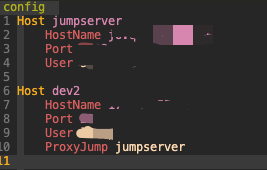
our company use jumpserver(https://github.com/jumpserver/jumpserver),i failed.

 Kurt-Shiwz
on 6 Dec 2019
Kurt-Shiwz
on 6 Dec 2019
I have all linux machines on the route. But it fails with:
[17:36:53.965] > Could not open a connection to your authentication agent.
> ssh_exchange_identification: Connection closed by remote host
[17:36:53.965] Got some output, clearing connection timeout
running ssh CONFIG_NAME directly in terminal works.
I have config like:
ProxyCommand ssh -o 'ForwardAgent yes' [email protected] 'ssh-add && nc %h %p'
 xgdgsc
on 27 Dec 2019
xgdgsc
on 27 Dec 2019
@roblourens I know this isn't directly related to VSCode, but it is directly impacting it. Our small team has been using VSCode Remote Dev since its release and we're really enjoying it, but we wouldn't feel comfortable having to patch 100s of instances of SSH just to work this way across other teams.
Is there any way to nudge the Windows 10 / OpenSSH guys regarding https://github.com/PowerShell/Win32-OpenSSH/issues/1172? Not much activity over there and it seems like noone has an answer as to when an upgraded version of OpenSSH will make it into Windows 10.
My personal feeling is that OpenSSH updates should be included in cumulative updates to ensure that security patches and bugs like this are ironed out ASAP. Most companies only update their OS on a yearly basis (and that's only if they followed the recommended guidance). Yearly updates to something like SSH seems highly inadequate.
pd93
on 2 Jan 2020
Maybe this could help:
ProxyCommand C:\Windows\System32\OpenSSH\ssh.exe jumphost netcat -w 120 %h %pIt worked as expected on Windows 10 1809 but there is probably bug in 1903 and this worked for me.
Thanks! Using ssh's full path worked for me :3
× ProxyCommand ssh -W %h:%p jumpnode
√ ProxyCommand C:\Windows\System32\OpenSSH\ssh.exe -W %h:%p jumpnode
 taseikyo
on 8 Jan 2020
taseikyo
on 8 Jan 2020
I encountered
CreateProcessW failed error:2 posix_spawn: No such file or directoryon my Windows 10 1903. TheProxyCommandin my config isProxyCommand ssh jumphost -W %h:%p.
Then I change the command toProxyCommand C:\Windows\System32\OpenSSH\ssh.exe jumphost -W %h:%p, and it just works.
@johnymachine I tried yours, but I gotbash: netcat: command not found.
I am not going to look into the error, I'd appreciate it if you let me know the why this happens.
OpenSSH_for_Windows_7.7p1, LibreSSL 2.6.5
Windows 10 - 1903Sorry my bad, I probably copied bad command.
My config is exactly this and it works:
ProxyCommand C:\Windows\System32\OpenSSH\ssh.exe -W %h:%p -q user@ipaddr
@johnymachine 's solution works for me! Great!
 alan23273850
on 6 Feb 2020
alan23273850
on 6 Feb 2020
Hi All,
A quick update regarding the inclusion of the latest version of OpenSSH in Windows 10.
See comment in a different OpenSSH issue.
We are shipping OpenSSH V8.1 in next windows release that might be available in July 2020.
This will fix the usage of the ProxyJump keyword! In the mean time, you can follow the instructions in my earlier post to manually update to a working version or you can use one of the other workarounds mentioned above.
pd93
on 14 Feb 2020
@pd93 @roblourens Not sure if this is related but I tried using an SSH tunnel via ngrok and I got the "Failed to parse remote port from server output" issue even on 8.1.
Is this a supported scenario or do I have to do the jumpbox method?
[17:55:01.210] stderr> OpenSSH_for_Windows_8.1p1, LibreSSL 2.9.2
[17:55:02.159] stderr> debug1: Server host key: ecdsa-sha2-nistp256 SHA256:ubsZl1Q9SjOlzifmMqGd/w8m95rTpUtsSeRL2FJgMh4
[17:55:03.703] stderr> Authenticated to 0.tcp.ngrok.io ([3.19.114.185]:19084).
[17:55:04.411] stderr> shell request failed on channel 2
[17:55:04.423] > local-server> ssh child died, shutting down
[17:55:04.433] Local server exit: 0
[17:55:04.434] Received install output: OpenSSH_for_Windows_8.1p1, LibreSSL 2.9.2
debug1: Server host key: ecdsa-sha2-nistp256 SHA256:ubsZl1Q9SjOlzifmMqGd/w8m95rTpUtsSeRL2FJgMh4
Authenticated to 0.tcp.ngrok.io ([3.19.114.185]:19084).
shell request failed on channel 2

[17:55:04.434] Stopped parsing output early. Remaining text: OpenSSH_for_Windows_8.1p1, LibreSSL 2.9.2debug1: Server host key: ecdsa-sha2-nistp256 SHA256:ubsZl1Q9SjOlzifmMqGd/w8m95rTpUtsSeRL2FJgMh4Authenticated to 0.tcp.ngrok.io ([3.19.114.185]:19084).shell request failed on channel 2
[17:55:04.435] Failed to parse remote port from server output
[17:55:04.436] Resolver error:
[17:55:04.438] ------
 JustinGrote
on 4 Mar 2020
JustinGrote
on 4 Mar 2020
If I turn off "Use Local Server" it gets further and installs the server and starts it, and I can see it running as node on the remote system, however, it just hangs here and never connects. If I turn off "Use Local Server" it doesn't get past the remote port parsing again.
vscode-server already installed. Skipping download...
vscode-server with 3943d614597f9f7c384846613d417e97ea6d5ab4 is already running.
61359013d8ae: start
agentPort==2728==
osReleaseId==windows==
osVersion==6.3.9600==
arch==x64==
platform==windows==
61359013d8ae: end
Install script is 680, watching sshd parent 3396
@JustinGrote I honestly don't know about your scenario - could you open a new issue with the full log, and some more details about what you're doing?
 roblourens
on 4 Mar 2020
roblourens
on 4 Mar 2020
@roblourens I just found my problem is #25, I'll continue it there. Doesn't appear to have anything to do with the port forwarding specifically, just coincidence.
JustinGrote
on 4 Mar 2020
@JustinGrote , @roblourens - If it's a OpenSSH issue then please create an issue here
 bagajjal
on 4 Mar 2020
bagajjal
on 4 Mar 2020
Please provide the detailed repro steps isolating the vscode environment (Just using ssh client and sshd server).
bagajjal
on 4 Mar 2020
@bagajjal My Particular Issue apparently unrelated to this issue is opened as #2475. According to @roblourens it's been fixed downstream and will be in next release, so further discussion of my issue should go there :)
JustinGrote
on 4 Mar 2020
I got it working by also sending my ssh key to the proxy.
Host random_name
  HostName <host name>
  Port 22
  User <host user>
  IdentityFile <private ssh key>
  ProxyCommand C:\Windows\System32\OpenSSH\ssh.exe -i <private ssh key> -W %h:%p -q <proxy user>@<proxy host>
 thohe973
on 20 Mar 2020
thohe973
on 20 Mar 2020
Below command is working
ProxyCommand C:\\Windows\\System32\\OpenSSH\\ssh.exe -i <ssh-key> -q -W %h:%p jumpbox
 veekayr
on 11 Apr 2020
veekayr
on 11 Apr 2020
if ProxyCommand C:\\Windows\\System32\\OpenSSH\\ssh.exe -i <ssh-key> -q -W %h:%p jumpbox doesn't work, Just use another ssh client. Just like git bin bash ssh client
set Remote.ssh.path in settings as like this
C:\Program Files\Git\usr\bin\ssh.exe or any other ssh client you have
 holoword
on 14 Apr 2020
holoword
on 14 Apr 2020
For me worked the following: [on Win10, w/ w/o WSL]
- starting with the same ssh configs described in https://code.visualstudio.com/blogs/2019/10/03/remote-ssh-tips-and-tricks#_proxycommand
- just replaced
sshwithssh.exe - specifying identity files, ssh config files, netcat etc. on ProxyCommand did not work for me -- but I did not test an absolute
sshpath, just added.exe
As for my ssh-key login:
For both hosts, I needed to specify my id_rsa_vscode file. That I needed to do regardless of proxying or not.
Host *
   IdentityFile C:\Users\<username>\.ssh\id_rsa_vscode

[...]
And I needed to copy my keys with ssh-copy-id to the remote hosts. I also needed to specify -f because I used different id_rsa files for normal ssh login in WSL and for VSCode, and without -f it would not copy the second VSCode ssh key. (That was neccessary because VSCode could not work with ssh-agent or password protected ssh identity files - as far as I know - without always typing the remote ssh passwords on each (re-)connect.)
 Querela
on 4 May 2020
Querela
on 4 May 2020
I patched windows 10 before.
After upgrading to Windows 10 2004(20H1) .
C:\Users\xxxx>ssh -vvv dc42
OpenSSH_for_Windows_7.7p1, LibreSSL 2.6.5
debug1: Reading configuration data C:\\Users\\xxxx/.ssh/config
debug1: C:\\Users\\xxxx/.ssh/config line 1: Applying options for *
debug1: C:\\Users\\xxxx/.ssh/config line 152: Applying options for dc42
debug3: Failed to open file:C:/ProgramData/ssh/ssh_config error:2
debug1: Executing proxy command: exec ssh dc_entry -W dc42:22
debug3: spawning "C:\\Windows\\System32\\OpenSSH\\ssh dc_entry -W dc42:22"
CreateProcessW failed error:2
posix_spawn: No such file or directory
Is this a new but or not ?
 eromoe
on 1 Jun 2020
eromoe
on 1 Jun 2020
@eromoe Unfortunately, that's still version 7.7 which does not contain the fix. You'll need to manually update to v8.0+ or use one of the other workarounds mentioned above.
It has been confirmed in another issue that v8.1 will be released in an update later this year, but is not included in Windows 10 2004 (20H1):
v8.1 goes into the next release (not into win10 version 2004) available during fall time.
pd93
on 1 Jun 2020
@eromoe @pd93 Did you solve the problem after upgrading to Windows 10 2004 by patching it again. I meet the same problem after I upgrade to Windows 10 2004. But patching manually updating to v8.0+ does not solve this problem.
 anji993
on 7 Jun 2020
anji993
on 7 Jun 2020
@anji993 Patching does sovle my problem , may be something wrong with previllage ?
eromoe
on 8 Jun 2020
For me worked the following: [on Win10, w/ w/o WSL]
- starting with the same ssh configs described in https://code.visualstudio.com/blogs/2019/10/03/remote-ssh-tips-and-tricks#_proxycommand
- just replaced
sshwithssh.exe- specifying identity files, ssh config files, netcat etc. on ProxyCommand did not work for me -- but I did not test an absolute
sshpath, just added.exeAs for my ssh-key login:
For both hosts, I needed to specify myid_rsa_vscodefile. That I needed to do regardless of proxying or not.Host * IdentityFile C:\Users\<username>\.ssh\id_rsa_vscode [...]And I needed to copy my keys with
ssh-copy-idto the remote hosts. I _also_ needed to specify-fbecause I used differentid_rsafiles for normal ssh login in WSL and for VSCode, and without-fit would not copy the second VSCode ssh key. (_That was neccessary because VSCode could not work with ssh-agent or password protected ssh identity files - as far as I know - without always typing the remote ssh passwords on each (re-)connect._)
It worked for me :)
Thank you
 susguzman
on 18 Jun 2020
susguzman
on 18 Jun 2020
FWIW: For anyone wanting password authentication only, this config works on Linux for jump-hosts:
Host <alias>
    HostName <hostname/ip-addr>
    Port 22
    User <user>
    ProxyCommand ssh -W %h:%p -q <user>@<jump-host-ip>
 nicolaipre
on 15 Sep 2020
nicolaipre
on 15 Sep 2020
Have anyone seen https://github.com/microsoft/vscode-remote-release/issues/3857 that with jump server too?
 tysonite
on 24 Oct 2020
tysonite
on 24 Oct 2020
A quick update for anyone following this issue. MSFT currently have a pinned issue explaining why OpenSSH was not included in the 20H2 release. I've updated my workaround comment above to reflect this.
pd93
on 29 Oct 2020
The manual fix by @pd93 worked like a charm for me, but a Windows update seems to have overwritten the updated ssh.exe. Rather than potentially having to replace the executable after future updates I simply extracted the zip to a different location and added it to the systems PATH. My steps:
- Download OpenSSH v8.1.0.0 .zip
- Extract to a suitable location, e.g.
C:\bin\OpenSSH-Win64 - Open _Edit the system environmental variables_ (found in the control panel or start menu)
- Edit the _Path_ variable and add
C:\bin\OpenSSH-Win64 - Make sure that the new entry is above the entry
%SYSTEMROOT%\System32\OpenSSH\ - Restart VSCode
Note that I had to edit PATH for the whole _system_, not my _user_. In the latter case the entry will be added after the system version giving it precedence.
Beware that sometime in the future this solution could cause problems if the system OpenSSH version is updated to a more recent version than the manually installed one...
 plevold
on 11 Dec 2020
plevold
on 11 Dec 2020
Manual Fix
- Download the v8.1.0.0 release
.zip.- Extract the
.zipfile- Copy and replace the extracted
ssh.exebinary into yourC:\Windows\System32\OpenSSHfolder.- Done! You can now use "Remote Development - SSH" with
ProxyJumpin the expected way.If you get a permissions error then this may be because there is system protection in place on the existing
ssh.exebinary. This can be removed by setting yourself as the owner of the file (requires admin) and granting yourself "full control". To do this, follow these steps:
- Right-click on the existing file
C:/Windows/System32/OpenSSH/ssh.exeand selectProperties.- Open the
Securitytab and click onAdvanced.- Click the button to change the owner and change it from
TrustedOwnerto your Windows username.- Type your username and click the
Check Namesbutton (This should autofill with your full username/email).- Apply the settings and then close the properties window and reopen it.
- Navigate back to the
Securitytab and click onEdit.- Select the
Usersgroup and give the groupFull Control.- Click
Applyand exit.- Now go back and try patching the file again.
Worked without any issues. I've used MobaXterm for a long time to first setup the tunnel and then just connect to the destination, but now it's not needed anymore with ProxyJump working correctly.
 matijagrcic
on 15 Dec 2020
matijagrcic
on 15 Dec 2020
Related issues
 jkoritzinsky
·
3Comments
jkoritzinsky
·
3Comments
 kieferrm
·
3Comments
kieferrm
·
3Comments
 nphmuller
·
3Comments
nphmuller
·
3Comments
 Arunselvan-AS
·
3Comments
Arunselvan-AS
·
3Comments
 gurdevrana
·
3Comments
gurdevrana
·
3Comments
Most helpful comment
Thought I'd post a little update to this issue for those who run into it.
The root cause of this issue is a bug with OpenSSH for windows. However, this has now been patched in the latest release
(v8.0.0.0)(v8.1.0.0).Updates:
Unfortunately, this likely won't get built into Windows until 1909 comes around.Seems like this didn't get into 1909. Waiting on news for when this patch might be available in a Windows release.We can expect to see the latest version of OpenSSH (v8.1) included in Windows 10 for the July 2020 release (see comment). However, in the mean time, you can manually patch it yourself!This comment has now been further clarified. This fix was not included in the Windows 2004 update, but will be released this fall.Manual Fix
.zip..zipfilessh.exebinary into yourC:\Windows\System32\OpenSSHfolder.ProxyJumpin the expected way.If you get a permissions error then this may be because there is system protection in place on the existing
ssh.exebinary. This can be removed by setting yourself as the owner of the file (requires admin) and granting yourself "full control". To do this, follow these steps:C:/Windows/System32/OpenSSH/ssh.exeand selectProperties.Securitytab and click onAdvanced.TrustedOwnerto your Windows username.Check Namesbutton (This should autofill with your full username/email).Securitytab and click onEdit.Usersgroup and give the groupFull Control.Applyand exit.