Teslamate: Synology: teslamate not starting – "Bind mount failed"
Describe the bug
when I follow the instructions with the easy internal network istallation on a synology, the teslamate container does not start. it gives the error message below.
I tried to manually create the import directory, but this results in a constant rebooting of the teslamate container.
help (docker newbie)
Recreating docker_teslamate_1 ... error
ERROR: for docker_teslamate_1 Cannot start service teslamate: Bind mount failed: '/volume1/@docker/import' does not exists
ERROR: for teslamate Cannot start service teslamate: Bind mount failed: '/volume1/@docker/import' does not exists
ERROR: Encountered errors while bringing up the project.
A clear and concise description of what the bug is.
To Reproduce
as described in the manual for easy installation, Synolgoy runnings DSM 6.2.2-24922 Update 4 //
yml fiel created baased on manual
docker launched through docker-compose up -d
Expected behavior
A clear and concise description of what you expected to happen.
Relevant entries from the logs
You must provide the logs of the teslamate container/application unless the bug can be narrowed down to Grafana.
To get the teslamate Docker container logs, for example, use the following command: docker-compose logs teslamate.
Attaching to docker_teslamate_1, 872c5670d953_docker_teslamate_1
teslamate_1  | WARNING: no logs are available with the 'db' log driver
872c5670d953_docker_teslamate_1 | WARNING: no logs are available with the 'db' log driver
Screenshots
If applicable, add screenshots to help explain the problem.
Data
If applicable, add an export of the data for the given period.
For example, to export charge data after January 1, 2020:
docker-compose exec database psql teslamate teslamate -c \
   "COPY (select * from charges where date > '2020-01-01') TO STDOUT WITH CSV HEADER" > charges.csv

docker-compose exec database psql teslamate teslamate -c \
   "COPY (select * from charging_processes where start_date > '2020-01-01') TO STDOUT WITH CSV HEADER" > charging_processes.csv
To export drive data after January 1, 2020:
docker-compose exec database psql teslamate teslamate -c \
   "COPY (select id, car_id, drive_id, date, elevation, speed, power, odometer, ideal_battery_range_km, est_battery_range_km, rated_battery_range_km, battery_level, usable_battery_level, battery_heater_no_power, battery_heater_on, battery_heater, inside_temp, outside_temp, fan_status, driver_temp_setting, passenger_temp_setting, is_climate_on, is_rear_defroster_on, is_front_defroster_on from positions where date > '2020-01-20') TO STDOUT WITH CSV HEADER" > positions.csv

docker-compose exec database psql teslamate teslamate -c \
   "COPY (select * from drives where start_date > '2020-01-01') TO STDOUT WITH CSV HEADER" > drives.csv
Operating environment
- TeslaMate Version: [e.g. v1.14.0]
- Type of installation: [e.g. Docker or Manual]
- OS: [e.g. Ubuntu]
 pverhoev
All 12 comments
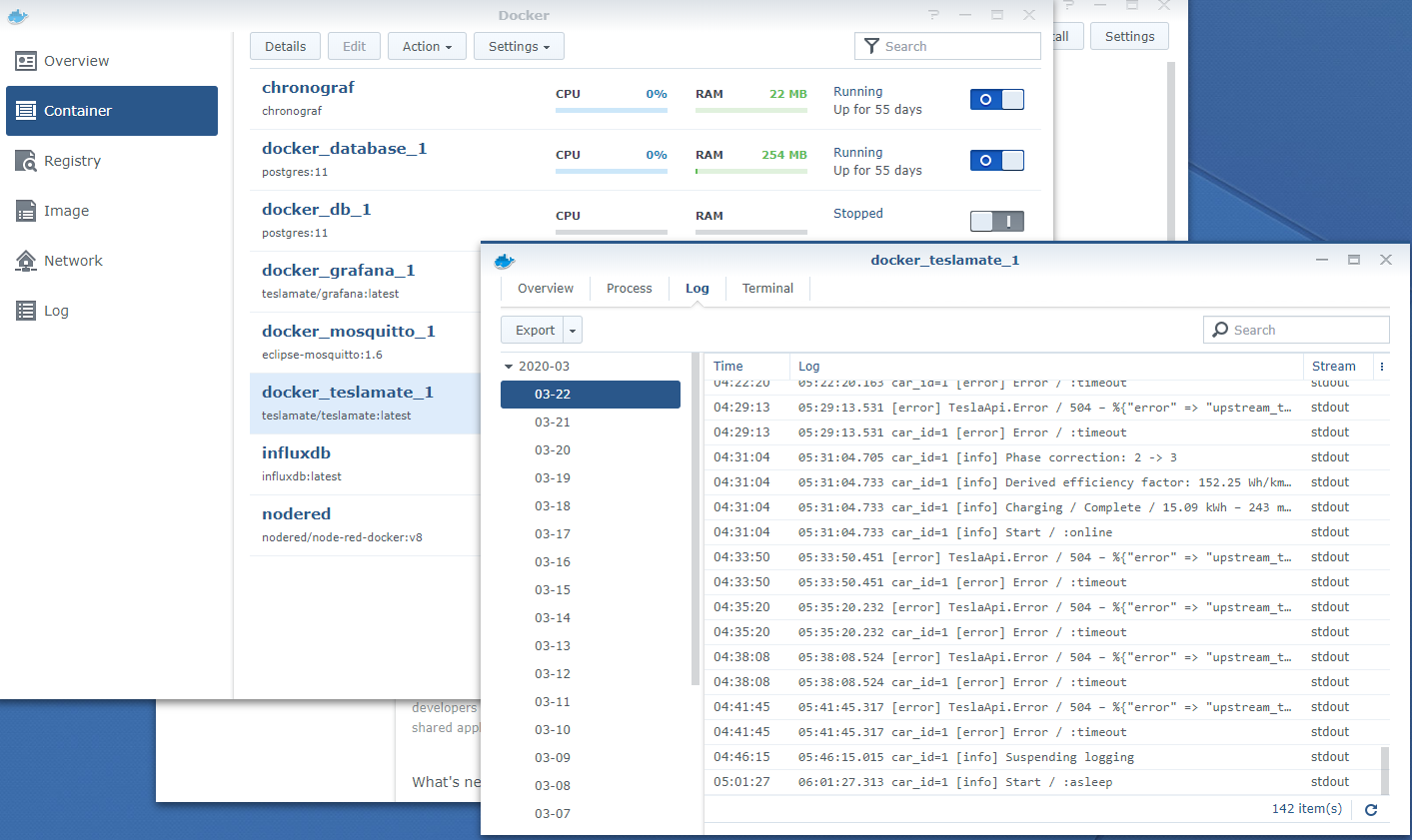
Synology by default routes all docker logs to it's own store to be used with the synology docker UI package so to grab logs open up the Synology Docker package and look at the details for the teslamate container.
 twinor
on 22 Mar 2020
twinor
on 22 Mar 2020
It's not @docker, just docker. The path is /volume1/docker/.
 Koofteh123
on 22 Mar 2020
Koofteh123
on 22 Mar 2020
thx !
I tried on the path /volume1/docker -> same result:
I cannot get the logs as the container is not starting (error bind mount failed 'volume1/docker/import' does not exist)I created the /volume1/docker/import directory myself and relaunched docker-compose up -d
this seemed to work, however, I cannot reach the service on port 4000. When looking at the logs I noticed:
"10:01:40.280 [error] Postgrex.Protocol (#PID<0.207.0>) failed to connect: ** (Postgrex.Error) FATAL 28000 (invalid_authorization_specification) no pg_hba.conf entry for host "172.18.0.4", user "teslamate", database "teslamate" | stdout
-- | --"
I have no idea where the 172.18.0.4 comes from, in my yml file I only specify the IP of the synology: 192.168.3.199...
any ideas what to try next ?
pverhoev
on 23 Mar 2020
I didn't need to modify the yml file for simple installation on Synology. Just copy the file as you see it here, move it to /volume1/docker and also create import folder. That works for me.
Koofteh123
on 23 Mar 2020
I retried with original yml file, the testlamate container keeps restarting.
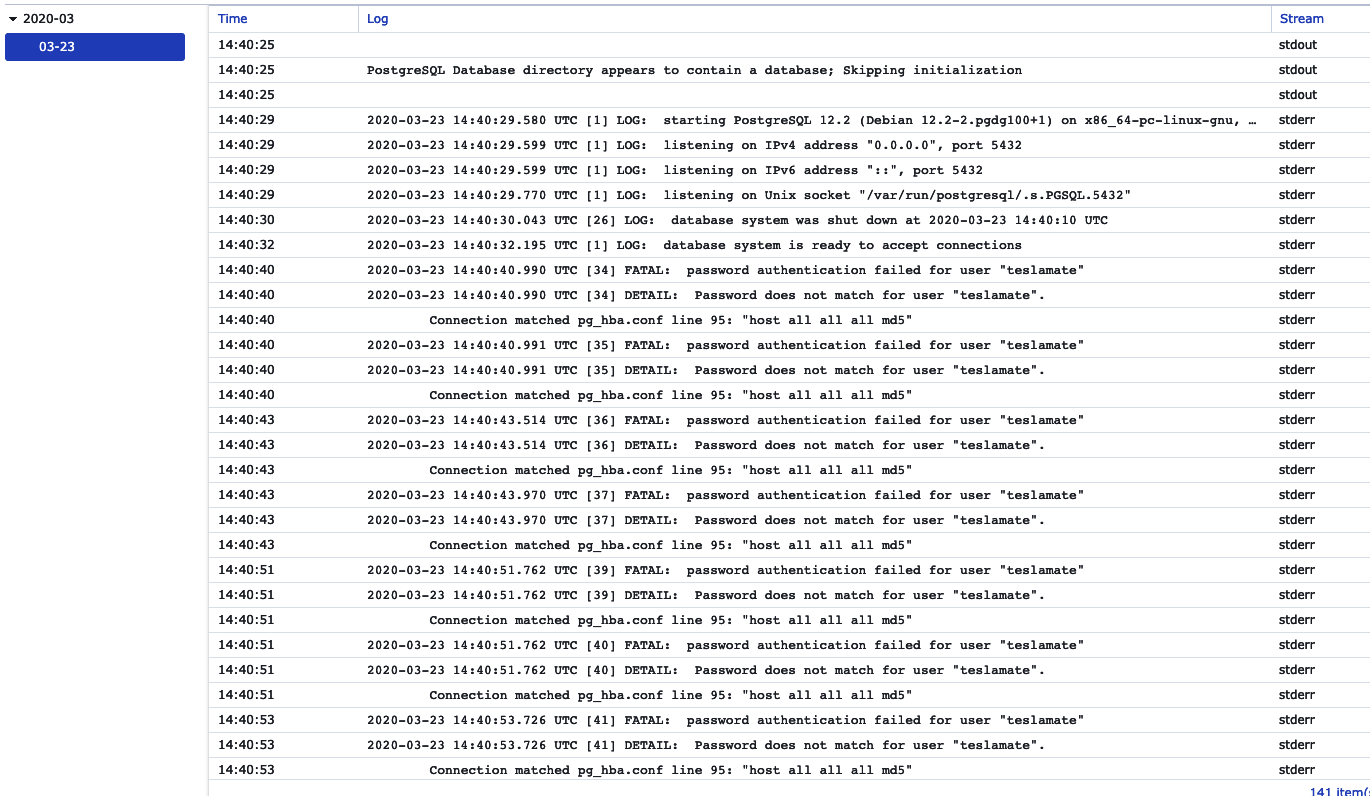
I also checked the postgress container log and it also shows errors (cf below). I've also installed the photo station and video station applications on the Synology, could it be that there is already a existing postgress db which prevents the teslamate from being created ?
pverhoev
on 23 Mar 2020
I had the same issue, and finally was able to resolve it and restore the backup from the pi (where I was running) to back on the synology NAS - I still have both going but that is another topic.
Here is what I did that helped solve this. I also saw there was an issue with me not running MQTT (I don't really use it) - but as I was having issues, I went back to defaults.
Using the Docker package UI deleted everything as it related to Teslamate and their dependencies. And this means containers, image, network, etc. I then ssh'd into the NAS and also cleaned up using the docker prune command; see more here if that helps for that.
I then uninstalled the docker package, and reinstalled it. I didn't have any other containers running, so could do that - not sure if you have that luxury, And finally before getting to Teslamate, I ran a simple web server to make sure everything is OK.
I ran the Alpine image just to make sure docker and all its dependencies were OK. You can see the steps I had blogged for this sometime back (even though thats for a pi, it is essentially the same thing). And if it helps, here is the docker-compose for the alpine test. Feel free to change ports to whatever works in your setup.
version: '3'
services:
  webapp:
    ports:
      - 6666:8000
    image: python:3.7-alpine
    command: "python -m http.server 8000"
And finally I then got teslmate deployed. I went with v11 for postgres, and then restored the backup from the pi, upgraded to v12 and then tried it again and all is OK.
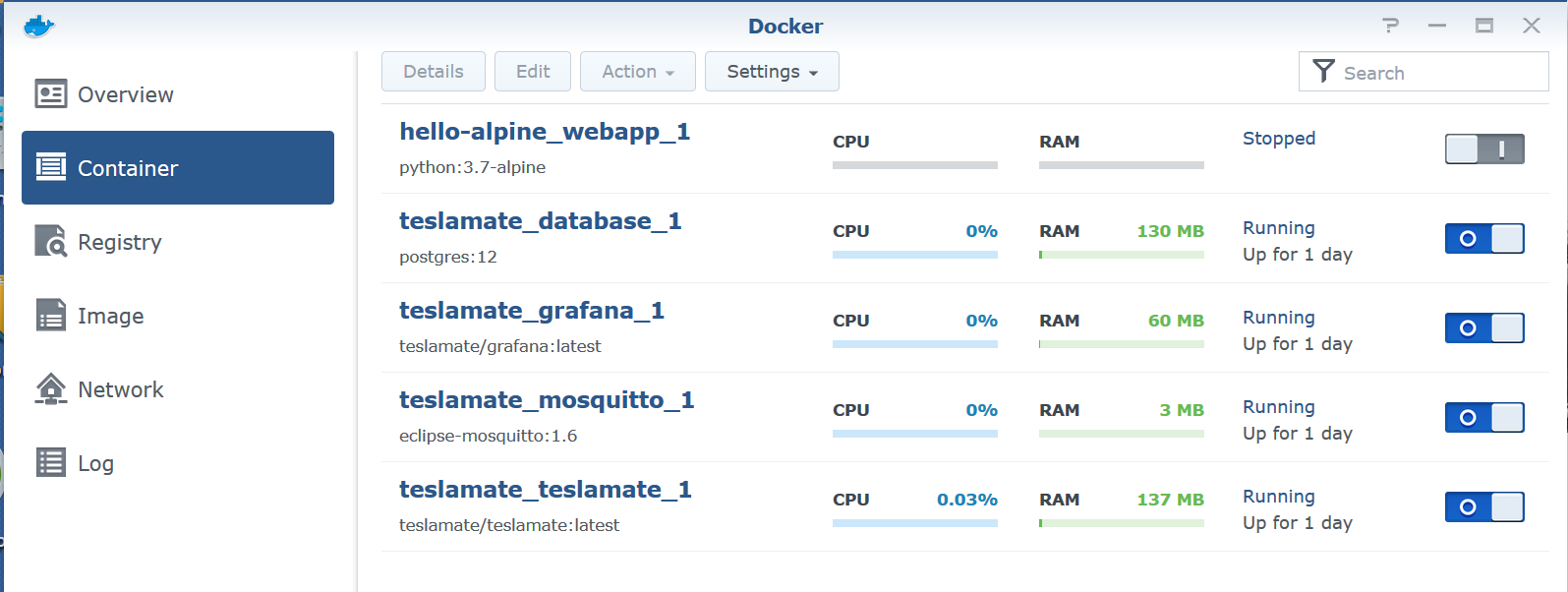
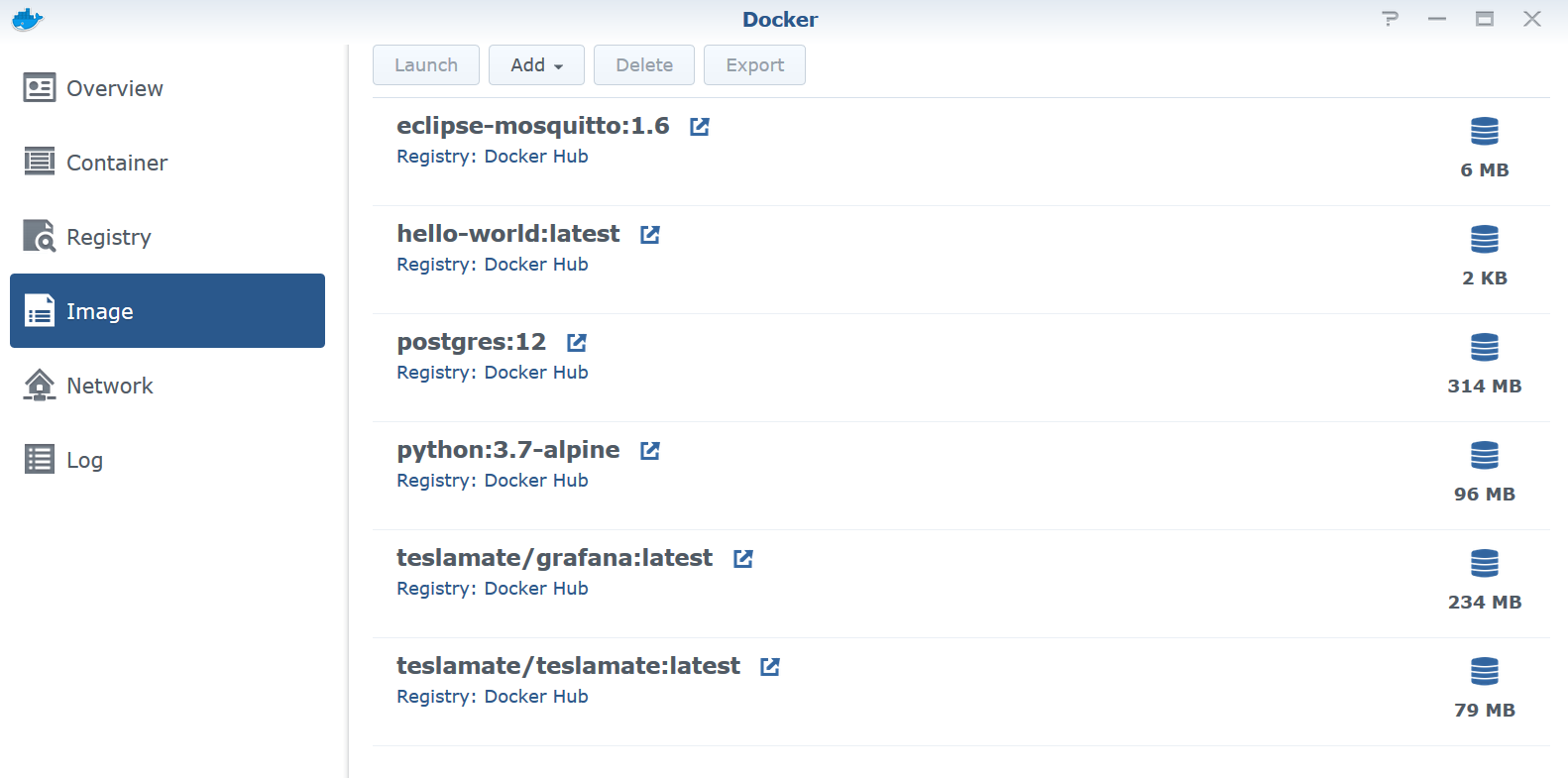
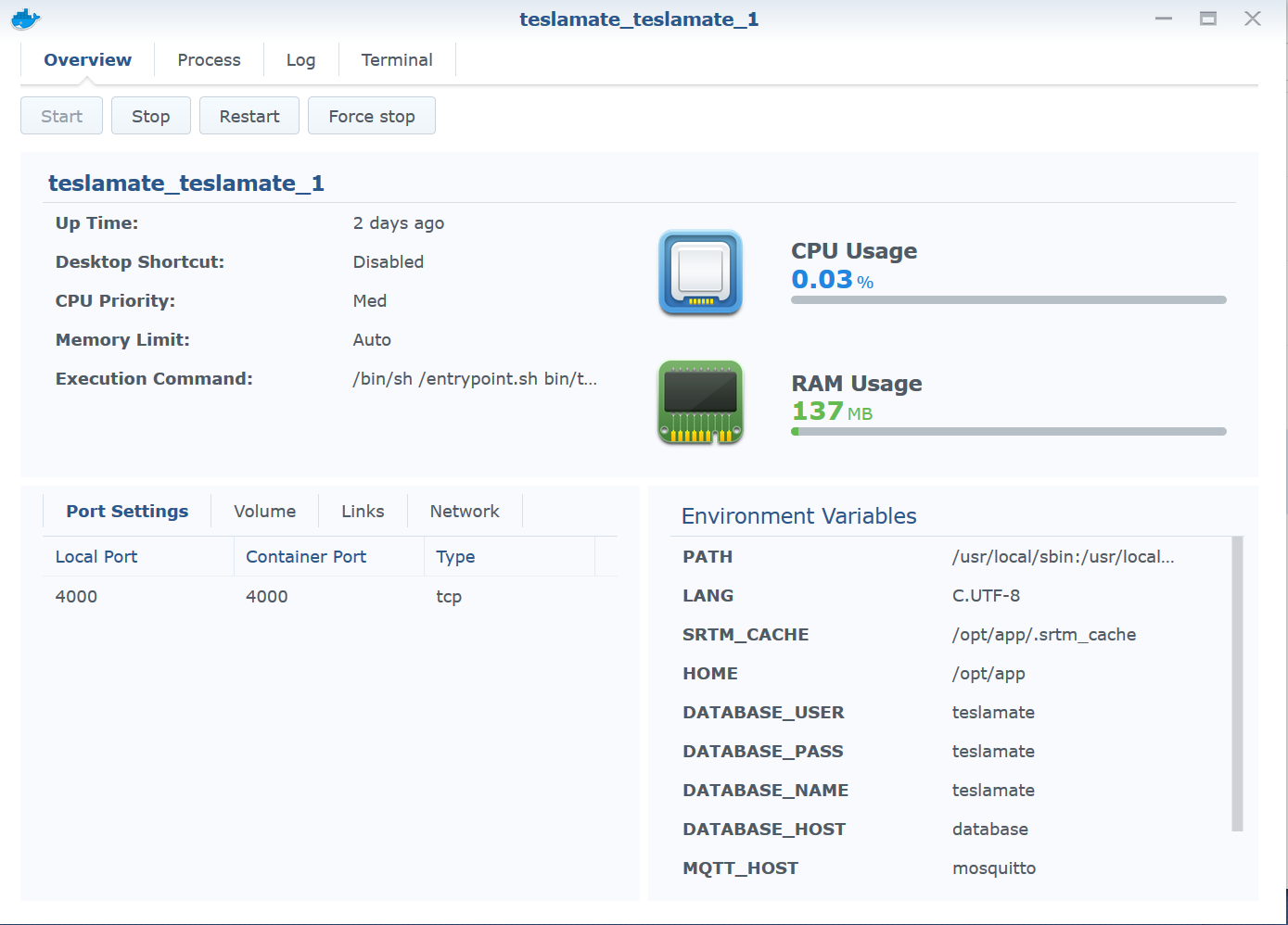
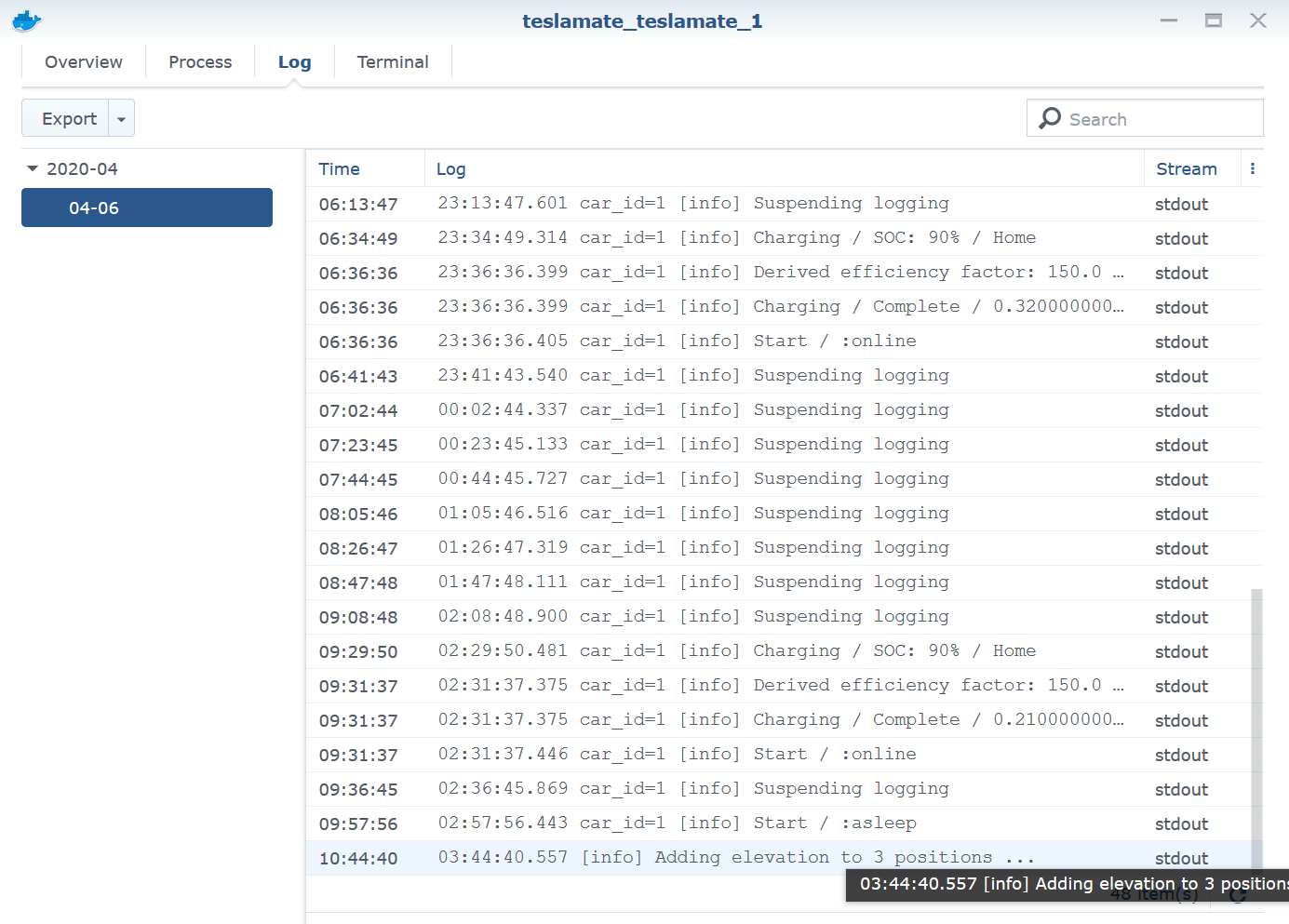
Here are a few screenshots of that now. Hope this helps, and ping and can try and see if I can help.
 bahree
on 7 Apr 2020
bahree
on 7 Apr 2020
It's not @docker, just docker. The path is /volume1/docker/.
Depending how your NAS if configured, it can be either of :
 /volume1/docker/
 /volume1/@docker aka  "cd /volume1/\@docker"
If I recall properly, there was a question in Docker install. Depending on the answer, one of the option "creates separate volume or shared drive?" ...I might be wrong as well :) , it's been too long and it's very late here. Someone can do Google "Synology Docker installation" ... I'll try to update my comment later this week.
On my NAS docker is configured under /volume1/@docker :
# ls /volume1/docker
@eaDir
# ls /volume1/\@docker
acme        containers               docker-compose.yml.working  linkgraph.db       swarm
aufs        docker-compose.yml       Dockerfile.compose          network            teslamate.conf-apache
builder     docker-compose.yml.bad   graph                       plugins            tmp
buildkit    docker-compose.yml.old   image                       repositories-aufs  trust
containerd  docker-compose.yml.orig  init                        runtimes           volumes
Maybe it's possible to create the docker-compose.yml file in /volume1/docker and run docker-compose from there but my understanding is that it wouldn't work.
 baylanger
on 22 Apr 2020
baylanger
on 22 Apr 2020
On my Synology with DSM 6.2.2-24922 Update 6 its working fine.
The docker-compose.yml is located at:
/volume1/@docker/docker-compose.yml
Simple Installation Guide for docker on Synologys from here: https://github.com/adriankumpf/teslamate/issues/113
 tobintax
on 1 May 2020
tobintax
on 1 May 2020
Hello,
I've tried following Simple Installation Guide for docker on Synologys from here: #113
Had the bind error because of missing import folder.
I did a mkdir import in /volume1/@docker
and ran docker-compose up -dagain which gave no error message.
However, like pverhoev, I cannot reach the service on port 4000.
I followed bahree's instructions, but no success either...
Has anyone managed to solve this issue ?
Cheers
Benn
 Benn
on 9 May 2020
Benn
on 9 May 2020
Hi @Benn
I just have the same issue.
I did mkdir import in /volume1/@docker
and ran docker-compose up -d again which gave no error message.
And I cannot reach the service on port 4000 too...
I then go to Docker panel on my Synology.
Select "Conteneur".
I then first stop docker_teslamate_1, wait 1mn, and restart it.
And I secondly stop docker_database_1, wait 1mn and restart it.
All is working now.
 hbr-c
on 9 May 2020
hbr-c
on 9 May 2020
Hi @hbr-c ,
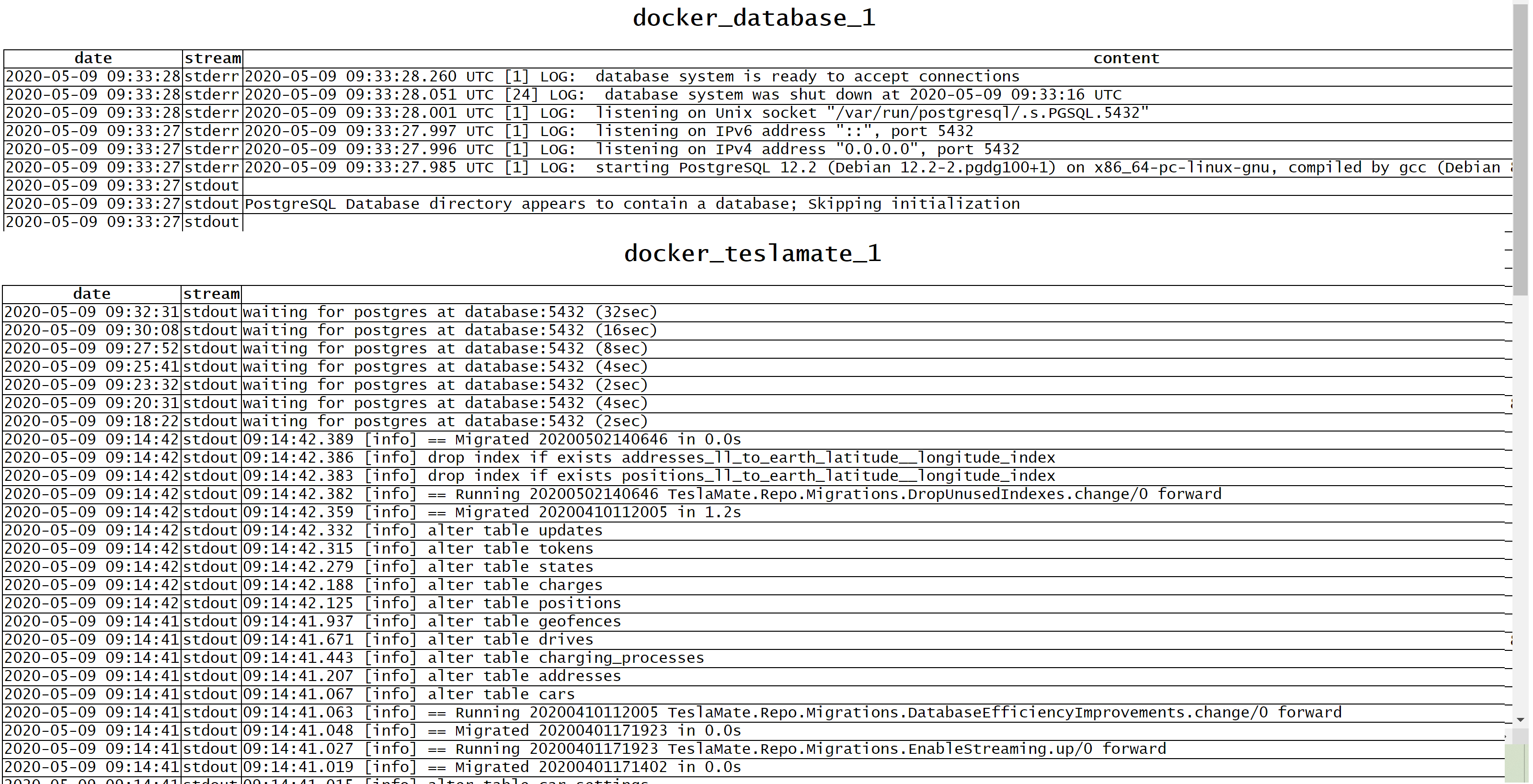
Unfortunately, no luck here.... same result.
Benn
on 9 May 2020
This issue has been automatically marked as stale because it has not had recent activity. It will be closed if no further activity occurs. Thank you for your contributions.
![stale[bot] picture](https://avatars.githubusercontent.com/in/1724?v=4&s=40) stale[bot]
on 8 Jul 2020
stale[bot]
on 8 Jul 2020
Related issues
 petariga
·
5Comments
bahree
·
5Comments
petariga
·
5Comments
bahree
·
5Comments
 netkruzer
·
6Comments
bahree
·
3Comments
netkruzer
·
6Comments
bahree
·
3Comments
 cwanja
·
3Comments
cwanja
·
3Comments