Simulator: how to modify HD maps for Apollo
Hello team!
Help me understand how to create HD maps
I want to modify, for example, "autonomous_stuff" for Apollo
I follow the instructions
https://www.lgsvlsimulator.com/docs/map-annotation/#import-map-annotations
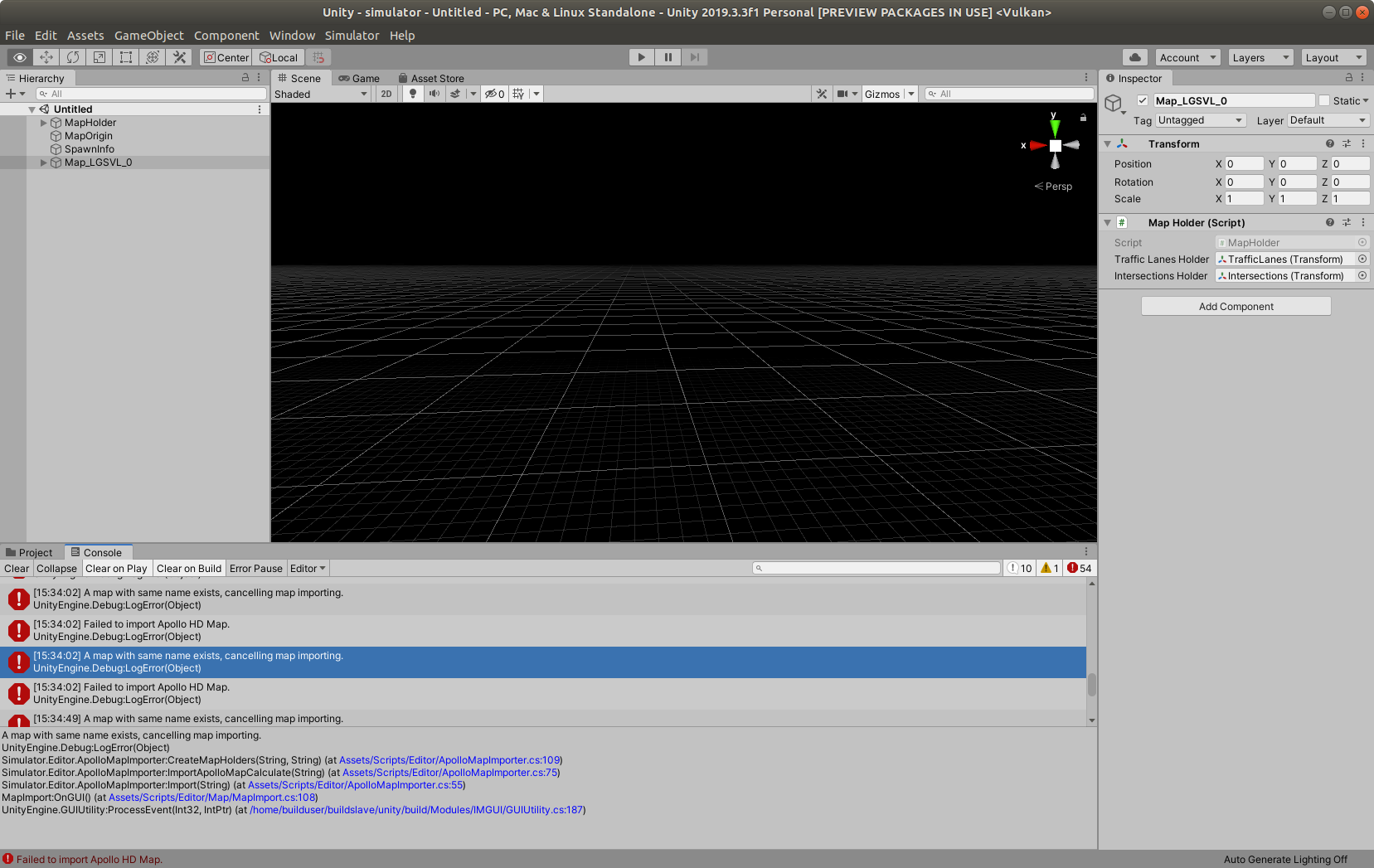
But when I load the "base_map.bin" file, I get the error
 AlexandrZabolotny
All 10 comments
@AlexandrZabolotny You have already imported the map named: Map_LGSVL_0. If you want to import it again, you need to either rename this one, or delete it. If you want to see the map annotations, you need to open Simulator -> Map Annotation window, then select View ALL.
 luqiang21
on 3 Aug 2020
luqiang21
on 3 Aug 2020
Thank you for your quick response.
Now all OK
AlexandrZabolotny
on 3 Aug 2020
Sorry for my persistence. But I was unable to add a new mod (parking space) to the imported project.
According to your recommendation, I have uploaded the map (autonomous_stuff / base_map.bin). By the way, I can't see the parking spaces.
I now want to add parking spaces to the map according to the instructions
https://www.lgsvlsimulator.com/docs/map-annotation/#create-parking-space
But I cant see TARGET_WAYPOINT
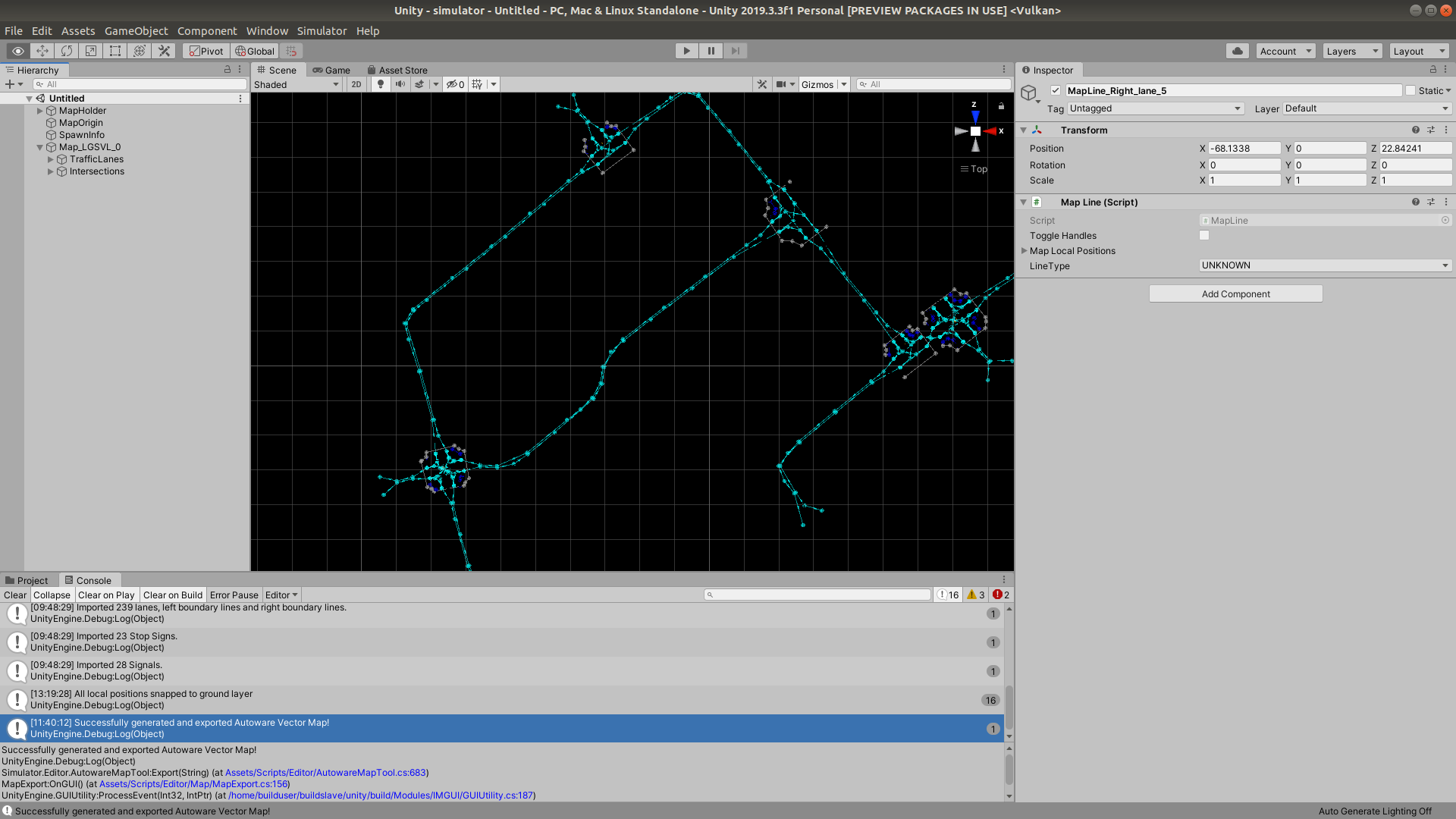
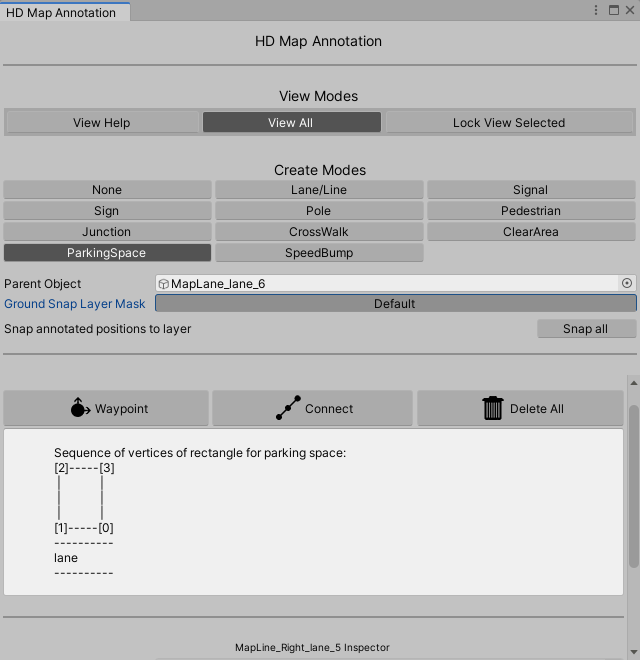
Perhaps you have any idea what the problem is?
AlexandrZabolotny
on 6 Aug 2020
@AlexandrZabolotny To annotate, you need to have a plane or road with mesh collider on it as described here. Then you can see the TARGET_WAYPOINT.
Also, for AutonomouStuff parking lot, did you check our content website? link I believe we already have parking space annotated in the map.
luqiang21
on 6 Aug 2020
First of all, I want to thank you for a very useful product.
Also, for AutonomouStuff parking lot, did you check our content website? link I believe we already have parking space annotated in the map.
I used your site data. But why can't I see the parking space when importing base_map.bin according to the instructions ? I want to run the open space algorithm. But the algorithm does not work for me. I don't know the reason, so I am trying to modify the HD-map. It is also interesting to understand how your HD-map constructor works.
@AlexandrZabolotny To annotate, you need to have a plane or road with mesh collider on it as described here. Then you can see the TARGET_WAYPOINT.
- Can I create a plan or a road with mesh collider for AutonomouStuff myself in order to modify the HD-map ?.
- Is it possible in the future will use your constructor to create an HD-map when using Apollo on real cars? If so, how can I get(create) a plan or road with mesh collider? I have local_map which I got according to this link.
AlexandrZabolotny
on 10 Aug 2020
@AlexandrZabolotny Sorry I noticed that our apollo and lanelet2 exporters support parking spaces. But importers don't support parking spaces yet. You need to either annotate manually or modify current apollo or lanelet2 importers to import parking spaces.
- Yes, you can create a plane with mesh collider and modify the imported HD-map yourself.
- We used our map for real car testing, it matches the real world, and we were able to run Apollo-3.5. For plane image, you can stitch the lossy maps you generated and then set correct
MapOrigin.
luqiang21
on 12 Aug 2020
I could not find on your site how to create a plane with a mesh collider? Can you give a link to instructions for this case?
I want to clarify. Do I understand correctly?
A lossy map has several folders with images of some areas. As shown here
I have to stitch all the images together so that it is one image. Am I right?
If so how can I use this image to create the plane with the mesh collider?
AlexandrZabolotny
on 12 Aug 2020
@AlexandrZabolotny
1) To create a plane in Unity
- Select GameObject -> 3D Object -> Plane
- Right click in the External/Environments/YourNewMapFolder/Models/Materials/ and select Create -> Material
- Name Ground.mat
- In External/Environments/YourNewMapFolder/Models/Materials/ import the Texture that you are going to apply to the new Material.
- Select the Ground.mat and in the inspector drag the Texture to the BaseMap slot.
- Select the Plane mesh and drag the Ground.mat to the Materials[0] slot
- Drag the Plane (Rename it first) into External/Environments/YourNewMapFolder/Prefabs/ folder
- Please look at some Unity development tutorials online, these will help immensely when creating your new map if you are not familiar with this engine
The Plane will have a MeshCollider automatically added. Mess with the mesh Scale and material UV Offset to fit.
2) Yes, I recommend Photoshop and create an image with the combined size and add each piece to the larger image, then save and use that as your materials BaseMap texture
 EricBoiseLGSVL
on 12 Aug 2020
EricBoiseLGSVL
on 12 Aug 2020
@EricBoiseLGSVL Thank you for answering.
@AlexandrZabolotny I just found the script I used before to stitch multiple images from lossy map folder. Hope it can be useful for you. https://github.com/lgsvl/apollo-3.0/blob/simulator/scripts/combine_pngs_from_pcd.py
luqiang21
on 12 Aug 2020
@luqiang21 , @EricBoiseLGSVL
I managed to create a map following your recommendations!
Thank's
AlexandrZabolotny
on 18 Aug 2020
Related issues
 ImCabbage
·
17Comments
ImCabbage
·
17Comments
 dr563105
·
28Comments
dr563105
·
28Comments
 weihunko
·
23Comments
weihunko
·
23Comments
 MccAlfh
·
14Comments
MccAlfh
·
14Comments
 frontw
·
14Comments
frontw
·
14Comments
Most helpful comment
@AlexandrZabolotny
1) To create a plane in Unity
The Plane will have a MeshCollider automatically added. Mess with the mesh Scale and material UV Offset to fit.
2) Yes, I recommend Photoshop and create an image with the combined size and add each piece to the larger image, then save and use that as your materials BaseMap texture