Silent-hill-2-enhancements: Fading to map bug/glitch
Hi,
while doing some tests I came across a new issue which seems to depend on specific hardware configurations.
I'm pretty sure it was discussed before, but I can't find the discussion so feel free to point me to the right issue if there actually is one.
I say it depends on hardware becuse I tested it on two PCs:
- One with AMD Ryzen 5 2400G CPU and RX11 Vega integrated graphics;
- One with Intel i7 950 CPU and nVidia GTX 970 discrete graphics.
Issue doesn't occur on the Intel/nVidia PC while it does on the AMD PC.
Basically, after any in-engine cutscene, the last frame of it shows up briefly every time I open the map, before fading to black.
It's hard to catch it with a screenshot, I'll try to make a video once I figure out how (I never recorded my screen before).
In the meantime, please feel free to ask more details.
 Bruno3589
All 22 comments
Basically, after any in-engine cutscene, the last frame of it shows up briefly every time I open the map, before fading to black.
Hmm... are you playing in fullscreen mode (EnableWndMode = 0)?
If you are playing in windowed mode, does the windowed game overlap your taskbar at the bottom?

 Polymega
on 26 Dec 2019
Polymega
on 26 Dec 2019
Hi @Polymega ,
I kept default settings on both (EnableWndMode = 1)
Forgot to mention this also happens when transitioning between areas (entering/exiting buildings and rooms).
When you mentioned fullscreen, however, something came to mind.
I changed two screen setting on the AMD PC, because it's connected to a TV:
- Tablet mode enabled
- DPI scaling set to 125%
I tried disabling them individually... Turns out setting DPI scaling back to 100% fixes the issue.
So it's not hardware related as I assumed earlier.
So here's how to reproduce it:
- Set Windows DPI scaling to a value higher than 100% (i was on 125%);
- Log off and then log back on (just to be sure scaling settings are applied);
- Start a new game, let the full cutscene play (do not skip);
- Leave the bathroom: upon leaving, the last frame of the cutscene should appear when fading to black.
I guess this shouldn't be a problem for most desktop PCs, however a lot of recent laptops with small screen sizes and a high resolution (1080p at least) have DPI scaling increased by default, for obvious reasons.
Bruno3589
on 27 Dec 2019
Thanks for researching and figuring that out. We can now use that information to help troubleshoot in the future, in case anyone else has the same problem. 👍
Polymega
on 27 Dec 2019
I think I also found a workaround.
First of all, it's worth mentioning this issue happens on Windows 10 build 18363 (version 1909).
Enabling this compatibility flag on sh2pc.exe seems to fix the issue:
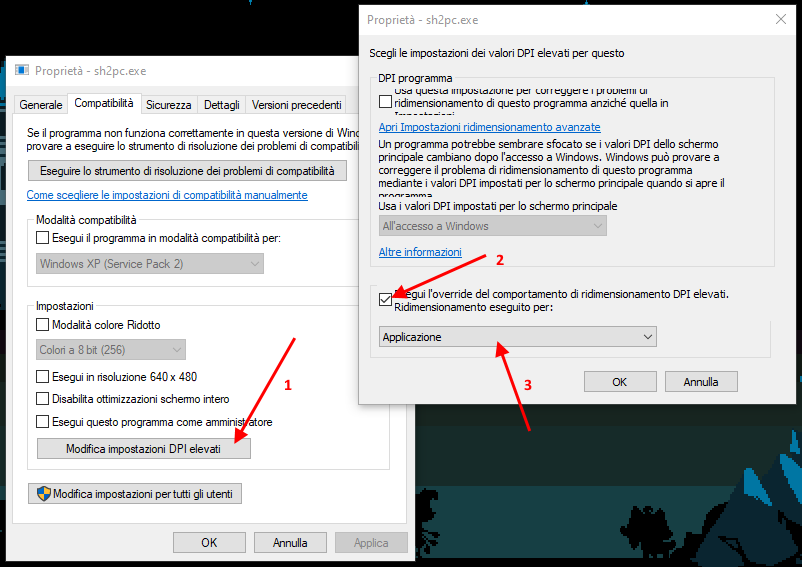
English descriptions foir the 3 steps should be:
- Change high DPI Settings
- Override high DPI scaling behaviour. Scaling performed by:
- Application
This is probably caused by a Windows 10 feature which tries to fix blurry fonts on legacy applications which don't support high DPI settings. This feature exists since Windows 10 1803 so any version before that should not have the issue.
I don't know if this can be fixed with a code change, but at least there is an easy workaround. Maybe it can be added to documentation on the website?
Bruno3589
on 28 Dec 2019
Beautiful. I'll have something written up for this to be included in the next update for the website (which will coincide with the next project update).
It seems when you disable that feature it also disables windowed mode for the game and stretches/distorts the game to fill the entire display space.
Polymega
on 28 Dec 2019
Since there is a KB on the website (as mentioned in #214 ) this issue is now covered.
However I wonder... Could there be a way to enable this by patching the executable? There are some applications doing this by default, however I don't have the proper knowledge so I don't know if it's a simple flag (like the 4GB Large Address awareness) or a way more complicated code change.
Bruno3589
on 16 Feb 2020
Yes, there might be a way.
Can we force disable Windows 10 DPI scaling for the game? In reference to this:
http://enhanced.townofsilenthill.com/SH2/troubleshoot.htm#a-burntin-image-appears-during-screen-fade-transitions
Polymega
on 16 Feb 2020
Nice find!
I'm not sure this would fix the issue on recent Windows 10 builds (1809+) since scaling is on by default even with DPI unaware applications... But it's worth a shot!
Bruno3589
on 17 Feb 2020
since scaling is on by default even with DPI unaware applications
I was afraid of that. :( I re-read the MSDN for it several times over and wasn't 100% sure if DPI scaling could be overwritten or not, the way we want to do it. (I was hoping PROCESS_PER_MONITOR_DPI_AWARE would be the type of thing that could fix it for us, but I wasn't sure.)
Polymega
on 17 Feb 2020
I'm not 100% sure either, I just remember the feature being introduced as off-by-default in 1803 then becoming on-by-default in 1809.
I know for a fact there _are_ definitely some applications that ovveride this behaviour, but I have no clue how.
Bruno3589
on 17 Feb 2020
Can we force disable Windows 10 DPI scaling for the game?
Yes. I already do this on dxwrapper, see here. I had this on my list to do for Silent Hill 2 also, just did not have time to do that for this release.
 elishacloud
on 18 Feb 2020
elishacloud
on 18 Feb 2020
Ah yes! Makes sense... Basically you "tell" Windows that the game is DPI-aware so it does not intervene.
It is a quite obvious solution now that I think of it.
Bruno3589
on 18 Feb 2020
Ah yes! Makes sense... Basically you "tell" Windows that the game is DPI-aware so it does not intervene.
It is a quite obvious solution now that I think of it.
Steam do it for some (older) games they sell. I found The Witcher EE with that option checked by default:
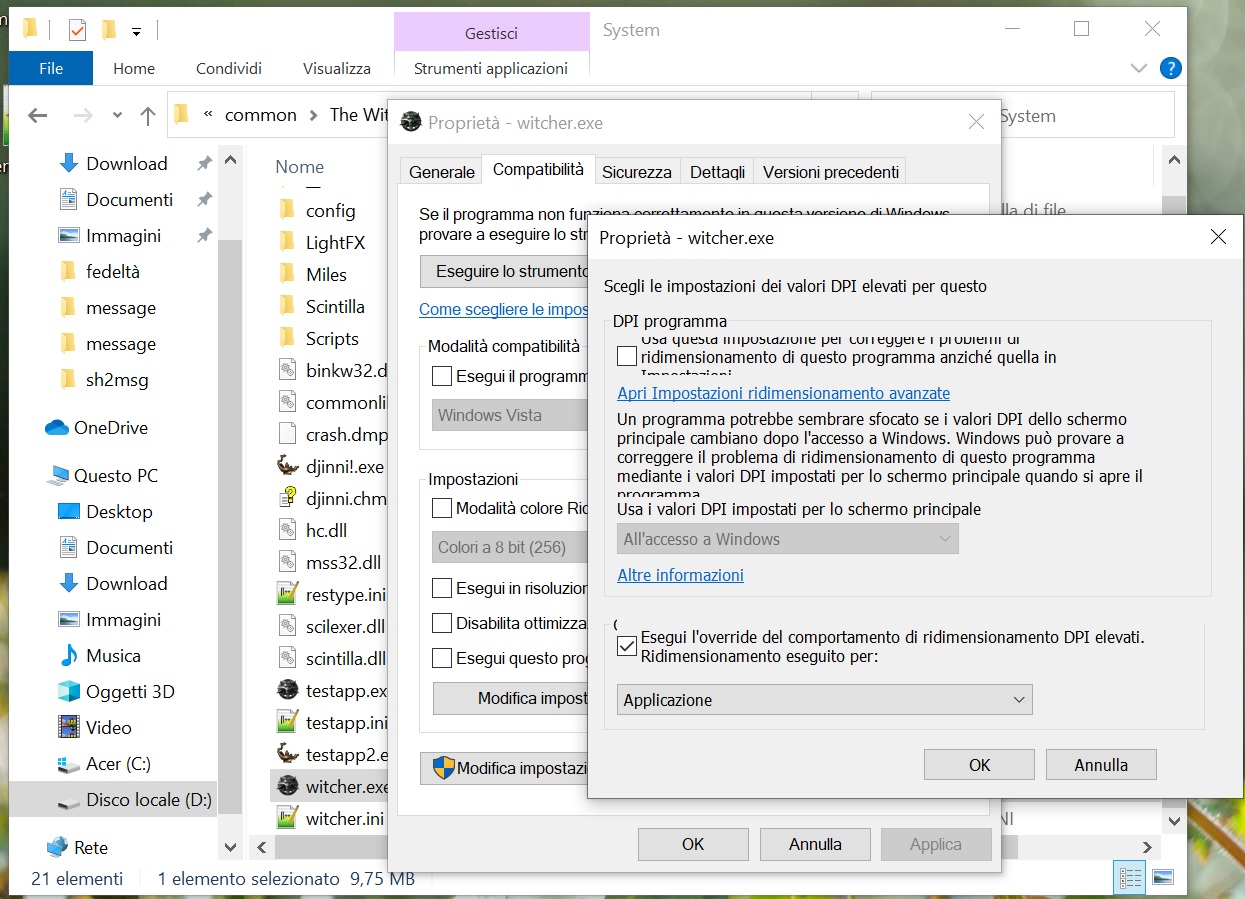
Newer games instead (like The Witcher 2, Remember Me, Cuphead, etc...) have that disabled by default, since they are internally patched to not be affected by the DPI option or so.
 Badore90
on 23 Feb 2020
Badore90
on 23 Feb 2020
I checked in a fix for this. Here is a download for the fix: d3d8.zip
elishacloud
on 7 Mar 2020
Hi @elishacloud ,
finally found some time to test the fix.
Took some time to do a proper test since Windows automatically re-applied the compatibility flag by itself on every game launch (I had to disable a service to avoid that).
Anyway, I tried the updated d3d8.dll on the PC with DPI at 125% and no compatibility flag and... It works!
This also seems to fix another issue which - until now - I didn't know it was related.
Resolution wasn't detected correctly with EnableWndMode = 1 and DPI at 125%: on my HDTV which is 1360x768, resolution was set at 1088x614, which seemed pretty random (and also made the game look blurry).
By setting EnableWndMode = 0 resolution was correct, however there was a brief (1-2 seconds) pause before any fade in/out.
I tried again today with the test d3d8.dll and EnableWndMode = 1 and the issue is gone!
So why the wierd resolution? Turns out, those values were actually the result of the correct resolution divided by the decimal value of the DPI scaling factor. In my case:
1360 ÷ 1.25 = 1088
768 ÷ 1.25 = 614.4
I don't know if this applies to everyone, it may be limited to screens where default DPI is 100% and the user forces a higher value, screens with a higher default DPI may be unaffected (I would test it myself, but I don't have a proper monitor).
So... another issue which apparently _isn't_ fixed by the compatibility flag but _is_ fixed by the updated DLL. Congratulations! 🎉
Bruno3589
on 9 Mar 2020
That's great to hear things are working without you having to change Windows settings anymore to fix it!
By setting EnableWndMode = 0 resolution was correct, however there was a brief (1-2 seconds) pause before any fade in/out.
This is a long-standing "quirk" with AMD GPUs when playing in fullscreen while also using d3d8to9:
http://enhanced.townofsilenthill.com/SH2/troubleshoot.htm#transition-times-between-navigating-menus-areas-etc-is-noticeably-delayed-or-sluggish
Polymega
on 9 Mar 2020
This is a long-standing "quirk" with AMD GPUs when playing in fullscreen while also using d3d8to9:
http://enhanced.townofsilenthill.com/SH2/troubleshoot.htm#transition-times-between-navigating-menus-areas-etc-is-noticeably-delayed-or-sluggish
Good to know... Does this also apply to discrete GPUs? I'm using the Ryzen 2400G's integrated RX11 Vega GPU.
I don't know if this applies to everyone, it may be limited to screens where default DPI is 100% and the user forces a higher value, screens with a higher default DPI may be unaffected (I would test it myself, but I don't have a proper monitor).
Turns out it may be specific to my TV, @Badore90 did the same test on his 1366x768 monitor and issue doesn't occur.
It is a rather old Samsung HD TV so I'm assuming it doesn't always handle well this particular setup.
Bruno3589
on 9 Mar 2020
Does this also apply to discrete GPUs?
I'm not sure myself. I only have one computer that uses an AMD GPU and it's a dedicated card.
Polymega
on 9 Mar 2020
@Bruno3589, thanks for your detailed testing and report. I'm glad it is working for you! I'm gong to go ahead and close this bug. If there is still an issue or you find something else you are welcome to reopen it or open a new issue.
elishacloud
on 10 Mar 2020
@Badore90, thanks for your detailed testing and report. I'm glad it is working for you! I'm gong to go ahead and close this bug. If there is still an issue or you find something else you are welcome to reopen it or open a new issue.
You wanted to quote @Bruno3589 I think ^^
Badore90
on 10 Mar 2020
You wanted to quote @Bruno3589 I think ^^
Yes, you are right. Sorry about that! Corrected my comments. Thanks @Bruno3589 for your help!
elishacloud
on 10 Mar 2020
Don't mention it, I'm glad to help :)
I'll be sure to report if I find anything else.
Bruno3589
on 11 Mar 2020
Related issues
Polymega
·
14Comments
 yukinsaknos
·
14Comments
yukinsaknos
·
14Comments
 Storm3000
·
10Comments
Storm3000
·
10Comments
 Vare3465
·
7Comments
Badore90
·
9Comments
Vare3465
·
7Comments
Badore90
·
9Comments
Most helpful comment
I think I also found a workaround.
First of all, it's worth mentioning this issue happens on Windows 10 build 18363 (version 1909).
Enabling this compatibility flag on sh2pc.exe seems to fix the issue:

English descriptions foir the 3 steps should be:
This is probably caused by a Windows 10 feature which tries to fix blurry fonts on legacy applications which don't support high DPI settings. This feature exists since Windows 10 1803 so any version before that should not have the issue.
I don't know if this can be fixed with a code change, but at least there is an easy workaround. Maybe it can be added to documentation on the website?