Silent-hill-2-enhancements: Color-correcting Catacomb Meat Cold Rooms
Spoilers below
@Bigmanjapan
Hi friend,
Playing PC and PS2 versions side-by-side the Eddie boss rooms are discolored and the lighting is rather too different.
Eddie boss small room
The biggest issue is the first (small) room: Both the colors are completely off and the lighting is much more dim in the PC version:
PC

PS2
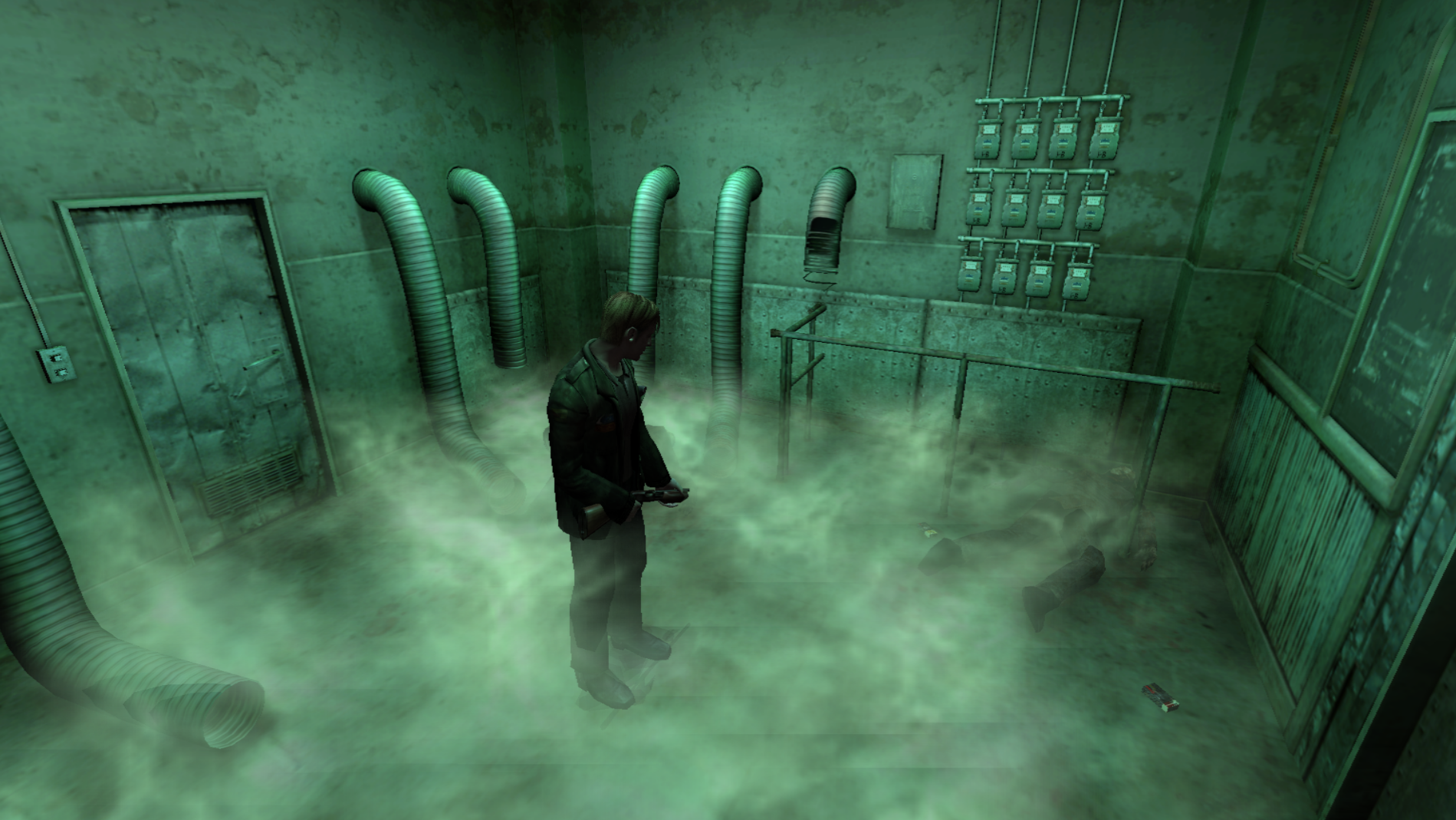
I was able to change this room's colors to better match. It's not perfect but much closer. Although, I don't know if these are the right/best values to change.
Description | Address | Original Value | New Value
-- | -- | -- | --
Room coloring (?) R | 00942A60 (float) | 4 | 2
Room coloring (?) G | 00942A64 (float) | 4 | 4
Room coloring (?) B | 00942A68 (float) | 4 | 2
Which gives you this result:
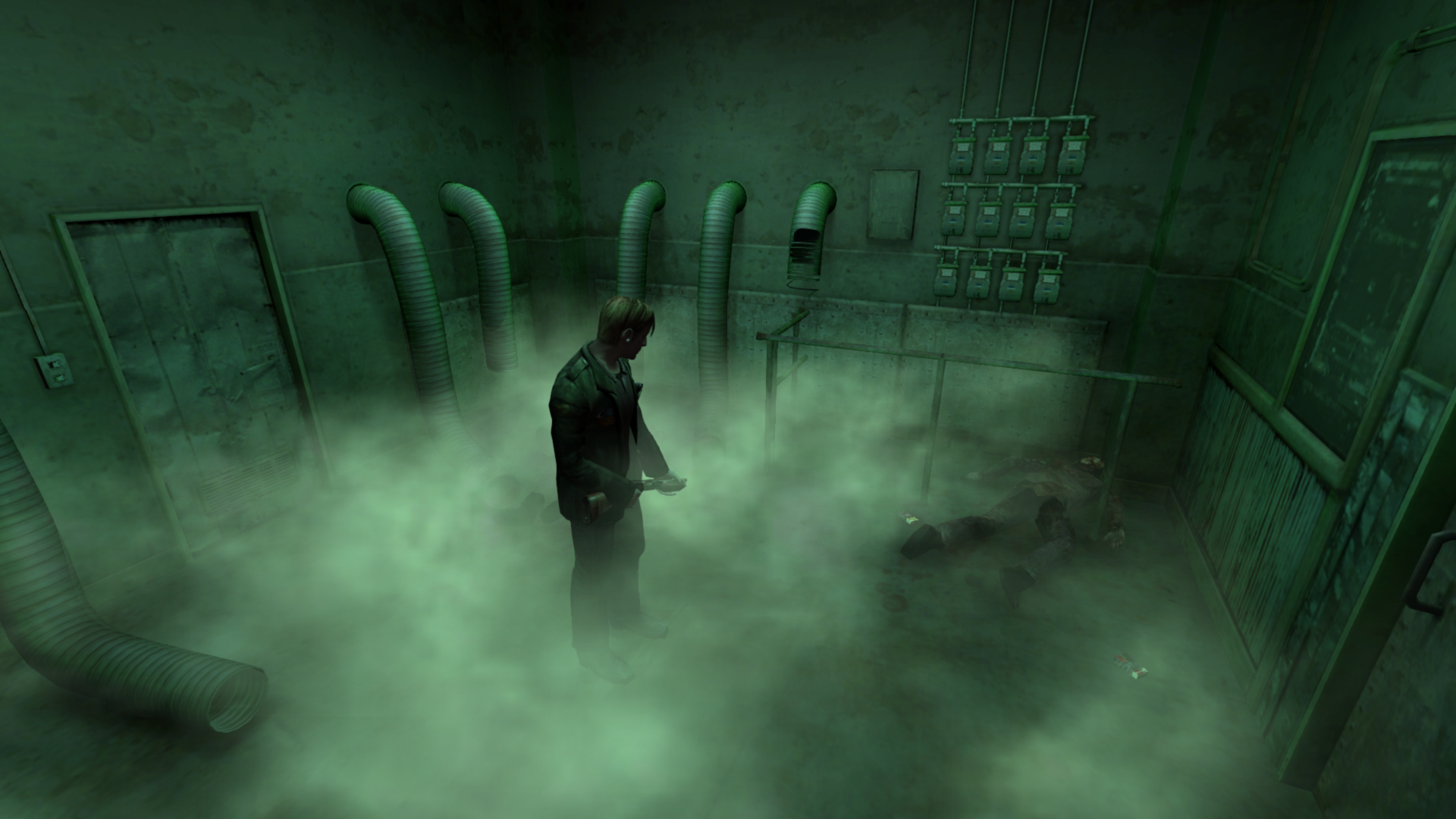
So the colors are starting to look good but now the room is overall too dark. I don't know what addresses to find/change to now increase its brightness?
Eddie boss large room
This room, for the most part, is pretty spot-on in terms of coloring. Using this room's default values (4, 4, 4) keeps the walls and meat the same coloring between the two.
PC
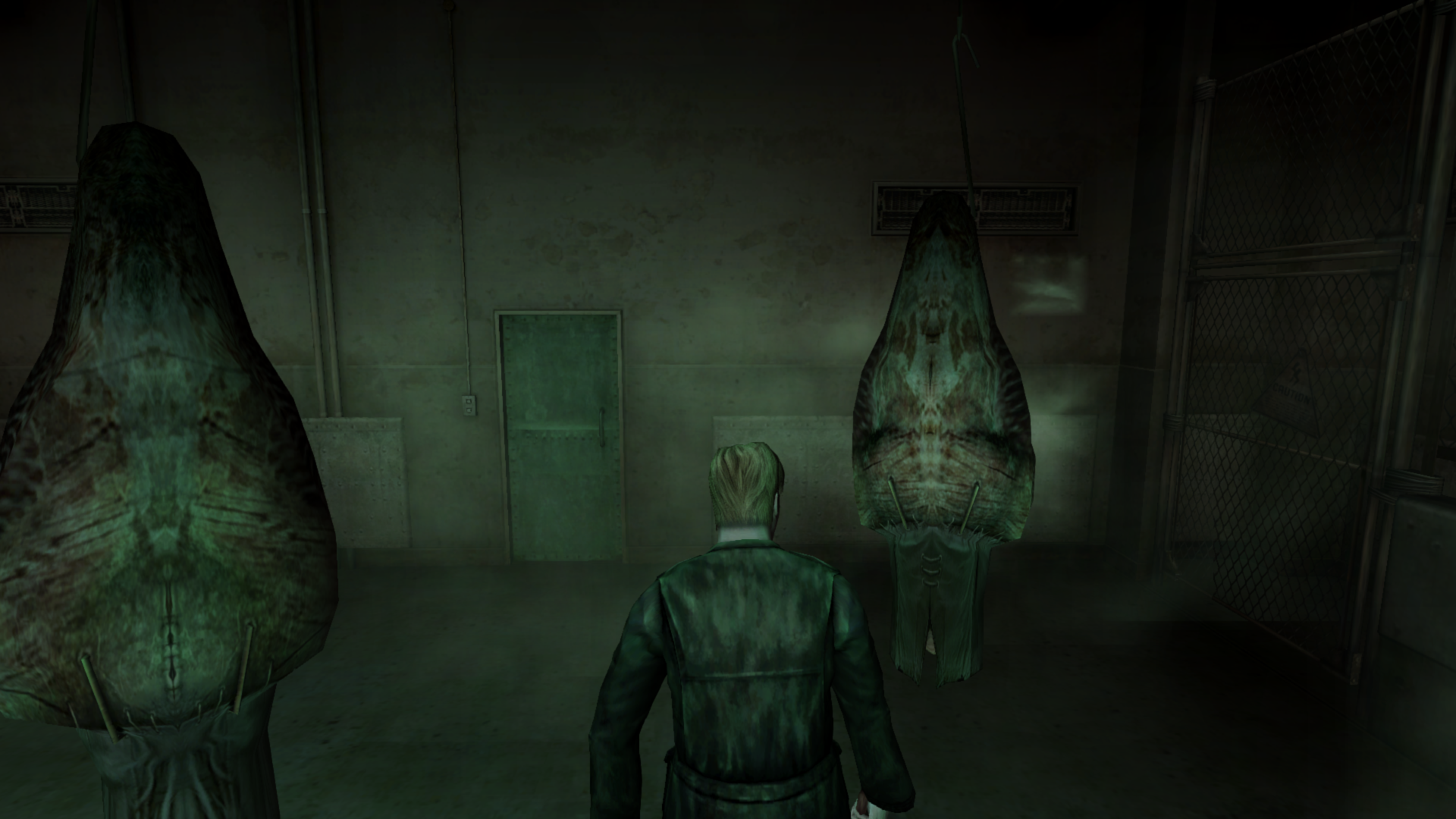
PS2
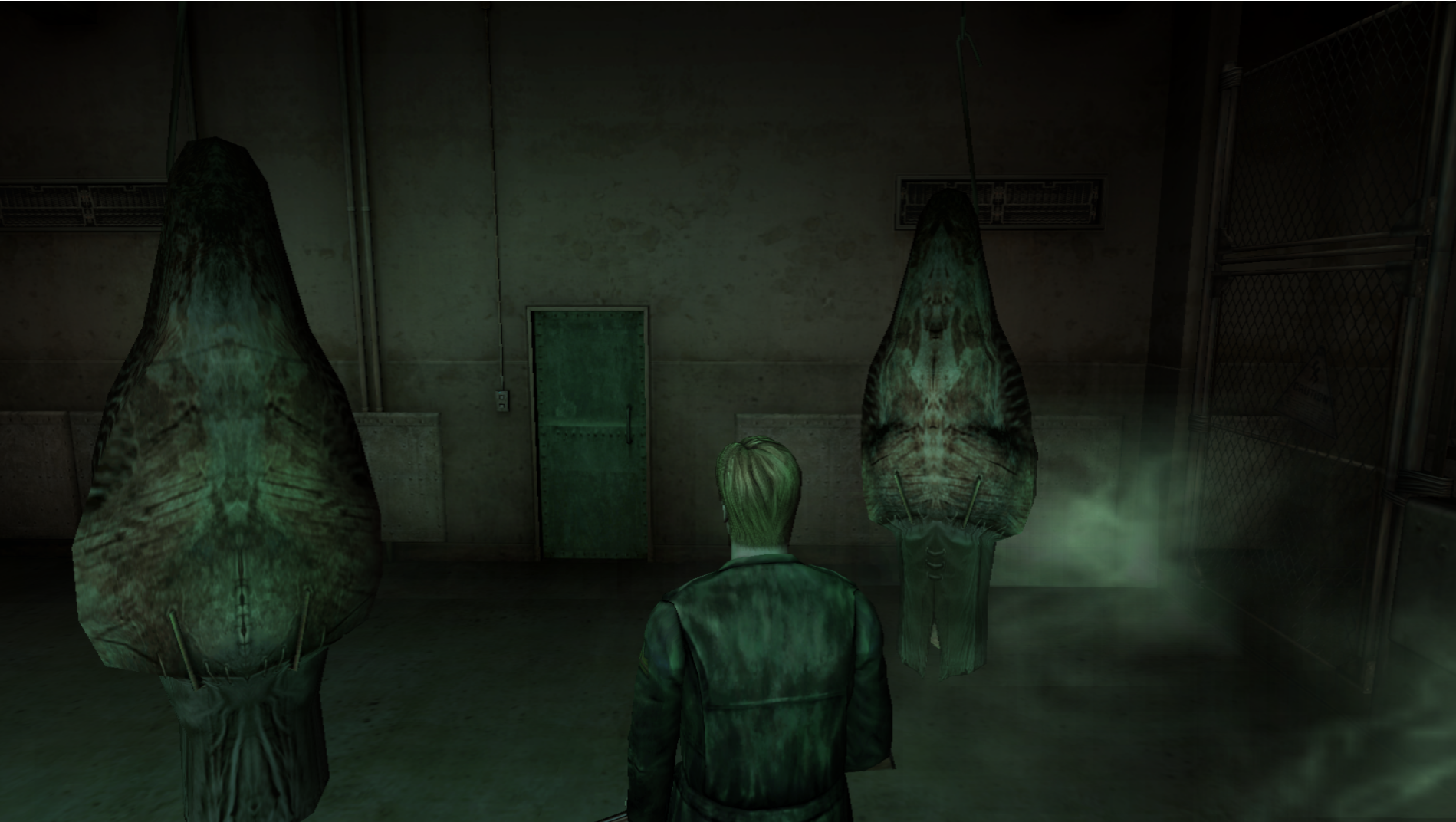
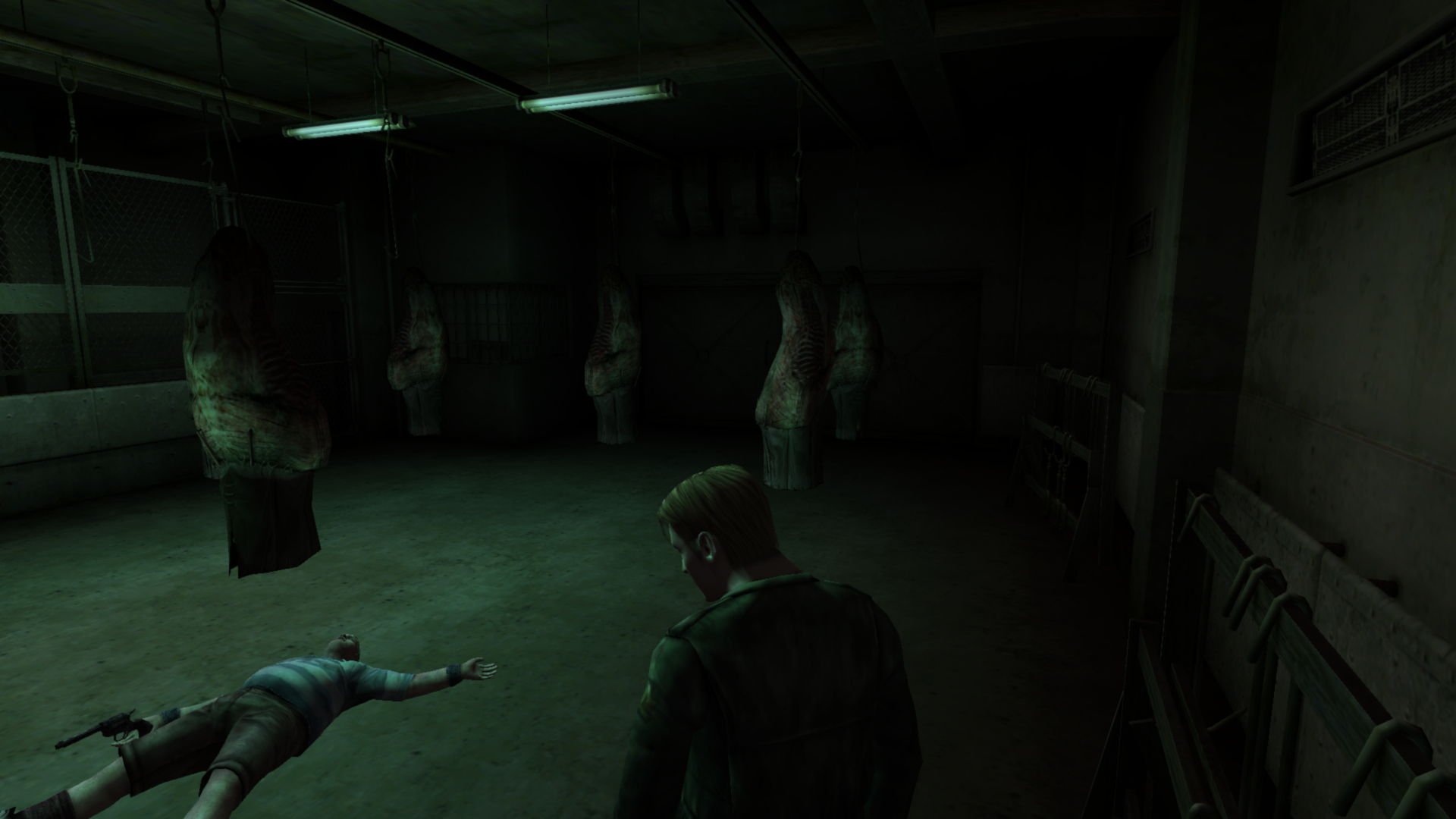
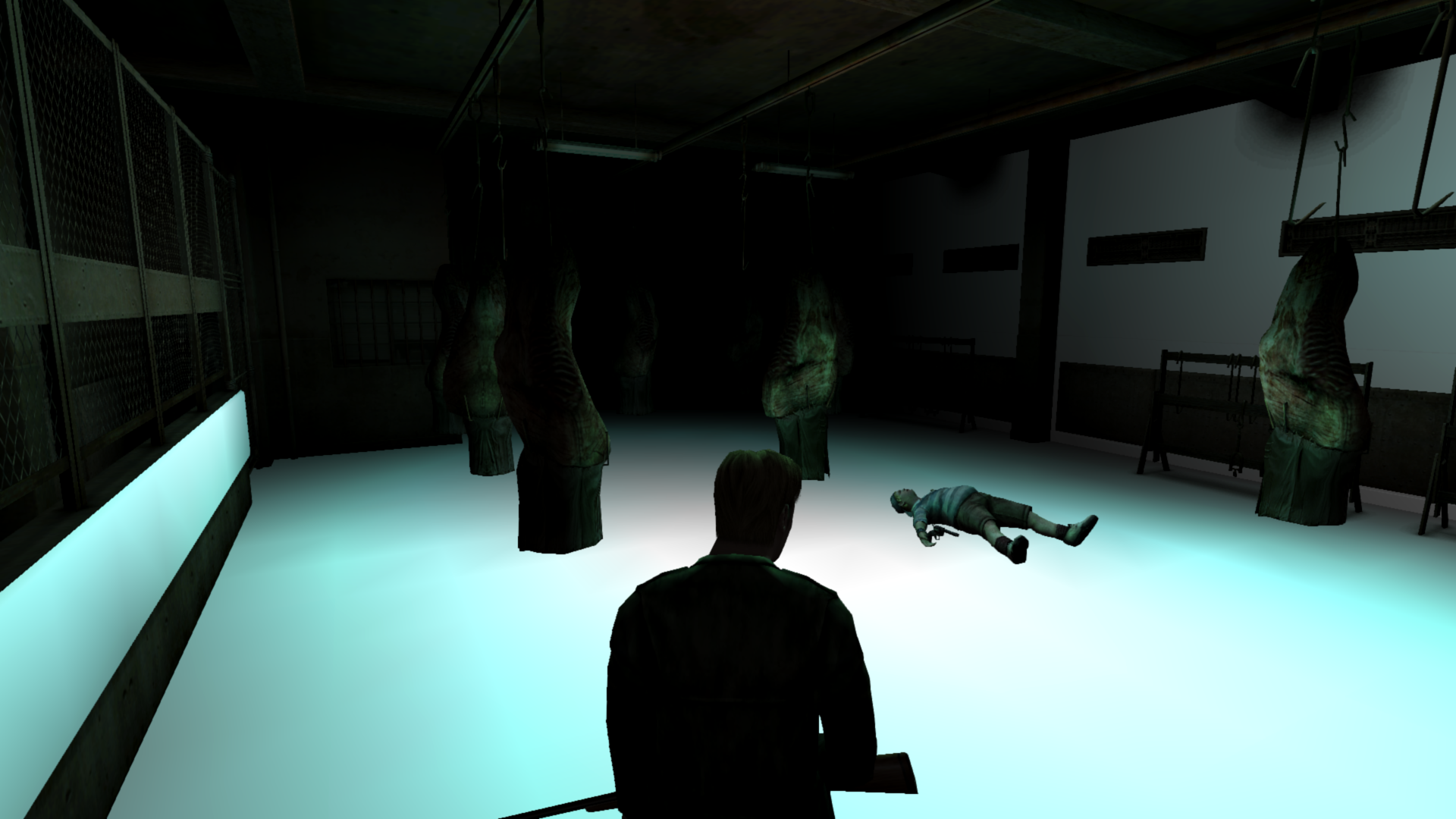
The only difference I noticed is that the center of the floor isn't green/blue-tinted like the PS2 version.
PC
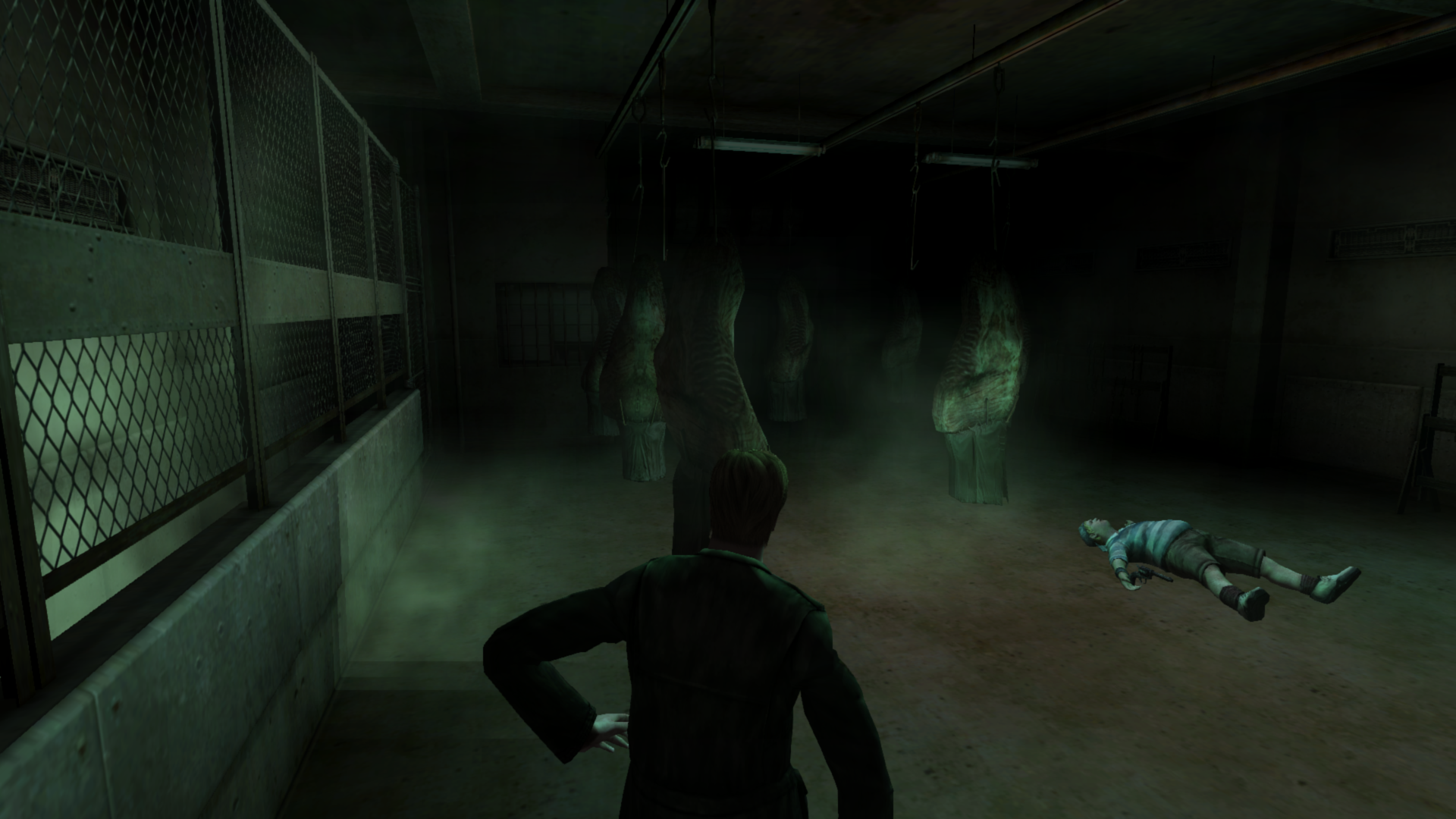
PS2
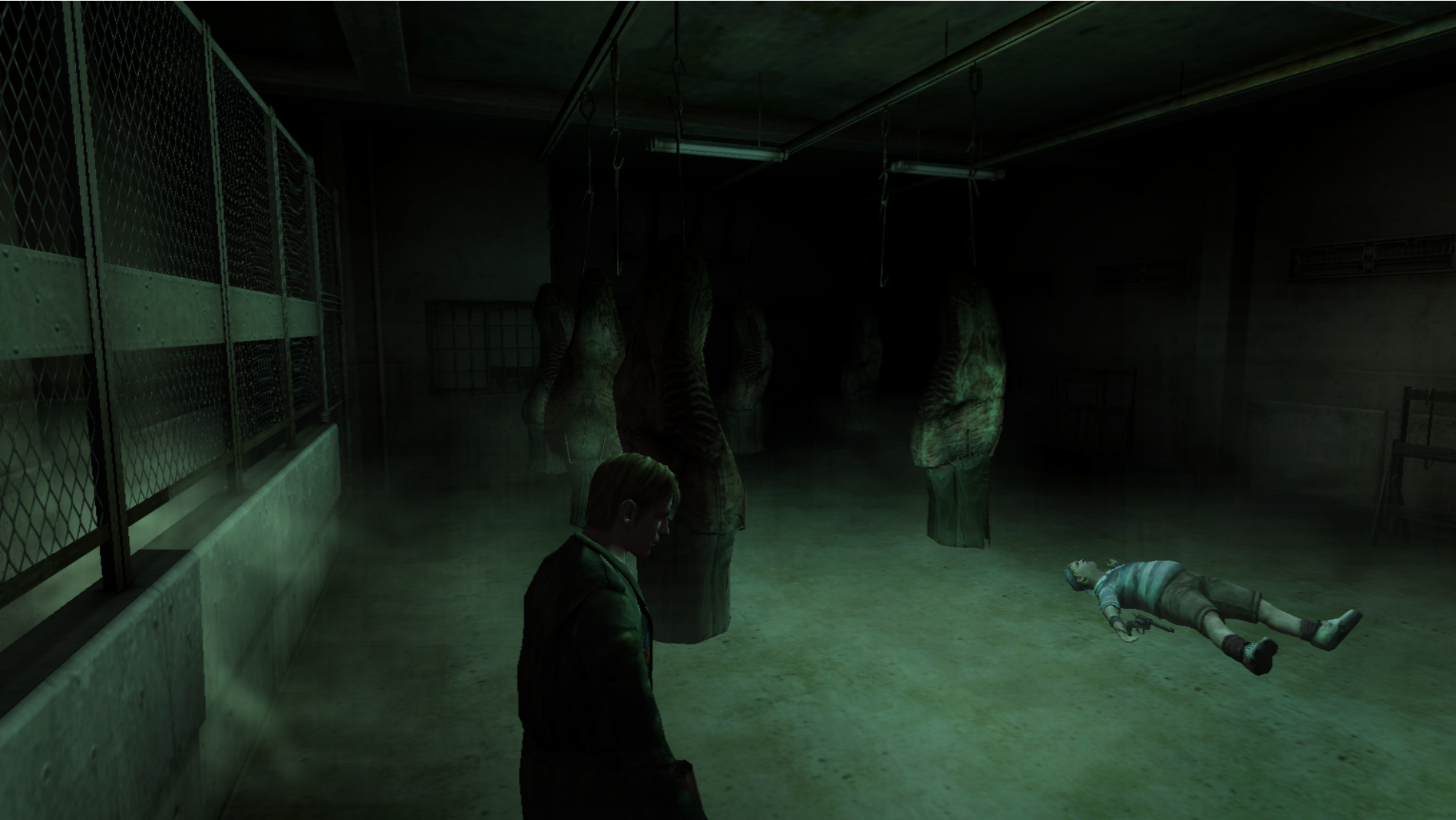
So I was wondering if there's an overhead light in this room whose RGB values can be changed?
Lastly, don't sweat too much as I am not going to go over all of the game's environment colorings with a fine-tooth comb. I would like to only point out the _majorly_ different areas such as this one.
 Polymega
All 30 comments
I don't know what addresses to find/change to now increase its brightness?
This could have been an easy fix if the PC port actually had a functional brightness adjustment. Only now I noticed that "Brightness Level" menu in Options does nothing while it should (as seen on E3 and 20228GH versions in the next video) adjust overall brightness of the game screen.
Although, I don't know if these are the right/best values to change.
This game address management is a mess. A lot of rooms use different addresses with different type of values and different ranges on those values to control similar things like colour / brightness. Especially the first toilet location which has it's own set of addresses for almost everything (in "SH2 Making of" narrator says that it was the first location that was modeled, maybe that's the reason). I guess you use any addresses that actually work in this particular location. Another issue is that turning the flashlight on / off resets the values back to default state but that's a minor issue.
I give you this CE table with multiple colour / brightness addresses to experiment with for now (try using negative values on float type values):
SH2_brightness.zip
https://youtu.be/vPRM59uQunw
I will experiment with it myself also in a few days.
Another point is, maybe it's easier to change brightness / colors on the actual textures in .map files?
 Bigmanjapan
on 11 Jun 2018
Bigmanjapan
on 11 Jun 2018
This could have been an easy fix if the PC port actually had a functional brightness adjustment. Only now I noticed that "Brightness Level" menu in Options does nothing while it should (as seen on E3 and 20228GH versions in the next video) adjust overall brightness of the game screen.
lol wow... this is also silly. I tried messing around with PC brightness myself and noticed... it changes the noise effect settings but, as you said, not the actual game brightness. ??
PC Brightness Level 01DBBFF6 | Noise Opacity 00942CC5 (byte) | Noise Size 00942CC2 (byte)
-- | -- | --
0 | 255 | 91
1 | 255 | 95
2 | 240 | 96
3 | 222 | 96
4 | 210 | 96
5 | 195 | 96
6 | 170 | 96
7 | 130 | 96
This is good to know, though. It tells me the settings for the PS2-like noise effect need to be "locked" as they'll change otherwise if someone changes the brightness levels.
Also, @elishacloud could probably correctly answer this one but, from what I understand, the PC brightness adjustments actually _dim/brighten your monitor_ and not just the game. Although, looking at Elisha's notes on the matter this may only happen when WineD3D is in use but I have a dual screen setup at home and whenever I change the game's brightness my second monitor changes as well.
I guess you use any addresses that actually work in this particular location. Another issue is that turning the flashlight on / off resets the values back to default state but that's a minor issue.
I give you this CE table with multiple colour / brightness addresses to experiment with for now (try using negative values on float type values):
Copy that and thank you. I will begin experimenting myself as well then.
Another point is, maybe it's easier to change brightness / colors on the actual textures in .map files?
It won't fix the issue for the Eddie boss room. We could make the texture's pure white but so long as the light sources inside this room are dimmed the polygon's with these white textures will also still be dimmed, if that makes sense.
Polymega
on 11 Jun 2018
I wonder how WineD3D is smart enough to know to adjust your monitor's brightness whenever you change the slider in the game? Was there specialty code written within WineD3D _just_ for this game to fix that? Or is SH2 PC using some sort of universal caller that WineD3D picks up on and knows to adjust accordingly? I also wonder, if that's the case, if WineD3D could adjust the brightness _only_ for the game instead of your entire monitor?
Polymega
on 12 Jun 2018
@AeroWidescreen this is a continuation from your post here:
The brightness control does work like the PS2 version for me. Apparently it's a fullscreen only feature, so it won't work in windowed mode, but it breaks after alt-tabbing.
Nice catch! Yeah, I "print screened" a brightened game image and, sure enough, pasting it into Paint shows the game is still at default levels (so your monitor is just being brightened to compensate). This is the same as what WineD3D does except it makes it work in windowed mode, too.
So... with these things figured out and considering the Eddie boss "small" room is the only area in the game with any majorly noticeable brightness differences maybe we just aim to recolor the rooms but leave the small room's brightness levels as-is?
Unlike something like the flashlight or sounds which are pivotal assets to the _entire_ game, I'm not sure trying to adjust the levels of this one room is worth the man power when it still looks presentable after just being recolored. I mean, unlike the lighting transition bugs, this room's lighting still looks and functions fine; James isn't wigging out or magically turning bright/dark in the room. Like Bigmanjapan said here, if it was as simple as changing a few values (that should work regardless if the game is windowed or not) it'd be one thing but this looks to be a whole other can of worms. Thoughts Aero? @Bigmanjapan ?
Polymega
on 12 Jun 2018
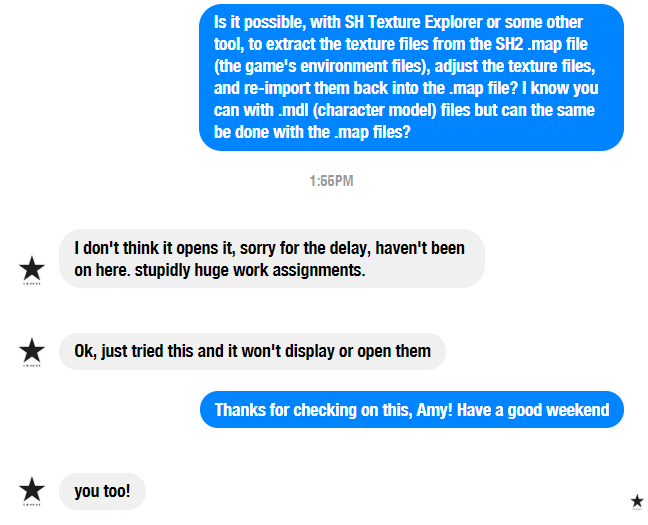
Another point is, maybe it's easier to change brightness / colors on the actual textures in .map files?
I reached out to Amy who runs Alchemilla Hospital and is heavily involved with using available tools to front-end mod the game (such as texture swapping). There's unfortunately no way to swap textures for the .map files to her knowledge:
Polymega
on 15 Jun 2018
I wonder how WineD3D is smart enough to know to adjust your monitor's brightness whenever you change the slider in the game? Was there specialty code written within WineD3D just for this game to fix that? Or is SH2 PC using some sort of universal caller that WineD3D picks up on and knows to adjust accordingly?
AFAIK, there is no specific code in WineD3D for this game. It looks like what is happening is that WineD3D sees some API call from SH2 and then adjusts the whole monitor brightness. However, there also appears to be a bug in WineD3D because it does not reset the brightness after the game exits. I put a fix in for this bug. You can see it here.
BTW: I suspect this happens when calling the SetGammaRamp API, though I have not tested my theory.
I also wonder, if that's the case, if WineD3D could adjust the brightness only for the game instead of your entire monitor?
WineD3D tries to convert all the API's from DirectX to OpenGL. For this API they probably change the whole screen because there is no equivalent API in OpenGL (though I don't really know anything about OpenGL). In fact this is a legacy API that goes all the way back to DirectX 1 (AFAIK). See here. Newer versions of DirectX don't have this API. And there are only a few games that use it. WineD3D could probably adjust this only for the game window but it may not be worth it for them.
See this page for more details on GammaControl.
 elishacloud
on 30 Jun 2018
elishacloud
on 30 Jun 2018
I guess I should have tested this before responding, but my theory was correct. The "dark screen" issue that WineD3D causes can be fixed by remarking this line in d3d8to9.
elishacloud
on 30 Jun 2018
Sorry for being out of the loop for quite some time, had to visit Gulag.
Very interesting nuaince about brightness level actually working in fullscreen. I got so used to playing SH2 in windowed mode that I forget to check that. Still, it seems that PC brightness is only an overall brightness thing, changing separate RGB channels even in fullscreen doesn't affect colour scheme the way it does on PS2.
@Polymega regarding what Amy said — I'm not sure I understand what you mean by extracting-importing textures from/to .map files, because I certainly can do extracting-importing in sh_texture_explorer_2.1.
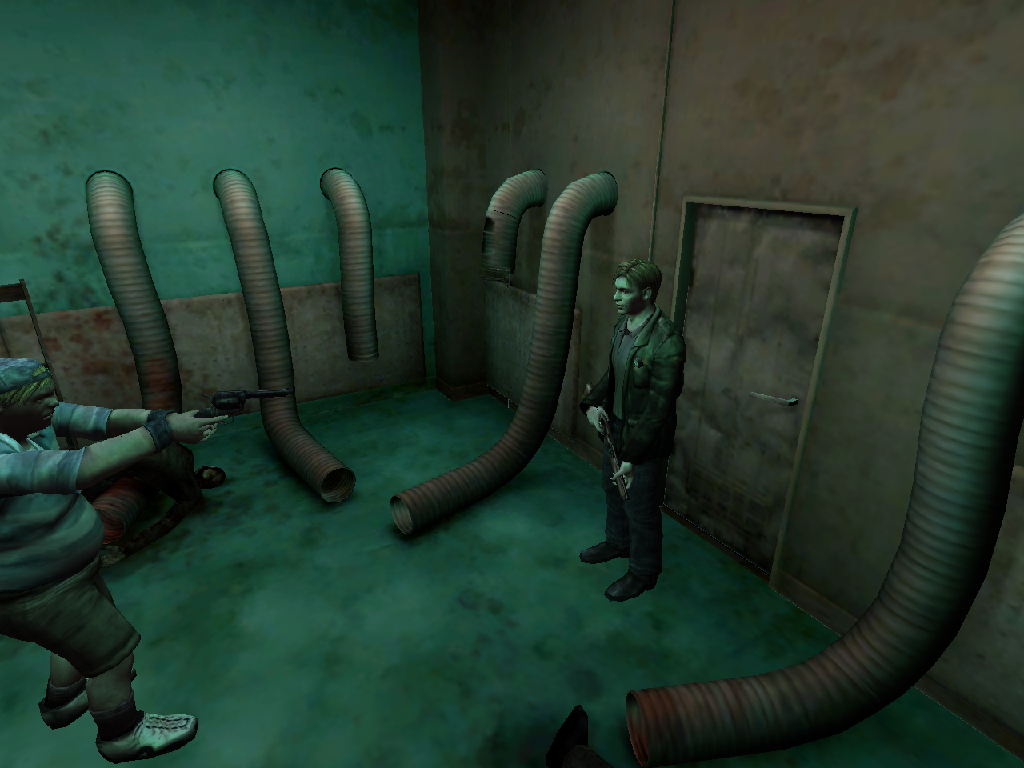
Here I extracted two wall textures, changed their colour balance and imported them back to .map files. Have you meant something else?
Also, it seems that Xbox versions share this colour change in Eddie's freezer room with PC version: https://youtu.be/orrtK9GdThc?t=8627
Bigmanjapan
on 5 Jul 2018
@Polymega regarding what Amy said — I'm not sure I understand what you mean by extracting-importing textures from/to .map files, because I certainly can do extracting-importing in sh_texture_explorer_2.1.
!!! I was not aware the software could extract and re-import textures for .map files! (I thought it only did this for .mdl files.) This changes everything then! Let me fiddle with this over the weekend.
Can you send me the link to SH Texture Explorer 2.1? Just so I'm 100% sure I'm using the same one you are using? Great job with this!
Also, to catch you up to speed: The Audio Enhancement Pack has been released as you know; and Aero is helping Elisha implement your rowboat animation fix solution, cemetery quick load fix solution, increased front draw distance solution, and will also help to implement the PS2-styled noise filter.
Edit: Also, can you tell me the file names of both the .map files here? (Eddie small room and large room)
Polymega
on 5 Jul 2018
Here you go: sh_texture_explorer_2.1.zip
Also, to catch you up to speed
Very nice to hear. I have more time now and will continue dealing with mannequin / flashlight issues.
Bigmanjapan
on 5 Jul 2018
Thank you sir. I edited my post right before you responded but can you tell me the .map file names for the rooms in question here?
Polymega
on 5 Jul 2018
First and second freezer rooms' textures are contained in .databgpsps189.map and ps193.map.
Bigmanjapan
on 5 Jul 2018
Well, I feel completely embarrassed right about now. I always knew the SH Texture Explorer could extract/re-import environment textures but for some stupid reason I thought we had to edit the .cam files this whole time and not the .map files. Wow that's super embarrassing.
Not only that, but I'd like to apologize for my comment here (and down below) Bigmanjapan as, at the time, I had no clue how the lighting actually worked in this game.
It won't fix the issue for the Eddie boss room. We could make the texture's pure white but so long as the light sources inside this room are dimmed the polygon's with these white textures will also still be dimmed, if that makes sense.
Thanks to the Cheat Table you provided me I have a better grasp of how the lighting affects things now.
Eddie boss small room complete
So... on that note. I have the first (small) room done! This was surprisingly deceptive to work on because the colors you edit in the TGA files look nothing like they do once they're in the game. So it was a ton of trial and error.
Attached below is the ps189.map file edited:
ps189.zip
Updated 2018-07-06: ps189.zip
Updated 2018-07-07: ps189.zip
There also needs to be address values edited to achieve the desired effect. For this room only the following values need changed:
Description | Address | Original Value | New Value
-- | -- | -- | --
PC location textures colour R (set 3) | 00942A60 (float) | 4 | 2.5
PC location textures colour G (set 3) | 00942A64 (float) | 4 | 2
PC location textures colour B (set 3) | 00942A68 (float) | 4 | 2
Here are some comparison shots:
PlayStation 2
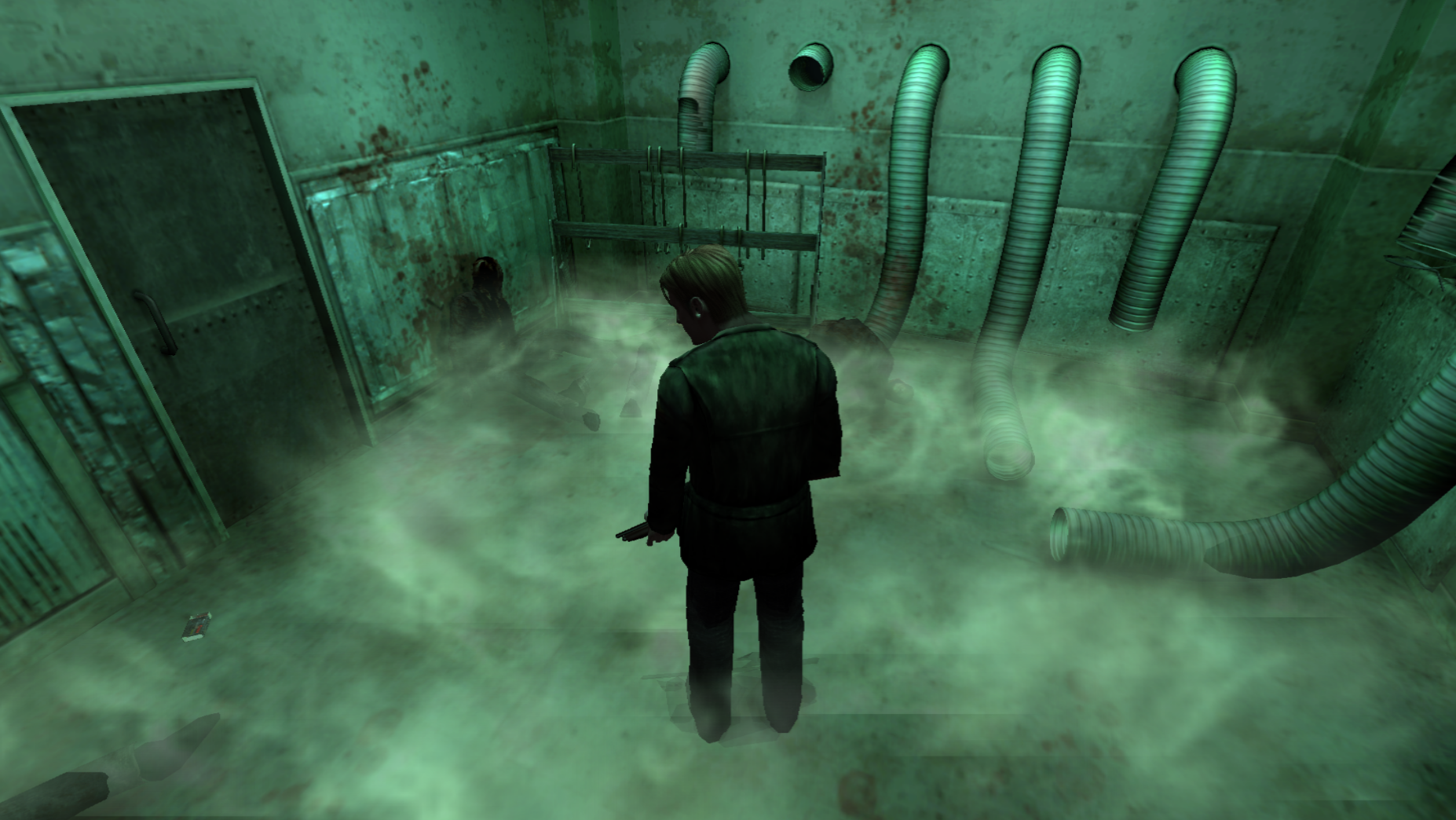
PC Adjusted

PlayStation 2
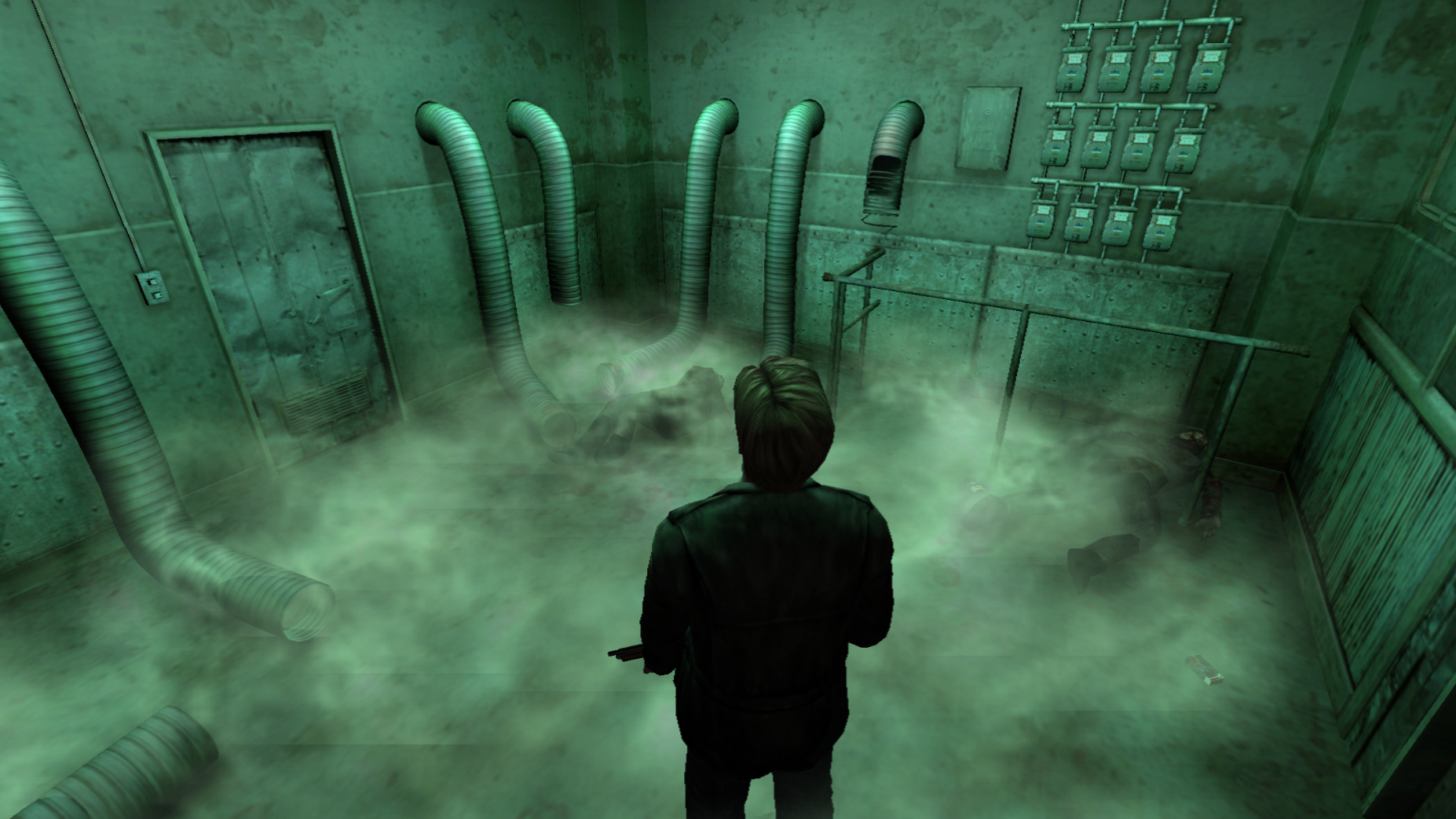
PC Adjusted

Eddie boss large room complete
Attached below is the ps193.map file edited:
ps193.zip
Updated 2018-07-07: ps193.zip
Updated 2018-07-16: ps193.zip
There also needs to be address values edited to achieve the desired effect. For this room only the following values need changed:
Description | Address | Original Value | New Value
-- | -- | -- | --
PC location textures colour R (set 3) | 00942A60 (float) | 4 | 3.150000095
PC location textures colour G (set 3) | 00942A64 (float) | 4 | 2.799999952
PC location textures colour B (set 3) | 00942A68 (float) | 4 | 2.799999952
PC floor + furniture brightness? R | 00942A20 (float) | 0.1000000015 | 0
PC floor + furniture brightness? G | 00942A24 (float) | 0.1000000015 | -0.1000000015
PC floor + furniture brightness? B | 00942A28 (float) | 0.1000000015 | -0.1000000015
PlayStation 2

PC adjusted
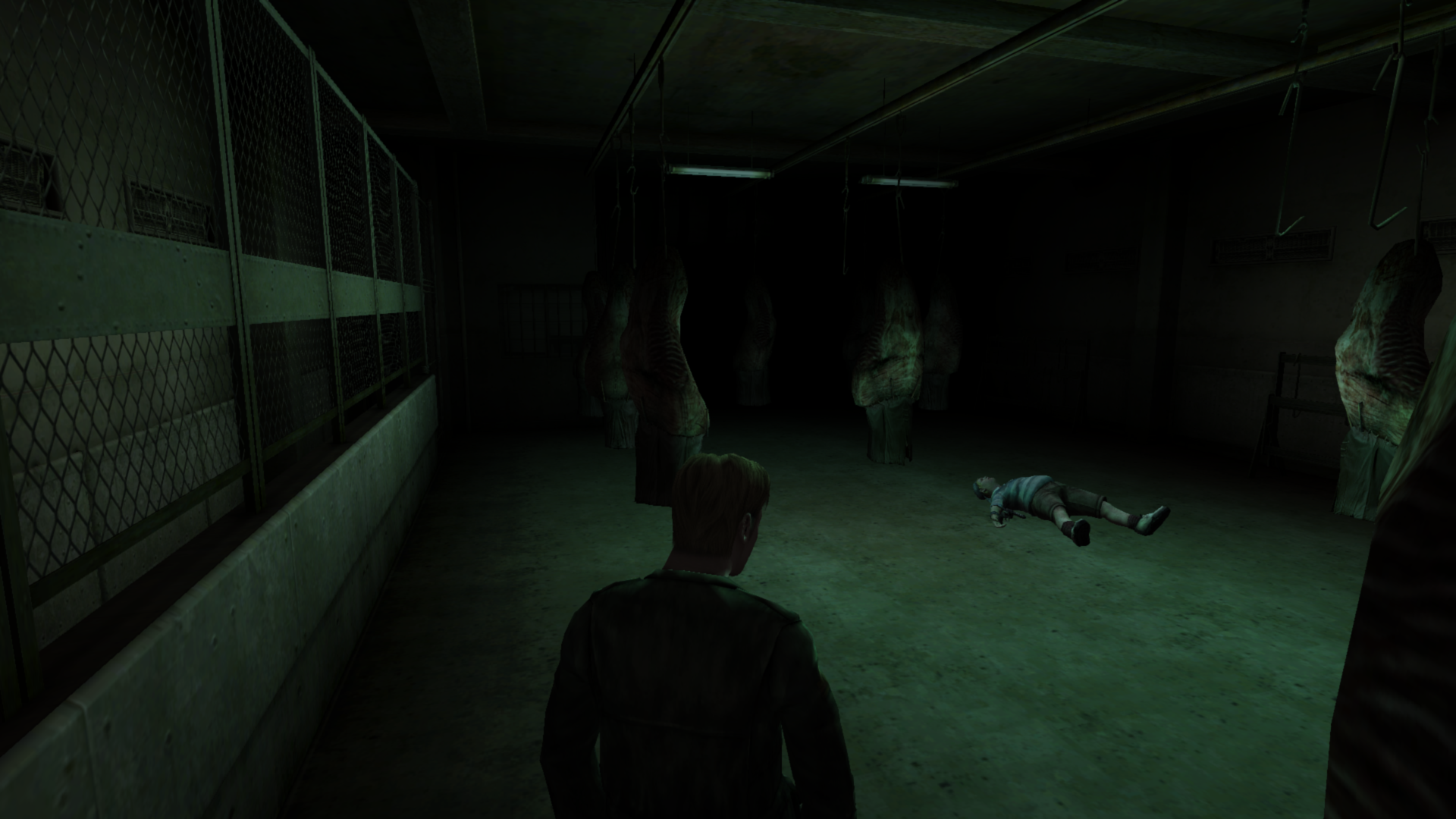
PlayStation 2
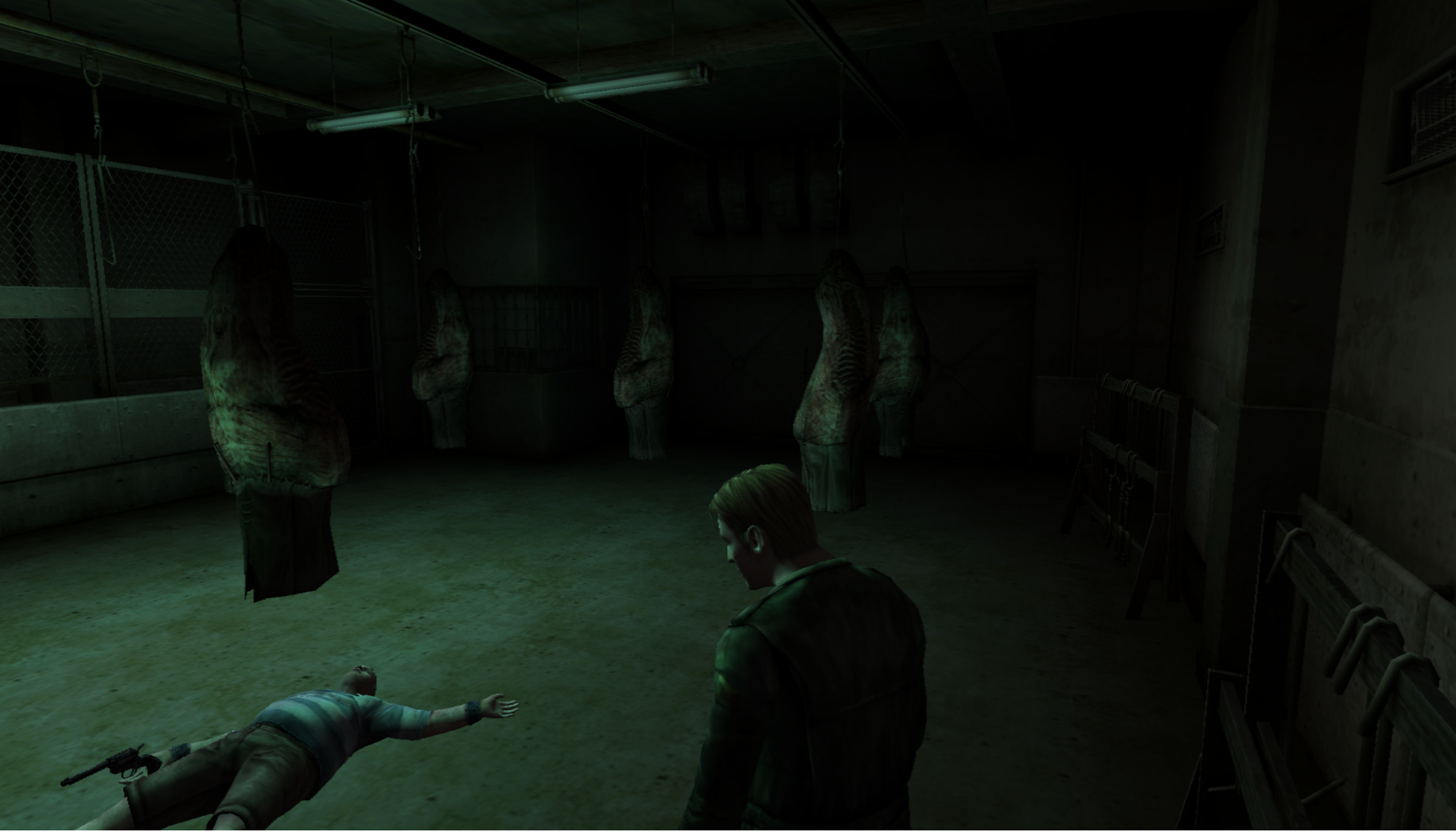
PC adjusted
Polymega
on 6 Jul 2018
Nice work.
Now I wonder if the actual textures in PS2 builds are coloured differently. In some time a PS2 textures extractor/explorer will be made and we will be able to check that.
I guess if @AeroWidescreen doesn't mind creating a function to change the colour palette in these rooms, then that would be the final solution. Bear in mind that upon pressing Esc game engine will try to return colour palette values to their default state but that should be a minor issue for Aero.
Bigmanjapan
on 6 Jul 2018
Now I wonder if the actual textures in PS2 builds are coloured differently. In some time a PS2 textures extractor/explorer will be made and we will be able to check that.
Yeah, the first thing I did was try to extract the PS2 .map file with SH Texture Explorer, haha. Obviously it didn't work but I wanted to try anyway.
Also Bigmanjapan, do you know the address to disable fog in the PS2 version? I'd like to see if my floor has been edited correctly but I can't compare because of all the fog on top.
Polymega
on 6 Jul 2018
@Polymega
Set intensity to 0. It works with outdoors fog, haven't tested these addresses in the freezer rooms.
There are also addresses to disable noise grain and shadows just in case.
Bigmanjapan
on 6 Jul 2018
@Bigmanjapan there's definitely some sort of special light that perhaps is only meant for this room. The texture on the floor is solid white. Any chance of finding where the addresses for this are at?
Polymega
on 7 Jul 2018
@Bigmanjapan scratch that request. It's crazy how adjusting the RGB levels for other addresses changes the coloring of textures so oddly. I think I found a solution without having to find this special blue light.
Polymega
on 7 Jul 2018
I see. This confusion might be due to a memory shortage on PS2 that developers had to use a limited number of addresses to control colour palettes, therefore assigning different effects for different rooms on the same addresses.
Bigmanjapan
on 7 Jul 2018
Sorry, I should have clarified: The screenshot above is from the PC version, in case you were thinking that was from the PS2 build.
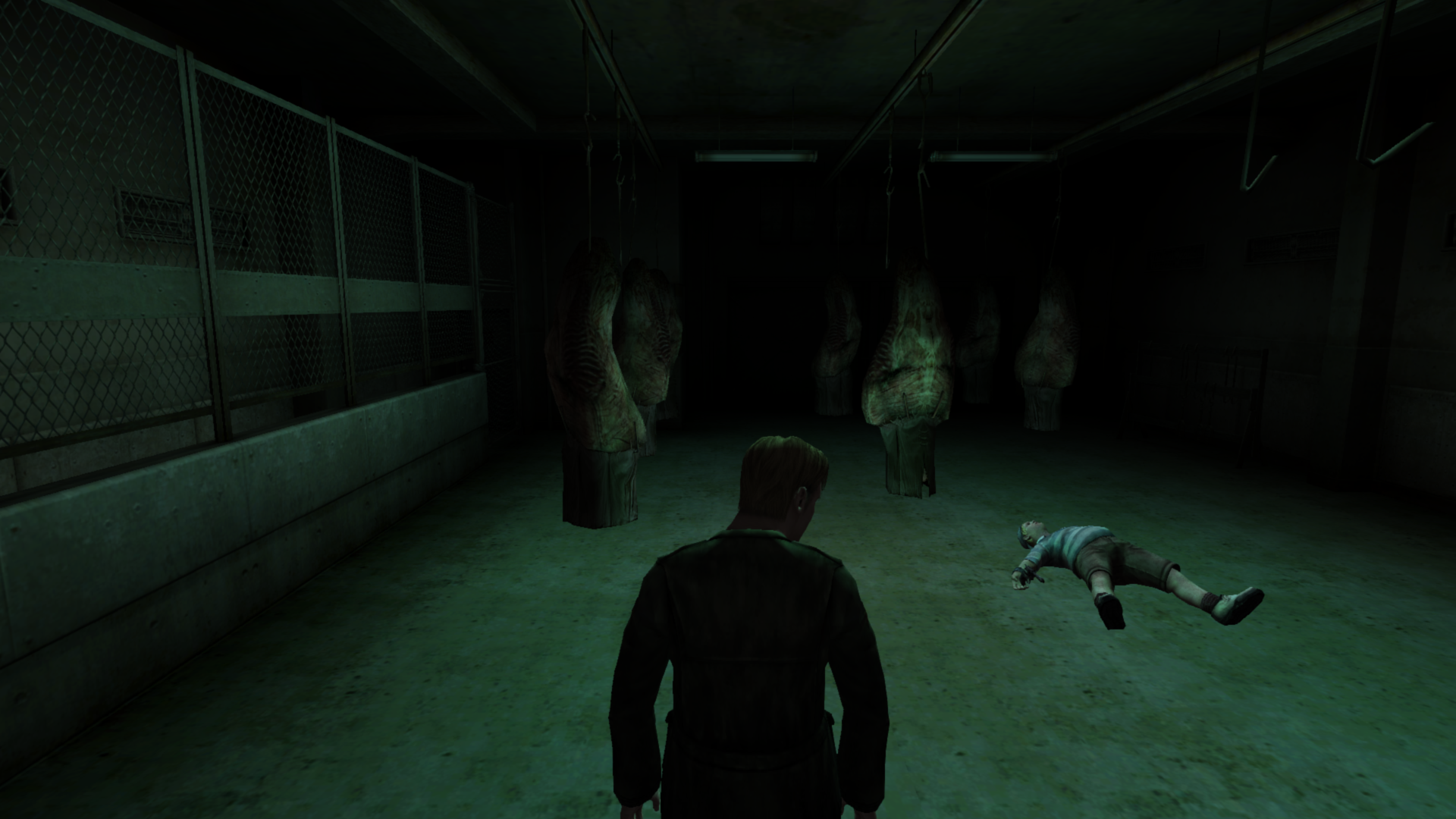
Here's what I was able to do with the blue light active:
PC Adjusted
PlayStation 2
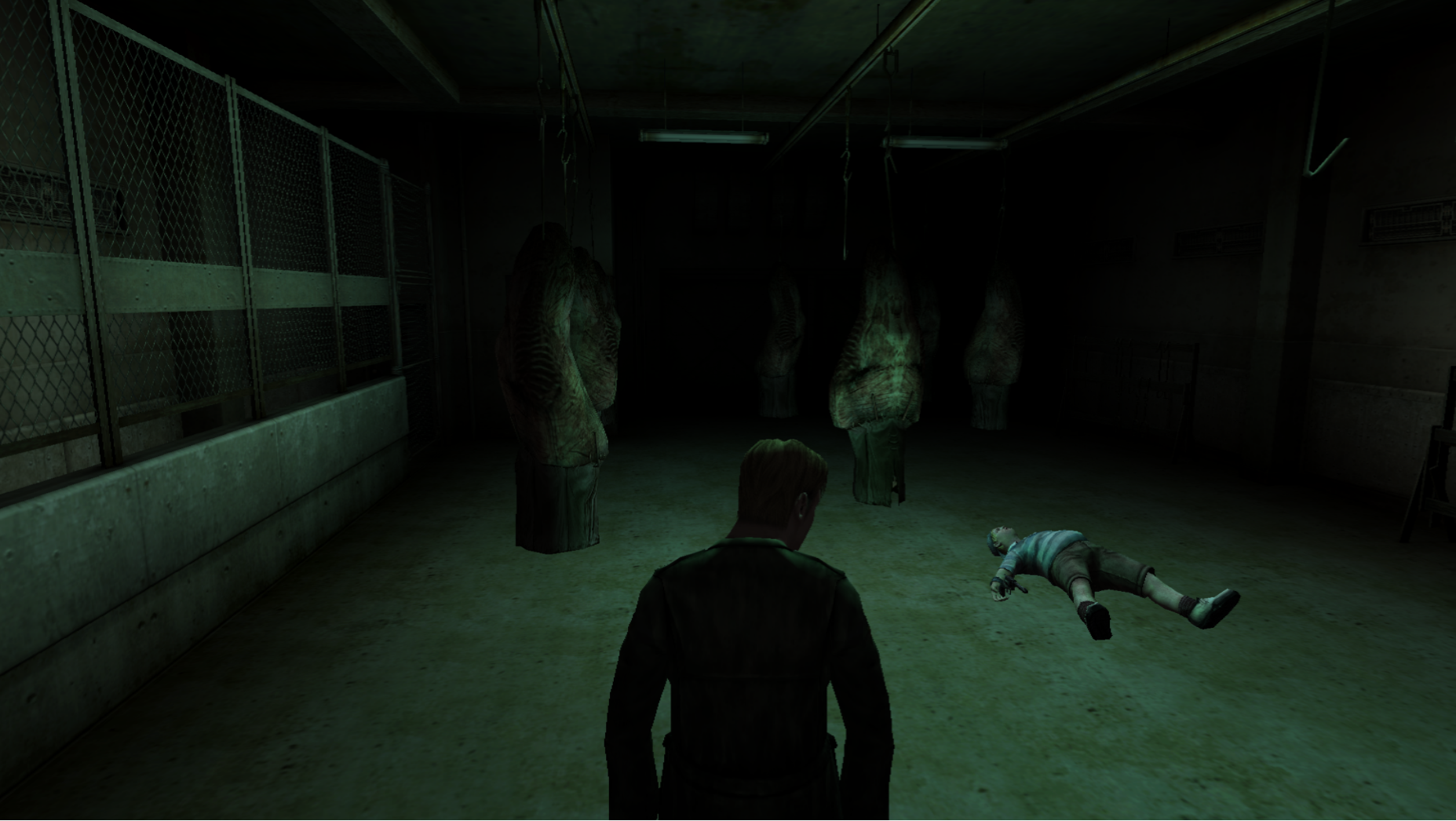
The middle of the floor (right around Eddie) looks good/close now. But near the edges (towards the walls) the PC adjusted version is more saturated vs. the PS2 version. This is because of that blue light influencing color all along the wall's edges.
I've actually spent the past several hours on this one floor but have to concede that I can't match it any better due to that overcasting blue light. What do you think though?
Polymega
on 7 Jul 2018
Sorry, I should have clarified: The screenshot above is from the PC version, in case you were thinking that was from the PS2 build.
Sure. I meant that memory management logic was transferred to PC from PS2 with no changes. Therefore PC builds also have this different effects swapping on the same addresses despite PC computers having more available RAM.
I've actually spent the past several hours on this one floor but have to concede that I can't match it any better due to that overcasting blue light. What do you think though?
I'll try to find a way to disable or adjust it.
Bigmanjapan
on 7 Jul 2018
Sure. I meant that memory management logic was transferred to PC from PS2 with no changes. Therefore PC builds also have this different effects swapping on the same addresses despite PC computers having more available RAM.
Ah, okay, that makes sense then. That's also a smart theory.
I'll try to find a way to disable or adjust it.
Thank you.
Polymega
on 7 Jul 2018
Have you tried changing "PC floor + furniture brightness?" address set to a value of 1-5 or -1, -2, -3 etc? If not, see how it affects the new floor texture, don't use white placeholder texture.
For this room it seems to be some kind of a lightning-from-above adjustment, changing also affects some parts of the wall that stuck out, making them brighter or darker. Not a very good solution.
Bigmanjapan
on 7 Jul 2018
There is a bunch of single byte values that act as presets for this lightning source.
You can try playing with them to achieve a desired effect. If it doesn't do, I will continue searching for something else.
A row of those bytes (10 bytes) start from sh2pc.exe+5428E2 (009428E2) address.
Bigmanjapan
on 7 Jul 2018
Have you tried changing "PC floor + furniture brightness?" address set to a value of 1-5 or -1, -2, -3 etc? If not, see how it affects the new floor texture, don't use white placeholder texture.
Thanks. As mentioned prior: I'm getting a better grasp at how the lighting works but I'm still not fully there. After more adjustments I have an even closer approximation. And at this point I'm satisfied with the floor:
PC Adjusted
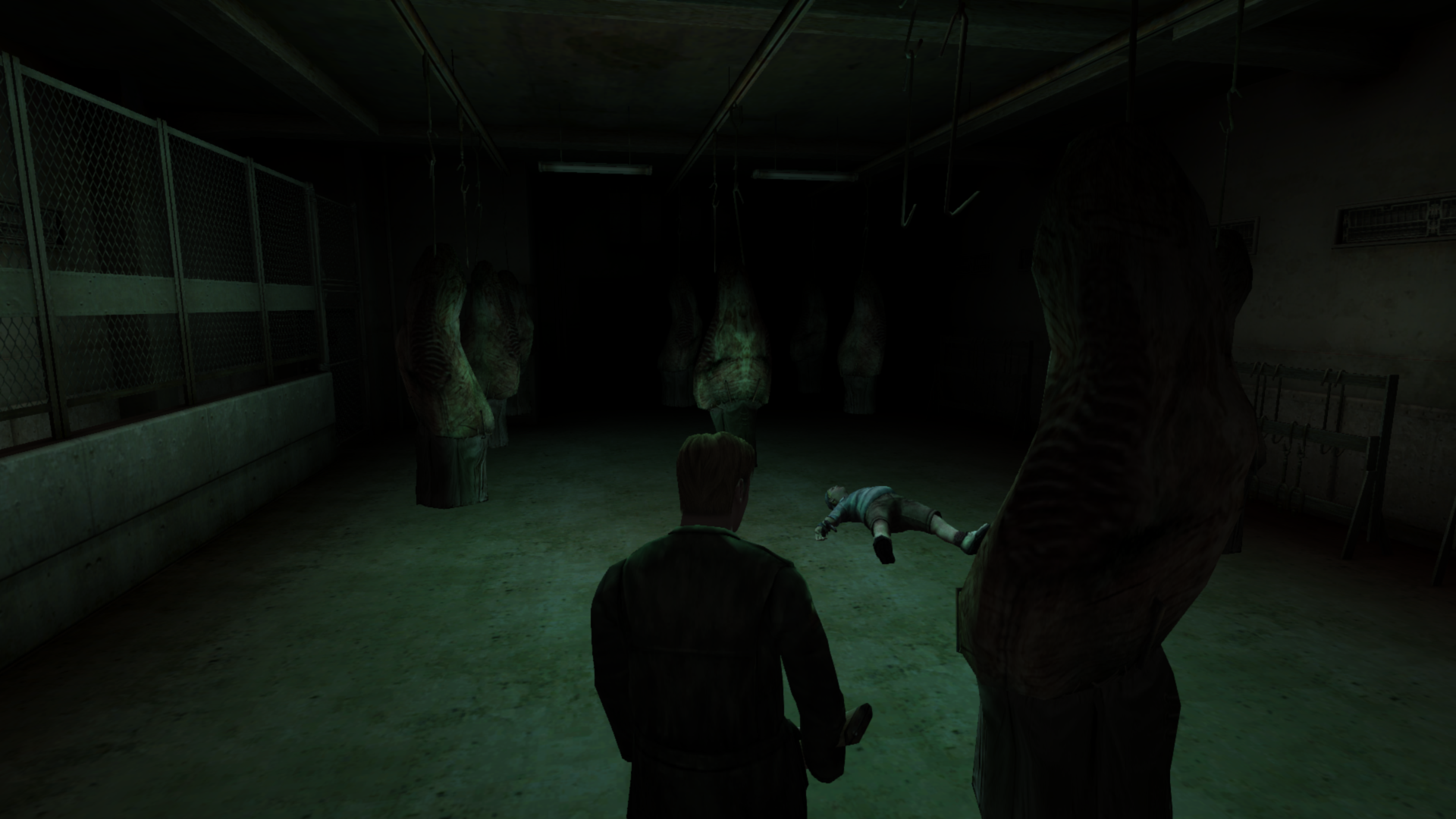
PlayStation 2
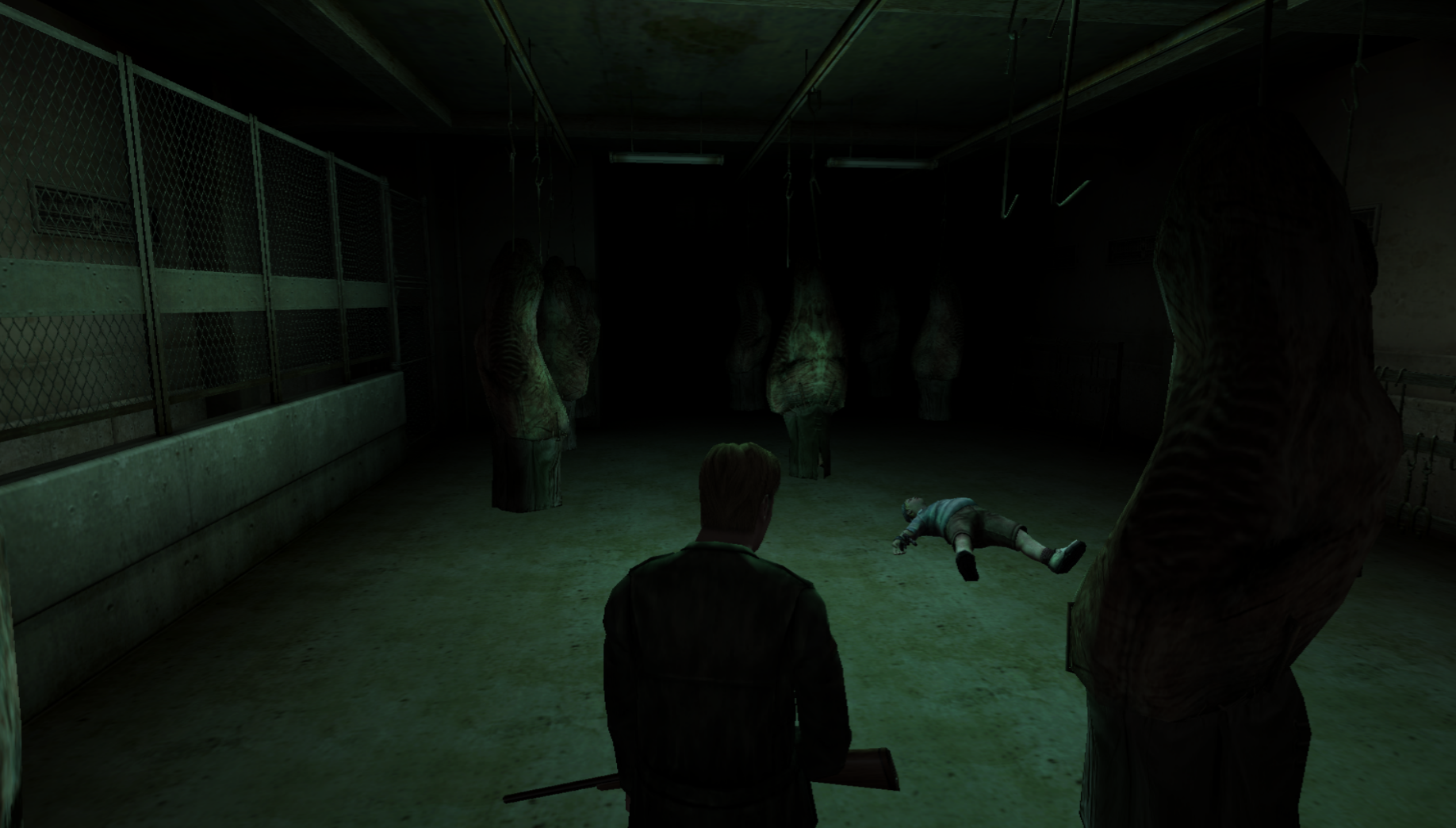
I'm going to go over the other assets in this room next and once I'm done I'll post my adjustments/notes accordingly. Thanks again, Bigmanjapan!
Polymega
on 7 Jul 2018
@AeroWidescreen @elishacloud
Editing for the Eddie boss rooms is complete. The modifications will involve both replacing .map files (in the same spirit as what the WSF will do) and adjusting address values while in these particular rooms.
As Bigmanjapan pointed out it's worth noting that pressing "Esc" while in these rooms the game will try to revert the address changes, so something to be mindful of.
The fixes/notes can be found in this post here.
Thank you
Polymega
on 7 Jul 2018
Good work guys, I'll get to it as soon as I can.
 AeroWidescreen
on 8 Jul 2018
AeroWidescreen
on 8 Jul 2018
@elishacloud
00658674 data/bg/ps/ps189.map // "small room" file path; max length is 20 Characters
0065842C data/bg/ps/ps193.map // "large room" file path; max length is 20 Characters
I recommend using these strings for a few reasons. First, it's exactly 20 characters (same length as original) so nothing extra is required to get that working. Second, the widescreen fix will also be using custom files that will be stored in "scripts/bg/". This keeps things organized and consistent. The third reason is that no files will need to be replaced using this method.
The information above is no longer relevant with the new "sh2e" folder mod you're working on.
For the RGB, I found what appears to be exclusive memory addresses that contain the float values for these two rooms. The game loads these values and moves them over to the addresses used in real-time. I did some quick testing and didn't find any issues, however, a full playthrough is neccesary to ensure these values aren't being used anywhere else or being overwritten. @Polymega has done a full playthrough and did not find any issues with this method.
I have provided a cheat table for troubleshooting: Download
Small Room (ps189)
007FBBD0 40200000 // "Small Room" Location Texture Red; 2.5 float
007FBBD4 40000000 // "Small Room" Location Texture Green; 2.0 float
007FBBD8 40000000 // "Small Room" Location Texture Blue; 2.0 float
Large Room (ps193)
007FBDC0 4049999A // "Large Room" Location Texture Red; 3.15 float
007FBDC4 40333333 // "Large Room" Location Texture Green; 2.8 float
007FBDC8 40333333 // "Large Room" Location Texture Blue; 2.8 float

007FBC00 00000000 // "Large Room" Floor Red; 0.0 float
007FBC04 BDCCCCCD // "Large Room" Floor Green; -0.1 float
007FBC08 BDCCCCCD // "Large Room" Floor Blue; -0.1 float
Implemented in check-in c721094.
elishacloud
on 29 Jul 2018
Related issues
 Vare3465
·
7Comments
Polymega
·
14Comments
Vare3465
·
7Comments
Polymega
·
14Comments
 OregonPacifist
·
15Comments
Polymega
·
17Comments
OregonPacifist
·
15Comments
Polymega
·
17Comments
 Storm3000
·
3Comments
Storm3000
·
3Comments
Most helpful comment
@elishacloud
I recommend using these strings for a few reasons. First, it's exactly 20 characters (same length as original) so nothing extra is required to get that working. Second, the widescreen fix will also be using custom files that will be stored in "scripts/bg/". This keeps things organized and consistent. The third reason is that no files will need to be replaced using this method.The information above is no longer relevant with the new "sh2e" folder mod you're working on.
For the RGB, I found what appears to be exclusive memory addresses that contain the float values for these two rooms. The game loads these values and moves them over to the addresses used in real-time.
I did some quick testing and didn't find any issues, however, a full playthrough is neccesary to ensure these values aren't being used anywhere else or being overwritten.@Polymega has done a full playthrough and did not find any issues with this method.I have provided a cheat table for troubleshooting: Download
Small Room (ps189)
Large Room (ps193)