React-native-google-places-autocomplete: Container auto-filling available space
So I'm trying to implement this component and the styling isn't working as I had expected it would. My expectation is that I get a small search bar, and when I type in some text, the listView of formatted addresses pops up over whatever components I have that are immediately below the GooglePlacesAutocomplete component.
The JSX and GooglePlacesAutocomplete styling is as follows (the three TextInputs and the gaudy backgroundColors are mainly there to test if it's still being buggy or not):
        <View style={containerStyle}>

            <GooglePlacesAutocomplete
                styles={{
                    container: {
                        backgroundColor: 'blue'
                    },
                    textInputContainer: {
                        width: '100%',
                    },
                    description: {
                        fontWeight: 'bold',
                    },
                    listView: {
                        position: 'absolute',
                        marginTop: 40,
                        backgroundColor: 'green',
                        elevation: 1
                    },
                    separator: {
                        opacity: 0
                    }
                }}
            />
            <TextInput
                style={inputStyle}
            />
            <TextInput
                style={inputStyle}
            />
            <TextInput
                style={inputStyle}
            />

            <Button
                buttonStyle={buttonStyle}
                textStyle={buttonTextStyle}
                text='Submit'
                onPress={this.props.formatAddress.bind(this, this.state.address)}
            />
        </View>
The styles for the other parts of the component are as follows:
const styles = StyleSheet.create({
    containerStyle: {
        flexGrow: 1,
        display: 'flex',
        justifyContent: 'center',
        alignItems: 'center',
    },
    inputStyle: {
        marginTop: 20,
        marginBottom: 20,
        height: 35,
        paddingLeft: 5,
        paddingRight: 5,
        fontSize: 22,
        lineHeight: 35,
        width: '95%',
        borderColor: 'gray',
        borderWidth: 1,
    },
    buttonStyle: {
        height: 70,
        width: '100%',
        backgroundColor: '#C60000',
        alignItems: 'center',
        alignSelf: 'flex-end'
    },
    buttonTextStyle: {
        fontSize: 25,
        color: 'white',
        lineHeight: 50
    }
});
This styling looks like the following images:
No text entered:

Five addresses returned:

Three addresses returned:

I would like the blue container to not be visible and to allow for the TextInputs below to be able to be placed directly under the GooglePlacesAutocomplete component, but thus far setting it to flex: 1, changing its flexGrow or flexShrink properties, or explicitly setting it's height has done nothing.
Also, when the listView is active, it is sort of transparently floating under the inputs below it (even though it doesn't show in the screenshots, it shows on the emulator. If I click on one of them I can input text into the TextInput, and it doesn't choose a GooglePlacesAutocomplete address. I tried setting elevation: 1, adjusting the zIndex, and setting the backgroundColor to white, as those fixes seemed to work for other people, but they didn't work for me.
Here is a screenshot of that:

The only other styling I have is flex: 1 in the View tag that surrounds the Map component above it and the component holding the GooglePlacesAutocomplete, TextInput, and TouchableOpacity components.
Anyone who has had similar issues and has fixed them, I would appreciate some help!
 alessandro-pianetta
All 9 comments
For anyone still looking for this, these are the styles that worked for me:
```const styles = {
locationAutocompleteStyle: {
container: {
zIndex: 10,
overflow: 'visible',
},
textInputContainer: {
borderTopWidth: 0,
borderBottomWidth: 0,
height: 50,
overflow: 'visible',
backgroundColor: Colors.white,
borderColor: Colors.white,
borderRadius: 100,
},
textInput: {
backgroundColor: 'transparent',
fontSize: 15,
lineHeight: 22.5,
paddingBottom: 0,
flex: 1
},
listView: {
position: 'absolute',
top: 60,
left: 10,
right: 10,
backgroundColor: 'white',
borderRadius: 5,
flex: 1,
elevation: 3,
zIndex: 10
},
description: {
color: '#1faadb'
},
predefinedPlacesDescription: {
color: '#1faadb'
}
}
};
 adlondon
on 14 Mar 2018
adlondon
on 14 Mar 2018
I'm having a similar issue, with the autocomplete component sitting above a scrollview. Did you happen to come up with a different solution than the one above?
 jakeols
on 18 Mar 2018
jakeols
on 18 Mar 2018
@jakeols what issues are you still having? Could you show a little code to get an idea of what you’re working with?
adlondon
on 18 Mar 2018
Thanks for getting back. Here's what I have, let me know if that helps. I've played around with the background colors to see what's being thrown off, and it seems the autocomplete is still taking up all of the space even with the above suggestions. Let me know if you have any insight.
<SafeAreaView style={{flex: 1, backgroundColor: '#FAFAFA'}}>
<GooglePlacesAutocomplete
placeholder='Enter Location'
minLength={2}
autoFocus={false}
returnKeyType={'default'}
fetchDetails={true}
styles={{
// for styles I've tried the ones above, with elevation, zIndex, overflow, etc. and tried playing around with all of them
}}
currentLocation={false}
/>
<ScrollView>
{this.state.locationKeys ? (
<View>
{locationList}
</View>
) : (
<View>
<Text>No Data</Text>
</View>
)}
</ScrollView>
</SafeAreaView>
Let me know if this works for you:
On the container style for the GooglePlacesAutocomplete component, add a flexGrow: 0 and flexShrink: 0
const styles = {
  locationAutocompleteStyle: {
    container: {
      zIndex: 10,
      overflow: 'visible',
      height: 50,
      flexGrow: 0,
      flexShrink: 0
    },
   ...
Then set a paddingTop on your <ScrollView> to whatever the height of your GooglePlacesAutocomplete component is (in my case it was 50pts high, so I set the padding to 60 to give it some breathing room)
    return (
      <SafeAreaView style={{ flex: 1 }}>
        <GooglePlacesInput />
        <ScrollView style={{ backgroundColor: 'green', paddingTop: 60 }}>
          <View>
            <Text>No Data</Text>
          </View>
        </ScrollView>
      </SafeAreaView>
    );
Should give you something like this:

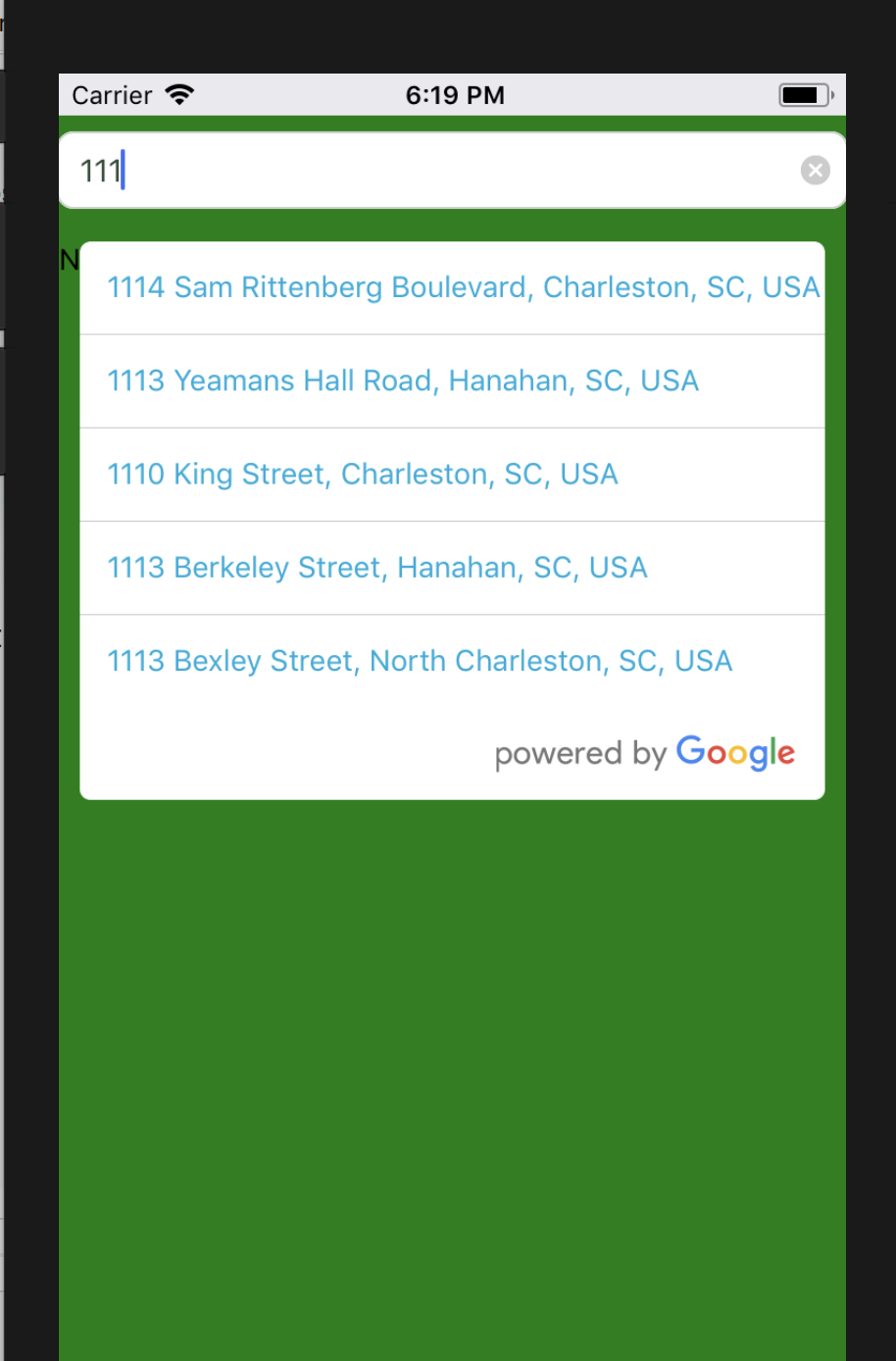
That extra white space is actually coming from the GooglePlacesAutocomplete component inheriting a flex: 1 style by default.
adlondon
on 20 Mar 2018
Thanks so much! That worked perfectly.
jakeols
on 22 Mar 2018
@adlondon Same issue here. GoogleAutoComplete competely gone after I adding flexGrow and flexShrink on Android emulator 7.1.1
 vzhen
on 3 Jun 2018
vzhen
on 3 Jun 2018
@vzhen can you show me what that component looks like for you? How you have the layout and other styling
adlondon
on 3 Jun 2018
@adlondon
Nothing special, I just copy paste your code above.
Without flexGrow and flexShrink. GooglePlacesAutoComplete takes all the space
<View style={{ flex:1 }}>
  <GooglePlacesAutoComplete styles={ // without flexGrow and flexShrink }  />
  <Text>Some Text</Text>
</View>

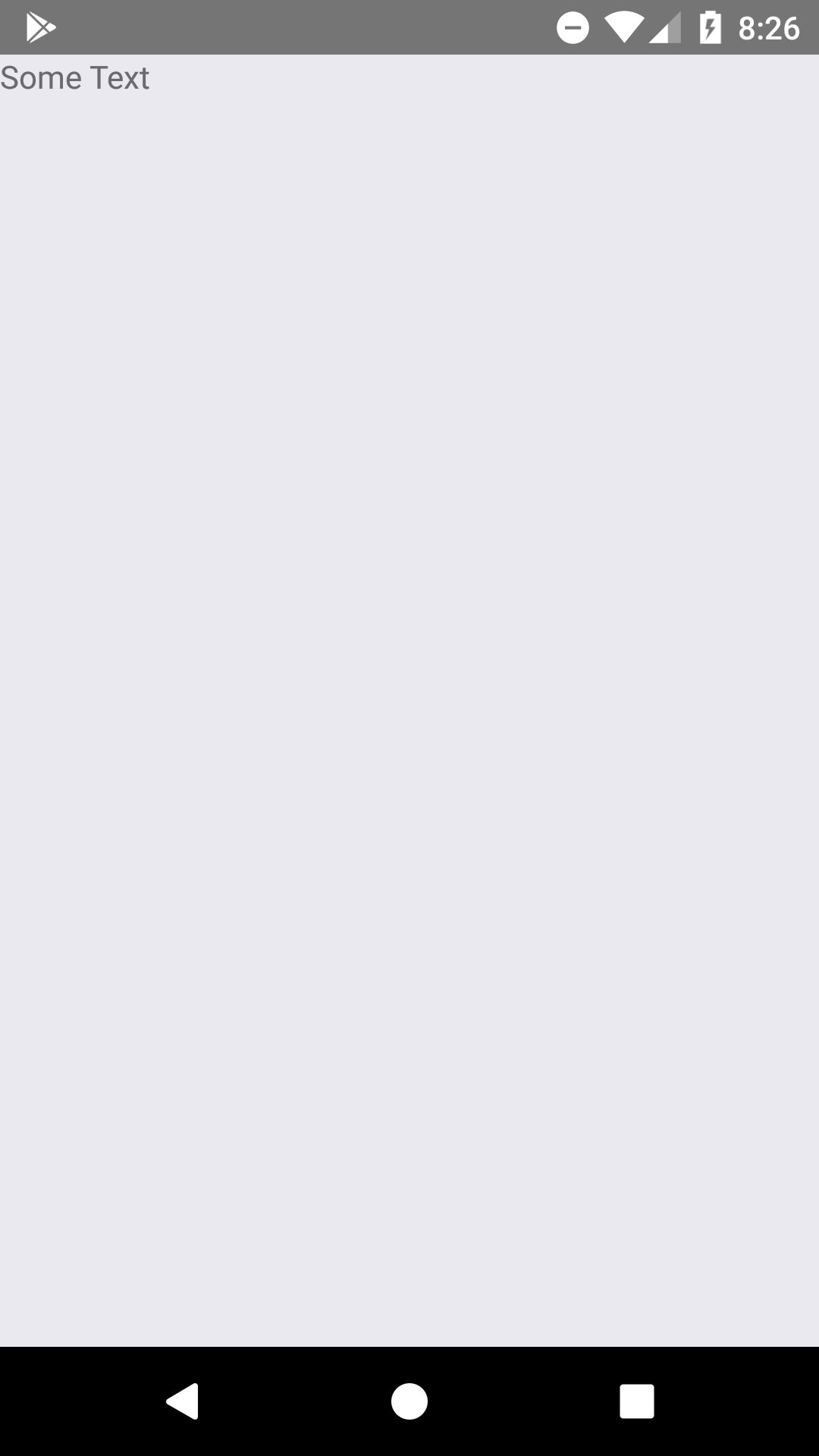
With flexGrow and flexShrink. GooglePlacesAutoComplete gone.
<View style={{ flex:1 }}>
  <GooglePlacesAutoComplete styles={ // with flexGrow and flexShrink }  />
  <Text>Some Text</Text>
</View>
vzhen
on 6 Jun 2018
Related issues
 akhlopyk
·
3Comments
akhlopyk
·
3Comments
 sohel-tech
·
3Comments
sohel-tech
·
3Comments
 GervaisYO
·
4Comments
GervaisYO
·
4Comments
 yasirdev
·
3Comments
yasirdev
·
3Comments
 quandevelopment
·
4Comments
quandevelopment
·
4Comments
Most helpful comment
Let me know if this works for you:
On the container style for the GooglePlacesAutocomplete component, add a
flexGrow: 0andflexShrink: 0Then set a
paddingTopon your<ScrollView>to whatever the height of your GooglePlacesAutocomplete component is (in my case it was 50pts high, so I set the padding to 60 to give it some breathing room)Should give you something like this:


That extra white space is actually coming from the GooglePlacesAutocomplete component inheriting a
flex: 1style by default.