Pywinauto: HowTo access non control_type
There are some containers in the screen without any control_type as they are not controls, how to access them

@vasily-v-ryabov @airelil help please
 jjbright
All 15 comments
Are you using win32 or uia as backend?
To access the given item you have multiple options depending on the backend. You can always use app.print_control_identifiers() to get an overview of the possible controls given the backend.
Note: you don't have to specify control_type, it's just faster if you do/can

- Option 1 - Use tree method:
- This is a great option if the structure of the app is fixed i.e. if the windows always appear in the same order as shown in
inspect.exe:
app.window(name='foo').children()[i].children()[j]
whereiandjare indexers for the window (in your highlighted branch the index is1...)
- Use child_window() and auto_id
app.window(name='foo').child_window(auto_id="tdareas")- this requires that the automation id is unique, otherwise you have to combine the two approaches...
Please look at the documentation for further guidance
https://pywinauto.readthedocs.io/en/latest/getting_started.html?highlight=auto_id#how-to-know-magic-attribute-names
https://pywinauto.readthedocs.io/en/latest/getting_started.html?highlight=auto_id#window-specification
 Econ808
on 25 Jun 2020
Econ808
on 25 Jun 2020
@Econ808 Thanks for responding.
I'm using uia as backend.
My application is a WPF + cefsharp process, so the application is windows and the browser control is embedded inside to render the web content.
Till then I used the child_window() method to locate the elements and do the necessary actions.
The print_control_identifiers() method output only contains those elements which have the child_window() method in it.
While I try with inspect.exe I see these tdAreas automationID I'm unable to navigate to that.
If I've to try the way you suggested, should I navigate all along the tree with each parent elements?

Like from document to the tdAreas element as seen in the screenshot?
for example, from document element there are around 9 parent elements... so I've to navigate like,
document.ele1.ele2.ele3......ele9.tdAreas
Looks like I'm asking a silly questions, perhaps I'm in need of help
jjbright
on 26 Jun 2020
What is the output when you try to call:
app.window(title='foo', auto_id='bar', control_type='foo').child_window(auto_id='tdAreas') ?
To use the tree method in your case (without titles) I believe you have to do the following:
app.window(...).children()[i].children()[j].children()[k].children()[l]
Econ808
on 26 Jun 2020
The app window contains tabs that get opened during customer action, I understand that title but for auto_id is 'bar' and control_type is same as title?
Would you be able to connect over google meet, so that I can show you the screen and application
jjbright
on 26 Jun 2020
@vasily-v-ryabov @airelil @Econ808 I'm blocked completely with my automation due to these issues :(
Any helping hand would let me proceed, else I'll be forced to abandon this work.
jjbright
on 29 Jun 2020
@jjbright , as you see we don't have a magic answer, unfortunately. It's all about trial and error.
I noticed in you Inspect.exe screenshot, the element you highlighted, supports "Scroll Item Pattern" (see: "IsScrollItemPatternAvailable = true). Usually, this pattern is supported by a "tree item" element. You could try to see if you can get the root element as a TreeViewWrapper (is it "document" on your screenshot??) and than you might be able to access the tree items with get_item method. UIA TreeViewWrapper has print_tems method that could also be useful for debugging.
 airelil
on 29 Jun 2020
airelil
on 29 Jun 2020
@airelil Thanks for responding.
The document is like below, its a document control type

The tdAreas is the area that was seen as highlighted by inspect.exe. In the YELLOW highlighted scrollbar there is a RED highlight to show that I need to scroll that area up to access the elements there and similarly all along down the page to access elements there.

Let me try to get the document element and do what you have suggested...
Sorry I didn't realise there was no auto_id, 'title for the document control
jjbright
on 29 Jun 2020
@jjbright , as you see we don't have a magic answer, unfortunately. It's all about trial and error.
@airelil I understand that, perhaps if would be great if we can get into a screen sharing mode to explain the difficulties that I'm facing hence you or @vasily-v-ryabov can suggest me way forward.
jjbright
on 29 Jun 2020
@airelil Please guide me thru on this, as if you see the screenshot above the document node have the value as a URL, which could help me... I think
I gave a try like this -
contentPanel = mainPanel.child_window(auto_id="contentIFrame0", control_type="Pane")
document = contentPanel.CASEDocument.wrapper_object()
print(document.print_items())
The traceback is
print(document.print_items())
AttributeError: 'UIAWrapper' object has no attribute 'print_items'
The print_control_identifiers() gives this
`
Control Identifiers:
Pane - 'Content Area' (L553, T225, R1886, B988)
['Pane', 'Content Area', 'Content AreaPane', 'Pane0', 'Pane1']
child_window(title="Content Area", auto_id="contentIFrame0", control_type="Pane")
|
| Document - '' (L553, T225, R1886, B988)
| ['CASEDocument', 'Document', 'CASEDocument0', 'CASEDocument1', 'Document0', 'Document1']
| |
| | Static - '---' (L1247, T225, R1442, B441)
| | ['Static', '---Static', '---', 'Static0', 'Static1']
| | child_window(title="---", control_type="Text")
| |
| | Static - 'CASE' (L619, T238, R661, B262)
| | ['CASEStatic', 'CASE', 'Static2']
| | child_window(title="CASE", control_type="Text")
| |
| | Custom - '' (L609, T259, R917, B323)
| | ['Custom', 'CASECustom', 'Custom0', 'Custom1']
| | child_window(auto_id="FormTitle", control_type="Custom")
`
jjbright
on 1 Jul 2020
I was thinking if you could force it to be a TreeViewWrapper:
from pywinauto.controls import uia_controls
document = contentPanel.CASEDocument.wrapper_object()
doc_as_tree = uia_controls.TreeViewWrapper(document.element_info)
doc_as_tree.print_items()
Might be not the brightest idea, though.
Edit: fix control names in the code example
airelil
on 3 Jul 2020
@airelil I tried that too
document = contentPanel.CASEDocument.wrapper_object()
doc_as_tree = uia_controls.TreeViewWrapper(document.element_info)
print(doc_as_tree.item_count())
doc_as_tree.print_items()
The item_count is 0
jjbright
on 7 Jul 2020
@airelil @vasily-v-ryabov
Here is another issue I'm struggling with 😢
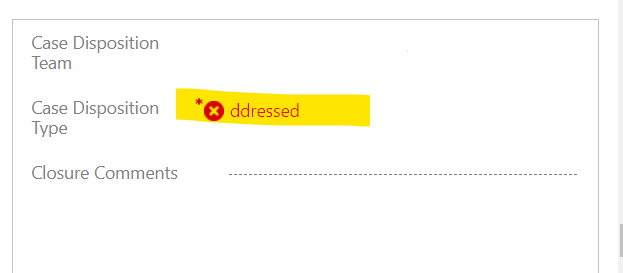
See the text that was partially entered
Code is this
caseDispo = contentPanel.child_window(auto_id="casedispositiontype", control_type="Window")
print(caseDispo.window_text())
caseDispo.set_focus()
caseDispo.type_keys('{ENTER 2}')
caseDispo.type_keys('Addressed')
sleep(5)
the window_text() returns Case Disposition Type Provide Case Disposition Type for case. Select the Enter key to edit the lookup field
The reason I tried the ENTER key is that the enter key will open the lookup. I tried removing the ENTER key as well... every time it gives the text as ddressed or _dressed_
If the text comes as _Addressed_ the error icon will not showup.
@beuaaa This might interest you for the recorder #956
jjbright
on 7 Jul 2020
@airelil @vasily-v-ryabov & All others who have guided me thru,
Couldn't overcome these issues highlighted, It's most likely the door is shut in using #pywinauto and look for any other ray of hope out there
jjbright
on 31 Jul 2020
Finally overcame this issue, once a click_input() in the label, the Edit box gets focussed and the text is entered.
jjbright
on 3 Aug 2020
@jjbright sorry I'm a little bit overloaded. Restored from covid a month ago and now changing a main job. All these changes are not a problem for me, but the pywinauto project suffers a little bit. So please be patient. Method type_keys() is very time sensitive. Sometimes edit control may be not ready for input and so on. I can suggest try app.wait_cpu_usage_lower() before any input if there is some lazy initialization in the dialog.
 vasily-v-ryabov
on 11 Aug 2020
vasily-v-ryabov
on 11 Aug 2020
Related issues
 smitagodbole
·
13Comments
smitagodbole
·
13Comments
 rajarameshmamidi
·
14Comments
rajarameshmamidi
·
14Comments
 nixgnef
·
15Comments
nixgnef
·
15Comments
 van9konst
·
17Comments
van9konst
·
17Comments
 Nonisiuniis
·
25Comments
Nonisiuniis
·
25Comments