Pencil: [UX][Bug] Dragging keyframe along timeline should not move other keyframes if not dropped on top
--Issue Summary--
This is both a request for a fix and a discussion for enhancement. I noticed this problem a long time ago, but I forgot to report it. When moving frame containers around the timeline will displace other keyframes from their original intended position and adds 1 more frame to the opposite side of the direction you were dragging the initial drawing from.
--Expected Results--
When moving a keyframe over another, any keyframe that is not being dragged should not move from their current position unless you drop it on top of that keyframe.
Discussion: Please not that this shifting behavior however is USEFUL when you are moving more than one keyframe at the same time, because you will displace keyframes to make room so it shouldn't go away, but the user should be able to control this.
So if possible it could work on a toggle via shortcut, similar to how TVPaint does it. So we could have the move and slide (current behaviour but fixing the additional 1 frame skip) and the move and replace which is basically replacing the keyframe below with which ever is dropped directly on top (this taking into account the possibility of dragging multiple drawing containers on top, so the one that matches with the container already there would be replaced)
For REFerence In TVPaint you can Move (and overwrite), Displace (Insert) and Copy an image to any frame. Please read this to understand the concept: https://www.tvpaint.com/doc/tvp11/index.php?id=lesson-animate-first-steps-selection-navigation-movement-move-image-inside-layer
So, for example, we can move and not shift keyframes if they are less than 2, but if you have more than two selected and dragged over, you'd have to press CTRL to activate the sliding behaviour.
Of course the current work around is to move the frames that got shifted back, but when you have a long animation you're working on it becomes inefficient.
--Video or Image Reference--
--Steps to reproduce--
1) add 2 keyframes. You'll have 3 including the first that's always created with Pencil2D
2) Position the keyframes along the timeline like this (it doesn't matter the position, but this is to create a reference so you can notice the issue):
- Keyframe 1 -> Frame 1
- Keyframe 2 -> Frame 4
- Keyframe 3 -> Frame 8
3) Now take the last keyframe and move it to frame 3. Notice how the keyframe in frame 4, was move to frame 5. It should stay in frame 4 unless I explicitly dropped the keyframe I was dragging over frame 4.
4) Take the keyframe on frame 3 and take it over again to frame 8. Notice how the keyframe in frame 5 will go back to frame 4.
5) Just for completeness sake take the key on frame 1 and move it to frame 5. Notice the one on frame 4 will go to frame 3. (Even if it's a duplicate, the keyframes are shifting unreasonably)
--System Information--
Pencil2D Version:
Version: 0.6.0 Development buildOperating System:
Windows 7
 Jose-Moreno
All 4 comments
Of course the current work around is to move the frames that got shifted back, but when you have a long animation you're working on it becomes inefficient.
I'm not sure this is true, unless you intend to move hundred of frames at the same time, this should be quite efficient. We only shift the frames back we moved.
Adding a hold down X to slide would be against our ease of use when it works fine in any other case than moving across frames. It should be straight forward to add, delete, select and drag frames.
Keyboard shortcuts while often very efficient are very non UX because we tend to forget how things work over time... If you work with something each and everyday, then it's nice to get anywhere through shortcuts you've learned via plenty of mucle memory, like how blender does it but if you only use something occasionally, then this becomes cumbersome because you're limited by memory.
A button/toggle would not be fitting for this either, since we want a temporary behaviour, therefore we should try to make it work with the mouse through other means ie. UI changes. This could for example be through timeline modification ala. showing a selection tab above the layer that indicates the position of the selected.
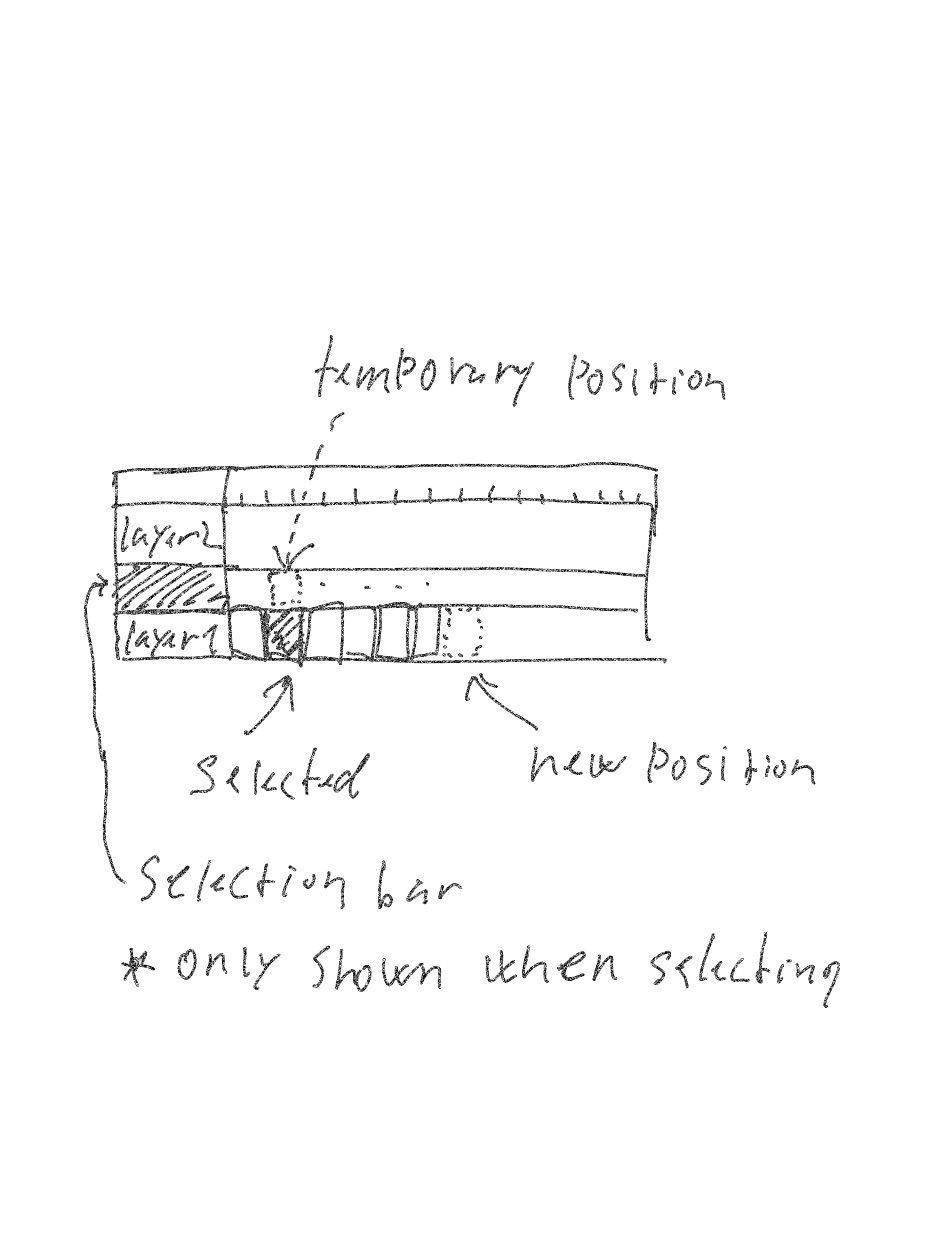
This would also avoid the displacement issue we currently have, since the moved frame(s) will disappear from the timeline and be moved in the selection bar until placed again.
I'm not sure I like the idea of dragging to replace something either, this could be built into a button and shortcut like copy, cut and paste.
 CandyFace
on 9 May 2018
CandyFace
on 9 May 2018
@CandyFace I understand what you're saying. And I'm all for simplicity if anything else fails to achieve that. However, I'm just bringing my experience with other software into the mix and there are plenty of times where you do have to move big chunks of frames because you fugded up your timing & spacing or because the client wants changes that have been introduced with different audio tracks or new storyboards; this is also why Pascal Naidon mentioned a "video edito" behavior in his original Pencil vision.
What I firmly beleive, and I think everyone agrees, is that Pencil2D must not under any circumstance is to displace the currently positioned keyframes without the user choice to do so, and to that end I agree with your proposal.
I think though that replacement of a keyframe by dragging and dropping on top is the most normal and basic behavior I've ever encountered in an animation program. This of course I imagine brings a complex amount of new issues to solve however I've re-read what I wrote before in order to simplify what I meant to say as I think we should be allow to have the following behaviors:
1) Select and Move keyframes anywhere on the timeline. If the keyframes are moved over existing keyframes we can:
a) Move & Slide: Have a behaviour where the keyframes being moved displace the keyframes below to the right (forward in time) to make way for that (this happens in video editors when using a particular tool)
b) Move & Replace: Erase the keyframes below and replace them with the currently dragged keyframes matching frame position.
2) Now with your "temp" layer / visualization proposal, I believe it could also work so the keyframes can also not only dragged on current layer but to other layers as well. Which would mean your proposal would help lay the foundation for the keyframe dragging between layers hich has been requested many times as well.
Jose-Moreno
on 9 May 2018
I understand what you're saying. And I'm all for simplicity if anything else fails to achieve that. However, I'm just bringing my experience with other software into the mix and there are plenty of times where you do have to move big chunks of frames because you fugded up your timing & spacing or because the client wants changes that have been introduced with different audio tracks or new storyboards
Ah well that is true, alright point taken.
What I firmly beleive, and I think everyone agrees, is that Pencil2D must not under any circumstance is to displace the currently positioned keyframes without the user choice to do so, and to that end I agree with your proposal.
That indeed should be fixed, no matter the conclusion of this discussion.
I think though that replacement of a keyframe by dragging and dropping on top is the most normal and basic behavior I've ever encountered in an animation program.
Be that as it may, I've never encountered anything similar in either video nor audio editing software. I think you've come to learn the behaviour with time and maybe through their documentation but for a user with no similar experience, how would one expect content to be overwritten when that UI behaviour has always been to offset previous content. I firmly believe that if we are to replace something with another, it should be very explicit. I'm not sure a simple keystroke + dragging is enough to validate such behaviour.
At the very least, whenever one would enter "move and replace" mode, there should be some visual feedback to illustrate it. maybe something as simple as this could work
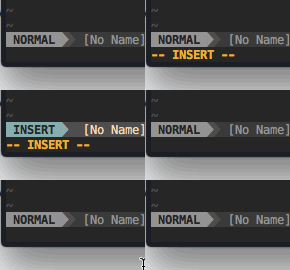
There's also another problem with such behaviour because without something like thumbnails, it could be difficult to show that a keyframe was replaced.
b) Move & Replace: Erase the keyframes below and replace them with the currently dragged keyframes matching frame position.
So basically the first and last selected frame should act as erasers and just delete keyframes they encounter? does this happen while you move or when you release?
CandyFace
on 9 May 2018
@CandyFace Agreed!, there should be some visual cues for sure, In the TVPaint example, you can see text changing from Move to Insert and so forth. Of course I don't quite expect the users to read the manual anyway haha :laughing: But visual cues all the way.
Anyway, Yes, for such behavior to work with your "temp layer" proposal, I think it should happen on release. Also, well I say erase and replace, but maybe I should use the term overwrite? in reality the process should be something like this, of course this is a top level idea I don't know how it would be possible with current codebase so apologies if I overlook something:
1) Select frames
2) Click & Drag selected drawing containers over existing drawing / keyframes
3) Release selected drawing contrainers over a new part of the timeline. After this the process I'll describe would happen between the active layer and the "floating" layer especifically:
- Index / List selected the amount drawing containers (on temp layer) into an array
- On release calculate the frame selection beginning and end and define it as the working range for the overwrite function.
- Based on the range, Index the amount of actual drawing containers on the active layer into an array
- Take the selected frames array and the active layer range array to find overlapping containers. It would only require the timeline position via frame number.
- Each drawing "below" on active layer is cleared in list order.
- Each drawing on the "top" temp layer is pasted over the cleared keyframe in list order. e.g if frame 55 overlaps, the n overwrite, if frame 56 overlaps, then overwrite, etc
- Since Pencil2D creates raw image containers (PNG) for each drawing, per frame, per layer, the previous drawing container filename should be preserved and carried over to the new drawing. Technically It would be a new image with different content but with the same filename which in Pencil2D would indicate the same position in the timeline and to which layer it belongs.
This would complete the process and the user should see that the moved drawings have indeed replaced the drawings that were on that portion of the timeline.
Jose-Moreno
on 9 May 2018
Related issues
 Kaikogf
·
3Comments
Jose-Moreno
·
4Comments
Kaikogf
·
3Comments
Kaikogf
·
3Comments
Kaikogf
·
4Comments
Kaikogf
·
3Comments
Jose-Moreno
·
4Comments
Kaikogf
·
3Comments
Kaikogf
·
3Comments
Kaikogf
·
4Comments