Notepad3: indented lines at paragraphs with multiple lines
Hello,
thank you for developing Notepad3! I think it's good, but I would like to make a suggestion for improvement.
For paragraphs with multiple lines, all lines are indented except for the first on the left. It is unusual; it was NOT the same with the predecessor Notepad2. Hence my suggestion: can this behavior be switched off in the settings so that the user can choose whether he wants this indentation or not?
In the attachment to this email, I am sending a screenshot showing the problem (and Notepad2 for comparison).
I would be very happy about an implementation. Thanks in advance!
Kind regards, Michael
 Michael1065
All 22 comments
Hello Michael,
I am not sure, which behavior exactly you try to describe.
A screenshot would be very helpful. Thank you.
There is a Menu -> Settings -> Auto Indent Text mode, which indents the next line (on carriage-return line-feed) to be at the same indentation level as the predecessor line?
Ed.: Or do you refer to the "Word/Long Line Wrap Mode" ?
 RaiKoHoff
on 7 Apr 2020
RaiKoHoff
on 7 Apr 2020
Hello @Michael1065 ,
Also, could you please add to your answer, the version of your Notepad3 (Hilfe --> Über...) ?
 hpwamr
on 7 Apr 2020
hpwamr
on 7 Apr 2020
I have a suspicion the setting @Michael1065 is looking for is Settings -> Word Wrap Settings...
Change the top option from the default to No wrap indent.
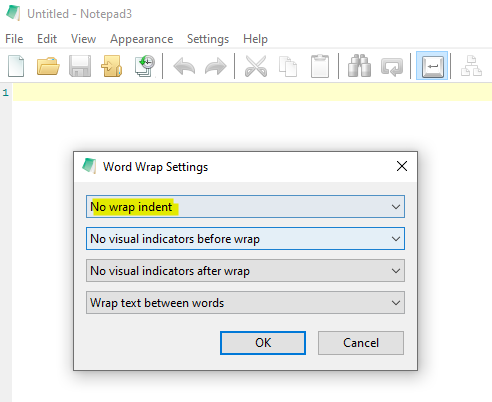
(This is one of the customisations that I always apply... I too don't particularly like the default.)
 craigo-
on 7 Apr 2020
craigo-
on 7 Apr 2020
Waiting for the response of @Michael1065.
Maybe we should change the default 🤔. What is the default of other common editors?
RaiKoHoff
on 8 Apr 2020
Hello, thank you for your answers!
My Version of the Notepad3 ist the v5.20.305.2 RC2 from March 2020.
In other common editors like Notepad2 the lines are not indented.
I will try to send a screenshot as a pdf-file.
Notepad3_Screen.pdf
So you can see what I mean.
Kind regards, Michael
Michael1065
on 8 Apr 2020
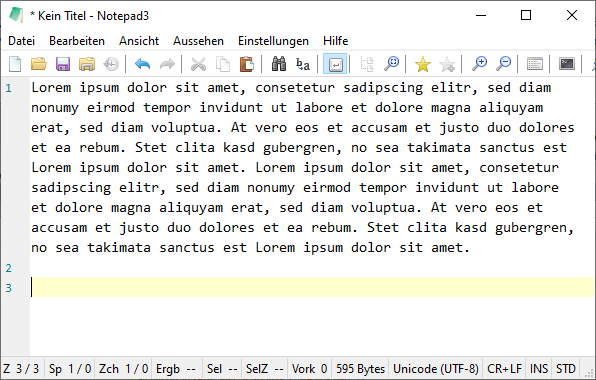
I think @craigo- is right: this is related to the Word Wrap settings:
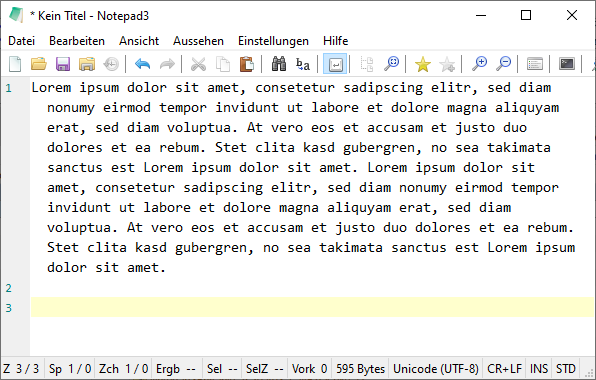
From the line numbering, this text is one long line.
Change the settings (Menu -> Einstellungen -> Wort Umbruch Einstellungen) from:
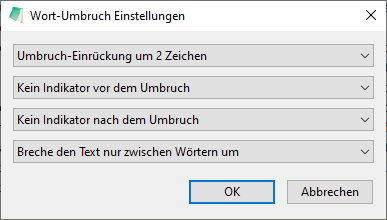
To:
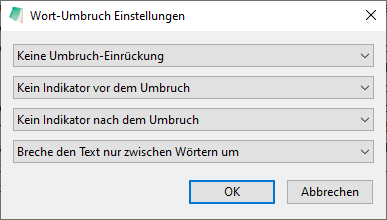
(Keine Umbruch-Einrückungen)
And you get:
RaiKoHoff
on 8 Apr 2020
I can’t think of another text editor that has this indenting behaviour as its default. Certainly none of the editors with a coding focus. It feels to me more of a feature suited to prose.
I’d support changing the default to No wrap indent, but don’t mind if it stays the same - for me it’s a fairly minor thing that I’m catering for anyway.
craigo-
on 8 Apr 2020
Maybe we should change the default 🤔. What is the default of other common editors?
Hello @RaiKoHoff , @craigo- , @Michael1065
I've tested your text with : EditPad Lite, EditPlus, Notepad++, Notepad2, Notepad2e, Notepad2-mod, Notepad2-zufuliu and VSCode. 😏
All these Notepad(like) react like this:
And you get:
I support 100% changing the default to No wrap indent. 👍 😃
hpwamr
on 8 Apr 2020
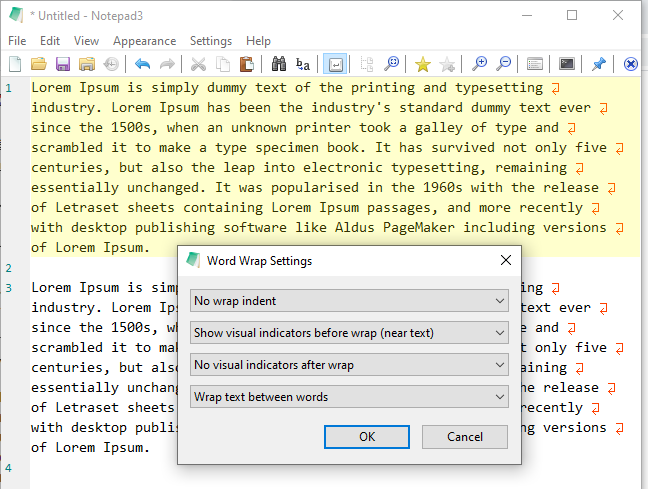
What about the indicators before and after the wrap ?
RaiKoHoff
on 9 Apr 2020
What about the indicators before and after the wrap ?
My preference goes to those settings. 🤔
In addition with Ctlt+Shift+7, you can easily toggle the wrap symbols On/Off . 😺
hpwamr
on 9 Apr 2020
Default change for upcoming release (beta-RC3/Rel) or NewFeature branch?
RaiKoHoff
on 9 Apr 2020
Default change for upcoming release (beta-RC3/Rel) or NewFeature branch?
If possible both: from now for RC3/Upcoming New Release and of course for NewFeature branch.
hpwamr
on 9 Apr 2020
Hello,
thank you for your quick and great help!
They showed me that the option I wanted to switch off the indented lines for a paragraph with several lines already exists and therefore no additions to Notepad3 itself are necessary.
I just hadn't found this option myself because I would have looked for it in the menu under "Paragraph formatting" and not under "Word wrap/break". Because in my view, these indented lines have nothing to do with word breaks/wrap.
So if I had to make a suggestion for improvement, then the settings for indented lines in multi-line paragraphs should not necessarily be under the menu item word wrap. But that's a matter of taste.
Thanks again and happy Easter!
Yours sincerely
Michael Bloch
Michael1065
on 9 Apr 2020
Hello,
thank you for your quick and great help!
They showed me that the option I wanted to switch off the indented lines for a paragraph with several lines already exists and therefore no additions to Notepad3 itself are necessary.
I just hadn't found this option myself because I would have looked for it in the menu under "Paragraph formatting" and not under "Word wrap/break". Because in my view, these indented lines have nothing to do with word breaks/wrap.
So if I had to make a suggestion for improvement, then the settings for indented lines in multi-line paragraphs should not necessarily be under the menu item word wrap. But that's a matter of taste.
Thanks again and happy Easter!
Yours sincerely
Michael Bloch
Michael1065
on 9 Apr 2020
I just hadn't found this option myself because I would have looked for it in the menu under "Paragraph formatting" and not under "Word wrap/break". Because in my view, these indented lines have nothing to do with word breaks/wrap.
Hello @Michael1065 ,
In a pure "text editor" like "Notepad3", the concept of paragraph is very different from a "word processor" like for example: Word. 😃
Normally, if I copy and paste the text "Lorum Ipsum", I only have ONE Long Line of 605 characters.
With in tab "View", the setting Word Warp Crtl+W "checked", the text editor "Notepad3" shows (only for the eyes) this Long Line of 605 characters in +/- 9 short lines (the number of lines in variable according to the width of the Notepad3 window).
Now, look at the line numbers for Notepad3 (far left):
- Line_1 is for the text "Lorum Ipsum"
- And Line_2 starts after the final point "." from the previous text. 🤔
Because Word Warp does not adjust a "Paragraph", but the way a "Long Line" is displayed, the location of Word Warp Settings... in tab "Settings" seems me correct. 🤔
hpwamr
on 9 Apr 2020
My preference goes to those settings. 🤔
In addition with Ctlt+Shift+7, you can easily toggle the wrap symbols On/Off . 😺
My preference for the out-of-box experience is for all whitespace indicators to be off by default. (I enable View -> Show Blanks because I like to see them but I don't think this should be the default experience; I feel the same for the wrap indicators.)
There are two wrap indicator options: before wrap and after wrap. I think if the user were to turn them on (with View -> Show Wrap Symbols), the default should be for both to be displayed. If the user wishes to customise to show one and not the other (such as @hpwamr's screenshot), let them.
At present:
Show Wrap Symbolsis disabled by default- Enabling
Show Wrap Symbolsenables both the before-wrap and after-wrap indicators
I think that is the way it should be.
craigo-
on 9 Apr 2020
What about the indicators before and after the wrap ?
Hello @RaiKoHoff , @craigo-
Honestly, my preference (visual default to maximize the user experience directly out-of-the-box); goes to those settings. 😏
hpwamr
on 16 Apr 2020
I like @hpwamr suggestion more. It is a better visual indication for novice users on first experiences 🤔
RaiKoHoff
on 17 Apr 2020
Hello @RaiKoHoff ,
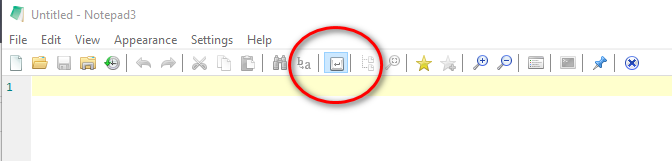
The focus on button "Word Warp" disappears after twice toggling. 😁
hpwamr
on 18 Apr 2020
I can confirm @hpwamr's find.
Regarding having one of the two word wrap indicators on by default, I respectfully disagree. I cannot think of another editor that shows any word wrap symbols by default, and if you were to show them I don't understand why you would only want to showcase one of them.
I will customise this behaviour away in the meantime, and let's see if there is any other user feedback. It may be that I'm the only one who feels this way.
craigo-
on 18 Apr 2020
My preference is, not to wrap long lines by default. But if wrapped, I like to have an Indicator for these lines. Then it is a personal taste, if one or both Indicator(s)... 🤔
RaiKoHoff
on 19 Apr 2020
But if wrapped, I like to have an Indicator for these lines. Then it is a personal taste, if one or both Indicator(s)... 🤔
Me too, I like having an indicator at the end (not both) to Word Wrap Long Lines ! 😏
hpwamr
on 19 Apr 2020
Related issues
 RaffaeleBianc0
·
3Comments
RaffaeleBianc0
·
3Comments
 blackcrack
·
3Comments
blackcrack
·
3Comments
 tzleon
·
3Comments
hpwamr
·
3Comments
tzleon
·
3Comments
hpwamr
·
3Comments
 bravo-hero
·
3Comments
bravo-hero
·
3Comments
Most helpful comment
I like @hpwamr suggestion more. It is a better visual indication for novice users on first experiences 🤔