Meshcentral: Linux terminal stalls when attempting to "su" to someone else
When accessing Linux using MC, you connect as root which makes sense considering the manner in which it's installed, but it would be great if we could then login as an alternative user. As soon as I connect, I've tried connecting as another user, but the terminal seems to stall when I run:
su -s /bin/bash anotherUser
(anotherUser is a valid user)
 D4V3M0NK
All 22 comments
I tried it on various systems over here, it looks like it actually is working, it just seems the bash profile isn't processed, so that you lose the terminal prompt. However it seems it still accepts inputs, and shows the appropriate outputs... Can you verify if this is still true for you? I'll look into seeing why the terminal prompt is lost.
 krayon007
on 18 Jul 2019
krayon007
on 18 Jul 2019
Would it be possible the command prompt environment variable is not set? In that case, the prompt is empty but the shell still work.
 Ylianst
on 18 Jul 2019
Ylianst
on 18 Jul 2019
Hi, shell works fine but Bash Prompt seems to be missing and also cant other shortcuts like CTRL+L and can't tab to finish commands.
command prompt environment variable is fine as i it works fine if we login to it physically.
 UnP1u9
on 19 Jul 2019
UnP1u9
on 19 Jul 2019
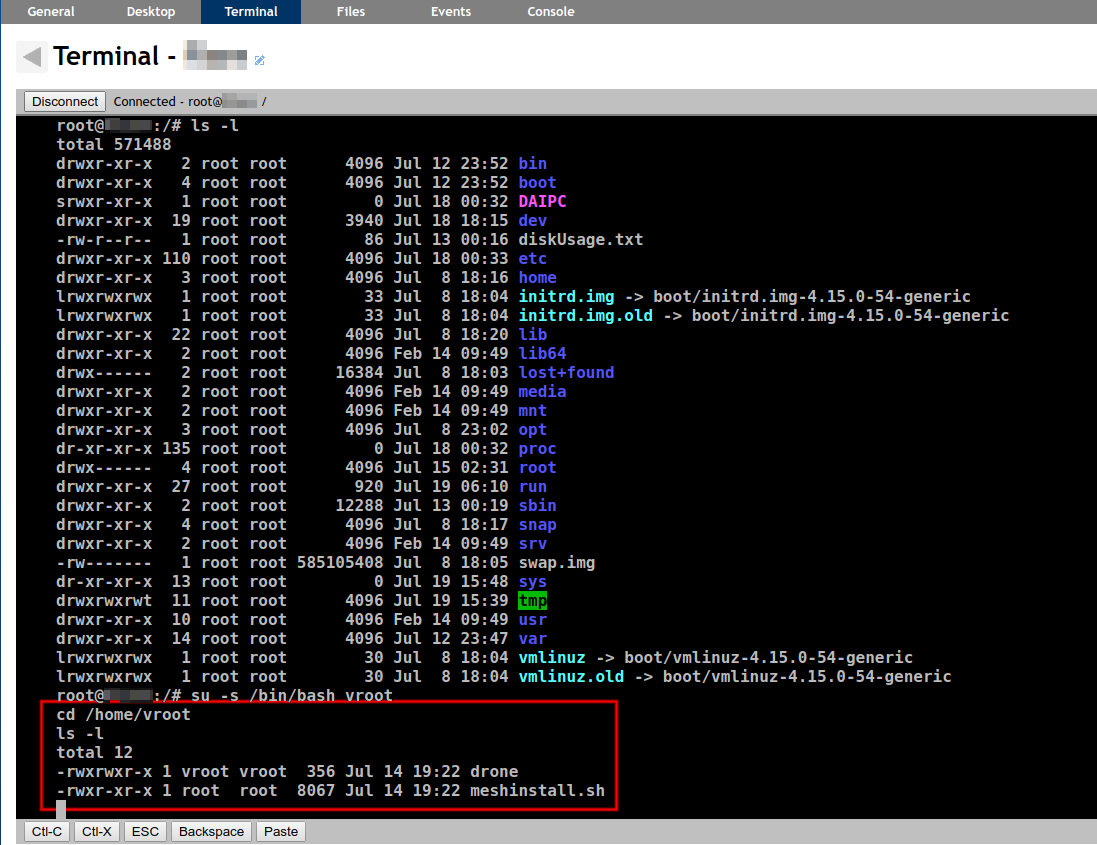
You're right ... it does appear that it's just the prompt that's missing...
D4V3M0NK
on 19 Jul 2019
Same issue for me.
Moreover command "cd" don't work in root. I have the message : bash: cd: « HOME » not defined
 Floche87
on 23 Jul 2019
Floche87
on 23 Jul 2019
cd to any folder doesn't work, or cd to ~ doesn't work?
krayon007
on 23 Jul 2019
For me, using Ubuntu, all "cd" commands work just fine, you just don't see the prompt.
su -s /bin/bash myOtherUser

cd /var/www
ls -l (shows Apache document root)

cd ~
pwd (shows myOtherUser's home folder)
Obviously - this assumes that myOtherUser has a home folder defined (see /etc/passwd)
D4V3M0NK
on 23 Jul 2019
instead of using the command:
su -s /bin/bash myOtherUser
use the command:
su -c '/bin/bash -i' myOtherUser
It will display an ioctl error, but otherwise it seems to work correctly
krayon007
on 23 Jul 2019
I totally agree, everything appears normal with the interactive switch. I will wait to ensure that @Floche87 sees the same results before closing this, thanks for the hint Bryan.
Can I suggest that this is included within the documentation as I would imagine most users wouldn't think of invoking substitute user with the command switch, that command being to run bash in interactive mode?
D4V3M0NK
on 23 Jul 2019
I wonder where in the documentation would be the best place to put this... Looking into the User Guide now.
Ylianst
on 23 Jul 2019
Ok, added an new "Annex 2: Tips & Tricks" with this in it. I will add more stuff like this in this section. Next time I update the document online, it will be there.
Ylianst
on 23 Jul 2019
@D4V3M0NK The command "su -c ..." is ok for me.
@krayon007 'cd /pathtofolder' and 'cd ~' work. But the home folder isn't accessible with 'cd'. In a terminal it is ok.
Floche87
on 24 Jul 2019
@Floche87 how are you attempting to access the home folder? I always use cd ~ which you state works for you? Are you using something like cd $HOME? (which also works for me). I also have full permissions to the home folder.
D4V3M0NK
on 24 Jul 2019
Yes.
On debian 'cd' (like cd ~) access the home folder
Floche87
on 25 Jul 2019
@Floche87 ... I've just installed Buster on my VM environment and "cd" works for me as expected. You're correct in that you still don't see the prompt (which I believe @krayon007 is working on) but the command itself works in my environment. What version of Debian are you using?
D4V3M0NK
on 25 Jul 2019
I use Stretch and Buster. Both have the same issue.
It is not fresh install.
Floche87
on 26 Jul 2019
So, is using the -c and -i switch not resolving the issue for you?
krayon007
on 26 Jul 2019
@krayon007 it is for me, but apparently not for @Floche87
D4V3M0NK
on 26 Jul 2019
@Floche87 , are you able to see the prompt with the -c and -i switch, just $HOME is not working, or are you not able to do either?
Also, is "cd ~" going to the same folder that you expect $HOME is supposed to be mapped to?
Also, which linux distro are you running? I'll setup the same distro, and see if I can't dig into this...
krayon007
on 26 Jul 2019
@krayon007, with -c/-i switch, i see the prompt and all is ok . "cd ~" and "cd" access my $HOME.
When i directly use the terminal of meshcentral (without su command), "cd ~" is ok but "cd" not.
Maybe is it another issue ?
I use Debian Buster and Strech. It is not new install.
Floche87
on 27 Jul 2019
This thread is quite old, but this issue is actually fixed correctly with the latest version of the server. The underlying issue, was an issue with interactive mode on the terminal, because bash didn't like how I was redirecting stderr, so went into non-interactive mode if you did an su. This is now fixed with the current server, so you can use su like you normally would, and don't need to use the -i option on bash.
krayon007
on 5 Feb 2020
Wonderful - thanks Bryan!
D4V3M0NK
on 6 Feb 2020
Related issues
 guerby
·
3Comments
guerby
·
3Comments
 Julien-asv
·
3Comments
Julien-asv
·
3Comments
 coolwormgit
·
3Comments
coolwormgit
·
3Comments
 darryl-h
·
3Comments
darryl-h
·
3Comments
 MailYouLater
·
4Comments
MailYouLater
·
4Comments
Most helpful comment
This thread is quite old, but this issue is actually fixed correctly with the latest version of the server. The underlying issue, was an issue with interactive mode on the terminal, because bash didn't like how I was redirecting stderr, so went into non-interactive mode if you did an su. This is now fixed with the current server, so you can use su like you normally would, and don't need to use the -i option on bash.