Ionide-vscode-fsharp: Debugging doesn't start
Describe the bug
I can't seem to get debugging to work.
- The first time I tried I got an error about it not being able to start because of something to do with OmniSharp either still running or something (sorry, I can't remember the exact error message)
- The second time it said "Installing packages..." in the status bar but I waited for 10-15 minutes and it never went away and nothing else happened
- Now (after restarting), whenever I try, it just opens a launch.json file in a tab and nothing else happens
Debugging a C# project using VS Code works perfectly.
To Reproduce
Steps to reproduce the behaviour:
- Select Debug -> Start Debugging
- Select ".NET Core"
Expected behaviour
My program is run and the breakpoint I set was triggered.
Environment (please complete the following information):
- OS: Windows 10 Version 1809
- Ionide version: 3.38.0
- VSCode version: 1.34.0
- dotnet SDK version: 2.2.101
- mono / .Net Framework version:
 drguildo
All 7 comments
Hey @drguildo :wave:,
Thank you for opening an issue. We will get back to you as
soon as we can. Also, check out our OpenCollective and consider
backing us.
https://opencollective.com/ionide
PS.: We offer
backersupport for all backers. Don't forget to addbackerlabel when you start backing us :smile:
![open-collective-bot[bot] picture](https://avatars.githubusercontent.com/in/23739?v=4&s=40) open-collective-bot[bot]
on 1 Jun 2019
open-collective-bot[bot]
on 1 Jun 2019
It's probably irrelevant but debugging also works in Visual Studio Community 2019.
drguildo
on 1 Jun 2019
Was this the OmniSharp error that you saw?
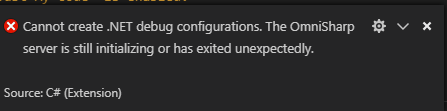
Not being able to auto-create the configurations does seem to be a bug, although it might be a bug with OmniSharp rather than ionide?
Launch.json will open and do nothing because you need to configure it correctly. Start by clicking the little cog:

then (if auto generating the config failed) you can click "Add Configuration..." in the bottom right:

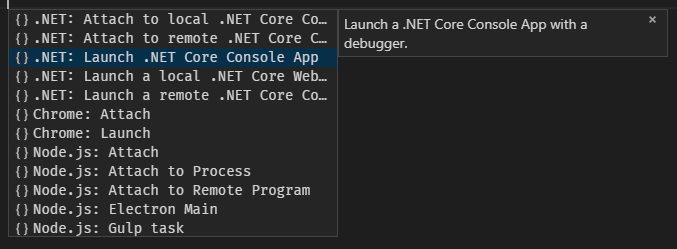
and select "Launch a .NET Console App":
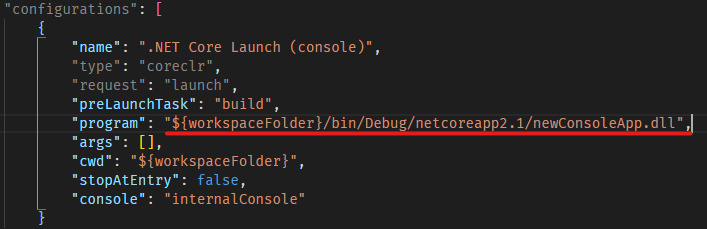
Make sure to change the "program" property to match where your built dll will be (and remove the angled brackets):
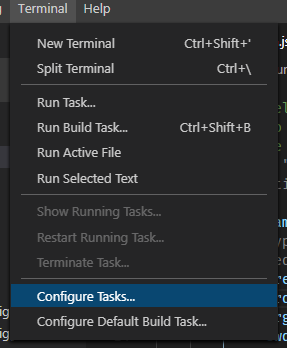
Then you will need to create the "build" task referenced by the "preLaunchTask" property. You can do this by clicking Terminal -> Configure Tasks...
Then select create task.json file from template and then .net core:

At this point you should have two files inside a .vscode folder at the root of your working directory - launch.json and tasks.json. launch.json should look like:
{
    // Use IntelliSense to learn about possible attributes.
    // Hover to view descriptions of existing attributes.
    // For more information, visit: https://go.microsoft.com/fwlink/?linkid=830387
    "version": "0.2.0",
    "configurations": [
        {
            "name": ".NET Core Launch (console)",
            "type": "coreclr",
            "request": "launch",
            "preLaunchTask": "build",
            "program": "${workspaceFolder}/bin/Debug/netcoreapp2.1/newConsoleApp.dll",
            "args": [],
            "cwd": "${workspaceFolder}",
            "stopAtEntry": false,
            "console": "internalConsole"
        }
    ]
}
and tasks.json should look like:
{
    // See https://go.microsoft.com/fwlink/?LinkId=733558
    // for the documentation about the tasks.json format
    "version": "2.0.0",
    "tasks": [
        {
            "label": "build",
            "command": "dotnet build",
            "type": "shell",
            "group": "build",
            "presentation": {
                "reveal": "silent"
            },
            "problemMatcher": "$msCompile"
        }
    ]
}
you should now be able to start debugging with the correct launch configuration:

If an error box appears saying that the .dll cannot be found, likelihood is that you've misspelled part of the path in the "program" property of launch.json.
 LukeBurgessYeo
on 5 Jun 2019
LukeBurgessYeo
on 5 Jun 2019
Encountering same issue on Arch Linux (Ctlos) using vscode-oss:
.NET Core SDK (reflecting any global.json):
 Version:   3.1.201
 Commit:    b1768b4ae7

Runtime Environment:
 OS Name:     Ctlos
 OS Version:  net-1.0_20200407
 OS Platform: Linux
 RID:         linux-x64
 Base Path:   /usr/share/dotnet/sdk/3.1.201/

Host (useful for support):
  Version: 3.1.3
  Commit:  4a9f85e9f8

.NET Core SDKs installed:
  3.1.201 [/usr/share/dotnet/sdk]

.NET Core runtimes installed:
  Microsoft.AspNetCore.App 3.1.3 [/usr/share/dotnet/shared/Microsoft.AspNetCore.App]
  Microsoft.NETCore.App 3.1.3 [/usr/share/dotnet/shared/Microsoft.NETCore.App]

To install additional .NET Core runtimes or SDKs:
  https://aka.ms/dotnet-download
Debugging just hangs, never reaches breakpoints (even after I configured task.json and launch.json)
Omnisharp also saying "Cannot create .NET debug configurations. The OmniSharp server is still initializing or has exited unexpectedly."
Also, cannot run without debugging either. :disappointed:
 m0rphed
on 17 Apr 2020
m0rphed
on 17 Apr 2020
@LukeBurgessYeo Thanks. I was able to get debugging working using your guide.
drguildo
on 18 Apr 2020
Maybe related ? #3694
m0rphed
on 24 Apr 2020
Have a look at this
F# projects are not officially supported by this extension -- this extension tries to be smart about the launch.json that it generates, but being smart requires project understanding, and OmniSharp only understands C# projects. So definitely the best option would be for the F# extension (which I think the most popular one is Ionide-fsharp) to provide smart templates for launch.json based on understanding the project, or even just really basic templates. So if Ionide-fsharp doesn't, you may want to log an issue or follow up.
I think what happened is that Omnisharp does not understand F# project since it's not designed to support F# support.
 rustedwizard
on 3 Nov 2020
rustedwizard
on 3 Nov 2020
Related issues
 isaacabraham
·
5Comments
isaacabraham
·
5Comments
 MikaelUmaN
·
5Comments
MikaelUmaN
·
5Comments
 landy
·
5Comments
landy
·
5Comments
 gsomix
·
6Comments
gsomix
·
6Comments
 alfonsogarciacaro
·
5Comments
alfonsogarciacaro
·
5Comments
Most helpful comment
Was this the OmniSharp error that you saw?

Not being able to auto-create the configurations does seem to be a bug, although it might be a bug with OmniSharp rather than ionide?
Launch.json will open and do nothing because you need to configure it correctly. Start by clicking the little cog:

then (if auto generating the config failed) you can click "Add Configuration..." in the bottom right:

and select "Launch a .NET Console App":

Make sure to change the "program" property to match where your built dll will be (and remove the angled brackets):

Then you will need to create the "build" task referenced by the "preLaunchTask" property. You can do this by clicking Terminal -> Configure Tasks...

Then select create task.json file from template and then .net core:

At this point you should have two files inside a .vscode folder at the root of your working directory - launch.json and tasks.json. launch.json should look like:
and tasks.json should look like:
you should now be able to start debugging with the correct launch configuration:

If an error box appears saying that the .dll cannot be found, likelihood is that you've misspelled part of the path in the "program" property of launch.json.