When choosing a theme it would be useful to have a preview of some kind to show what the theme would look like.
Current behavior
To see a theme you must select it in the preferences and restart Heidi.
Possible solution
Either an image next to the dropdown in the preferences showing a screenshot with the selected theme or a page in the help documentation listing all themes with screen shots.
- HeidiSQL version:
10.1
 adhayward
All 14 comments
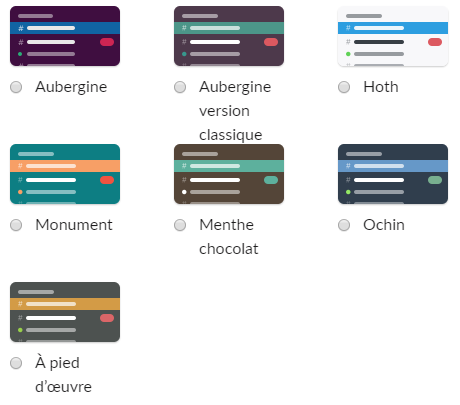
Another simple and elegant solution might be a "color palette" of the theme's main colors, like the one you can find in WordPress profile edit page

or a very basic illustration like in Slack settings.
 CharlieEtienne
on 30 Jan 2019
CharlieEtienne
on 30 Jan 2019
Hi, this feature would be useful for sure....it's a bit annoying to restart the app every time :/
Unfortunately I'm out of time otherwhise I would collaborate for this.
Bye
 funder7
on 19 Mar 2019
funder7
on 19 Mar 2019
..Or at least include a link to screenshots on the website!
Do you have screenshots on the website (my initial search didn't find any) ?
If not, that would be a huge help!
With no previews Anywhere, there is a huge disconnect with time and effort people have devoted to creating themes, and the ability for users to actually use them.
If there is a webpage (anywhere) showing the themes, can somebody please include a link here - google search did not turn up any such page, but did bring up this one :-)
Simply adding a page on your website with screenshots, is low overhead, requires no software changes, and could be done in a matter of hours.
It could certainly be done in less time and frustration that it cumulatively takes for users to keep resetting and restarting the DB to preview theme options.
Or maybe somebody wants to make a blog post highlighting theme options..? (I don't have a blog, so..)
Thanks.
 SherylHohman
on 18 May 2019
SherylHohman
on 18 May 2019
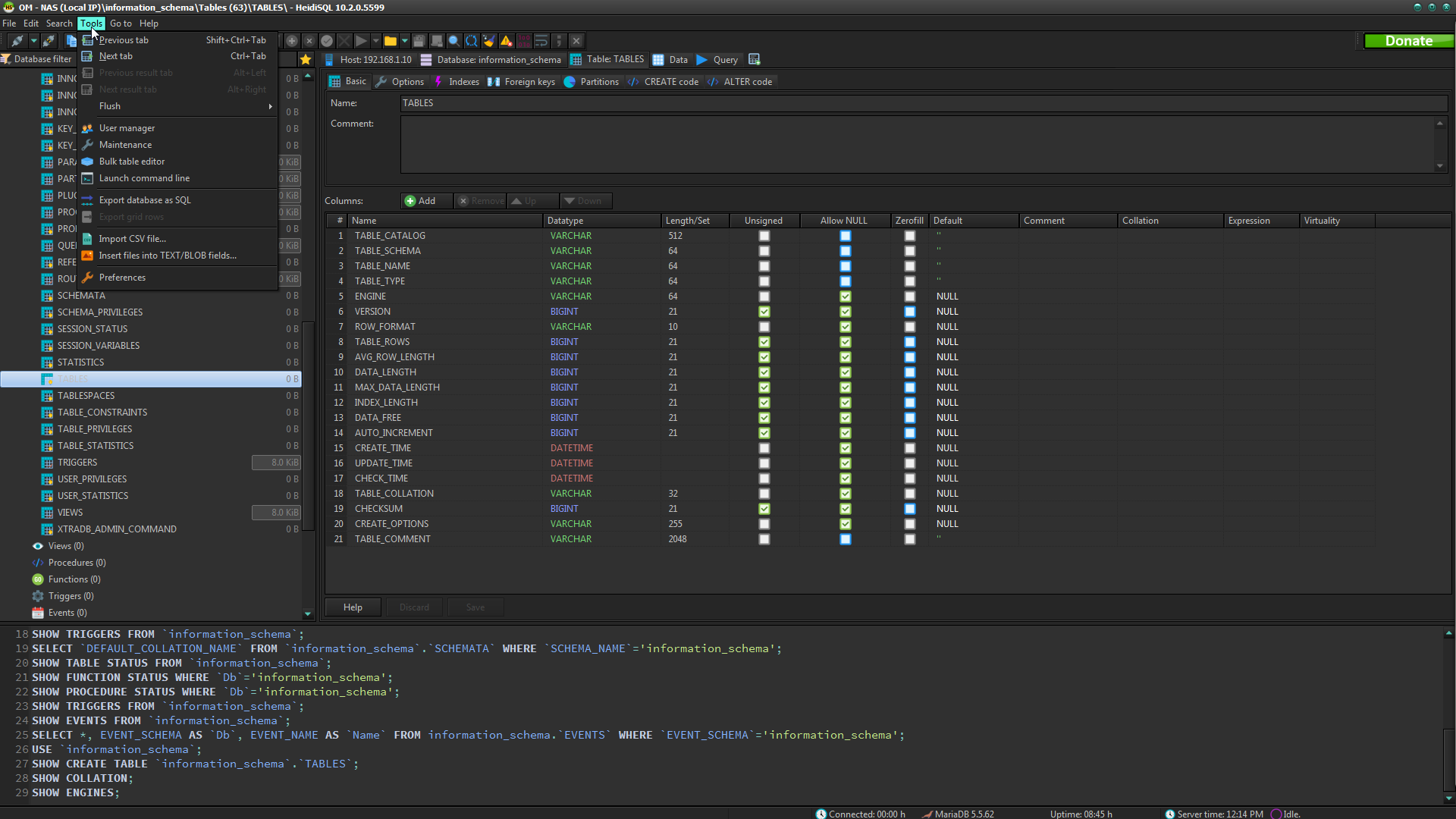
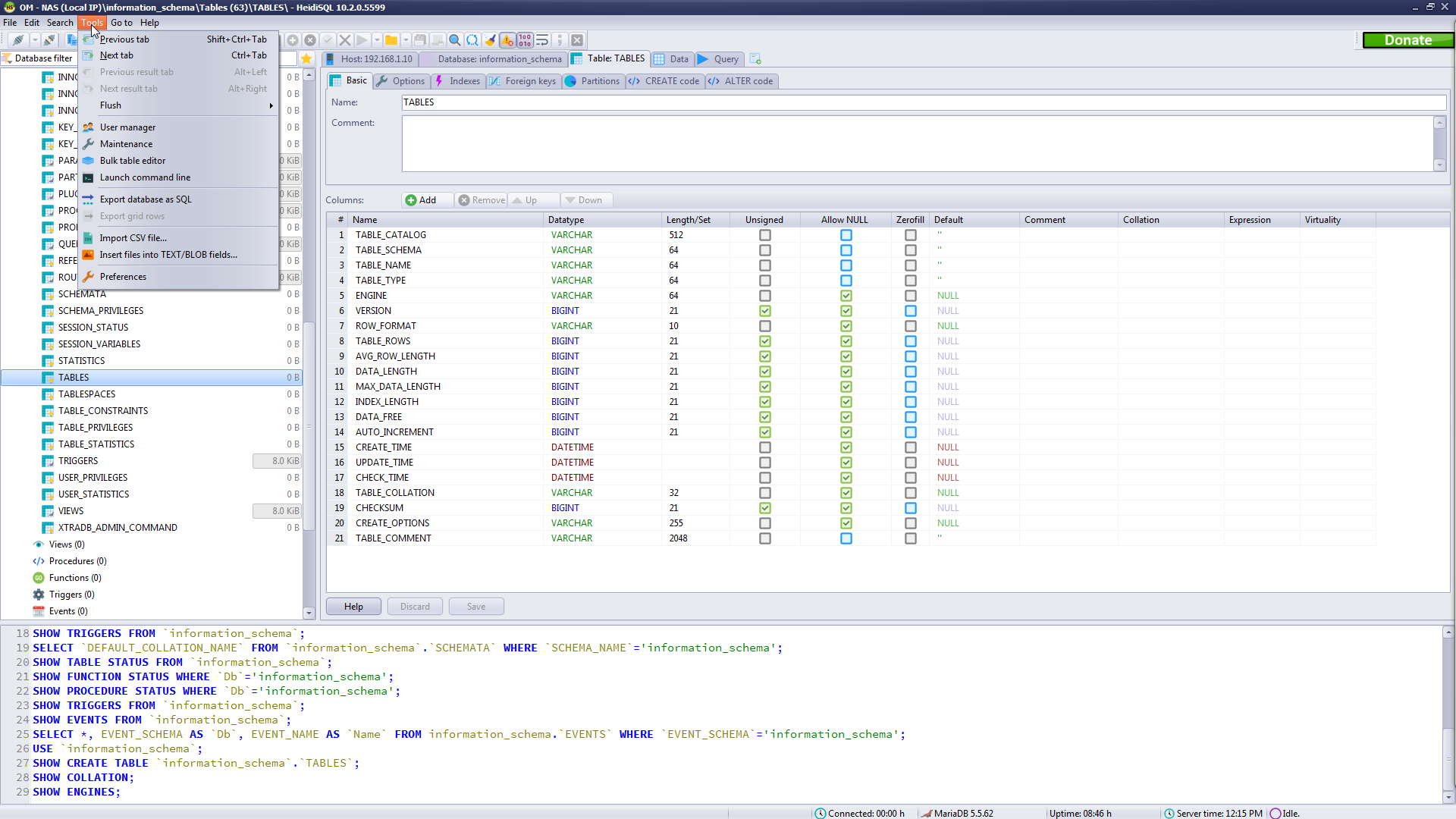
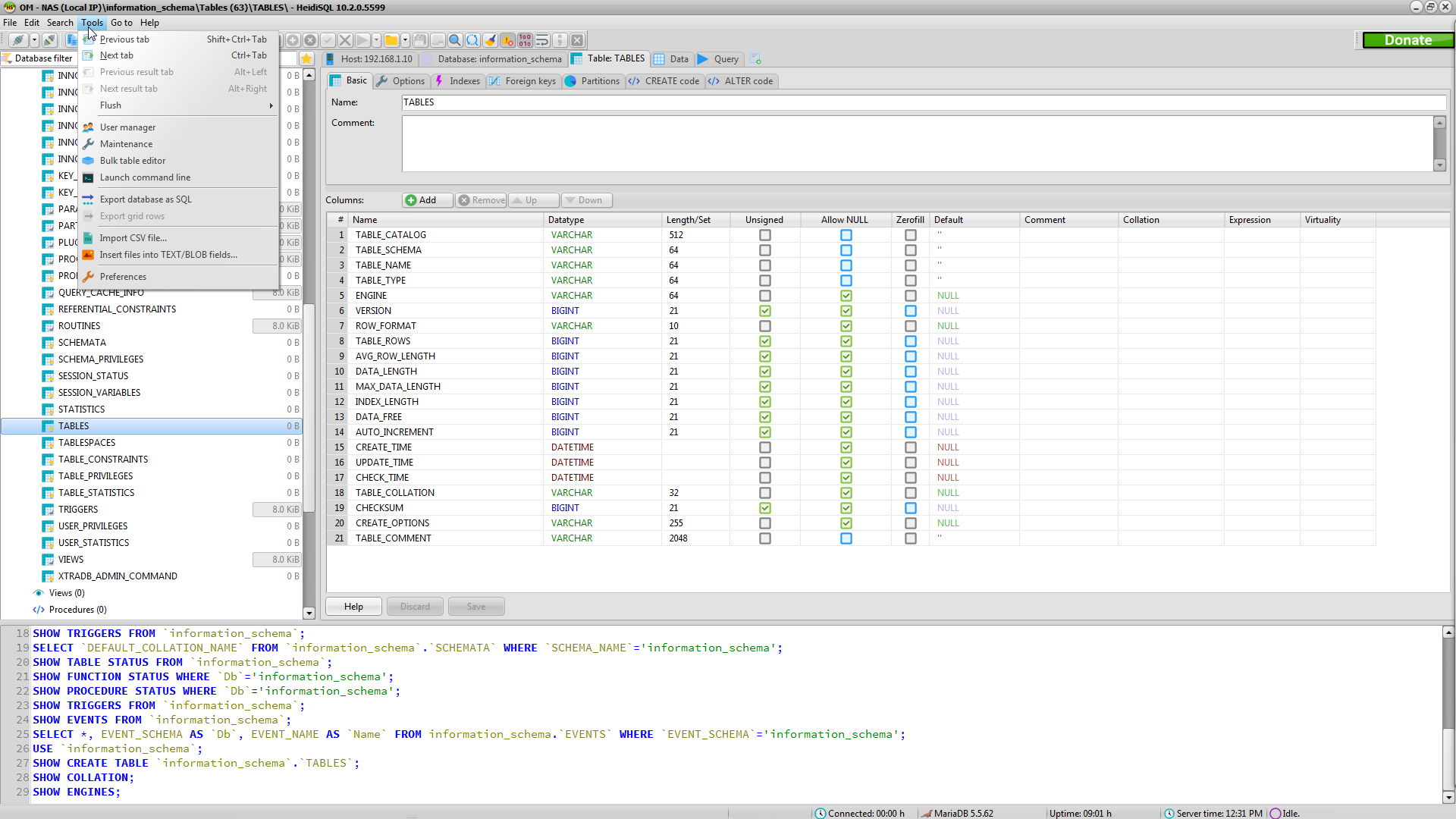
How about we help create the screen shots to save the coders some time. I will start the collection with 10 screen shots.
If you can contribute, please let's all use the same shot. Open the Information_Schema database, scroll down until Events is the last item in the tree, select the TABLES table, and open the Tools menu. Grab a screen shot.
Can we agree on 1920 x 1080? Then whoever can grab them all and do a blog or webpage can make things look uniform. I will come back and add more next week as time permits.
Amakrits
Amethyst Kamri
Aqua Graphite

Aqua Light Slate
Auric

Carbon
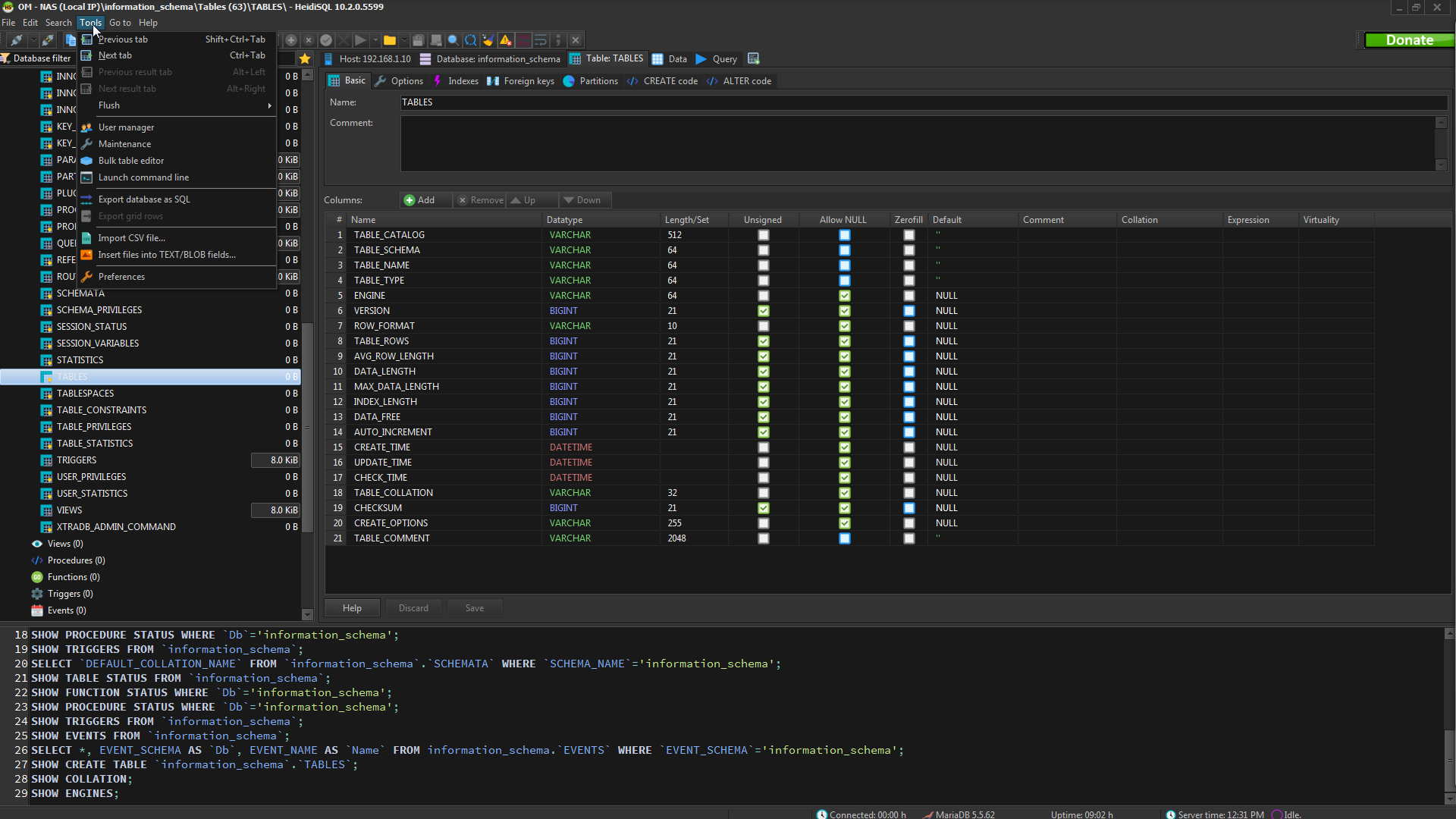
Charcoal Dark Slate
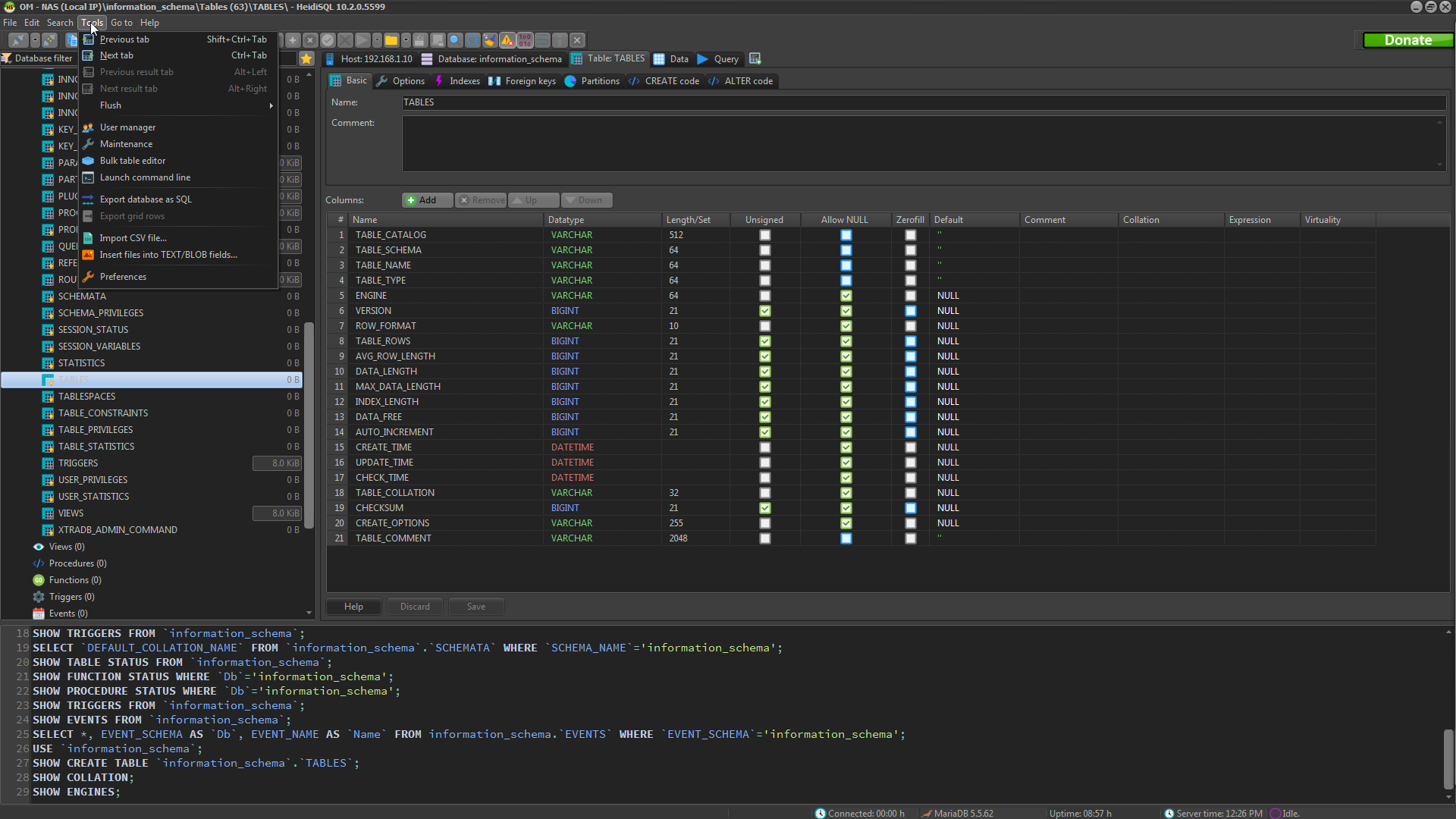
Cobalt XEMedia
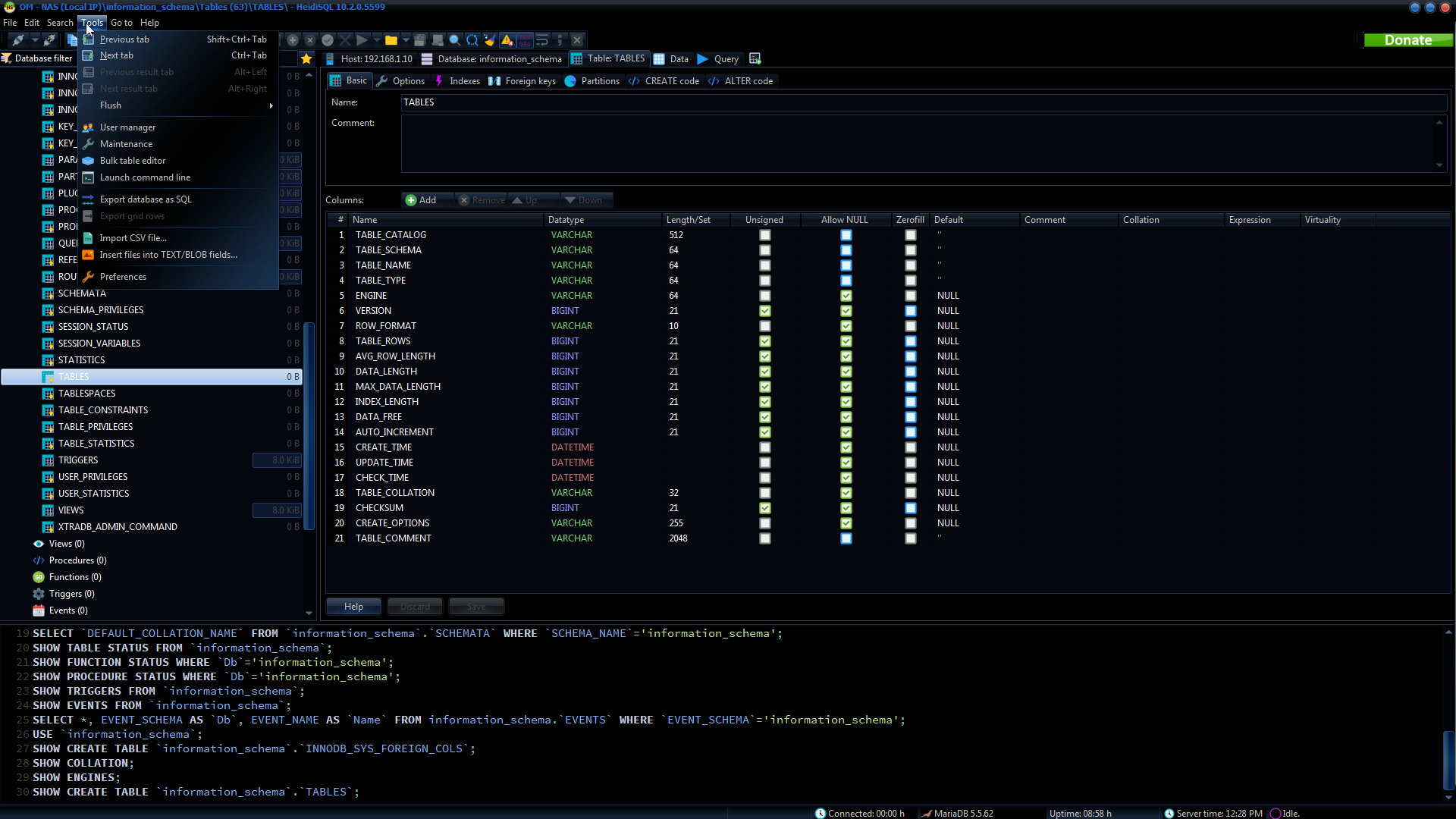
Cyan Dusk
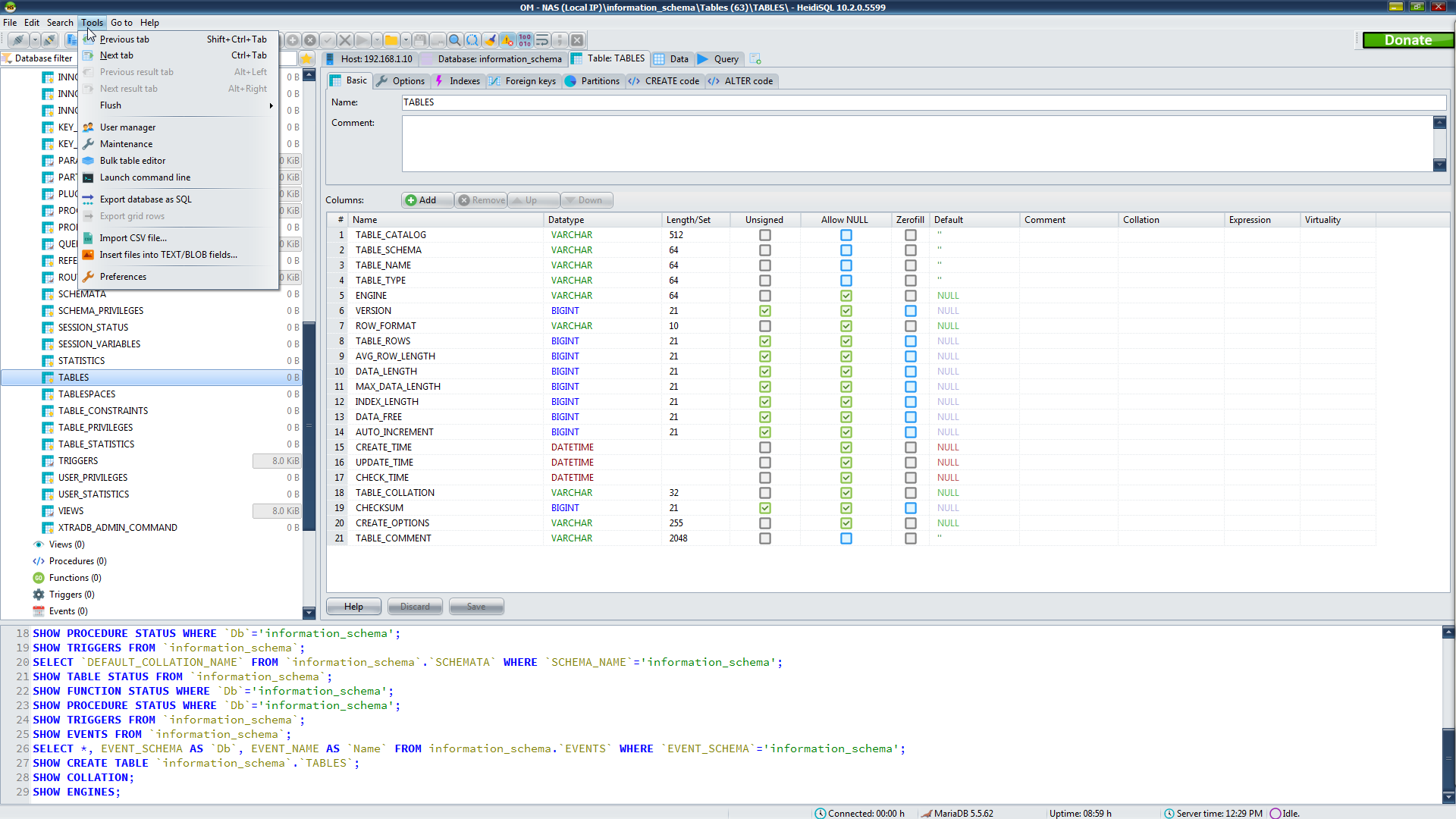
Cyan Night
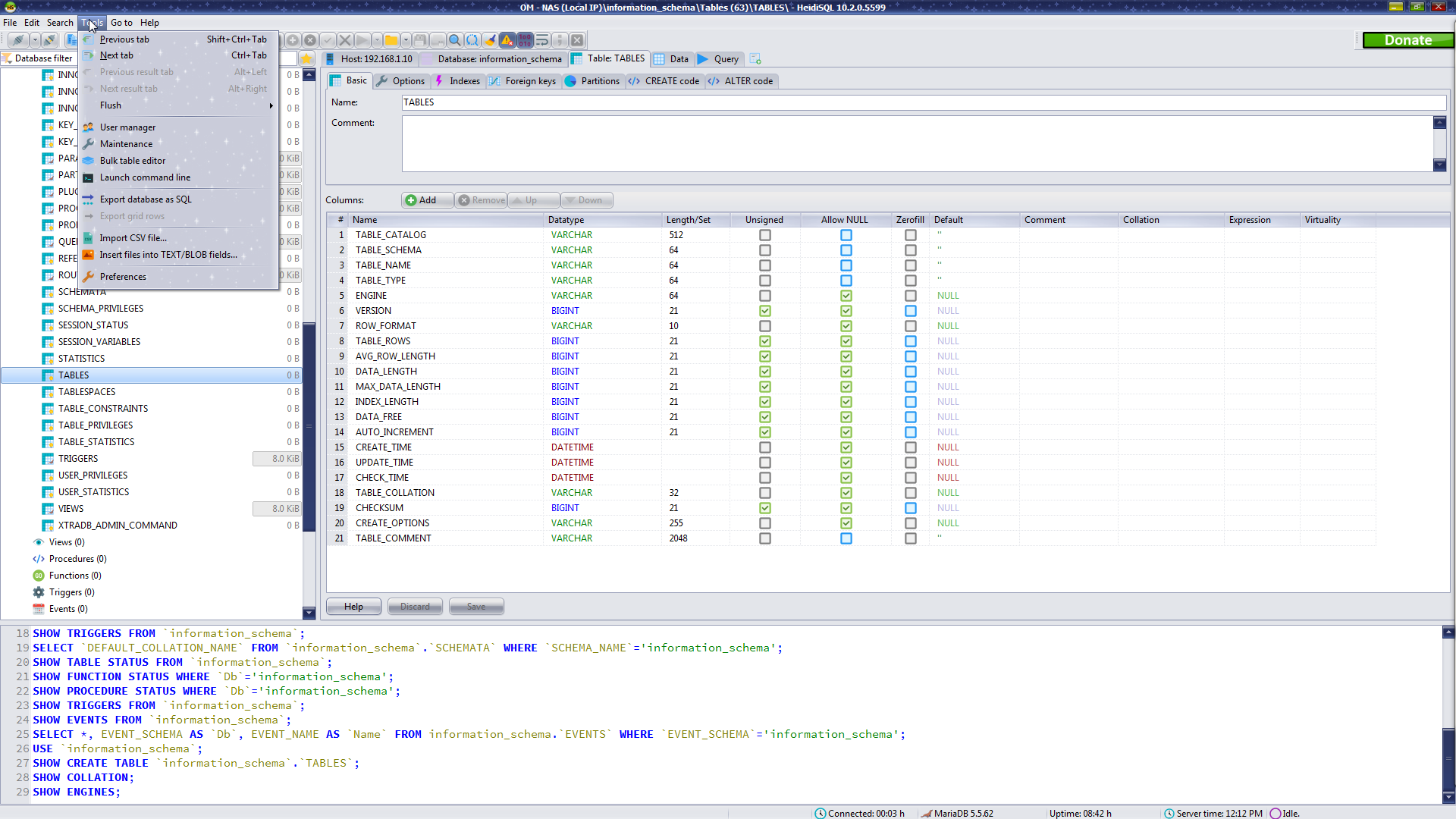
 billom
on 12 Jul 2019
billom
on 12 Jul 2019
Heck, it didn't take long to do the first ten so here are the rest... Enjoy
Emerald Light Slate
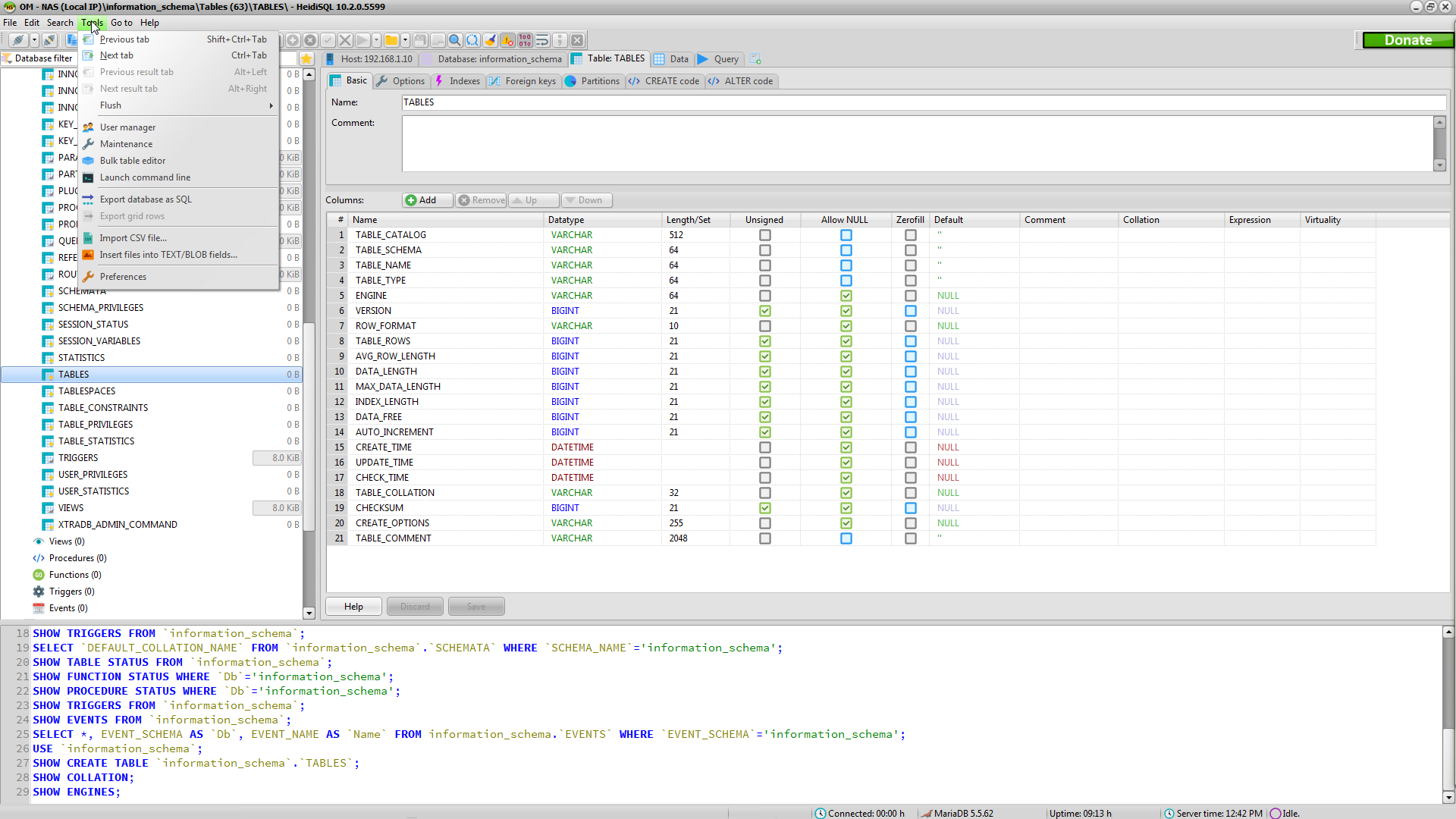
Glossy

Glow
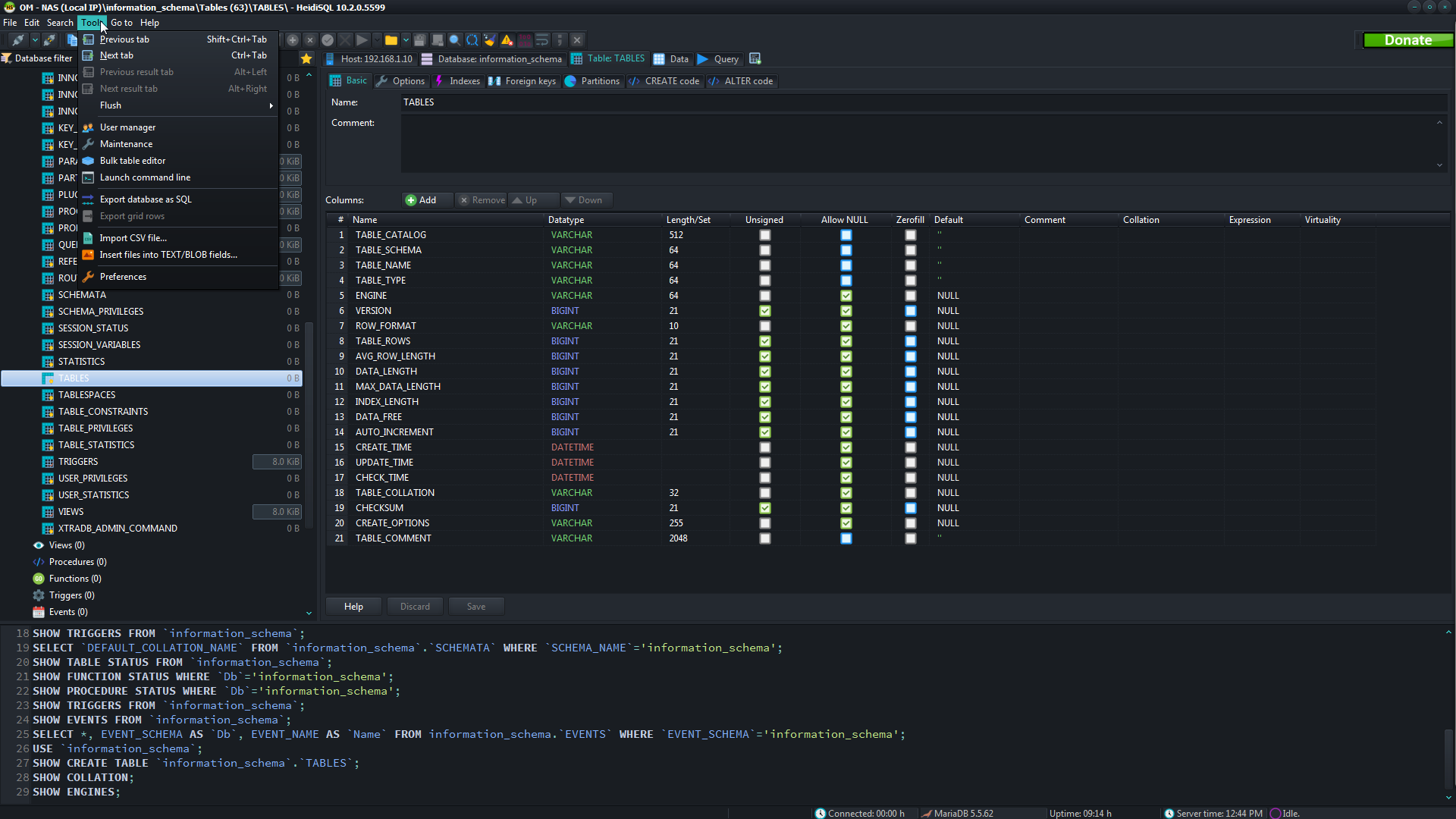
Golden Graphite
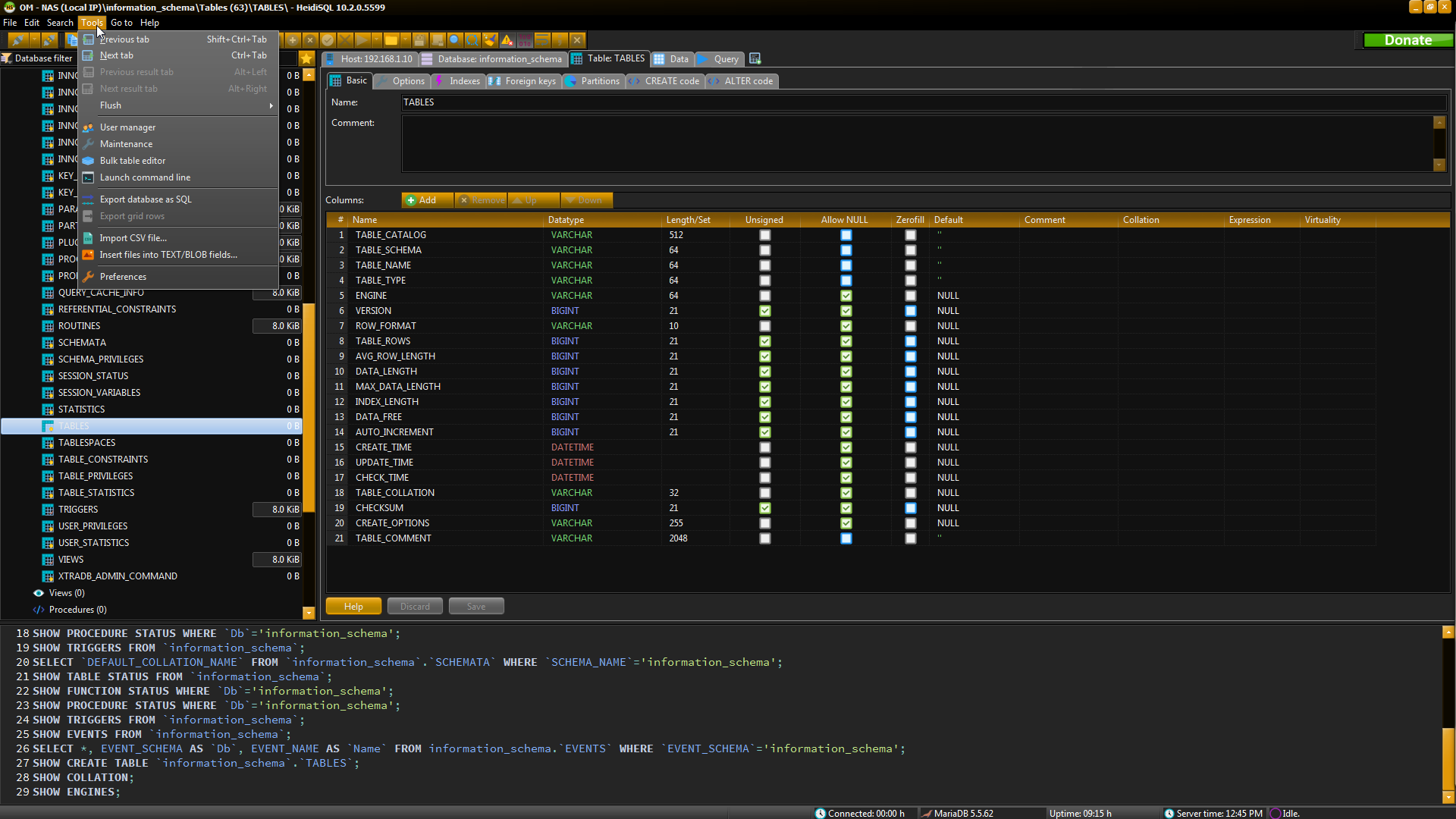
Iceberg Classico
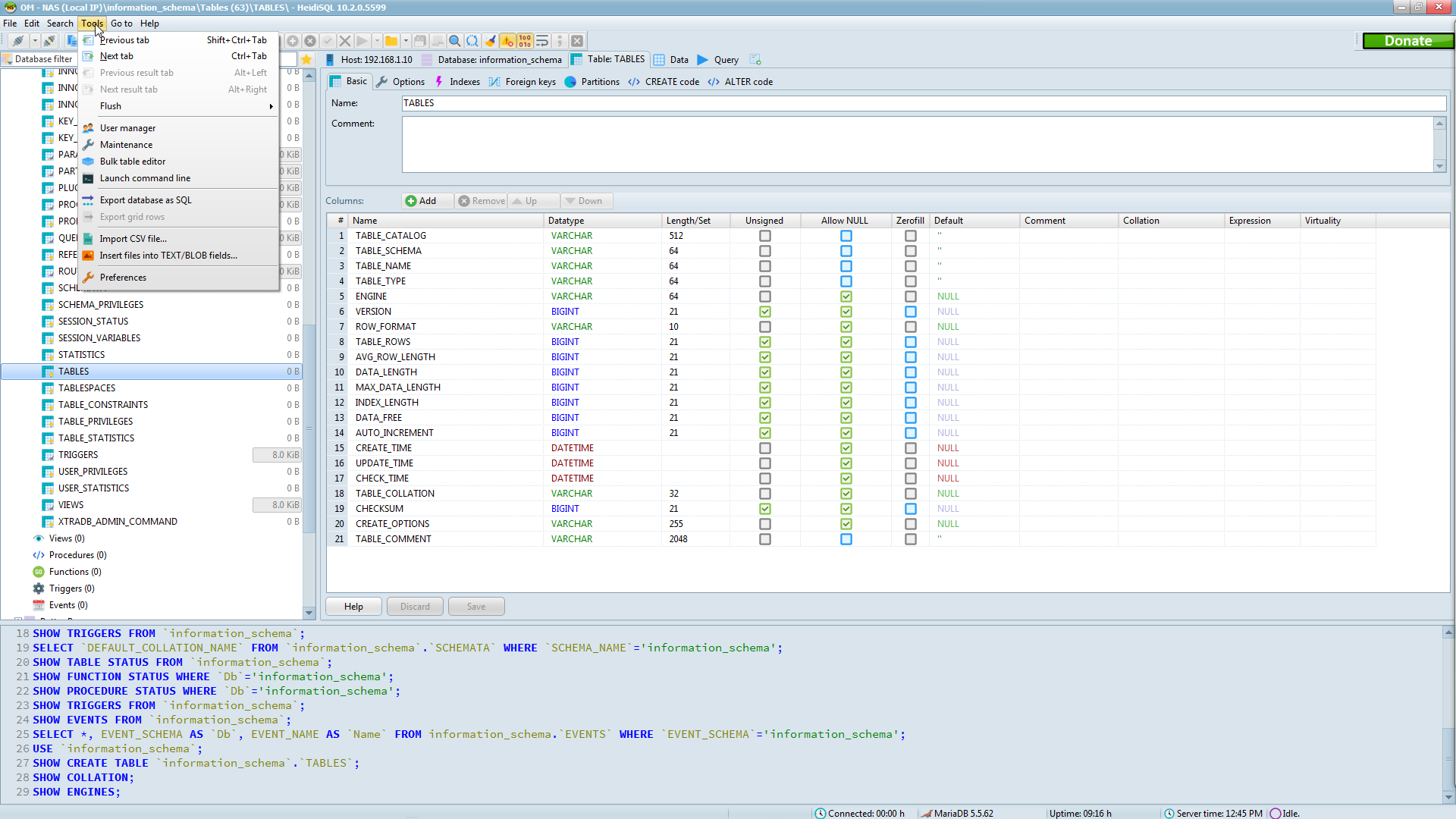
Lavender Classico
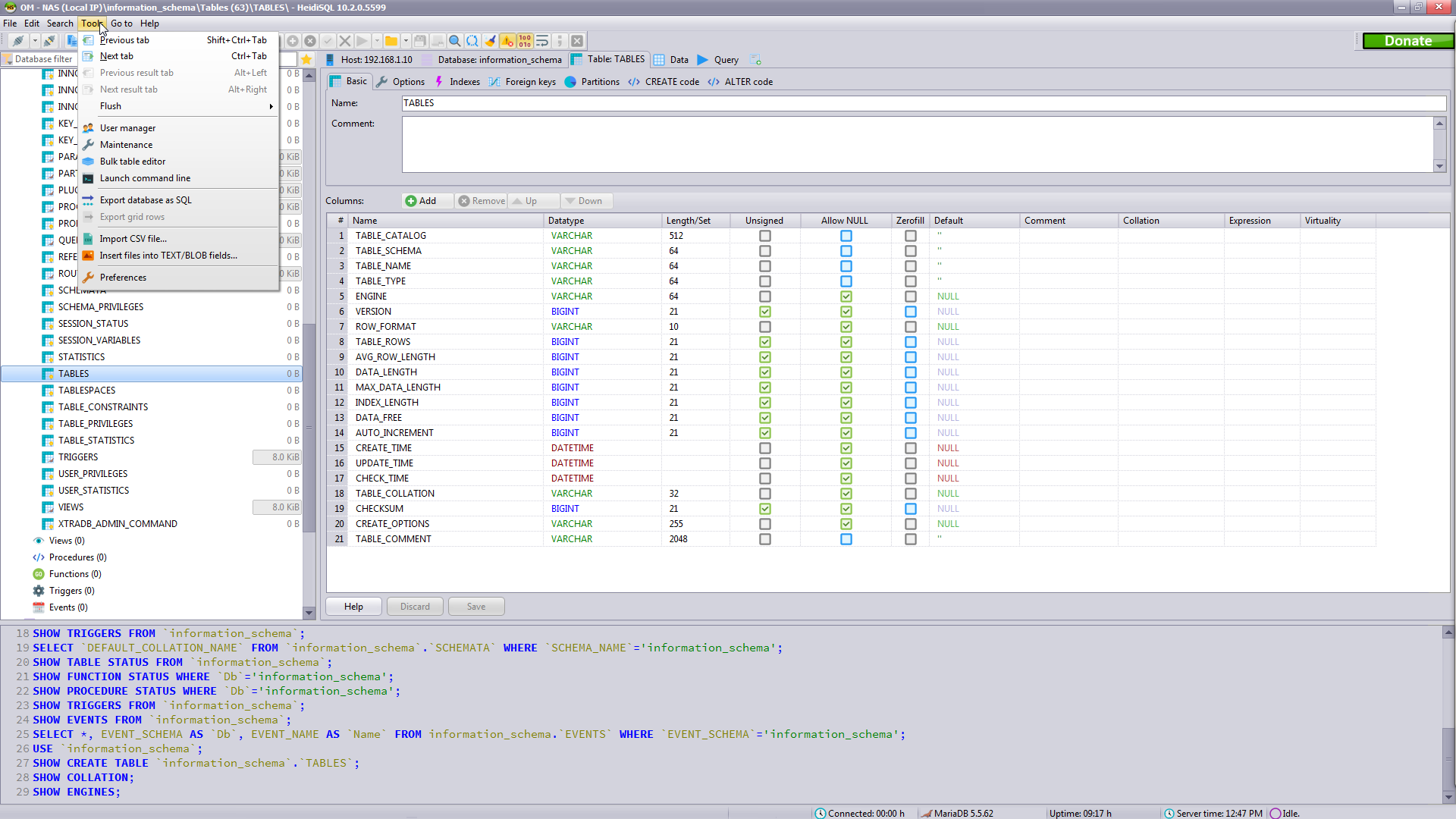
Light

Luna
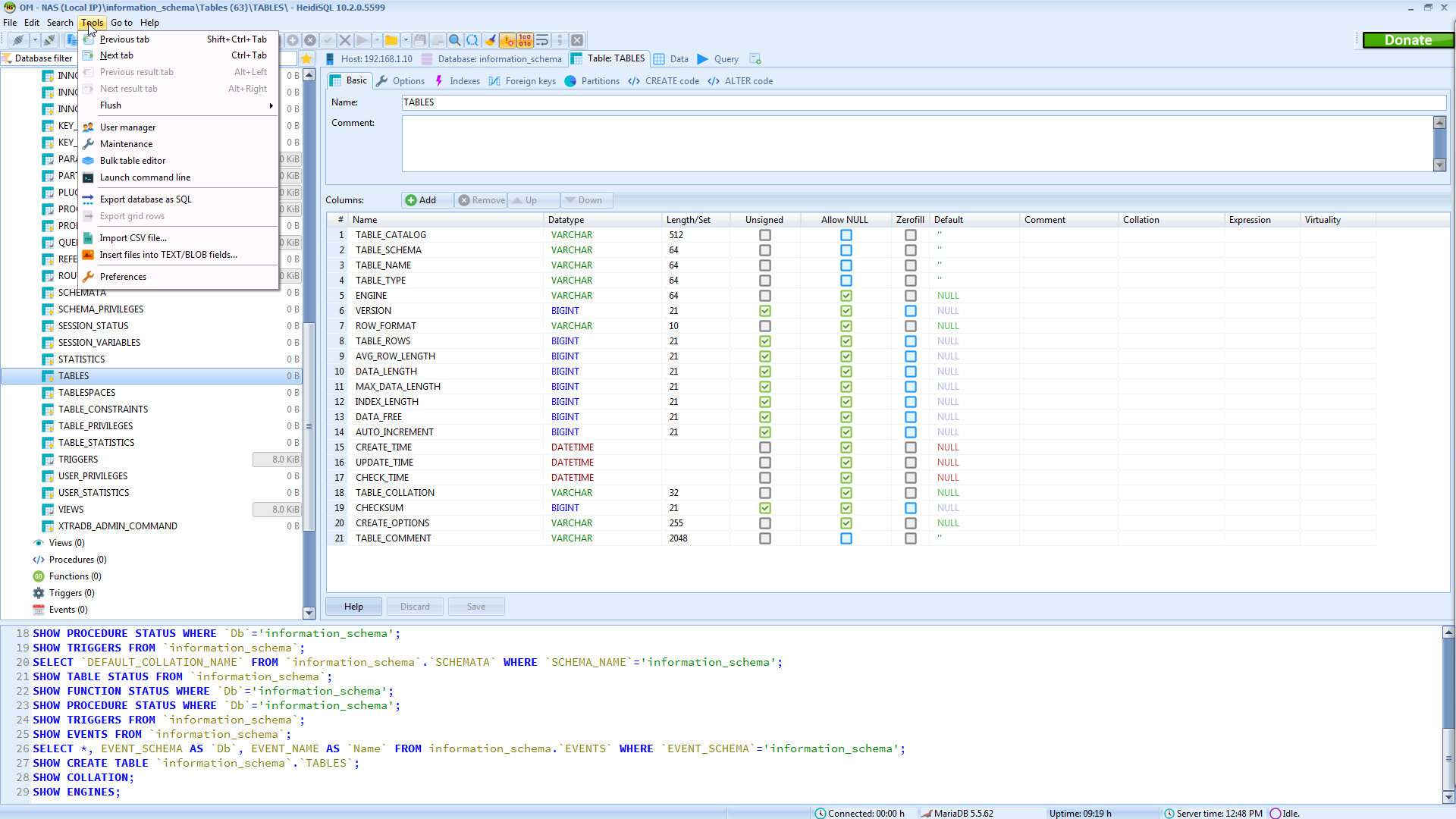
Material
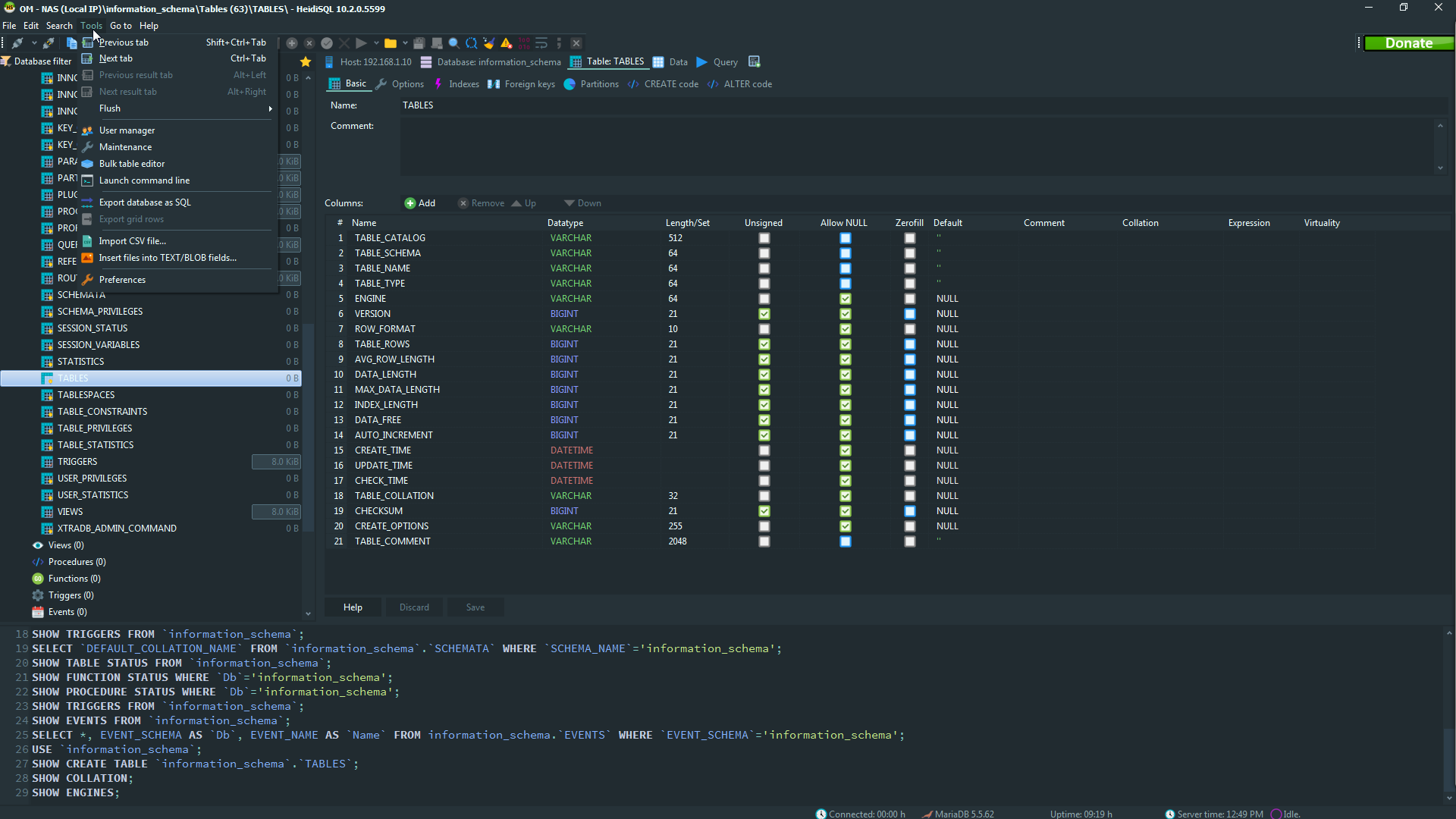
Metropolis UI Black
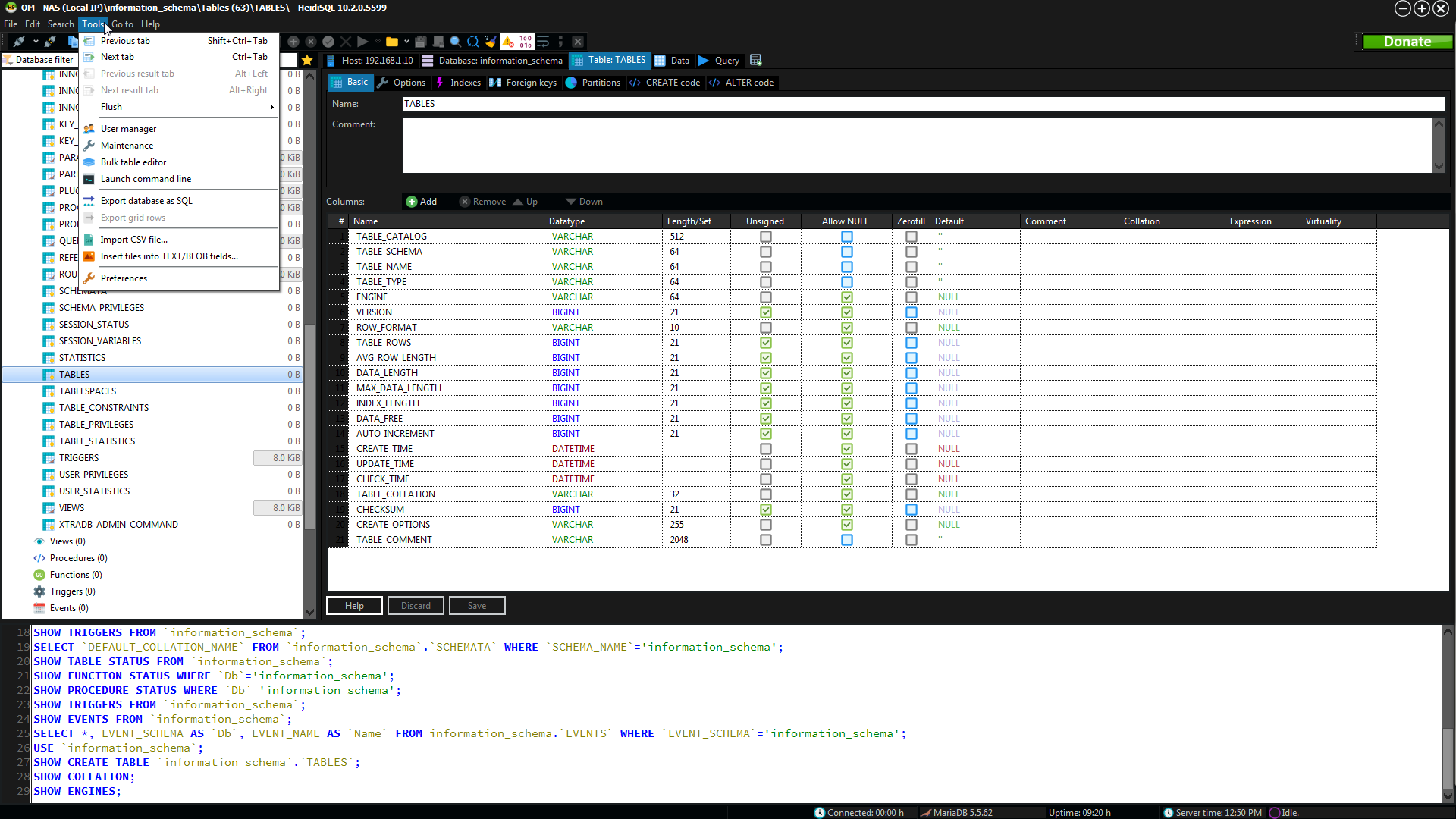
Metropolis UI Blue

Metropolis UI Dark
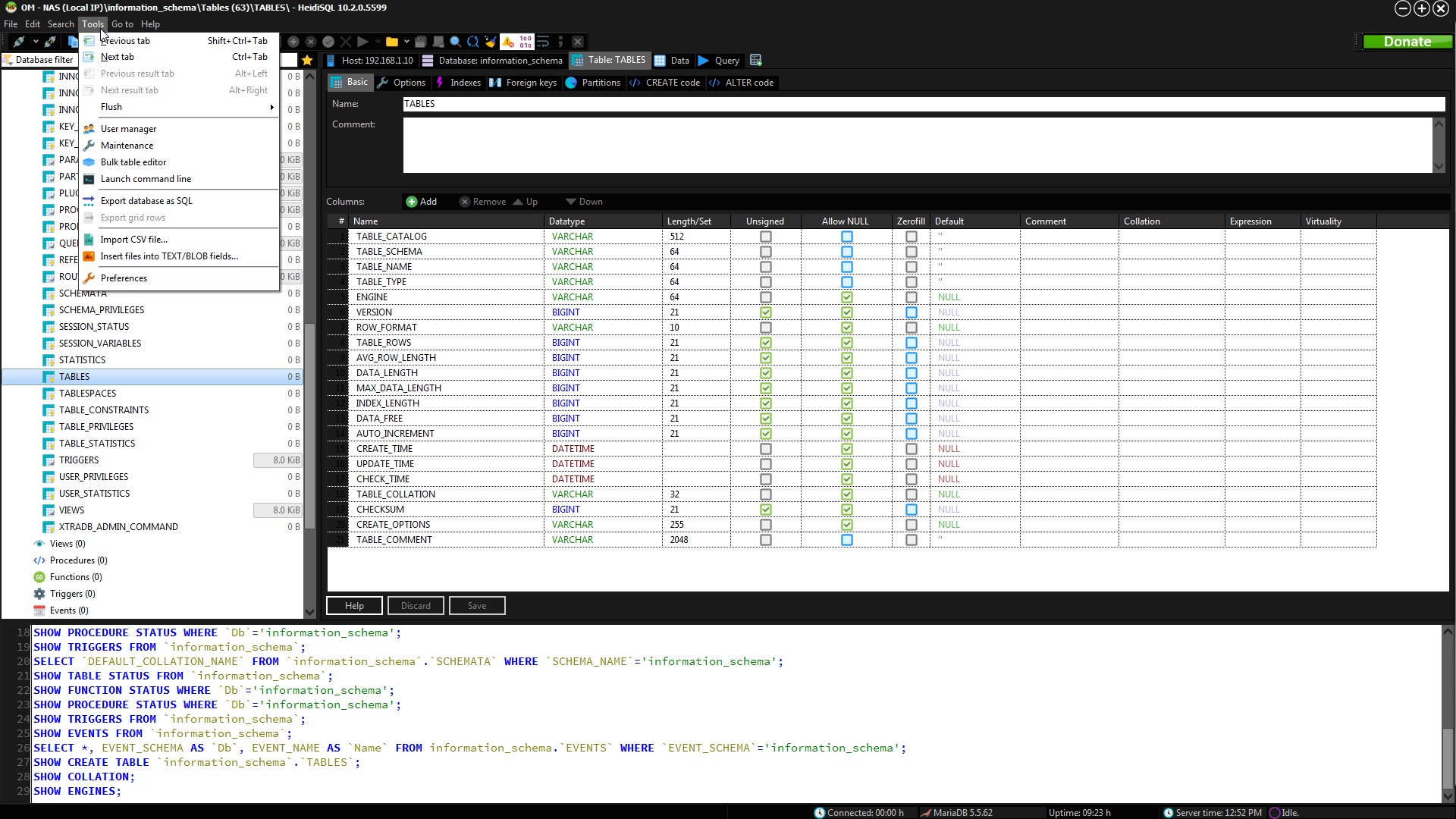
Metropolis UI Green
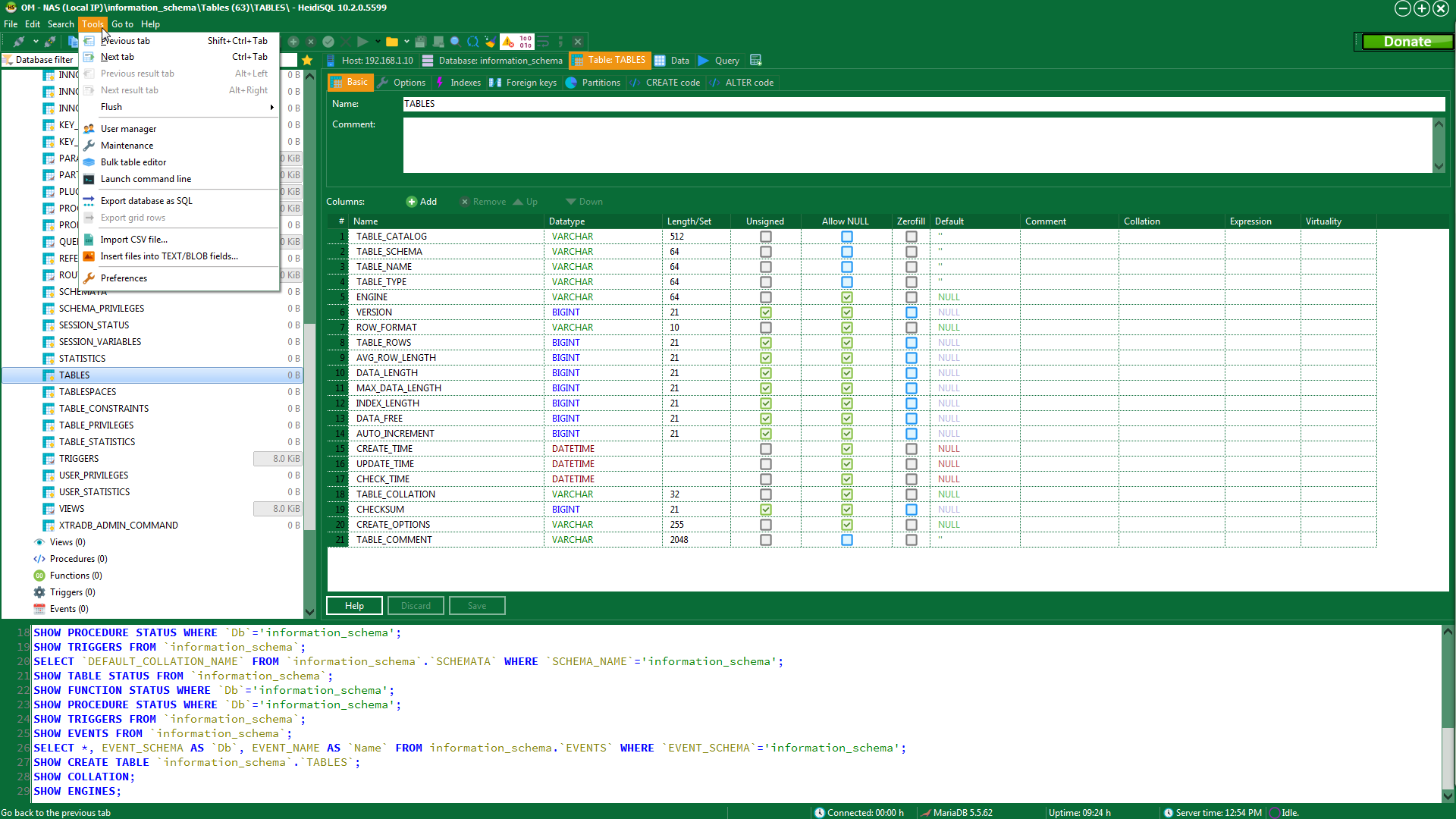
Obsidian
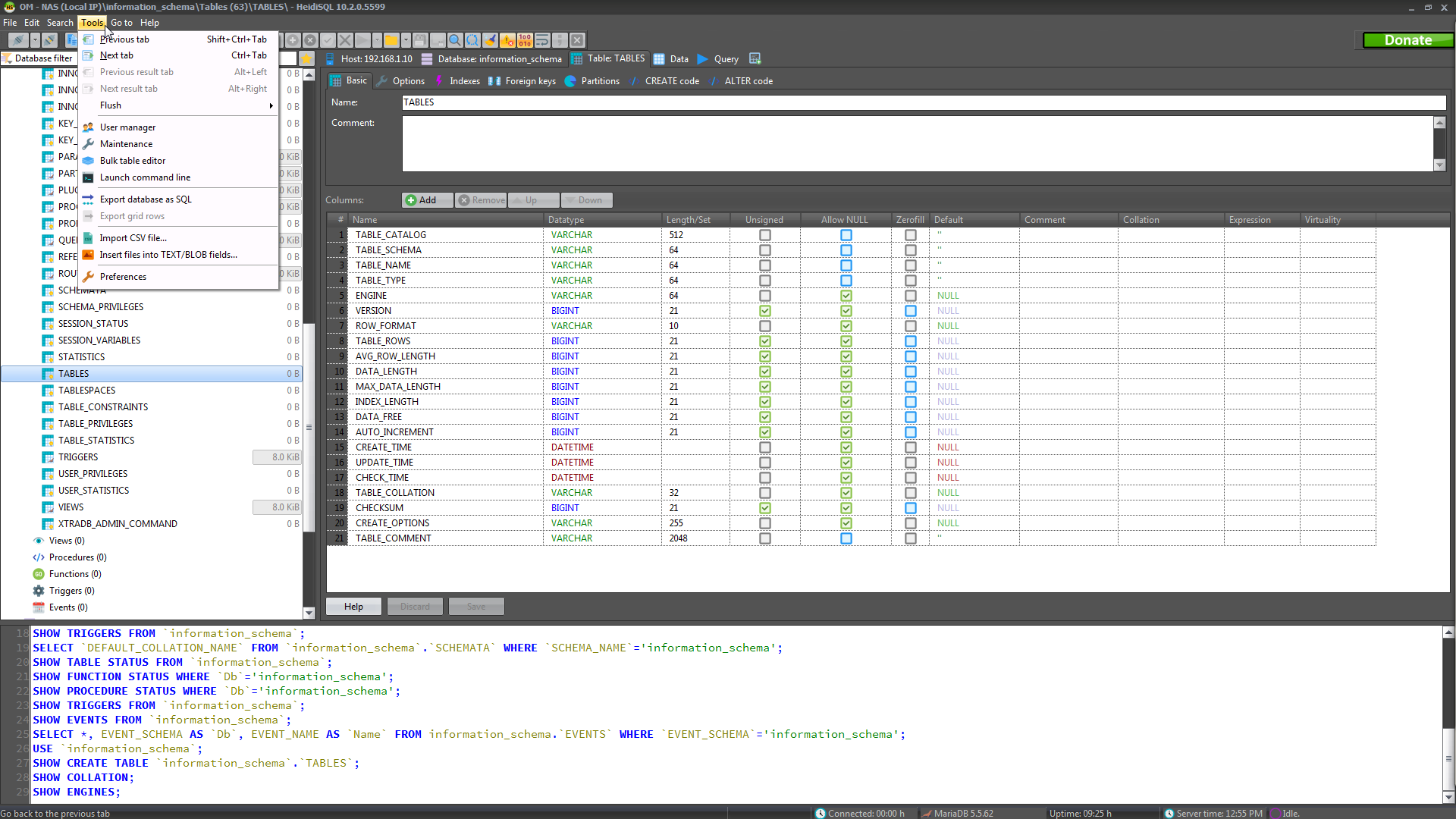
Onyx Blue

Ruby Graphite
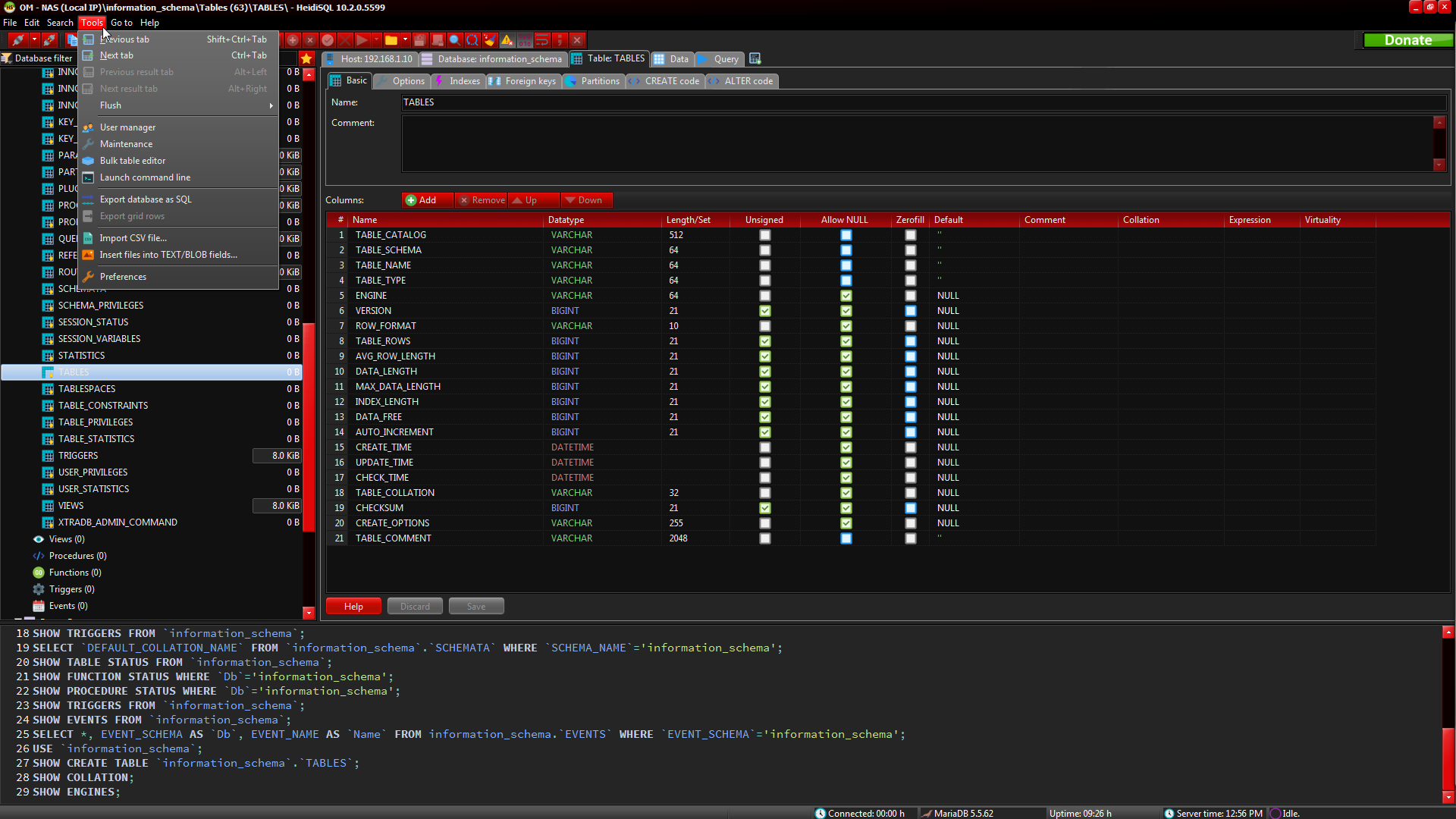
Sapphire Kamri
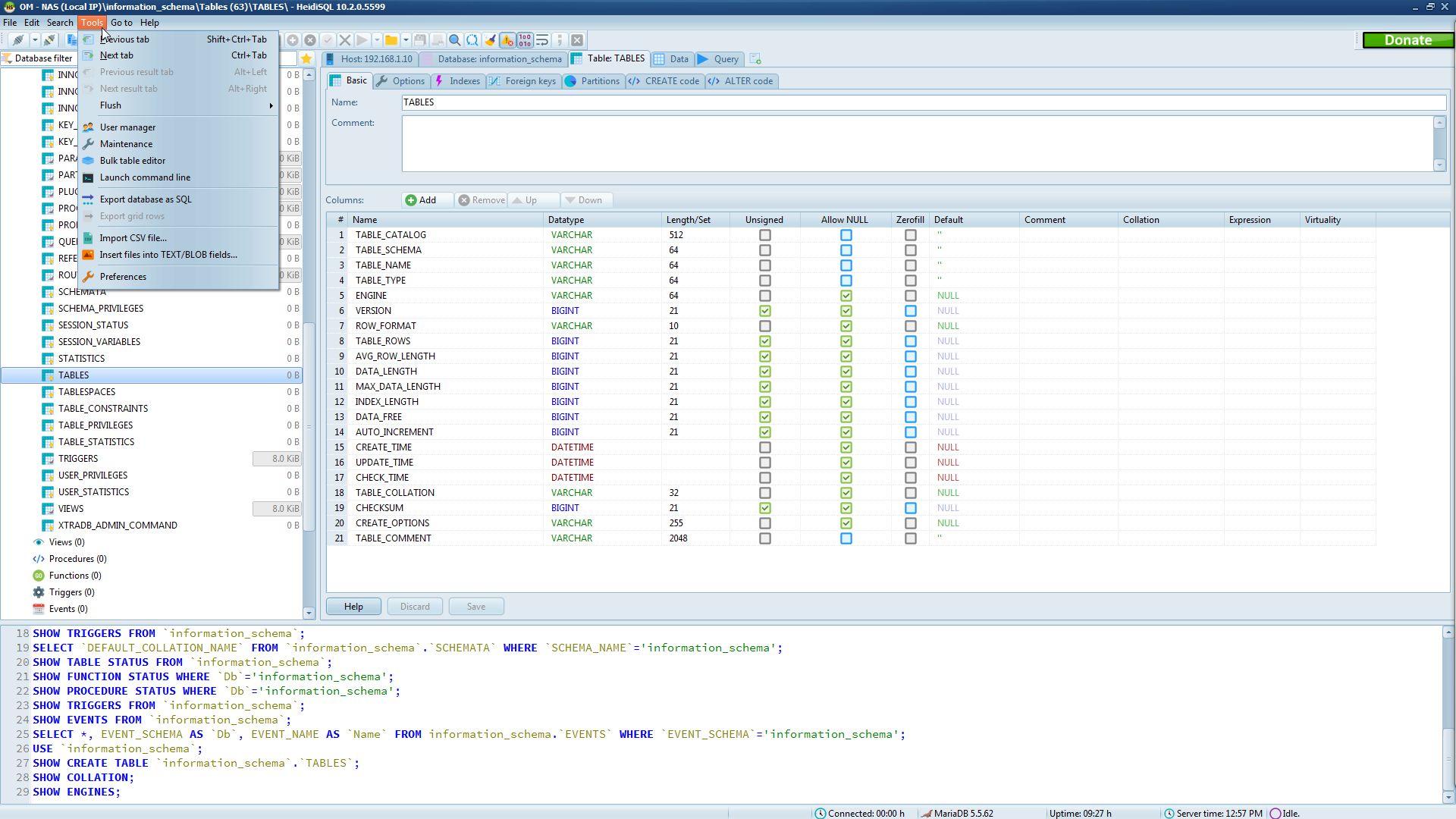
Silver
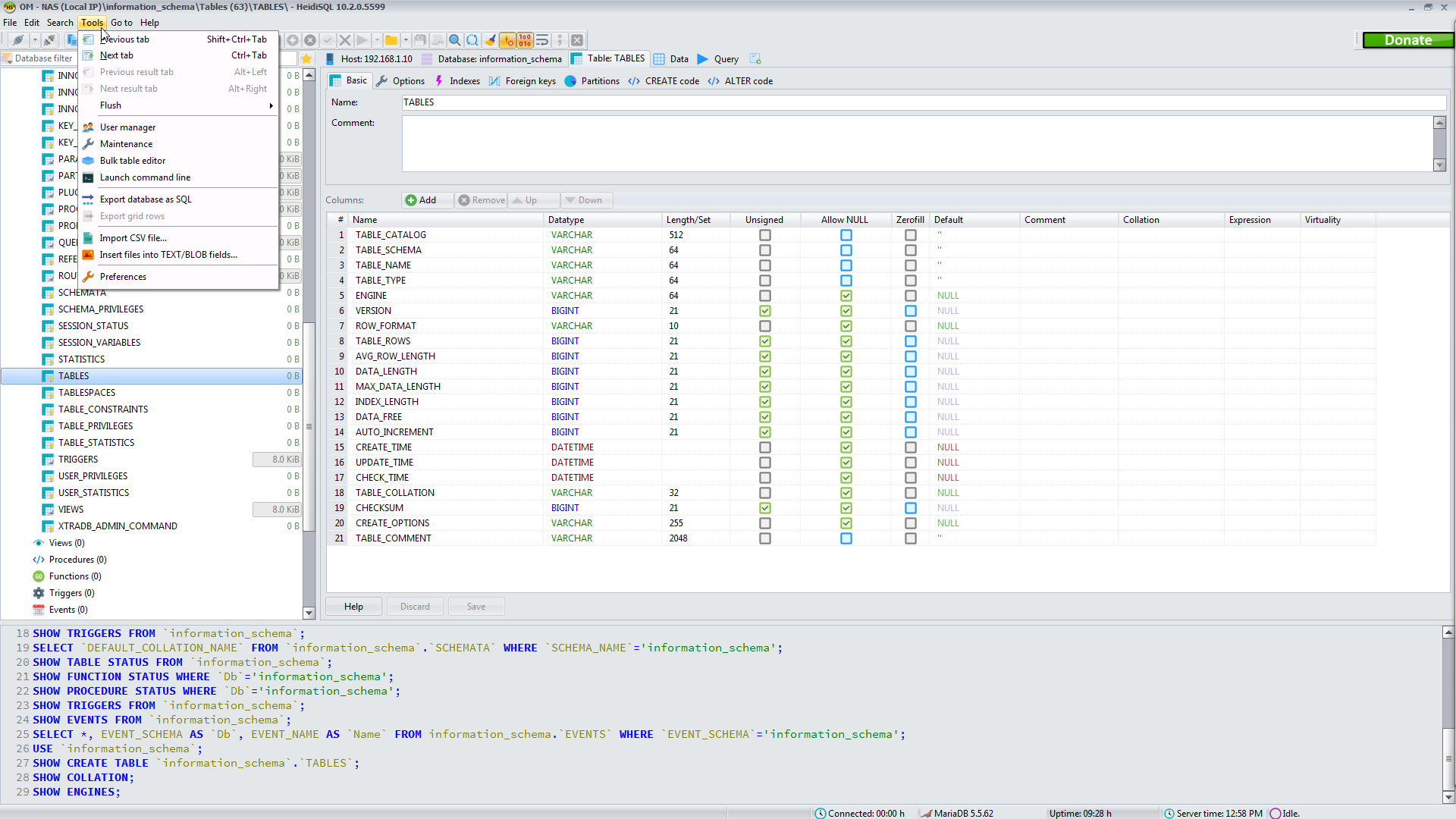
Sky
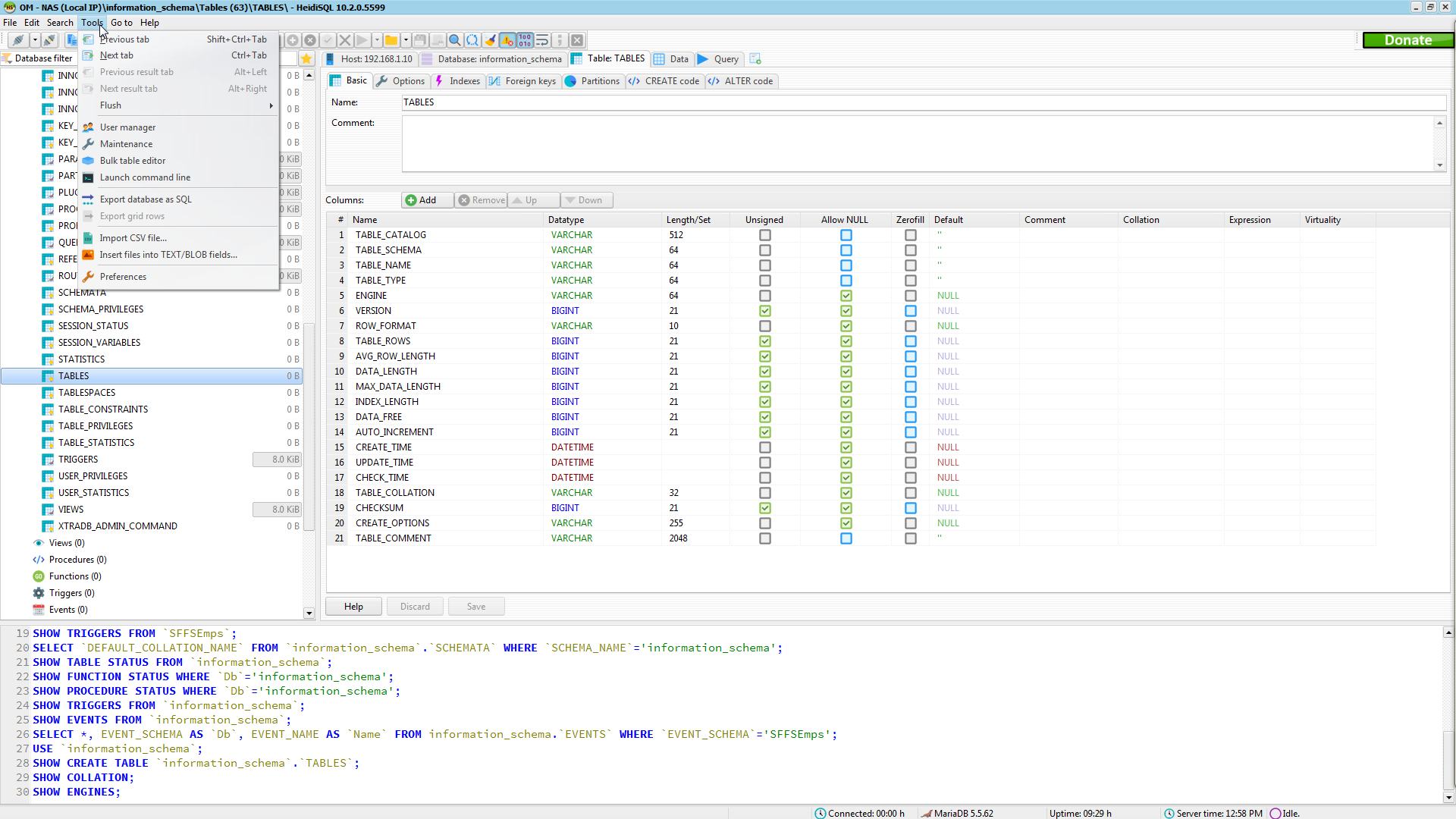
Slate Classico

Smokey Quartz Kamri

Tablet Light

TabletDark

Turquoise Gray
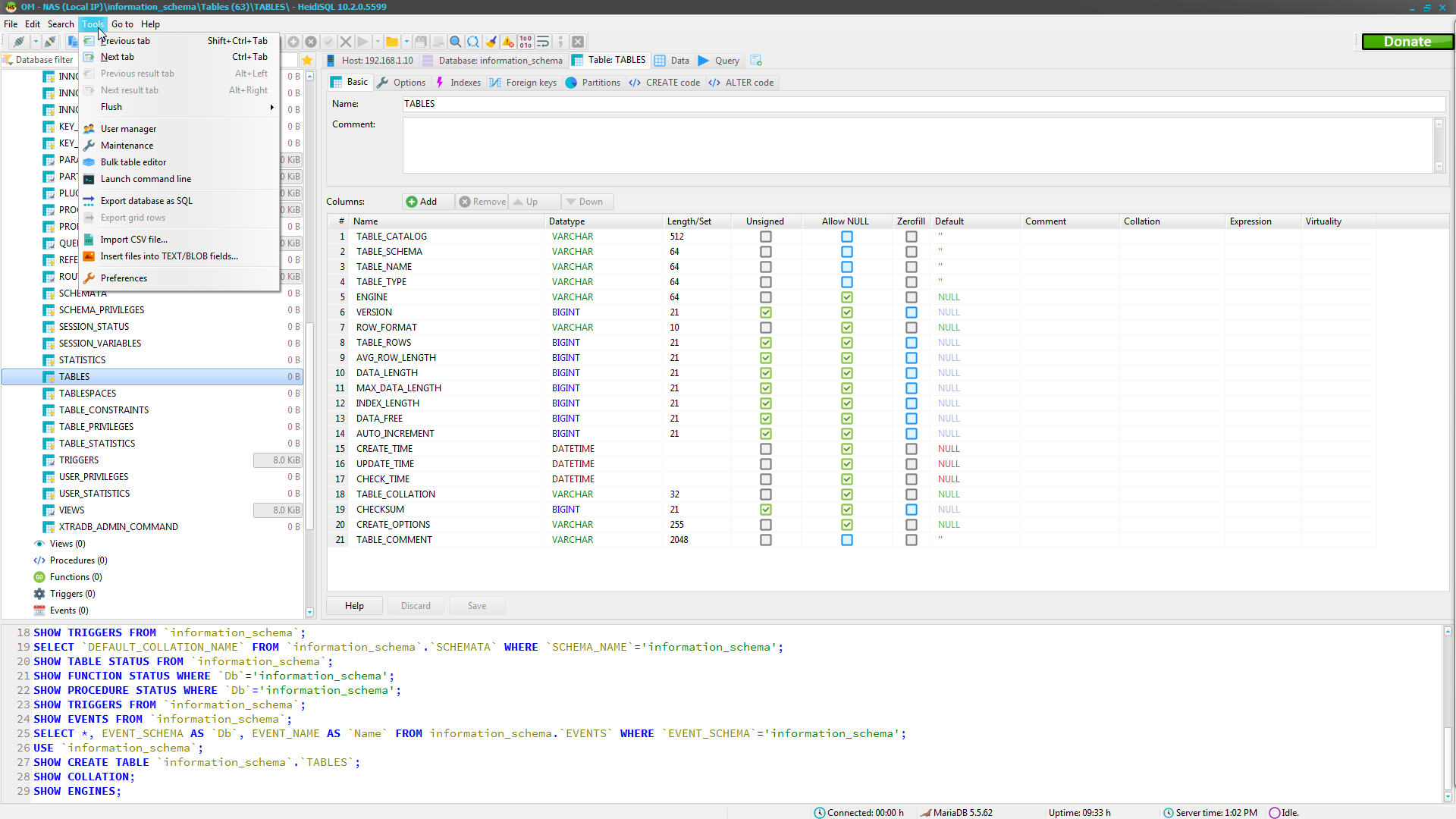
Windows
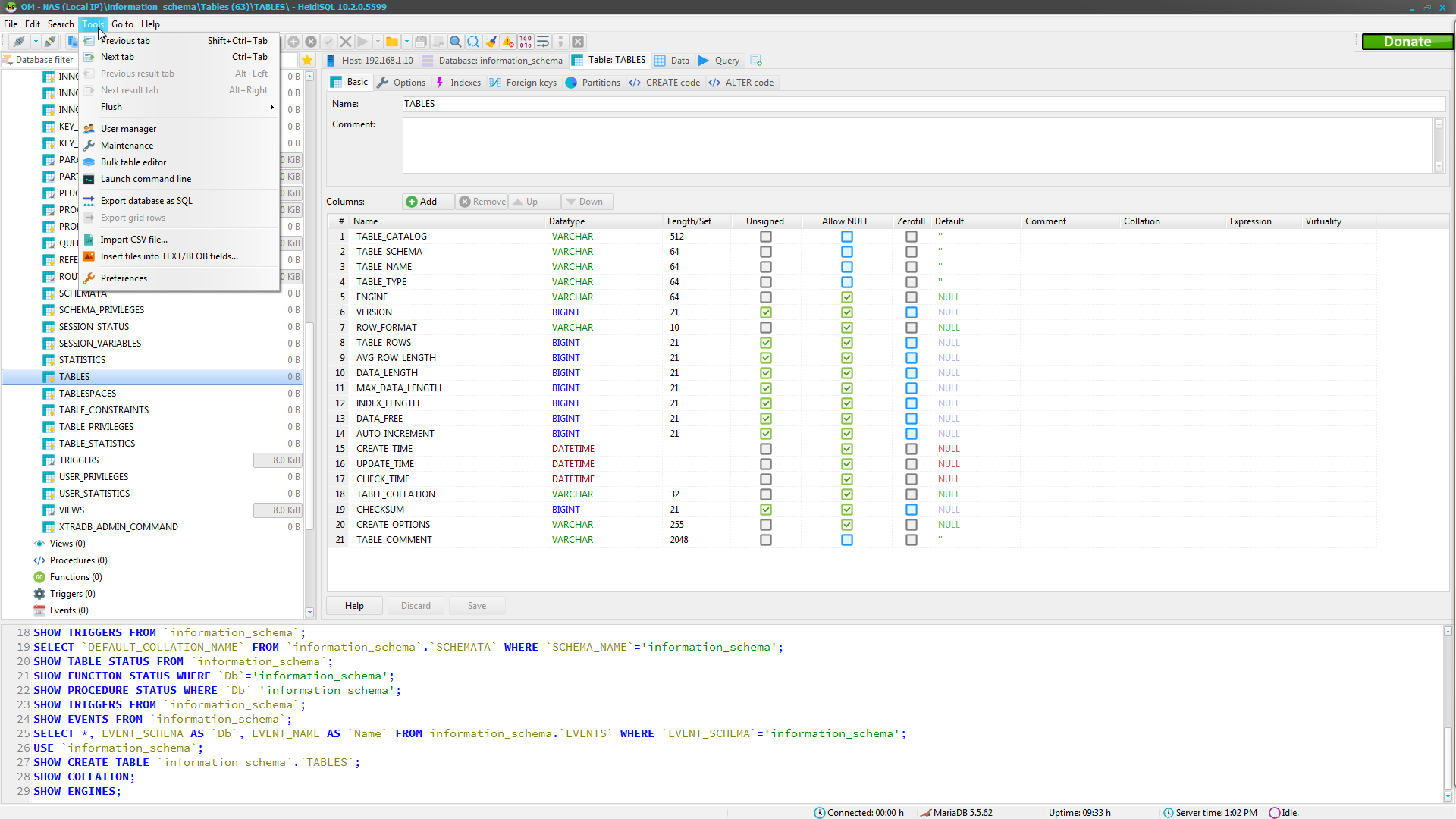
Windows10
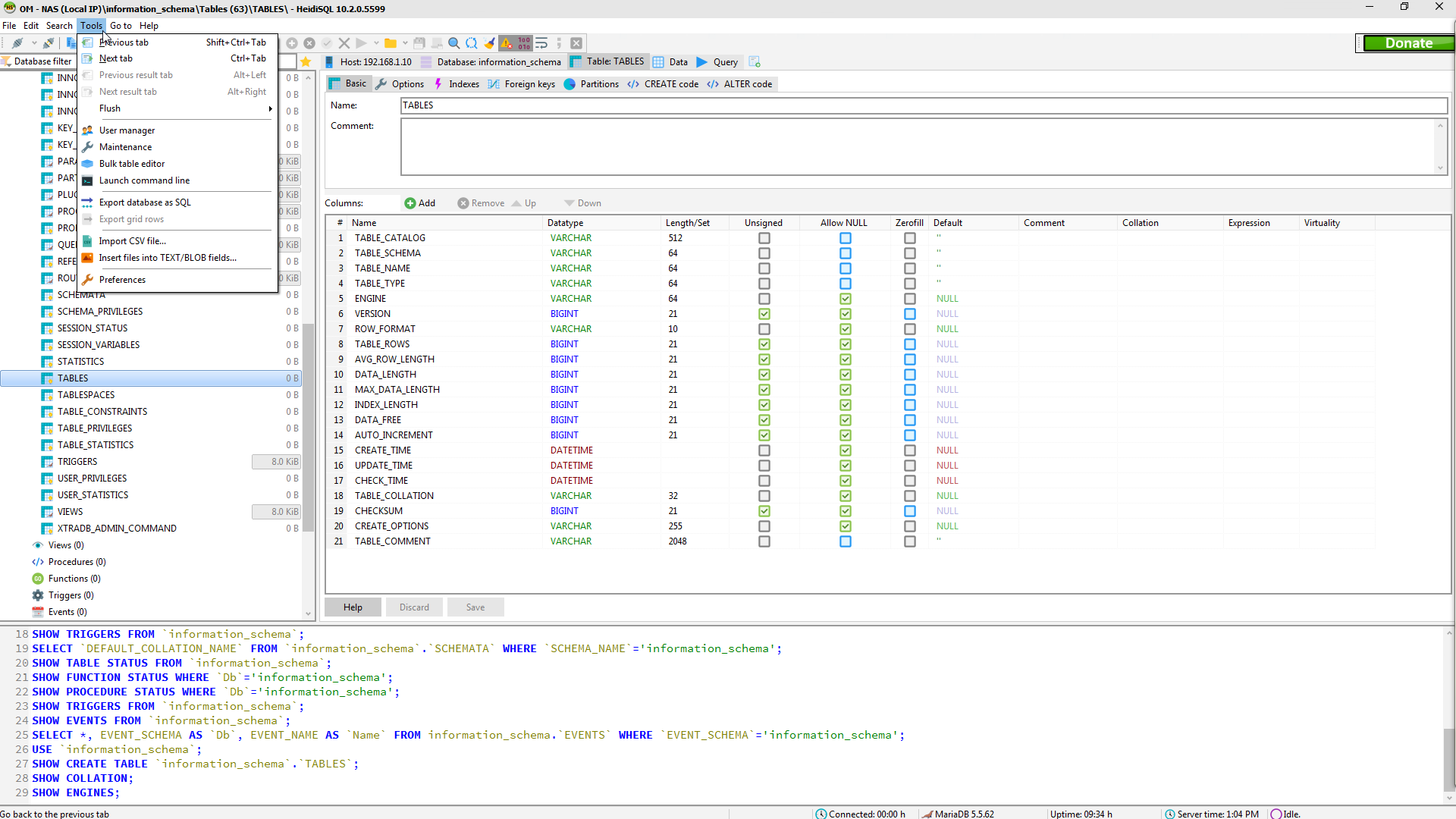
Windows10 Blue
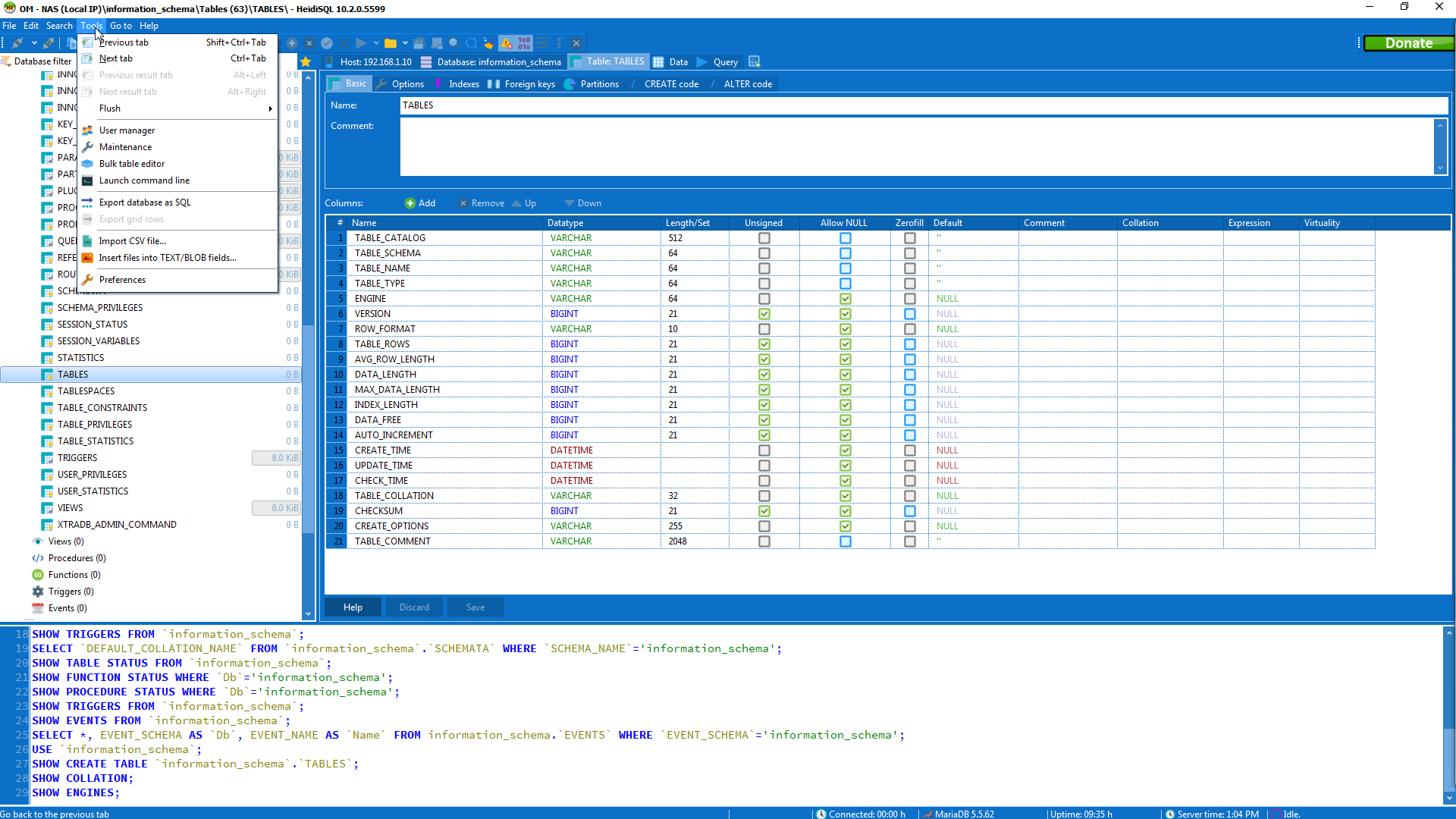
Windows10 Dark
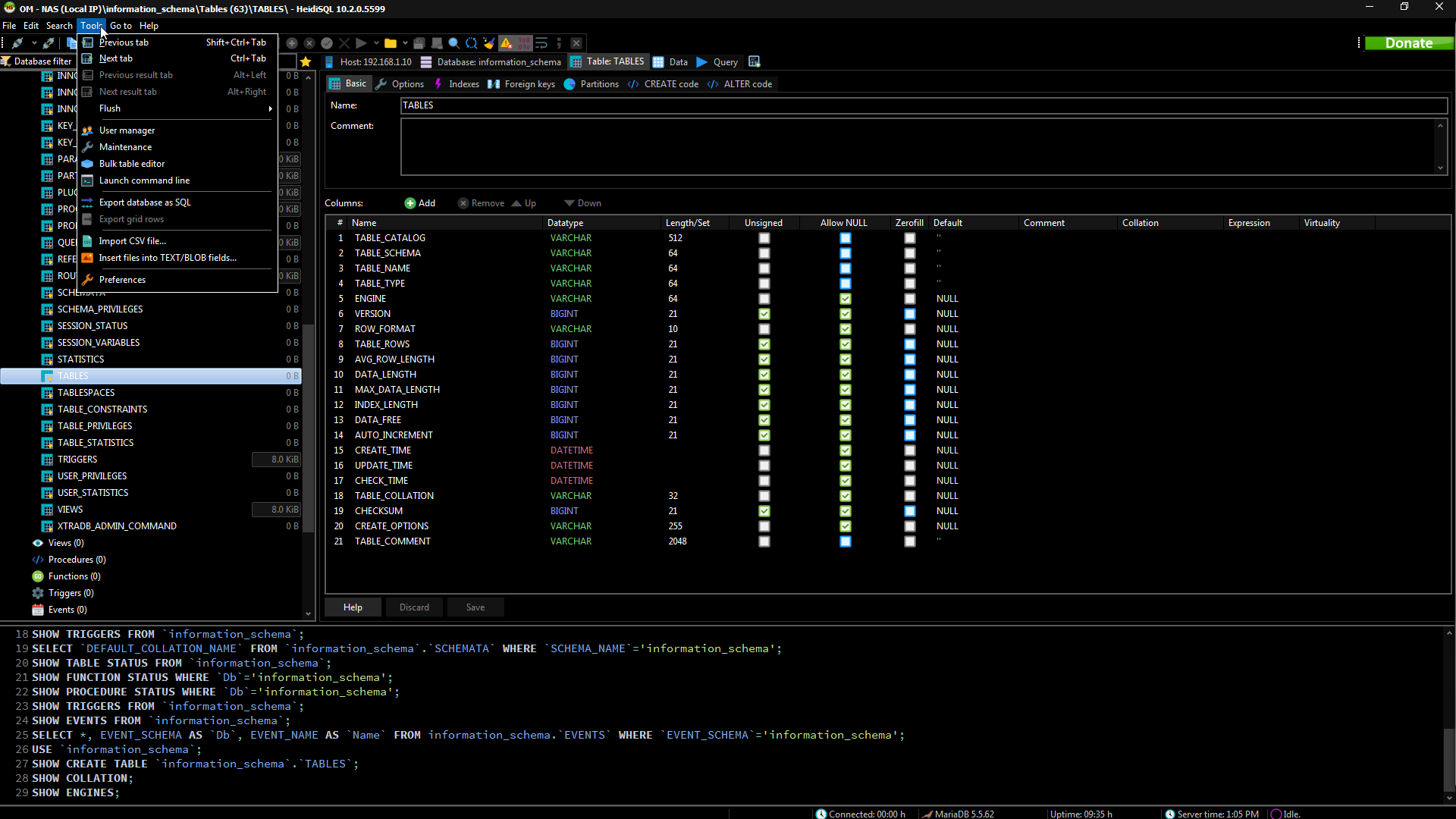
Windows10 Green
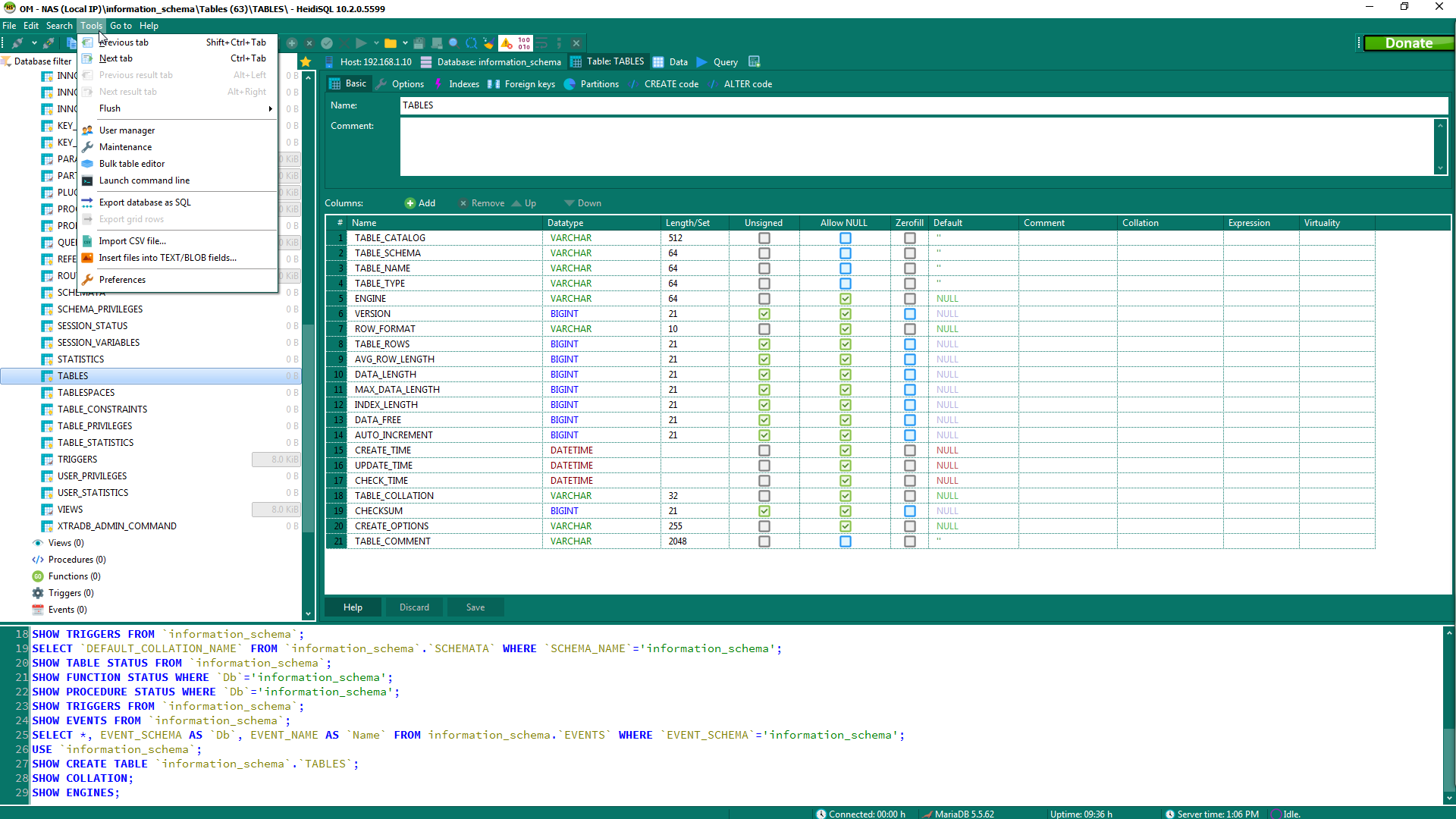
Windows10 Purple
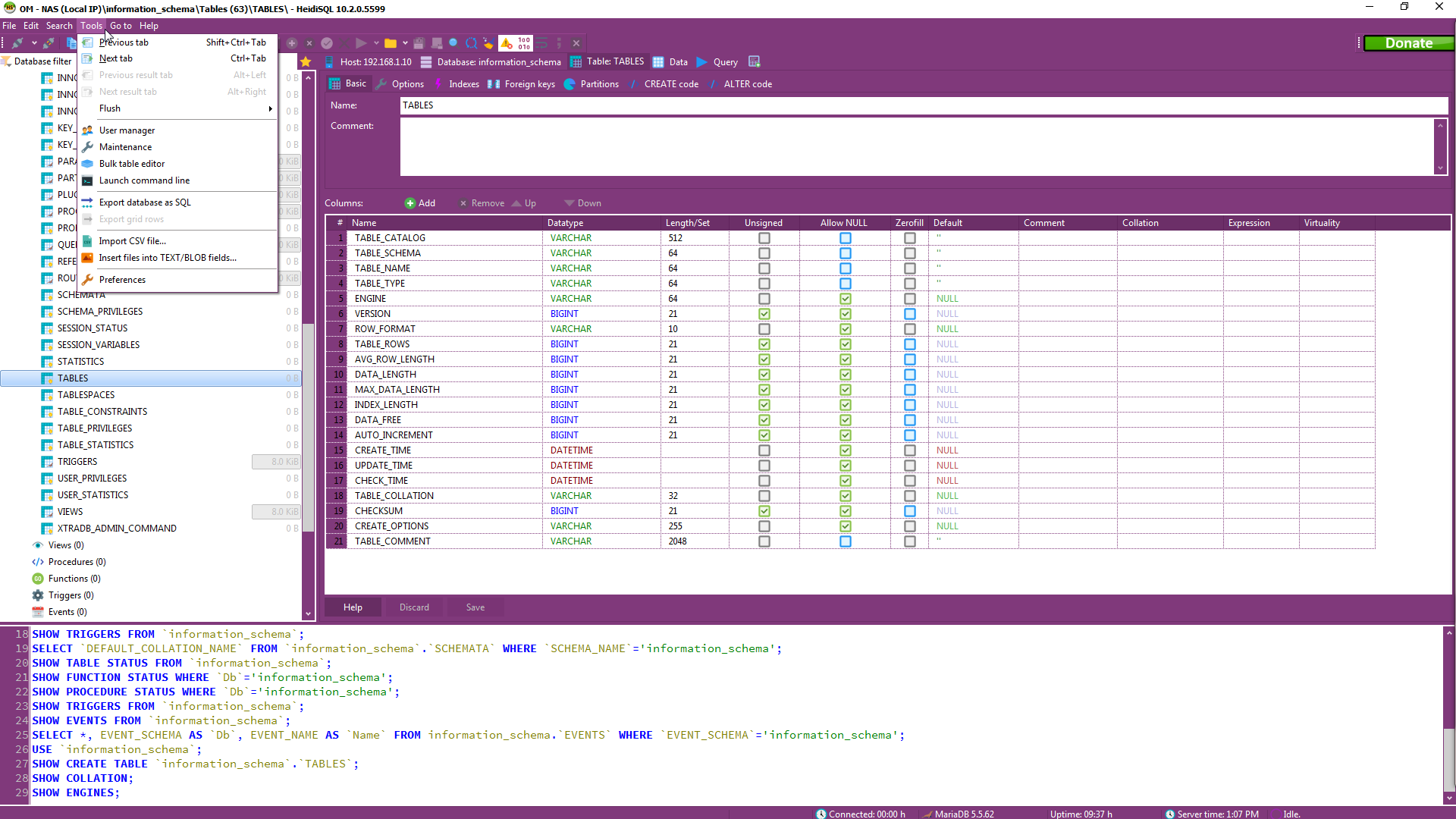
Windows10 SlateGray

billom
on 12 Jul 2019
Hey @billom , thanks for the whole bunch of work, that's nice!
I just thought I can integrate them in two ways: have them on heidisql.com on a theme preview page, plus create a preview button/dialog in the preferences window, like this:

 ansgarbecker
on 13 Jul 2019
ansgarbecker
on 13 Jul 2019
Here's the just created overview web page: https://www.heidisql.com/themes.php
ansgarbecker
on 13 Jul 2019
How's that?
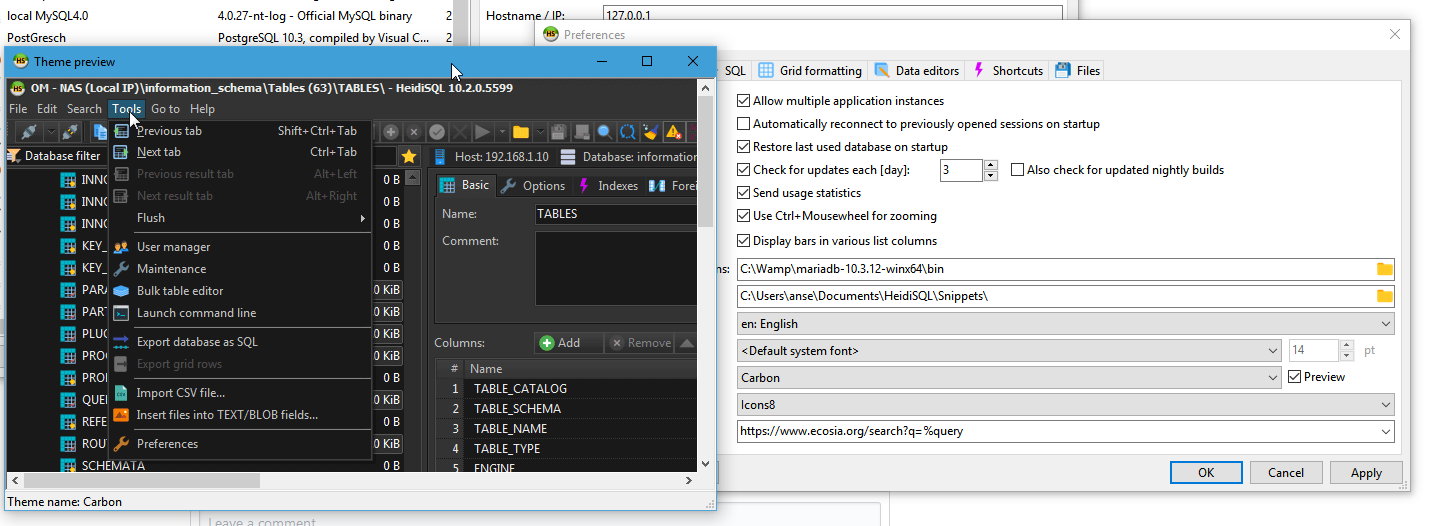
- The image gets downloaded from heidisql.com each time you select one from the dropdown
- That preview image gets scrollbars, and scrolling via mouse-wheel is supported.
- The image is not stretched because I totally failed in stretching the image in a high quality manner.
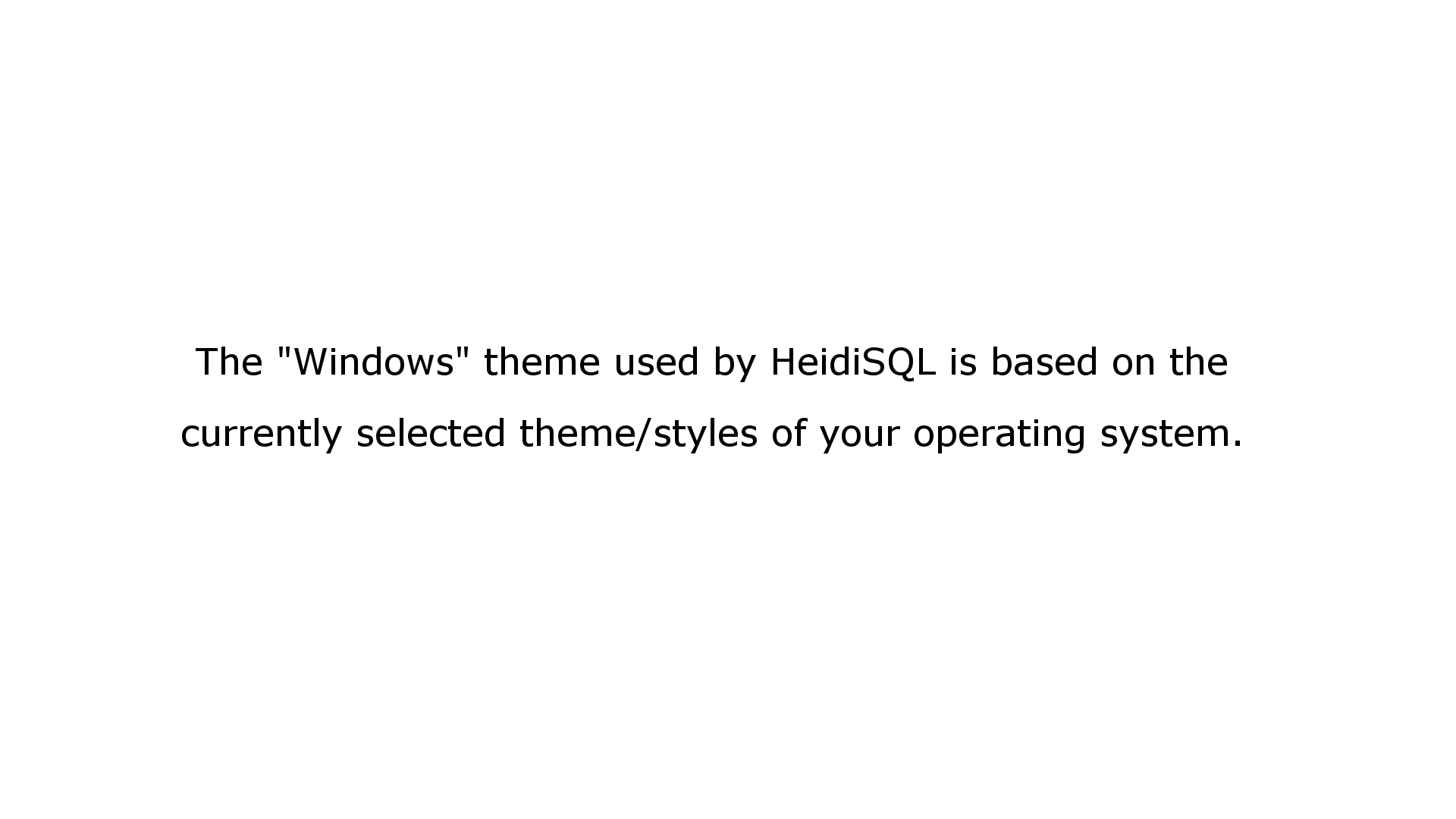
- The "Windows" theme does not have a preview, as this relies on the user selected styles in his system settings
ansgarbecker
on 13 Jul 2019
For testing yourself, please update to the latest build.
And shout if there is something broken there. For me it works good (enough) currently.
ansgarbecker
on 13 Jul 2019
The preview worked great! Thank you. The only thing you may want to change is when we select "Windows", show something like the following screen shot. As it is now, the background stays to the one last selected.
billom
on 13 Jul 2019
Yes - I just uploaded that image too, so HeidiSQL should show it.
ansgarbecker
on 14 Jul 2019
Very nice - worked like a charm. Thank you for such an awesome tool.
billom
on 14 Jul 2019
Hi @ansgarbecker, the preview is lookin cool!
I'm thinking...is it possible to show it in a window which doesn't have the title bar, and has the classical windows 10 shadowed borders?
A callout would be nice... I'm linking an image to give an idea: example
I've suggested to remove the title bar, because that kind of "callout design" is good when you want to show some content, and in order to close it, the users has just to click anywhere outside the preview area.
Cheers ;)
funder7
on 15 Jul 2019
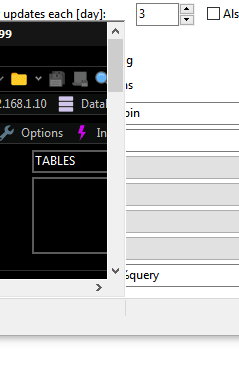
The borders of that window has shadows on my Win10:

Setting the form's BorderStyle to bsNone removes the title bar, but also its shadows, and even the possibility to resize the dialog:
Well, this is not web design...
ansgarbecker
on 16 Jul 2019
Related issues
 hrvoj3e
·
4Comments
hrvoj3e
·
4Comments
 andreybatalof
·
4Comments
andreybatalof
·
4Comments
 altmvogi
·
5Comments
altmvogi
·
5Comments
 cautionbug
·
4Comments
cautionbug
·
4Comments
 magnetik
·
4Comments
magnetik
·
4Comments
Most helpful comment
Another simple and elegant solution might be a "color palette" of the theme's main colors, like the one you can find in WordPress profile edit page
or a very basic illustration like in Slack settings.