Exporters: Babylon Exporters Installer Improvements
The babylon.js exporter installer could use some UX improvements to improve clarity of use.
[x] The uninstaller should remove Microsoft.WindowsAPICodePack.dll, Microsoft.WindowsAPICodePack.Shell.dll and Microsoft.WindowsAPICodePack.ShellExtensions.dll from the Max2Babylon install directory.
[x] The installer UI should not report success if uninstallation completes with errors. and error dialog should be properly formatted and spaced.

[x] The installer UI should provide user feedback to run the application as administrator if it fails to access a given path
[x] The installer UI should unregister Max2Babylon as a 3dsMax plugin on uninstall.
 Drigax
All 13 comments
I want to personally prioritize fixing 1), as this is a bug related to regression #587, but any help with the UX improvements would be greatly appreciated :)
Drigax
on 13 Aug 2019
While I'm fixing 1), I am also able to fix 2) and 3) since they are pretty trivial enhancements.
Drigax
on 16 Aug 2019
Hey!
Do you need help with the other features ?
I don't really know how to do for the last one ... @noalak, any idea ?
[ Edit : It's currently a public holiday in France, so unfortunately, don't expect an answer before Monday. ^^' ]
 Jaskar
on 16 Aug 2019
Jaskar
on 16 Aug 2019
checked in #595 addressing 1-3.
Drigax
on 16 Aug 2019
For 4, A decent way of doing this is to invoke max to run some max script to unregister the babylon plugin. I'm not too well versed with the Max API and even less maxscript, so I'm not sure if this is possible.
Drigax
on 16 Aug 2019
For 4, the issue is that the UI additions persist through dlls erasure.
--- Preamble ---
UI additions are:
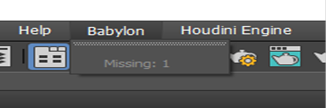
- "Babylon" button in main menu bar
- "Babylon..." option in contextual menu on right click in the scene
Those UI are added at start of Babylon plugin (= start of 3dsMax).
I tried to remove them when exiting 3dsMax by catching the aforementioned event. Tried a lot of events actually: SystemShutdown, SystemShutdown2, PluginsPreShutdown...
None of them are raised, or it's too late to make an action on the UI (service already unloaded), don't know which one.
The babylon exporter is not registered as an actual true plugin. It's located in the bin/assemblies folder instead of one like Plugins. 3ds Max fails to load the babylon exporter as a plugin when trying to do so in the Plug-in manager. The reason is missing data relative to the plugin (description,...).
Anyway, i didn't find a way to remove a well registered plugin in 3ds Max. No 'Delete' button, no documentation and no MaxScript command to unregister a plugin neither.
The uninstall of a plugin from 3ds Max is not supported. The uninstall of a plugin from an external tool (like the Installer wizard), seems to be as simple as deleting dlls or plugin folder.
--- Solutions ---
For a cleanup of the UI, the removal of the menus must be made explicitly:
1) User can use the 3ds Max native tools:
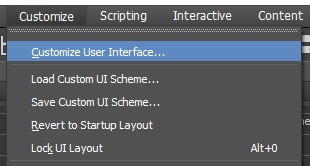
- Go to Customize > Customize User Interface
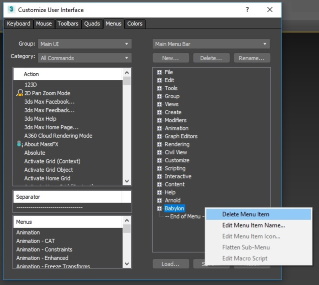
- Go to Menus tab, find the "Babylon" menu and remove it.
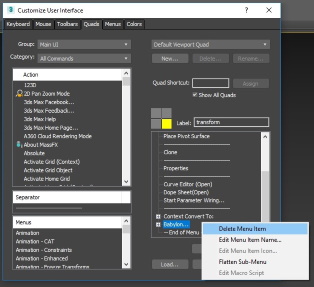
- Go to Quads tab, find the "Babylon..." quad and remove it.
2) A script may do the exact same work (to confirm).
a) User can run the script
b) Or the Installer wizard can automatically launch 3dsMax and autorun the script after deleting the dlls
3) After deleting the dlls the Installer wizard can automatically add a new plugin, which only purpose is to clean up the UI. On next 3dsMax start, the UI will be cleaned up. Then the new plugin can be removed. The pro is that it does the job effortlessly for the user, the con is that it's a weird process.
@deltakosh Which solution to go for ? Up for any question you would have.
 noalak
on 20 Aug 2019
noalak
on 20 Aug 2019
I leave the decision to @PatrickRyanMS
 deltakosh
on 20 Aug 2019
deltakosh
on 20 Aug 2019
I would vote for the installer wizard to add the new plugin and clean up the UI on the next start. If I'm reading this correctly, the added plugin can then be automatically uninstalled by the wizard. Is that correct? If so, even if this is a weird process I would prefer this UX simply because launching Max takes a long time and we would be taking control from the user to launch Max to finish the process. If we can make it transparent for them, that would be the best UX.
 PatrickRyanMS
on 20 Aug 2019
PatrickRyanMS
on 20 Aug 2019
Hi Patrick !
Yes the wizard can uninstall the 2nd plugin, but only from a user action.
My last sentence was a bit missleading, so let me detail that part.
The full use case would be:
0) Close 3ds Max if opened
1) Run Installer
2) Click 'Uninstall Babylon' plugin => delete Babylon dlls, add CleanUp dll
3) Open 3ds Max => delete Babylon menus
4) Close 3ds Max
5) Run Installer
6) Click 'Finalize uninstall" => delete CleanUp dll
The job to clean up the UI is done simply and automatically by the extra plugin (1 to 3).
The weird part is that the extra plugin dll itself remains in 3ds Max folders until deleted (5 to 6).
If 5) and 6) are not performed, the remaining clean up plugin causes no harm other than a tiny load time at start of 3ds Max. But sure, still not optimal.
noalak
on 21 Aug 2019
News, we pushed the 2nd option further.
It's possible to add a MaxScript in a specific folder of 3ds Max which autoruns at start.
It can also self destruct once complete.
I'm working on the acutal removal of Babyon menus using MaxScript.
The solution would be complete and totally user friendly, requiring no extra action. A single click on 'Uninstall' from the wizard will remove dlls and remove Babylon menus on next 3ds Max start.
Stay tunned tomorrow.
noalak
on 21 Aug 2019
The MaxScript is now functional and removes the babylon menus as expected.
@Jaskar will update the installer once returned from holidays in early September.
noalak
on 22 Aug 2019
Amazing! thanks so much for your help @noalak and @Jaskar !
Drigax
on 29 Aug 2019
Thanks @Jaskar for addressing 4) via #613 !
Drigax
on 7 Sep 2019
Related issues
 Selmar
·
7Comments
Selmar
·
7Comments
 Prospector-au
·
6Comments
Prospector-au
·
6Comments
 philSG
·
8Comments
philSG
·
8Comments
 total3dx
·
5Comments
total3dx
·
5Comments
 kutomer
·
6Comments
kutomer
·
6Comments