Desktop: Explorer's Navigation Pane icon disappears during upgrade
Expected behaviour
Windows Explorer integration appears after upgrade to 2.5RC1.
Actual behaviour
Integration is missing. On my testing laptop, early builds of 2.5 successfully added the integration, and the integration still works upgrading to 2.5RC1.
Steps to reproduce
- Windows 10 ver 1803 with desktop client 2.3.3
- Manually start the install of 2.5RC1, enter admin credentials as usual
- First time installation of 2.5RC1, the PC restarts itself
- After signing in, the 2.5RC1 client syncs successfully
- But the expected left-side folders are missing
Client configuration
Version 2.3.3 from https://download.nextcloud.com/releases/Windows
Nextcloud-2.5.0.61474-rc1-20181026.exe from https://download.nextcloud.com/prereleases/Windows
Installation path of client:
C:Program Files (x86)Nextcloud
I've repeated this behavior on 2 PCs, and I strongly suspect the remaining PCs at my company will behave the same.
 brianbgness
All 34 comments
@rullzer I can reproduce this, it seems that explorer favorites are only added when adding an account/folder sync with 2.5.0. We don't have them setup if 2.3.3 was previously installed, so we need to make sure they are also created e.g. when starting the client.
 juliushaertl
on 5 Nov 2018
juliushaertl
on 5 Nov 2018
Yes that is correct. I too just realized yesterday that the Windows shell integration only works when using the wizard to add an account.
brianbgness
on 5 Nov 2018
Please do build this into v2.5.0. I will appreciate it very much!
brianbgness
on 9 Nov 2018
@brianbgness 2.5 is already in RC2. But we'll see what we can do for future versions
 rullzer
on 9 Nov 2018
rullzer
on 9 Nov 2018
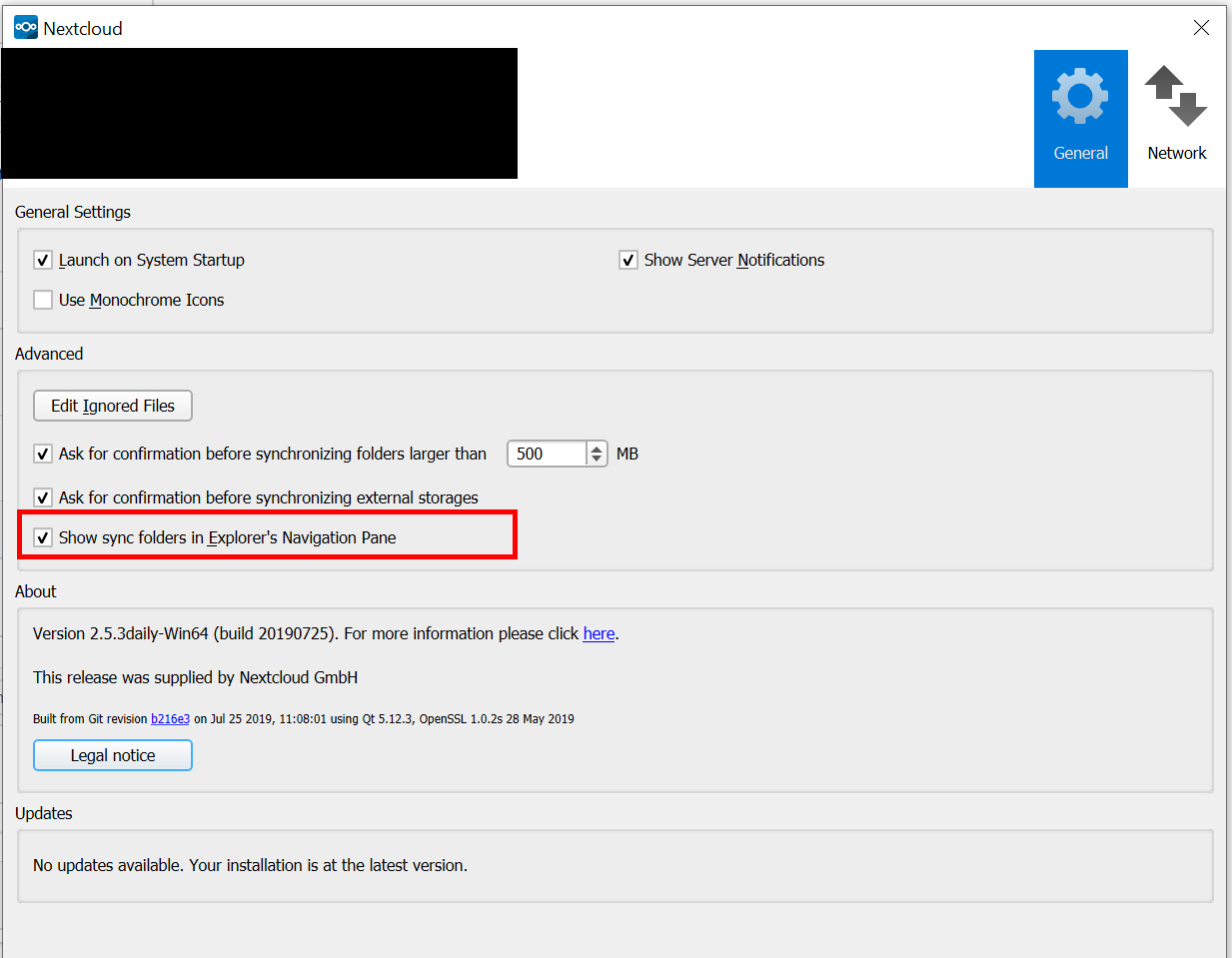
FYI, manually unchecking then rechecking again the following checkbox fixes this issue for my upgrading Windows users.
"Show sync folders in Explorer's Navigation Pane"
brianbgness
on 13 Nov 2018
...where is that checkbox, in the nextcloud client, or in windows explorer?
 lemmy04
on 10 Jun 2019
lemmy04
on 10 Jun 2019
The checkbox is in the sync client, general settings.
brianbgness
on 10 Jun 2019
Uncheck & check again
 manugch
on 16 Sep 2019
manugch
on 16 Sep 2019
FYI, manually unchecking then rechecking again the following checkbox fixes this issue for my upgrading Windows users.
"Show sync folders in Explorer's Navigation Pane"
You legend!
 egrechko
on 5 Oct 2019
egrechko
on 5 Oct 2019
This still seems to be an issue in e0b32c but the checkbox fix above works.
 robwent
on 5 Oct 2019
robwent
on 5 Oct 2019
Uncheck & check again
Unchecking and re-checking does fix this issue for me indeed.
Windows 10 info:
OS Name: Microsoft Windows 10 Pro
OS Version: 10.0.18362 N/A Build 18362
 hcderaad
on 10 Nov 2019
hcderaad
on 10 Nov 2019
The Navigation Pane icon seems to disappear with every client upgrade now. Is there somehow a way to add cycling that checkbox to the installer?
 RussellAult
on 14 Nov 2019
RussellAult
on 14 Nov 2019
Agreed! I just upgraded from 2.6.0 to 2.6.1, and I was also missing the left side nav folder, but the above uncheck/recheck worked. Is there a way for the Nextcloud client to verify that the folder shortcut exists? If so, would it be possible to add a verification step after the client starts?
Also, it may be worth updating the title of this issue, since it doesn't appear to be specific to any particular version.
 maples3
on 16 Nov 2019
maples3
on 16 Nov 2019
Confirmed on 2.6.2 too.
I am looking for an automated fix that I could use with my RMM. "Uncheck & check again" works as before but is unsuitable for corporate environnements. There is Linucksrox's solution on :
https://help.nextcloud.com/t/windows-explorer-integration/13641/3
Might work ?
 NovacomExperts
on 4 Feb 2020
NovacomExperts
on 4 Feb 2020
I have the same issue with the Syncfolder in the explorer. Unchecking & Checking brings back the Link untill the next restart. Is there a way of fixing this permanently? I remember I found something in the registry once when I had two Nextcloud accounts set up in the client. After deleting one of them the shortcut only remained for the deleted account and thus was broken. After changing the path to the nextcloud folder for the shortcut manually in the registry it worked again untill I updated the client. Admitably the manual tempering with the registry might have caused the issue in the first place. Now im looking for a way to fix it.
 Feelisreal
on 28 Feb 2020
Feelisreal
on 28 Feb 2020
Also seeing this, checkbox fix still works, need to do it after every reboot.
NextCloud Client Version: 2.6.3stable-Win64 (build 20200217)
Windows 10 Home: 1903 Build 18362.657
 tstackhouse
on 28 Feb 2020
tstackhouse
on 28 Feb 2020
This should finally be fixed by #1720 and #1820 and will get into the 2.6.4 release :-)
 misch7
on 1 Mar 2020
misch7
on 1 Mar 2020
Still having the issue (after every windows boot) with Version 2.6.4stable-Win64 (build 20200303).
I assume, this will be integrated into the next version?
 sunchezz89
on 5 Mar 2020
sunchezz89
on 5 Mar 2020
@sunchezz89 This should have been solved by 2.6.4 as stated above.
But if you're still facing the issue, chances are there is another potential source of error. Perhaps this is somehow related to https://github.com/nextcloud/desktop/issues/978#issuecomment-509692321
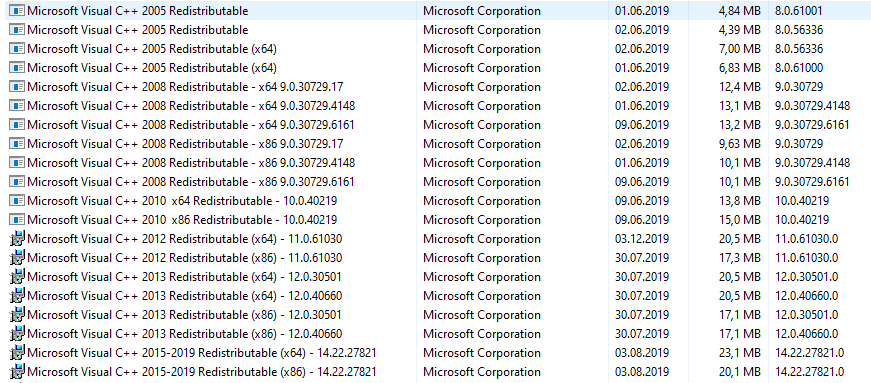
Could you provide a list of the installed _Microsoft Visual C++ 20xx Redistributable_ Runtimes? You can find them in the Windows _Settings_ -> _Apps & features_.
misch7
on 5 Mar 2020
@misch7
These are all i have installed. (Picture is fine? Or do you need text form?)
sunchezz89
on 5 Mar 2020
@sunchezz89
Thanks, that was fast! ^^
A screenshot is perfectly fine. I noticed that you have the new combined 2015-2019 redist installed - but not 2017. This shouldn't be a problem normally but let's test it anyway:
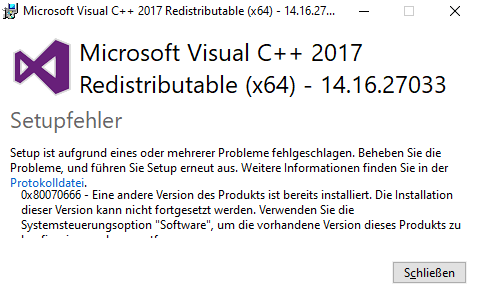
Could you install the supplied runtime from your Nextcloud installation folder? You find it here for example: %PROGRAMFILES%\Nextcloud\vc_redist.x64.exe
After successful installation you should see an additional Microsoft Visual C++ 2017 entry in your software list.
Then perhaps you may need to reinstall the Desktop 2.6.4 by running it's setup again as stated in #978
Would be interesting to see if this makes any difference.
misch7
on 5 Mar 2020
install failed with:
[5734:4198][2020-03-05T18:19:06]i001: Burn v3.10.4.4718, Windows v10.0 (Build 18363: Service Pack 0), path: C:\Users\<User>\AppData\Local\Temp\{B0F058CC-4355-4DCC-B170-AE672B633B08}\.cr\vc_redist.x64.exe
[5734:4198][2020-03-05T18:19:06]i009: Command Line: '"-burn.clean.room=C:\Program Files (x86)\Nextcloud\vc_redist.x64.exe" -burn.filehandle.attached=684 -burn.filehandle.self=216'
[5734:4198][2020-03-05T18:19:06]i000: Setting string variable 'WixBundleOriginalSource' to value 'C:\Program Files (x86)\Nextcloud\vc_redist.x64.exe'
[5734:4198][2020-03-05T18:19:06]i000: Setting string variable 'WixBundleOriginalSourceFolder' to value 'C:\Program Files (x86)\Nextcloud\'
[5734:4198][2020-03-05T18:19:06]i000: Setting string variable 'WixBundleLog' to value 'C:\Users\<User>\AppData\Local\Temp\dd_vcredist_amd64_20200305181906.log'
[5734:4198][2020-03-05T18:19:06]i000: Setting string variable 'WixBundleName' to value 'Microsoft Visual C++ 2017 Redistributable (x64) - 14.16.27033'
[5734:4198][2020-03-05T18:19:06]i000: Setting string variable 'WixBundleManufacturer' to value 'Microsoft Corporation'
[5734:1CB8][2020-03-05T18:19:06]i000: Setting version variable 'WixBundleFileVersion' to value '14.16.27033.0'
[5734:4198][2020-03-05T18:19:06]i100: Detect begin, 10 packages
[5734:4198][2020-03-05T18:19:06]i000: Setting version variable 'windows_uCRT_DetectKey' to value '10.0.18362.387'
[5734:4198][2020-03-05T18:19:06]i000: Setting numeric variable 'windows_uCRT_DetectKeyExists' to value 1
[5734:4198][2020-03-05T18:19:06]i102: Detected related bundle: {6361b579-2795-4886-b2a8-53d5239b6452}, type: Upgrade, scope: PerMachine, version: 14.22.27821.0, operation: Downgrade
[5734:4198][2020-03-05T18:19:06]i052: Condition '(VersionNT = v6.3 AND NOT VersionNT64) AND (windows_uCRT_DetectKeyExists AND windows_uCRT_DetectKey >= v10.0.10240.0)' evaluates to false.
[5734:4198][2020-03-05T18:19:06]i052: Condition '(VersionNT = v6.3 AND VersionNT64) AND (windows_uCRT_DetectKeyExists AND windows_uCRT_DetectKey >= v10.0.10240.0)' evaluates to false.
[5734:4198][2020-03-05T18:19:06]i052: Condition '(VersionNT = v6.2 AND NOT VersionNT64) AND (windows_uCRT_DetectKeyExists AND windows_uCRT_DetectKey >= v10.0.10240.0)' evaluates to false.
[5734:4198][2020-03-05T18:19:06]i052: Condition '(VersionNT = v6.2 AND VersionNT64) AND (windows_uCRT_DetectKeyExists AND windows_uCRT_DetectKey >= v10.0.10240.0)' evaluates to false.
[5734:4198][2020-03-05T18:19:06]i052: Condition '(VersionNT = v6.1 AND NOT VersionNT64) AND (windows_uCRT_DetectKeyExists AND windows_uCRT_DetectKey >= v10.0.10240.0)' evaluates to false.
[5734:4198][2020-03-05T18:19:06]i052: Condition '(VersionNT = v6.1 AND VersionNT64) AND (windows_uCRT_DetectKeyExists AND windows_uCRT_DetectKey >= v10.0.10240.0)' evaluates to false.
[5734:4198][2020-03-05T18:19:06]i052: Condition '(VersionNT = v6.0 AND NOT VersionNT64) AND (windows_uCRT_DetectKeyExists AND windows_uCRT_DetectKey >= v10.0.10240.0)' evaluates to false.
[5734:4198][2020-03-05T18:19:06]i052: Condition '(VersionNT = v6.0 AND VersionNT64) AND (windows_uCRT_DetectKeyExists AND windows_uCRT_DetectKey >= v10.0.10240.0)' evaluates to false.
[5734:4198][2020-03-05T18:19:06]i103: Detected related package: {0093C20C-273D-4397-B623-515CB8616CB9}, scope: PerMachine, version: 14.22.27821.0, language: 0 operation: Downgrade
[5734:4198][2020-03-05T18:19:06]i103: Detected related package: {6E2C7A8E-B17A-4637-9CE9-F0B1157CF378}, scope: PerMachine, version: 14.22.27821.0, language: 0 operation: Downgrade
[5734:4198][2020-03-05T18:19:06]i101: Detected package: Windows81_x86, state: Absent, cached: None
[5734:4198][2020-03-05T18:19:06]i101: Detected package: Windows81_x64, state: Absent, cached: None
[5734:4198][2020-03-05T18:19:06]i101: Detected package: Windows8_x86, state: Absent, cached: None
[5734:4198][2020-03-05T18:19:06]i101: Detected package: Windows8_x64, state: Absent, cached: None
[5734:4198][2020-03-05T18:19:06]i101: Detected package: Windows7_MSU_x86, state: Absent, cached: None
[5734:4198][2020-03-05T18:19:06]i101: Detected package: Windows7_MSU_x64, state: Absent, cached: None
[5734:4198][2020-03-05T18:19:06]i101: Detected package: WindowsVista_MSU_x86, state: Absent, cached: None
[5734:4198][2020-03-05T18:19:06]i101: Detected package: WindowsVista_MSU_x64, state: Absent, cached: None
[5734:4198][2020-03-05T18:19:06]i101: Detected package: vcRuntimeMinimum_x64, state: Obsolete, cached: None
[5734:4198][2020-03-05T18:19:06]i101: Detected package: vcRuntimeAdditional_x64, state: Obsolete, cached: None
[5734:4198][2020-03-05T18:19:06]i052: Condition 'VersionNT64 >= v6.0 OR (VersionNT64 = v5.2 AND ServicePackLevel >= 1)' evaluates to true.
[5734:4198][2020-03-05T18:19:06]i199: Detect complete, result: 0x0
[5734:1CB8][2020-03-05T18:19:11]i000: Setting numeric variable 'EulaAcceptCheckbox' to value 1
[5734:1CB8][2020-03-05T18:19:11]e000: Error 0x80070666: Cannot install a product when a newer version is installed.
sunchezz89
on 5 Mar 2020
Ahh, that's interesting!
VC 2017 Redist installs silently with the Nextcloud setup because it's required for the client (and for it's shell extensions) to run. I guess in this case it also silently failed during NC setup.
The new VC 2015-2017 Redist claims to continue support for all these VC versions - at least for the client itself this seems to work, right?
On my dev machine is the original VC 2017 + Redist installed, I'll test this on a fresh VM and will install the new combined version to try triggering the problem manually.
misch7
on 5 Mar 2020
The new VC 2015-2017 Redist claims to continue support for all these VC versions - at least for the client itself this seems to work, right?
Yes, everything else is working as expected.
sunchezz89
on 5 Mar 2020
Soo, I was able to reproduce the issue:
- Installed a fresh Windows 10 VM (nothing else, no existing VC Runtimes)
- Manually downloaded and installed the latest VC 2015-2019 combined Runtime
https://support.microsoft.com/en-us/help/2977003/the-latest-supported-visual-c-downloads
64-bit: https://aka.ms/vs/16/release/vc_redist.x64.exe
32-bit: https://aka.ms/vs/16/release/vc_redist.x86.exe - Installed Desktop Client 2.6.4
- No overlay icons (but context menu, sharing worked)
And after some trying and manually re- and unregistering the OCContextMenu.dll and OCOverlays.dll using the Windows regsvr32 tool, I managed to get the overlay icons working. For example I also removed the combined Runtime and installed the 2017-only from the Nextcloud program folder and it worked after one reboot.
Turned out that all I needed to do was the following:
- Remove 2015-2019 combined Runtime
- Install 2017 Runtime (
%PROGRAMFILES%\Nextcloud\vc_redist.x64.exe) - Reboot
- Install 2015-2019 Runtime (it "upgrades" 2017 automatically by removing it xD)
- Reboot again
- Overlay icons appeared
Somehow the overlay Shell extension DLL is incompatible with the newer Runtime, even though we build it against the same version as the Desktop client and context menu extension.
A little weird but I guess upgrading to a newer build chain (VS 2019) at our end should solve this problem on the long run.
misch7
on 6 Mar 2020
@misch7 as stated at https://github.com/nextcloud/desktop/issues/978#issuecomment-509654667 and https://github.com/nextcloud/desktop/issues/978#issuecomment-509692321 at least with version 2.5.x the solution for this part of the issue was to install Visual C++ 2013 Redistributable and reinstall the nextcloud-client.
i just don't get it why at least this part of the issue which makes the client partly unusable (no idea if the dropbox-overlay-icon part can easily be "solved" by nextcloud), is not even touched for more than one year now...!?! :confounded:
 DJCrashdummy
on 6 Mar 2020
DJCrashdummy
on 6 Mar 2020
i just don't get it why at least this part of the issue which makes the client partly unusable (no idea if the dropbox-overlay-icon part can easily be "solved" by nextcloud), is not even touched for more than one year now...!?! 😖
I don't get the point of that and how is it helpful?
Anyway you're welcome to help.
misch7
on 7 Mar 2020
Soo, I was able to reproduce the issue:
* Installed a fresh Windows 10 VM (nothing else, no existing VC Runtimes)

* Manually downloaded and installed the latest VC 2015-2019 combined Runtime
  https://support.microsoft.com/en-us/help/2977003/the-latest-supported-visual-c-downloads
  64-bit: https://aka.ms/vs/16/release/vc_redist.x64.exe
  32-bit: https://aka.ms/vs/16/release/vc_redist.x86.exe

* Installed Desktop Client 2.6.4

* No overlay icons (but context menu, sharing worked)
And after some trying and manually re- and unregistering the
OCContextMenu.dllandOCOverlays.dllusing the Windowsregsvr32tool, I managed to get the overlay icons working. For example I also removed the combined Runtime and installed the 2017-only from theNextcloudprogram folder and it worked after one reboot.Turned out that all I needed to do was the following:
* Remove 2015-2019 combined Runtime

* Install 2017 Runtime (`%PROGRAMFILES%\Nextcloud\vc_redist.x64.exe`)

* Reboot

* Install 2015-2019 Runtime (it "upgrades" 2017 automatically by removing it xD)

* Reboot again

* Overlay icons appeared
Somehow the overlay Shell extension DLL is incompatible with the newer Runtime, even though we build it against the same version as the Desktop client and context menu extension.
A little weird but I guess upgrading to a newer build chain (VS 2019) at our end should solve this problem on the long run.
I did exactly what you wrote, however, this doesn't solve it for me.
I also checked if the DLLs are registered. Both are registered. I tried un-registering and re-registering again and also tried to use the ownCloud-installer to fix it. Nothing helped. Maybe any further ideas?
Edit (Solution): To help some others if they face the same problems: For some reasons the DLL was disabled even though it was registered correctly. I found that out with ShellExView. I have no idea why it was disabled, but maybe it will help some of you:

 socram70
on 22 May 2020
socram70
on 22 May 2020
Edit (Solution): To help some others if they face the same problems: For some reasons the DLL was disabled even though it was registered correctly. I found that out with ShellExView. I have no idea why it was disabled, but maybe it will help some of you:
@socram70 Thank you for providing the solution here! 👍 :)
For reference, this has been mentioned here also: https://github.com/nextcloud/desktop/issues/978#issuecomment-639396961
I've updated my recent findings there too: https://github.com/nextcloud/desktop/issues/978#issuecomment-643633874
And we've also managed to solve the issue #978 with our new VS2019 based builds as it seems :)
misch7
on 18 Jun 2020
I'm still seeing this even in 2.6.5 :/ Wondering if there's maybe a fix to do that I missed? uninstall and reinstall?
tstackhouse
on 19 Jul 2020
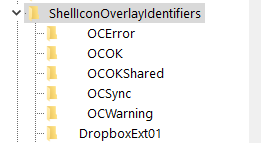
What do you mean with "still seeing this"? If you mean that your icons are still not there: Try also to go to ComputerHKEY_LOCAL_MACHINESOFTWAREMicrosoftWindowsCurrentVersionExplorerShellIconOverlayIdentifiers with regedit and place some more spaces in front of the OC-entries.
socram70
on 19 Jul 2020
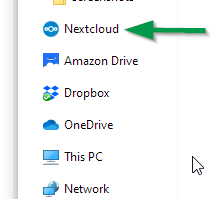
The nextcloud icon keeps disappearing from the navigation pane in explorer, I have to uncheck and recheck the "show sync folders in navigation pane" option after every reboot, the overlay icons also don't show up, though I'm not as concerned about that, though that would be nice to have... I did use ShellExView and the dlls are all registered any enabled.
I made the changes you suggested, will report back on that one, also searched around for NavPane and came up pretty much empty, but I did find the entries for those navpane icons under Computer\HKEY_CURRENT_USER\SOFTWARE\Classes\CLSID\{505ab236-b3a6-4fd0-8661-a4421f459f16} (as well as a few other paths, but all that same GUID key):

It looks identical to the one for Amazon Drive except the sort order index is lower, which makes sense.
Edit - Followup: After makign the registry changes suggested and restarting explorer the sync icons are appearing, I'm pretty sure those never worked in the past, so that's hopeful :)
tstackhouse
on 19 Jul 2020
The nextcloud icon keeps disappearing from the navigation pane in explorer, I have to uncheck and recheck the "show sync folders in navigation pane" option after every reboot, the overlay icons also don't show up, though I'm not as concerned about that, though that would be nice to have... I did use ShellExView and the dlls are all registered any enabled.
I made the changes you suggested, will report back on that one, also searched around for NavPane and came up pretty much empty, but I did find the entries for those navpane icons under
Computer\HKEY_CURRENT_USER\SOFTWARE\Classes\CLSID\{505ab236-b3a6-4fd0-8661-a4421f459f16}(as well as a few other paths, but all that same GUID key):
It looks identical to the one for Amazon Drive except the sort order index is lower, which makes sense.
Edit - Followup: After makign the registry changes suggested and restarting explorer the sync icons are appearing, I'm pretty sure those never worked in the past, so that's hopeful :)
I have the same registry content as you show in your screenshot. What did you end up changing when you said "making the registry changes suggested"?
 RPYoshi
on 30 Aug 2020
RPYoshi
on 30 Aug 2020
Starting with the 3.0.1 release, we have made significant changes to the Windows shell extensions:
- They now have their own GUIDs (CLSIDs), to not conflict with ownCloud and custom builds
- MSVC Redist runtime DLLs are no longer required (static linking)
- Names have been changed, e.g. from
OCOverlaystoNCOverlays
Please upgrade to 3.0.1 and note that you will have to reboot after installation to make the extensions work:
https://github.com/nextcloud/desktop/releases/tag/v3.0.1
misch7
on 30 Aug 2020
Related issues
 Linuxfabrik
·
3Comments
Linuxfabrik
·
3Comments
 Engineer-of-Stuff
·
3Comments
Engineer-of-Stuff
·
3Comments
 rguenther-dz
·
3Comments
rguenther-dz
·
3Comments
 DBLouis
·
3Comments
DBLouis
·
3Comments
 Ich5003
·
3Comments
Ich5003
·
3Comments
Most helpful comment
FYI, manually unchecking then rechecking again the following checkbox fixes this issue for my upgrading Windows users.
"Show sync folders in Explorer's Navigation Pane"