Dash-to-panel: Icon spacing issue after locking/unlocking
Arch x86_64
gnome-shell-extension-dash-to-panel-git r129.7bba9a4-1
Whether it be because display times out or system goes to sleep, on two machines now (with the same settings) the icon spacing is messed up after unlocking.
Normal

After unlocking

Settings


 parkerlreed
All 49 comments
I definitely haven't seen this. I'm guessing it is not loading your setting from dconf for some reason and instead going back to the default of 8? If you set it to 8 does it stay the same size? Are you on Gnome 3.22 or 3.24? Thanks
 jderose9
on 11 Mar 2017
jderose9
on 11 Mar 2017
@jderose9 Not quite. It seem the abnormal state adds extra padding to every size level. https://my.mixtape.moe/grkfik.mp4
Also yeah gnome-desktop 1:3.22.2-1
parkerlreed
on 12 Mar 2017
So at 00:10 you are locking and unlocking your screen?
jderose9
on 12 Mar 2017
@jderose9 Yep
parkerlreed
on 12 Mar 2017
Can you try to disable every other extension to verify that the issue isn't caused/compounded by another extension?
jderose9
on 14 Mar 2017
Aha! Yes, the only other extension I have is causing it somehow.
parkerlreed
on 15 Mar 2017
Are you sure you have "TopIcons Plus" rather than "TopIcons"? I know TopIcons is no longer maintained and has some compatibility issues.
jderose9
on 15 Mar 2017
Aye. I install from AUR which pulls from that repo
https://aur.archlinux.org/packages/gnome-shell-extension-topicons-plus-git/
EDIT: Oh wait the source does say just the regular TopIcons O.o Ill check
parkerlreed
on 15 Mar 2017
And that fixed it. Wow the AUR name was misleading... Thanks for all the help.
parkerlreed
on 15 Mar 2017
It's still happening but less frequently with the only extension enabled being dash-to-panel
parkerlreed
on 16 Mar 2017
Are you using window scaling for a HiDPI monitor?
Does the spacing keep growing if you lock/unlock multiple times or once it's messed up, it just stays that way?
jderose9
on 17 Mar 2017
No scaling, all on 1080p. Same spacing each time. It stays normal for a handful of lock cycles but then will go to that wide spacing. Then another cycle and it's back to normal.
parkerlreed
on 17 Mar 2017
I have the same issue
GNOME Shell 3.24.0
DtP v8
 galfwender
on 16 May 2017
galfwender
on 16 May 2017
Same issue here on Ubuntu GNOME 17.04, GNOME 3.24, on a 1366x768 laptop. Seems like after unlocking a padding of 8 is added on top of the padding setting in Dash to Panel.
 SolarLiner
on 16 May 2017
SolarLiner
on 16 May 2017
Same behaviour with OP, although mine happens all the time. I think it would be helpful to add that not only locking/unlocking produces this behaviour, but actually anything that involves redrawing(?) the Gnome Panel.
- Disabling/enabling User Themes
- Disabling/enabling “Removable Drive Menu”
- Disabling/enabling Dash to Panel itself
- Disabling/enabling Extension master switch
Removing and reinstalling the extension doesn't remedy the issue. I have also tried leaving Dash to Panel enabled alone, and the issue persisted.. It is worth to note that, because Dash to Panel has some parts from Dash to Dock, the latter extension doesn't have this issue. Although my (previously closed because duplicate) issue and this comment is new, I want to make clear that this issue happened for a long time now, but it has gotten annoying since I recently lock/unlock a lot :(
Gnome 3.24.2
Dash to Panel v8
Issue happened since before 3.24 prime release
I am also looking forward to deleting the config files to see if it would help. Could anyone enlighten me on the location of the config files?
_If there are any relations_, I also think that this may related to the reason that sometimes, new task animation isn't properly executed. I'll try to get video evidence (and also read all open issues lel).
 TechnoSparks
on 9 Jun 2017
TechnoSparks
on 9 Jun 2017
@TechnoSparks There's definitely quite a few issues reported (that I don't observe myself) that seem to be related to drawing on the display that should be occurring that isn't. I don't know the extent to which they are related.
jderose9
on 9 Jun 2017
I experience the same issue too, ubuntu gnome 16.04, gnome-shell 3.20
 mozartilize
on 13 Jun 2017
mozartilize
on 13 Jun 2017
I tried to clear the configs and changed the settings one by one and after many many trials it seemed there is no definitive way to find the cause.
I also need help, is there any way to delete the configs instead of resetting the keys? Dconf says there are missing schema or some sort. Who knows if this might be the issue? (Disclaimer: I am not really an expert Gnome user)
The only thing in common of all tests is that, any changes from the default settings will contribute to this behaviour.
Leaving default settings will not cause the padding to be added. I don't know what would happen after a system restart though, didn't check that _yet_ .
I also noticed that after leaving my PC locked for about 6 hours today, the alien padding isn't there. I will do this again tomorrow before going to work to see if this is a persisting behaviour.
Possible solution suggestion: force the extension to check if the padding is correct otherwise refresh
TechnoSparks
on 14 Jun 2017
@jderose9 i may not understand fully the (possible related) issue that you are mentioning. 😯 Can you elaborate?
TechnoSparks
on 14 Jun 2017
been 4 days since my last post, and after 4 tests of leaving the session locked for 9 hours, the padding is still added to the panel
TechnoSparks
on 19 Jun 2017
@TechnoSparks I think your message about missing schema if in dconf editor is simply because that dconf editor application can't find the schema definition included with the extension. That doesn't mean the extension itself can't find and load it so I don't think it's necessarily related to your issue. If you delete all the keys the extension will just use the defaults from the schema.
Gnome disables the extensions when the screen is locked and re-enables when it is unlocked, and it seems like something with that process is just not happening cleanly.
I've switched away from the default app icon margin to help try to reproduce so thanks for that additional info.
jderose9
on 20 Jun 2017
@jderose9 I managed to squash the issue by running
dconf reset -f "/org/gnome/shell/extensions/dash-to-panel/"
in a terminal rather than resetting the keys via Dconf Editor itself. I always suspected that it could be with the configs, since back then when I reset the keys via Dconf, there is this one key that doesn't want to go away. I am really happy that I could finally put a stop to this misery. I have even thought of migrating to Budgie! Sadly since I am now in a fixed state, I cannot get back to my previous broken state to find this specific key mentioned.
I would invite other participants of this issue to try the command above and see if it worked, especially the OP @parkerlreed
However, it is also worthy to note that after I did this, I still saw spacings being added, but only to running applications after locking (favourites or not). Ending all tasks of the said application will make the spacing reset to its correct state (favourites), no longer the need to do a shell restart (shell restart would also fix it). This will not happen if icon size and padding is in their default values. It seems this may be the last issue lingering perhaps?
Wish to hear back from the participants and the developer.
TechnoSparks
on 10 Jul 2017
@TechnoSparks That seems to have worked. The icons end up the same spacing after a lock/unlock.
parkerlreed
on 10 Jul 2017
It's even screwier than before... Fresh reset plus I updated from the repo.
First two dark screens are just an Alt F2 + r (spacing becomes condensed)
Last is a screen lock (spacing becomes wider)
parkerlreed
on 10 Jul 2017
That is disappointing 🙁
By “repo” did you mean you are running the version 8 version of the extension? @parkerlreed
TechnoSparks
on 10 Jul 2017
I meant from git, this repo.
parkerlreed
on 10 Jul 2017
@jderose9 I was experimenting a little bit more with cases when does this issue happen and probably found out what is the problem
1. It seems that this problem does not happen when users have their machines set up in a way that screensaver also locks their machines - so when they deactivate screensaver they have to insert password and then they get to desktop. Icons are arranged as they should be.
You can activate a screensaver with lockscreen by this command:
dbus-send --type=method_call --dest=org.gnome.ScreenSaver /org/gnome/ScreenSaver org.gnome.ScreenSaver.Lock
It also seems that screensaver with lockscreen restarts gnome session after unlocking, since if I have my icons "broken" as described in this issue, activating screensaver with locking the screen usually repairs this problem.
2. But there is also second case: Users can have their machines set up in a way that screensaver does not lock their computer (I also have my computer set up this way.) So deactivating screensaver automatically gets me to desktop, without having to write password.
You can activate a screensaver without lockscreen by this command:
dbus-send --type=method_call --dest=org.gnome.ScreenSaver /org/gnome/ScreenSaver org.gnome.ScreenSaver.SetActive boolean:true
In my case running this command, (sometimes I have to do it few times) breaks the icons spacing as described in this thread.
It seems that screensaver without lockscreen does not restart gnome session after unlocking and this can break the icons spacing as described in this issue.
If you need any more information or testing please let me know
 hubslave
on 21 Sep 2017
hubslave
on 21 Sep 2017
Dear lord it seems that way :D (I did a Win L lock a few times (password) and it stayed normal. No password lock did mess it up)
parkerlreed
on 22 Sep 2017
Hello,
I have my setup that it requires my password after unlocking. However, as pointed here
in my last post, the icon spacing issue is still present only for running tasks. This will happen with either locking manually (I have my shortcut as Super+L) or leaving the machine until timeout. This goes against parkerlreed's post above :(
What is really weird here is that invoking the command dbus-send --type=method_call --dest=org.gnome.ScreenSaver /org/gnome/ScreenSaver org.gnome.ScreenSaver.Lock do not add the weird padding to the icons, no matter how many times I tried.
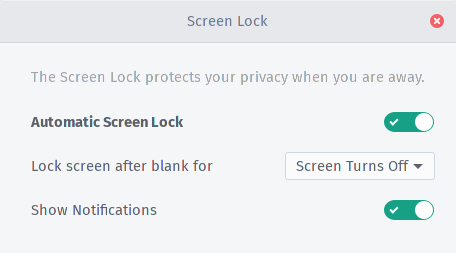
This image shows that I have my machine is “set up in a way that screensaver also locks their machines” through the System Settings
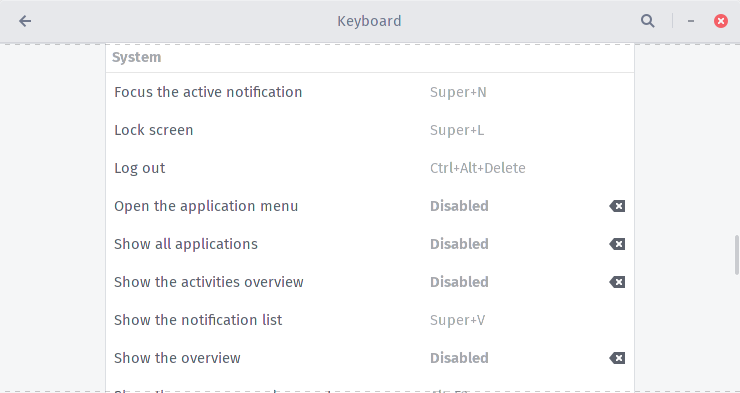
This image shows that I am using the built-in key shortcut feature to manually lock my screen
It is also worth to note that these settings have never changed since I set foot on Gnome.
Does Gnome Desktop call a different command when it or I "lock" the device? This is confusing.
I take that back!!
After setting a custom keybind to run dbus-send --type=method_call --dest=org.gnome.ScreenSaver /org/gnome/ScreenSaver org.gnome.ScreenSaver.Lock , I seem to still have the same issue.
Only that IF I run it from a terminal, the icons remain the way it should be.
TechnoSparks
on 22 Sep 2017
I appreciate all of the details, but unfortunately I still can't reproduce this.
When you guys say "Screen Saver" you mean the power option built into Gnome to disable that shuts off the display, correct?
When I execute this command, either via key binding or terminal, the screen still locks.
dbus-send --type=method_call --dest=org.gnome.ScreenSaver /org/gnome/ScreenSaver org.gnome.ScreenSaver.SetActive boolean:true
If I remove the password from my account, I still get the screen shield that has to be dragged/swiped away before the desktop is visible (though I don't have to enter my password after). I am unable to make the screen idle without the shield coming back up when it is waked.
The extensions do all disable and re-enable when the screen is locked/unlocked. I don't think it's necessarily a matter of the commands being different necessarily, but rather executed in a different order. Like, perhaps the custom dconf settings haven't been loaded yet or the default style gets applied after this extensions.
jderose9
on 22 Sep 2017
Hello, sorry for late response.
When talking about screen saver I mean - screen turns off and after turning it on I have there "screen shield" - blue screen with time and date which has to be dragged/swiped away before desktop is visible. Yes I cant make screen idle without the shield coming back up too. And also the same with locking - If I disable password I dont need to type it after "removing" screen shield - I go straight to desktop. But in that case dash to panel sometimes breaks up as described here. When I have password enabled and after "removing" screen shield "login screen" appears (where I have to type my password) it seems that gnome sessions restarts in background before coming back to desktop and this issue does not happen.
hubslave
on 3 Oct 2017
This happens to me all the time as well since I first started this extension daily a few months back, a quick restart with Alt+F2+r always fixes the issue. Also note that not only locking/unlocking the session causes it but also simply updating other extensions as well, or even a crash on another extension might cause it.
Arch Linux + Gnome 3.26.1
 robvelor
on 31 Oct 2017
robvelor
on 31 Oct 2017
One easy way to reproduce this bug: Set the panel size to 24 and the app icon margin to 0, then toggle the extension off/on. It appears that it uses the default app icon margin (8) whenever it's not started via a shell restart. I also noticed the icons jump around while the extension is starting, as if two different margin settings are being applied.
Edit: After some more testing, my method apparently only reproduces it reliably when animations are disabled.
 v8d
on 31 Oct 2017
v8d
on 31 Oct 2017
@v8d Indeed I can reproduce this way every time, but also happens regardless of animations being on or off. It seems to happen if Panel Size < 40 as well. Anything larger and things seem to be ok.
robvelor
on 1 Nov 2017
Thought I would toss in an update. For me, this only happens on 3.24 when running XORG. If I run it under Wayland, it works fine. Hope that helps someone.
 cmivxx
on 2 Nov 2017
cmivxx
on 2 Nov 2017
Thanks! Turning off gnome's animations was what I needed to do to reproduce on my machine. I believe this is now resolved. Can you guys try the newest master? Thanks!
jderose9
on 3 Nov 2017
This is extremely exciting!
I have installed the version from master and have rummaged through many lock shades and so far I can gladly say the issue has been gone!
I do think we have to wait for other participants to test this as well.
Thank you jdrose9!!
Edit : noticed something new, the highlight over the icon entry is truncated. This is a visual bug. It restores to normal only when I hover my mouse on it. Doesn't happen often, though

TechnoSparks
on 3 Nov 2017
@TechnoSparks Looks like it's shifted to the left. This happens after unlocking only?
jderose9
on 3 Nov 2017
@jderose9 It sure looks like so, but it is not. This is because I have 1px margin between items, and in the screenshot, there is 1px line at the left. And yes, it happens only after unlocking.
This does not bother me much, especially because it happens very rarely (I tried to recreate it) that I don't think it would need serious considerations.
TechnoSparks
on 4 Nov 2017
I can confirm that this issue is gone after last update of dash-to-panel on my machine. Thank you very much :-)
hubslave
on 12 Nov 2017
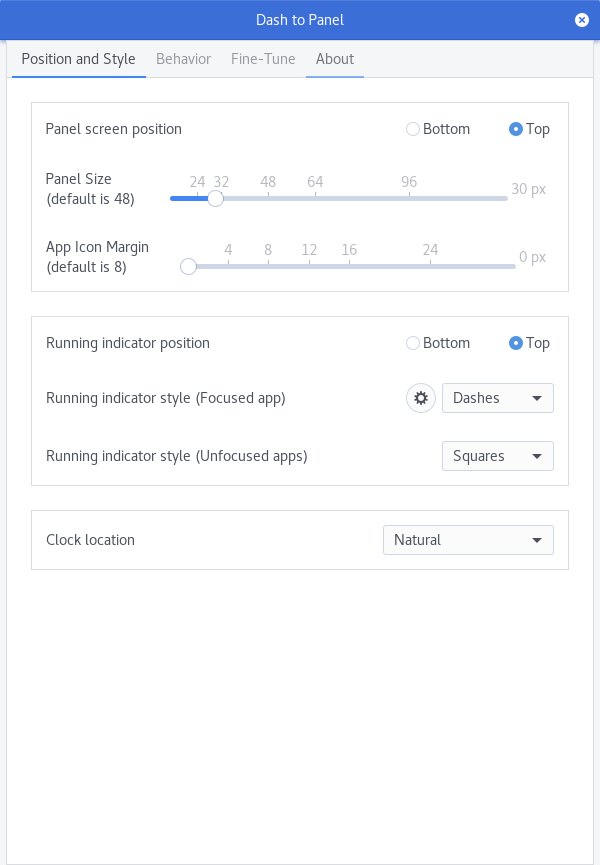
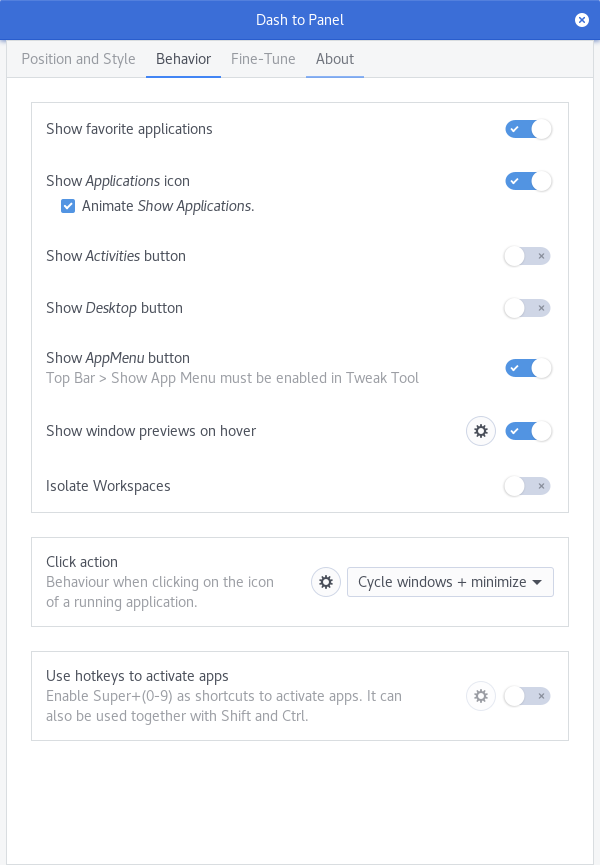
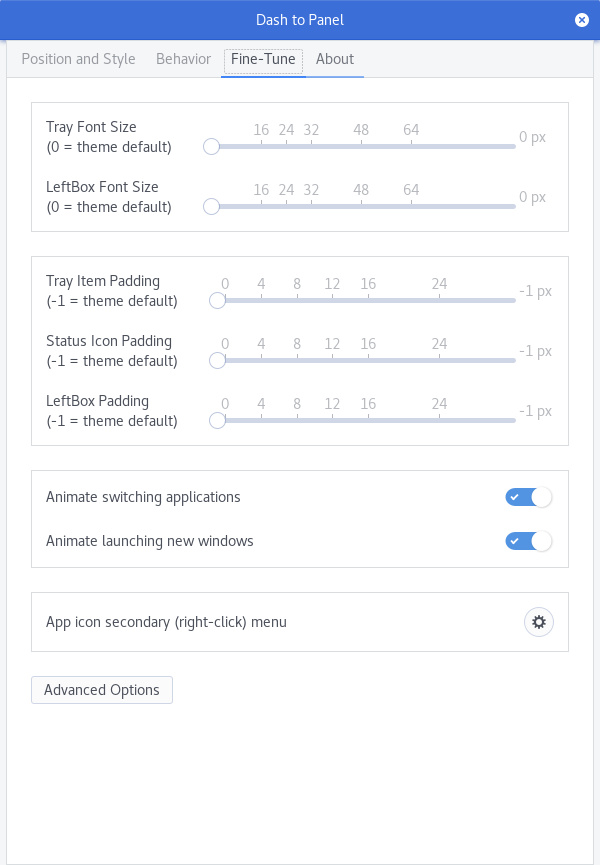
I'm getting this issue too. I have a workaround of every time it happens, I just set the icon size to 0 and then bring it back up to 30.
 TungstenOxide
on 21 Jan 2018
TungstenOxide
on 21 Jan 2018
@jderose9 I will give it a spin and report back, this was so annoying for me that I went back to the gnome3 paradigm.
robvelor
on 23 Jan 2018
Yes, if anyone wants to try latest master and report back, it would be great. The work by @charlesg99 may have resolved it. Thanks!
jderose9
on 24 Jan 2018
When will this update be on extensions.gnome.org?
TungstenOxide
on 27 Jan 2018
It will be a few weeks. Ironing out a couple of issues and then I will submit, but it takes a few weeks for someone to review. I'm not actually sure whether this one is completely resolved though - if someone that was recently experiencing it can try the master branch and let me know, that would be awesome! I'm going to close for now with the assumption that it is resolved, but feel free to post back if you find otherwise.
jderose9
on 2 Feb 2018
I have tried the latest branch and it seemed to be fine (although the one before the recent merge also worked fine too). I could also safely say that the little visual glitch I posted earlier in this issue seems to be gone now.
TechnoSparks
on 2 Feb 2018
@TechnoSparks Thanks for checking this out!!
jderose9
on 2 Feb 2018
@jderose9 @charlesg99 I have been trying it out for over a week now with no issues, thanks for the fix guys!
robvelor
on 2 Feb 2018
Still experiencing this issue in Arch. Gnome Shell 3.36,WM: Mutter
 vageliskatsiotis
on 8 Jun 2020
vageliskatsiotis
on 8 Jun 2020
Related issues
 ErwinBaeyens
·
5Comments
ErwinBaeyens
·
5Comments
 sbadux
·
6Comments
sbadux
·
6Comments
 Rawleenc
·
6Comments
Rawleenc
·
6Comments
 BetaConnector
·
5Comments
BetaConnector
·
5Comments
 LeeGDavis
·
6Comments
LeeGDavis
·
6Comments
Most helpful comment
@jderose9 I will give it a spin and report back, this was so annoying for me that I went back to the gnome3 paradigm.