Botbuilder-samples: Unable to authenticate Bot through Teams
Github issues for C# /JS / Java/ Python should be used for bugs and feature requests. Use Stack Overflow for general "how-to" questions.
Sample information
- Download code BotBuilder-Samples / samples / csharp_dotnetcore / 18.bot-authentication /
- Configure AAD connector at Azure Bot site
- Enable Teams Channel
- Try to sign in at Teams
Describe the bug
Few days ago it works fine and I can get the 6 digits authentication code and type into Teams to finish the login. However since last week. when sign in process open https://token.botframework.com/api/oauth/signin?signin=xxxxxxxxx to generate the code. the page ask browser to close the page itself. Chrome and the new Edge dev preview version will directly close it without displaying the code. for old version of Edge you can select not to close page to get the auth-code.
The issue is only happening with Teams. in Bot emulator you can still sign in as it does ask for auth-code.
To Reproduce
Steps to reproduce the behavior:
- Trigger the login process from Teams.
- Click on login button of the card
- Waiting the sign in page to be opened at your default browser (better to make edge as your default)
- The page will be closed asthmatically.
Expected behavior
you should be a 6 digits code
Screenshots
N/A
Additional context
N/A
[bug]
 StevenGao77
All 12 comments
Were you using the middleware in order to get it to work initially? The middleware would look something like:
// hook up onSend pipeline
turnContext.OnSendActivities(async (ctx, activities, nextSend) =>
{
    foreach (var activity in activities)
    {
        if (activity.ChannelId != "msteams") continue;
        if (activity.Attachments == null) continue;
        if (!activity.Attachments.Any()) continue;
        if (activity.Attachments[0].ContentType != "application/vnd.microsoft.card.signin") continue;
        if (!(activity.Attachments[0].Content is SigninCard card)) continue;
        if (!(card.Buttons is CardAction[] buttons)) continue;
        if (!buttons.Any()) continue;

        // Modify button type to openUrl as signIn is not working in teams
        buttons[0].Type = ActionTypes.OpenUrl;
    }

    // run full pipeline
    return await nextSend().ConfigureAwait(false);
});
There was an update recently that made it so you no longer need the middleware. Instead, follow these steps:
- Download the newest sample
- Create your Teams Bot in the App Studio Manifest Editor
- Under Domains and Permissions, ensure that
token.botframework.comhas been added as a valid domain.
- Optionally, enable Web app Single Sign-On with your appId and
https://token.botframework.com/.auth/web/redirect
- Optionally, enable Web app Single Sign-On with your appId and
- Click Install and start talking to your bot
If you've done substantial work to your bot and don't want to use a fresh sample, update all of your packages to 4.4.4 and I believe you can just add this to the top of your OnTurnAsync():
if (turnContext?.Activity?.Type == ActivityTypes.Invoke && turnContext.Activity.ChannelId == "msteams")
    await Dialog.Run(turnContext, ConversationState.CreateProperty<DialogState>(nameof(DialogState)), cancellationToken);
else
    await base.OnTurnAsync(turnContext, cancellationToken);
If that doesn't work, you can try using this:
protected override async Task OnUnrecognizedActivityTypeAsync(ITurnContext turnContext, CancellationToken cancellationToken)
{
    if (turnContext?.Activity.Type == ActivityTypes.Invoke)
    {
        await turnContext.SendActivityAsync(
        new Activity()
        {
            Type = ActivityTypesEx.InvokeResponse,
            Value = null
        });
        await Dialog.Run(turnContext, ConversationState.CreateProperty<DialogState>(nameof(DialogState)), cancellationToken);
    }
}
The middleware made it so the cards in Teams use Action.OpenUrl (which no longer works) instead of Action.Signin (which is what every other channel uses).
 mdrichardson
on 6 Jun 2019
mdrichardson
on 6 Jun 2019
verified and working. (In my case that is)
Small update. You might also need:
protected override async Task OnTokenResponseEventAsync(ITurnContext<IEventActivity> turnContext, CancellationToken cancellationToken)
        {


            await _dialog.Run(turnContext, _conversationState.CreateProperty<DialogState>("DialogState"), cancellationToken);
        }
 SimSpfx
on 6 Jun 2019
SimSpfx
on 6 Jun 2019
Thanks mdrichardson for your reply, The code that I use are implemented through IBot interface so I will have to change my code to use those methods you advised. will download latest Samples then see how I can leverage it, will update back next week.
StevenGao77
on 7 Jun 2019
hi mdrichardson, I have changed my code by following latest samples, it works fine with Bot Emulator, I can sign in successfully and get my token. however when I deploy it to Teams it doesn't work. the Login card is displayed but there is no popup when I click the login button. Can you advise if I missed any code or configuration? Thanks
StevenGao77
on 8 Jun 2019
The only time that I experience it is if I miss this step:
Under Domains and Permissions, ensure that
token.botframework.comhas been added as a valid domain.
If you're not using App Studio to add your bot to teams, you need to add:
"validDomains": [
    "token.botframework.com"
  ]
to your manifest.json
mdrichardson
on 10 Jun 2019
Michael, I just enabled Teams channel from my Azure Bot so I have no idea where to find the manifest.json and add above validdomains. Can you advise me where I can find it? Thanks
StevenGao77
on 11 Jun 2019
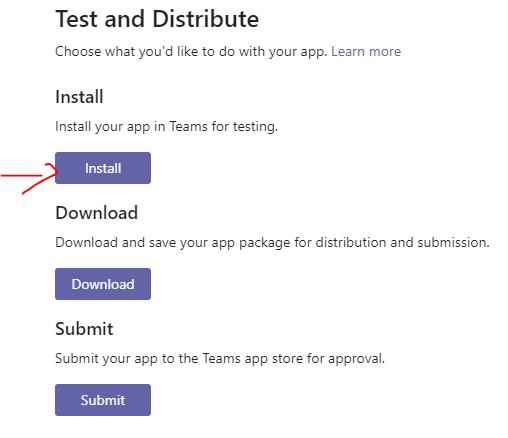
The easiest way is to install App studio in teams.
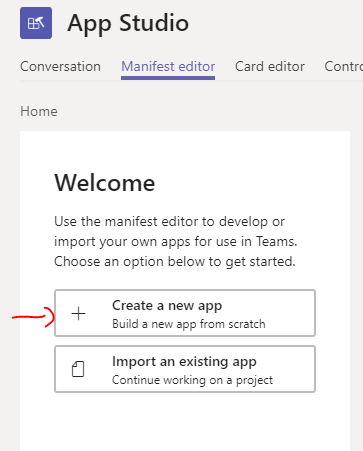
Go to the manifest editor
Add new app
Add your existing bot ( you will need your ID)
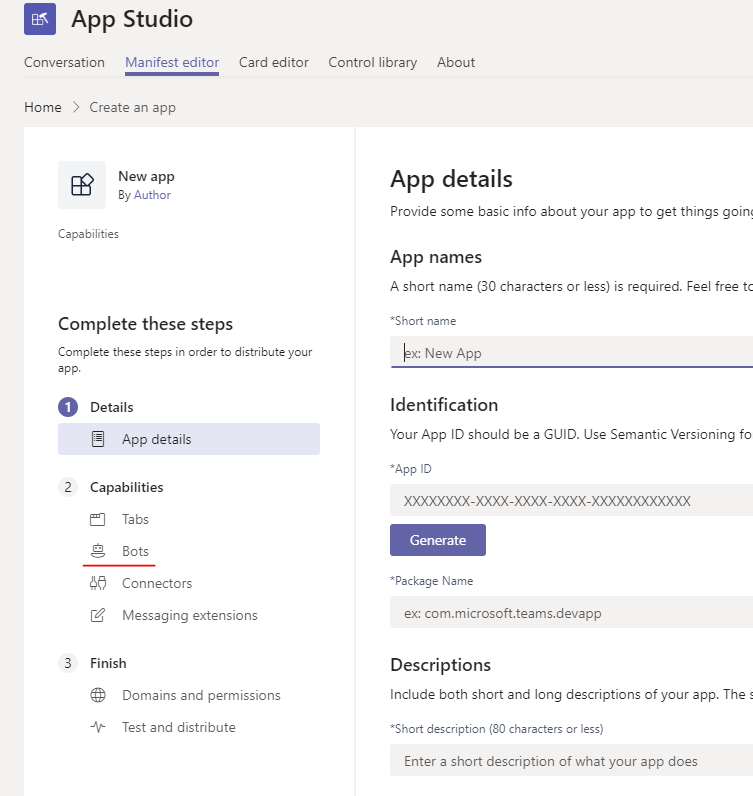
Fill out all other required info. It does not matter what you insert. As long as your bot id is ok.
And ofc trusted domains:
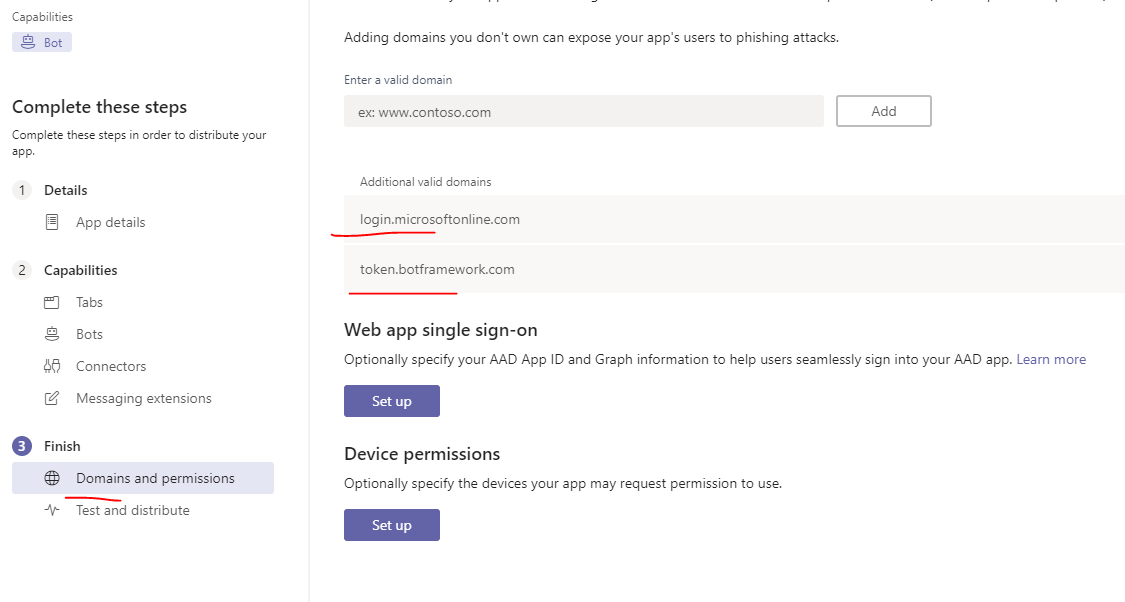
Save.
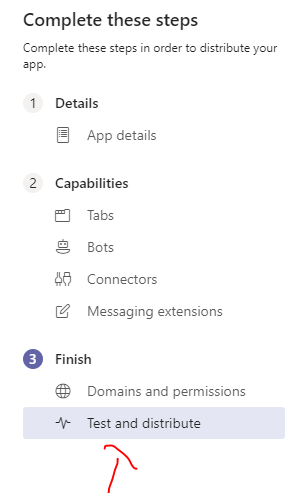
Test and distribute. (testing ofc)
SimSpfx
on 11 Jun 2019
Thanks Michael, after follow above steps I can login from Teams now :) Thank you very much for your help. Just one question left, can other users use https://teams.microsoft.com/l/chat/0/0?users=xxxx-xxx to access this bot, or they need to follow up same steps?
StevenGao77
on 12 Jun 2019
Glad you got it working!
You have a few options:
- Have your users install the bot from your manifest. You can export it from App Studio
- Install the bot for group and channel scopes
- Publish your bot so anybody can access/download it
mdrichardson
on 12 Jun 2019
Not sure if I can reply this close case, just want to provide an update, I tested with other user but it doesn't work. As I don't want to Publish my bot so I have built a private authentication page to finish the authentication instead of use Both Framework. just for reference.
StevenGao77
on 18 Jun 2019
I am not using app studio. Is there any way to add valid domain from C# and publish it to azure. So that I access it from teams
 SudhirVeerabhahu
on 20 Jun 2019
SudhirVeerabhahu
on 20 Jun 2019
@SudhirVeerabhahu You have to use either App Studio or a manifest.json. For the manifest, just make sure you have:
"validDomains": [
     "token.botframework.com"
  ]
Note: App Studio/manifest is used for installing your bot into Teams. See here
mdrichardson
on 20 Jun 2019
Related issues
 pesarkhobeee
·
9Comments
pesarkhobeee
·
9Comments
 ashutoshpith
·
8Comments
ashutoshpith
·
8Comments
 daveRendon
·
6Comments
daveRendon
·
6Comments
 v-kydela
·
4Comments
v-kydela
·
4Comments
 MariaMendietaSpur
·
7Comments
MariaMendietaSpur
·
7Comments
Most helpful comment
The easiest way is to install App studio in teams.

Go to the manifest editor
Add new app
Add your existing bot ( you will need your ID)

Fill out all other required info. It does not matter what you insert. As long as your bot id is ok.
And ofc trusted domains:



Save.
Test and distribute. (testing ofc)