Azurestorageexplorer: Uploading Large File on Slow Connection Trashes Network
Storage Explorer Version: 1.6.2
Platform/OS: Win 10
Architecture: x64
Bug description
Trying to upload a 650M file to Blob storage over a DSL connection that is about 1Mbs upload and 6Mbps down. As soon as I start the operation my internet connection becomes worthless. Many browsing becomes VERY slow with many page loads fail, speed tests can't stay connected long enough to do anything. VNET connection to Azure drops out on just about every attempt to upload the file. Task manager shows outgoing data running about 1Mbps and little to no incoming traffic.
I initially thought I was having internet connectivity issues due to the download link being so slow and VNET dropping. I reset my DSL modem and continued having issues. Explorer shows no progress so doesn't tell me anything. After stopping and retrying things a few times I finally discovered the issue was being caused by uploading the big file in Azure Explorer. I tried on smaller files and seemed to not be an issue, I only tetsed up to a 25Mg file size since it takes so long.
I then used FTP to upload the file to an Azure VM and worked as expected, took a long time and did not effect incoming data speed a bit, Azure VNET stayed connected.
Expected Experience
Would expect my network to work while uploading a large file.
 schellem
All 37 comments
Storage Explorer currently doesn't have the functionality for users to configure our usage of the network bandwidth. It is something we want to enable in the future as a part of the configuration. There are two workarounds I can think of in addition to using FTP. Storage Explorer has a built-in Experimental feature called AzCopy integration, which dramatically speeds up blob uploading and downloading. You can also use AzCopy at command line which actually gives you the ability to configure different parameters including the bandwidth you want to use during upload/download. Hope this is informational.
 jinglouMSFT
on 30 Jan 2019
jinglouMSFT
on 30 Jan 2019
Uploading only a very large file over a 1Mbps upload speed should not trash a 6Mbps incoming connection. Actually network bandwidth monitor does not show any significant incoming data when this occurs. I'm saying that uploading a very large file with AE makes the incoming connection somehow unusable. It happens immediately on starting the upload yet a smaller file 25Mbs that still takes a good while at 1 Mbps uplink speed does not make the incoming connection unusable while it is uploading.
schellem
on 30 Jan 2019
If I'm understanding correctly, this sounds like a feature request to make the bandwidth for Storage Explorer network transfers configurable, correct? As @jinglouMSFT mentioned, we have this on our backlog and intend to address this in the future.
Is this the only issue you're encountering, that Storage Explorer is stealing all of your machine's bandwidth? Have you tried @jinglouMSFT's suggestions yet?
 craxal
on 30 Jan 2019
craxal
on 30 Jan 2019
No I'm not asking for a bandwidth feature. I'm saying that uploading large files trash the receive connection. Let me try explaining a little differently.
I upload a 25Mb file which takes about 5 minutes with my DSL uplink speed. I can watch network monitor and see the send data speed running at 700-800Kbps and receive running between 8-24Kbps. I can run speedtests from https://www.speedtest.net/, https://testmy.net, https://fast.com/ while this upload is going on and see good near max receive data speeds. In network monitor I can see the receive data speed run up to the max speeds of about 7Mbps when running speed tests....all is working a s expected
Now if I upload a 650Mbs interesting that network monitor shows send data speed at about 1.2Mbps and receive runs a bit higher now 32-72KBps....thats fine. Now when I go to perform speedtests some fail some run very slow and on network monitor it never gets near the max receive rate, looks to me as something is blocking them from using the connection.
I would expect my network performance to be the same during any file upload regardless of file size, the only difference should be one takes longer than the other. I certainly would not expect my network to be pretty much useless when file upload size gets above some undetermined size.
schellem
on 31 Jan 2019
OK, I think I understand now.
Currently we have two methods of uploading files. The first is a "traditional" method we designed ourselves. The other uses AzCopy. Which method are you using to upload your files? If you haven't tried AzCopy yet, can you please give that a try and see what happens to your network performance? The reason I ask is that AzCopy may handle network bandwidth differently than the traditional method and therefore not encounter the same issue you're experiencing, which would be very helpful for us to know.
craxal
on 31 Jan 2019
I get the same results on the large file with AzCopy
schellem
on 31 Jan 2019
I am working at the office today and brought down the whole office internet connection when uploading a big file to Azure storage. You guys seem to have some kind of serious issue here.
schellem
on 6 Feb 2019
Out of curiosity, what happens when you use AzCopy alone (outside of Storage Explorer)? You can copy the command we use from the Activity Log and paste it into your command shell when invoking AzCopy. Just trying to potentially isolate problem areas.
craxal
on 7 Feb 2019
I had same results using AzCopy
schellem
on 8 Feb 2019
Hm. Seems like the problem is more than just a Storage Explorer problem. The only possible fix I can think of, then, is to provide a setting that limits the bandwidth Storage Explorer uses, as we mentioned above. What upload/download speeds does your ISP supply?
craxal
on 8 Feb 2019
Uploading a file should not trash the RECEIVE connection. At the office we have a 50MBPs receive connection. No one can work (browse) when I try to upload a 1Gb file. Network monitor shows my outgoing data running from 5-10Mbps and receive traffic negligible, yet no one else in the office can browse the internet.
I can see no one being able to upload stuff if ASE is maxing out the upload link but it should not trash the incoming/receive internet connection.
schellem
on 8 Feb 2019
That is really weird. Strange that AzCopy does that also, which again suggests the problem is bigger than just Storage Explorer.
Can you get a Fiddler trace for us? That can tell us more about what's going on with receiving connection during the upload.
craxal
on 8 Feb 2019
I am familiar with Fiddler but what do I do to 'get us a Fiddler trace' ?
schellem
on 10 Feb 2019
I tried AzCopy again after learning about the /NC option. If I set this to 1 AzCopy does not trash internet connection.
schellem
on 12 Feb 2019
For Fiddler, all you really need to do is install and watch the feed for requests/responses sent to Storage Explorer. It can get a little noisy, so you should be able to filter them.
What version of AzCopy did you use where the /NC option worked for you? We'll need to make sure it's the same version Storage Explorer is using so we can leverage that.
craxal
on 13 Feb 2019
AzCopy 6.2.0
schellem
on 14 Feb 2019
Ok ok. Did some research. Talked to some people. First, uploading too much can definitely saturate your network to the point that downloads get super slowed down. Second, @schellem , the version of AzCopy you are using is the current/soon to be old version. AzCopy is being rewritten to be more performant/better/etc. and that's the one Storage Explorer uses. You can find more info here: https://github.com/Azure/azure-storage-azcopy
Anywhos, let's try doing this for you:
- Close Storage Explorer
- Run your preferred text editor as admin
- Open up "C:\Program Files (x86)\Microsoft Azure Storage Explorer\resources\app\node_modules\se-az-copy\dist\AzCopyClient.js" (if you installed to a different location, then beginning of the path will be different for you)
- Add a new line after 27 with the following:
envVars.AZCOPY_CONCURRENCY_VALUE = 1;It should look something like this: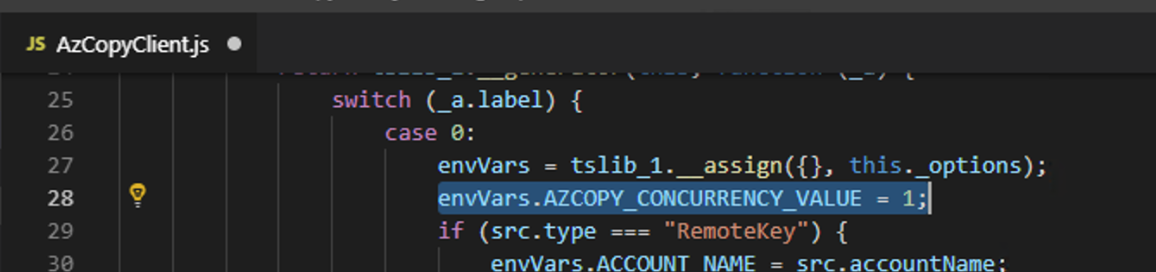 You can modify the
 1to any integer, and keep changing it over time to try and find a value which is a good for your machine/network. - Save the file, and try doing your upload test.
Let me know is this works for you.
 MRayermannMSFT
on 14 Feb 2019
MRayermannMSFT
on 14 Feb 2019
Thanks I will try that. So enlighten me when ASE will kill your network. I am unfortunate to live out in the country and can only get a 6M down and 1M up DSL connection. When working at the office last week I trashed our small office network as well when using ASE, it has more like 50M down and 10M up. I will say I had a number of folks mad at me after trashing 2 online conferences while attempting to upload a SQL backup.
Is this something unique to my machine? What kind of network do you need for this to not happen? If it were common I would think you have a lot more complaints but maybe you don't have many users who upload big files.
schellem
on 14 Feb 2019
Does not appear to help unless there is a .JS cache issue, I did stop and restart ASE. I set to 1 as I did with AzCopy but I still see network send spend around 1Mbs, when I used 1 with AzCopy network send speed was running about half that. When I test that and tell ASE to cancel it really doesn't seem to do anything, I can even close the app and see send speed stay running at 1M for a minute or 2 and floats down. I can't add my image here as my upload is still maxed out, let my try image again

schellem
on 14 Feb 2019
@schellem Just making sure, did you have AzCopy turned on for blob transfers?
Your internet speeds are definitely on the low edge of the spectrum. Generally, we expect most users to have maybe 15-20 Mbps down. Not may ideas on how your network is getting trashed, but we're investigating with the AzCopy folks to see if there's a solution.
craxal
on 14 Feb 2019
Ok, another idea. I haven't heard back from AzCopy folks yet, but @schellem mentioned this didn't happen for small files. Maybe it's possible we need to vary the block size as well. Here's how to do that:
- Close Storage Explorer
- Run your preferred text editor as admin
- Open up "C:\Program Files (x86)\Microsoft Azure Storage Explorer\resources\app\node_modules\se-az-copy\dist\AzCopyClient.js" (if you installed to a different location, then beginning of the path will be different for you)
- Add a new line after 73 with the following:
 (the line with
 .pushis the most important, the other line modifies the string that is put on your clipboard when you click "Copy AzCopy Command to Clipboard")
- You can modify the
8to any integer, and keep changing it over time to try and find a value which is a good for your machine/network. - Save the file, and try doing your upload test.
When I did a test, concurrency 1, default block size (aka not specifying it), I got a speed of about 130 Mbps. When I did a test, concurrency 1, block size of 8, I got a much slower speed (will update with an exact number once AzCopy reports one back....but the fact it hasn't I believe mean's it is going much slower).
MRayermannMSFT
on 15 Feb 2019
Also, I'm not sure what unit the number we're giving to block-size is. I want to say it is bytes? So the value we want for your network might be more in the 100s or 1000s.
MRayermannMSFT
on 15 Feb 2019
Sigh. Modifying block size will be tricky without knowing the unit for that flag. You can read more about blocks here: https://docs.microsoft.com/en-us/rest/api/storageservices/understanding-block-blobs--append-blobs--and-page-blobs#about-block-blobs
MRayermannMSFT
on 15 Feb 2019
@craxal I only used the /NC option for AzCopy, I didn't look for a blob transfer option.
Very bad idea to expect folks to have a certain speed network. That being said as I reported ASE trashed our office network as well which has speeds I measured of about 10M up and 50M down
schellem
on 15 Feb 2019
@schellem , @craxal was trying to make sure you had AzCopy enabled in Storage Explorer. If you didn't, then the code change wouldn't work. You'll know it is if you see this in the Activity Log on startup:

Also, I talked more to the AzCopy team. They said that if setting the concurrency to 1 does not slow it down enough for you, then there's not currently a way to make it slower. It is on their backlog to allow us to say "only us this many Mbps" but they don't know when they'll be able to get to that. They also let me know that changing the block size will not do much, if anything, to slow things down. Especially for large files.
The final thing we can try is to slow down our JavaScript version of upload:
- Close Storage Explorer
- Run your preferred text editor as admin
- Open up ""C:\Program Files (x86)\Microsoft Azure Storage Explorer\resources\app\out\app\renderer\JobHandlers\Blob\Services\UploadOperation.js"" (if you installed to a different location, then beginning of the path will be different for you)
- Change line 54 to be
return 1:

- Save the file
- Reopen Storage Explorer
- Make sure AzCopy is disabled

- Try your upload
MRayermannMSFT
on 15 Feb 2019
I'll look at some of these settings after bit.
Still seems like somebody is missing something here on the "only us this many Mbps" thing. When uploading a large file and we have the incoming 50Mbps network getting trashed I am seeing very little network receive activity in Task Managers Performance tab on my machine. It makes no sense why others can't use the network or at least use a browser because I'm uploading a file even if it may be consuming a lot of uplink bandwidth.
What would this "only us this many Mbps" setting do? Set a max upload bandwidth? I wouldn't expect upload bandwidth to effect download bandwidth. When I upload large files with FTP it may slow down others wishing to do uploads but I've never had any complaints about network speed, it does not knock out online conferences.
schellem
on 15 Feb 2019
@schellem , here are some more information on why uploading can affect your download speeds:
https://www.quora.com/When-I-upload-something-will-my-download-speed-be-affected-by-this-and-be-slower
https://forums.tomshardware.com/threads/internet-is-really-slow-when-i-am-uploading-something.934129/
https://www.quora.com/Does-upload-speed-ever-interfere-with-download-speed
If we had the ability to throttle AzCopy/Storage Explorer, we could prevent your upload pipe from getting so stuffed, which would allow the acks you need to send to do downloads to get through.
You may be able to find 3rd party software that would allow you to throttle AzCopy/Storage Explorer, but that isn't something we have time to help you find.
MRayermannMSFT
on 15 Feb 2019
@MRayermannMSFT thanks that is what I was missing. Sounds like this should have a very high priority to resolve.
I can understand ASE taking down my out in the country slow DSL link but being that it takes down a network that has an uplink speed of 5-10Mbps seems very significant to me. I would call 5-10Mbps uplink speed very typical for a non enterprise type internet connection.
I will say as I am trying to introduce Azure here at my company, everybody is now scared of using Azure storage since we don't have a way to access it.
schellem
on 15 Feb 2019
If you're looking for other ways to access Azure Storage, you can also use the Azure Portal, which recently introduced a web version of Storage Explorer:

The Azure CLI should also allow you to upload and download from Storage.
There are also 3rd party tools which allow you to access Azure Storage in a manner similar to how you connect to a service such as OneDrive, Dropbox, etc. I don't think I should be reccomending any though, so you'll need to look for those on your own. 😋
Finally, if what you're looking for is a better way of sharing files in an office, you might even want to consider a higher level solution, such as OneDrive or Sharepoint. Azure Storage is definitely meant more for applications to use, so for example, OneDrive (I believe) is built on top of Azure Storage. If you need help finding a solution to y'all's needs, let me know and I can try to find someone from Microsoft to email you who is more experienced in that sort of thing.
MRayermannMSFT
on 15 Feb 2019
I'm seeing this issue as well, trying to upload a 1.7GB file to blob storage using storage explorer 1.6.2 with azcopy. azcopy maxes out CPU on one core and makes internet useless, I have a 1Gbps fiber connection, but using Wifi on top, so it is of course limited by that. Seems like a very serious problem with azcopy regardless of explanation; the use-case is very simple for the end-user; upload a file and it should't need a long explanation why you can't do that :) and why it will trash your internet for the duration of the upload.
Also it produces some very strange statistics while uploading (110% finished)

 thomas-t1
on 4 Mar 2019
thomas-t1
on 4 Mar 2019
Possibly related to https://github.com/microsoft/AzureStorageExplorer/issues/13
 sergethedev17
on 21 Aug 2019
sergethedev17
on 21 Aug 2019
I can confirm that this is an issue for our office with 60Mbps up/down.
Azure storage explorer upload or download will cause DNS resolution for other staff members to suffer, including taking our managed WiFi controllers offline. One might argue there needs to be QoS in place but _only_ Azure storage explorer seems to cause this issue.
We have not tried the AzCopy feature yet - next on the list.
 sbrp
on 22 Aug 2019
sbrp
on 22 Aug 2019
I had a similar issue today. Uploading a 420GB file to a blob using AzCopy saturated the upload thus download suffered. This is because its using 100% of the upload link, your TCP ACK's are unable to get through which triggers the remote webservers etc to resend packets etc and thus this repeats over and over. The biggest feature Storage Explorer needs is to set the bandwidth limits. using ~80% of each direction (i.e on a 100mbps link, set it to 80mbps when uploading) wont stop your return packets being lost and your normal browsing etc will be fine. Naturally in a situation like this if another user is also trying to upload at the same time, well you may well face the issue again.
This a pretty fundamental problem when using the standard TCP protocol, nothing specific to Azure/Storage Explorer/AzCopy - just in its implementation of TCP.
 LordBoBCUP
on 22 Sep 2019
LordBoBCUP
on 22 Sep 2019
This will be a part of the work of #1147 . Since we are adding throughput control, you can limit your transfer rate.
 JasonYeMSFT
on 14 Oct 2019
JasonYeMSFT
on 14 Oct 2019
@schellem I just wanted to add that not all DSL connections are full-duplex, some are only half-duplex. This means that your download speed will be affected by your upload usage.
So if you are using half your upload rate (0.5Mbps) then you only have half your download rate (3Mbps) available and vice versa.
So if you are maxing out your 1Mbps upload rate, then you have 0Mbps left for download.
This was unfortunately my reality for a long time.
 ChananX
on 23 Jan 2020
ChananX
on 23 Jan 2020
@JasonYeMSFT I'm making use of this setting, to prevent exactly the same problems that the OP found, so first off thanks for solving this.
I'm sure that in the documentation that first clued me into this I read that this field accepted decimals, e.g. I could specify "1.5" to use the majority of my 2Mbps uplink without saturating it.
But when I try to set that value, it isn't at all happy. I get an error with details: {"message": "UnexpectedQuit" }. Setting it to "1" works just fine.
Are decimal values for the transfer cap supposed to be supported?
If yes, then I'll raise a separate issue for "They don't work for me".
If no, then is it viable to add support for that? If not, then I think it's worth adding a note into the field docs in the settings screen - all the other Transfer Settings explicitly spell-out the range of valid inputs.
 Brondahl
on 16 Jun 2020
Brondahl
on 16 Jun 2020
@Brondahl, the decimal numbers should be supported. I have tried with various decimal numbers and haven't seen any problem. Are you setting Maximum transfer rate to be 1.5? Could you please retry the failed transfer and share the log file with us? You can find the log file either via the Go to AzCopy log file or go to the az copy log file directory and get the latest log file.
The AzCopy directory is:
- Windows: C:/users/your username/.azcopy
- macOS: ~/.azcopy
By the way, please open another issue with the bug template and any additional information instead of replying here. That way, we can better track it and put it in a future milestone.
JasonYeMSFT
on 16 Jun 2020
Related issues
 eosho
·
3Comments
eosho
·
3Comments
 sholman
·
3Comments
sholman
·
3Comments
 cbailiss
·
6Comments
cbailiss
·
6Comments
 jorgklein
·
4Comments
jorgklein
·
4Comments
 dfibuch
·
4Comments
dfibuch
·
4Comments