Azurestorageexplorer: "Cannot read property 'connectionString' of undefined" when connecting to local storage
Storage Explorer Version: v1.4.0 build 20180803.3
Platform/OS Version: macOS
Architecture: x64
Regression From: N/A
Steps to Reproduce:
- Install application
- Connect to local emulation
- Close application
- Reopen application
Expected Experience:
I should see my local storage emulation in the list on the left
Actual Experience:
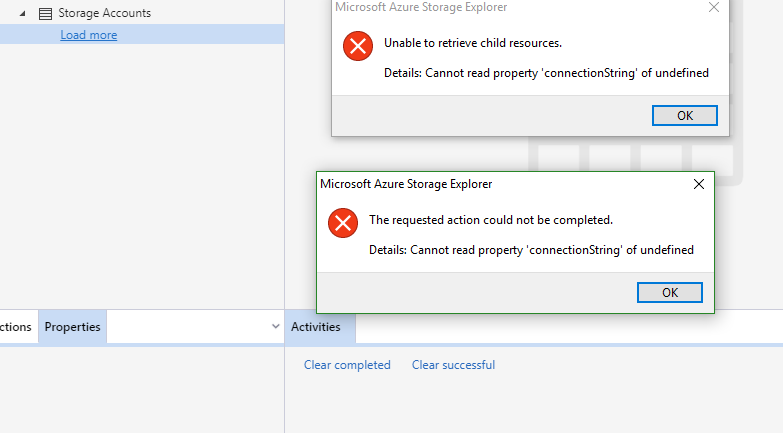
No data is shown in the sidebar, any attempt to refresh datasources or expand views results in the error message "Unable to retrieve child resources. Details: Cannot read property 'connectionString' of undefined"

 pauldispace
All 53 comments
Let's see if you're encountering an issue that may be similar.
First, do you get any error messages in the F12 dev console? If you launch Storage Explorer from the command line, do you get any error messages there as well?
Next, if you have any Quick Access items, please follow these steps:
- Hit F12 to open the developer tools. Hit Ctrl+P and enter QuickAccessManager.js.
- Drop a breakpoint on the line that looks like this (about line 146):
js Debug.error(error_2); - Refresh the entire explorer tree. If the breakpoint is hit, please share the contents of the
error_2variable.
 craxal
on 8 Aug 2018
craxal
on 8 Aug 2018
Thanks for helping with this. Unfortunately that breakpoint isn't being hit.
I have however put a breakpoint on the error catch of case 4 (line 157) which returns:
"SyntaxError: Unexpected end of JSON input
    at JSON.parse (<anonymous>)
    at QuickAccessManager.<anonymous> (file:///Applications/Microsoft%20Azure%20Storage%20Explorer.app/Contents/Resources/app/out/CloudHub/js/StorageExplorer/Settings/QuickAccessManager.js:151:46)
    at step (file:///Applications/Microsoft%20Azure%20Storage%20Explorer.app/Contents/Resources/app/out/CloudHub/js/Providers/StorageExplorer/StorageExplorerProvider.js:39:23)
    at Object.next (file:///Applications/Microsoft%20Azure%20Storage%20Explorer.app/Contents/Resources/app/out/CloudHub/js/Providers/StorageExplorer/StorageExplorerProvider.js:20:53)
    at fulfilled (file:///Applications/Microsoft%20Azure%20Storage%20Explorer.app/Contents/Resources/app/out/CloudHub/js/Providers/StorageExplorer/StorageExplorerProvider.js:11:58)
    at <anonymous>"
Not sure if that helps!
pauldispace
on 8 Aug 2018
That's actually very helpful! Bear with us while we look into this.
craxal
on 16 Aug 2018
Having the same issue:
storage explorer v1.4.1
macOS
x64 architecture
 AgileBSA
on 29 Aug 2018
AgileBSA
on 29 Aug 2018
Is this the first time you've installed Storage Explorer, or did you have an existing installation at some point?
craxal
on 30 Aug 2018
Actually I'm troubleshooting an issue for a Mac user in our firm. Most
users use Windows and it works ok..but Mac users have been unable to
connect. I found the thread about the authentication popup not working
which suggested I load Visual Studio. Did that, then got the unable to
retrieve child resources error.
On Wed, Aug 29, 2018, 5:03 PM Craig notifications@github.com wrote:
Is this the first time you've installed Storage Explorer, or did you have
an existing installation at some point?—
You are receiving this because you commented.
Reply to this email directly, view it on GitHub
https://github.com/Microsoft/AzureStorageExplorer/issues/552#issuecomment-417121384,
or mute the thread
https://github.com/notifications/unsubscribe-auth/Ak8SaRCXm9h7QrNe9HjPbsmlwouIjqOEks5uVw-wgaJpZM4Vzo01
.
AgileBSA
on 30 Aug 2018
Hi I received the same error, then updated to 1.4.1 and still receive the same error. On MacOS
 sachpatel
on 3 Sep 2018
sachpatel
on 3 Sep 2018
I am having this same issue on a Windows 10 machine.
 jinxron
on 3 Sep 2018
jinxron
on 3 Sep 2018
Thanks, everyone, for letting us know you're having problems. Let's make sure we're on the same page and try some things to help narrow down the problem:
Verify encryption/decryption is working as expected
Confirm whether you have an encryption key saved to your credentials store.
On Windows
- Launch Credential Manager (click Start and search for Credential Manager).
- Select the Windows Credentials tab.
- Look for a key named "Micrososft_StorageExplorer/app" under Generic Credentials.
On Mac
- Launch Keychain Access (Hit ⌘Space and search for Keychain Access).
- Look for a key named "Micrososft_StorageExplorer/app".
On Linux
- Launch Passwords and Keys.
- Select Passwords > Login. If the lock icon is locked, you'll have to enter your password to view.
- Look for a key named "Micrososft_StorageExplorer/app" under Passwords > Login.
Launch Storage Explorer.
Hit F12 to open the dev tools.
Select the Sources tab. Hit Ctrl/Cmd+P and enter "TextEncrypter.js".
- Drop a breakpoint in the
decryptTextfunction at the end of line 35:
js return [2 /*return*/, stringCrypto.decrypt(text)]; - Refresh the tree. The breakpoint should be hit. Verify the contents of the _return value_ in the Scope tab.
Verify the local emulator connection works
- Start the local emulator.
- Create a connection to the local emulator.
- Verify the local connection appears in the list.
- In the dev tools, select the Application tab then select Storage > Local Storage > file://.
- Locate the key named "StorageExplorer_CustomConnections_Accounts_v1". The value should be a JSON formatted string similar to
["local-1"].
Verify Quick Access items work
- Add the local connection account to Quick Access.
- Verify the Quick Access node has the local connection.
- In the Application tab in the dev tools, locate the key named "StorageExplorer_InPlaceQuickAccessItems_v1". The value should be an encrypted string (a bunch of random letters and numbers).
If anything appears missing, behaves differently, or outputs errors, let us know.
craxal
on 4 Sep 2018
I do not have a key named "Micrososft_StorageExplorer/app in keychain
AgileBSA
on 5 Sep 2018
I do not have a key named "Micrososft_StorageExplorer/app in Generic credentials. How do I get this added back?
jinxron
on 5 Sep 2018
Very interesting. This key should be automatically generated at startup. We released 1.4.1 with a fix to address this very issue. Let's now try this to find out what's happening:
First verify that you are running v1.4.1! If not, please install the latest.
- Launch Storage Explorer. Once launch finishes, check whether the aforementioned key is present or not in the credentials store.
- Hit F12 to open the dev tools. Search for "TextEncrypter.js" in the Sources tab.
- Locate the
getEncryptionKeyfunction and drop a breakpoint on lines 53 and 55:
js if (!encryptionKey) { encryptionKey = generateRandomBase64String(64); se_storage_explorer_sdk_1.Host.executeOperation("PersistentStorage.Confidential.setItem", { key: passwordKey, value: encryptionKey }); } - Hit Ctrl+R to refresh the app. The breakpoint should be hit and pause execution.
- Check the value for
passwordKey, which should be "Micrososft_StorageExplorer/app". If not, continue execution until it is. - Check the value for
encryptionKey, which should contain a random sequence of around 20 characters. If it's empty, continue execution to the next breakpoint and check again. If it's something else, let us know!
craxal
on 5 Sep 2018
I am using version 1.4.1. The values are populated (both passwordKey & encruptionKey). Same error
jinxron
on 9 Sep 2018
I have the same issue on mac but it works fine on window 10, any resolution for mac
 puravrustagi
on 10 Sep 2018
puravrustagi
on 10 Sep 2018
OK, good. Let's try this:
- From the dev tools (F12 again), Sources tab, open QuickAccessManager.js
- Drop breakpoints on lines 151 and 152:
js items = JSON.parse(settingValue); if (!(items instanceof Array)) { - Check the value of
settingValueit should contain a JSON formatted string. - Continue to the next breakpoint and examine
items. It should be an array of objects. Expand the first item and look at the value for theproducerArgsproperty. What properties do you see? You should see values for the following:
connectionStringidkindsearchQueryskuTier
There's a chance your Quick Access items are missing the id property if they were created prior to 1.4.0. The account ID is needed in recent versions to properly retrieve your resources. Previous versions did not preserve the ID when creating the Quick Access item, but new versions do. Admittedly, we may have overlooked the potential impact of this particular change.
craxal
on 10 Sep 2018
Hello Mr. @craxal,
I also have this issue, checked the array (producerArgs) that you mention, it doesn't show any values (is returned as "") Anything I can do to help fix the issue (I am on Linux x64)
 jorgehpm
on 11 Sep 2018
jorgehpm
on 11 Sep 2018
@jorgehpm, _nothing_? That's weird. Try recreating your Quick Access items in v1.4.1. Close the app then relaunch. Do they still work?
craxal
on 12 Sep 2018
Same here. When looking at the value of settingValue, it is an empty string:

And itemsis undefined:

I get the error if I remove all Azure accounts, working only with local storage. When I do that, I get the error dialog immediately upon starting Storage Explorer:

I can add a storage account via connection string, but it does not appear in the explorer pane. I know it is there, because if I try to add it again, I get an error telling me that connection string is already in use:

The same is true if I try to use storage account name & key or SAS. I also get the error dialog if I click the Refresh All link.
And adding an account will not allow me to list any storage accounts under any subscription.
In short, any attempt to access any storage account by any means raises the same error.
Is there a known last good version of Storage Explorer that can be used to avoid this issue until it's repaired?
 dougvdotcom
on 13 Sep 2018
dougvdotcom
on 13 Sep 2018
@jorgehpm, _nothing_? That's weird. Try recreating your Quick Access items in v1.4.1. Close the app then relaunch. Do they still work?
Hello Mr. @craxal, I did as asked; nothing changed. I had to rollback to v1.3.1 to have a working version. It seems that when it reads the properties, it doesn't found an item to create an array/json set and populate it; perhaps creating a migration tool that creates the correct format and then insert it into the correct keys would fix this?
jorgehpm
on 13 Sep 2018
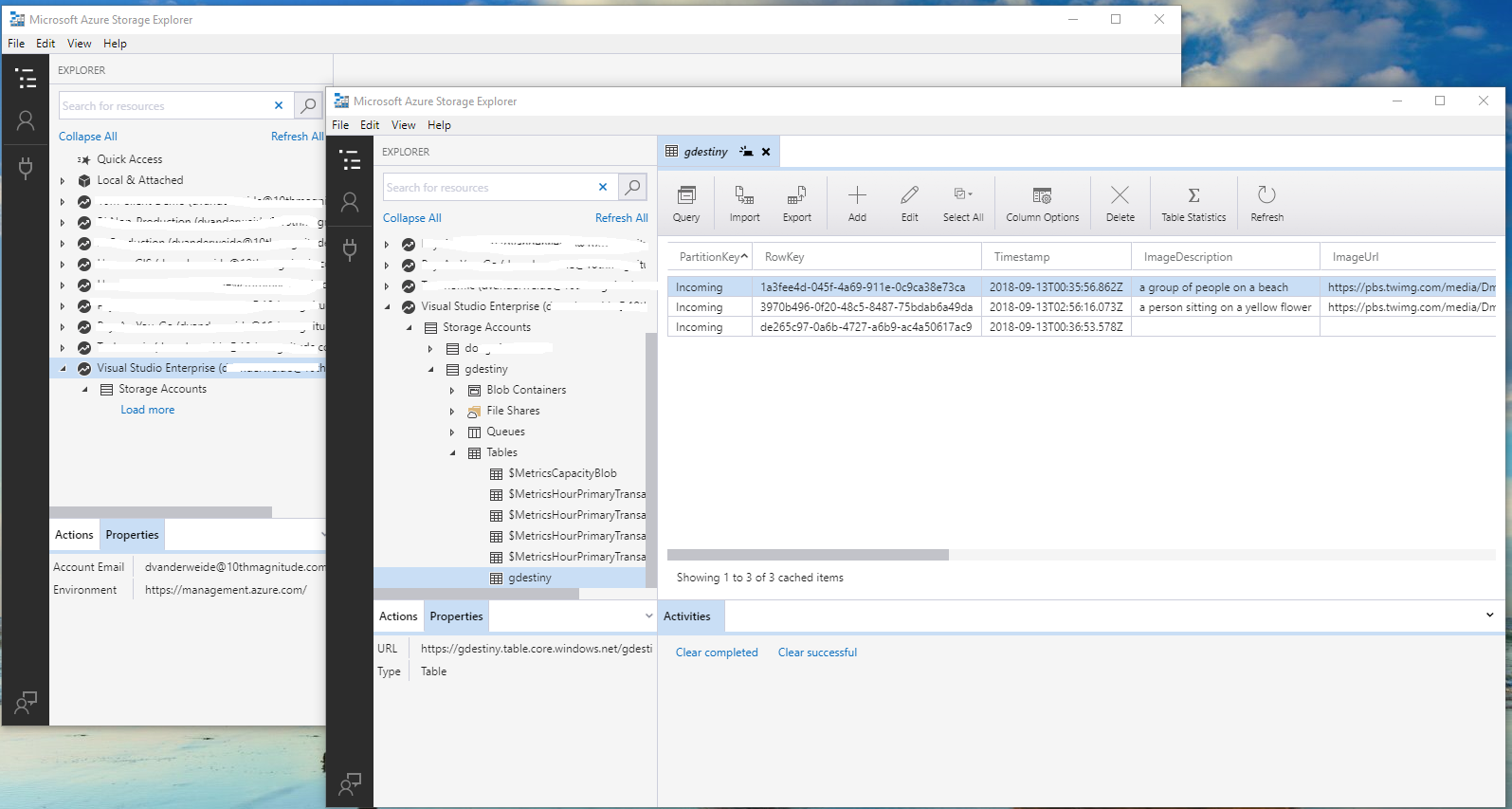
I've stumbled across a fix for this issue, at least for me.
- Start Storage Explorer.
- Choose File > New Window
- You should be able to select accounts in the new window.
My guess is the act of opening this second window correctly populates the secrets variables that are not instantiated in the original window. The original window will continue to throw the cannot read property 'connectionString' of undefined error, but the new window works correctly.
Hope this helps.
dougvdotcom
on 14 Sep 2018
I am probably the only Windows user with this issue, I fixed by rolling back to a previous version of the storage explorer. I am going to try the fix submitted by dougvdotcom.
jinxron
on 14 Sep 2018
Exact same issue for me.
I can only use this if i follow @dougvdotcom steps
 thivy
on 15 Sep 2018
thivy
on 15 Sep 2018
Another Windows 10 user here. This solution @dougvdotcom allows you to see previous connections, but any new ones added when the new windows is active are not saved.
I tried to remove all traces of the app, but I still could not get it to work.
 btmi
on 16 Sep 2018
btmi
on 16 Sep 2018
All of sudden, it's not working me as well.. Issue prevails since last week.
 gaurav7961
on 17 Sep 2018
gaurav7961
on 17 Sep 2018
only works if I follow @dougvdotcom steps
gaurav7961
on 17 Sep 2018
only works if I follow @dougvdotcom steps
Same here, Windows 10 Pro OS build 17758.1, Storage Explorer 1.4.1
 lennertcc
on 18 Sep 2018
lennertcc
on 18 Sep 2018
Getting the same issue on windows 10. Storage Explorer 1.4.2
Let me know how to resolve it. Re-install not works.
 pawanplus
on 24 Sep 2018
pawanplus
on 24 Sep 2018
Getting the same issue on windows 10. Storage Explorer 1.4.2
Let me know how to resolve it. Re-install not works.
please follow @dougvdotcom steps
gaurav7961
on 24 Sep 2018
Getting the same issue on windows 10. Storage Explorer 1.4.2
Let me know how to resolve it. Re-install not works.please follow @dougvdotcom steps
Thanks, It works. But after closing and starting Storage Explorer again it doesn't persist the connection setting.
Every time needs to add the new connection.
pawanplus
on 24 Sep 2018
o
Yeah, it's same for me.
gaurav7961
on 24 Sep 2018
Hey folks, we're looking into this issue. But since we're having a hard time reproduce the error on our end, we need your help. Any information you can provide will be helpful. Please follow the steps outline in previous comments and report the values you find in the variables mentioned. Particularly:
craxal
on 24 Sep 2018
@jorgehpm, afraid a migration tool isn't going to work well. The problem is a lack of subscription information. We can't easily retrieve that information given an arbitrary Quick Access item.
I've been looking through our code and noticed a difference depending on the source node. Everyone, please check if you've made Quick Access items from the following nodes:
- A storage account node via subscription (sign in)
- A storage account node via SAS or key connection (Local & Attached)
- A blob container/table, etc. via subscription
- A blob container/table etc. via SAS or key connection
Each of these source nodes generates different Quick Access information. Items from container nodes in particular may be the source of the issue here. This is why I want to know what you're getting in the producerArgs variable.
craxal
on 24 Sep 2018
Hey folks, we're looking into this issue. But since we're having a hard time reproduce the error on our end, we need your help. Any information you can provide will be helpful. Please follow the steps outline in previous comments and report the values you find in the variables mentioned. Particularly:
I cannot express how annoying it is to 1. not have Storage Explorer as an open source tool; this problem would have been resolved by now if it were and 2, work through your steps to assist you in troubleshooting, which is overly laborious.
I am performing these steps in Storage Explorer 1.4.2, which still has this problem.
passwordKey is an Object with these properties: account: app, service: Microsoft_StorageExplorer
encryptionKey is a string CCuDoOvRM6/AmKo4ryZFEZvwxdtfvj20U6uOovcSApRH4mIJ0NJhClImD5QGkxog
items is undefined
items.producerArgs does not exist because items is undefined
FWIW, I have never used the Quick Access list in Storage Exploder. I am only using my account list from signing in to Azure, and occasionally using storage account keys/names.
dougvdotcom
on 25 Sep 2018
Hey folks, we're looking into this issue. But since we're having a hard time reproduce the error on our end, we need your help. Any information you can provide will be helpful. Please follow the steps outline in previous comments and report the values you find in the variables mentioned. Particularly:
Hi @craxal, I can give you the steps to reproduce on the windows machine. I tried with one of the fresh machine and able to reproduce it.
First, install storage explorer and add blob account using account name and storage key.
Open it, access some file from the blob and close it.
Now install CCleaner software on the same machine and clear all cache and registry.
Start explorer again. Voila !!
pawanplus
on 25 Sep 2018
The same happens with version 1.4.2
The suggestion of @dougvdotcom works perfectly, yet is a bit uncomfortable.
 rliberoff
on 25 Sep 2018
rliberoff
on 25 Sep 2018
@pawanplus, thanks for those repro steps. Can you provide some clarification on how you clear the cache and registry? More specifically, can you determine if CCleaner removes the "Micrososft_StorageExplorer/app" key from the credentials store?
@dougvdotcom:
We understand your frustrations, and we're doing our best to get to the bottom of these issues to get everyone unstuck. We're glad to hear you'd be happier if Storage Explorer was open source! Open source definitely something we're interested in, although getting there is not a trivial task. Please contribute to the discussion (#138).
Each window has its own local storage, which is where we store data for local connections. The workaround probably works, because there are no items in the second window's storage to decrypt and parse.
Are there any errors in your F12 console window that suggest an error in JSON parsing or decryption (make sure you're getting Errors, Warnings, and Info output)? Is it possible to check the return value at line 15 of ConfidentialStore.js?
craxal
on 25 Sep 2018
@pawanplus, thanks for those repro steps. Can you provide some clarification on how you clear the cache and registry? More specifically, can you determine if CCleaner removes the "Micrososft_StorageExplorer/app" key from the credentials store?
@dougvdotcom:
We understand your frustrations, and we're doing our best to get to the bottom of these issues to get everyone unstuck. We're glad to hear you'd be happier if Storage Explorer was open source! Open source definitely something we're interested in, although getting there is not a trivial task. Please contribute to the discussion (#138).
Each window has its own local storage, which is where we store data for local connections. The workaround probably works, because there are no items in the second window's storage to decrypt and parse.
Are there any errors in your F12 console window that suggest an error in JSON parsing or decryption (make sure you're getting Errors, Warnings, and Info output)? Is it possible to check the return value at line 15 of
ConfidentialStore.js?
@craxal CCleaner claims that it removes the temporary and unused cache, also the bad registry values. I ran it to remove the bad data. But just after that storage explorer stops working.
pawanplus
on 26 Sep 2018
I found another workaround. The uninstall process does does not remove all of the files in the local storage, and so I found that on Windows at least if I uninstall MASE and remove the folders that are in C:\Users[username]\AppData\Roaming\Microsoft Azure Storage Explorer and reinstall, things were OK again.
btmi
on 26 Sep 2018
I found another workaround. The uninstall process does does not remove all of the files in the local storage, and so I found that on Windows at least if I uninstall MASE and remove the folders that are in C:\Users[username]\AppData\Roaming\Microsoft Azure Storage Explorer and reinstall, things were OK again.
Did not work for me. C:\Users[username]\AppData\Roaming\Microsoft Azure Storage Explorer was already empty (except for a logs folder) and after reinstall the problem persists.
lennertcc
on 26 Sep 2018
Followed the troubleshooting guide and deleted %appdata%\storageexplorer folder to get rid of this problem.
https://docs.microsoft.com/en-us/azure/storage/common/storage-explorer-troubleshooting
 Orca88
on 27 Sep 2018
Orca88
on 27 Sep 2018
Followed the troubleshooting guide and deleted %appdata%\storageexplorer folder to get rid of this problem.
https://docs.microsoft.com/en-us/azure/storage/common/storage-explorer-troubleshooting
Same. Deleting the StorageExplorer folder in AppData/Roaming has eliminated this error for me in version 1,4,2.
dougvdotcom
on 28 Sep 2018
Followed the troubleshooting guide and deleted %appdata%\storageexplorer folder to get rid of this problem.
https://docs.microsoft.com/en-us/azure/storage/common/storage-explorer-troubleshootingSame. Deleting the StorageExplorer folder in AppData/Roaming has eliminated this error for me in version 1,4,2.
Works for me also. 💯
pawanplus
on 28 Sep 2018
Followed the troubleshooting guide and deleted %appdata%\storageexplorer folder to get rid of this problem.
https://docs.microsoft.com/en-us/azure/storage/common/storage-explorer-troubleshootingSame. Deleting the StorageExplorer folder in AppData/Roaming has eliminated this error for me in version 1,4,2.
Works for me also. 💯
Works for me. +1.
 tmutton
on 28 Sep 2018
tmutton
on 28 Sep 2018
Opening a new window on a failing, but running instance or removing all the files and subdirectories from %appdata%\storageexplorer seem to do the trick.
 HQJaTu
on 30 Sep 2018
HQJaTu
on 30 Sep 2018
Deleting %AppData%\StorageExplorer is the permanent workaround for me too. The temporary workaround is to click New Window from within the erroneous window.
 whoisjohngalt83
on 4 Oct 2018
whoisjohngalt83
on 4 Oct 2018
If there continue to be problems, let us know! Be sure to provide specific repro steps so that we can address the issue more quickly. Thanks for your patience!
craxal
on 15 Oct 2018
Hi, same problem here on Arch Linux, trying to use 1.4.4
Tried to remove ~/.config/StorageExplorer many times and new Window tip from @dougvdotcom and nothing work yet. When I try to connect with 'storage account name and key' it starts to show the message error and doesn't load the tree under the 'local & attached' anymore.
here is the variables that you asked @craxal:
passwordKey = { service: "Microsoft_StorageExplorer", account: "app" }encryptionKey = "n1OuG9Zacl6PvyX8ieWKKsm+x2NCoU/9zz0jWxZPm7wHJNS31bMH54z1qIMNDWG0"settingValue = ""items = undefined
the __generator function on QuickAccessManager.js:129 receives this as first argument. inspecting the this._settingManager._storageManager._storage it has this json:
{
  "Standalone_EndUserLicenseAgreementDialog_v1": "{\"acceptedEula\":true}",
  "Standalone_NetPromoterScoreDialog_v1": "{\"launchCount\":1}",
  "Standalone_RolloutPercentile_v1": "{\"default\":{\"name\":\"default\",\"percentage\":56},\"null\":{\"name\":null,\"percentage\":100},\"XXXXXXXX-XXXX-XXXX-XXXX-XXXXXXXXXXXX\":{\"name\":\"XXXXXXXX-XXXX-XXXX-XXXX-XXXXXXXXXXXX\",\"percentage\":100}}",
  "Standalone_Telemetry_OptInSetting": "true",
  "Standalone_Telemetry_UserId": "\"XXXXXXXX-XXXX-XXXX-XXXX-XXXXXXXXXXXX\"",
  "Standalone_VersionOnLastRun_v1": "\"1.4.4\"",
  "StorageExplorer.AzureSubscriptionsManager.subscriptionCache": "{}",
  "StorageExplorer_CustomConnections_Accounts_v1": "[\"MY ACCOUNT NAME\"]"
}
 jampow
on 17 Oct 2018
jampow
on 17 Oct 2018
Followed the troubleshooting guide and deleted %appdata%\storageexplorer folder to get rid of this problem.
https://docs.microsoft.com/en-us/azure/storage/common/storage-explorer-troubleshootingSame. Deleting the StorageExplorer folder in AppData/Roaming has eliminated this error for me in version 1,4,2.
Works for me also. 💯
Works for me. +1.
Works for me on version 1.5.0
 matheus-santoro
on 28 Nov 2018
matheus-santoro
on 28 Nov 2018
This still appears to be an issue in 1.6.0 until you either open a new window or remove the StorageExplorer folder in AppData/Roaming as mentioned above. I'm not convinced the issue should've been moved to 'Done' just yet.
 moseleycj
on 7 Dec 2018
moseleycj
on 7 Dec 2018
I've had the same issue on macOS. This seems to be what triggered the issue for me. This is a work-owned MacBook. Our IT department uses Centrify, which I understand to help enforce AAD policies on macOS. My AAD password expired and I was forced to change it on my Mac. Part of that process is changing the password for Keychain as well. I don't remember for sure, but I think I was unable to change my keychain password so I just opted to make a new keychain file. Hopefully some of the notes here will help you to reproduce.
 StilgarISCA
on 7 Dec 2018
StilgarISCA
on 7 Dec 2018
I found another workaround. The uninstall process does does not remove all of the files in the local storage, and so I found that on Windows at least if I uninstall MASE and remove the folders that are in C:\Users[username]\AppData\Roaming\Microsoft Azure Storage Explorer and reinstall, things were OK again.
Worked for me, Folder name is different, I guess it was StorageExplorer rather than Microsoft Azure Storage Explorer. I faced the issue, when I changed my password. But now its gone. Thanks
 alizaib
on 20 Dec 2018
alizaib
on 20 Dec 2018
Why the credentials are not persistent? Can someone tell me where it stores the credential in registry?
 shivansh21
on 18 Feb 2019
shivansh21
on 18 Feb 2019
@shivansh21 Credentials are encrypted and stored in the OS's credential store. For Windows, that's Credentials Manager. For Mac, that's Keychain.
This is an old bug. Please open a new one using a bug template.
craxal
on 19 Feb 2019
Related issues
 spboyer
·
4Comments
spboyer
·
4Comments
 OffColour
·
4Comments
OffColour
·
4Comments
 olgakorichkovskaya
·
4Comments
olgakorichkovskaya
·
4Comments
 riazjahangir
·
4Comments
riazjahangir
·
4Comments
 sholman
·
3Comments
sholman
·
3Comments
Most helpful comment
I've stumbled across a fix for this issue, at least for me.
My guess is the act of opening this second window correctly populates the secrets variables that are not instantiated in the original window. The original window will continue to throw the
cannot read property 'connectionString' of undefinederror, but the new window works correctly.Hope this helps.