Azurestorageexplorer: Azure Storage Explorer hangs at "Waiting for authentication"
Storage Explorer Version: 1.0.0
Platform: macOS
Architecture: x64
Build Number: 20180415.2
Commit: 5d603052
Regression From: 0.9.6
Steps to Reproduce:
- Open Azure Storage Explorer
- Click on the human icon, click on "Sign In ..."
Expected Experience:
Show a dialog box to sign in to my Azure account.
Actual Experience:
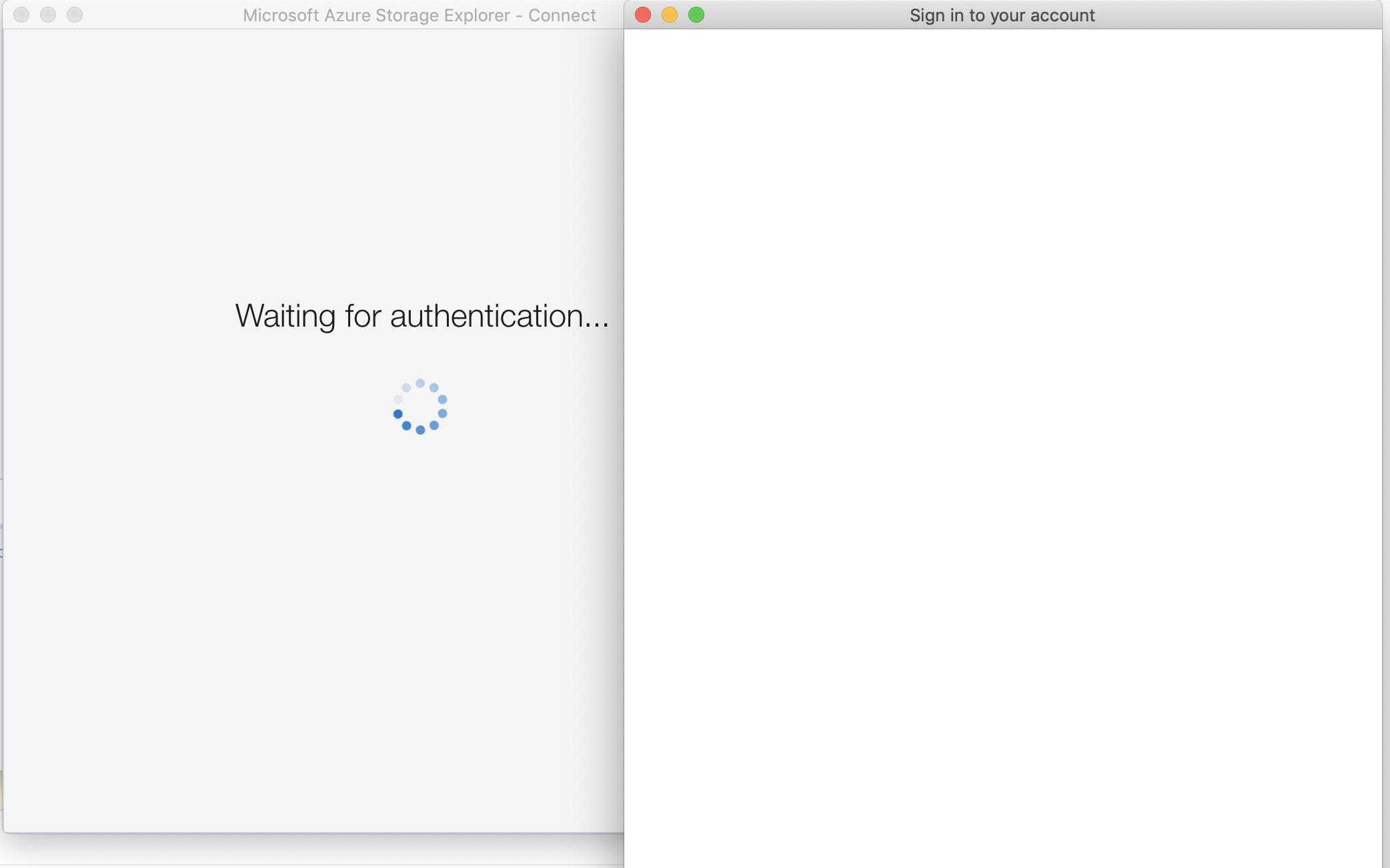
Application hangs at "Waiting for authentication".

 deepix
All 14 comments
Hey @deepix , can you try the following:
- Close Storage Explorer
- Open keychain (cmd + space, type in keychain, hit enter)
- Select the "login" keychain
- Click the padlock icon to lock the keychain (the padlock will animate to a locked position when complete, it may take a few seconds depending on what apps you have open)

- Launch Storage Explorer
- A pop up should appear saying something like "Service hub wants to access the keychain", enter your Mac admin account password and click Always Allow (or Allow if Always Allow is not available)
- Try to sign in
 MRayermannMSFT
on 2 May 2018
MRayermannMSFT
on 2 May 2018
Thanks a lot @MRayermannMSFT, that worked. If this can be documented somewhere, perhaps in a Troubleshooting page, that'd be fantastic.
Thanks again for the quick turnaround: this was getting to be quite critical.
deepix
on 2 May 2018
Yes, sorry it isn't there. It's been on my todo list to add it to our troubleshooting page for a while now. I'll get that done today. 😄 Thanks!
MRayermannMSFT
on 2 May 2018
This issue happens because your keychain is open for some reason and not closed.
So, open the Mac Application: Key Chain Access.
And then select the lock icon and close it.
And now restart the Storage Explorer.
 dbiswas
on 31 Jul 2019
dbiswas
on 31 Jul 2019
This still issue persists after locking keychain. The authentication screen gets stuck with "taking to your organization's login page" and then a blank screen for ever never prompting for the organization authentication.
az login works similar way on my macos. It is only storage explorer that gets stuck.
 alpeshpandya
on 10 Aug 2019
alpeshpandya
on 10 Aug 2019
I am facing a similar issue to the user @alpeshpandya above. Locking or Unlocking the keychain seems to make no difference in my case and it is still stuck on Waiting for Authentication.
System Details:
OS X Version: 10.15.1 (19B88)
Storage Explorer v1.11.0
 voronoi
on 14 Dec 2019
voronoi
on 14 Dec 2019
Still facing the same issue as above even after upgrading to Storage Explorer v1.11.1
voronoi
on 17 Dec 2019
I'm having the same exact issue as @alpeshpandya.
I tried deleting the folders inside Users /
Also tried deleting the keyChain associated with Storage Explorer.
System Details:
macOS: 10.15.2
Storage Explorer v1.11.1 and also tried with v1.11.2
 aleacosta5
on 3 Jan 2020
aleacosta5
on 3 Jan 2020
Same issue as @aleacosta5 here.
Edit: scratch the above. After numerous attempts and screwing around with the keychain, I finally got the pop up for access to keychain. After logging in, it works fine!
 Big0Bertha
on 11 Jan 2020
Big0Bertha
on 11 Jan 2020
For anyone reading this, I solved this by simply opening keychain (and doing nothing), and re-authenticating.
Regardless, this should still be considered an issue by Microsoft, and issue should not be marked resolved.
Having to "fidget" with keychain worries me greatly. If anything, just update the app to say "Cannot authenticate due to keychain access, please open keychain to resume", or something.
 joeyslack
on 14 Mar 2020
joeyslack
on 14 Mar 2020
Hey @deepix , can you try the following:
- Close Storage Explorer
- Open keychain (cmd + space, type in keychain, hit enter)
- Select the "login" keychain
- Click the padlock icon to lock the keychain (the padlock will animate to a locked position when complete, it may take a few seconds depending on what apps you have open)
- Launch Storage Explorer
- A pop up should appear saying something like "Service hub wants to access the keychain", enter your Mac admin account password and click Always Allow (or Allow if Always Allow is not available)
- Try to sign in
I am getting this issue in Windows 10. How do I resolve this?
 shary-sharath
on 31 Aug 2020
shary-sharath
on 31 Aug 2020
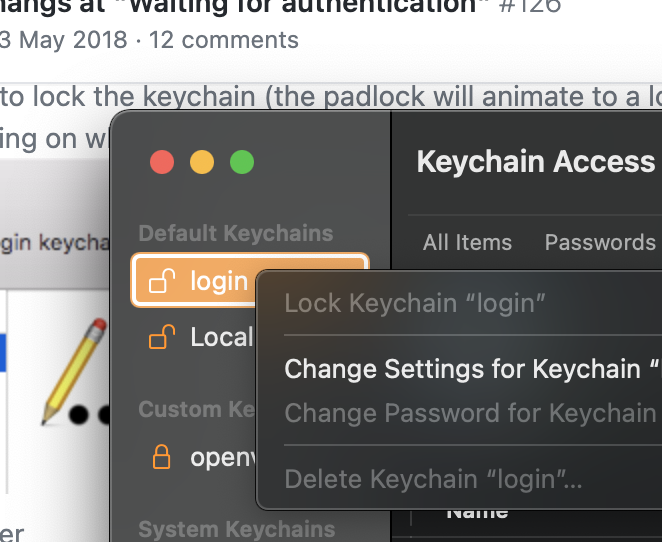
Given that the login keychain is unlocked on login...... how is this not fixed? In big sur I cannot even lock the login keychain... srsly?
 knightian
on 28 Nov 2020
knightian
on 28 Nov 2020
Yup, same as @knightian here. Can't lock login from Keychain Access any more.
This needs a fix, it's been open for over 2 years...
 tadywankenobi
on 30 Dec 2020
tadywankenobi
on 30 Dec 2020
Actually, I just realised I was running the application from the downloads folder. Moved it into Applications and at the same time, set the Keychain Access to lock after 1 minute and then waited a few. When I opened Storage Explorer this time, it asked me for my system password and connected to Azure. Still have permissions issues, but that looks like something else...
tadywankenobi
on 30 Dec 2020
Related issues
 niklas-e
·
4Comments
niklas-e
·
4Comments
 eosho
·
3Comments
eosho
·
3Comments
 alaendle
·
5Comments
alaendle
·
5Comments
 ziesemer
·
3Comments
ziesemer
·
3Comments
 jorgklein
·
4Comments
jorgklein
·
4Comments
Most helpful comment
Hey @deepix , can you try the following: