Azure-pipelines-agent: Agent not working on MacOS Catalina Beta (System.Private.CoreLib.dll)
Agent Version and Platform
Version of your agent? 2.158.0
OS of the machine running the agent? OSX Catalina 10.15 Beta (19A558d)
What's not working?
When running the agent, the following error pops up:
“System.Private.CoreLib.dll” can’t be opened because its integrity cannot be verified. This software needs to be updated. Contact the developer for more information.
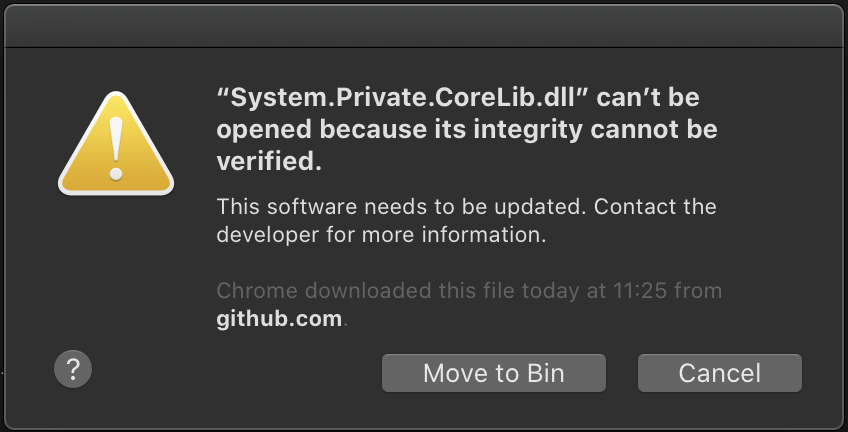
Agent and Worker's Diagnostic Logs
There are no logs, because the worker doesn't even start
 larsf96
All 25 comments
I found a workaround here can make it work.
When the window (or similar content) pop up:
- Open System Preferences
- Security & Privacy
- Click Cancel on the pop-up window
- There would be a related content show under lower section of General tab
- Click Allow
This would able to keep the vsagent working, however, it would require the confirmation of EVERY SINGLE .dll FILE.
As my personal test, it requires confirmation on the first time of loading the .dll file. Once it confirmed, then it works normally.
You may need to run on every situation, because in some situation, the vsagent may not load some .dll file.
Tested on the Catalina release edition.
 hajuuk
on 8 Oct 2019
hajuuk
on 8 Oct 2019
@hajuuk Thanks, seems to be working fine.
It's also important to move the vsts agents folder to e.x. the user's home folder as the download folder seems to be protected in Catalina, I couldn't get it working in that folder.
larsf96
on 8 Oct 2019
I had to get 3 work-agents up and running..... this was a pain! I accidentally tapped Move to Bin on one and had to start all over. I'm still getting it asking me random things on occasion. I'm hoping by the time I have the build machine totally complete I have hit every edge case.
 Sethmr
on 10 Oct 2019
Sethmr
on 10 Oct 2019
I had to get 3 work-agents up and running..... this was a pain! I accidentally tapped
Move to Binon one and had to start all over. I'm still getting it asking me random things on occasion. I'm hoping by the time I have the build machine totally complete I have hit every edge case.
I found the following command which can enable "Allow apps downloaded from Anywhere".
sudo spctl --master-disable
As my issue was solved before, so I unable to test this command to ensure it working or not.
hajuuk
on 14 Oct 2019
I start run.sh from the terminal.
My fix was to set the terminal to developer mode and therefore allow any apps to start.
spctl developer-mode enable-terminal
Then in Settings -> Security & Privacy -> Developer Tools
- unlock
- set the tick on "Terminal"
Now I can start the agent again
EDIT:
Although I can start the client. It does not connect to the server and therefore is practically useless.
 htho
on 18 Oct 2019
htho
on 18 Oct 2019
I'm having the same issue here. Agent is started but connect see it on VSTS.
 KelvinJin
on 22 Oct 2019
KelvinJin
on 22 Oct 2019
Okay, I printed out the error log at ~/Library/Logs/vsts.agent.sevenwestmedia.Sydney-Build-Box/stderr.log and it says shell-init: error retrieving current directory: getcwd: cannot access parent directories: Operation not permitted.
This issue only happens when you use service to launch VSTS agent.
After googling a bit, I found a temporary solution. You'll need to grant /bin/bash the Full Disk Access in your Security & Privacy setting. After that, start the agent using ./svc.sh start will succeed. You can check the status by using ./svc.sh status and see if the second number from the left is 0.
KelvinJin
on 23 Oct 2019
Okay, I printed out the error log at
~/Library/Logs/vsts.agent.sevenwestmedia.Sydney-Build-Box/stderr.logand it saysshell-init: error retrieving current directory: getcwd: cannot access parent directories: Operation not permitted.This issue only happens when you use service to launch VSTS agent.
After googling a bit, I found a temporary solution. You'll need to grant
/bin/bashthe Full Disk Access in your Security & Privacy setting. After that, start the agent using./svc.sh startwill succeed. You can check the status by using./svc.sh statusand see if the second number from the left is0.
Basically, I'm not sure which folder you're installed the vstsagent. I simply created a folder under the current user's home folder, nothing wrong when running as a service.
And the second number is '0' when I check with ./svc.sh status
Be careful of full access rights, as such a high level of permissions can pose a significant security risk as a compile server.
hajuuk
on 23 Oct 2019
@hajuuk Oh okay. I should have read your comment more carefully. I put my agent under ~/Documents/vsts-agent instead of ~/vsts-agent. Maybe that's why I'm having these issues.
Well, thanks for replying and gladly it's working for you as well!
KelvinJin
on 23 Oct 2019
Were you able to get the agent running as a service?
_./svc.sh start_ shows me status "0" but the agent reports itself as offline.
Running _./run.sh_ works fine and the agent reports itself as online.
 ghost
on 23 Oct 2019
ghost
on 23 Oct 2019
@AlexCertsure Yes. You need to check the status code by running ./svc.sh status after you run start. It seems the initial code is 0 indeed but soon after it turns to non 0.
KelvinJin
on 23 Oct 2019
@AlexCertsure Yes. You need to check the status code by running
./svc.sh statusafter you run start. It seems the initial code is 0 indeed but soon after it turns to non 0.
So the status code is now gone... I get - 78 vsts.agent.***.*** when running ./svc.sh status but the agent is still reported as offline?
ghost
on 23 Oct 2019
@AlexCertsure It’s not gone. It’s 78. The first code is process number. You need to check the error logs. The path is defined in the launch agent plist file.
KelvinJin
on 23 Oct 2019
@AlexCertsure It’s not gone. It’s 78. The first code is process number. You need to check the error logs. The path is defined in the launch agent plist file.
logs didn't have anything in them to give an idea with what was going wrong.
I ended up completely removing the agent and any associated files (the .plist was the important one), reinstalled from fresh and everything is working now.
Thanks for your help @KelvinJin
ghost
on 23 Oct 2019
Hi all,
Just faced the same issue, and since I've got things working (rather quickly, I might add), I thought I'd share the experience.
What basically seems to be the issue here is that since the DevOps-agent ships with its own .Net-assemblies, these assemblies cannot be verified as to the publishing developer, meaning they cannot be notarized. Now there's a couple of ways in which you can still ensure that they are notarized, and the way I initially went about this is as follows:
- Run the
config.sh-script, get prompted with the one after the other security warning for various DLLs. - For each of these DLLs, select "Cancel" rather then moving them to the trash bin.
- Then, from the "General"-tab in the "Security & Privacy"-panel in the "System Preferences", select to "Always Allow" the specific DLL. (I'm not sure whether this makes a difference, but I had my advanced settings unlocked)
- Once no more security warnings pop-up, cancel the configuration task, and repeat.
- This time around, you should get the option to "Open" the assemblies that you previously already allowed. Command-click on them to open them and remember this choice.
- Repeat again until you get no more security warnings.
Now you should at least be able to configure and install the agent. However, the same issue then re-occurs when you try to start the service. In this case, just start, status, stop and repeat, doing the same as above - i.e. "always allow[ing]" and "[always] open[ing]" the files prompted about. Eventually, this should allow you to run the agent service, and the service should then be able to connect to DevOps without issues. If there are still issues connecting, then you likely haven't dealt with all security warnings yet...
But...? Isn't there an easier way to deal with this
There is, although I only found this out later and as such haven't tested it. I did apply this method on top of my own, however, to ensure that I wouldn't be bothered by any other security prompts.
Described here it turns out that the Gatekeeper that triggers the security prompts uses a special file system attribute to track whether an item is quarantined or not. This attribute is appropriately called com.apple.quarantine. Removing it from a file will prevent Gatekeeper from triggering a security prompt for that file. In other words, from your agent-directory:
cd binxattr -d com.apple.quarantine *.dll
And that should have exactly the same effect as the whole procedure above!
_NB: once you've got the agent running, be prepared that similar security messages may pop-up for other tools you might have installed as part of your CI - including fastlane. The same approach as outlined above can luckily be used to resolve these issues too, though._
 AlexanderMelchers
on 29 Oct 2019
AlexanderMelchers
on 29 Oct 2019
what does work is, like in Windows, once you download the GZ file... vsts-agent-osx-x64-2.159.2.tar.gz
xattr -c vsts-agent-osx-x64-2.159.2.tar.gz
Then un-tar and run config normally with
tar xvfz vsts-agent-osx-x64-2.159.2.tar.gz
shouldn't get the Gatekeeper dialog popup
 cicorias
on 1 Nov 2019
cicorias
on 1 Nov 2019
Oh my god, guys, please help, if I accidentially put this file (System.Private.CoreLib.dll) into trash, how can I restore it?
I have no "Put Back" menu item in context menu and no way to look in which folder this file was.
Working on it about 2 hours...
 picolino
on 12 Nov 2019
picolino
on 12 Nov 2019
Сould not recover deleted file.
I had to download a new version of the agent and replace the existing one with this version. It's working now.
picolino
on 12 Nov 2019
May I query why this is closed please? The issue still exists in Catalina and the manual workaround of:
- Find this issue on github
- Apply the manual step
xattr ...
Is a workaround, not a fix?
 chrisfcarroll
on 6 Mar 2020
chrisfcarroll
on 6 Mar 2020
@chrisfcarroll - I apologize. I saw the last comment about "It's working now" and thought the issue was resolved.
There is an easier work around. If you use 'wget' to download the agent binary instead of Safari, you will not have this issue.
We are currently working on getting the agent properly signed for Catalina.
@stephenmichaelf - Can we include this as part of your work on signing?
 jtpetty
on 6 Mar 2020
jtpetty
on 6 Mar 2020
Thanks!
:-)
chrisfcarroll
on 6 Mar 2020
xattr -c vsts-agent-osx-x64-2.159.2.tar.gz works well, can you put this solution higher in the discussion so that we don't have to read everything ? or add this in the Azure documentation to definitively close the issue.
 dbaelipro
on 15 Apr 2020
dbaelipro
on 15 Apr 2020
@dbaelipro take a look to see if this is enough: https://github.com/MicrosoftDocs/azure-devops-docs/pull/7951
cicorias
on 15 Apr 2020
The workaround is fine, but shouldn’t you get the complete fix ?
1/ « getting the agent properly signed for Catalina »
2/ remove xattr comment when done
Thank you
dbaelipro
on 21 Apr 2020
This is even a bigger issue with macOS 11.1 Big Sur. Could you please code sign all the DLLs for the Mac agent properly so we do not need to jump through hoops and disable some security settings? Thanks in advance!
 Pegolon
on 16 Dec 2020
Pegolon
on 16 Dec 2020
Related issues
 Silthus
·
41Comments
Silthus
·
41Comments
 gregpakes
·
43Comments
gregpakes
·
43Comments
 toolboc
·
51Comments
toolboc
·
51Comments
 gonzaloluna
·
69Comments
KelvinJin
·
54Comments
gonzaloluna
·
69Comments
KelvinJin
·
54Comments
Most helpful comment
what does work is, like in Windows, once you download the GZ file...
vsts-agent-osx-x64-2.159.2.tar.gzThen un-tar and run config normally with
shouldn't get the Gatekeeper dialog popup