Windowscommunitytoolkit: customizable CameraCaptureUI and ImageCropping control
UWP does have powerfull CameraCaptureUI API. Unfortunatelly, the UI isn't very customizable. For example I was not able to set the cropping rect to detected face bounds. I suggest to add set of controls and helpers to work with camera to UWP Community Toolkint.
It should meet this requirement:
- Display preview stream and handle different rotations and oriantations
- Provide API to get bounds of preview stream within control I mean without the black border)
- Face tracking with customizable UI
Optional and customizable camera controls with different settings, e.g. switching front and back facing cameras
Cropping Control. I suggest that the control does not require ImageSource, but can show the cropping UI on top of any FrameworkElement
<toolkit:CroppingControl IsZoomEnabled="True" Cropping="CroppingControl_Cropping">
   <Image Source="Assets/MyPicture.png" />
</toolkit:CroppingControl>
What would you say?
<Grid Background="{TemplateBinding Background}">
   <toolkit:CameraPreview x:Name="PART_CameraPreview"
                                          Source="{TemplateBinding Source}" />

   <ItemsControl x:Name="PART_DetectedFacesItemsControl"
                           IsHitTestVisible="False"
                           ItemsSource="{TemplateBinding DetectedFaces}"
                           DataTemplate="{TemplateBinding DetectedFaceTempate}"
                           Style="{StaticResource DetectedFacesItemsControlStyle" />

   <Button Content="{StaticResource ToggleCameraIcon}"
                 Command="{Binding ToggleCameraCommand, ElementName=PART_CameraPreview}"
                 HorizontalAlignment="Left" VerticalAlignment="Top"
                 Style="{StaticResource CameraControlButton} />

   <RelativePanel HorizontalAlignment="Left" VerticalAlignment="Center">
       <Slider  x:Name="ZoomSlider"
                    Orientation="Vertical" Value="{Binding Zoom, ElementName=PART_CameraPreview}" />
      <Button Content="{StaticResource PlusIcon}"
                    Command="{Binding ZoomInCommand, ElementName=PART_CameraPreview}"
                    RelativePanel.Above="ZoomSlider"
                    Style="{StaticResource CameraControlButton} />
      <Button Content="{StaticResource MinusIcon}"
                    Command="{Binding ZoomOutCommand, ElementName=PART_CameraPreview}"
                    RelativePanel.Below="ZoomSlider"
                    Style="{StaticResource CameraControlButton} />
   </RelativePanel>

  <Button Command="{Binding CaptureCommand, ElementName=PART_CameraPreview}"
                 .... />
</Grid>
 Liero
Liero
All 24 comments
Do you mind creating an Uservoice entry?
https://wpdev.uservoice.com/forums/110705-universal-windows-platform/category/193402-uwp-community-toolkit
See also #895
 deltakosh
on 9 Feb 2017
deltakosh
on 9 Feb 2017
I've created new idea on user voice: Customizable CameraCaptureUI including ImageCropping, but I believe this was also asked here Improve CameraCaptureUI ON Windows 10 Desktop
Liero
on 9 Feb 2017
It's a good idea, but needs a lot work. Even just re-design the current UI would be a lot. I am not even counting customizable part :) It looks like a simple camera area with a few buttons here and there but the functionality behind is crazy.
I'd love to work on this if we agree to implement it in the toolkit though.
 bkaankose
on 11 Feb 2017
bkaankose
on 11 Feb 2017
"it needs a lot of work" - that's exactly why it should be part of Community Toolkit :)
I definitelly can contribute. I'm working on an larger solution and something like this will be part of it. I believe I could then make it public.
Liero
on 12 Feb 2017
I believe we should consider this for 2.0 release
 hermitdave
on 3 Mar 2017
hermitdave
on 3 Mar 2017
I see a lot of tractions on the second Uservoice. I'm with you @hermitdave
deltakosh
on 6 Mar 2017
When I was implementing custom solutions that uses camera based on uwp samples, I found these areamost difficult:
Transformation: There are multiple tranformations applied to raw camera stream it's displayed in the UI. It's basically, Rotation, Mirroring, Scale and Translation (LetterBoxing). Some of the tranfsormations are applied automatically (Scale, Translation) and some needs to be applied manually.
When we need to draw something on top of the PreviewElement, e.g. bounds of detected faces, we need to apply the transform to coordinates relative to the raw camera resolution. In current UWP Samples, this transformation is divided into multiple places and I found it very difficult to understand and potentionally to customize.In XAML, there's GeneralTransform class, that perfectly suits for these scenarios. GeneralTransform instance that I can reuse helps to avoid violation of DRY (e.g. repeating code like if(_isMirroring)) and is IMHO much easier to read. I suggested helper class simmilar to CameraRotationHelper, see my [suggestion] (https://github.com/Microsoft/Windows-universal-samples/issues/584#issuecomment-279669009)
```csharp
///
/// Applies rotation, mirroring and scale (letterboxing) so you can transform detected faces' bounds into coordinates relative to UI element
///
/// see VideoEncodingProperties
/// RenderSize of the CaptureElement
/// Front camera is mirroring by default
/// orientation of the display relative to camera
/// Rotation is not applied to external camera
public GeneralTransform TransformCameraToPreviewElement(Size previewResolution, Size renderSize, bool isMirroringPreview, SimpleOrientation cameraRotation)
{
var rotationDegrees = CameraRotationHelper.ConvertSimpleOrientationToClockwiseDegrees(cameraRotation);//source size with respect to display orientation var rotatedResolution = rotationDegrees % 180 == 0 ? previewResolution : new Size(previewResolution.Height, previewResolution.Width); // Get the rectangle that is occupied by the actual video feed (if aspect ratio of video is different from aspect ration of CaptureElement) var innerRect = GetInscribedRect(rotatedResolution, renderSize); var transform = new TransformGroup(); if (isMirroringPreview) { transform.Children.Add(new ScaleTransform { CenterX = previewResolution.Width / 2, CenterY = previewResolution.Height / 2, ScaleX = -1, }); // The rotation direction needs to be inverted if the preview is being mirrored rotationDegrees = (360 - rotationDegrees) % 360; } if (rotationDegrees != 0) { //rotate double translateX = rotationDegrees % 180 == 0 ? 0 : rotatedResolution.Width - rotatedResolution.Height / 2; double translateY = translateX; var rotate = new CompositeTransform { Rotation = rotationDegrees, CenterX = rotatedResolution.Width / 2, CenterY = rotatedResolution.Height / 2, }; transform.Children.Add(rotate); //and move TopLeft edge to (0; 0). var adjustPostition = transform.TransformBounds(new Rect(0, 0, previewResolution.Width, previewResolution.Height)); rotate.TranslateX = -adjustPostition.X; rotate.TranslateY = -adjustPostition.Y; } //fit into the preview rect transform.Children.Add(new CompositeTransform { ScaleX = innerRect.Width / rotatedResolution.Width, ScaleY = innerRect.Height / rotatedResolution.Height, TranslateX = innerRect.X, TranslateY = innerRect.Y, }); return transform;}
MediaCapture lifecycle and thread safety - it's quite difficult to figure out, when I can call what (e.g. MediaCapture.CapturePhotoToStreamAsync(). I mean something like, when faces are detected (which is done in separate thread), grab frame, crop it and safe to file. sounds easy, but when you take into account, that app can be suspended at any point, or that user can switch camera during cropping, the complexity grows and the exceptions usually aren't very helpfull.
if you somehow managed to keep your implementation in sync with uwp samples (and related MSDN docs), it would be totally awesome. Your solution would be then documented on MSDN. Or in other words, it would be real world implementation of MSDN examples and recommendations.
Liero
on 8 Mar 2017
@Liero I am currently reworking my personal 1Shot camera app to UWP and it has been a learning experience. The camera API is simple in ways but not so simple in others. Auto capture on face detection etc could be testing in ways. I could help out with capture part but cropping would need adding external dependencies. We will hopefully discuss this in coming days.
hermitdave
on 8 Mar 2017
I agree...we clearly need to work on this one for 2.0. A lot can be done
deltakosh
on 8 Mar 2017
Much time passed, but I have a suggestion about ImageCropper. As I understood, this issue's request is only limited to the camera. I think it's good if there will be a standalone ImageCropper control for cropping and some other related editing. Because not all images will be picked using the camera. Something like image cropper in built-in Photos app is good. It has options for aspect ratio. flipping and rotating.
 TheSETJ
on 17 Jun 2017
TheSETJ
on 17 Jun 2017
Agree, I think it makes sense to separate the functionality. Looks like we need to discuss this for 2.0.
 nmetulev
on 19 Jun 2017
nmetulev
on 19 Jun 2017
Is it going to be included in any future milestones? I mean a separate image editor (those kinds of edits that are necessary after picking an image, like cropping, rotating, etc).
TheSETJ
on 2 Dec 2017
Argh, I've forgotten about this one. Yes, we need to get this one in, but I don't believe we can get it in for 2.2 unless someone wants to pick it up. I'll prioritize this for future milestone.
nmetulev
on 4 Dec 2017
 lindexi
on 26 Nov 2018
lindexi
on 26 Nov 2018
Thank you! I am very happy to contribute to the uwp community.
 HHChaos
on 27 Nov 2018
HHChaos
on 27 Nov 2018
@HHChaos your control looks awesome. would be great to include this to add some redundancy to existing solution/dependency on MS Photo's
 Pinox
on 27 Nov 2018
Pinox
on 27 Nov 2018
@Pinox The MS Photo should be call with application communication service. But sometimes we do not want to the user level our application to go to other application. That is why we need this control.
lindexi
on 27 Nov 2018
@lindexi Agree. Just saying this also gives us an option for redundancy purposes. I also like the fact that the user can pick the aspect ratio in this new control and then resize according to that. This is a nice enhancement over Photo's app where the cropper does not obey the aspect ratio (visually) in image.
@HHChaos Would be really nice if the "circle" cropper can also be included , then it is a real alternative to Photo's functionality
Pinox
on 27 Nov 2018
@lindexi Agree. Just saying this also gives us an option for redundancy purposes. I also like the fact that the user can pick the aspect ratio in this new control and then resize according to that. This is a nice enhancement over Photo's app where the cropper does not obey the aspect ratio (visually) in image.
@HHChaos Would be really nice if the "circle" cropper can also be included , then it is a real alternative to Photo's functionality
That's a great idea! The "circle" cropper is essentially the case where the aspect ratio is equal to 1, but the circle looks better, and I'll try to add it.
HHChaos
on 28 Nov 2018
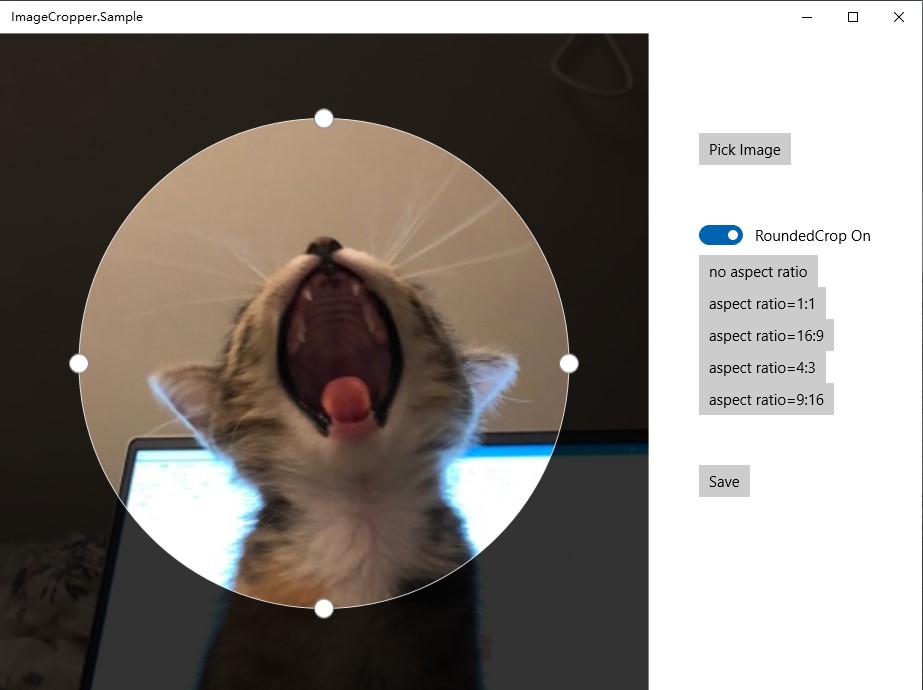
@Pinox Now added rounded cropper!
HHChaos
on 28 Nov 2018
@HHChaos Awesome , I also remember seeing a circle cropper natively in
https://github.com/UnigramDev/Unigram ( Under user profile in Settings - it's also a very nice implementation)

Pinox
on 28 Nov 2018
This is great. Feel free to submit a PR adding this control to the toolkit
nmetulev
on 4 Dec 2018
@nmetulev Thanks! I'm getting ready!
HHChaos
on 4 Dec 2018
@Liero going to close this as we've added both CameraPreview/CameraHelper and the ImageCropper control.
 michael-hawker
on 15 Feb 2019
michael-hawker
on 15 Feb 2019
Related issues
 shweaver-MSFT
·
3Comments
shweaver-MSFT
·
3Comments
 Kyaa-dost
·
3Comments
Kyaa-dost
·
3Comments
 miguelarcilla
·
4Comments
miguelarcilla
·
4Comments
 Joebeazelman
·
3Comments
michael-hawker
·
4Comments
Joebeazelman
·
3Comments
michael-hawker
·
4Comments
Most helpful comment
I believe we should consider this for 2.0 release