Vscode: Quick Fix feature not working - Really confused.
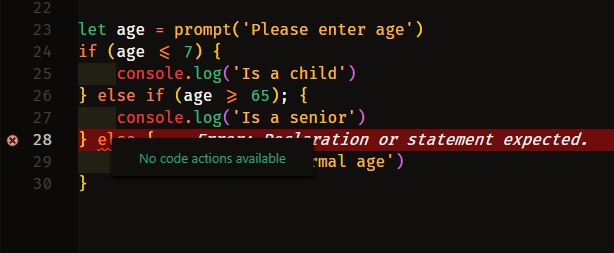
Hi, I am a bit new, and I have a simple code example on VS Code v1.32.3.
It says I have an error, ok fine..... but then when I chose the "Quick Fix" option
there is never a Quick Fix for this or any other thing in the past I tried to do a quick fix on.
Whats the point of having a Quick Fix feature, if it doesn't do anything ?
Im a bit confused.
.
This is the code I tried to do a quick fix on (its an extremely simple code):
.

When I try to fix, I get this:
.
 RobFosterNYC
All 26 comments
I also get this issue for Python but seems to apply to any language. I have the Python extension as well as Intellicode. Still a current issue with 1.33 (Insiders) with the latest update.
 WSLUser
on 2 Apr 2019
WSLUser
on 2 Apr 2019
Quick Fix... action is shown even when there are no quick fixes (code actions) available. May be it can hidden then.
 sandy081
on 3 Apr 2019
sandy081
on 3 Apr 2019
Optimally, an actual corrective action would be taken (or at least suggested) based on the feedback provided by the language extensions (Python and Intellicode for my use-case).
WSLUser
on 3 Apr 2019
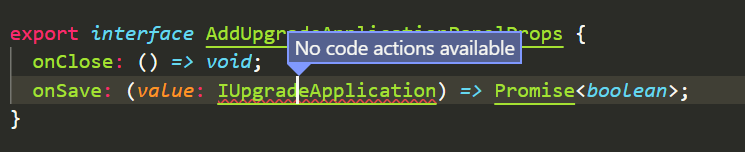
Same here, I always get the "No code actions available" when I try to Quick Fix my code, no matter the language used, and even if I have no extension installed.


I do not really know why it is not working, but I can't get to remember since when this bug is occurring to me ( I remember last summer it was okay, and I think during December too while I was working on an Angular Project )
 DylanCa
on 5 Apr 2019
DylanCa
on 5 Apr 2019
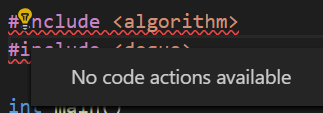
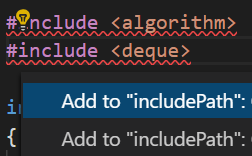
Our C/C++ extensions does have lightbulb code actions for the error squiggle, but the quick fix still says "no code action" available -- is that a bug? Let us know if our extension isn't doing something correctly. I didn't understand the docs at https://code.visualstudio.com/updates/v1_32#_hover-and-problems-peek-improvements .
 sean-mcmanus
on 5 Apr 2019
sean-mcmanus
on 5 Apr 2019
@sean-mcmanus Can you please provide simple steps to repro this?
sandy081
on 8 Apr 2019
@sandy081 It occurs when you have a .c or .cpp file with text #include <foo>. We report the squiggle message via textDocument_publishDiagnostics and the code action from textDocument_codeAction. Do we need to do something special to associate the code action with the squiggle's QuickFix?
sean-mcmanus
on 8 Apr 2019
Quick Fix action asks for all code actions in that diagnostic range and of kind QuickFix. What kind are your quick fix code actions?
sandy081
on 9 Apr 2019
@sandy081 Okay thanks a lot for informing us -- the "CodeActionKind" type is completely new to us. Our code action just returns a Command and not the additional info like the CodeActionKind. I filed a work item for us at https://github.com/Microsoft/vscode-cpptools/issues/3439 . We have a lot of "catching up" to do with the LSP updates.
sean-mcmanus
on 9 Apr 2019
I have had this issue for weeks with C#, and I finally figured out that it was just the menu.
Basic stuff where it used to suggest "using System;" no longer showed up. After reading this issue, I tried the Cmd+. command and the keyboard shortcut works but not the menu.
This image shows what happens when clicking the "Quick fix..." menu:

And this is what shows when pressing cmd+.:

This looks similar to the screenshots from @RobFosterNYC and @DylanCa .
 kenkendk
on 20 Apr 2019
kenkendk
on 20 Apr 2019
Seriously kills productivity, I am reinstalling PyCharm
 ghost
on 5 May 2019
ghost
on 5 May 2019
Looks like C# extension is also not using the QuickFix code action kind for their code actions. Probably we have to show all code actions for the given range.
sandy081
on 6 May 2019
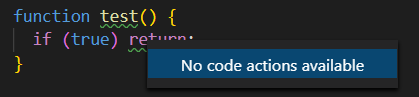
I see the same issue with JSHint/JavaScript.

 akost
on 10 May 2019
akost
on 10 May 2019
The same thing (No code actions available) with PowerShell.
akost
on 10 May 2019
Same issue with TypeScript in _.tsx_ file.

 al-wys
on 28 May 2019
al-wys
on 28 May 2019
This has been nearly two months! any fixes for this ?
I'm having this issue in the latest version as well(Python)!
 Coderx7
on 30 May 2019
Coderx7
on 30 May 2019
This feature becomes very important when you're upgrading code from a legacy version (such as Python 2) to the updated version (Python 3). I'm sure there are other languages have similar stipulations such as converting C to C++ or C# or vice versa (or even C# to C++ and vice versa).
WSLUser
on 30 May 2019
I also have this issue, and this is very important when create the new project, but the cmd+. works for me!
 winsonet
on 3 Jun 2019
winsonet
on 3 Jun 2019
I also had this issue and only learned today from some searching that ctrl+. (on Linux) brings up the quick fix list of actual working suggestions
EDIT: As @tbasten shows below, that's the same issue I find when hovering using C#
 James-Firth
on 10 Jun 2019
James-Firth
on 10 Jun 2019
This doesn't seem to be a problem for C# in my case atm (I'm using Unity/Mono).
I exclusively use Ctrl+. though.
 Vivraan
on 13 Jun 2019
Vivraan
on 13 Jun 2019
I get the same with Powershell.


However selecting it and press ctrl+. gave me the suggestion

 tbasten
on 14 Jun 2019
tbasten
on 14 Jun 2019
On a Mac, the Quick Fix shortcut appears to be ⌘. (Command + Period). It would be super helpful if we could get the quick fix to appear on mouse hover, though!
 dag2108
on 20 Jun 2019
dag2108
on 20 Jun 2019
Hello there,
I have the same problem since today. Quick fix was working a week ago but now clicking on "quick fix" and then clicking on suggestion do nothing.
But if I use ctrl+; to show suggestion it work.
 zakaoai
on 8 Jul 2019
zakaoai
on 8 Jul 2019
Just to clarify what was fixed by #77120: we now only show the Quick fix... button in the hover if we know for sure that that quick fixes are available.
A few extensions provide quick fix style code action but do not explicitly mark them as quick fixes. Those code actions will show up in the lightbulb menu but not if you click quick fix... in errors hovers (because we only want to show code actions that we know for sure will fix something). Extensions must mark their quick fix code actions as CodeActionKind.QuickFix to have them show up in the problem hover quick fix... menu too
 mjbvz
on 12 Jul 2019
mjbvz
on 12 Jul 2019
@DonJayamanne can you verify that the python extension is good in this regard?
WSLUser
on 12 Jul 2019
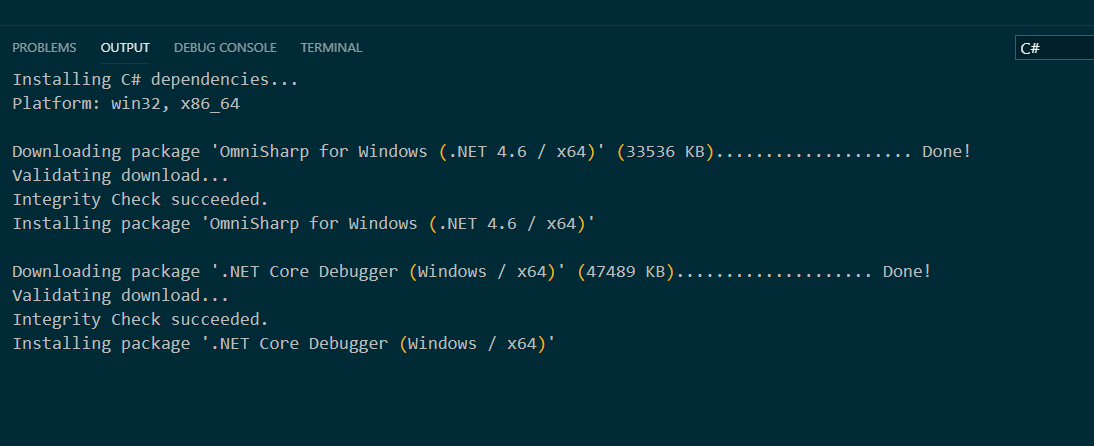
I took a look at my installed extensions and noticed the C# extension was complaining that it needed to be reloaded. Hmm, so check your extensions list first. This is what I was presented after clicking reload. Notice the version I'm running as of today's date stamp after I reloaded the C# extension. I hope this helps some of you.


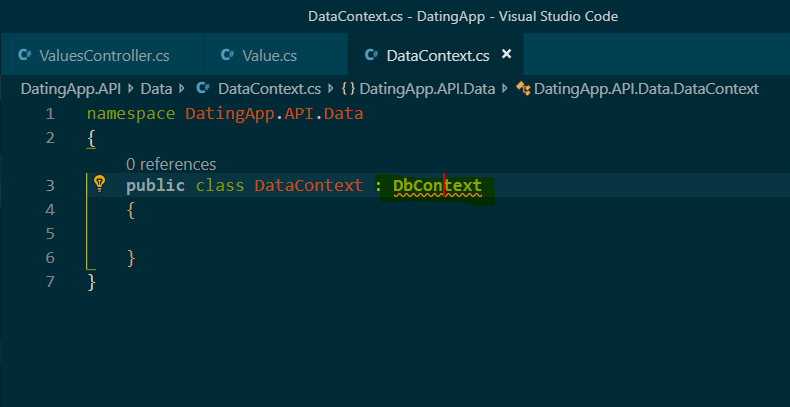
Be sure to click on the instance first, then use ctrl+. for windows
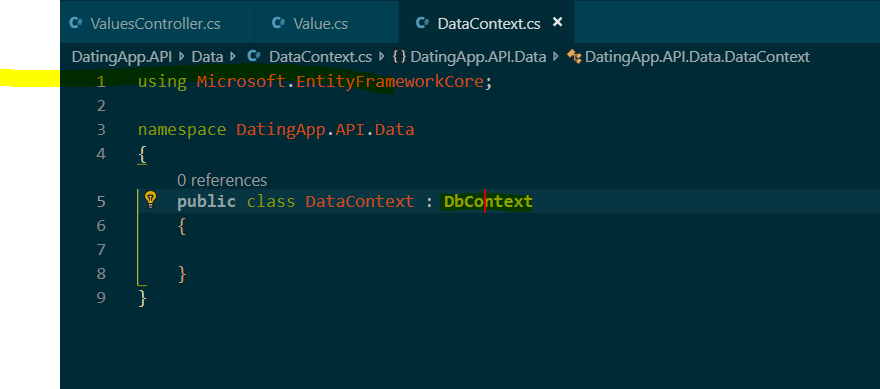
You should now see the using statement, for example like on line 1
 SEDoug
on 19 Jul 2019
SEDoug
on 19 Jul 2019
Related issues
 jez9999
·
234Comments
jez9999
·
234Comments
 ozsay
·
247Comments
ozsay
·
247Comments
 Tyriar
·
200Comments
Tyriar
·
200Comments
 fabiopicchi
·
192Comments
fabiopicchi
·
192Comments
 misolori
·
282Comments
misolori
·
282Comments
Most helpful comment
This has been nearly two months! any fixes for this ?
I'm having this issue in the latest version as well(Python)!