Vscode-remote-release: Remote-WSL cannot fetch remote environment
Issue Type: Bug
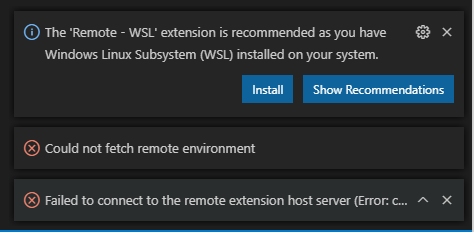
Failes to connect to host with "connection refused".
Only started happening over the weekend on the latest builds.
VS Code version: Code 1.46.0 (a5d1cc28bb5da32ec67e86cc50f84c67cc690321, 2020-06-10T09:03:20.462Z)
OS version: Windows_NT x64 10.0.20150
Fetching remote diagnostics for 'WSL: Ubuntu' failed: connect ECONNREFUSED 127.0.0.1:35329
System Info
|Item|Value|
|---|---|
|CPUs|Intel(R) Core(TM) i7-7820HQ CPU @ 2.90GHz (8 x 2904)|
|GPU Status|2d_canvas: enabled
flash_3d: enabled
flash_stage3d: enabled
flash_stage3d_baseline: enabled
gpu_compositing: enabled
multiple_raster_threads: enabled_on
oop_rasterization: disabled_off
protected_video_decode: unavailable_off
rasterization: enabled
skia_renderer: disabled_off_ok
video_decode: enabled
viz_display_compositor: enabled_on
viz_hit_test_surface_layer: disabled_off_ok
webgl: enabled
webgl2: enabled|
|Load (avg)|undefined|
|Memory (System)|31.96GB (17.52GB free)|
|Process Argv|.|
|Screen Reader|no|
|VM|0%|
Fetching remote diagnostics for 'WSL: Ubuntu' failed: connect ECONNREFUSED 127.0.0.1:35329
Extensions: none
 corthon
All 29 comments
Still seems to be a problem after updating to Windows 20151.rs_prerelease
corthon
on 17 Jun 2020
Reverting to WSL Linux Kernel 4.19.104-microsoft-standard fixes the problem for me.
 surban
on 18 Jun 2020
surban
on 18 Jun 2020
The same , my log
[2020-06-18 10:02:14.249] Resolving wsl+ubuntu-18.04, resolveAttempt: 1
[2020-06-18 10:02:14.305] Starting VS Code Server inside WSL (Ubuntu-18.04)
[2020-06-18 10:02:14.305] Extension version: 0.44.2, Windows build: 20150. Multi distro support: available. WSL path support: enabled
[2020-06-18 10:02:14.462] Probing if server is already installed: C:\WINDOWS\System32\wsl.exe -d Ubuntu-18.04 -e sh -c "[ -d ~/.vscode-server/bin/a5d1cc28bb5da32ec67e86cc50f84c67cc690321 ] && printf found || ([ -f /etc/alpine-release ] && printf alpine-; uname -m)"
[2020-06-18 10:02:14.634] Probing result: x86_64
[2020-06-18 10:02:14.634] No server install found in WSL, needs x64
[2020-06-18 10:02:14.635] Launching C:\WINDOWS\System32\wsl.exe -d Ubuntu-18.04 sh -c '"$VSCODE_WSL_EXT_LOCATION/scripts/wslServer.sh" a5d1cc28bb5da32ec67e86cc50f84c67cc690321 stable .vscode-server 0  ' in c:\Users\pigo.KJUMP\.vscode\extensions\ms-vscode-remote.remote-wsl-0.44.2}
[2020-06-18 10:02:14.770] Setting up server environment: Looking for /home/pigo/.vscode-server/server-env-setup. Not found.
[2020-06-18 10:02:14.770] WSL version: 4.19.121-microsoft-WSL2-standard Ubuntu-18.04
[2020-06-18 10:02:14.770] Installing VS Code Server from tar available at /mnt/c/Users/PIGO~1.KJU/AppData/Local/Temp/vscode-remote-wsl/a5d1cc28bb5da32ec67e86cc50f84c67cc690321/vscode-server-linux-x64.tar.gz
[2020-06-18 10:02:16.296] Unpacking:   0%  1%  2%  3%  4%  5%  6%  7%  8%  9%
[2020-06-18 10:02:16.599]  10% 11% 12% 13% 14% 15% 16% 17% 18% 19% 20% 21% 22% 23% 24% 25% 26% 27% 28% 29% 30% 31% 32% 33% 34% 35% 36% 37% 38% 39% 40% 41% 42% 43% 44% 45% 46% 47% 48% 49% 50% 51% 52% 53% 54% 55% 56% 57% 58% 59% 60% 61% 62% 63% 64% 65% 66%
[2020-06-18 10:02:16.901]  67% 68% 69% 70% 71% 72% 73% 74% 75% 76% 77% 78% 79% 80% 81% 82% 83% 84% 85% 86% 87% 88% 89% 90% 91% 92% 93% 94% 95% 96% 97% 98% 99%
[2020-06-18 10:02:17.509] 100%
[2020-06-18 10:02:17.509] Unpacked 2379 files and folders to /home/pigo/.vscode-server/bin/a5d1cc28bb5da32ec67e86cc50f84c67cc690321.
[2020-06-18 10:02:17.509] Starting server: /home/pigo/.vscode-server/bin/a5d1cc28bb5da32ec67e86cc50f84c67cc690321/server.sh  --port=0 --use-host-proxy
[2020-06-18 10:02:17.509]
[2020-06-18 10:02:17.509]
[2020-06-18 10:02:17.509] *
[2020-06-18 10:02:17.509] * Visual Studio Code Server
[2020-06-18 10:02:17.509] *
[2020-06-18 10:02:17.509] * Reminder: You may only use this software with Visual Studio family products,
[2020-06-18 10:02:17.509] * as described in the license https://aka.ms/vscode-remote/license
[2020-06-18 10:02:17.509] *
[2020-06-18 10:02:17.509]
[2020-06-18 10:02:17.509]
[2020-06-18 10:02:17.509] IP Address: 172.28.254.145
[2020-06-18 10:02:17.509] Extension host agent listening on 38799
[2020-06-18 10:02:17.509]
[2020-06-18 10:02:17.509]
[2020-06-18 10:02:17.509] [18:02:16] Extension host agent started.
[2020-06-18 10:02:17.511] WSL resolver response: 127.0.0.1:38799
[2020-06-18 10:02:17.511] To debug connection issues, open a local browser on http://127.0.0.1:38799/version
 pigochu
on 18 Jun 2020
pigochu
on 18 Jun 2020
Reverting to WSL Linux Kernel 4.19.104-microsoft-standard fixes the problem for me.
Thanks. It works for now:
wsl.exe --update --rollback
 KiruyaMomochi
on 18 Jun 2020
KiruyaMomochi
on 18 Jun 2020
I have the exact same issue with the same Windows and VSCode Version as corthon. It doesn't work with the VS Code Insider Version 1.4.7 either.
The linux kernel version is 4.19.121-microsoft-WSL2-standard, so the newest.
Switching back to an old Linux Kernel version is not an option since I want to use CUDA with WSL, which only works with 4.19.121.
Thanks!
 Erik-Sovereign
on 18 Jun 2020
Erik-Sovereign
on 18 Jun 2020
wsl.exe --update --rollback did nothing for me. Only kernel 4.19.121 is installed on my machine...😢
 espresso3389
on 18 Jun 2020
espresso3389
on 18 Jun 2020
Running following command in the WSL worked for me. The output should show the downgraded version. Make sure you run your terminal with administrator privilege and restart your WSL after the command. In my case, I just restarted my computer.
wsl.exe --update --rollback
 boldkhuu
on 18 Jun 2020
boldkhuu
on 18 Jun 2020
Same issue as @Erik-Sovereign
Updated for WSL gpu access, tried on VS Code Insiders edition and standard.
Kernel 4.19.21
 lynscott
on 18 Jun 2020
lynscott
on 18 Jun 2020
wsl.exe --update --rollback can not rollback , Is there a way to install it manually?
pigochu
on 19 Jun 2020
I fixed it.
If C:\Windows\System32\lxss\tools has file kernel.rollback , maybe you can rollback.
- run wsl --shutdown
- backup kernel and kernel.rollback , then delete kernel , and rename kernel.rollback to kernel.
pigochu
on 19 Jun 2020
Reverting to WSL Linux Kernel 4.19.104-microsoft-standard fixes the problem for me.
Thank you. The issue seems to be the kernel version. Remember to restart WSL after the rollback. On PowerShell:
wsl.exe --update --rollbackwsl --shutdownwsl
 kzlsakal
on 19 Jun 2020
kzlsakal
on 19 Jun 2020
The problem is with the WSL2 detection. The extension treats this as a WSL1 distro.
To know if it is WSL2 we check for microsoft-standard in uname -r.
In https://github.com/microsoft/vscode-remote-release/issues/3212#issuecomment-645980520 you write that the version is 4.19.121-microsoft-WSL2-standard. Is that what uname -r returns?
 aeschli
on 19 Jun 2020
aeschli
on 19 Jun 2020
@aeschli
I got it by doing "wsl cat /proc/version" in Powershell.
The exact output is:
Linux version 4.19.121-microsoft-WSL2-standard (oe-user@oe-host) (gcc version 8.2.0 (GCC)) #1 SMP Thu May 14 20:25:24 UTC 2020
Erik-Sovereign
on 19 Jun 2020
@aeschli aside from the version issue, latest kernel 4.19.121-microsoft-WSL2-standard that comes from Windows Update on Dev Channel also has same problem as #3125
If I compile myself the kernel from the official linux-msft-wsl-4.19.y
repo then VSCode Remote works again.
 onomatopellan
on 19 Jun 2020
onomatopellan
on 19 Jun 2020
To know if it is WSL2 we check for
microsoft-standardinuname -r.
Maybe we should check for the output of wsl.exe -l -v?
KiruyaMomochi
on 19 Jun 2020
It's needed in the code.sh script can run in WSL shells but also potentially Linux shells (e.g. cygwin), so ideally we can do that check without the need of calling a Windows executable.
In https://github.com/microsoft/vscode/pull/99949#issuecomment-643352483 @benhillis writes:
The check we use internally is any kernel with "Microsoft" capital 'M' we assume is WSL1. Anything else is WSL2. We considered changing the check but we didn't want to break old assumptions.
We need to distinguish between WSL1, WSL2 and non-WSL linux:
So I would keep using uname -r and check whether it contains
Microsoft: WSL1microsoft: WSL2
otherwise not WSL
Of course that only works if all custom kernel builders use these keywords as well.
aeschli
on 19 Jun 2020
@aeschli - That's similar to what we do, but we only check for capitol 'M' Microsoft to specify WSL1. Everything else we assume WSL2 to support custom kernels.
 benhillis
on 19 Jun 2020
benhillis
on 19 Jun 2020
@benhillis I can't see anything useful. I have an open tab with dmesg -w and nothing is added when VSCode Remote fails.
dmesg log 4.19.121-microsoft-WSL2-standard
onomatopellan
on 19 Jun 2020
VSCode 1.4.6.1 seems to haved fixed the issue.
Erik-Sovereign
on 20 Jun 2020
Edit: It's not VSCode 1.4.6.1. I had a modified code.sh, that's why it worked. The "Could not fetch remote environment" doesn't appear anymore I guess due to a VSCodeRemote extension update.
onomatopellan
on 20 Jun 2020
Reverting to WSL Linux Kernel 4.19.104-microsoft-standard fixes the problem for me.
Thank you. The issue seems to be the kernel version. Remember to restart WSL after the rollback. On PowerShell:
wsl.exe --update --rollbackwsl --shutdownwsl
@kzlsakal now that VSCode remote is fixed did you figure out a way to update the kernel back to the newest version?
 harinandan1995
on 20 Jun 2020
harinandan1995
on 20 Jun 2020
@harinandan1995 wsl.exe --update should be enough. Otherwise you can look in Windows Update and it also should appear there.
onomatopellan
on 20 Jun 2020
Issue Type: Bug
Failes to connect to host with "connection refused".
Only started happening over the weekend on the latest builds.VS Code version: Code 1.46.0 (a5d1cc28bb5da32ec67e86cc50f84c67cc690321, 2020-06-10T09:03:20.462Z)
OS version: Windows_NT x64 10.0.20150
Fetching remote diagnostics for 'WSL: Ubuntu' failed: connect ECONNREFUSED 127.0.0.1:35329System Info
Extensions: none
Reverting to WSL Linux Kernel 4.19.104-microsoft-standard fixes the problem for me.
Thank you. The issue seems to be the kernel version. Remember to restart WSL after the rollback. On PowerShell:
wsl.exe --update --rollbackwsl --shutdownwsl@kzlsakal now that VSCode remote is fixed did you figure out a way to update the kernel back to the newest version?
@harinandan1995 please see https://github.com/microsoft/WSL/issues/5452#issuecomment-647067945 as reference.
 Methylamphetamine
on 21 Jun 2020
Methylamphetamine
on 21 Jun 2020
@Methylamphetamine removing the registry key RollbackKernel under HKEY_LOCAL_MACHINE\SOFTWARE\Microsoft\Windows\CurrentVersion\Lxss did revert the rollback, thanks for the source.
@harinandan1995 After going back to WSL Kernel 4.19.121, I tried to $ code . in a repo and VS Code still does not behave as expected. First it opens the folder on the host. Then when I choose Open this folder in remote by clicking the remote extension on the status bar, it does connect and fetch the files. However this time, the shell window becomes unusable because of the error messages. Everything is up-to-date with apt-get. I rolled back to kernel 4.19.104 and this problem went away. Please see the screenshot below.

kzlsakal
on 21 Jun 2020
I aggregated some WSL kernel questions and 'how to' to wiki
 licanhua
on 21 Jun 2020
licanhua
on 21 Jun 2020
@kzlsakal From bash do nano "$(which code)" and modify this line to look like in the repo.
onomatopellan
on 21 Jun 2020
@onomatopellan Thank you! This resolved it.
kzlsakal
on 21 Jun 2020
The problem was that the new kernel version uses a different version name format (4.19.121-microsoft- WSL2- standard). The WSL - Remote extension failed to detect that its WSL2 distro, would not connect to it through the WSL2-VM IP (or, as fallback, the IPv6 localhost) but localhost (as for WSL1)
On Friday I published an update of the Remote-WSL extension (0.44.4) that improves the WSL1/WSL2 check. That fixes that the remote window can be opened again out of VSCode using the remote indicator (status bar, left) or from command or the recent menu.
The latest VSCode-insiders build has the fix for the code-insider script, so that starting out of a WSL shell should also work again.
aeschli
on 22 Jun 2020
Verfied by @benhillis
aeschli
on 29 Jun 2020
Related issues
 nphmuller
·
3Comments
nphmuller
·
3Comments
 sulume
·
3Comments
sulume
·
3Comments
 jeffreyyjp
·
3Comments
jeffreyyjp
·
3Comments
 Yvand
·
3Comments
Yvand
·
3Comments
 gulshan
·
3Comments
gulshan
·
3Comments
Most helpful comment
Running following command in the WSL worked for me. The output should show the downgraded version. Make sure you run your terminal with administrator privilege and restart your WSL after the command. In my case, I just restarted my computer.