Vscode-remote-release: Use VS Code Remote Development w/o marketplace, update connectivity
Is there anyway to get around this limitation "VS Code Server requires outbound HTTPS (port 443) connectivity to update.code.visualstudio.com and marketplace.visualstudio.com"?
To clarify: will this work if the local os and remote machine both have ssh connectivity to each other but no outbound connectivity?
 LesterCheng
All 89 comments
@LesterCheng Currently the machine you connect to needs to have outbound connectivity to both update.code.visualstudio.com and marketplace.visualstudio.com. These are used to acquire and update the "VS Code Server" and the extensions installed remotely. So, if I'm understanding correctly, I think the answer to your question is no.
 Chuxel
on 2 May 2019
Chuxel
on 2 May 2019
@Chuxel is there any possibility of getting a packaged version of the "VS Code Server" that could be loaded onto the remote machine manually to avoid creating an outbound connection?
LesterCheng
on 2 May 2019
@LesterCheng not at this time.
 kieferrm
on 3 May 2019
kieferrm
on 3 May 2019
@kieferrm Understood, thanks! Any plans to introduce something like this? Otherwise this issue can be closed.
LesterCheng
on 3 May 2019
@LesterCheng Beyond VS Code server, extensions are also installed on the remote host from the marketplace. We are in preview, so while we don't have specific plans, we are interested in understanding what people need to shape our direction.
That said, our of curiosity, what is your use case? Is there anything in particular preventing you from getting out bound access that we should be aware of?
Chuxel
on 3 May 2019
@Chuxel without getting into specifics, this is an enterprise environment where development is only done on remote machines which need to be ssh'd into. Neither the remote machine nor the local os (where you ssh from) have connectivity to outside connections. I'd be happy to continue this over email you if it would help. I think a similar scenario was mentioned in the blog announcing this release: "Because the code bases are so large, we see engineers at shops like Facebook (and Microsoft!) use editors like vim to work remotely against secure and powerful "developer VMs".
LesterCheng
on 3 May 2019
@LesterCheng Got it - interesting scenario. I changed the title and made it a feature request.
Is this due to security requirements? Happy to interact via email - you can find my mail in my GH profile (but I won't paste it due to crawlers.)
Chuxel
on 3 May 2019
Just tagging on to say that I am also developing in a remote environment where we don't have access to outside internet except for certain mirrored repositories like pypi.
 underchemist
on 3 May 2019
underchemist
on 3 May 2019
I would like to add that I'm in the same situation as @underchemist. I will add supplement that with the caveat that my Windows VM can connect to the Internet to download extensions but in order to connect to the corporate network, I need to re-enable the VPN. The Linux server I develop on doesn't and will never have outside access. Everything is done using mirrored repos including PyPi as mentioned already. Basically I need extensions that I install locally to my VM to duplicate over to the server once I connect to it. A prompt that appears once it activates the ssh connection to the server asking if you would like to install and/or update the Linux extensions with a yes/no option to click on would be ideal. A status bar showing the transfer would great to see as well. This would be done through a sftp or scp session.
 WSLUser
on 3 May 2019
WSLUser
on 3 May 2019
I'm on the same situation. At work I have to connect to a remote desktop before SSH to server. The remote desktop isn't allowed to access world wide web so I always have to install extensions from VSIX files.
Recently, I've switched from VSCode + SSHFS combo to Code-Server, which runs on browser and offer Intellisense. However, it still messing up with browser's keyboard shortcuts, which is a nightmare.
I'd really hope that you guy could build a standalone version soon!!
 lamnguyenx
on 4 May 2019
lamnguyenx
on 4 May 2019
Similar situation. We have server machines that we can SSH to but they can't access the www. Our dev machines that we SSH from can access the www. It would be great to have an option to have the VSIX be downloaded on the dev machine and SCP'ed to the remote machine.
 soul4soul
on 6 May 2019
soul4soul
on 6 May 2019
I also has the similar problem.
manual solve, only for ssh mode
step 1: download the vscode-server
wget -nv -O vscode-server-linux-x64.tar.gz https://update.code.visualstudio.com/commit:daf71423252a707b8e396e8afa8102b717f8213b/server-linux-x64/insider
step 2: copy vscode-server-linux-x64.tar.gz to direction /
cp vscode-server-linux-x64.tar.gz /vscode-server-linux-x64.tar.gz
step 3: modify C:\Users\administrator\.vscode-insiders\extensions\ms-vscode-remote.remote-ssh-0.35.0\out\extension.js
search "wget -nv -O vscode-server-linux-x64.tar.gz https://update.code.visualstudio.com/commit:$COMMIT_ID/server-linux-x64/${t}"
replace it with "cp /vscode-server-linux-x64.tar.gz ."
then retry connected, it's ok.
 jlugjb
on 7 May 2019
jlugjb
on 7 May 2019
I also in the same situation.
 stamaimer
on 7 May 2019
stamaimer
on 7 May 2019
Same situation. Cannot install the C++ plugin for some reason even though the internet access should work. It recommends using the VSIX, but I cannot install these manually as far as I know.
 cliffburdick
on 7 May 2019
cliffburdick
on 7 May 2019
It recommends using the VSIX, but I cannot install these manually as far as I know.
You can install an extension manually in the remote context, pls see https://code.visualstudio.com/api/advanced-topics/remote-extensions#installing-a-development-version-of-your-extension

 egamma
on 8 May 2019
egamma
on 8 May 2019
I also has the similar problem.
manual solvestep 1: download the vscode-server
wget -nv -O vscode-server-linux-x64.tar.gz https://update.code.visualstudio.com/commit:daf71423252a707b8e396e8afa8102b717f8213b/server-linux-x64/insiderstep 2: copy vscode-server-linux-x64.tar.gz to direction /
cp vscode-server-linux-x64.tar.gz /vscode-server-linux-x64.tar.gzstep 3: modify extensions\ms-vscode-remote.remote-ssh-0.35.0\out\extension.js
search "wget -nv -O vscode-server-linux-x64.tar.gz https://update.code.visualstudio.com/commit:$COMMIT_ID/server-linux-x64/${t}"replace it with "cp /vscode-server-linux-x64.tar.gz ."
then retry connected, it's ok.
Hi there.
I've downloaded the VSIX file of this extension and unpacked it. I couldn't find any lines in the code that cotains "wget -nv -O vscode-server-linux-x64.tar.gz" as you've suggested.
Anyway, this is what I'm getting when trying to install RemoteSSH extension v0.12 on VSCode v1.34.0 offline:

lamnguyenx
on 8 May 2019
@LesterCheng Currently the machine you connect to needs to have outbound connectivity to both update.code.visualstudio.com and marketplace.visualstudio.com. These are used to acquire and update the "VS Code Server" and the extensions installed remotely. So, if I'm understanding correctly, I think the answer to your question is no.
@Chuxel Instead of download files in the remote server, Is there a possible to use the connection between the local and the remote via ssh to transfer and update the "VS Code Server" and the extensions installed remotely?
stamaimer
on 8 May 2019
@egamma I don't know if it's specific to the C++ extension, but after installing the VSIX it appears to download a whole bunch of stuff, which is where it's failing and prints this:
Updating C/C++ dependencies...

Downloading package 'C/C++ language components (Linux / x86_64)'  Failed. Retrying... Failed. Retrying... Failed. Retrying...Waiting 8 seconds... Failed. Retrying...Waiting 16 seconds... Failed. Retrying... Done!
Downloading package 'ClangFormat (Linux / x86_64)'  Failed. Retrying... Failed. Retrying... Failed. Retrying...Waiting 8 seconds... Failed. Retrying...Waiting 16 seconds... Failed. Retrying... Done!
Downloading package 'Mono Framework Assemblies'  Failed. Retrying... Failed. Retrying... Failed. Retrying...Waiting 8 seconds... Failed. Retrying...Waiting 16 seconds... Failed. Retrying... Done!
Downloading package 'Mono Runtime (Linux / x86_64)'  Failed. Retrying... Failed. Retrying... Failed. Retrying...Waiting 8 seconds... Failed. Retrying...Waiting 16 seconds... Failed. Retrying... Done!

Installing package 'C/C++ language components (Linux / x86_64)'
Failed at stage: installPackages
Error: end of central directory record signature not found

If you work in an offline environment or repeatedly see this error, try downloading a version of the extension with all the dependencies pre-included from https://github.com/Microsoft/vscode-cpptools/releases, then use the "Install from VSIX" command in VS Code to install it.
I tried both the win32 version (client) and linux (server), and in both cases the VSIX fail to install.
cliffburdick
on 8 May 2019
@cliffburdick
Are you using the "offline" release of the c++ extension?
https://github.com/microsoft/vscode-cpptools/releases
LesterCheng
on 8 May 2019
@cliffburdick
Are you using the "offline" release of the c++ extension?
https://github.com/microsoft/vscode-cpptools/releases
@LesterCheng I got it working from the following:
https://github.com/microsoft/vscode-remote-release/issues/205#issuecomment-490377618
cliffburdick
on 8 May 2019
@stamaimer Not currently, but this feature request is tracking interest in exactly that scenario.
Chuxel
on 8 May 2019
I would like to add that it would be great if it was possible to transfer already installed extensions from my local machine's VS Code to VS Code Server installed on the remote server I ssh into, because when I am working in the network that allows me to ssh into the remote machine, I am not able to connect to the Extensions Marketplace even from the locally installed VS Code, and needless to say I am not able to do so from the VS Code connected to the remote server. This happens due to security limitations imposed by my company's security people.
Ideally I would like to have a button somewhere in the interface of VS Code connected to the remote server like "Copy local extensions to remote machine", where after hitting which I would have a list of all my locally installed extensions with a checkbox near each that I would use to chose which extensions I would like to copy.
As for the VS Code server itself, I was able to install it to the remote machine via ssh. It's just the additional extensions that I'm having trouble installing now.
 sergei3000
on 8 May 2019
sergei3000
on 8 May 2019
I also has the similar problem.
manual solvestep 1: download the vscode-server
wget -nv -O vscode-server-linux-x64.tar.gz https://update.code.visualstudio.com/commit:daf71423252a707b8e396e8afa8102b717f8213b/server-linux-x64/insiderstep 2: copy vscode-server-linux-x64.tar.gz to direction /
cp vscode-server-linux-x64.tar.gz /vscode-server-linux-x64.tar.gzstep 3: modify extensions\ms-vscode-remote.remote-ssh-0.35.0\out\extension.js
search "wget -nv -O vscode-server-linux-x64.tar.gz https://update.code.visualstudio.com/commit:$COMMIT_ID/server-linux-x64/${t}"replace it with "cp /vscode-server-linux-x64.tar.gz ."
then retry connected, it's ok.
@jlugjb , I try as you say and success. but now in progress "Opening Remote.." without any logs.
does any guys in this case?

this is fix by checkout the Output of Remote-SSH, finding out logs "Tunnel(54236) stderr: channel 2: open failed: administratively prohibited: open failed" and fixed by #84
 DingGengJia
on 9 May 2019
DingGengJia
on 9 May 2019
I also has the similar problem.
manual solve
step 1: download the vscode-server
wget -nv -O vscode-server-linux-x64.tar.gz https://update.code.visualstudio.com/commit:daf71423252a707b8e396e8afa8102b717f8213b/server-linux-x64/insider
step 2: copy vscode-server-linux-x64.tar.gz to direction /
cp vscode-server-linux-x64.tar.gz /vscode-server-linux-x64.tar.gz
step 3: modify extensions\ms-vscode-remote.remote-ssh-0.35.0\out\extension.js
search "wget -nv -O vscode-server-linux-x64.tar.gz https://update.code.visualstudio.com/commit:$COMMIT_ID/server-linux-x64/${t}"
replace it with "cp /vscode-server-linux-x64.tar.gz ."
then retry connected, it's ok.Hi there.
I've downloaded the VSIX file of this extension and unpacked it. I couldn't find any lines in the code that cotains "wget -nv -O vscode-server-linux-x64.tar.gz" as you've suggested.
Anyway, this is what I'm getting when trying to install RemoteSSH extension v0.12 on VSCode v1.34.0 offline:
I also has the similar problem.
manual solve
step 1: download the vscode-server
wget -nv -O vscode-server-linux-x64.tar.gz https://update.code.visualstudio.com/commit:daf71423252a707b8e396e8afa8102b717f8213b/server-linux-x64/insider
step 2: copy vscode-server-linux-x64.tar.gz to direction /
cp vscode-server-linux-x64.tar.gz /vscode-server-linux-x64.tar.gz
step 3: modify extensions\ms-vscode-remote.remote-ssh-0.35.0\out\extension.js
search "wget -nv -O vscode-server-linux-x64.tar.gz https://update.code.visualstudio.com/commit:$COMMIT_ID/server-linux-x64/${t}"
replace it with "cp /vscode-server-linux-x64.tar.gz ."
then retry connected, it's ok.Hi there.
I've downloaded the VSIX file of this extension and unpacked it. I couldn't find any lines in the code that cotains "wget -nv -O vscode-server-linux-x64.tar.gz" as you've suggested.
Anyway, this is what I'm getting when trying to install RemoteSSH extension v0.12 on VSCode v1.34.0 offline:
file is on the disk
C:\Users\administrator\.vscode-insiders\extensions\ms-vscode-remote.remote-ssh-0.35.0\out\extension.js
jlugjb
on 9 May 2019
I've tried unpack the VSIX file, open extension.js and did it as @jlugjb said:
- Replacing "wget .." with "cp /vscode-server-linux-x64.tar.gz ."
- Replacing "wget .." with "cp /c/user/
/vscode-server-linux-x64.tar.gz ."
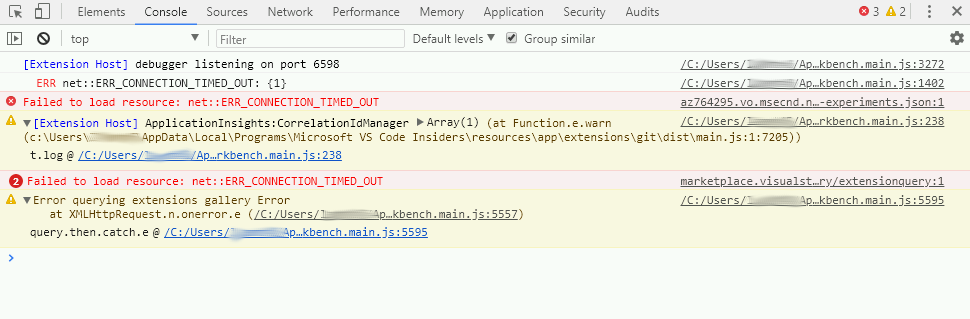
However, this is what I got:
Hopefully you guys at MS could build an offline version of this extension soon :)
lamnguyenx
on 9 May 2019
I have the same issue. Would be a really helpful feature for enterprise set ups.
 sigeisler
on 11 May 2019
sigeisler
on 11 May 2019
I have been working on a small project to make VSCode work in an offline environment (mirroring both extensions and binaries)... It's definitely of alpha quality and needs more time sunk into it, but hopefully it might help.
As of a few hours ago, it should support Remote Development using either SYNCARGS=--syncall (in docker-compose.yml) or ensuring "ms-vscode-remote.vscode-remote-extensionpack" is in the artifacts/specified.json file after an initial SYNCARGS=--sync.
See https://github.com/LOLINTERNETZ/vscodeoffline and its associated docker containers.
 LOLINTERNETZ
on 12 May 2019
LOLINTERNETZ
on 12 May 2019
Similar requests here.
I have local machine and remote machine in a secure network whichi is isolated from the Internet.
I copy all the binaries and extensions I need in a USB flash disk and manually copy them to the machine.
So an offline version of VSCode & VSCode server would definate help us.
Thx.
 liushiqi9
on 22 May 2019
liushiqi9
on 22 May 2019
@liushiqi9 in a secure environment you probably should't run untrusted code from a preview/beta software.
 SuperSandro2000
on 22 May 2019
SuperSandro2000
on 22 May 2019
I also has the similar problem.
manual solve, only for ssh modestep 1: download the vscode-server
wget -nv -O vscode-server-linux-x64.tar.gz https://update.code.visualstudio.com/commit:daf71423252a707b8e396e8afa8102b717f8213b/server-linux-x64/insiderstep 2: copy vscode-server-linux-x64.tar.gz to direction /
cp vscode-server-linux-x64.tar.gz /vscode-server-linux-x64.tar.gzstep 3: modify C:\Users\administrator.vscode-insiders\extensions\ms-vscode-remote.remote-ssh-0.35.0\out\extension.js
search "wget -nv -O vscode-server-linux-x64.tar.gz https://update.code.visualstudio.com/commit:$COMMIT_ID/server-linux-x64/${t}"replace it with "cp /vscode-server-linux-x64.tar.gz ."
then retry connected, it's ok.
@liushiqi9 You may try this. Or @LOLINTERNETZ 's project Visual Studio Code - Offline Gallery and Updater
 shanehou
on 22 May 2019
shanehou
on 22 May 2019
I also has the similar problem.
manual solve, only for ssh mode
step 1: download the vscode-server
wget -nv -O vscode-server-linux-x64.tar.gz https://update.code.visualstudio.com/commit:daf71423252a707b8e396e8afa8102b717f8213b/server-linux-x64/insider
step 2: copy vscode-server-linux-x64.tar.gz to direction /
cp vscode-server-linux-x64.tar.gz /vscode-server-linux-x64.tar.gz
step 3: modify C:\Users\administrator.vscode-insiders\extensions\ms-vscode-remote.remote-ssh-0.35.0\out\extension.js
search "wget -nv -O vscode-server-linux-x64.tar.gz https://update.code.visualstudio.com/commit:$COMMIT_ID/server-linux-x64/${t}"
replace it with "cp /vscode-server-linux-x64.tar.gz ."
then retry connected, it's ok.@liushiqi9 You may try this. Or @LOLINTERNETZ 's project Visual Studio Code - Offline Gallery and Updater
I actually used another way which is much more stupid but works.
I first remote connect a server which has same enviorment as the secure server but has internet.
It will install the corresponding vscode-server in the home directory.
I manually copied the .vscode-remote folder to the secure server.
After adding some execution permission to the .sh file, it works like a charm.
Thanks for the helps, guys.
liushiqi9
on 23 May 2019
For what it's worth I would be absolutely happy with a solution that falls back to downloading the server and extensions via the client in the case that the server does not have internet itself. (as my client is connected but the target machine is not)
 daravi
on 29 May 2019
daravi
on 29 May 2019
Same issue. Would be great if you could use the client to download extension and install through existing ssh connection to server.
 atomgalaxy
on 7 Jun 2019
atomgalaxy
on 7 Jun 2019
It would be great for this extension to have support for cases where both the client and server both lack outbound internet access as well, not just ones where either the client or server is disconnected.
 rbclark
on 10 Jun 2019
rbclark
on 10 Jun 2019
Same issue, we have locked down desktops with access to the internet but our vms in the dev estate do not.
 davidsandilands
on 1 Jul 2019
davidsandilands
on 1 Jul 2019
I also has the similar problem.
manual solve, only for ssh modestep 1: download the vscode-server
wget -nv -O vscode-server-linux-x64.tar.gz https://update.code.visualstudio.com/commit:daf71423252a707b8e396e8afa8102b717f8213b/server-linux-x64/insiderstep 2: copy vscode-server-linux-x64.tar.gz to direction /
cp vscode-server-linux-x64.tar.gz /vscode-server-linux-x64.tar.gzstep 3: modify C:\Users\administrator.vscode-insiders\extensions\ms-vscode-remote.remote-ssh-0.35.0\out\extension.js
search "wget -nv -O vscode-server-linux-x64.tar.gz https://update.code.visualstudio.com/commit:$COMMIT_ID/server-linux-x64/${t}"replace it with "cp /vscode-server-linux-x64.tar.gz ."
then retry connected, it's ok.
Awesome workaround.
I'd like to add that you could also download updated versions:
$COMMIT_ID is the commit id of vscode itself, found at about section (write "Help: about code" at the command pallet)
${t} = stable / insider
for example, current version link:
https://update.code.visualstudio.com/commit:0f3794b38477eea13fb47fbe15a42798e6129338/stable
Thank you @jlugjb !!
 avivdolev
on 8 Jul 2019
avivdolev
on 8 Jul 2019
Extensions install
The VS Code client downloads and installs extensions into the VS Code server when the server cannot. This feature will help with installing extensions in the VS Code server when the server has network connection issues such as when behind some network proxy setups.
This would be half the battle if this actually works. If it does, then now you can use a queueing/query system. Basically the extension would detect that it can’t install the server or extensions when the client is not connected to the Internet (it would fail) and simply state that the URL can’t be reached. That would cause an event trigger to queue for download of the server from the client side that would then use the drag and drop feature to move it to the server. From there, installing extensions remotely becomes simply a matter of another queued event. You’d select the extensions you have locally installed that you want installed on the remote machine. Knowing it’s behind a firewall/proxy because the server would tell the VSCode so, it would once again do a queue up. When the client is reconnected to the Internet, it would download the extensions and when connected back to the remote host, install them.
Considering you already have the extension installed locally, I honestly don’t even know why we have to download them. The same extension works regardless of platform if you install VS Code natively so it should just be a matter of copying the existing extension over and registering it as usable by the vscode server.
WSLUser
on 23 Jul 2019
Same issue here. Someone at MS needs to take this up for next build or provide an offline install method as most enterprise networks have the same problem.
 farhansabbir
on 30 Jul 2019
farhansabbir
on 30 Jul 2019
Same issue for me, remote server does not have internet connection due to security reason.
 vinlyx
on 31 Jul 2019
vinlyx
on 31 Jul 2019
I investigated this during July and will finish it up in August. If downloading the server fails on the host, we will download it on the client and transfer it to the host.
 roblourens
on 5 Aug 2019
roblourens
on 5 Aug 2019
@roblourens great, so will that behavior be used for installing extensions as well? Or will that just be making a copy of the existing extensions and transfer the copy?
Also will it wait until the client has access to the web to download the server? Or will we be attempting to do the install while disconnected from the rest of the network and seeing the connection fail, do the client download?
Also how would it do the transfer? Will there be a wait mechanism to ensure the server can successfully be transferred?
WSLUser
on 5 Aug 2019
This is actually already implemented for installing extensions. I think we download extensions from the marketplace again rather than transfer a locally installed copy, that is much safer.
The client will need internet access and it won't wait, it will just fail if it can't connect.
It will transfer using scp.
roblourens
on 5 Aug 2019
I could keep going with questions but instead I'll just request a how-to blog be put out once this feature hits the nightly builds. This would cover what scenarios are supported.
WSLUser
on 5 Aug 2019
Is it possible to have a user setting to say that the remote host has no internet connection, so we don't have to wait for the original request to time out?
It's annoying when installing extensions to have to wait 5 mins while the original request times out for it to transfer from the client
 Helloimbob
on 5 Aug 2019
Helloimbob
on 5 Aug 2019
That's interesting, you should file an issue for that. We should at least set a shorter timeout. FYI @sandy081
roblourens
on 5 Aug 2019
@roblourens Please correct me if I am misunderstanding but the way I am interpreting what you said, at least one of the two machines will require a connection to the internet:
If downloading the server fails on the host, we will download it on the client and transfer it to the host.
If that is the case, then I don't think it solves the original problem and certainly doesn't solve mine. Neither machine (client or host, and I'm not sure which is considered which in this scenario) is connected to the internet. The best I, and I'm assuming several others who commented on this and the OP, can do is download something on a 3rd machine that is connected to the internet and manually copy it over to either the client or the host. I would prefer to be able to have the file exist locally on my dev machine so that if I remote-ssh into another machine (or remote-wsl) then it will first see if I have internet access and when that times out (or via some setting) it will know to look in a local folder for the necessary files.
 ttutko
on 6 Aug 2019
ttutko
on 6 Aug 2019
Thanks for pointing that out, I have been focused on the case where an internet connected machine is connecting to a host without internet access. How are you installing/updating the extension in that case? I will think about this but it's complicated. We would need the user to know which remote architecture to pick, a place for them to find the download, and they would need to go through this every time vscode is updated.
roblourens
on 6 Aug 2019
Until recently, installing extensions was a matter of installing the extensions on the internet connected machine and then copying the folder from the .vscode/extensions folder over to the disconnected machine(s). This works for many extensions but there are several exceptions, the remote extensions being one of them. Any extension that reaches back out to the internet upon initial activation or repeated use is challenging. The C# and python extensions from Microsoft, for example, require me to make sure that I open a C# file and a Python file on the internet side after every update to ensure that the correct version of Omnisharp (C#) and Python Language Server get downloaded before I copy the extension folder.
I think you should talk to the dev team behind the C/C++ vscode extension from Microsoft. They seem to be setup so that if their extension is activated and it fails to find an internet connection to download additional assets, it posts a message saying something like "Failed to connect, you may need a pre-packaged version of this extension which can be found at
If having that be automated on your build side is not currently feasible, then just a setting or assumed location where we can place all of the architecture zips and have the plugin use that setting and folder if configured to do so would be great. Yes, we would have to go and grab those files manually ourselves but that's what people in my situation do anyhow.
There's also work being done outside of Microsoft to be able to just clone the entire vscode marketplace but that has similar challenges with the extensions that reach back out post install to various locations such as github.
and they would need to go through this every time vscode is updated.
Welcome to just about every day of my life :-/ Only it's not just vscode extensions it's Nuget, npm (the worst to deal with), linux package repos, python pypi packages, etc. Even installing Visual Studio has become significantly more complicated since .iso's are no longer available. Everything assumes internet connections these days but I assure you that you probably have MANY developers that use Microsoft products, especially dev tools, without direct internet access. I appreciate you taking the time to understand the problem @roblourens and hope that you can at least spread the word to other teammates to keep that in mind when developing things. Not that I think the "no-internet" scenario should be the first thought when developing anything but should at least have some thought put into it. We're willing to jump through hoops but we need the hoops to be available and hopefully documented.
ttutko
on 6 Aug 2019
For anyone using Remote-SSH with a host that is not connected to the internet, but from a client that _is_ connected to the internet, please get the nightly build of the ssh extension (uninstall the stable version) and try this hidden setting: remote.ssh.enableClientDownload. Would like to know if anyone finds it useful, thanks!
roblourens
on 16 Aug 2019
I just tried with latest vscode insiders (1.38.0-insiders) and remote ssh - nightly (2019.8.22500) and nothing seems to happen if I add remote.ssh.enableClientDownload: true to my settings.json. Do I have the most recent nightly build?
underchemist
on 16 Aug 2019
What do you mean by "nothing happens"? Try connecting to a remote, and if it is offline, you should be able to connect only with that setting set. Share the log from the Remote-SSH output channel if it doesn't work.
roblourens
on 16 Aug 2019
Same as @underchemist here, with the same versions. Appears to still try wget ... Log:
[22:06:47.910] [email protected]
[22:06:47.910] win32 x64
[22:06:47.911] SSH Resolver called for "ssh-remote+<redacted>", attempt 1
[22:06:47.911] SSH Resolver called for host: <redacted>
[22:06:47.911] Setting up SSH remote "<redacted>"
[22:06:47.985] Using commit id "1c6e25b87e05a8429c986c59431be77467af9449" and quality "insider" for server
[22:06:47.995] Testing ssh with ssh -V
[22:06:48.138] ssh exited with code: 0
[22:06:48.138] Got stderr from ssh: OpenSSH_for_Windows_7.7p1, LibreSSL 2.6.5
[22:06:48.139] Running script with connection command: ssh -o ClearAllForwardings=true <redacted> bash
[22:06:48.142] Install and start server if needed
[22:06:48.521] >
[22:06:48.521] Got some output, clearing connection timeout
[22:06:48.895] > <redacted>'s password:
[22:06:55.346] "install" wrote data to terminal: "********"
[22:06:55.363] >
>
[22:06:55.462] > Running remote connection script
> Acquiring lock on <redacted>/.vscode-server-insiders/bin/1c6e25b87e05a8429c9
> 86c59431be77467af9449/vscode-remote-lock.1c6e25b87e05a8429c986c59431be77467af944
> 9
> Installing to <redacted>/.vscode-server-insiders/bin/1c6e25b87e05a8429c986c5
> 9431be77467af9449...
> Downloading with wget
>
[22:06:57.285] > Acquiring lock on <redacted>/.vscode-server-insiders/bin/1c6e25b87e05a8429c986c59431be77467af9449/vscode-remote-lock.1c6e25b87
> e05a8429c986c59431be77467af9449
> Installing to <redacted>/.vscode-server-insiders/bin/1c6e25b87e05a8429c986c59431be77467af9449...
> Downloading with wget
 tallaxes
on 17 Aug 2019
tallaxes
on 17 Aug 2019
Ok, @roblourens, I think I found the problem. At least in the 2019.8.22500 build it looks like the internal flag is not (yet?) populated from the configuration. So maybe we just need to wait for the next build?
Next: even with proper propagation (I patched it just to try, could not wait ;-) and config it appears to still try wget first, which in some isolated environments may take a very long time to fail. Would be good to have a way to avoid wget altogether (or maybe there is a fitting command line parameter for a quick timeout?) In my case, just killing wget pushed everything nicely along, and the rest appeared to work fine.
Thanks for pushing this forward, going to be useful in many cases!
Edit: Went looking for the source repo and found these are not open source ;-( and messing with it could well be a violation of the license. Removed the patch, looking forward to the fix.
tallaxes
on 17 Aug 2019
@tallaxes I'm embarrassed, you're right. It will be hooked up when the extension updates on Monday.
And you bring up something that I want to figure out - What I want to do is to always try wget on the remote first and fall back to the client if it fails. In my testing it failed very quickly. If people are reporting that it's taking a long time to fail, I could add a timeout or an explicit opt-in.
roblourens
on 17 Aug 2019
@roblourens I've just tried this and it looks like something might be messed up with the scp command, since after wget fails (it takes an age to timeout, I've had to resort to manually killing wget to get it to continue and try to use the host's connection), and it runs the scp command. After the scp command completes, it hangs forever.
The file which was transferred to the remote is called:
-rw-r--r-- 1 user group 29M Aug 19 16:10 C:\Users\User\AppData\Local\Temp\vscode-server_1566227418705\vscode-server-linux-x64.tar.gz
Rather than just vscode-server-linux-x64.tar.gz ?
Doing ls -l on the remote:
total 29M
-rw-r--r-- 1 user group   9 Aug 19 16:10 C:\Users\User\AppData\Local\Temp\vscode-scp-done.flag
-rw-r--r-- 1 user group 29M Aug 19 16:10 C:\Users\User\AppData\Local\Temp\vscode-server_1566227418705\vscode-server-linux-x64.tar.gz
-rw-r--r-- 1 user group   0 Aug 19 16:09 vscode-remote-lock.4fa08902f7845050a948d3d74e3b836276fa613a
-rw-r--r-- 1 user group   0 Aug 19 16:09 vscode-server-linux-x64.tar.gz
I had another look at this yesterday with insiders build installed on saturday.
It worked beautifully.
The server installed and extensions installed on the server.
ive being using it all day today and i have to say its magic (so impressive that i showed it to colleagues this morning......)
Then this afternoon a new insiders build arrived.
my vscode updated and it its broken again. its failing on the remote server installing the server....
[15:22:59.146] Got stderr from ssh: OpenSSH_for_Windows_7.6p1, LibreSSL 2.6.4
[15:22:59.147] Running script with connection command: ssh -o ClearAllForwardings=true vividde02 bash
[15:22:59.149] Install and start server if needed
[15:22:59.473] >
[15:22:59.473] Got some output, clearing connection timeout
[15:23:02.226] > Running remote connection script
Acquiring lock on /u/derekw/.vscode-server-insiders/bin/c8d44e24dd250d416475a10e
fe64e35c9e2c65b3/vscode-remote-lock.c8d44e24dd250d416475a10efe64e35c9e2c65b3
Installing to /u/derekw/.vscode-server-insiders/bin/c8d44e24dd250d416475a10efe64
e35c9e2c65b3...
Downloading with wget
[15:23:02.266] >[15:23:03.350] > wget download failed
2019-08-19 17:23:03 URL:https://az764295.vo.msecnd.net/insider/c8d44e24dd250d416
475a10efe64e35c9e2c65b3/vscode-server-linux-x64.tar.gz [29928905/29928905] -> "v
scode-server-linux-x64.tar.gz" [1]
MODULE_VERSION_STACK=3.1.6
 derekwallace
on 19 Aug 2019
derekwallace
on 19 Aug 2019
@roblourens re "It will be hooked up when the extension updates on Monday."
Has the update you mention kicked in and broken what started to work for me?
Is the update in vscode-insiders or is it in the remote ssh extension?
Is there a way for me to roll back the vscode-insiders that i had yesterday/today before the update?
Thx...
im missing the remote development that ive only had for 1 day....
derekwallace
on 19 Aug 2019
@Helloimbob I will experiment with a timeout on wget. And I guess windows doesn't set the file name correctly, thanks.
@derekwallace try it in the latest nightly build, you can set "remote.ssh.enableClientDownload": true. I can't tell you whether you had it for that run because you didn't include the full log.
roblourens
on 19 Aug 2019
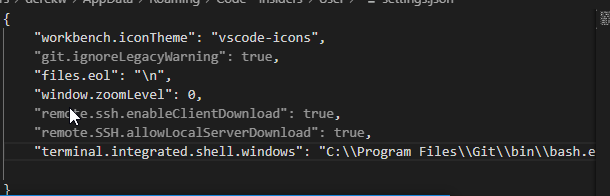
This will be called remote.SSH.allowLocalServerDownload tomorrow (the old one will still be accepted)
roblourens
on 19 Aug 2019
Also added --dns-timeout and --connect-timeout flags
roblourens
on 20 Aug 2019
@roblourens Retried by adding the 2 options to the user settings. both appear "grey out".
I uninstalled insiders. re-installed and downloaded the Remote SSH extension again.
it didnt work. here is the log. Behaviour looks the same. (ive removed the printing of ENV variables)
[05:31:15.075] SSH Resolver called for host: vividde02
[05:31:15.075] Setting up SSH remote "vividde02"
[05:31:15.120] Using commit id "c8d44e24dd250d416475a10efe64e35c9e2c65b3" and quality "insider" for server
[05:31:15.123] Testing ssh with ssh -V
[05:31:15.317] ssh exited with code: 0
[05:31:15.317] Got stderr from ssh: OpenSSH_for_Windows_7.6p1, LibreSSL 2.6.4
[05:31:15.317] Running script with connection command: ssh -o ClearAllForwardings=true vividde02 bash
[05:31:15.319] Install and start server if needed
[05:31:15.579] >
[05:31:15.579] Got some output, clearing connection timeout
[05:31:18.271] > Running remote connection script
[05:31:18.299] > Acquiring lock on /u/derekw/.vscode-server-insiders/bin/c8d44e24dd250d416475a10e
fe64e35c9e2c65b3/vscode-remote-lock.c8d44e24dd250d416475a10efe64e35c9e2c65b3
Installing to /u/derekw/.vscode-server-insiders/bin/c8d44e24dd250d416475a10efe64
e35c9e2c65b3...
Downloading with wget[05:31:19.362] > wget download failed
2019-08-20 07:31:19 URL:https://az764295.vo.msecnd.net/insider/c8d44e24dd250d416
475a10efe64e35c9e2c65b3/vscode-server-linux-x64.tar.gz [29928905/29928905] -> "v
scode-server-linux-x64.tar.gz" [1]
MODULE_VERSION_STACK=3.1.6
....
OLDPWD=/remote/de02h6/derekw
4194fd34-785a-4c7a-84e1-4cee39740f15##25##[05:31:19.362] Received install output: 4194fd34-785a-4c7a-84e1-4cee39740f15##25##
[05:31:19.362] Server download failed
[05:31:19.363] Downloading VS Code Server failed. Please try again later.
[05:31:19.363] TELEMETRY: {"eventName":"resolver","properties":{"outcome":"failure","reason":"ExitCode"},"measures":{"resolveAttempts":1,"exitCode":25,"retries":1}}
[05:31:19.364] ------
[05:31:20.088] "install" terminal command done
[05:31:20.088] Install terminal quit with output:
derekwallace
on 20 Aug 2019
@roblourens I have it working again. I think wget was failing . i looked at the file size and it seemed wrong. maybe i had a disk quota issue in my home account. i cleaned up space , re-ran and it worked.
i have it back working the way it was yesterday.
derekwallace
on 20 Aug 2019
On my side it's failing with the latest insiders, latest SSH extension and with the settings:
    "remote.ssh.enableClientDownload": true,
    "remote.SSH.allowLocalServerDownload": true,
The logs are the same as @derekwallace (without the env):
[07:33:43.508] [email protected]
[07:33:43.508] win32 x64
[07:33:43.509] SSH Resolver called for "ssh-remote+remotemachine", attempt 1
[07:33:43.509] SSH Resolver called for host: remotemachine
[07:33:43.509] Setting up SSH remote "remotemachine"
[07:33:43.542] Using commit id "c8d44e24dd250d416475a10efe64e35c9e2c65b3" and quality "insider" for server
[07:33:43.545] Testing ssh with ssh -V
[07:33:43.688] ssh exited with code: 0
[07:33:43.688] Got stderr from ssh: OpenSSH_7.9p1, OpenSSL 1.1.1a  20 Nov 2018
[07:33:43.689] Using SSH config file "C:\Users\jjunac\.ssh\config"
[07:33:43.689] Running script with connection command: ssh -o ClearAllForwardings=true -F C:\Users\jjunac\.ssh\config remotemachine bash
[07:33:43.690] Install and start server if needed
[07:33:43.845] >
[07:33:43.845] Got some output, clearing connection timeout
[07:33:46.342] > Running remote connection script
> Acquiring lock on /remote/users/jjunac/.vscode-server-insiders/bin/c8d44e24dd250d416475a10efe64e35c9e2c65b3/vscode-remote-lo
> ck.c8d44e24dd250d416475a10efe64e35c9e2c65b3
> Migrating .vscode-remote to /remote/users/jjunac/.vscode-server-insiders...
> cp: cannot stat `/remote/users/jjunac/.vscode-remote/data': No such file or directory
> cp: cannot stat `/remote/users/jjunac/.vscode-remote/extensions': No such file or directory
>
[07:33:46.422] > Installing to /remote/users/jjunac/.vscode-server-insiders/bin/c8d44e24dd250d416475a10efe64e35c9e2c65b3...
> Downloading with wget
>
[07:33:56.303] > wget download failed
>
>
> b9fc940a-fe56-43b0-a2ea-153a2894431c##25##
>
[07:33:56.358] Received install output: b9fc940a-fe56-43b0-a2ea-153a2894431c##25##
[07:33:56.359] Server download failed
[07:33:56.359] Downloading VS Code Server failed. Please try again later.
[07:33:56.359] TELEMETRY: {"eventName":"resolver","properties":{"outcome":"failure","reason":"ExitCode"},"measures":{"resolveAttempts":1,"exitCode":25,"retries":1}}
[07:33:56.359] ------
[07:33:56.828] "install" terminal command done
[07:33:56.828] Install terminal quit with output:
Am I missing something ?
 jjunac
on 20 Aug 2019
jjunac
on 20 Aug 2019
Hello,
It's still failing for me as well even with the 2 settings above, also I can confirm that it's not because of space issues as mentioned.
I'm just adding my logs in case it might help.
[08:43:42.280] [email protected]
[08:43:42.280] win32 x64
[08:43:42.280] SSH Resolver called for "ssh-remote+ec2-0084", attempt 1
[08:43:42.281] SSH Resolver called for host: ec2-0084
[08:43:42.281] Setting up SSH remote "ec2-0084"
[08:43:42.364] Using commit id "c8d44e24dd250d416475a10efe64e35c9e2c65b3" and quality "insider" for server
[08:43:42.367] Testing ssh with C:\Users\{USER}\AppData\Local\Programs\Git\usr\bin\ssh.exe -V
[08:43:42.457] ssh exited with code: 0
[08:43:42.457] Got stderr from ssh: OpenSSH_7.9p1, OpenSSL 1.1.1a  20 Nov 2018
[08:43:42.458] Running script with connection command: "C:\Users\{USER}\AppData\Local\Programs\Git\usr\bin\ssh.exe" -o ClearAllForwardings=true ec2-0084 bash
[08:43:42.459] Install and start server if needed
[08:43:42.795] >
[08:43:42.795] Got some output, clearing connection timeout
[08:43:44.006] > Running remote connection script
> Acquiring lock on /home/ec2-user/.vscode-server-insiders/bin/c8d44e24dd250d41647
> 5a10efe64e35c9e2c65b3/vscode-remote-lock.c8d44e24dd250d416475a10efe64e35c9e2c65b
> 3
> Installing to /home/ec2-user/.vscode-server-insiders/bin/c8d44e24dd250d416475a10
> efe64e35c9e2c65b3...
> Downloading with wget
>
[08:43:44.067] > wget download failed
> ----- ENV VARS -----
[08:43:44.068] Received install output: ff691cfd-5714-4949-9057-0edaf9097897##25##
[08:43:44.068] Server download failed
[08:43:44.069] Downloading VS Code Server failed. Please try again later.
[08:43:44.070] TELEMETRY: {"eventName":"resolver","properties":{"outcome":"failure","reason":"ExitCode"},"measures":{"resolveAttempts":1,"exitCode":25,"retries":1}}
[08:43:44.070] ------

[08:43:44.274] >
>
[08:43:44.531] "install" terminal command done
[08:43:44.531] Install terminal quit with output:
Thanks a ton for the work you're doing :)
------ EDIT
While re reading the thread I realized that I was supposed to use the nightly version of remote ssh, i'm now using [email protected] but the result doesn't change, still no luck. The logs are basically the same except for the very first line:
[10:29:29.878] [email protected]
 dreamorosi
on 20 Aug 2019
dreamorosi
on 20 Aug 2019
Hello,
The remote server got properly downloaded, installed and started.
When I connect to the remote host :
Running remote connection script
Acquiring lock on [redacted]
Found existing installation at [redacted]
Found running server...

*
* Reminder: You may only use this software with Visual Studio family products,
* as described in the license (https://go.microsoft.com/fwlink/?linkid=2077057)
*
Checking server status on port 40588 with wget
[redacted]: start
agentPort==40588==
webViewServerPort==49919==
osReleaseId==rhel==
webUiAccessToken====
[redacted]: end
So everything seems ok. Except, it won't install extensions (such as the official Python extension). I have this error:
[2019-08-20 12:20:19.914] [remoteagent] [info] Installing extension: ms-python.python
[2019-08-20 12:20:19.958] [remoteagent] [error] Failed to install extension: ms-python.python getaddrinfo ENOTFOUND ms-python.gallery.vsassets.io
I guess, this is related to #78 or https://github.com/microsoft/vscode-remote-release/issues/957. But what's weird is that downloading the server worked fine, yet, somehow, it fails to download any extensions.
 mlcdf
on 20 Aug 2019
mlcdf
on 20 Aug 2019
Is there any way we can have the server downloaded whenever the extension (or possibly VSCode itself, if that's what the server is based off of, which by the commit ids, seems to be the case) is updated from the client side? Then when we ssh to the host, the server is moved over. This would probably be the most optimal solution that covers both cases of no connection at all and client has connection while the remote host does not. I don't know if the situation where the client never has internet access can be completely addressed but as long as it is connected for updates, it shouldn't matter if it becomes disconnected prior to sshing to the remote host.
WSLUser
on 20 Aug 2019
At that point, the same logic that makes that mechanism work should extend to extensions. Though I'd honestly not care if the existing install is copied instead. I just want it to work without too much effort.
WSLUser
on 20 Aug 2019
@Helloimbob can you tell me what version of SSH you have and how it was installed? I can't reproduce this issue with the scp target file name.
@derekwallace Glad it worked, the log seems to show the remote download failing, and it not falling back to the local download, and I'm not sure why. But when you share a log next time, please include that first line that logs the extension version, it would make it easier for me to sanity check what code is running.
@jjunac and @dreamorosi Thank you for testing but you must use the __nightly__ version of the ssh extension
@mlcdf Would appreciate if you open a new issue for this, since extension downloading on offline servers should already be working. Please give some details about your proxy setup
@WSLUser that is how this feature works. When vscode is updated, we have to download a matching server. Either on the client side or the host side. But I am not really sure what else you are asking for.
roblourens
on 21 Aug 2019
@jjunac nightly is another extension.
https://marketplace.visualstudio.com/items?itemName=ms-vscode-remote.remote-ssh-nightly
 fukuseki
on 21 Aug 2019
fukuseki
on 21 Aug 2019
@roblourens Yes, I know I am supposed to use the nightly version of the ssh extension. I initially used the regular one but right after I posted the comment I made an edit (see at the bottom) stating that I switched to the nightly one (uninstalling the regular one first) but the results where the same.
Anyway, I updated to today's build and it still doesn't work, but this time I get a different error that suggests that the download from the client actually gets triggered:
Failed to connect to the remote extension host server (Error: write EPROTO 1072394152:error:100000f7:SSL routines:OPENSSL_internal:WRONG_VERSION_NUMBER:../../third_party/boringssl/src/ssl/tls_record.cc:242: )
Here's the complete log, please notice the build number at the top:
[07:42:56.696] [email protected]
[07:42:56.696] win32 x64
[07:42:56.697] SSH Resolver called for "ssh-remote+ec2-host", attempt 1
[07:42:56.697] SSH Resolver called for host: ec2-host
[07:42:56.697] Setting up SSH remote "ec2-host"
[07:42:56.743] Using commit id "c8d44e24dd250d416475a10efe64e35c9e2c65b3" and quality "insider" for server
[07:42:56.745] Testing ssh with C:\Users\{USER}\AppData\Local\Programs\Git\usr\bin\ssh.exe -V
[07:42:57.081] ssh exited with code: 0
[07:42:57.081] Got stderr from ssh: OpenSSH_7.9p1, OpenSSL 1.1.1a  20 Nov 2018
[07:42:57.081] Running script with connection command: "C:\Users\{USER}\AppData\Local\Programs\Git\usr\bin\ssh.exe" -D 53528 10.196.17.85 bash
[07:42:57.083] Install and start server if needed
[07:42:57.211] >
[07:42:57.211] Got some output, clearing connection timeout
[07:42:58.303] > Running remote connection script
> Acquiring lock on /home/{REMOTE_USER}/.vscode-server-insiders/bin/c8d44e24dd250d41647
> 5a10efe64e35c9e2c65b3/vscode-remote-lock.c8d44e24dd250d416475a10efe64e35c9e2c65b
> 3
> Installing to /home/{REMOTE_USER}/.vscode-server-insiders/bin/c8d44e24dd250d416475a10
> efe64e35c9e2c65b3...
> Downloading with wget
>
[07:42:58.434] > wget download failed
> Unable to establish SSL connection.
> XDG_SESSION_ID=5
> SHELL=/bin/bash
> VSCODE_AGENT_FOLDER=/home/{REMOTE_USER}/.vscode-server-insiders
> PWD=/home/{REMOTE_USER}/.vscode-server-insiders/bin/c8d44e24dd250d416475a10efe64e35c9
> e2c65b3
> SHLVL=2
> LESSOPEN=||/usr/bin/lesspipe.sh %s
> XDG_RUNTIME_DIR=/run/user/1000
> _=/usr/bin/printenv
> Trigger client server download
> VSCODE_ARCH==x64==
> 6257dd80-f0bf-4384-8d3a-9e6483712d0a__trigger_vscode_server_download__
> Waiting for client to transfer server archive...
> Waiting for /home/{REMOTE_USER}/.vscode-server-insiders/bin/c8d44e24dd250d416475a10ef
> e64e35c9e2c65b3/vscode-scp-done.flag and vscode-server-linux-x64.tar.gz to exist
>
--- Removed some ENV VARS ---
>
[07:42:58.434] Got request to download on client for x64
[07:42:58.517] write EPROTO 1072394152:error:100000f7:SSL routines:OPENSSL_internal:WRONG_VERSION_NUMBER:../../third_party/boringssl/src/ssl/tls_record.cc:242:

[07:42:58.517] ------


[07:43:01.413] >
[07:43:04.414] >
[07:43:07.405] >
[07:43:10.427] >
[07:43:13.444] >
[07:43:16.433] >
[07:43:19.413] >
[07:43:22.432] >
[07:43:25.433] >
[07:43:28.435] >
[07:43:31.438] >
[07:43:34.428] >
[07:43:37.431] >
[07:43:40.442] >
... It continues to output lines endlessly ...
The OpenSSH version on the remote host is OpenSSH_7.4p1, OpenSSL 1.0.2k-fips 26 Jan 2017.
Thanks a lot for the work you're putting in this :)
dreamorosi
on 21 Aug 2019
@roblourens Indeed, my bad.
I've just updated it, I'm now running Insiders from 2019-08-19 and [email protected].
The wget still takes a while to timeout, I had to kill it manually. Here is the command launched on the remote if it can help you:
wget --connect-timeout=7 --dns-timeout=7 -nv -O vscode-server-linux-x64.tar.gz https://update.code.visualstudio.com/commit:c8d44e24dd250d416475a10efe64e35c9e2c65b3/server-linux-x64/insider
This time it tries try copy from the host, but something else is failing, it's hanging forever, here are the logs:
[07:46:14.918] [email protected]
[07:46:14.918] win32 x64
[07:46:14.921] SSH Resolver called for "ssh-remote+remotemachine", attempt 1
[07:46:14.921] SSH Resolver called for host: remotemachine
[07:46:14.921] Setting up SSH remote "remotemachine"
[07:46:14.960] Using commit id "c8d44e24dd250d416475a10efe64e35c9e2c65b3" and quality "insider" for server
[07:46:14.963] Testing ssh with ssh -V
[07:46:15.107] ssh exited with code: 0
[07:46:15.107] Got stderr from ssh: OpenSSH_7.9p1, OpenSSL 1.1.1a  20 Nov 2018
[07:46:15.107] Using SSH config file "C:\Users\jjunac\.ssh\config"
[07:46:15.108] Running script with connection command: ssh -D 58334 -F C:\Users\jjunac\.ssh\config remotemachine bash
[07:46:15.110] Install and start server if needed
[07:46:15.313] >
[07:46:15.313] Got some output, clearing connection timeout
[07:46:17.904] > Running remote connection script
> Acquiring lock on /remote/users/jjunac/.vscode-server-insiders/bin/c8d44e24dd250
> d416475a10efe64e35c9e2c65b3/vscode-remote-lock.c8d44e24dd250d416475a10efe64e35c9
> e2c65b3
>
[07:46:17.930] > Migrating .vscode-remote to /remote/users/jjunac/.vscode-server-insiders...
> cp: cannot stat `/remote/users/jjunac/.vscode-remote/data': No such file or dire
> ctory
> cp: cannot stat `/remote/users/jjunac/.vscode-remote/extensions': No such file o
> r directory
> Installing to /remote/users/jjunac/.vscode-server-insiders/bin/c8d44e24dd250d416
> 475a10efe64e35c9e2c65b3...
>
[07:46:17.966] > Downloading with wget
>
[07:46:28.118] > Acquiring lock on /remote/users/jjunac/.vscode-server-insiders/bin/c8d44e24dd250d416475a10efe64e35c9e2c65b3/vscode-remote-lock.c8d44e24dd250d416475a10efe64e35c9e2c65b3
> Migrating .vscode-remote to /remote/users/jjunac/.vscode-server-insiders...
> cp: cannot stat `/remote/users/jjunac/.vscode-remote/data': No such file or directory
> cp: cannot stat `/remote/users/jjunac/.vscode-remote/extensions': No such file or directory
> Installing to /remote/users/jjunac/.vscode-server-insiders/bin/c8d44e24dd250d416475a10efe64e35c9e2c65b3...
> Downloading with wget
>
[07:48:19.919] > wget download failed
>
--- ENV ---
> Trigger client server download
> VSCODE_ARCH==x64==
> 5375110b-86e5-4d5d-9551-983f72a16ebe__trigger_vscode_server_download__
> Waiting for client to transfer server archive...
> Waiting for /remote/users/jjunac/.vscode-server-insiders/bin/c8d44e24dd250d416475a10efe64e35c9e2c65b3/vscode-scp-done.flag and vscode-server-linux-x64.tar.gz to exist
>
[07:48:20.007] Got request to download on client for x64
[07:48:21.127] Following update server redirect
[07:48:22.951] >
[07:48:25.955] >
[07:48:28.972] >
[07:48:30.554] Finished downloading to C:\Users\jjunac\AppData\Local\Temp\vscode-server_1566373701127\vscode-server-linux-x64.tar.gz
[07:48:30.559] Testing ssh with ssh -V
[07:48:30.631] ssh exited with code: 0
[07:48:30.631] Got stderr from ssh: OpenSSH_7.9p1, OpenSSL 1.1.1a  20 Nov 2018
[07:48:30.631] Testing scp with "scp"
[07:48:31.398] scp exited with code: 1
[07:48:31.398] Got stderr from scp: usage: scp [-346BCpqrv] [-c cipher] [-F ssh_config] [-i identity_file]
           [-l limit] [-o ssh_option] [-P port] [-S program] source ... target
[07:48:31.399] Using SSH config file "C:\Users\jjunac\.ssh\config"
[07:48:31.399] Copying file to remote with scp -F C:\Users\jjunac\.ssh\config C:\Users\jjunac\AppData\Local\Temp\vscode-server_1566373701127\vscode-server-linux-x64.tar.gz C:\Users\jjunac\AppData\Local\Temp\vscode-scp-done.flag remotemachine:~/.vscode-server-insiders/bin/c8d44e24dd250d416475a10efe64e35c9e2c65b3/
[07:48:31.535] >
[07:48:31.968] >
[07:48:33.998] > C:\Users\jjunac\AppData\Local\Temp\vscode-ser   0%    0     0.0KB/s   --:-- ETA
[07:48:34.963] >
[07:48:34.998] > C:\Users\jjunac\AppData\Local\Temp\vscode-ser  46%   13MB  13.2MB/s   00:01 ETA
[07:48:35.996] > C:\Users\jjunac\AppData\Local\Temp\vscode-ser  86%   25MB  13.0MB/s   00:00 ETA
[07:48:36.628] > C:\Users\jjunac\AppData\Local\Temp\vscode-ser 100%   29MB  10.8MB/s   00:02
> C:\Users\jjunac\AppData\Local\Temp\vscode-scp 100%    9     1.3KB/s   00:00
>
[07:48:36.909] "Copy server to host" terminal command done
[07:48:37.965] >
--- Empty lines... ---
[07:54:47.184] >
--- ENV ---
> Trigger client server download
> VSCODE_ARCH==x64==
> 5375110b-86e5-4d5d-9551-983f72a16ebe__trigger_vscode_server_download__
> Waiting for client to transfer server archive...
> Waiting for /remote/users/jjunac/.vscode-server-insiders/bin/c8d44e24dd250d416475a10efe64e35c9e2c65b3/vscode-scp-done.flag and vscode-server-linux-x64.tar.gz to exist
>
[07:54:50.207] >
[07:54:53.206] >
--- ENV ---
> Trigger client server download
> VSCODE_ARCH==x64==
> 5375110b-86e5-4d5d-9551-983f72a16ebe__trigger_vscode_server_download__
> Waiting for client to transfer server archive...
> Waiting for /remote/users/jjunac/.vscode-server-insiders/bin/c8d44e24dd250d416475a10efe64e35c9e2c65b3/vscode-scp-done.flag and vscode-server-linux-x64.tar.gz to exist
>
[07:54:56.202] >
--- Empty lines... ---
[07:56:38.263] >
[07:56:41.091] "install" terminal command done
[07:56:41.091] Install terminal quit with output: Waiting for /remote/users/jjunac/.vscode-server-insiders/bin/c8d44e24dd250d416475a10efe64e35c9e2c65b3/vscode-scp-done.flag and vscode-server-linux-x64.tar.gz to exist
[07:56:41.091] Received install output: Waiting for /remote/users/jjunac/.vscode-server-insiders/bin/c8d44e24dd250d416475a10efe64e35c9e2c65b3/vscode-scp-done.flag and vscode-server-linux-x64.tar.gz to exist
[07:56:41.092] Failed to parse remote port from server output: Waiting for /remote/users/jjunac/.vscode-server-insiders/bin/c8d44e24dd250d416475a10efe64e35c9e2c65b3/vscode-scp-done.flag and vscode-server-linux-x64.tar.gz to exist
[07:56:41.093]
[07:56:41.093] TELEMETRY: {"eventName":"resolver","properties":{"outcome":"failure","reason":"UnparsableOutput"},"measures":{"resolveAttempts":1,"retries":1}}
[07:56:41.094] ------
I have the following file on the remote, if it can help:
$ tree .vscode-server-insiders
.vscode-server-insiders
`-- bin
    `-- c8d44e24dd250d416475a10efe64e35c9e2c65b3
        |-- C:\Users\jjunac\AppData\Local\Temp\vscode-scp-done.flag
        |-- C:\Users\jjunac\AppData\Local\Temp\vscode-server_1566373701127\vscode-server-linux-x64.tar.gz
        `-- vscode-server-linux-x64.tar.gz

2 directories, 3 files
The commands ran by the vscode ssh when it was hanging:
jjunac   23726 23721  0 09:46 ?        00:00:00 sshd: jjunac@notty
jjunac   23727 23726  0 09:46 ?        00:00:00 bash
jjunac   23984 23727  0 09:51 ?        00:00:00 sleep 3
@roblourens Sure, the version of SSH on the windows box is
OpenSSH_7.9p1, OpenSSL 1.1.1a 20 Nov 2018
[07:58:46.366] [email protected]
[07:58:46.366] win32 x64
[07:58:46.367] SSH Resolver called for "ssh-remote+remote_host", attempt 1
[07:58:46.367] SSH Resolver called for host: remote_host
[07:58:46.367] Setting up SSH remote "remote_host"
[07:58:46.399] Using commit id "4fa08902f7845050a948d3d74e3b836276fa613a" and quality "insider" for server
[07:58:46.401] Testing ssh with ssh -V
[07:58:46.632] ssh exited with code: 0
[07:58:46.632] Got stderr from ssh: OpenSSH_7.9p1, OpenSSL 1.1.1a  20 Nov 2018
[07:58:46.633] Running script with connection command: ssh -D 62204 remote_host bash
[07:58:46.643] Install and start server if needed
[07:58:47.235] >
[07:58:47.235] Got some output, clearing connection timeout
[07:58:48.196] > Running remote connection script
> Acquiring lock on /server/users/user/.vscode-server-insiders/bin/4fa08902f7845050a948
> d3d74e3b836276fa613a/vscode-remote-lock.4fa08902f7845050a948d3d74e3b836276fa613a
>
>
[07:58:48.203] > Installing to /server/users/user/.vscode-server-insiders/bin/4fa08902f7845050a948d3d7
> 4e3b836276fa613a...
>
[07:58:48.227] > Downloading with wget
>
[08:03:33.288] > wget download failed
>
> XDG_SESSION_ID=7113
> SHELL=/usr/bin/bash
> SSH_CLIENT=192.168.134.58 62208 22
> FID_CURRENTRUN_LOGS={}/runtime/currentRun
> PYTH_SCRIPTS=/top/users/user/scripts/python
> USER=user
> LS_COLORS=di=1;33:mi=1;31
> VSCODE_AGENT_FOLDER=/top/users/user/.vscode-server-insiders
> PATH=/usr/local/bin:/usr/bin
> MAIL=/var/mail/user
> PWD=/top/users/user/.vscode-server-insiders/bin/4fa08902f7845050a948d3d74e3b836276
> fa613a
[08:03:33.324] >
> THIRD_PARTY=/server/infrastructure_release/vdev_build/core/third-party_LI
> NUX_X86/
> HOME=/top/users/user
> SHLVL=2
> FID_LOGS=/runtime/logs
> LOGNAME=user
> SSH_CONNECTION=192.168.134.58 62208 192.168.218.36 22
> P4USER=User
> XDG_RUNTIME_DIR=/run/user/2403
> _=/usr/bin/printenv
> OLDPWD=/server/users/user
> Trigger client server download
> VSCODE_ARCH==x64==
> 0d60836f-4b12-4551-9454-3a1b9752a48d__trigger_vscode_server_download__
> Waiting for client to transfer server archive...
> Waiting for /server/users/user/.vscode-server-insiders/bin/4fa08902f7845050a948d3d74e
> 3b836276fa613a/vscode-scp-done.flag and vscode-server-linux-x64.tar.gz to exist
>
[08:03:33.324] Got request to download on client for x64
[08:03:33.423] Following update server redirect
[08:03:36.023] Finished downloading to C:\Users\User\AppData\Local\Temp\vscode-server_1566374613423\vscode-server-linux-x64.tar.gz
[08:03:36.026] Testing ssh with ssh -V
[08:03:36.289] ssh exited with code: 0
[08:03:36.289] Got stderr from ssh: OpenSSH_7.9p1, OpenSSL 1.1.1a  20 Nov 2018
[08:03:36.289] Testing scp with "scp"
[08:03:36.311] >
[08:03:36.533] scp exited with code: 1
[08:03:36.533] Got stderr from scp: usage: scp [-346BCpqrv] [-c cipher] [-F ssh_config] [-i identity_file]
           [-l limit] [-o ssh_option] [-P port] [-S program] source ... target
[08:03:36.534] Copying file to remote with scp C:\Users\User\AppData\Local\Temp\vscode-server_1566374613423\vscode-server-linux-x64.tar.gz C:\Users\User\AppData\Local\Temp\vscode-scp-done.flag remote_host:~/.vscode-server-insiders/bin/4fa08902f7845050a948d3d74e3b836276fa613a/
[08:03:36.790] >
[08:03:38.125] > C:\Users\User\AppData\Local\Temp\vsco   0%    0     0.0KB/s   --:-- ETA
[08:03:39.122] > C:\Users\User\AppData\Local\Temp\vsco  46%   13MB  13.2MB/s   00:01 ETA
[08:03:39.311] >
[08:03:40.122] > C:\Users\User\AppData\Local\Temp\vsco  86%   25MB  13.0MB/s   00:00 ETA
[08:03:40.716] > C:\Users\User\AppData\Local\Temp\vsco 100%   29MB  11.1MB/s   00:02
> C:\Users\User\AppData\Local\Temp\vsco 100%    9     1.1KB/s   00:00
>
[08:03:41.029] "Copy server to host" terminal command done
If I manually go to the AppData/Local/Temp/... directory and scp the file across with
scp vscode-server-linux-x64.tar.gz remote_host:~/.vscode-server-insiders/bin/4fa08902f7845050a948d3d74e3b836276fa613a/. it seems to transfer the file correctly.
Helloimbob
on 21 Aug 2019
@roblourens Currently what you've done is make it so you need the client to have access to the remote host while remaining connected to the Internet. This dependency needs to be removed. By default, the server should be updated every time VSCode updates (thanks for clarification there) on the client side. Then, when the client does have access to the remote host (but does NOT have Internet access), the ssh extension will scp the server over to the remote host. This should also improve the situation for all users as it should be faster to download to client and then scp to remote host regardless if the remote has Internet access or not.
WSLUser
on 21 Aug 2019
Thanks for all this work! I'm still having some issues with this on latest insiders and nightly builds.
Running remote connection script
Acquiring lock on /home/<user>/.vscode-server-insiders/bin/ada79d72be36ecbfed6f88bb16edcc5cc3f5c2a8/vscode-remote-lock.ada79d72be36ecbfed6f88bb16edcc5cc3f5c2a8
Installing to /home/<user>/.vscode-server-insiders/bin/ada79d72be36ecbfed6f88bb16edcc5cc3f5c2a8...
Downloading with wget
wget download failed
https://update.code.visualstudio.com/commit:ada79d72be36ecbfed6f88bb16edcc5cc3f5c2a8/server-linux-x64/insider: 2019-08-21 09:30:12 ERROR 503: Service Unavailable.
SSH_CONNECTION=<redac> 58985 <redac>
LANG=en_US.UTF-8
XDG_SESSION_ID=329
USER=<user>
PWD=/home/<user>/.vscode-server-insiders/bin/ada79d72be36ecbfed6f88bb16edcc5cc3f5c2a8
HOME=/home/<user>
SSH_CLIENT=<redac> 58985 22
MAIL=/var/mail/<user>
SHELL=/bin/bash
SHLVL=2
VSCODE_AGENT_FOLDER=/home/<user>/.vscode-server-insiders
LOGNAME=<user>
XDG_RUNTIME_DIR=/run/user/70257
PATH=/data/<user>/anaconda3/bin:/home/<user>/local/bin/portainer:/home/<user>/local/bin:/usr/local/bin:/usr/bin
CVS_RSH=ssh
LESSOPEN=||/usr/bin/lesspipe.sh %s
_=/usr/bin/printenv
OLDPWD=/home/<user>
Trigger client server download
VSCODE_ARCH==x64==
55745db7-6184-48c0-8d6b-35a1ca7f8abf__trigger_vscode_server_download__
Waiting for client to transfer server archive...
Waiting for /home/<user>/.vscode-server-insiders/bin/ada79d72be36ecbfed6f88bb16edcc5cc3f5c2a8/vscode-scp-done.flag
and vscode-server-linux-x64.tar.gz to exist
After a few seconds new terminal pops up very briefly showing that it is transferring the server tar, however it returns to the above terminal waiting for the tar file to appear and hangs. Then if I check on my remote machine I see several tar files (for the several attempts I've made) however their filenames are the full windows path i.e.
<user>@<hostname> ~/.vscode-server-insiders/bin/ada79d72be36ecbfed6f88bb16edcc5cc3f5c2a8 ls -lha
total 143M
drwxr-x--- 2 <user> users 4.0K Aug 21 09:28 .
drwxr-x--- 6 <user> users 4.0K Aug 21 09:14 ..
-rw-r----- 1 <user> users 9 Aug 21 09:24 C:\Users\<user>\AppData\Local\Temp\vscode-scp-done.flag
-rw-r----- 1 <user> users 29M Aug 21 09:14 C:\Users\<user>\AppData\Local\Temp\vscode-server_1566404059237\vscode-server-linux-x64.tar.gz
-rw-r----- 1 <user> users 29M Aug 21 09:17 C:\Users\<user>\AppData\Local\Temp\vscode-server_1566404214604\vscode-server-linux-x64.tar.gz
-rw-r----- 1 <user> users 29M Aug 21 09:18 C:\Users\<user>\AppData\Local\Temp\vscode-server_1566404285566\vscode-server-linux-x64.tar.gz
-rw-r----- 1 <user> users 29M Aug 21 09:19 C:\Users\<user>\AppData\Local\Temp\vscode-server_1566404380582\vscode-server-linux-x64.tar.gz
-rw-r----- 1 <user> users 29M Aug 21 09:24 C:\Users\<user>\AppData\Local\Temp\vscode-server_1566404685253\vscode-server-linux-x64.tar.gz
-rw-r----- 1 <user> users 0 Aug 21 09:24 vscode-server-linux-x64.tar.gz
For some reason the check to see if the transfer is done is not being recognized, I assume because of the way the filenames are being saved when transferred? The vscode-scp-done.flag file output is
<user>@<hostname> ~/.vscode-server-insiders/bin/ada79d72be36ecbfed6f88bb16edcc5cc3f5c2a8 cat C:\\Users\\<user>\\AppData\\Local\\Temp\\vscode-scp-done.flag
finished
@dreamorosi well I have absolutely no idea what this error means:
write EPROTO 1072394152:error:100000f7:SSL routines:OPENSSL_internal:WRONG_VERSION_NUMBER:../../third_party/boringssl/src/ssl/tls_record.cc:242:
At this point, we are just trying to download the server on the client, using node's https. I think the error is coming from electron/node. Are you using a proxy or have any other special setup that might affect this?
@jjunac if you run that command in a terminal on the remote, does it ever time out? I am expecting it to timeout within 7 seconds. If it doesn't, I don't know what it's waiting for.
After that it seems likely that you are seeing the same issue with getting the wrong name for the target file that @Helloimbob and @underchemist are seeing.
If I manually go to the AppData/Local/Temp/... directory and scp the file across with
scp vscode-server-linux-x64.tar.gz remote_host:~/.vscode-server-insiders/bin/4fa08902f7845050a948d3d74e3b836276fa613a/. it seems to transfer the file correctly.
Thanks for the suggestion, will change the extension to try that.
@WSLUser Now I understand, thanks. The thing is, we publish a bunch of flavors of the server, and that number will grow, and they are large. We can't download all of the servers preemptively every time vscode updates. If we downloaded them ahead of time it would have to be a user-initiated experience. But I think this is separate from what I am trying to do here, so feel free to open a new issue for it.
roblourens
on 22 Aug 2019
@roblourens I investigated the timeout thing, and on my version of wget (GNU 1.11.4, yeah pretty old) there are 20 tries by default. So the actual waiting time is 140 seconds. I would suggest adding the -t 1 option to limit the try to 1.
Also, with the current command wget can get a read timeout, which by default (at least on my version) is 900 seconds. Hence, you might want to use this option instead of specifying all the timeouts:
       -T seconds
       --timeout=seconds
           Set the network timeout to seconds seconds.  This is equivalent to specifying --dns-timeout, --connect-timeout, and --read-timeout, all at the same time.

           When interacting with the network, Wget can check for timeout and abort the operation if it takes too long.  This prevents anomalies like hanging reads and infinite connects.  The only timeout enabled by default is a 900-second read
           timeout.  Setting a timeout to 0 disables it altogether.  Unless you know what you are doing, it is best not to change the default timeout settings.

           All timeout-related options accept decimal values, as well as subsecond values.  For example, 0.1 seconds is a legal (though unwise) choice of timeout.  Subsecond timeouts are useful for checking server response times or for testing
           network latency.
Hope it helps 😃 Thank you for the huge amount of effort you are putting in this feature 💯
jjunac
on 22 Aug 2019
@roblourens Yes, because of company policies I am connected to a VPN and use proxies. I have setup my proxy settings (credentials, host, etc. ) in vscode through the http.proxy setting so they should be picked up no?
In some cases SSL has proven to be an issue on this setup with many more tools due to some company self signed certificates. Is there any way to download the client without it (maybe some flags like --no-verify-ssl or better an entry in settings.json)? I know it's not ideal but maybe adding this kind of setting to do a manual override could solve the issue.
dreamorosi
on 22 Aug 2019
@jjunac FWIW, the error message I get when it attempts (and fails since I can't be connected to download server and connect to remote host) shows it only retries once. However my remote host runs Fedora so maybe your remote host has a different default timeout for ssh.
@roblourens
The thing is, we publish a bunch of flavors of the server, and that number will grow, and they are large.
What are those flavors based on? It really should just be rpm based, deb based, bsd/mac, and arm. None of these servers should have a dependency on systemd and should be agnostic as possible. I would expect Ubuntu and Debian for example to work with the same exact server just like I would expect Oracle Linux and RHEL should use the same server (along with derivatives). (the only difference is the BerkeleyDB implementation in which Oracle provides a bunch of nasty hacks to get certain things running).
Worse comes to worse, you simply add a check so you know which server to download if you really want to maintain a ton of servers. That would only take a few seconds to run and ensure you're not just grabbing them all. You could also have an explicit setting that allows the user to tell the extension which server to download. I can file a new issue for this as suggested if it will allow this issue to be fully resolved.
WSLUser
on 22 Aug 2019
@jjunac I set connect timeout and dns timeout. If you don't have internet access, that should be enough, right? I don't want to set --read-timeout because I don't want to fail just for slow connections. (not yet, maybe that is a use case for letting the user explicitly pick which side to download on)
roblourens
on 24 Aug 2019
@WSLUser There will be several versions for architecture/OS (including windows, eventually), and the download is about 30MB, so I think it's not ok for us to predownload every version ahead of time.
Thinking this goes along with the comments above about offline clients so I opened https://github.com/microsoft/vscode-remote-release/issues/1242 for this, feel free to add any comments.
roblourens
on 24 Aug 2019
@roblourens Yes sure it is enough if there is no internet connection, I just wanted to raise that the read timeout is awfully long by default, but if you have a plan for that then it's fine :)
However is there a plan to hardcode the number of tries to make sure the behavior is the same for every machine ? As in my company we are running SLES 11 with an old version of GNU Wget (1.11.4) and by default wget tries 20 times:
       -t number
       --tries=number
           Set number of retries to number.  Specify 0 or inf for infinite retrying.  The default is to retry 20 times, with the exception of fatal errors like "connection refused" or "not found" (404), which are not retried.
Oh, does it retry for the offline error you get? In my testing, it is not retrying for "Network is unreachable".
If you just run wget for microsoft.com or something else on your offline host, what error do you get?
roblourens
on 26 Aug 2019
And I've pushed a fix for the path issue on windows that @Helloimbob and @underchemist are seeing.
roblourens
on 27 Aug 2019
@roblourens I set the timeout to 1s and tried to wget something, and it is indeed trying 20 times:
--2019-08-27 09:15:41--  http://whatever.com/
Resolving whatever.com... ***an IP***
Connecting to whatever.com|***an IP***|:80... failed: Connection timed out.
Retrying.

--2019-08-27 09:15:43--  (try: 2)  http://whatever.com/
Connecting to whatever.com|***an IP***|:80... failed: Connection timed out.
Retrying.

--2019-08-27 09:15:46--  (try: 3)  http://whatever.com/
Connecting to whatever.com|***an IP***|:80... failed: Connection timed out.
Retrying.

--2019-08-27 09:15:50--  (try: 4)  http://whatever.com/
Connecting to whatever.com|***an IP***|:80... failed: Connection timed out.
Retrying.

.... and so on
On the other hand, I just did another test, and the path error is indeed fixed. However, I'm getting a Failed to connect to the remote extension host server (Error: Connection error: Unauthorized client refused.) error shortly after. Here are the logs:
[07:11:20.862] Remote server is listening on port 59753
[07:11:20.862] Parsed server configuration: {"agentPort":59753,"osReleaseId":"sles","webUiAccessToken":""}
[07:11:20.863] Starting forwarding server. localPort 56314 -> socksPort 56310 -> remotePort 59753
[07:11:20.865] Forwarding server listening on 56314
[07:11:20.865] Waiting for ssh tunnel to be ready
[07:11:20.869] Tunneled remote port 59753 to local port 56314
[07:11:20.869] Resolved "ssh-remote+remotemachine" to "127.0.0.1:56314"
[07:11:20.869] TELEMETRY: {"eventName":"resolver","properties":{"outcome":"success","osReleaseId":"sles"},"measures":{"resolveAttempts":1,"retries":1}}
[07:11:20.870] ------
[07:11:20.870] [Forwarding server 56314] Got connection 0
[07:11:20.884] [Forwarding server 56314] Got connection 1
[07:11:20.886] [Forwarding server 56314] Got connection 2
And here is the stack trace I'm getting in the JS console:
  ERR [remote-connection][Management   ][4efe7…][initial][127.0.0.1:56314] received error control message when negotiating connection. Error:
log.ts:173   ERR Error: Connection error: Unauthorized client refused.
    at _ (remoteAgentConnection.ts:553)
    at o.onControlMessage.l (remoteAgentConnection.ts:189)
    at d.fire (event.ts:572)
    at v.fire (ipc.net.ts:449)
    at _receiveMessage (ipc.net.ts:732)
    at _socketDisposables.push._socketReader.onMessage.e (ipc.net.ts:588)
    at d.fire (event.ts:572)
    at g.acceptChunk (ipc.net.ts:235)
    at _register._socket.onData.e (ipc.net.ts:196)
    at Socket.t (ipc.net.ts:28)
    at Socket.emit (events.js:182)
    at addChunk (_stream_readable.js:283)
    at readableAddChunk (_stream_readable.js:264)
    at Socket.Readable.push (_stream_readable.js:219)
    at TCP.onStreamRead [as onread] (internal/stream_base_commons.js:94)
log.ts:173   ERR [remote-connection] An error occurred in the very first connect attempt, it will be treated as a permanent error! Error:
log.ts:173   ERR Error: Connection error: Unauthorized client refused.
    at _ (remoteAgentConnection.ts:553)
    at o.onControlMessage.l (remoteAgentConnection.ts:189)
    at d.fire (event.ts:572)
    at v.fire (ipc.net.ts:449)
    at _receiveMessage (ipc.net.ts:732)
    at _socketDisposables.push._socketReader.onMessage.e (ipc.net.ts:588)
    at d.fire (event.ts:572)
    at g.acceptChunk (ipc.net.ts:235)
    at _register._socket.onData.e (ipc.net.ts:196)
    at Socket.t (ipc.net.ts:28)
    at Socket.emit (events.js:182)
    at addChunk (_stream_readable.js:283)
    at readableAddChunk (_stream_readable.js:264)
    at Socket.Readable.push (_stream_readable.js:219)
    at TCP.onStreamRead [as onread] (internal/stream_base_commons.js:94)
notificationsAlerts.ts:40 Failed to connect to the remote extension host server (Error: Connection error: Unauthorized client refused.)
onDidNotificationChange @ notificationsAlerts.ts:40
notificationsAlerts.ts:40 Could not fetch remote environment
onDidNotificationChange @ notificationsAlerts.ts:40
log.ts:173   ERR [remote-connection][ExtensionHost][14b57…][initial][127.0.0.1:56314] received error control message when negotiating connection. Error:
log.ts:173   ERR Error: Connection error: Unauthorized client refused.
    at _ (remoteAgentConnection.ts:553)
    at o.onControlMessage.l (remoteAgentConnection.ts:189)
    at d.fire (event.ts:572)
    at v.fire (ipc.net.ts:449)
    at _receiveMessage (ipc.net.ts:732)
    at _socketDisposables.push._socketReader.onMessage.e (ipc.net.ts:588)
    at d.fire (event.ts:572)
    at g.acceptChunk (ipc.net.ts:235)
    at _register._socket.onData.e (ipc.net.ts:196)
    at Socket.t (ipc.net.ts:28)
    at Socket.emit (events.js:182)
    at addChunk (_stream_readable.js:283)
    at readableAddChunk (_stream_readable.js:264)
    at Socket.Readable.push (_stream_readable.js:219)
    at TCP.onStreamRead [as onread] (internal/stream_base_commons.js:94)
log.ts:173   ERR [remote-connection] An error occurred in the very first connect attempt, it will be treated as a permanent error! Error:
log.ts:173   ERR Error: Connection error: Unauthorized client refused.
    at _ (remoteAgentConnection.ts:553)
    at o.onControlMessage.l (remoteAgentConnection.ts:189)
    at d.fire (event.ts:572)
    at v.fire (ipc.net.ts:449)
    at _receiveMessage (ipc.net.ts:732)
    at _socketDisposables.push._socketReader.onMessage.e (ipc.net.ts:588)
    at d.fire (event.ts:572)
    at g.acceptChunk (ipc.net.ts:235)
    at _register._socket.onData.e (ipc.net.ts:196)
    at Socket.t (ipc.net.ts:28)
    at Socket.emit (events.js:182)
    at addChunk (_stream_readable.js:283)
    at readableAddChunk (_stream_readable.js:264)
    at Socket.Readable.push (_stream_readable.js:219)
    at TCP.onStreamRead [as onread] (internal/stream_base_commons.js:94)
extensionHostProcessManager.ts:76 Error received from starting extension host
_extensionHostProcessProxy._extensionHostProcessWorker.start.then.e @ extensionHostProcessManager.ts:76
extensionHostProcessManager.ts:77 Error: Connection error: Unauthorized client refused.
    at _ (remoteAgentConnection.ts:553)
    at o.onControlMessage.l (remoteAgentConnection.ts:189)
    at d.fire (event.ts:572)
    at v.fire (ipc.net.ts:449)
    at _receiveMessage (ipc.net.ts:732)
    at _socketDisposables.push._socketReader.onMessage.e (ipc.net.ts:588)
    at d.fire (event.ts:572)
    at g.acceptChunk (ipc.net.ts:235)
    at _register._socket.onData.e (ipc.net.ts:196)
    at Socket.t (ipc.net.ts:28)
    at Socket.emit (events.js:182)
    at addChunk (_stream_readable.js:283)
    at readableAddChunk (_stream_readable.js:264)
    at Socket.Readable.push (_stream_readable.js:219)
    at TCP.onStreamRead [as onread] (internal/stream_base_commons.js:94)
_extensionHostProcessProxy._extensionHostProcessWorker.start.then.e @ extensionHostProcessManager.ts:77
log.ts:173   ERR Connection error: Unauthorized client refused.: Error: Connection error: Unauthorized client refused.
    at _ (file:///C:/Users/jjunac/AppData/Local/Programs/Microsoft VS Code Insiders/resources/app/out/vs/workbench/workbench.desktop.main.js:1676:506)
    at o.onControlMessage.l (file:///C:/Users/jjunac/AppData/Local/Programs/Microsoft VS Code Insiders/resources/app/out/vs/workbench/workbench.desktop.main.js:1674:659)
    at d.fire (file:///C:/Users/jjunac/AppData/Local/Programs/Microsoft VS Code Insiders/resources/app/out/vs/workbench/workbench.desktop.main.js:107:468)
    at v.fire (file:///C:/Users/jjunac/AppData/Local/Programs/Microsoft VS Code Insiders/resources/app/out/vs/workbench/workbench.desktop.main.js:350:801)
    at _receiveMessage (file:///C:/Users/jjunac/AppData/Local/Programs/Microsoft VS Code Insiders/resources/app/out/vs/workbench/workbench.desktop.main.js:355:324)
    at _socketDisposables.push._socketReader.onMessage.e (file:///C:/Users/jjunac/AppData/Local/Programs/Microsoft VS Code Insiders/resources/app/out/vs/workbench/workbench.desktop.main.js:352:321)
    at d.fire (file:///C:/Users/jjunac/AppData/Local/Programs/Microsoft VS Code Insiders/resources/app/out/vs/workbench/workbench.desktop.main.js:107:468)
    at g.acceptChunk (file:///C:/Users/jjunac/AppData/Local/Programs/Microsoft VS Code Insiders/resources/app/out/vs/workbench/workbench.desktop.main.js:348:234)
    at _register._socket.onData.e (file:///C:/Users/jjunac/AppData/Local/Programs/Microsoft VS Code Insiders/resources/app/out/vs/workbench/workbench.desktop.main.js:347:592)
    at Socket.t (file:///C:/Users/jjunac/AppData/Local/Programs/Microsoft VS Code Insiders/resources/app/out/vs/workbench/workbench.desktop.main.js:357:518)
    at Socket.emit (events.js:182:13)
    at addChunk (_stream_readable.js:283:12)
    at readableAddChunk (_stream_readable.js:264:11)
    at Socket.Readable.push (_stream_readable.js:219:10)
    at TCP.onStreamRead [as onread] (internal/stream_base_commons.js:94:17)
It seems to be linked to the extension server. Am I missing something ?
Thanks for your work
jjunac
on 27 Aug 2019
I can confirm that I can now connect to remote host by having my vs code client transfer the server code instead of fetching through wget. cheers.
underchemist
on 27 Aug 2019
Progress. @jjunac looks like you are now seeing https://github.com/microsoft/vscode-remote-release/issues/103 which means that you might not have a compatible glic version. Some details and tips here: https://code.visualstudio.com/docs/remote/linux#_remote-host-container-wsl-linux-prerequisites
roblourens
on 27 Aug 2019
@roblourens Indeed, the version of glibc on the machine is below the requirements. Thank you for the doc, I will see what I can do.
jjunac
on 28 Aug 2019
I also has the similar problem.
manual solve, only for ssh modestep 1: download the vscode-server
wget -nv -O vscode-server-linux-x64.tar.gz https://update.code.visualstudio.com/commit:daf71423252a707b8e396e8afa8102b717f8213b/server-linux-x64/insiderstep 2: copy vscode-server-linux-x64.tar.gz to direction /
cp vscode-server-linux-x64.tar.gz /vscode-server-linux-x64.tar.gzstep 3: modify C:\Users\administrator.vscode-insiders\extensions\ms-vscode-remote.remote-ssh-0.35.0\out\extension.js
search "wget -nv -O vscode-server-linux-x64.tar.gz https://update.code.visualstudio.com/commit:$COMMIT_ID/server-linux-x64/${t}"replace it with "cp /vscode-server-linux-x64.tar.gz ."
then retry connected, it's ok.
Hi there.
Your method is cool! but I can't finish it because extension.js
changed form in version 0.46.0.
Could you help me see how to use it in the new version?
Thanks
 LiXiaYu
on 10 Sep 2019
LiXiaYu
on 10 Sep 2019
@roblourens thanks so much for adding this! I've been eagerly awaiting it.
I'm having trouble with proxy settings on the local side, running on Windows with system proxy settings. I have no problem installing extensions locally, but with allowLocalServerDownload=true the client server download is failing:
[15:10:31.982] [email protected]
[15:10:31.982] win32 x64
[15:10:31.982] SSH Resolver called for "ssh-remote+lhs", attempt 1
[15:10:31.982] SSH Resolver called for host: lhs
[15:10:31.982] Setting up SSH remote "lhs"
[15:10:32.011] Using commit id "8b6e0efc0a98639085fabeb5226a516785424796" and quality "insider" for server
[15:10:32.014] Testing ssh with C:\Windows\System32\OpenSSH\ssh.exe -V
[15:10:32.068] ssh exited with code: 0
[15:10:32.068] Got stderr from ssh: OpenSSH_for_Windows_7.9p1, LibreSSL 2.6.4
[15:10:32.069] Using SSH config file "c:\Users\lukep\.ssh\config"
[15:10:32.069] Running script with connection command: "C:\Windows\System32\OpenSSH\ssh.exe" -T -D 54268 -F c:\Users\lukep\.ssh\config lhs bash
[15:10:32.073] Install and start server if needed
[15:10:32.226] >
[15:10:32.226] Got some output, clearing connection timeout
[15:10:33.298] > 96508ccb4aba: running
> Acquiring lock on /home/lukep/.vscode-server-insiders/bin/8b6e0efc0a98639085fabe
> b5226a516785424796/vscode-remote-lock.8b6e0efc0a98639085fabeb5226a516785424796
> Installing to /home/lukep/.vscode-server-insiders/bin/8b6e0efc0a98639085fabeb522
> 6a516785424796...
> Downloading with wget
>
[15:10:33.748] > Acquiring lock on /home/lukep/.vscode-server-insiders/bin/8b6e0efc0a98639085fabeb5226a516785424796/vscode-remote-lock.8b6e0efc0a986390
> 85fabeb5226a516785424796
> Installing to /home/lukep/.vscode-server-insiders/bin/8b6e0efc0a98639085fabeb5226a516785424796...
> Downloading with wget
>
>
[15:10:39.885] > Acquiring lock on /home/lukep/.vscode-server-insiders/bin/8b6e0efc0a98639085fabeb5226a516785424796/vscode-remote-lock.8b6e0efc0a98639085fabeb5226a516785424796
> Installing to /home/lukep/.vscode-server-insiders/bin/8b6e0efc0a98639085fabeb5226a516785424796...
> Downloading with wget
>
>
>
[15:10:40.384] > wget download failed
> failed: Connection timed out.
...
>
[15:10:40.472] > Trigger client server download
> VSCODE_ARCH==x64==
> 96508ccb4aba__trigger_vscode_server_download__
> Waiting for client to transfer server archive...
> Waiting for /home/lukep/.vscode-server-insiders/bin/8b6e0efc0a98639085fabeb5226a516785424796/vscode-scp-done.flag and vscode-server-linux-x64.tar.gz to exist
>
[15:10:40.473] Got request to download on client for x64
[15:10:40.677] Failed to download VS Code Server: HTTP 407 - Proxy Authentication Required
I'm not sure how to debug this further, can you help?
 lpetre
on 19 Sep 2019
lpetre
on 19 Sep 2019
Related issues
kieferrm
·
3Comments
 JacksonKearl
·
3Comments
JacksonKearl
·
3Comments
 gurdevrana
·
3Comments
gurdevrana
·
3Comments
 kzawad1
·
3Comments
kzawad1
·
3Comments
 jeffreyyjp
·
3Comments
jeffreyyjp
·
3Comments
Most helpful comment
I also has the similar problem.
manual solve, only for ssh mode
step 1: download the vscode-server
wget -nv -O vscode-server-linux-x64.tar.gz https://update.code.visualstudio.com/commit:daf71423252a707b8e396e8afa8102b717f8213b/server-linux-x64/insider
step 2: copy vscode-server-linux-x64.tar.gz to direction /
cp vscode-server-linux-x64.tar.gz /vscode-server-linux-x64.tar.gz
step 3: modify C:\Users\administrator\.vscode-insiders\extensions\ms-vscode-remote.remote-ssh-0.35.0\out\extension.js
search "wget -nv -O vscode-server-linux-x64.tar.gz https://update.code.visualstudio.com/commit:$COMMIT_ID/server-linux-x64/${t}"
replace it with "cp /vscode-server-linux-x64.tar.gz ."
then retry connected, it's ok.