Vscode-jupyter: Failing to detect ipykernel module
Steps to cause the bug to occur
- Right click on script "Run in interactive window.
Actual behavior
Loads forever.
Notifys that ipykernel is not installed
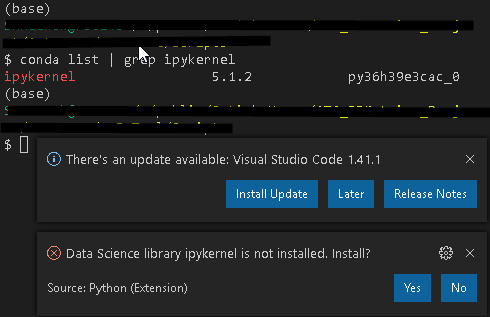
Expected behavior
Your Jupyter and/or Python environment
Please provide as much info as you readily know
- Jupyter server running: Local
- Extension version: 2020.01
- VS Code version: 1.39.2
- Setting python.jediEnabled: true
- Python and/or Anaconda version: 3.6
- OS: Windows
- Virtual environment: conda

Developer Tools Console Output
Info Python Extension: 2020-01-13 15:33:43: Python Daemon: Failed executing an rpc method. Error: Traceback (most recent call last):  File "c:\Users\skmeenak\.vscode\extensions\ms-python.python-2020.1.58038\pythonFiles\datascience\getServerInfo.py", line 12, in <module>    for si in server_list:  File "C:\ProgramData\CooperConda\lib\site-packages\notebook\notebookapp.py", line 1888, in list_running_servers    with io.open(os.path.join(runtime_dir, file_name), encoding='utf-8') as f:FileNotFoundError: [Errno 2] No such file or directory: 'C:\\Users\\skmeenak\\AppData\\Roaming\\jupyter\\runtime\\nbserver-15404.json'During handling of the above exception, another exception occurred:Traceback (most recent call last):  File "c:\Users\skmeenak\.vscode\extensions\ms-python.python-2020.1.58038\pythonFiles\datascience\daemon\daemon_python.py", line 54, in _decorator    return func(self, *args, **kwargs)  File "c:\Users\skmeenak\.vscode\extensions\ms-python.python-2020.1.58038\pythonFiles\datascience\daemon\daemon_python.py", line 133, in m_exec_file    return self._execute_and_capture_output(exec_file)  File "c:\Users\skmeenak\.vscode\extensions\ms-python.python-2020.1.58038\pythonFiles\datascience\daemon\daemon_python.py", line 104, in _execute_and_capture_output    func()  File "c:\Users\skmeenak\.vscode\extensions\ms-python.python-2020.1.58038\pythonFiles\datascience\daemon\daemon_python.py", line 130, in exec_file    runpy.run_path(file_name, globals())  File "C:\ProgramData\CooperConda\lib\runpy.py", line 263, in run_path    pkg_name=pkg_name, script_name=fname)  File "C:\ProgramData\CooperConda\lib\runpy.py", line 96, in _run_module_code    mod_name, mod_spec, pkg_name, script_name)  File "C:\ProgramData\CooperConda\lib\runpy.py", line 85, in _run_code    exec(code, run_globals)  File "c:\Users\skmeenak\.vscode\extensions\ms-python.python-2020.1.58038\pythonFiles\datascience\getServerInfo.py", line 29, in <module>    result = subprocess.run(['jupyter', 'notebook', 'list', '--jsonlist'], capture_output=True)  File "C:\ProgramData\CooperConda\lib\subprocess.py", line 423, in run    with Popen(*popenargs, **kwargs) as process:TypeError: __init__() got an unexpected keyword argument 'capture_output'
console.ts:137 [Extension Host] Info Python Extension: 2020-01-13 15:33:43: Cached data exists ActivatedEnvironmentVariables, <No Resource>
console.ts:137 [Extension Host] Info Python Extension: 2020-01-13 15:33:43: getActivatedEnvironmentVariables, Class name = b, completed in 1ms, Arg 1: undefined, Arg 2: undefined, Arg 3: true
console.ts:137 [Extension Host] Info Python Extension: 2020-01-13 15:33:43: [I 15:33:43.277 NotebookApp] JupyterLab extension loaded from C:\ProgramData\CooperConda\lib\site-packages\jupyterlab[I 15:33:43.278 NotebookApp] JupyterLab application directory is C:\ProgramData\CooperConda\share\jupyter\lab[I 15:33:43.280 NotebookApp] Serving notebooks from local directory: C:\Users\skmeenak\AppData\Local\Temp\10fdc1fc-a08f-4b42-a595-509969ab45b6[I 15:33:43.280 NotebookApp] The Jupyter Notebook is running at:[I 15:33:43.281 NotebookApp] http://localhost:8888/?token=74dea3721d973d3161da3c20162c4941be761ebf0b05c4f8[I 15:33:43.281 NotebookApp]  or http://127.0.0.1:8888/?token=74dea3721d973d3161da3c20162c4941be761ebf0b05c4f8[I 15:33:43.281 NotebookApp] Use Control-C to stop this server and shut down all kernels (twice to skip confirmation).[C 15:33:43.287 NotebookApp]         To access the notebook, open this file in a browser:        file:///C:/Users/skmeenak/AppData/Roaming/jupyter/runtime/nbserver-11364-open.html    Or copy and paste one of these URLs:        http://localhost:8888/?token=74dea3721d973d3161da3c20162c4941be761ebf0b05c4f8     or http://127.0.0.1:8888/?token=74dea3721d973d3161da3c20162c4941be761ebf0b05c4f8
console.ts:137 [Extension Host] Warn Python Extension: 2020-01-13 15:33:43: Falling back to Python Execution Service due to failure in daemon { Error: Failed to execute using the daemon, Traceback (most recent call last):  File "c:\Users\skmeenak\.vscode\extensions\ms-python.python-2020.1.58038\pythonFiles\datascience\getServerInfo.py", line 12, in <module>    for si in server_list:  File "C:\ProgramData\CooperConda\lib\site-packages\notebook\notebookapp.py", line 1888, in list_running_servers    with io.open(os.path.join(runtime_dir, file_name), encoding='utf-8') as f:FileNotFoundError: [Errno 2] No such file or directory: 'C:\\Users\\skmeenak\\AppData\\Roaming\\jupyter\\runtime\\nbserver-15404.json'During handling of the above exception, another exception occurred:Traceback (most recent call last):  File "c:\Users\skmeenak\.vscode\extensions\ms-python.python-2020.1.58038\pythonFiles\datascience\daemon\daemon_python.py", line 54, in _decorator    return func(self, *args, **kwargs)  File "c:\Users\skmeenak\.vscode\extensions\ms-python.python-2020.1.58038\pythonFiles\datascience\daemon\daemon_python.py", line 133, in m_exec_file    return self._execute_and_capture_output(exec_file)  File "c:\Users\skmeenak\.vscode\extensions\ms-python.python-2020.1.58038\pythonFiles\datascience\daemon\daemon_python.py", line 104, in _execute_and_capture_output    func()  File "c:\Users\skmeenak\.vscode\extensions\ms-python.python-2020.1.58038\pythonFiles\datascience\daemon\daemon_python.py", line 130, in exec_file    runpy.run_path(file_name, globals())  File "C:\ProgramData\CooperConda\lib\runpy.py", line 263, in run_path    pkg_name=pkg_name, script_name=fname)  File "C:\ProgramData\CooperConda\lib\runpy.py", line 96, in _run_module_code    mod_name, mod_spec, pkg_name, script_name)  File "C:\ProgramData\CooperConda\lib\runpy.py", line 85, in _run_code    exec(code, run_globals)  File "c:\Users\skmeenak\.vscode\extensions\ms-python.python-2020.1.58038\pythonFiles\datascience\getServerInfo.py", line 29, in <module>    result = subprocess.run(['jupyter', 'notebook', 'list', '--jsonlist'], capture_output=True)  File "C:\ProgramData\CooperConda\lib\subprocess.py", line 423, in run    with Popen(*popenargs, **kwargs) as process:TypeError: __init__() got an unexpected keyword argument 'capture_output'    at t.PythonDaemonExecutionService.processResponse (c:\Users\skmeenak\.vscode\extensions\ms-python.python-2020.1.58038\src\client\common\process\pythonDaemon.ts:214:1)    at t.PythonDaemonExecutionService.processResponse [as execFileWithDaemon] (c:\Users\skmeenak\.vscode\extensions\ms-python.python-2020.1.58038\src\client\common\process\pythonDaemon.ts:229:1)  message:   'Failed to execute using the daemon, Traceback (most recent call last):\n  File "c:\\Users\\skmeenak\\.vscode\\extensions\\ms-python.python-2020.1.58038\\pythonFiles\\datascience\\getServerInfo.py", line 12, in <module>\n    for si in server_list:\n  File "C:\\ProgramData\\CooperConda\\lib\\site-packages\\notebook\\notebookapp.py", line 1888, in list_running_servers\n    with io.open(os.path.join(runtime_dir, file_name), encoding=\'utf-8\') as f:\nFileNotFoundError: [Errno 2] No such file or directory: \'C:\\\\Users\\\\skmeenak\\\\AppData\\\\Roaming\\\\jupyter\\\\runtime\\\\nbserver-15404.json\'\n\nDuring handling of the above exception, another exception occurred:\n\nTraceback (most recent call last):\n  File "c:\\Users\\skmeenak\\.vscode\\extensions\\ms-python.python-2020.1.58038\\pythonFiles\\datascience\\daemon\\daemon_python.py", line 54, in _decorator\n    return func(self, *args, **kwargs)\n  File "c:\\Users\\skmeenak\\.vscode\\extensions\\ms-python.python-2020.1.58038\\pythonFiles\\datascience\\daemon\\daemon_python.py", line 133, in m_exec_file\n    return self._execute_and_capture_output(exec_file)\n  File "c:\\Users\\skmeenak\\.vscode\\extensions\\ms-python.python-2020.1.58038\\pythonFiles\\datascience\\daemon\\daemon_python.py", line 104, in _execute_and_capture_output\n    func()\n  File "c:\\Users\\skmeenak\\.vscode\\extensions\\ms-python.python-2020.1.58038\\pythonFiles\\datascience\\daemon\\daemon_python.py", line 130, in exec_file\n    runpy.run_path(file_name, globals())\n  File "C:\\ProgramData\\CooperConda\\lib\\runpy.py", line 263, in run_path\n    pkg_name=pkg_name, script_name=fname)\n  File "C:\\ProgramData\\CooperConda\\lib\\runpy.py", line 96, in _run_module_code\n    mod_name, mod_spec, pkg_name, script_name)\n  File "C:\\ProgramData\\CooperConda\\lib\\runpy.py", line 85, in _run_code\n    exec(code, run_globals)\n  File "c:\\Users\\skmeenak\\.vscode\\extensions\\ms-python.python-2020.1.58038\\pythonFiles\\datascience\\getServerInfo.py", line 29, in <module>\n    result = subprocess.run([\'jupyter\', \'notebook\', \'list\', \'--jsonlist\'], capture_output=True)\n  File "C:\\ProgramData\\CooperConda\\lib\\subprocess.py", line 423, in run\n    with Popen(*popenargs, **kwargs) as process:\nTypeError: __init__() got an unexpected keyword argument \'capture_output\'\n' }
t.log @ console.ts:137
$logExtensionHostMessage @ mainThreadConsole.ts:39
_doInvokeHandler @ rpcProtocol.ts:398
_invokeHandler @ rpcProtocol.ts:383
_receiveRequest @ rpcProtocol.ts:299
_receiveOneMessage @ rpcProtocol.ts:226
_protocol.onMessage.e @ rpcProtocol.ts:101
fire @ event.ts:580
fire @ ipc.net.ts:453
_receiveMessage @ ipc.net.ts:733
_socketDisposables.push._socketReader.onMessage.e @ ipc.net.ts:592
fire @ event.ts:580
acceptChunk @ ipc.net.ts:239
_register._socket.onData.e @ ipc.net.ts:200
t @ ipc.net.ts:28
emit @ events.js:182
addChunk @ _stream_readable.js:283
readableAddChunk @ _stream_readable.js:264
Readable.push @ _stream_readable.js:219
onStreamRead @ internal/stream_base_commons.js:94
console.ts:137 [Extension Host] Info Python Extension: 2020-01-13 15:33:43: > C:\ProgramData\CooperConda\python.exe c:\Users\skmeenak\.vscode\extensions\ms-python.python-2020.1.58038\pythonFiles\datascience\getServerInfo.py
console.ts:137 [Extension Host] Info Python Extension: 2020-01-13 15:33:43: Python Daemon: Execute rpc method ping in DS Daemon
console.ts:137 [Extension Host] Info Python Extension: 2020-01-13 15:33:43: Python Daemon: Execute rpc method ping
console.ts:137 [Extension Host] Info Python Extension: 2020-01-13 15:33:43: Python Daemon: pinged with hello
console.ts:137 [Extension Host] Info Python Extension: 2020-01-13 15:33:43: > C:\ProgramData\CooperConda\python.exe (daemon) c:\Users\skmeenak\.vscode\extensions\ms-python.python-2020.1.58038\pythonFiles\datascience\getServerInfo.py
console.ts:137 [Extension Host] Info Python Extension: 2020-01-13 15:33:43: Python Daemon: Execute rpc method exec_file in DS Daemon
console.ts:137 [Extension Host] Info Python Extension: 2020-01-13 15:33:43: Python Daemon: Execute rpc method exec_file
console.ts:137 [Extension Host] Info Python Extension: 2020-01-13 15:33:43: Python Daemon: Exec file c:\Users\skmeenak\.vscode\extensions\ms-python.python-2020.1.58038\pythonFiles\datascience\getServerInfo.py with args []
console.ts:137 [Extension Host] Info Python Extension: 2020-01-13 15:33:43: Python Daemon: execute file c:\Users\skmeenak\.vscode\extensions\ms-python.python-2020.1.58038\pythonFiles\datascience\getServerInfo.py
console.ts:137 [Extension Host] Info Python Extension: 2020-01-13 15:33:43: Python Daemon: Execute rpc method ping in DS Daemon
console.ts:137 [Extension Host] Info Python Extension: 2020-01-13 15:33:43: Python Daemon: Execute rpc method ping
console.ts:137 [Extension Host] Info Python Extension: 2020-01-13 15:33:43: Python Daemon: pinged with hello
console.ts:137 [Extension Host] Info Python Extension: 2020-01-13 15:33:43: > C:\ProgramData\CooperConda\python.exe (daemon) c:\Users\skmeenak\.vscode\extensions\ms-python.python-2020.1.58038\pythonFiles\datascience\getServerInfo.py
console.ts:137 [Extension Host] Info Python Extension: 2020-01-13 15:33:43: Python Daemon: Execute rpc method exec_file in DS Daemon
console.ts:137 [Extension Host] Info Python Extension: 2020-01-13 15:33:43: Python Daemon: Execute rpc method exec_file
console.ts:137 [Extension Host] Info Python Extension: 2020-01-13 15:33:43: Python Daemon: Exec file c:\Users\skmeenak\.vscode\extensions\ms-python.python-2020.1.58038\pythonFiles\datascience\getServerInfo.py with args []
console.ts:137 [Extension Host] Info Python Extension: 2020-01-13 15:33:43: Python Daemon: execute file c:\Users\skmeenak\.vscode\extensions\ms-python.python-2020.1.58038\pythonFiles\datascience\getServerInfo.py
console.ts:137 [Extension Host] Info Python Extension: 2020-01-13 15:33:43: Python Daemon: Execute rpc method ping in DS Daemon
console.ts:137 [Extension Host] Info Python Extension: 2020-01-13 15:33:43: Python Daemon: Execute rpc method ping
console.ts:137 [Extension Host] Info Python Extension: 2020-01-13 15:33:43: Python Daemon: pinged with hello
console.ts:137 [Extension Host] Info Python Extension: 2020-01-13 15:33:43: > C:\ProgramData\CooperConda\python.exe (daemon) c:\Users\skmeenak\.vscode\extensions\ms-python.python-2020.1.58038\pythonFiles\datascience\getServerInfo.py
console.ts:137 [Extension Host] Info Python Extension: 2020-01-13 15:33:43: Python Daemon: Execute rpc method exec_file in DS Daemon
console.ts:137 [Extension Host] Info Python Extension: 2020-01-13 15:33:43: Python Daemon: Execute rpc method exec_file
console.ts:137 [Extension Host] Info Python Extension: 2020-01-13 15:33:43: Python Daemon: Exec file c:\Users\skmeenak\.vscode\extensions\ms-python.python-2020.1.58038\pythonFiles\datascience\getServerInfo.py with args []
console.ts:137 [Extension Host] Info Python Extension: 2020-01-13 15:33:43: Python Daemon: execute file c:\Users\skmeenak\.vscode\extensions\ms-python.python-2020.1.58038\pythonFiles\datascience\getServerInfo.py
console.ts:137 [Extension Host] Info Python Extension: 2020-01-13 15:33:43: Python Daemon: Execute rpc method ping in DS Daemon
console.ts:137 [Extension Host] Info Python Extension: 2020-01-13 15:33:43: Python Daemon: Execute rpc method ping
console.ts:137 [Extension Host] Info Python Extension: 2020-01-13 15:33:43: Python Daemon: pinged with hello
console.ts:137 [Extension Host] Info Python Extension: 2020-01-13 15:33:43: > C:\ProgramData\CooperConda\python.exe (daemon) c:\Users\skmeenak\.vscode\extensions\ms-python.python-2020.1.58038\pythonFiles\datascience\getServerInfo.py
console.ts:137 [Extension Host] Info Python Extension: 2020-01-13 15:33:43: Python Daemon: Execute rpc method exec_file in DS Daemon
console.ts:137 [Extension Host] Info Python Extension: 2020-01-13 15:33:43: Python Daemon: Execute rpc method exec_file
console.ts:137 [Extension Host] Info Python Extension: 2020-01-13 15:33:43: Python Daemon: Exec file c:\Users\skmeenak\.vscode\extensions\ms-python.python-2020.1.58038\pythonFiles\datascience\getServerInfo.py with args []
console.ts:137 [Extension Host] Info Python Extension: 2020-01-13 15:33:43: Python Daemon: execute file c:\Users\skmeenak\.vscode\extensions\ms-python.python-2020.1.58038\pythonFiles\datascience\getServerInfo.py
console.ts:137 [Extension Host] Info Python Extension: 2020-01-13 15:33:43: Python Daemon: Execute rpc method ping in DS Daemon
console.ts:137 [Extension Host] Info Python Extension: 2020-01-13 15:33:43: Python Daemon: Execute rpc method ping
console.ts:137 [Extension Host] Info Python Extension: 2020-01-13 15:33:43: Python Daemon: pinged with hello
console.ts:137 [Extension Host] Info Python Extension: 2020-01-13 15:33:43: > C:\ProgramData\CooperConda\python.exe (daemon) c:\Users\skmeenak\.vscode\extensions\ms-python.python-2020.1.58038\pythonFiles\datascience\getServerInfo.py
console.ts:137 [Extension Host] Info Python Extension: 2020-01-13 15:33:43: Python Daemon: Execute rpc method exec_file in DS Daemon
console.ts:137 [Extension Host] Info Python Extension: 2020-01-13 15:33:43: Python Daemon: Execute rpc method exec_file
console.ts:137 [Extension Host] Info Python Extension: 2020-01-13 15:33:43: Python Daemon: Exec file c:\Users\skmeenak\.vscode\extensions\ms-python.python-2020.1.58038\pythonFiles\datascience\getServerInfo.py with args []
console.ts:137 [Extension Host] Info Python Extension: 2020-01-13 15:33:43: Python Daemon: execute file c:\Users\skmeenak\.vscode\extensions\ms-python.python-2020.1.58038\pythonFiles\datascience\getServerInfo.py
console.ts:137 [Extension Host] Info Python Extension: 2020-01-13 15:33:43: Python Daemon: Execute rpc method ping in DS Daemon
console.ts:137 [Extension Host] Info Python Extension: 2020-01-13 15:33:43: Python Daemon: Execute rpc method ping
console.ts:137 [Extension Host] Info Python Extension: 2020-01-13 15:33:43: Python Daemon: pinged with hello
notificationsAlerts.ts:40 Data Science library ipykernel is not installed. Install?
onDidNotificationChange @ notificationsAlerts.ts:40
_register.model.onDidNotificationChange.e @ notificationsAlerts.ts:26
fire @ event.ts:580
addNotification @ notifications.ts:156
notify @ notificationService.ts:100
r @ mainThreadMessageService.ts:83
_showMessage @ mainThreadMessageService.ts:44
$showMessage @ mainThreadMessageService.ts:38
_doInvokeHandler @ rpcProtocol.ts:398
_invokeHandler @ rpcProtocol.ts:383
_receiveRequest @ rpcProtocol.ts:299
_receiveOneMessage @ rpcProtocol.ts:226
_protocol.onMessage.e @ rpcProtocol.ts:101
fire @ event.ts:580
fire @ ipc.net.ts:453
_receiveMessage @ ipc.net.ts:733
_socketDisposables.push._socketReader.onMessage.e @ ipc.net.ts:592
fire @ event.ts:580
acceptChunk @ ipc.net.ts:239
_register._socket.onData.e @ ipc.net.ts:200
t @ ipc.net.ts:28
emit @ events.js:182
addChunk @ _stream_readable.js:283
readableAddChunk @ _stream_readable.js:264
Readable.push @ _stream_readable.js:219
onStreamRead @ internal/stream_base_commons.js:94
console.ts:137 [Extension Host] Info Python Extension: 2020-01-13 15:33:45: Python Daemon: Execute rpc method ping in DS Daemon
console.ts:137 [Extension Host] Info Python Extension: 2020-01-13 15:33:45: Python Daemon: Execute rpc method ping
console.ts:137 [Extension Host] Info Python Extension: 2020-01-13 15:33:45: Python Daemon: pinged with hello
Also it appears to be intermittent....at lease on one occasion today the user reported and showed me that it did "Work" and the ipython kernel was started. I couldn't tell whether it was daemon or fallback.
Let me know if you need any more details.
Microsoft Data Science for VS Code Engineering Team: @rchiodo, @IanMatthewHuff, @DavidKutu, @DonJayamanne, @greazer
 y2kbugger
All 38 comments
Hi @y2kbugger
Thank you for reporting the bug. I just tried it and couldn't reproduce it.
We'll take a deeper look and get back to you.
 DavidKutu
on 13 Jan 2020
DavidKutu
on 13 Jan 2020
Notifys that ipykernel is not installed
Thanks for reporting this issue.
We have changed the way we start a kernel. We now register the current interpreter as a kernel.
To do this we need ipykernel installed in the current interpreter.
Hence you'll need to select Yes to install ipykernel.
If you do not wish to to so, you could select another interpreter or another kernel.
Closing this issue as this is by design.
Note: The error you are getting about falling back from daemon seems to be cased by some missing file in your environment.
Please could you select Yes to installing a kernel and let us know how it goes.
 DonJayamanne
on 13 Jan 2020
DonJayamanne
on 13 Jan 2020
See photo, ipykernel is installed
$ conda list | grep ipykernel
ipykernel          5.1.2
When you click update it spins. I could ask the user to try that again.
We have changed the way we start a kernel. We now register the current interpreter as a kernel
I noticed this and was the reason I decided to submit the issue.
Our conda environment is bepoke in these ways:
- No access to outside conda channels
- The base environment is C:\ProgramData\CustomConda
- PYTHONPATH, and PATH are left untouched by our conda setup
Because of these customizations I thought we might've found an edgecase of the new kernel loading mechanism. The thing that really bothered me is that after some time had passed, with no updates to VSCode( I checked), or the python extension, began to work for the user I was working with. It also doesn't happen on all on my machine.
There were definitely tracebacks in the developer console...but I failed to copy them.....
y2kbugger
on 13 Jan 2020
Ok I took control of the users computer and did some more exploring. I can now reproduce the "spinning forever" and the action which causes it to be "magically fixed".
- Do a clean restart of VS Code
- Run the current script in interactive terminal:

- The ipykernel message will appear.

- The status says "Starting jupter server" indefinitely

- and the
Python Interactivewindow looks like this with the loading animation indefinitely:

Here's the clue and source of intermittent behaviour:
Everything gets unblocked when I click the x on the notification message which misidentified that ipykernel was not installed. If I had done step 2 multiple times they had been queued and the script will run multiple times.
y2kbugger
on 13 Jan 2020
Python Interactive window looks like this with the loading animation indefinitely:
Please could you send the logs when this happens. Open Help -> Toggle Developer Tools and go to the console window and save the contents to a file.
Please could you also try the following:
- Identify the selected interpreter (bottom left of the statusbar you'll see an item that lists the interpreter selected. The tooltip will contain the fully qualified path to that interpreter).
- Open a terminal, type the following:
-m ipykernel --version -c "import importlib; importlib.import_module('ipykernel')"
DonJayamanne
on 14 Jan 2020
Please could you send the logs when this happens.
Open Help -> Toggle Developer Toolsand go to theconsole windowand save the contents to a file.
vscode_ipykernel_reproduced_error.log
Open a terminal, type the following:
-m ipykernel --version
-c "import importlib; importlib.import_module('ipykernel')"
In cygwin, with proper conda activation
$ /c/ProgramData/CustomConda/python -m ipykernel --version
7.8.0
$ /c/ProgramData/CustomConda/python -c "import importlib; importlib.import_module('ipykernel')"
$
In cmd, without conda activation
>C:\ProgramData\CustomConda\python.exe -m ipykernel --version
_cffi_ext.c
C:\ProgramData\CustomConda\lib\site-packages\zmq\backend\cffi\__pycache__\_cffi_ext.c(213): fatal error C1083: Cannot open include file: 'sys/un.h': No such file or directory
Traceback (most recent call last):
  File "C:\ProgramData\CustomConda\lib\runpy.py", line 183, in _run_module_as_main
    mod_name, mod_spec, code = _get_module_details(mod_name, _Error)
  File "C:\ProgramData\CustomConda\lib\runpy.py", line 142, in _get_module_details
    return _get_module_details(pkg_main_name, error)
  File "C:\ProgramData\CustomConda\lib\runpy.py", line 109, in _get_module_details
    __import__(pkg_name)
  File "C:\ProgramData\CustomConda\lib\site-packages\ipykernel\__init__.py", line 2, in <module>
    from .connect import *
  File "C:\ProgramData\CustomConda\lib\site-packages\ipykernel\connect.py", line 18, in <module>
    import jupyter_client
  File "C:\ProgramData\CustomConda\lib\site-packages\jupyter_client\__init__.py", line 4, in <module>
    from .connect import *
  File "C:\ProgramData\CustomConda\lib\site-packages\jupyter_client\connect.py", line 24, in <module>
    import zmq
  File "C:\ProgramData\CustomConda\lib\site-packages\zmq\__init__.py", line 47, in <module>
    from zmq import backend
  File "C:\ProgramData\CustomConda\lib\site-packages\zmq\backend\__init__.py", line 40, in <module>
    reraise(*exc_info)
  File "C:\ProgramData\CustomConda\lib\site-packages\zmq\utils\sixcerpt.py", line 34, in reraise
    raise value
  File "C:\ProgramData\CustomConda\lib\site-packages\zmq\backend\__init__.py", line 27, in <module>
    _ns = select_backend(first)
  File "C:\ProgramData\CustomConda\lib\site-packages\zmq\backend\select.py", line 28, in select_backend
    mod = __import__(name, fromlist=public_api)
  File "C:\ProgramData\CustomConda\lib\site-packages\zmq\backend\cython\__init__.py", line 6, in <module>
    from . import (constants, error, message, context,
ImportError: DLL load failed: The specified module could not be found.

>C:\ProgramData\CustomConda\python.exe  -c "import importlib; importlib.import_module('ipykernel')"
_cffi_ext.c
C:\ProgramData\CustomConda\lib\site-packages\zmq\backend\cffi\__pycache__\_cffi_ext.c(213): fatal error C1083: Cannot open include file: 'sys/un.h': No such file or directory
Traceback (most recent call last):
  File "<string>", line 1, in <module>
  File "C:\ProgramData\CustomConda\lib\importlib\__init__.py", line 126, in import_module
    return _bootstrap._gcd_import(name[level:], package, level)
  File "<frozen importlib._bootstrap>", line 994, in _gcd_import
  File "<frozen importlib._bootstrap>", line 971, in _find_and_load
  File "<frozen importlib._bootstrap>", line 955, in _find_and_load_unlocked
  File "<frozen importlib._bootstrap>", line 665, in _load_unlocked
  File "<frozen importlib._bootstrap_external>", line 678, in exec_module
  File "<frozen importlib._bootstrap>", line 219, in _call_with_frames_removed
  File "C:\ProgramData\CustomConda\lib\site-packages\ipykernel\__init__.py", line 2, in <module>
    from .connect import *
  File "C:\ProgramData\CustomConda\lib\site-packages\ipykernel\connect.py", line 18, in <module>
    import jupyter_client
  File "C:\ProgramData\CustomConda\lib\site-packages\jupyter_client\__init__.py", line 4, in <module>
    from .connect import *
  File "C:\ProgramData\CustomConda\lib\site-packages\jupyter_client\connect.py", line 24, in <module>
    import zmq
  File "C:\ProgramData\CustomConda\lib\site-packages\zmq\__init__.py", line 47, in <module>
    from zmq import backend
  File "C:\ProgramData\CustomConda\lib\site-packages\zmq\backend\__init__.py", line 40, in <module>
    reraise(*exc_info)
  File "C:\ProgramData\CustomConda\lib\site-packages\zmq\utils\sixcerpt.py", line 34, in reraise
    raise value
  File "C:\ProgramData\CustomConda\lib\site-packages\zmq\backend\__init__.py", line 27, in <module>
    _ns = select_backend(first)
  File "C:\ProgramData\CustomConda\lib\site-packages\zmq\backend\select.py", line 28, in select_backend
    mod = __import__(name, fromlist=public_api)
  File "C:\ProgramData\CustomConda\lib\site-packages\zmq\backend\cython\__init__.py", line 6, in <module>
    from . import (constants, error, message, context,
ImportError: DLL load failed: The specified module could not be found.
>
Thanks for the feedback
Please could you:
- Send a screenshot of the bottom left of the VS Code status bar (this is where we display the selected python interpreter information).
- Open a python file in VS Code, then open a terminal.
- Let me know what commands are sent to the terminal. Do you see any
conda activationcommands being sent to the terminal
- Let me know what commands are sent to the terminal. Do you see any
- Please could you try repeating the same steps to repro the issue and send the logs as requested earlier (you missed that). I'm after the contents of the console window when you get the error message
ipykernel not installed - Please could you type the following in your terminal and let me know what you get:
conda --versionconda env list
DonJayamanne
on 15 Jan 2020
Logs I thought I attached as file, let me know if that is not the case. I
will get the rest of the other info tomorrow.
Without my work computer I can say this much regarding the vscode terminal.
We have customized vscode terminal to use bash, and we activate the base
conda env via .bashrc. I have definitely seen vscode try to (re)activate
the base env upon opening, but I don't think that is the case across all
developers(specifically I've seen it on other dev's computers but I don't
think I've seen it on mine ever) I'll get you the specific command we've
set the terminal to and I'll try to reproduce issue after resetting that to
default.
On Tue, Jan 14, 2020, 19:30 Don Jayamanne notifications@github.com wrote:
Please could you:
- Send a screenshot of the bottom left of the VS Code status bar (this
is where we display the selected python interpreter information).- Open a python file in VS Code, then open a terminal.
- Let me know what commands are sent to the terminal. Do you see
any conda activation commands being sent to the terminal
- Please could you try repeating the same steps to repro the issue and
send the logs as requested earlier (you missed that). I'm after the
contents of the console window when you get the error message ipykernel
not installed- Please could you type the following in your terminal and let me know
what you get:
- conda --version
- conda env list
—
You are receiving this because you were mentioned.
Reply to this email directly, view it on GitHub
https://github.com/microsoft/vscode-python/issues/9566?email_source=notifications&email_token=ABORVLMM3V45UWEJLI5QOY3Q5ZKJDA5CNFSM4KGIQ75KYY3PNVWWK3TUL52HS4DFVREXG43VMVBW63LNMVXHJKTDN5WW2ZLOORPWSZGOEI6T7SQ#issuecomment-574439370,
or unsubscribe
https://github.com/notifications/unsubscribe-auth/ABORVLOYYXDKRX4C4HIVQMTQ5ZKJDANCNFSM4KGIQ75A
.
y2kbugger
on 15 Jan 2020
I'm having the same issue. The Interactive windows will take forever to load. But if hit X on the notification message, the interactive window will run normally.
 xquyvu
on 15 Jan 2020
xquyvu
on 15 Jan 2020
@xquyvu please could you provide the logs
And the information requested here
https://github.com/microsoft/vscode-python/issues/9566#issuecomment-574439370
DonJayamanne
on 15 Jan 2020
@xquyvu please could you provide the logs
And the information requested here
#9566 (comment)
- Send a screenshot of the bottom left of the VS Code status bar (this is where we display the selected python interpreter information).

- Open a python file in VS Code, then open a terminal.
Let me know what commands are sent to the terminal. Do you see any conda activation commands being sent to the terminal
Microsoft Windows [Version 10.0.17134.1184]
(c) 2018 Microsoft Corporation. All rights reserved.

C:\Users\vu86683\OneDrive - Mott MacDonald\Zobz\data-cleaning>C:/Users/vu86683/AppData/Local/Continuum/anaconda3/Scripts/activate

(base) C:\Users\vu86683\OneDrive - Mott MacDonald\Zobz\data-cleaning>conda activate minimal-eda

(minimal-eda) C:\Users\vu86683\OneDrive - Mott MacDonald\Zobz\data-cleaning>
- Please could you try repeating the same steps to repro the issue and send the logs as requested earlier (you missed that). I'm after the contents of the console window when you get the error message ipykernel not installed
Log attached
LOG.txt
- Please could you type the following in your terminal and let me know what you get:
conda --version
conda 4.8.1
conda env list
# conda environments:
#
base                     C:\Users\vu86683\AppData\Local\Continuum\anaconda3
deep-cv-pytorch          C:\Users\vu86683\AppData\Local\Continuum\anaconda3\envs\deep-cv-pytorch
minimal-eda           *  C:\Users\vu86683\AppData\Local\Continuum\anaconda3\envs\minimal-eda
pyspark                  C:\Users\vu86683\AppData\Local\Continuum\anaconda3\envs\pyspark
Send a screenshot of the bottom left of the VS Code status bar (this is where we display the selected python interpreter information).

Open a python file in VS Code, then open a terminal.
Let me know what commands are sent to the terminal. Do you see any conda activation commands being sent to the terminal
There are no extra commands sent to my terminal, I have seen them before on other developer's computers. I have been able to reproduce the issue on my computer.
Here are the settings for my terminal
    "git.path": "C:/ProgramData/CustomConda/Library/git-bash/mingw64/bin/git.exe",
    "terminal.external.windowsExec": "C:\\ProgramData\\CustomConda\\bin\\bash.bat",
    "terminal.integrated.shell.windows": "C:\\ProgramData\\CustomConda\\bin\\bash.bat",

    "python.pythonPath": "C:\\ProgramData\\CustomConda\\python.exe",
Please could you try repeating the same steps to repro the issue and send the logs as requested earlier (you missed that). I'm after the contents of the console window when you get the error message ipykernel not installed
Attached in this comment https://github.com/microsoft/vscode-python/issues/9566#issuecomment-574316842
Please could you type the following in your terminal and let me know what you get:
conda --version
conda env list
$ conda --version
conda 4.8.1
$ conda env list
# conda environments:
#
base                  *  C:\ProgramData\CustomConda
                         C:\ProgramData\CustomConda\conda-bld\python-certifi-win32_1578687129027\_h_env
guttool                  C:\ProgramData\CustomConda\envs\guttool
ironman___qa_test        C:\ProgramData\CustomConda\envs\ironman___qa_test
vue                      C:\Users\jdsalinger\.conda\envs\vue
                         C:\Users\jdsalinger\conda-bld\customconda_1575645720047\_h_env
                         C:\Users\jdsalinger\conda-bld\customconda_developer_tools_1575919227000\_h_env
                         C:\Users\jdsalinger\conda-bld\customconda_developer_tools_1575920143972\_h_env
                         C:\Users\jdsalinger\conda-bld\customconda_developer_tools_1575920306118\_h_env
                         C:\Users\jdsalinger\conda-bld\customconda_developer_tools_1575920694306\_h_env
                         C:\Users\jdsalinger\conda-bld\customconda_developer_tools_1579037028573\_h_env
                         C:\Users\jdsalinger\conda-bld\customcondadeploy_1579098126103\_test_env
                         C:\Users\jdsalinger\conda-bld\python-certifi-win32_1578685359155\_h_env
                         C:\Users\jdsalinger\conda-bld\python-certifi-win32_1578686809902\_h_env
                         C:\Users\jdsalinger\conda-bld\python-certifi-win32_1578687179016\_h_env
@xquyvu
Please could you try the following in your terminal:
conda activate minimal-edapython -m ipykernel --version
Let me know what you get
Could you also do the following:
- Replicate the issue
- When you get the message, open your
Python output paneluse the command palettePython: Show Output
- Copy the content from that and paste it in here.
Thanks
DonJayamanne
on 16 Jan 2020
@y2kbugger Thanks
In cygwin, with proper conda activation
Please could you run conda init in the command prompt and set command prompt as the default terminal in VS Code. We do not support cygwin, we recommend using wsl.
DonJayamanne
on 16 Jan 2020
@DonJayamanne
Please could you run conda init in the command prompt and set command prompt as the default terminal in VS Code. We do not support cygwin, we recommend using wsl.
I am sceptical of running conda init as it is almost impossible to tell what it is doing and how to undo its effects. However for this testing I have done so and temporarily reverted to cmd.exe for vscode. The issue with ipykernel remains unchanged.
I do however see the activation happening in the cmd. Cygwin was already configured to activate properly before getting to the user prompt and we have never had an issue running cygwin outside or inside of vscode. Even TUI such as vim work fine in cygwin via the vscode terminal. Unless there is a reason to move away from it, the effort to goto WSL can't be justified.
y2kbugger
on 17 Jan 2020
Even TUI such as vim work fine in cygwin via the vscode terminal
The python extension doesn't support cygwin terminals in Windows environment.
We only support powershell and command prompt in windows. Other terminals/shells only work on linux/osx. This in turn impacts the activation of the conda environment.
On a side note, we have identified a problem with detection of modules. Once that's in i'll upload a copy of the extension that you could download and test at your end.
Lets try to test with the new version (will upload and let you know).
Thanks for your help in getting to the bottom of this.
DonJayamanne
on 17 Jan 2020
@y2kbugger can you try Don's fix here?
https://dev.azure.com/ms/vscode-python/_build/results?buildId=59126&view=artifacts&type=publishedArtifacts
If you download the VSIX, you should be able to install Don's bits in the extensions panel for VS code.
Thanks
 rchiodo
on 21 Jan 2020
rchiodo
on 21 Jan 2020
@DonJayamanne @rchiodo
can you try Don's fix here?
I can confirm that this fixes the issue.
y2kbugger
on 21 Jan 2020
Thanks.
rchiodo
on 21 Jan 2020
see my SO for details: https://stackoverflow.com/questions/59867847/how-does-one-connect-a-jupyter-kernel-to-vs-code-if-one-does-not-connect-automat
Copy pasted from my SO question :
I want to be able to have a working jupyter notebook working for VS code out of the box, with minimal work on my side.
I tried opening a jupyter notebook. I immediately found the interpreter and used my conda env with the command pellet (command + shift + P then in the drop down menu found my conda env). This seems to make the terminal work since which python points to the right place:
(automl-meta-learning) brandomiranda~/automl-meta-learning ❯ which python
/Users/brandomiranda/miniconda3/envs/automl-meta-learning/bin/python
also running python scripts from VS Code seems to be working fine too, see output:
(automl-meta-learning) brandomiranda~/automl-meta-learning ❯ /Users/brandomiranda/miniconda3/envs/automl-meta-learning/bin/python /Users/brandomiranda/automl-meta-learning/python_playground.py

x = 1
my_str = this is a string
y = 2
but when I try the jupyter notebook it doesn't work.
Most noticeably my VS code does not have a kernel connected, look at the screenshot:

I tried clicking on a couple of arrows as suggested on reddit (vs_code_jupyter_server_no_kernel_python_not):

When I try running things in my jupyter notebook I get the following error:
Error: Activating Python 3.7.6 64-bit ('base': conda) to run Jupyter failed with Error: StdErr from ShellExec, /Users/brandomiranda/.bashrc: line 31: jump-module.bash: No such file or directory

CommandNotFoundError: Your shell has not been properly configured to use 'conda activate'.
To initialize your shell, run

    $ conda init

Currently supported shells are:
  - bash
  - fish
  - tcsh
  - xonsh
  - zsh
  - powershell

See 'conda init --help' for more information and options.

IMPORTANT: You may need to close and restart your shell after running 'conda init'.


.
which is strange. My shell is not even bash so I don't know why that message is being shown to me (maybe VS Code doesn't know Mac OS Catalina uses zsh? not sure how to fix that for VS Code). Regardless, I proceeded to do what I think the error message is suggesting. So I did the following:
I ran conda init and then went down to the terminal inside vs code and restarted the shell by running zsh but the jupyter kernel still doesn't work on my notebook in vs code. Not sure what's wrong.
In addition, I did what the error message suggested:
(automl-meta-learning) brandomiranda~/automl-meta-learning ❯ conda init zsh
no change     /Users/brandomiranda/miniconda3/condabin/conda
no change     /Users/brandomiranda/miniconda3/bin/conda
no change     /Users/brandomiranda/miniconda3/bin/conda-env
no change     /Users/brandomiranda/miniconda3/bin/activate
no change     /Users/brandomiranda/miniconda3/bin/deactivate
no change     /Users/brandomiranda/miniconda3/etc/profile.d/conda.sh
no change     /Users/brandomiranda/miniconda3/etc/fish/conf.d/conda.fish
no change     /Users/brandomiranda/miniconda3/shell/condabin/Conda.psm1
no change     /Users/brandomiranda/miniconda3/shell/condabin/conda-hook.ps1
no change     /Users/brandomiranda/miniconda3/lib/python3.7/site-packages/xontrib/conda.xsh
no change     /Users/brandomiranda/miniconda3/etc/profile.d/conda.csh
no change     /Users/brandomiranda/.zshrc
No action taken.
but it seems it made no difference.
Any idea how to fix this?
Related resources:
- reddit: https://www.reddit.com/r/vscode/comments/eq2bfv/vs_code_jupyter_server_no_kernel_python_not/
- gitissue: https://github.com/microsoft/vscode-python/issues/9636
- I initially thought it was a conda issue so I looked into this question: https://stackoverflow.com/questions/54922399/activate-conda-environment-stopped-working-in-vscode
- https://www.reddit.com/r/vscode/comments/eshxka/how_does_one_connect_a_jupyter_kernel_to_vs_code/
- https://www.quora.com/unanswered/How-does-one-connect-a-Jupyter-Kernel-to-VS-Code-if-one-does-not-connect-automatically
 brando90
on 22 Jan 2020
brando90
on 22 Jan 2020
I was told the issue stems from zsh not being supported. How do I fix that while support for it is built?
(I assume it will be built since thats the default shell for mac now, starting in macOS Catalina)
brando90
on 22 Jan 2020
@DonJayamanne @rchiodo
can you try Don's fix here?
I can confirm that this fixes the issue.
@y2kbugger sorry for bugging you, but do you mind sharing precisely what commands/things you did?
Thanks in advance.
brando90
on 22 Jan 2020
@brando90 the insider's build of the extension should have Don's fix for this problem. You should be able to install that VSIX in the extensions panel.
If that doesn't work, we're working on a further fix here:
https://github.com/microsoft/vscode-python/issues/8928
rchiodo
on 22 Jan 2020
@brando90 the insider's build of the extension should have Don's fix for this problem. You should be able to install that VSIX in the extensions panel.
If that doesn't work, we're working on a further fix here:
microsoft/vscode-python#8928
Sorry for spamming you, just to make sure I did the right thing.
I downloaded the ms-python-insiders.vsix file you linked. I dragged it to the root of my VS code folder structure so I could right click it from vs code. I installed Install .VSIX VS extension (https://marketplace.visualstudio.com/items?itemName=fabiospampinato.vscode-install-vsix) and then I proceeded to right click the .vsix file you sent and installed the extension (from the right click).
Then I got the following output (from the vs code terminal):
(base) brandomiranda~/automl-meta-learning $ source /Users/brandomiranda/miniconda3/envs/automl-meta-learning/bin/activate
code --install-extension "/Users/brandomiranda/automl-meta-learning/ms-python-insiders.vsix"
echo 'Installation ended'
(base) brandomiranda~/automl-meta-learning $ code --install-extension "/Users/brandomiranda/automl-meta-learning/ms-python-insiders.vsix"
echo 'Installation ended'
conda activate base
Installing extensions...
(node:39825) [DEP0005] DeprecationWarning: Buffer() is deprecated due to security and usability issues. Please use the Buffer.alloc(), Buffer.allocUnsafe(), or Buffer.from() methods instead.
(node:39825) [DEP0005] DeprecationWarning: Buffer() is deprecated due to security and usability issues. Please use the Buffer.alloc(), Buffer.allocUnsafe(), or Buffer.from() methods instead.
Extension 'ms-python-insiders.vsix' was successfully installed.
(base) brandomiranda~/automl-meta-learning $ echo 'Installation ended'
Installation ended
(base) brandomiranda~/automl-meta-learning $ conda activate base
after that I went back to the jupyter notebook but still failed to work with the usual error msg I get:
Activating Python 3.7.6 64-bit ('base': conda) to run Jupyter failed with Error: StdErr from ShellExec, /Users/brandomiranda/.bashrc: line 31: jump-module.bash: No such file or directory

CommandNotFoundError: Your shell has not been properly configured to use 'conda activate'.
To initialize your shell, run

    $ conda init <SHELL_NAME>

Currently supported shells are:
  - bash
  - fish
  - tcsh
  - xonsh
  - zsh
  - powershell

See 'conda init --help' for more information and options.

IMPORTANT: You may need to close and restart your shell after running 'conda init'.


.
is that what you wanted me to do? If that is what you wanted me to do I guess I just need to wait.
Thanks in advance for all the help and quick responses.
brando90
on 22 Jan 2020
That makes it look like you need to go outside of VS code, run a terminal, then run 'conda init bash'
rchiodo
on 22 Jan 2020
That makes it look like you need to go outside of VS code, run a terminal, then run 'conda init bash'
I did and I get this output:
(automl-meta-learning) brandomiranda~ ❯ conda init bash
no change     /Users/brandomiranda/miniconda3/condabin/conda
no change     /Users/brandomiranda/miniconda3/bin/conda
no change     /Users/brandomiranda/miniconda3/bin/conda-env
no change     /Users/brandomiranda/miniconda3/bin/activate
no change     /Users/brandomiranda/miniconda3/bin/deactivate
no change     /Users/brandomiranda/miniconda3/etc/profile.d/conda.sh
no change     /Users/brandomiranda/miniconda3/etc/fish/conf.d/conda.fish
no change     /Users/brandomiranda/miniconda3/shell/condabin/Conda.psm1
no change     /Users/brandomiranda/miniconda3/shell/condabin/conda-hook.ps1
no change     /Users/brandomiranda/miniconda3/lib/python3.7/site-packages/xontrib/conda.xsh
no change     /Users/brandomiranda/miniconda3/etc/profile.d/conda.csh
modified      /Users/brandomiranda/.bash_profile

==> For changes to take effect, close and re-open your current shell. <==

(automl-meta-learning) brandomiranda~ ❯ bash

CommandNotFoundError: Your shell has not been properly configured to use 'conda activate'.
To initialize your shell, run

    $ conda init <SHELL_NAME>

Currently supported shells are:
  - bash
  - fish
  - tcsh
  - xonsh
  - zsh
  - powershell

See 'conda init --help' for more information and options.

IMPORTANT: You may need to close and restart your shell after running 'conda init'.


The default interactive shell is now zsh.
To update your account to use zsh, please run `chsh -s /bin/zsh`.
For more details, please visit https://support.apple.com/kb/HT208050.
then I opened VS code and tried running my jupyter notebook but it still fails. Though, the VS code terminal was using bash by itself this time, although jupyter still fails but with a new message, referncing the file you gave me and I installed with the vsix extension:
(automl-meta-learning) brandomiranda~ ❯ conda init bash
no change     /Users/brandomiranda/miniconda3/condabin/conda
no change     /Users/brandomiranda/miniconda3/bin/conda
no change     /Users/brandomiranda/miniconda3/bin/conda-env
no change     /Users/brandomiranda/miniconda3/bin/activate
no change     /Users/brandomiranda/miniconda3/bin/deactivate
no change     /Users/brandomiranda/miniconda3/etc/profile.d/conda.sh
no change     /Users/brandomiranda/miniconda3/etc/fish/conf.d/conda.fish
no change     /Users/brandomiranda/miniconda3/shell/condabin/Conda.psm1
no change     /Users/brandomiranda/miniconda3/shell/condabin/conda-hook.ps1
no change     /Users/brandomiranda/miniconda3/lib/python3.7/site-packages/xontrib/conda.xsh
no change     /Users/brandomiranda/miniconda3/etc/profile.d/conda.csh
modified      /Users/brandomiranda/.bash_profile

==> For changes to take effect, close and re-open your current shell. <==

(automl-meta-learning) brandomiranda~ ❯ bash

CommandNotFoundError: Your shell has not been properly configured to use 'conda activate'.
To initialize your shell, run

    $ conda init <SHELL_NAME>

Currently supported shells are:
  - bash
  - fish
  - tcsh
  - xonsh
  - zsh
  - powershell

See 'conda init --help' for more information and options.

IMPORTANT: You may need to close and restart your shell after running 'conda init'.


The default interactive shell is now zsh.
To update your account to use zsh, please run `chsh -s /bin/zsh`.
For more details, please visit https://support.apple.com/kb/HT208050.
That makes it look like you need to go outside of VS code, run a terminal, then run 'conda init bash'
btw I am fine using bash until zsh is supported...though that seems to be what I've been trying to do with my last exchange although it still failed...have you guys tried it with bash in Mac OSX?
brando90
on 22 Jan 2020
@rchiodo
although I start a new bash instance by typing bash in my terminal application:
brandomiranda~ $ bash

CommandNotFoundError: Your shell has not been properly configured to use 'conda activate'.
To initialize your shell, run

    $ conda init <SHELL_NAME>

Currently supported shells are:
  - bash
  - fish
  - tcsh
  - xonsh
  - zsh
  - powershell

See 'conda init --help' for more information and options.

IMPORTANT: You may need to close and restart your shell after running 'conda init'.


The default interactive shell is now zsh.
To update your account to use zsh, please run `chsh -s /bin/zsh`.
For more details, please visit https://support.apple.com/kb/HT208050.
brandomiranda~ $ echo $SHELL
/bin/zsh
it seems it still pointing to zsh...this OS change to Catalina has brought me so many issues... :(
brando90
on 22 Jan 2020
@brando90
- Both bash and zsh are supported.
- If you're on a mac please ensure you have the following setting in your settings.json file
"terminal.integrated.inheritEnv": false. - Next open the shell in VS Code (depending on what's configured as the default shell, zsh or bash in VS Code). Ensure you run
conda init(no need to runconda init <shell>, it will detect the shell automatically).
Again, you can use zsh. However if you recently updated to catalina and are having issues outside VS Code in zsh/bash. I suggest you first resolve that.
DonJayamanne
on 22 Jan 2020
- If you're on a mac please ensure you have the following setting in your settings.json file
"terminal.integrated.inheritEnv": false.
I have that right. But I assume the "terminal.integrated.shell.osx" should be pointing to zsh right?
Look at my file:
{
    "window.zoomLevel": -1,
    "terminal.integrated.inheritEnv": false,
    "terminal.integrated.shell.osx": "/bin/bash"
}
However if you recently updated to catalina and are having issues outside VS Code in zsh/bash. I suggest you first resolve that.
No issue right now, thank god.
brando90
on 22 Jan 2020
- Next open the shell in VS Code (depending on what's configured as the default shell, zsh or bash in VS Code). Ensure you run
conda init(no need to runconda init <shell>, it will detect the shell automatically).
When I do that I get this:
(automl-meta-learning) brandomiranda~/automl-meta-learning ❯ conda init
no change     /Users/brandomiranda/miniconda3/condabin/conda
no change     /Users/brandomiranda/miniconda3/bin/conda
no change     /Users/brandomiranda/miniconda3/bin/conda-env
no change     /Users/brandomiranda/miniconda3/bin/activate
no change     /Users/brandomiranda/miniconda3/bin/deactivate
no change     /Users/brandomiranda/miniconda3/etc/profile.d/conda.sh
no change     /Users/brandomiranda/miniconda3/etc/fish/conf.d/conda.fish
no change     /Users/brandomiranda/miniconda3/shell/condabin/Conda.psm1
no change     /Users/brandomiranda/miniconda3/shell/condabin/conda-hook.ps1
no change     /Users/brandomiranda/miniconda3/lib/python3.7/site-packages/xontrib/conda.xsh
no change     /Users/brandomiranda/miniconda3/etc/profile.d/conda.csh
no change     /Users/brandomiranda/.bash_profile
No action taken.
but jupyter is still not working and it's still not detecting a jupyter kernel.
brando90
on 22 Jan 2020
Until this works:
CommandNotFoundError: Your shell has not been properly configured to use 'conda activate'.
To initialize your shell, run

    $ conda init <SHELL_NAME>

Currently supported shells are:
  - bash
  - fish
  - tcsh
  - xonsh
  - zsh
  - powershell

See 'conda init --help' for more information and options.
Jupyter won't start.
If you look in our console log (Help | Toggle Developer Tools, click on the Console tab) you can see what exact command we're running for conda activate. That doesn't seem to be working on your machine. Conda thinks you need to run conda init, but there must be something else that isn't working.
I think this might be a clue:
/Users/brandomiranda/.bashrc: line 31: jump-module.bash: No such file or directory
Line 31 of your bashrc is referencing a file it can't find.
rchiodo
on 22 Jan 2020
I think this might be a clue:
/Users/brandomiranda/.bashrc: line 31: jump-module.bash: No such file or directoryLine 31 of your bashrc is referencing a file it can't find.
Ok, I've removed all lines of code from my .bashrc that seemed to be giving errors (I can't imagine why that would matter since I am not using bash...but removed them anyway). Did the same thing for my .zshrc.
I guess the puzzling thing is that it's even running my .bashrc file. Why does that even matter?
Anyway, I removed those lines and now when I start zsh in the vs code terminal I get this:
/Users/brandomiranda/.bashrc:56: command not found: conda
no change     /Users/brandomiranda/miniconda3/condabin/conda
no change     /Users/brandomiranda/miniconda3/bin/conda
no change     /Users/brandomiranda/miniconda3/bin/conda-env
no change     /Users/brandomiranda/miniconda3/bin/activate
no change     /Users/brandomiranda/miniconda3/bin/deactivate
no change     /Users/brandomiranda/miniconda3/etc/profile.d/conda.sh
no change     /Users/brandomiranda/miniconda3/etc/fish/conf.d/conda.fish
no change     /Users/brandomiranda/miniconda3/shell/condabin/Conda.psm1
no change     /Users/brandomiranda/miniconda3/shell/condabin/conda-hook.ps1
no change     /Users/brandomiranda/miniconda3/lib/python3.7/site-packages/xontrib/conda.xsh
no change     /Users/brandomiranda/miniconda3/etc/profile.d/conda.csh
no change     /Users/brandomiranda/.zshrc
No action taken.
seems that it's running my .bashrc file for some reason. My .bashrc file tries to run conda but fails to find it it shows that error., left that on purpose just in case it meant something, and then, I assume my .zshrc file is ran, and then, after it's done starting the terminal in VS code, I go run jupyter in and it fails.
That's the state of things right now. Odd.
brando90
on 22 Jan 2020
This still looks like your bashrc is invalid:
/Users/brandomiranda/.bashrc:56: command not found: conda
That means conda is not initialized (as it should find it). Which would prevent us from starting Jupyter (as we have to run conda activate).
Not sure why 'conda init' didn't work, but until 'conda' by itself from 'zsh' or 'bash' works, Jupyter won't likely start.
rchiodo
on 22 Jan 2020
@DonJayamanne seems that after I removed the conda command from my .bashrc it started working (I actually tried that right away). Weird, I am not using bash as a shell anymore (in mac os Catalina) so I don't understand why that is affecting VS code (in fact, I don't understand why my .bashrc file is even being ran).
Somehow removing all errors makes the jupyter notebook work, but I don't think this is the intended way to have this work for the user, right? Why did I have to go through this if conda was working for my zsh and I am not using bash anymore. Is this a bug with VS code?
From a user's perspective I expected it to work out of the box but it didn't...is what Im trying to say.
brando90
on 22 Jan 2020
Why did I have to go through this if conda was working for my zsh and I am not using bash anymore
No, this isn't a VS Code issue. Basically conda wasn't working for you in bash and thats outside of VS Code (i.e. we dont control that behavior).
From a user's perspective I expected it to work out of the box but it didn't...is what Im trying to say.
Agree, however user environments are beyond the control of the extension. Hence the request to ensure the shells are configured correctly.
Weird, I am not using bash as a shell anymore (in mac os Catalina) so I don't understand why that is affecting VS code
I guess this is because you hadn't updated VS Code to use zsh shell. VS Code has the ability to use a shell as the preferred shell in VS Code.
DonJayamanne
on 22 Jan 2020
Why did I have to go through this if conda was working for my zsh and I am not using bash anymore
No, this isn't a VS Code issue. Basically conda wasn't working for you in bash and thats outside of VS Code (i.e. we dont control that behavior).
From a user's perspective I expected it to work out of the box but it didn't...is what Im trying to say.
Agree, however user environments are beyond the control of the extension. Hence the request to ensure the shells are configured correctly.
I totally agree, you can't control the user's environments. However, I am not using bash at all, so I don't understand why my .bashrc file mattered. I guess that's the point I was trying to make. I was using zsh. I'm pointing it out just in case it help you guys fix stuff :-)
Thanks so much for the help! :)
brando90
on 22 Jan 2020
Related issues
 greazer
·
3Comments
rchiodo
·
3Comments
greazer
·
3Comments
rchiodo
·
3Comments
 dimitry-ishenko
·
4Comments
dimitry-ishenko
·
4Comments
 SimonCrios
·
3Comments
SimonCrios
·
3Comments
 BCArg
·
3Comments
BCArg
·
3Comments
Most helpful comment
Ok I took control of the users computer and did some more exploring. I can now reproduce the "spinning forever" and the action which causes it to be "magically fixed".
Python Interactivewindow looks like this with the loading animation indefinitely:Here's the clue and source of intermittent behaviour:
Everything gets unblocked when I click the x on the notification message which misidentified that ipykernel was not installed. If I had done step 2 multiple times they had been queued and the script will run multiple times.