Vscode-jupyter: New version tries to pip install kernelspec
vscode version : 1.42.0
vscode-python version : 2020.2.62710
python version : 3.7.3 64-bits
os : windows 10
no venv, no anaconda
I just updated VScode and the python extension. When trying to run a Jupyter notebook or a Jupyter cell, it tries to start a Jupyter server but fails and gives an error notification asking to install more dependencies. When pressing the "Install" button, it tries to pip install kernelspec.
"C:/Program Files/Python37/python.exe" c:/Users/loudur01/.vscode/extensions/ms-python.python-2020.2.62710/pythonFiles/shell_exec.py "C:/Program Files/Python37/python.exe" -m pip install -U kernelspec --user C:/Users/loudur01/AppData/Local/Temp/tmp-14796WOIAB7kweneN.log
Executing command in shell >> C:/Program Files/Python37/python.exe -m pip install -U kernelspec --user
Collecting kernelspec
 Could not find a version that satisfies the requirement kernelspec (from versions: )
No matching distribution found for kernelspec
You are using pip version 19.0.3, however version 20.0.2 is available.
You should consider upgrading via the 'python -m pip install --upgrade pip' command.
Traceback (most recent call last):
  File "c:/Users/loudur01/.vscode/extensions/ms-python.python-2020.2.62710/pythonFiles/shell_exec.py", line 26, in <module>
    subprocess.check_call(shell_args, stdout=sys.stdout, stderr=sys.stderr)
  File "C:\Program Files\Python37\lib\subprocess.py", line 347, in check_call
    raise CalledProcessError(retcode, cmd)
I tried uninstalling and reinstalling jupyter, rebooting the computer, running as admin.
Edit : rolling back to 2020.1.58038 and it works again
 Louis-DR
All 61 comments
I encountered this issue too on Mac OS with the same error. Rolling back vscode-python to 2020.1.58038 also fixed it.
 patrick-nadeau
on 12 Feb 2020
patrick-nadeau
on 12 Feb 2020
Hmm, not sure why we're trying to install kernelspec. We should be installing ipykernel.
Thanks for the bug, we'll look into it.
 rchiodo
on 12 Feb 2020
rchiodo
on 12 Feb 2020
@Louis-DR ~Please could you provide a screenshot of the message and provide the logs from your extension. Please install the latest version to get the failures and get the logs from Help -> Toggle Developer Tools -> Console window.~
Looks like the interpreter doesn't have kernelspec installed as part of Jupyter.
Please could you try one of the following:
- Manually reinstall
jupyterintoC:/Program Files/Python37/python.exe - Or select another interpreter that has jupyter in it.
Thanks
 DonJayamanne
on 12 Feb 2020
DonJayamanne
on 12 Feb 2020
I think i found the place this happens, we might want to get a point release out for this.
DonJayamanne
on 12 Feb 2020
@patrick-nadeau Please could you re-install jupyter or select another interpreter containing jupyter, looks like kernelspec cannot be located in the interpreter you have selected.
DonJayamanne
on 12 Feb 2020
@DonJayamanne : I tried re-installing jupyter and selecting other interpreters containing jupyter. In fact, I had tried everything that @Louis-DR mentioned in his post above. Nothing worked. I confirmed that jupyter was working by running it successfully from the terminal outside of VScode. Also, this problem only started once I upgraded to vscode-python 2020.2.62710. The interactive terminal worked fine under 2020.1.58038.
patrick-nadeau
on 12 Feb 2020
@patrick-nadeau @Louis-DR
Please could you provide the output of the following:
<python executable> --version<python executable> -m jupyter --version<python executable> -m jupyter kernelspec --version
Details of your OS & Python interpreter:
- OS - Mac/Linux/Windows
- Python - Standard install, anaconda, miniconda or other
DonJayamanne
on 12 Feb 2020
@DonJayamanne
- OS: MacOS Catalina 10.15.3
Python: Installed via Enthought EDM into a new EDM environment. VSCode has already been set to find and use EDM environments and was working fine until latest update of
vscode-python.python --version:
Python 2.7.15 -- Enthought, Inc. (x86_64)
python -m jupyter --version:
jupyter core     : 4.5.0
jupyter-notebook : 5.7.8
qtconsole        : 4.4.0.dev
ipython          : 5.8.0
ipykernel        : 4.10.0
jupyter client   : 5.3.1
jupyter lab      : not installed
nbconvert        : 5.5.0
ipywidgets       : 6.0.0
nbformat         : 4.4.0
traitlets        : 4.3.2
python -m jupyter kernelspec --version
Traceback (most recent call last):
  File "/Users/patrick/.edm/envs/skynet/Resources/Python.app/Contents/MacOS/../../../../bin/jupyter-kernelspec", line 8, in <module>
    from jupyter_client.kernelspecapp import main
ImportError: cannot import name main
Sorry, I've left work so I don't have access to the computer. If still necessary, I'll give you the logs tomorrow morning (CET)
Louis-DR
on 12 Feb 2020
@patrick-nadeau Please could you use a Python 3 interpreter to start Jupyter.
- Use the command
Select Interpreter to start Jupyter server - Select a Python 3 interpreter, if prompted please install jupyter or manually install jupyter into a python environment or use conda/miniconda if you have that.
- You can still use a
Python 2kernel to run your code,
& thanks for the feedback
DonJayamanne
on 12 Feb 2020
@DonJayamanne : Thanks, that seemed to fix it. Simply launching the interactive window from a Python 3 environment with jupyter installed seems to work. In fact, it seems I can now successfully launch the interactive window from a Python 2 environment, even after reloading VSCode.
patrick-nadeau
on 12 Feb 2020
This issue is affecting jupyter running in WSL as well, in both 62710(yesterday) and 63072(today). As others have suggested, rolling back to 58038(1 month ago) works fine.
 krisypinsker
on 13 Feb 2020
krisypinsker
on 13 Feb 2020
@krisypinsker
- Please could you run
<python> -m jupyter kernelspec --version - Where
pythonis the fully qualified path to python. - What do you for
python --version - Please could you try selecting a python 3 interpreter and retrying, as this has worked for others
DonJayamanne
on 13 Feb 2020
I tried updating to 2020.2.63072 again, still the same issue (Python 3.7.3 I have no other interpreter installed (company restriction)). Jupyter versions :
jupyter core : 4.6.1
jupyter-notebook : 6.0.3
qtconsole : 4.6.0
ipython : 7.12.0
ipykernel : 5.1.4
jupyter client : 5.3.4
jupyter lab : not installed
nbconvert : 5.6.1
ipywidgets : 7.5.1
nbformat : 5.0.4
traitlets : 4.3.3
kernelspec : 5.3.4
The error message if you still need to see it :

Louis-DR
on 13 Feb 2020
I'm getting that same error message, just "Data Science library notebook is not installed", rather than kernelspec. I was able to use jupyter until just this morning.
EDIT: After following the "install" prompt for the message I mentioned above I now also get the same error as Louis
 DannydeJong
on 13 Feb 2020
DannydeJong
on 13 Feb 2020
I am also getting the same error as the above people are getting -
python -m jupyter kernelspec --version
Python 3.7.3
python -m jupyter --version
4.4.0
python -m jupyter kernelspec --version
5.2.4
OS:Mac OS
 Rishav09
on 13 Feb 2020
Rishav09
on 13 Feb 2020
I tried updating to 2020.2.63072 again, still the same issue (Python 3.7.3 I have no other interpreter installed (company restriction)). Jupyter versions :
jupyter core : 4.6.1
jupyter-notebook : 6.0.3
qtconsole : 4.6.0
ipython : 7.12.0
ipykernel : 5.1.4
jupyter client : 5.3.4
jupyter lab : not installed
nbconvert : 5.6.1
ipywidgets : 7.5.1
nbformat : 5.0.4
traitlets : 4.3.3
kernelspec : 5.3.4
The error message if you still need to see it :
Same error here. It's really annoying to be caught in such error and no way to roll back the extension version.
 happyshows
on 13 Feb 2020
happyshows
on 13 Feb 2020
@happyshows You can roll back the extension by right clicking in the extension menu (with the extension installed) and then 'install other version' or something like that. Select the version from last month
Louis-DR
on 13 Feb 2020
@happyshows You can roll back the extension by right clicking in the extension menu (with the extension installed) and then 'install other version' or something like that. Select the version from last month
I did and now it is not detecting the numpy or any other libraries.
Getting ModuleNotFoundError: No module named 'torch'
Rishav09
on 13 Feb 2020
If you're still on the latest and having the kernelspec not installed issue, can someone please upload their entire console log? Go to Help | Toggle Developer Tools, click on the console tab, right click, save as, and upload.
We don't repro this internally, so it's hard to determine why 'python -m jupyter kernelspec --version' is failing.
rchiodo
on 13 Feb 2020
@DonJayamanne had a suggestion if somebody could try.
From within VS code, can you run this python code:
import json
import jupyter_client.kernelspec
import sys


specs = jupyter_client.kernelspec.KernelSpecManager().get_all_specs()
all_specs = {"kernelspecs": specs}

sys.stdout.write(json.dumps(all_specs))
sys.stdout.flush()
If that works it might be that 'python -m jupyter kernelspec --version' is actually writing to stderr. I believe our call of 'jupyter kernelspec --version' is expecting only stdout at the moment and might explain the failure.
if that doesn't work, then the kernelspec module can't be found from within the environment being used inside of VS code and there's a path problem somewhere.
rchiodo
on 13 Feb 2020
@rchiodo Here are the dev tools logs when clicking cancel and install on the error message (note that install didn't have access to the internet, company restriction for private networks). And the specs with the script above.
install1581614971884.log
spec.txt
cancel1581614886541.log
Louis-DR
on 13 Feb 2020
@Louis-DR can you try this?
- Open command prompt
- Run
C:\Program Files\Python37\python.exe -m jupyter kernelspec --version > foo.txt - Open foo.txt and see if it has anything in it.
- Run the same command without piping.
If foo.txt is empty, then we know that on your machine kernelspec is outputting to stderr instead of stdout. (The '>' operator only pipes stdout)
rchiodo
on 13 Feb 2020
@rchiodo Exception: Jupyter command 'jupyter-kernelspec' not found. I'm on windows if that changes anything.
Louis-DR
on 13 Feb 2020
Sorry, do you normally run from some sort of virtual environment (venv, conda)? Maybe try the same thing from the 'Python: Create Terminal' command?
If it still doesn't work, then it sounds like we should switch to using Don's code above instead of just running 'python -m jupyter kernelspec --version'
rchiodo
on 13 Feb 2020
I included the output of Don's code (
spec.txt
). I went directly to appdata/roaming/python/python37/scripts where there is jupyter-kernelspec, and running jupyter-kernelspec.exe --version > v.txt outputs just '5.3.4' to the file. I usually use vscode-python but when running python in a terminal, I use python.exe as you wrote.
Louis-DR
on 13 Feb 2020
Sorry I don't think I was clear in what I was asking. Do this instead:
- Run command 'Python: Create Terminal'
- Run
C:\Program Files\Python37\python.exe -m jupyter kernelspec --version > foo.txt
Does that throw the same exception? Your console log you included before indicated that was the python we were running, but running it from the VS code python terminal should setup the environment to match what we normally do under the covers. Just running from a windows command prompt wouldn't have the right paths set etc.
rchiodo
on 13 Feb 2020
I'm still getting Exception: Jupyter command 'jupyter-kernelspec' not found
Louis-DR
on 13 Feb 2020
Okay thanks. I think we're going to try out Don's code and make a private build to test it.
rchiodo
on 13 Feb 2020
I've submitted something that might fix the issue. Please try this build
If it doesn't work, please upload a console log again.
Thanks.
rchiodo
on 14 Feb 2020
I have a similar issue which is caused by missing $HOME/.local/bin in PATH of vscode process starting environment, considering that vscode-python will install python packages with --user by default.
 tom-shan
on 14 Feb 2020
tom-shan
on 14 Feb 2020
I've submitted something that might fix the issue. Please try this build
If it doesn't work, please upload a console log again.
Thanks.
I am receiving the same error as before using this fix.
My original (duped) issue for reference: https://github.com/microsoft/vscode-python/issues/10103
I was able to run get_kernel_specs, using the aforementioned steps and have attached the output, along with the VSCode console output, and environment list.
kernel-spec-output-2020-02-13.txt
console-1581661672823.log
environment-2020-02-13.txt
Thank you.
 bobbyinfj
on 14 Feb 2020
bobbyinfj
on 14 Feb 2020
I've submitted something that might fix the issue. Please try this build
If it doesn't work, please upload a console log again.
Thanks.I am receiving the same error as before using this fix.
My original (duped) issue for reference: microsoft/vscode-jupyter#2298I was able to run get_kernel_specs, using the aforementioned steps and have attached the output, along with the VSCode console output, and environment list.
kernel-spec-output-2020-02-13.txt
console-1581661672823.log
environment-2020-02-13.txtThank you.
Thank you, I was able to resolve this issue, although I'm not sure why.
- uninstalled anaconda (user)
- deleted app program data for system install of anaconda
- downloaded fresh installation of anaconda
- reinstalled anaconda (user) adding anaconda to PATH
- ran "conda update conda" on base
- vs code updated to v 1.4.2.1 automatically
- base anaconda version working
base-spec-file.txt - cloned base environment to new environment "updatetest"
- ran conda update --all on "updatetest" environment
- reset the python interpeter (after the update, python changed to 3.7.6, which wasn't reflected in the bottom left, without reselecting it. In fact, the Python interactive window (while working) says Python 3.7.4 (updates to 3.7.6 after VS code restart)
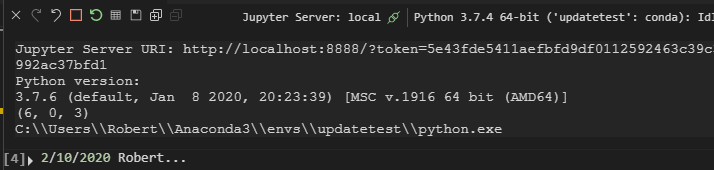
11."updatetest" python interactive window working
updatetest-spec-file.txt
Hope this helps.
bobbyinfj
on 14 Feb 2020
@bobbyinfj it sounds like you had some sort of path problem. I should add more output to this when it fails:
~\Anaconda3\envs\connie\python.exe c:\Users\Robert\.vscode\extensions\ms-python.python-2020.3.63293-dev\pythonFiles\datascience\getJupyterKernelspecVersion.py
That is the new code I added and it seems like it didn't work for you either.
rchiodo
on 14 Feb 2020
@bobbyinfj although I'm happy it's working now.
rchiodo
on 14 Feb 2020
Yep, your build works for me as well ! Great job guys !
Louis-DR
on 14 Feb 2020
I've submitted something that might fix the issue. Please try this build
If it doesn't work, please upload a console log again.
Thanks.
Hi,
I updated it with the above build but now it is not detecting any libraries like numpy, pytorch etc.. Though the jupyter is working now.
Rishav09
on 16 Feb 2020
@rchiodo Sorry, My mac version (2020.02.63072) still have problems with kernelspec. I have tried reinstall the jupyter with pip, but that not works. The logs are:
Error: Jupyter cannot be started. Error attempting to locate jupyter: 'Kernelspec' module not installed in the selected interpreter ({0}).
Please re-install or update 'jupyter'.
at A.startServer (/Users/DavidGuan/.vscode/extensions/ms-python.python-2020.2.63072/out/client/extension.js:1:781193)
 PkuDavidGuan
on 17 Feb 2020
PkuDavidGuan
on 17 Feb 2020

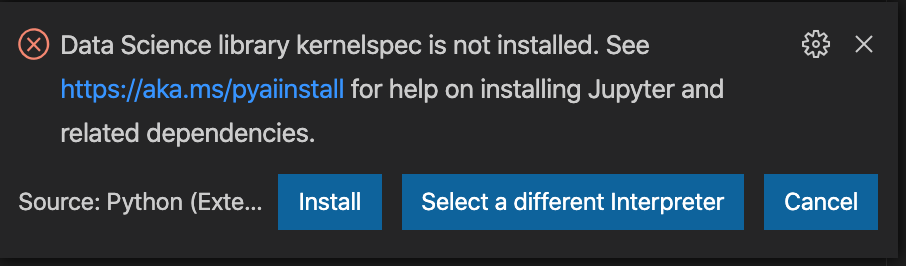
I still have the same issue even after installing the Data science Kernelspec. Could you please assist ?
 Zemandalorian
on 18 Feb 2020
Zemandalorian
on 18 Feb 2020
Both @PkuDavidGuan and @Zemandalorian you need to install the insider's build. The fix is not released for GA yet. It's just a private drop.
@Rishav09 you're problem is not related to this issue. You must have a kernelspec in use that doesn't have those items installed. Try switching your kernel (upper right hand corner of the interactive window or the notebook editor).
rchiodo
on 18 Feb 2020
Hello @rchiodo thanks for your response. How do you install the insider's build please ?
Zemandalorian
on 18 Feb 2020
This link here should explain how to install from a vsix:
https://code.visualstudio.com/docs/editor/extension-gallery#_install-from-a-vsix
rchiodo
on 18 Feb 2020
I wasn't able to install all the dependencies from within vscode, I assume because of appended --user flag to all pip install commands, but it went fine when I installed all the dependencies manually via shell.
$ python --version
Python 3.6.5
$ python -m jupyter --version
jupyter core     : 4.6.3
jupyter-notebook : 6.0.3
qtconsole        : 4.6.0
ipython          : 7.12.0
ipykernel        : 5.1.4
jupyter client   : 5.3.4
jupyter lab      : not installed
nbconvert        : 5.6.1
ipywidgets       : 7.5.1
nbformat         : 5.0.4
traitlets        : 4.3.3
$ python -m jupyter kernelspec --version
5.3.4
OS - Windows
Python - standard distribution at https://www.python.org/downloads/release/python-365/
 avoidik
on 18 Feb 2020
avoidik
on 18 Feb 2020
@rchiodo Hello, I installed the insider's build provided but I still have the same issue. VS still requires the installation of Kernelspec
Zemandalorian
on 18 Feb 2020
@Zemandalorian can you capture a console log then? Go to Help | Toggle Developer Tools, click on the console tab, right click, save as, and upload the file here.
Thanks
rchiodo
on 18 Feb 2020
Thanks for your swift response @rchiodo ; as I'm not able to upload the log, please see below :
console.ts:137 [Extension Host] Error Python Extension: 2020-02-18 23:29:31: DataScience Error [i [Error]: Jupyter cannot be started. Error attempting to locate jupyter: at _.startServer (/Users/ali/.vscode/extensions/ms-python.python-2020.3.63722-dev/out/client/extension.js:1:791939) at async _.ensureServerAndNotebookImpl (/Users/ali/.vscode/extensions/ms-python.python-2020.3.63722-dev/out/client/extension.js:1:791394)] { action: 'https://aka.ms/pyaiinstall', actionTitle: 'Get more help'}
ERR No application in the Launch Services database matches the input criteria.: Error: No application in the Launch Services database matches the input criteria.
Zemandalorian
on 18 Feb 2020
That error is probably from the kernelspec not running so it doesn't help much. What happened when you tried to upload the file? Or is it a security concern?
rchiodo
on 18 Feb 2020
In case the error above is not the kernelspec issue (although it should show the same dialog if it is), you might also try running this command here:
'Python : Select interpreter to start Jupyter'
Then pick a python installation that you know has jupyter in it.
rchiodo
on 18 Feb 2020
Yup, having same problem still. Was working fine yesterday on Mac and now it is saying no kernel. Bump.
 pythlang
on 19 Feb 2020
pythlang
on 19 Feb 2020
@pythlang did you try the insider's build?
rchiodo
on 19 Feb 2020
No, I'm just seeing it now, the conversation was automatically collapsed in the thread here.
I'm not sure how to do that vsix file for VSCode MacBook Pro, Homebrew. Can you advise? @rchiodo
pythlang
on 19 Feb 2020
The directions here should describe it:
https://code.visualstudio.com/docs/editor/extension-gallery#_install-from-a-vsix
Basically in the extensions pane, click on the 3 little dots and install from there.
rchiodo
on 19 Feb 2020
Please scratch that; it couldn't have been easier. Seems to be working at this time. @rchiodo
I will keep my eye out for any further problems.
pythlang
on 19 Feb 2020
Here is how I solved this issue.
My python version
python --version
Python 3.7.4
Then I checked the jupyter version
python -m jupyter --version
jupyter core : 4.5.0
jupyter-notebook : 6.0.1
qtconsole : 4.5.5
ipython : 7.8.0
ipykernel : 5.1.2
jupyter client : 5.3.3
jupyter lab : not installed <------------
nbconvert : 5.6.0
ipywidgets : 7.5.1
nbformat : 4.4.0
traitlets : 4.3.3
I then noticed the jupyter lab was not working
and remembered somewhere that VSC uses Jupyter Lab
I then installed jupyter lab
pip install jupyterlab
Then checked Jupyter again
python -m jupyter --version
jupyter core : 4.5.0
jupyter-notebook : 6.0.1
qtconsole : 4.5.5
ipython : 7.8.0
ipykernel : 5.1.2
jupyter client : 5.3.3
jupyter lab : 1.2.6
nbconvert : 5.6.0
ipywidgets : 7.5.1
nbformat : 4.4.0
traitlets : 4.3.3
And now python codes again run in the Jupyter
interactive Window
hoipe this helps someone else,
because FYI not one single thing I read nor tried by
reading online message boards helped, it was me figuring
out to install the missing parts of Jupyter
EDIT: This does not fix any of the errors we are getting by running it in the terminal.
File "C:PATH/filename.py", line 1, in
import requests
File "C:PATH__init__.py", line 43, in
import urllib3
And so on
 RateCoinXRA
on 19 Feb 2020
RateCoinXRA
on 19 Feb 2020
I've also manage to run into this problem with both the latest public release and the VSIX above.
I'm running a windows Anaconda python 3.7 environment with a recent version of jupyter installed, and it all works fine from the a command prompt.
I've attached a log file from VSCode - -1582166803227.log
The issue appears to be actually a path related one as it fails to load a dll when import zmq as shown below
console.ts:137 [Extension Host] Error Python Extension: 2020-02-20 15:45:05: Kernel spec not found: [r [Error]: Traceback (most recent call last):
File "C:softwareAnacondaenvsjupyterScriptsjupyter-kernelspec-script.py", line 6, in
from jupyter_client.kernelspecapp import KernelSpecApp
File "C:softwareAnacondaenvsjupyterlibsite-packagesjupyter_client__init__.py", line 4, in
from .connect import *
File "C:softwareAnacondaenvsjupyterlibsite-packagesjupyter_clientconnect.py", line 24, in
import zmq
File "C:softwareAnacondaenvsjupyterlibsite-packageszmq__init__.py", line 47, in
from zmq import backend
File "C:softwareAnacondaenvsjupyterlibsite-packageszmqbackend__init__.py", line 40, in
reraise(*exc_info)
File "C:softwareAnacondaenvsjupyterlibsite-packageszmqutilssixcerpt.py", line 34, in reraise
raise value
File "C:softwareAnacondaenvsjupyterlibsite-packageszmqbackend__init__.py", line 27, in
_ns = select_backend(first)
File "C:softwareAnacondaenvsjupyterlibsite-packageszmqbackendselect.py", line 28, in select_backend
mod = __import__(name, fromlist=public_api)
File "C:softwareAnacondaenvsjupyterlibsite-packageszmqbackendcython__init__.py", line 6, in
from . import (constants, error, message, context,
ImportError: DLL load failed: The specified module could not be found.
at ChildProcess.(c:Userstim.mclennan.vscodeextensionsms-python.python-2020.3.63962-devoutclientextension.js:1:461178) at Object.onceWrapper (events.js:288:20) at ChildProcess.emit (events.js:200:13) at maybeClose (internal/child_process.js:1021:16) at Process.ChildProcess._handle.onexit (internal/child_process.js:283:5)]
t.log @ console.ts:137
Investigating things a bit further the python interactive window also fails to open, and running a simple script to import zmq in the terminal fails as well.
In that case at least there is a difference with the system PATH versus that when activating the conda environment - It is missing some distribution specific directories in this case:
c:\software\Anaconda\envs\jupyter;c:\software\Anaconda\envs\jupyter\Library\mingw-w64\bin;c:\software\Anaconda\envs\jupyter\Library\usr\bin;c:\software\Anaconda\envs\jupyter\Library\bin;c:\software\Anaconda\envs\jupyter\Scripts;c:\software\Anaconda\envs\jupyter\bin
Adding those back in allows the script to import zmq and the jupyter-kernelspec-script.py to run.
I haven't really used VSCode for running python code in anger, but there doesn't appear to be any way to specify some of the interpreter settings that you see in other Python develop environments.
ETA:
Just tested with the recently updated version of the Python Extension (2020.2.63990) and I still have this behaviour
 timmclennan
on 20 Feb 2020
timmclennan
on 20 Feb 2020
@timmclennan
We're sorry the update didn't fix the issue.
Please could you provide the following info:
- What is the python Interpreter that's selected in the current workspace (displayed bottom left of status bar)
- Value from
python.pythonPathin.vscode/settings.json - Select the command
Select Interpreter to start Jupyter sever, what's the currently selected value (disaster in the input prompt as a placeholder). - Do you have a setting for
python.condaPathin your current workspace or user settings.json file. I think you have that setup somewhere. Please provide that value too. - Please select
c:\software\Anaconda\envs\jupyteras your interpreter for the workspace and then open a python file with the code that dumps the sys path, right click and selectRun python file in terminaland please paste the contents of the terminal. I'd like to see to things, what is sent to the terminal (is your conda environment activated or not) and also whether the PATH variable is correct. - Are you able to run the script for in the terminal after first activating the environment using
conda activate jupyter? - Finally, what's your default she'll in VSCode, cmd or ps?
Thanks again for your patience and help.
DonJayamanne
on 20 Feb 2020
- Python interpreter displayed string is
Python 3.7.6 64-bit ('jupyter': conda) - python.pythonPath is
"C:\\software\\Anaconda\\envs\\jupyter\\python.exe" - The Jupyter server interpreter prompt was empty, selecting other interpreters didn't help.
- I cleared out the python.condaPath
- Running a debug script gives a python executable of
C:\software\Anaconda\envs\jupyter\python.exeas expected and a path ofC:\ProgramData\Oracle\Java\javapath;C:\WINDOWS\system32;C:\WINDOWS;C:\WINDOWS\System32\Wbem;C:\WINDOWS\System32\WindowsPowerShell\v1.0\;C:\Program Files (x86)\Microsoft SQL Server\90\Tools\binn\;C:\Program Files (x86)\Windows Kits\8.1\Windows Performance Toolkit\;C:\software\Anaconda\condabin;C:\Program Files\Git\cmd;C:\Program Files\Git\mingw64\bin;C:\Program Files\Git\usr\bin;C:\Program Files\Git LFS;C:\Program Files (x86)\GitExtensions\;C:\Program Files (x86)\Intel\Intel(R) Management Engine Components\DAL;C:\Program Files\Intel\Intel(R) Management Engine Components\DAL;C:\Program Files (x86)\Intel\Intel(R) Management Engine Components\IPT;C:\Program Files\Intel\Intel(R) Management Engine Components\IPT;C:\Program Files\PuTTY\;C:\WINDOWS\System32\OpenSSH\;C:\Program Files\Microsoft VS Code\bin;C:\Program Files\Intel\WiFi\bin\;C:\Program Files\Common Files\Intel\WirelessCommon\;C:\Program Files\Docker\Docker\resources\bin;C:\ProgramData\DockerDesktop\version-bin;C:\Users\tim.mclennan\AppData\Local\Microsoft\WindowsApps;C:\Program Files\Intel\WiFi\bin\;C:\Program Files\Common Files\Intel\WirelessCommon\;C:\Program Files\Microsoft VS Code\bin;C:\Users\tim.mclennan\AppData\Local\Programs\MiKTeX 2.9\miktex\bin\x64\;C:\Users\tim.mclennan\AppData\Local\GitHubDesktop\bin;C:\Users\tim.mclennan\AppData\Local\Programs\Fiddler;%USERPROFILE%\AppData\Local\Microsoft\WindowsApps; - Manually activating the environment in a CMD based terminal adds
C:\software\Anaconda\envs\jupyter;C:\software\Anaconda\envs\jupyter\Library\mingw-w64\bin;C:\software\Anaconda\envs\jupyter\Library\usr\bin;C:\software\Anaconda\envs\jupyter\Library\bin;C:\software\Anaconda\envs\jupyter\Scripts;C:\software\Anaconda\envs\jupyter\binto the path and the script consequently works.
Trying to select the jupyter environment as the interpreter for running jupyter generates the same error as before. I've uploaded another log -1582245861149.log
One thing I noted is that it does seem to fail to find the list of conda environments here
console.ts:137 [Extension Host] Error Python Extension: 2020-02-21 13:38:19: Failed to get conda environment list from conda [Error: spawn conda ENOENT
at Process.ChildProcess._handle.onexit (internal/child_process.js:264:19)
at onErrorNT (internal/child_process.js:456:16)
at processTicksAndRejections (internal/process/task_queues.js:84:9)] {
errno: 'ENOENT',
code: 'ENOENT',
syscall: 'spawn conda',
path: 'conda',
spawnargs: [ 'env', 'list' ]
}Although they do show up in the interpreter list.
timmclennan
on 21 Feb 2020
@timmclennan
Thanks for getting back with the information.
Please could you update the setting python.condaPath with the fully qualified path to the conda executable. I think you had a invalid path previously. Since its unable to find the conda paths, its unable to properly activate the jupyter conda environment.
DonJayamanne
on 21 Feb 2020
Yeah that got it working. I had to experiment with it a bit as it's not particularly clear what the setting should be, especially on Windows where the executable is a batch file.
Setting it to C:\software\Anaconda\condabin\conda.bat did the trick and everything appears to be working as expected.
timmclennan
on 21 Feb 2020
Validated by customers
rchiodo
on 25 Feb 2020
Same issue here.
I just selected an environment in the VSCode footer to fix it.
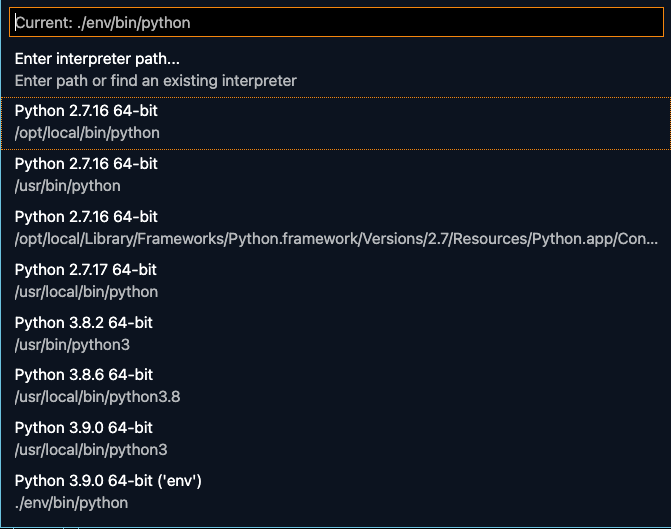
 Quantium
on 26 Nov 2020
Quantium
on 26 Nov 2020
Related issues
 entron
·
4Comments
entron
·
4Comments
 sonulohani
·
3Comments
sonulohani
·
3Comments
 TheOrangeJuice
·
4Comments
rchiodo
·
3Comments
rchiodo
·
3Comments
TheOrangeJuice
·
4Comments
rchiodo
·
3Comments
rchiodo
·
3Comments
Most helpful comment
@happyshows You can roll back the extension by right clicking in the extension menu (with the extension installed) and then 'install other version' or something like that. Select the version from last month