V-calendar: "Roll your own calendars using scoped slots"
Anyone know where I can see the code for the calendar at the bottom of this page:
https://vcalendar.netlify.com/
Appreciate any help!
 paulsharratt0
All 10 comments
I'd like to second this.
 coycash
on 7 Oct 2019
coycash
on 7 Oct 2019
Would be super appreciated if anyone knows where the code is located - the calendar there is a really nice design, I could recreate it but it's a bit of wasted effort if it's been done already!
Cheers,
Paul
paulsharratt0
on 8 Oct 2019
Agreed, the example code would be great. I couldn't find it either.
 ipearx
on 14 Oct 2019
ipearx
on 14 Oct 2019
Given that we're issue #420 I feel this adds weight to the request ;)
paulsharratt0
on 15 Oct 2019
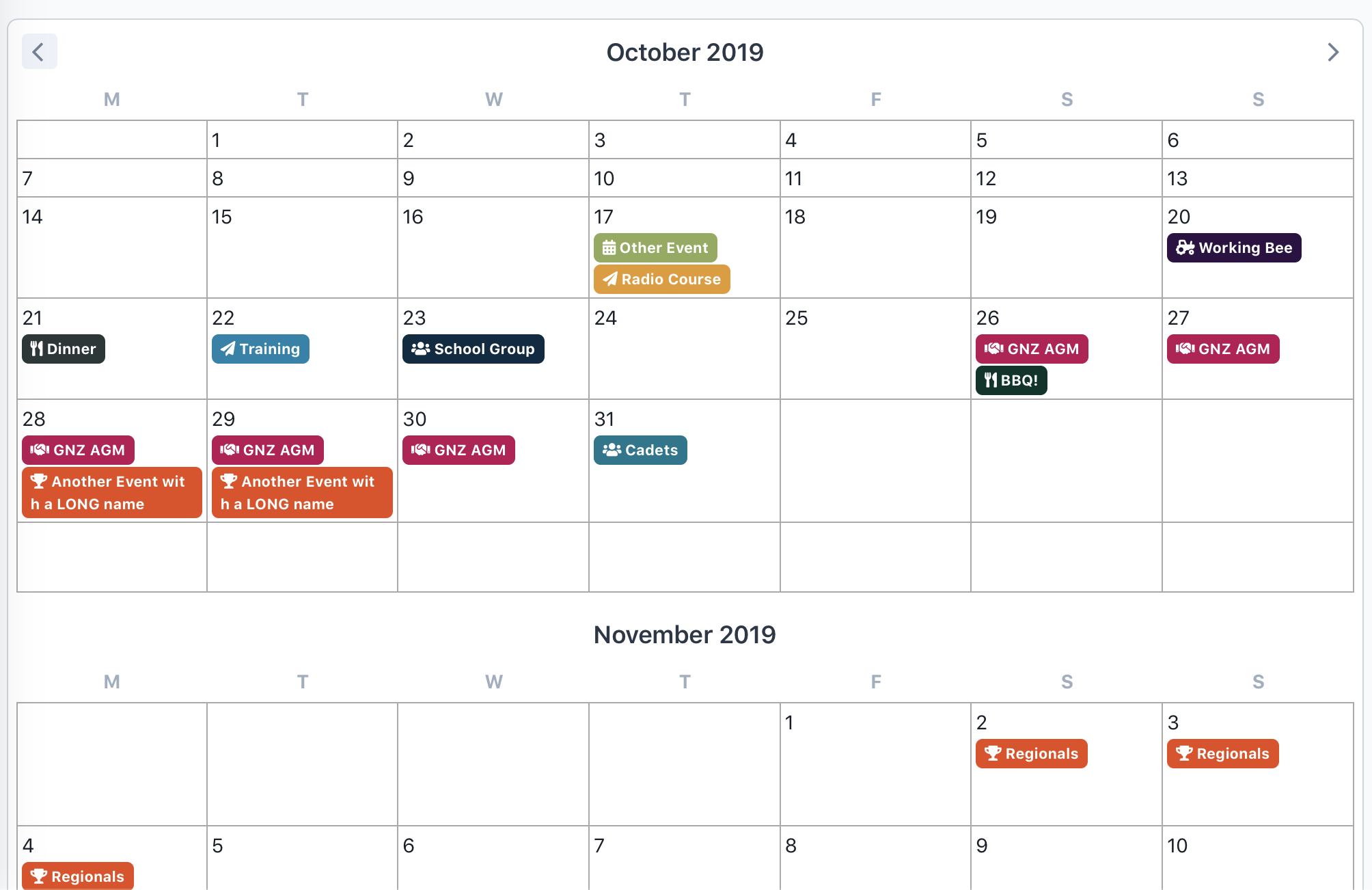
I ended up making my own. Only took all evening, but at least it pushed me to learn how slots work :) Note this is my first 'get it working' hack.
    <v-calendar :rows="6" v-if="events.length>0 && showCalendar" class="custom_calendar" style="max-width: 100%;" :first-day-of-week="2" ref="calendar" is-expanded  :attributes='attributes'>
        <template slot='day-content' slot-scope="props">
            <div class="day-cell" v-if="props.day.inMonth">
                {{props.day.day}}
                <div v-for="dayEvent in props.attributesMap">
                    <span class="event-badge badge badge-pill" :style="'background-color: ' + dayEvent.customData.colour ">
                        <span :class="'fa fa-' + dayEvent.customData.icon"></span>
                        <a :href="'/events/' + dayEvent.customData.slug ">{{dayEvent.customData.name}}</a>
                    </span>
                </div>
            </div>
        </template>
    </v-calendar>
    .custom_calendar .vc-day {
        border-right: 1px solid #AAA;
        border-bottom: 1px solid #AAA;
        padding: 3px;
    }
    .custom_calendar .on-top {
        border-top: 1px solid #AAA;
    }
    .custom_calendar .on-left {
        border-left: 1px solid #AAA;
    }
    .custom_calendar .event {
        word-wrap: break-word;
        word-break: break-all;
    }
    .custom_calendar .event-badge {
        white-space: normal;
        border-radius: 5px;
        margin-top: 2px;
        text-align: left;
    }
    .event-badge {
        color: #FFF;
    }
Quite amazed by your post @ipearx. 👏 Could you share more about your code? There are still mysteries concerning the script part for me.
Cheers.
 Quentin-SR
on 4 Aug 2020
Quentin-SR
on 4 Aug 2020
Quite amazed by your post @ipearx. 👏 Could you share more about your code? There are still mysteries concerning the script part for me.
Cheers.
Hi here's the working code:
https://github.com/glidingnz/58gliding.net.nz/blob/master/resources/js/components/Events/Events.vue
And here's what it looks like:
https://www.gliding.net.nz/events/?gnz=true&other=true&type=all&timerange=future&pageView=calendar
Hope that helps?
ipearx
on 4 Aug 2020
Happened to start in on this today and ran into a bit of confusion. The idea of adding the events to customData feels a bit strange so I'm questioning if that is really the right approach (but the docs seem to suggest it is).
<template>
    <div>
        <button class="px-4 py-2 bg-white rounded border" @click.stop.prevent="() => { addEvent('nani', '2020-08-04') } ">Add Fake Event</button>
        <v-calendar ref="calendar" :rows="1" :first-day-of-week="2" class="w-full rounded-none border-0" :masks="{ weekdays: 'WWWW' }" :attributes="attributes" :key="ghettoUpdate">
            <template slot="day-content" slot-scope="props">
                <div v-if="props.day.inMonth" class="h-24 min-h-24">
                    <div class="p-2">
                        <span class="font-semibold">{{ props.day.day }}</span>
                    </div>
                    <div v-if="props.attributesMap">
                        <!-- Should probably check if the event actually occurs on this date -->
                        <div v-for="dayEvent in props.attributesMap.events.customData.events">
                            <div class="w-full py-1 px-2 bg-indigo-600 text-sm text-white">{{ dayEvent.name }}</div>
                        </div>
                    </div>
                </div>
            </template>
        </v-calendar>
    </div>
</template>

<script>
    export default {
        name: 'EventCalendar',
        data() {
            return {
                ghettoUpdate: 0,
                attributes: [{
                    key: 'events',
                    dates: [],
                    customData: {
                        events: []
                    }
                }],
            }
        },
        mounted() {
            this.$nextTick(() => {
                this.addEvent('Figure out this strange syntax', '2020-08-04T00:00:00Z');
            })
        },
        methods: {
            addEvent(name, date) {
                // Create a new date object here with the date fed in
                // Push the date into the list
                this.attributes[0].dates.push(new Date(date));
                // Add the event and date
                this.attributes[0].customData.events.push({
                    name: name,
                    date: date
                });
                // Calendar does not seem to update here if we update the props, so use a key for now
                this.ghettoUpdate += 1;
            }
        }
    }
</script>

<style>
.vc-day:not(.on-right) {
    border-right: 1px solid rgb(226, 232, 240);;
}
.vc-day:not(.on-left) {
    border-right: 1px solid rgb(226, 232, 240);;
}
.vc-day:not(.on-bottom) {
    border-bottom: 1px solid rgb(226, 232, 240);;
}
.vc-text-sm {
    font-size: 14px !important;
}
</style>
Maybe I should wrap this up into an additional component so it's easier to work with
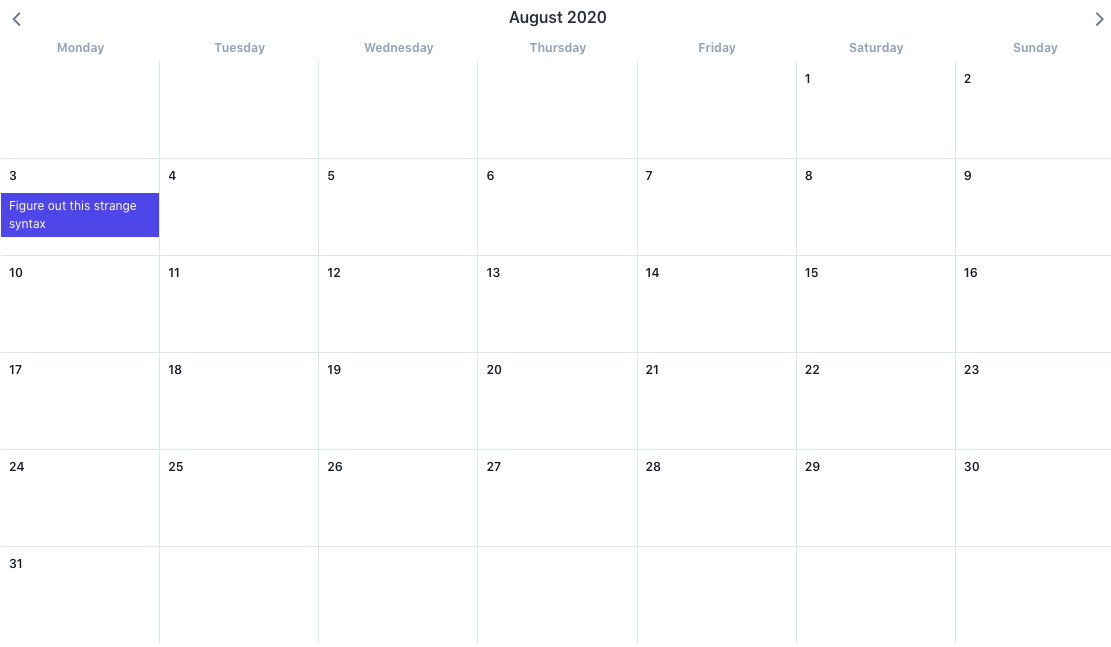
Maybe I should just pass customData a function for it to call on each day to return the events to display? I'll update if it seems workable.
 WalrusSoup
on 5 Aug 2020
WalrusSoup
on 5 Aug 2020
Just for the record, the custom calendar that appears on the "Introduction" page is in this repo. It helped me to customize my own.
 sidben
on 18 Aug 2020
sidben
on 18 Aug 2020
Thanks @sidben for referring to the example.
 nathanreyes
on 4 May 2021
nathanreyes
on 4 May 2021
Related issues
 jeffster9
·
3Comments
jeffster9
·
3Comments
 Nadavrbn
·
3Comments
Nadavrbn
·
3Comments
 thfontaine
·
3Comments
thfontaine
·
3Comments
 bocanhcam
·
3Comments
bocanhcam
·
3Comments
 knagyorg
·
4Comments
knagyorg
·
4Comments
Most helpful comment
I ended up making my own. Only took all evening, but at least it pushed me to learn how slots work :) Note this is my first 'get it working' hack.