Ulauncher: Opening files and folders
Question
Hey,
is it possible to open files and folders using the shortcuts?
For example: MasterThesis folder I want to open with master shortcut.
The main pdf file /MasterThesis/main.pdf with main shortcut.
I will be appreciate for an answer.
 kozak-taras
All 10 comments
If I understand you correctly, this is possible. You can create custom static keywords that are hardlinked to trigger commands regardless of their arguments. They're designed to take arguments though (see #191). For static tasks it's better to create desktop entries (see comment in the same issue), where you could trigger a command such as xdg-open ~/MasterThesis or xdg-open ~/MasterThesis/main.pdf for example.
I would personally recommend the built-in directory browser, or an extension for quick-opening files in general.
From ulauncher.io:
Browse files and directories with ease. Type ~ or / to start. Press Alt+Enter to access an alt menu
 friday
on 11 Mar 2019
friday
on 11 Mar 2019
Hi friday,
thanks a lot for answer and your time! I am a new Linux user. Could you provide more instructions?
I got it in next way: I need to write a script and call it i.e. main.desktop. Inside of the script I have to write next (please correct my mistakes):
printf '[Desktop Entry]
Name=main
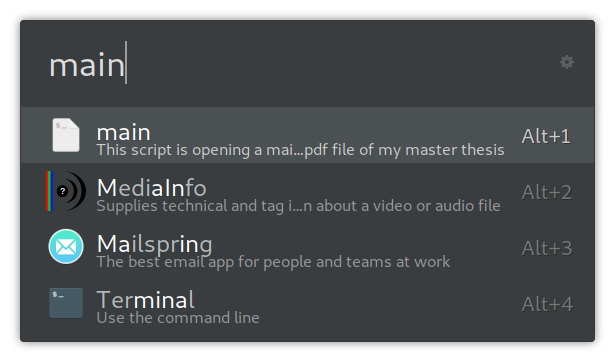
Comment=This script is opening a main pdf file of my master thesis
Exec=xdg-open ~/home/.../main.pdf
Icon=text-x-script
Terminal=false
# should I change the folder in the next line?
Type=Application' > ~/.local/share/applications/main.desktop
And than I have to set a shortkey in Ulauncher to main.desktop. (If yes, how exactly?)
Is that right?
Thanks a lot in advance for your help and time by the answering! :)
kozak-taras
on 11 Mar 2019
Everything looks right apart from the path in Exec (which only you can know) and possibly the icon (switch to "application-pdf" and the other to "inode-directory" if you want them to use their right mimetype icons).
And then I have to set a shortkey in Ulauncher to main.desktop. (If yes, how exactly?)
No. After running that command you should have a new app in Ulauncher. It could take a second or so though.
friday
on 11 Mar 2019
Hey friday,
I created the file main.desktop and put it to /home/Documents/Ulaunch_scripts/ with next content:
printf '[Desktop Entry]
Name=main
Comment=This script is opening a main pdf file of my master thesis
Exec=xdg-open /home/.../main.pdf
Icon=application-pdf
Terminal=false
Type=Application' > ~/.local/share/applications/main.desktop
then changed rights with chmod 755 and run it (also as root). After few times trying and rebooting it doesn't work.
(After running the script I see a new file main.desktop in /root/.local/share/applications/. So the script is working.)
Maybe I am missing some settings in Ulauncher?
kozak-taras
on 12 Mar 2019
Open your terminal and type the code. Press enter to run it.
No script, no chmod. The code creates the file, Ulauncher picks it up after a second and you're done.
friday
on 12 Mar 2019
Alternatively create a file containing the text within the single quotes and save it to the location after the ">". It's what the command does.
friday
on 12 Mar 2019
Unfortunately it doesn't work. I run the script and a new file in root/.local/share/applications/main.desktop is created. But it is not going to Ulauncher. Maybe I have something wrong in my OS.
If you have some ideas, I will be very appreciated. Otherwise, friday, thank you for your time and good luck!
kozak-taras
on 12 Mar 2019
That's because you're running as sudo it seems, unless your username is root?
friday
on 12 Mar 2019
Friday, I very appreciated for your help! Good luck :)
With this code it works:
printf '[Desktop Entry]
Name=main
Comment=This script is opening a main pdf file of my master thesis
Exec=xdg-open /home/USERNAME/.../main.pdf
Icon=application-pdf
Terminal=false
Type=Application' > /home/USERNAME/.local/share/applications/main.desktop
~ means the current user's home directory, so as long as you run as yourself it works. Running the terminal as sudo/root is dangerous, especially if you don't know what your command does. So for your sake, please avoid it. You should only do it when doing system maintenance like installing/removing packages.
friday
on 12 Mar 2019
Related issues
 Warmuser
·
3Comments
Warmuser
·
3Comments
 sscarduzio
·
5Comments
sscarduzio
·
5Comments
 chetcuti
·
6Comments
chetcuti
·
6Comments
 altla
·
5Comments
altla
·
5Comments
 fossfreedom
·
5Comments
fossfreedom
·
5Comments