Teslamate: Add posibillity to set custom color scale for Overview "Battery level"
In the Overview dashboard the "Battery level" indicator shows a color scale with green, yellow, and red.
At the moment the scale seems to show yellow between 80%-89% and red from 90% and up.
I usually charge to 90%, and according to Elon and statistical data, that should not degrade battery life in a meaningful amount. But the dashboard still shows the charge as red when I'm at 90.
Would it be possible to set a custom range for the color indicators?
Personally I would set yellow between 91 - 95, and red between 96 -100. But since others might want a different range depending on what they are comfortable with, a configuration option in the Teslamate settings page would be nice.
Obviously not a high priority issue, just a "nice to have".
 espenu
All 9 comments
You can do this yourself quit easily. Log into Grafana, click the arrow on the title of the box you want to modify and go to edit. There you can modify the thresholds.
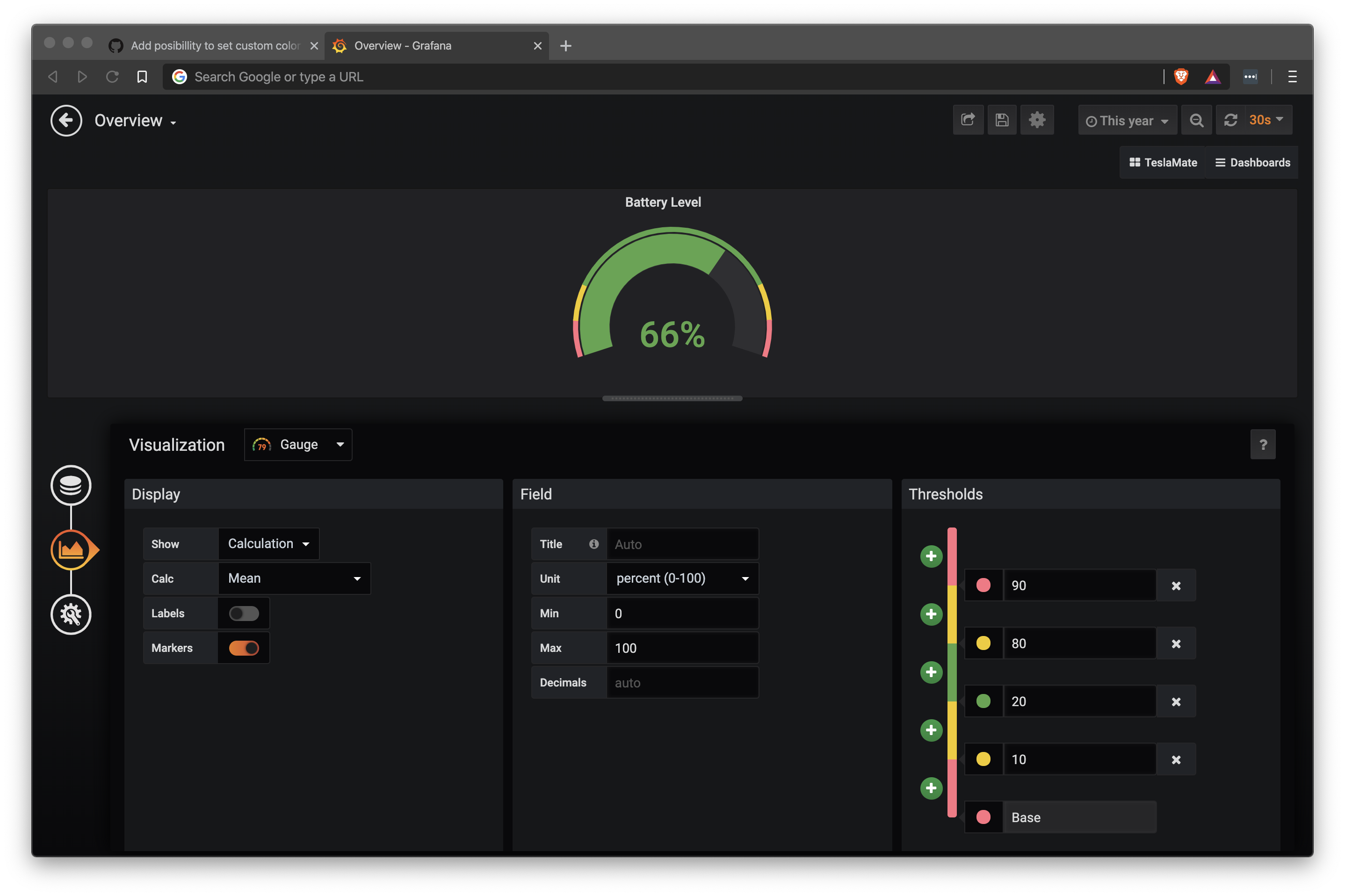
 Koofteh123
on 5 Mar 2020
Koofteh123
on 5 Mar 2020
You can do this yourself quit easily. Log into Grafana, click the arrow on the title of the box you want to modify and go to edit. There you can modify the thresholds.
Thank you for the tip. I normally log in as a non admin user, so I haven't seen the edit button.
But when I do the change and try to save I get the following message:
This dashboard cannot be saved from Grafana's UI since it has been provisioned from another source.
espenu
on 5 Mar 2020
You have to copy the JSON code you see there and manually paste it.
Click the gear icon on top of Overview page and select to view JSON model. There you can paste what you copied before, click save then hit the save icon on top of the page and it should work.
Koofteh123
on 6 Mar 2020
You have to copy the JSON code you see there and manually paste it.
Click the gear icon on top of Overview page and select to view JSON model. There you can paste what you copied before, click save then hit the save icon on top of the page and it should work.
That worked. Thank you. Sorry to waste your time with grafana support questions.
Will this change be reverted on each Teslamate update that involves a change to the overview dashboard in grafana?
espenu
on 6 Mar 2020
You have to copy the JSON code you see there and manually paste it.
Click the gear icon on top of Overview page and select to view JSON model. There you can paste what you copied before, click save then hit the save icon on top of the page and it should work.That worked. Thank you. Sorry to waste your time with grafana support questions.
Will this change be reverted on each Teslamate update that involves a change to the overview dashboard in grafana?
No problem. I'm new to all this myself but I figure trying to help out where we can frees up a little time for the dev Adrian.
Yes it will revert with a new update, just save the code in a text file and paste it in after an update.
Koofteh123
on 6 Mar 2020
There are various recommendations and views on this. The current color scale is a result of #255 and I think that's a reasonable default. Therefore I would have suggested exactly what @Koofteh123 has already described :)
 adriankumpf
on 6 Mar 2020
adriankumpf
on 6 Mar 2020
You have to copy the JSON code you see there and manually paste it.
Click the gear icon on top of Overview page and select to view JSON model. There you can paste what you copied before, click save then hit the save icon on top of the page and it should work.
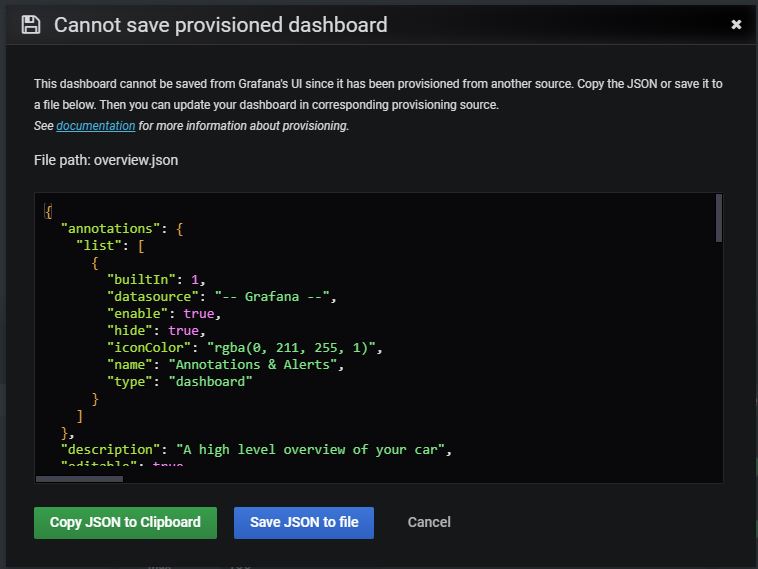
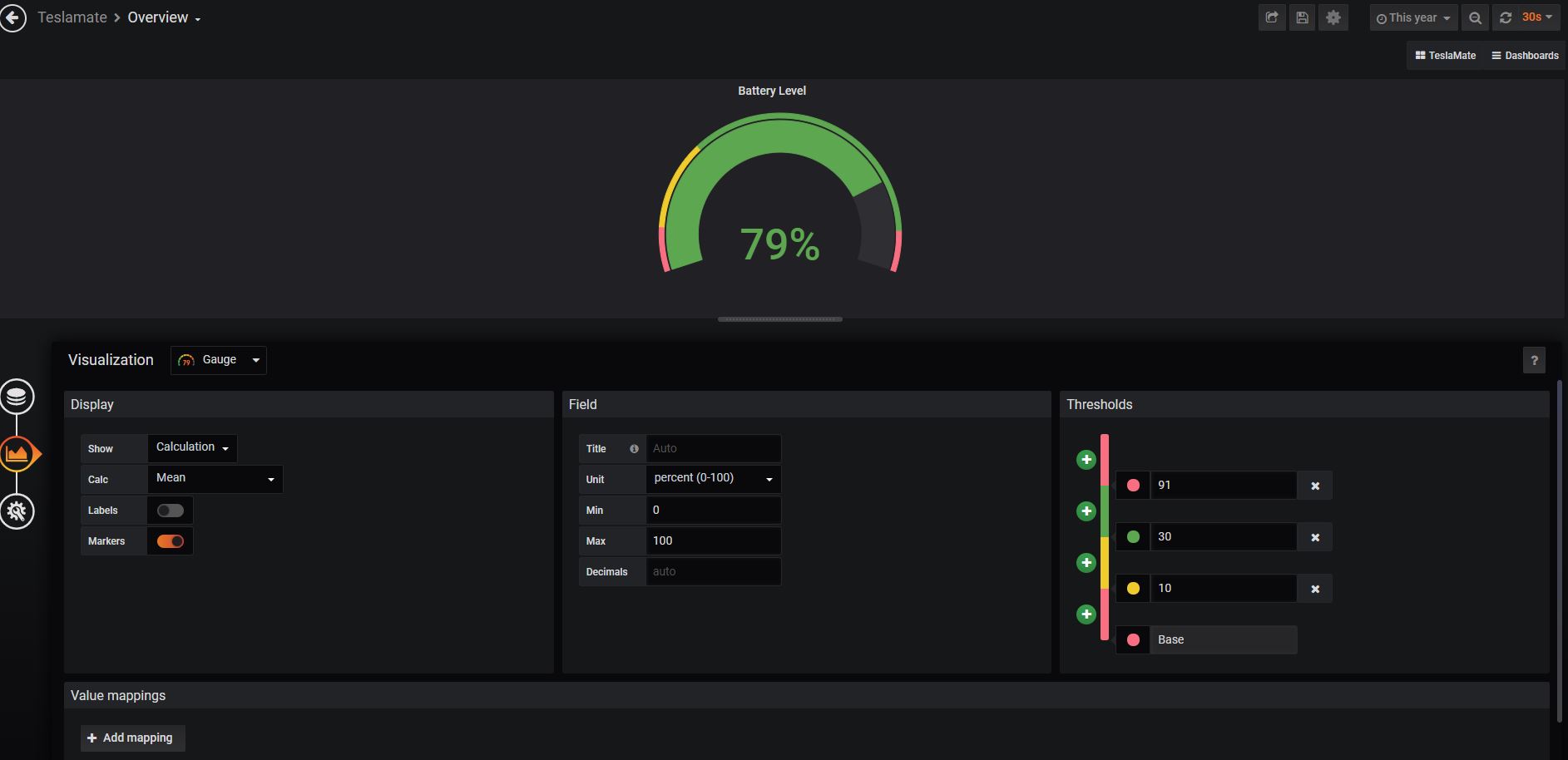
Sorry I am trying the same thing, but not sure where do I paste it? I just get this option to save the file or copy the json and when I cancel that I am back in the widget control. I am logged in as admin. Thanks.
Trying to save the updated config:
Back to the widget editor when I cancel that:
 bahree
on 7 Mar 2020
bahree
on 7 Mar 2020
You have to copy the JSON code you see there and manually paste it.
Click the gear icon on top of Overview page and select to view JSON model. There you can paste what you copied before, click save then hit the save icon on top of the page and it should work.Sorry I am trying the same thing, but not sure where do I paste it? I just get this option to save the file or copy the json and when I cancel that I am back in the widget control. I am logged in as admin. Thanks.-
On top of the main page there's a gear icon (next to save), click that and look for JSON model. That's where you need to paste your code.
Koofteh123
on 8 Mar 2020
Awesome - thank you! That isn't intuitive at all.
bahree
on 13 Mar 2020
Related issues
 bastrik
·
3Comments
bastrik
·
3Comments
 jun3280net
·
4Comments
jun3280net
·
4Comments
 tobiasehlert
·
4Comments
tobiasehlert
·
4Comments
 detritu5
·
4Comments
detritu5
·
4Comments
 russinating
·
4Comments
russinating
·
4Comments