Spreed: Nextcloud 20, Talk(Spreed) / Firefox > switching camera does not work
Steps to reproduce
- have multiple cameras, start a talk
- Firefox requests permission to access one camera, accept
- try to switch to a different camera
Expected behaviour
should switch camera
Actual behaviour
Jumps back to the device selected first
Seems to be a browser issue at first, but maybe there's a workaround. that could be implemented within nextcloud.
Talk app
Talk app version: 10.0.0
Custom Signaling server configured: yes/no and version (see additional admin settings: /index.php/index.php/settings/admin/talk#signaling_server)
Custom TURN server configured: yes/no (see additional admin settings: /index.php/settings/admin/talk#turn_server)
Custom STUN server configured: yes/no (see additional admin settings: /index.php/settings/admin/talk#stun_server)
Browser
Microphone available: yes
Camera available: yes
Operating system: Linux KDE neon (ubuntu).
Browser name: Firefox 81.0.2 (64-Bit)
Browser version:
Browser log
 rochelmeyer
All 10 comments
Have you tried with Chromium too? Did it work?
Also please check the following in Firefox: after starting the call and granting the permissions, instead of switching to a different camera, first switch to no camera AND no audio, and only then try to set a different camera. Is the camera changed in that case?
Thanks for the information.
 danxuliu
on 20 Oct 2020
danxuliu
on 20 Oct 2020
@danxuliu Thanks for investigating.
Yes, disabling audio & video works, but that of course is not what you would do in a meeting.
Another solution seems to be having the camera(s) already connected at startup (reboot). I need yet to see if restarting the browser alone would be sufficient. Not fun with lots of tabs open, but can be done.
Can we get camera switching out of the settings and onto the main screen, e. g. as another symbol besides the audio and video buttons? That would make it a bit easier to handle. Anyway, I can work around that by using OpenBroadcastStudio, so not top priority.
Cheers
rochelmeyer
on 20 Oct 2020
Yes, disabling audio & video works, but that of course is not what you would do in a meeting.
Of course, I just wanted to know if it is the issue I suspected ;-) And it seems to be. If both audio and video are requested at the same time (which is done when starting a call) Firefox does not seem to allow to change to a different audio or video device until the previous devices are stopped. We should be able to work around this in Talk by first requesting audio and then video, in different steps, when starting a call.
Can we get camera switching out of the settings and onto the main screen, e. g. as another symbol besides the audio and video buttons? That would make it a bit easier to handle.
On one hand I think that is a good idea, as besides being "spatially pertinent" (I do not know how to express that :-P ) and more convenient it will also make possible to select devices when Talk is embedded in a sidebar (as there is no settings button in that case). On the other hand I fear that it might clutter the controls too much, and also for something that might not be used often by most people. @ma12-co @jancborchardt What do you think?
danxuliu
on 20 Oct 2020
R: J… can we talk about a joining screen in talk like in teams, webex etc. So I can chose before I join if I want to show my naked torso to the whole company?
J: Oh I totally agree, no discussion needed. Very important for privacy and checking devices – cc J2, M. Jitsi does it very nicely with just showing your camera full-screen so you can adjust your hair and check that hte background is good, and a short feedback text about "Your microphone seems to work".
 nickvergessen
on 21 Oct 2020
nickvergessen
on 21 Oct 2020
We could have a single settings button in the local media controls that brings up the settings modal with the audio and video settings without having to open the sidebars.
 ma12-co
on 21 Oct 2020
ma12-co
on 21 Oct 2020
Yes, both a "joining screen" to check your devices, as well as the ability to quickly switch your camera would be great.
Jitsi does both, they have a join screen. And a quick switcher in the join screen as well as during the call so you can switch audio/video devices. Very nice how it is linked to the audio and video buttons respectively so it is directly clear what it will switch, and you don’t need to go through a dialog where you see technical device names, but directly previews of the camera.
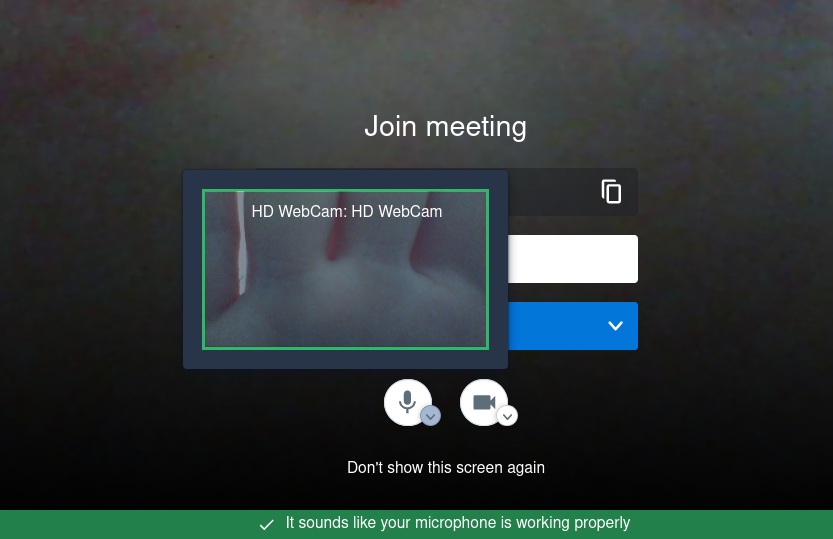
Check for yourself on https://meet.jit.si with any room.
 jancborchardt
on 22 Oct 2020
jancborchardt
on 22 Oct 2020
Very nice how it is linked to the audio and video buttons respectively so it is directly clear what it will switch
I think that that is very bad UX: a button overlapping another button. Also it doesn't meet our accessibility standards: at least 44x44px buttons.
ma12-co
on 22 Oct 2020
Well, it is very obvious, so that’s what I’d call good UX. The accessibility is indeed not great though, I merely showed it as an example.
Since our local controls are getting filled up, what we could simply do is have 3 controls:
- Microphone mute/unmute
- Video on/off
- More 3-dot-menu with
- Screensharing
- Change microphone
- Change camera
Also is very related since for screensharing we have the "Change screen" as well, and that’s very similar to changing the camera.
jancborchardt
on 22 Oct 2020
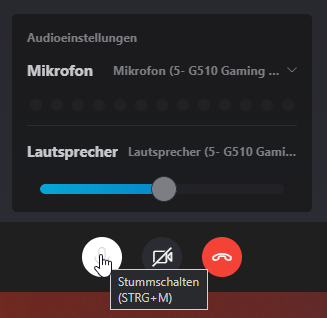
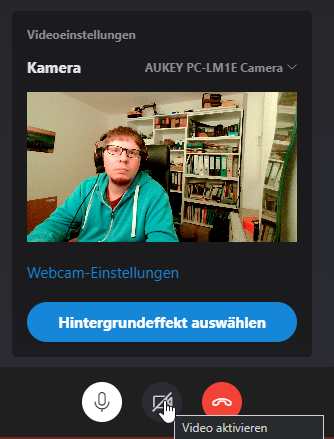
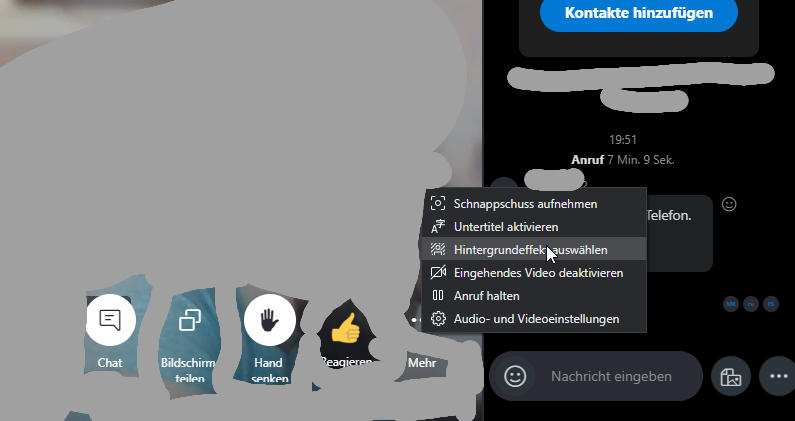
Skype has device selection on hover (for quick access) and a "…" menu in the right as a better accessible version:
Hover
Audio | Video
---|---
 |
| 
Detail Option in the right
nickvergessen
on 27 Oct 2020
3-dot menu was added in v11.0.0-alpha.2, you can invoke the settings dialog there
 PVince81
on 18 Dec 2020
PVince81
on 18 Dec 2020
Related issues
 q-wertz
·
3Comments
q-wertz
·
3Comments
 brylie
·
3Comments
brylie
·
3Comments
 pilsnerbeer
·
3Comments
pilsnerbeer
·
3Comments
 llamallama
·
4Comments
llamallama
·
4Comments
 jakobroehrl
·
4Comments
jakobroehrl
·
4Comments