Spreed: CPU exhausion on some clients
Some of our users can not use talk effectively because of CPU exhaustion. How can we debug this issue? We have not been able to identify a pattern, and will provide more info if we knew where to start digging.
Steps to reproduce
- Start a Spreed session
- Check the CPU usage
Expected behaviour
CPU usage should not reach 100%
Actual behaviour
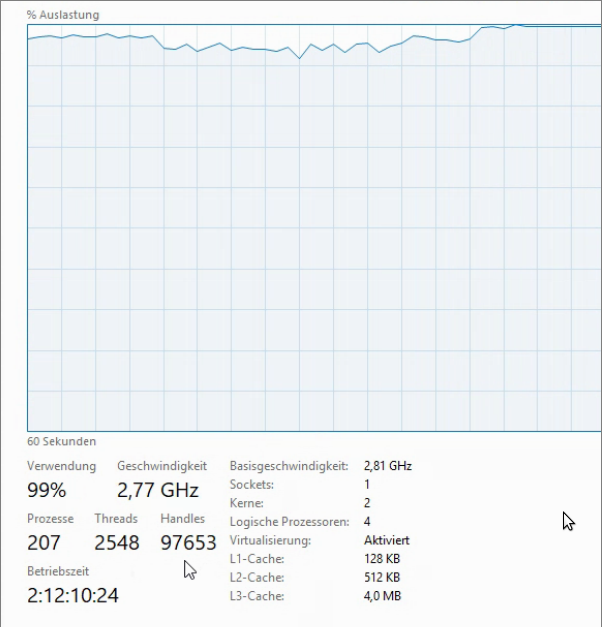
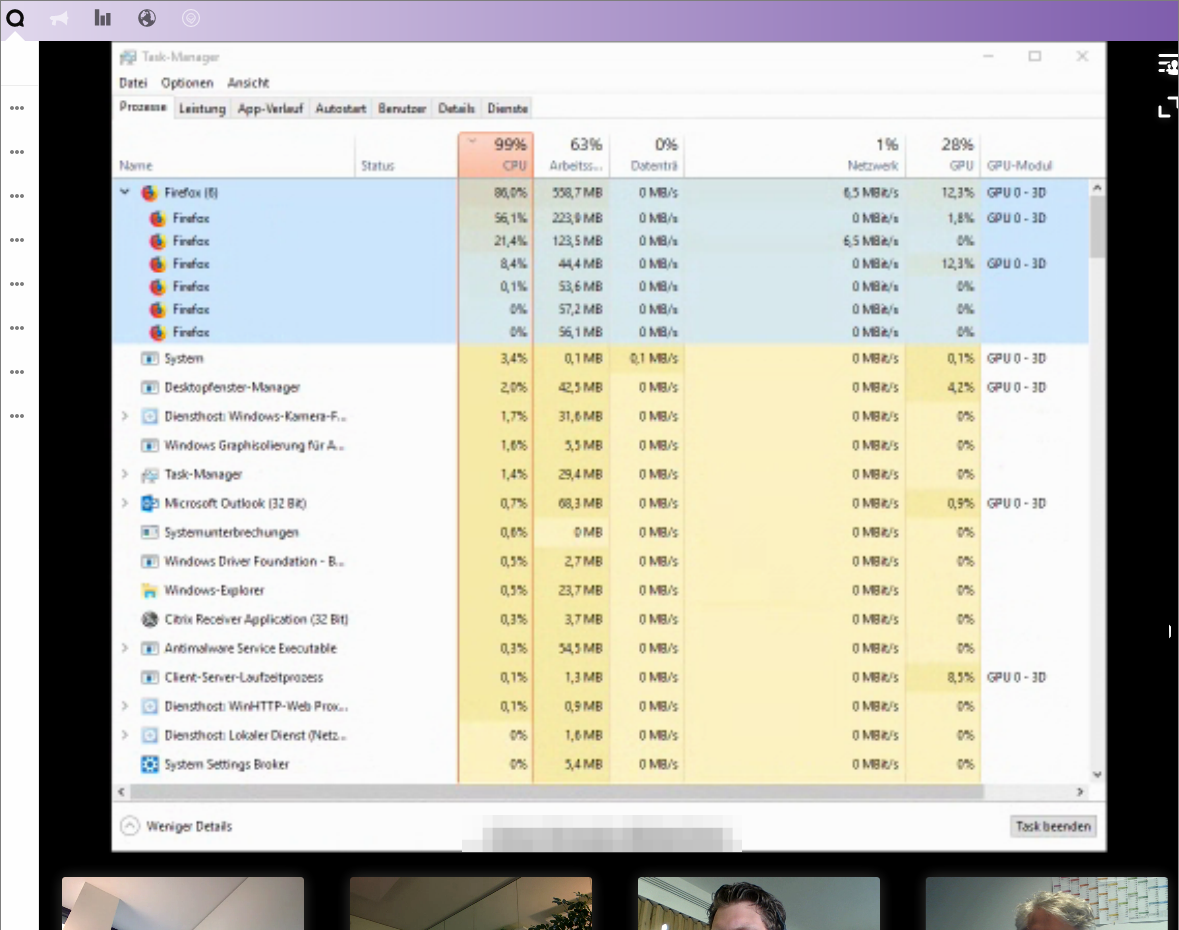
On some clients the CPU usage immediately goes up to 100% and the clients start to experience breakups in audio and video
Browser
This only happens on some clients, and on different hardware/software combinations although all browsers (Firefox and Chrome) are up to date and running on modern hardware. We have verified that no other tabs are open and consuming resources.
Spreed app
Spreed app version: 3.2.1
Custom TURN server configured: yes
Custom STUN server configured: yes
Server configuration
Nextcloud 13.0.2
 brtptrs
All 15 comments
cc @danxuliu @skjnldsv @Ivansss can someone of you look into this?
 MorrisJobke
on 15 May 2018
MorrisJobke
on 15 May 2018
Hi @brtptrs,
Nextcloud Talk is based on WebRTC.
While in a call, participants are connected to each other with peer to peer connections.
Because of that, video conferences with multiple participants generates high CPU load.
We can see in one of your screenshots that you were doing a video conference with 4 people and sharing a screen.
This means that the participant sharing the screen is sending 3 times its audio, video and screen streams. Also, it is receiving 3 audio and video streams (that need to be decoded) from the other participants.
We are working on components and enhancements that will help in this situations.
Do you experience same issues with less participants or without screensharing?
 Ivansss
on 15 May 2018
Ivansss
on 15 May 2018
We are familiar with WebRTC and the technology entailed. The question is why different clients show vastly different resource utilisation.
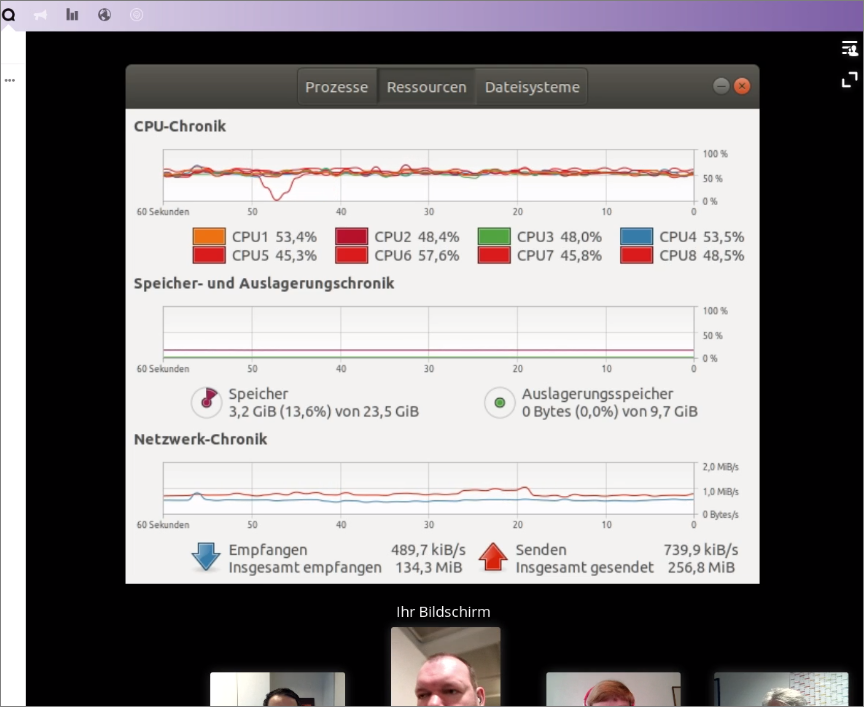
This screenshot shows the system data for a different client (also in a call with 5 participants and a data channel) and both CPU usage and bandwidth remain moderate.
And yes, some users report this behaviour in a one2one call.
brtptrs
on 15 May 2018
This screenshot shows the system data for a different client (also in a call with 5 participants and a data channel) and both CPU usage and bandwidth remain moderate.
Could it be that they use different browsers? Chrome vs Firefox could make a difference on how they implemented the video decoding.
MorrisJobke
on 15 May 2018
Looking at the screenshots, we can see that there are some hardware differences between both clients.
The second machine has 8 cores while the first one has 4.
This could be one of the reasons why the CPU load is different in each client.
Ivansss
on 15 May 2018
The screenshots are just from two example clients. A number of users with with different combinations of hard- and software have reported this problem. Other users again with different combinations of hard- and software don't seen to have this issue.
For users with this problem switching between Firefox and Chrome does not seem to make a difference.
brtptrs
on 15 May 2018
We've done some further testing and found that:
1) When disabling outbound video the cpu usage drops significantly
2) When disabling incoming video the cpu usage does not seem to be affected noticeably
Could it be that encoding outbound video is handled differently from decoding incoming video.
Also Linux machines don't seem to be affected as much as Windows
brtptrs
on 8 Jun 2018
Sorry for the delay, and thanks for the additional testing.
The CPU load is, unfortunately, a very complex matter, as there are a lot of variables involved.
In general, even when using a fast algorithm that favours speed over quality for real time communication, encoding is a heavier operation than decoding, so it is expected that encoding video is more resource intensive than decoding it.
In the case of a video call, the needed resources usually go up when the encoded video is sent to more participants, because the video is encoded once for each participant. The reason is that each participant is connected directly to each other participant, and the bitrate (resolution, frames per second and/or quality) of the video is automatically adapted to the available bandwith of the connection. Therefore, the video is encoded individually for each connection based on its bandwith.
Theoretically the browser could always encode the local video in a predefined set of resolutions and send the best matching one for each connection; this would reduce the resources needed to add more participants, but unfortunately I have not seen that behaviour in practice, and it is (probably, I have not checked it) not possible to control it from the applications given the built-in nature of adaptive bitrate in the codecs and WebRTC.
There is a way to mitigate the increased load due to encoding the video for all the participants: a MCU. When there is a MCU each participant connects to it instead of to every other participant. Thus, the local video is sent only once, to the MCU, which then sends it to the other participants. The MCU is a dedicated hardware element, so it is an additional service external to Nextcloud Talk itself, but that can be acquired as part of the Nextcloud Talk subscription. However, the MCU would solve the load problem only if it is caused by encoding the video to several participants; there is a lot more that could be causing it ;-)
As surprising as it may sound, even on a one to one conversation the needed resources could be different depending on the system of the other participant. The reason is that the video can be encoded using three different codecs: H.264, VP8 and VP9. Depending on which one is used more or less resources are needed. Why use the ones that require more resources then? Quality. With the same bitrate a codec can provide more visual quality, at the expense of higher resources needed to encode the video.
But what if I do not care about quality, or find the differences negligible? Is it not possible to force the browser to use the fastest codec? Well, it is probably possible to force the browser to use a specific codec during the initial negotiation of the connection. However, it is not advisable to do so, because the browser knows better.
Besides not being able to always use a specific codec because the client of the other participant may not have support for it, the problem is that the _fastest codec_ is not an absolute. In general terms encoding in H.264 may be faster than encoding in VP9. But that can change depending on the system, for example, if encoding in VP9 is hardware accelerated and in H.264 is not. In that case encoding in VP9 _should_ be faster than encoding in H.264. That is something known by the browser, but (as far as I know) it is not possible to know that from the web applications.
When encoding (or decoding) is hardware accelerated (either through a specific chip, or by offloading the work from the CPU to the GPU) the encoding uses less CPU. However, even if the browser is run on a system with hardware that has support for the codec it may not be hardware accelerated. Besides the hardware, the operating system must have support for the hardware accelerated codec. And not only that, the browser must have support too for the hardware accelerated codec. For example, in GNU/Linux there is support for hardware accelerated codecs through VA-API, VCE or NVENC, but it is currently not supported by Firefox nor Chromium.
In Chromium (or Chrome) whether there is support for hardware accelerated codecs or not can be checked in _chrome://gpu_, and in Firefox it can be checked under the _Graphics_ section of _about:support_. In general, if the CPU load is notably reduced when disabling the local video, the encoding is probably not hardware accelerated (I am assuming that sending the data does not require a lot of CPU, which it should not).
Note that sometimes the browser could use hardware accelerated encoding in the system in which it is being run yet it has disabled it. This happens when the hardware or the operating system are known to be buggy if encoding is enabled, so software encoding is used instead to be safe. When that happens Chromium makes possible to force it by setting an advanced setting that can be accessed through _chrome://flags_. Note, however, that it is usually a bad idea to do that (it has been disabled for a reason, after all ;-) ). In Firefox the advanced settings are accessed through _about:config_, but I have not found any specific parameter to force hardware encoding when the browser disables it.
A side effect of the browser disabling hardware accelerated encoding is that it _could_ happen that an older version of the browser uses less CPU than a newer version on the same system (if the hardware encoding was not disabled yet in that version). However, it is usually not worth testing older versions to see if the CPU load was lower on them (and of course a newer version could behave better than an older version in other areas).
Not having hardware accelerated encoding does not automatically mean that the CPU load will be too high, though. There are other elements at play. For example, encoding could be faster on a CPU with less cores than another one if the codec implementation does not use multi-threading. Or the other way around, a CPU with more but less powerful cores could be faster than a CPU with less but more powerful cores if the codec implementation is multi-threaded... or not, if the multi-threaded implementation does not scale properly.
Another thing that influences the CPU load are the optimizations. Different CPUs have different architectures and instruction sets, and different codec implementations can be tailored for maximum performance on only certain architectures. Thus two CPUs that in other tasks have similar performance could behave vastly different with certain codec implementations.
Due to that the CPU load of different codec implementations can be notable... or it could be negligible. The codec implementation changes between different browsers and even between different versions of the same browser, so the effect on the CPU load due to the encoding may change between browsers or not.
For the same codec on the same system another factor that affects the CPU load is the bitrate of the video. As already mentioned, the video is encoded for each connection based on its bandwith; when the bandwith is higher, the video is encoded with a larger bitrate (up to certain point, of course), and when the bandwith is lower, the video is encoded with a smaller bitrate. During a WebRTC call this can be seen in Chromium in _chrome://webrtc-internals/_, in the stat graphs for the sent video (I am not aware of an equivalent tool in Firefox). A larger target bitrate requires more resources than a smaller target bitrate, and due to all this the bandwith of the connection causes fluctuations on the CPU load.
In the same way that the target bitrate affects the resources needed the source bitrate does too. Thus, if the camera is providing video with a large bitrate more resources will be needed to encode it than if the camera is providing video with a small bitrate. Thus, if the CPU load is high due to the encoding using a camera with lower resolution, frames per second or quality _may_ help.
As you can see with all of the above, there are a lot of variables that affect the CPU load when encoding video in the browser. But encoding is just a part of the puzzle. There are a lot of other things that can influence the CPU load too ;-)
Anyway, as you mentioned that disabling the sent video dropped the CPU load significatively while disabling the received video did not, encoding the video is _probably_ what causes the high CPU load (but please note that browsers are incredibly complex nowadays and I am not a browser developer, so there may be other things that could cause it and that I am not aware of).
If the CPU load dropped significatively when disabling the video of other participants or when the window was resized to be smaller, then the CPU load would be probably caused by drawing the video on screen. Ideally the browser would offload painting the received video to the GPU along with decoding it, but there are a lot of quirks that prevent this. You can get an idea of all the problems that could appear and the complexity of having hardware accelerated rendering in these lists of issues from Chromium source code (which is what Chromium uses at runtime to enable or disable the features based on the system it is being run on): gpu_driver_bug_list.json and software_rendering_list.json. A similar (although with a less user friendly format) list for Firefox is set through the ADD_TO_DRIVER_BLOCKLIST macros in GfxInfo.cpp.
After a lot of testing I found that, besides disabling the local video, hiding the received video helped the most with the CPU load (although not in all cases); that option was added in the latest bugfix release of Talk hoping that it could help in your situation, but as I can see from your latest tests it did not :-(
In any case, from the explanation above, you can see that there is little that can be done in Nextcloud Talk. Of course we can try to _patch_ the problem adding things like hiding the remote videos, but solving the problem is out of our domain. Also, we can patch the problem up to certain point; obviously we do not have the resources to test every possible hardware and software combination and do things like automatically reduce the size of the video shown, or the negotiated size of the video sent, or select certain codec, or... based on the hardware and software stack in which Talk is being run. Not only that, but from the browser it would be impossible to access most of the required information about the system to do it.
Having said all that we could of course be facing a Nextcloud Talk bug! But I am afraid that it is just a limitation of the systems in which the browsers are being run.
Anyway, if despite all of the above you would like to investigate further, please tell me and I will try to guide you to check some things in the affected systems.
 danxuliu
on 13 Jun 2018
danxuliu
on 13 Jun 2018
Also Linux machines don't seem to be affected as much as Windows
Experiencing this on Linux (Ubuntu 14.04) too, Chromium and Firefox.
 waja
on 18 Jun 2018
waja
on 18 Jun 2018
@danxuliu Thanks for the extensive explanation. We in fact have a Talk-Subscription (no MCU yet) and would love to get this problem solved. Please let me know what we can do to assist with debugging.
As a side note:
The machine with the best cpu performance that we have tested is a older Windows machine with a AMD FX 6200 CPU. If that is interesting i can provide more detail.
brtptrs
on 19 Jun 2018
Please let me know what we can do to assist with debugging.
If you could perform the following tests and tell us the results it would be great :-)
The machine with the best cpu performance that we have tested is a older Windows machine with a AMD FX 6200 CPU. If that is interesting i can provide more detail.
Indeed; could you provide us the _Graphics Feature Status_ and the _Problems Detected_ (if any) shown when browsing to _chrome://gpu/_ in Chromium/Chrome in that system? And the output of browsing to _about:support_ in Firefox? Also, which are the operating system and the graphics card?
Also, you mentioned that the CPU load also happened on one-to-one conversations. Could you use one of the systems that struggled in one-to-one conversations for the tests? Even if you can not use the most limited ones obviously it would be necessary to perform the tests on a system in which you have seen the problems :-)
Could you provide us too the same information mentioned above for the systems used in the tests below?
And now, the tests! Please leave 20-30 seconds between each step to make sure that the CPU load has stabilized.
- Create a one-to-one conversation and start a call (do not join with both participants, only the first one; let's call it user A)
- Which is the CPU load?
- Now join the call with another participant (let's call it user B) but, when asked, do not grant the permissions to access the camera or the audio
- Which is the CPU load (in both systems)?
- Resize the browser window to a small window in user B's system
- Which is the CPU load (in both systems)?
- Maximize again the browser in user B's system
- Disable the video from user A in user B's window
- Which is the CPU load (in user B's system)?
- Disable the local video in user A's system
- Which is the CPU load (in both systems)?
- Enable again the video from user A in user B's window
- Which is the CPU load (in user B's system)?
- Leave the conversation with user B
- Which is the CPU load (in user A's system)?
Now join again the call with user B, but this time grant access to the camera
- Which is the CPU load (in both systems)?
- Disable the local video in user B's system
- Which is the CPU load (in both systems)?
- Enable again the local video in user A's system
- Which is the CPU load (in both systems)?
- Enable again the local video in user B's system
- Which is the CPU load (in both systems)?
- Resize the browser window to a small window in user B's system
- Which is the CPU load (in both systems)?
- Resize the browser window to a small window in user A's system
- Which is the CPU load (in both systems)?
Thank you very much for the information, and sorry for the cumbersome process :-(
danxuliu
on 21 Jun 2018
@danxuliu I'll be out of the office for a few days. When I get back we'll do some tests and report back.
brtptrs
on 22 Jun 2018
Closing due to lack of feedback
 nickvergessen
on 30 Jul 2018
nickvergessen
on 30 Jul 2018
Too bad i will love to help resolving this issue.
Macbook Pro are going mad when using Nextcloud Talk, my Lenovo too.
I will show you my case tomorrow.
 warnerbryce
on 19 Mar 2019
warnerbryce
on 19 Mar 2019
The problem might be in Nextcloud official chrome extension for screen sharing
My setup: win 10, Chrome 73, i7 9700K, GTX1060 6G
So, I was chatting with one person with video, both direction, without using screen sharing and chrome was always casually using 33% of my CPU, 6% of GPU, uninstalled the extension and CPU went down to 5%
I hope this helps
 westware
on 28 Mar 2019
westware
on 28 Mar 2019
Related issues
 PVince81
·
4Comments
PVince81
·
4Comments
 mario
·
3Comments
mario
·
3Comments
 cbacit
·
3Comments
cbacit
·
3Comments
 isas-institute
·
4Comments
isas-institute
·
4Comments
 georgehrke
·
3Comments
georgehrke
·
3Comments
Most helpful comment
Sorry for the delay, and thanks for the additional testing.
The CPU load is, unfortunately, a very complex matter, as there are a lot of variables involved.
In general, even when using a fast algorithm that favours speed over quality for real time communication, encoding is a heavier operation than decoding, so it is expected that encoding video is more resource intensive than decoding it.
In the case of a video call, the needed resources usually go up when the encoded video is sent to more participants, because the video is encoded once for each participant. The reason is that each participant is connected directly to each other participant, and the bitrate (resolution, frames per second and/or quality) of the video is automatically adapted to the available bandwith of the connection. Therefore, the video is encoded individually for each connection based on its bandwith.
Theoretically the browser could always encode the local video in a predefined set of resolutions and send the best matching one for each connection; this would reduce the resources needed to add more participants, but unfortunately I have not seen that behaviour in practice, and it is (probably, I have not checked it) not possible to control it from the applications given the built-in nature of adaptive bitrate in the codecs and WebRTC.
There is a way to mitigate the increased load due to encoding the video for all the participants: a MCU. When there is a MCU each participant connects to it instead of to every other participant. Thus, the local video is sent only once, to the MCU, which then sends it to the other participants. The MCU is a dedicated hardware element, so it is an additional service external to Nextcloud Talk itself, but that can be acquired as part of the Nextcloud Talk subscription. However, the MCU would solve the load problem only if it is caused by encoding the video to several participants; there is a lot more that could be causing it ;-)
As surprising as it may sound, even on a one to one conversation the needed resources could be different depending on the system of the other participant. The reason is that the video can be encoded using three different codecs: H.264, VP8 and VP9. Depending on which one is used more or less resources are needed. Why use the ones that require more resources then? Quality. With the same bitrate a codec can provide more visual quality, at the expense of higher resources needed to encode the video.
But what if I do not care about quality, or find the differences negligible? Is it not possible to force the browser to use the fastest codec? Well, it is probably possible to force the browser to use a specific codec during the initial negotiation of the connection. However, it is not advisable to do so, because the browser knows better.
Besides not being able to always use a specific codec because the client of the other participant may not have support for it, the problem is that the _fastest codec_ is not an absolute. In general terms encoding in H.264 may be faster than encoding in VP9. But that can change depending on the system, for example, if encoding in VP9 is hardware accelerated and in H.264 is not. In that case encoding in VP9 _should_ be faster than encoding in H.264. That is something known by the browser, but (as far as I know) it is not possible to know that from the web applications.
When encoding (or decoding) is hardware accelerated (either through a specific chip, or by offloading the work from the CPU to the GPU) the encoding uses less CPU. However, even if the browser is run on a system with hardware that has support for the codec it may not be hardware accelerated. Besides the hardware, the operating system must have support for the hardware accelerated codec. And not only that, the browser must have support too for the hardware accelerated codec. For example, in GNU/Linux there is support for hardware accelerated codecs through VA-API, VCE or NVENC, but it is currently not supported by Firefox nor Chromium.
In Chromium (or Chrome) whether there is support for hardware accelerated codecs or not can be checked in _chrome://gpu_, and in Firefox it can be checked under the _Graphics_ section of _about:support_. In general, if the CPU load is notably reduced when disabling the local video, the encoding is probably not hardware accelerated (I am assuming that sending the data does not require a lot of CPU, which it should not).
Note that sometimes the browser could use hardware accelerated encoding in the system in which it is being run yet it has disabled it. This happens when the hardware or the operating system are known to be buggy if encoding is enabled, so software encoding is used instead to be safe. When that happens Chromium makes possible to force it by setting an advanced setting that can be accessed through _chrome://flags_. Note, however, that it is usually a bad idea to do that (it has been disabled for a reason, after all ;-) ). In Firefox the advanced settings are accessed through _about:config_, but I have not found any specific parameter to force hardware encoding when the browser disables it.
A side effect of the browser disabling hardware accelerated encoding is that it _could_ happen that an older version of the browser uses less CPU than a newer version on the same system (if the hardware encoding was not disabled yet in that version). However, it is usually not worth testing older versions to see if the CPU load was lower on them (and of course a newer version could behave better than an older version in other areas).
Not having hardware accelerated encoding does not automatically mean that the CPU load will be too high, though. There are other elements at play. For example, encoding could be faster on a CPU with less cores than another one if the codec implementation does not use multi-threading. Or the other way around, a CPU with more but less powerful cores could be faster than a CPU with less but more powerful cores if the codec implementation is multi-threaded... or not, if the multi-threaded implementation does not scale properly.
Another thing that influences the CPU load are the optimizations. Different CPUs have different architectures and instruction sets, and different codec implementations can be tailored for maximum performance on only certain architectures. Thus two CPUs that in other tasks have similar performance could behave vastly different with certain codec implementations.
Due to that the CPU load of different codec implementations can be notable... or it could be negligible. The codec implementation changes between different browsers and even between different versions of the same browser, so the effect on the CPU load due to the encoding may change between browsers or not.
For the same codec on the same system another factor that affects the CPU load is the bitrate of the video. As already mentioned, the video is encoded for each connection based on its bandwith; when the bandwith is higher, the video is encoded with a larger bitrate (up to certain point, of course), and when the bandwith is lower, the video is encoded with a smaller bitrate. During a WebRTC call this can be seen in Chromium in _chrome://webrtc-internals/_, in the stat graphs for the sent video (I am not aware of an equivalent tool in Firefox). A larger target bitrate requires more resources than a smaller target bitrate, and due to all this the bandwith of the connection causes fluctuations on the CPU load.
In the same way that the target bitrate affects the resources needed the source bitrate does too. Thus, if the camera is providing video with a large bitrate more resources will be needed to encode it than if the camera is providing video with a small bitrate. Thus, if the CPU load is high due to the encoding using a camera with lower resolution, frames per second or quality _may_ help.
As you can see with all of the above, there are a lot of variables that affect the CPU load when encoding video in the browser. But encoding is just a part of the puzzle. There are a lot of other things that can influence the CPU load too ;-)
Anyway, as you mentioned that disabling the sent video dropped the CPU load significatively while disabling the received video did not, encoding the video is _probably_ what causes the high CPU load (but please note that browsers are incredibly complex nowadays and I am not a browser developer, so there may be other things that could cause it and that I am not aware of).
If the CPU load dropped significatively when disabling the video of other participants or when the window was resized to be smaller, then the CPU load would be probably caused by drawing the video on screen. Ideally the browser would offload painting the received video to the GPU along with decoding it, but there are a lot of quirks that prevent this. You can get an idea of all the problems that could appear and the complexity of having hardware accelerated rendering in these lists of issues from Chromium source code (which is what Chromium uses at runtime to enable or disable the features based on the system it is being run on): gpu_driver_bug_list.json and software_rendering_list.json. A similar (although with a less user friendly format) list for Firefox is set through the
ADD_TO_DRIVER_BLOCKLISTmacros in GfxInfo.cpp.After a lot of testing I found that, besides disabling the local video, hiding the received video helped the most with the CPU load (although not in all cases); that option was added in the latest bugfix release of Talk hoping that it could help in your situation, but as I can see from your latest tests it did not :-(
In any case, from the explanation above, you can see that there is little that can be done in Nextcloud Talk. Of course we can try to _patch_ the problem adding things like hiding the remote videos, but solving the problem is out of our domain. Also, we can patch the problem up to certain point; obviously we do not have the resources to test every possible hardware and software combination and do things like automatically reduce the size of the video shown, or the negotiated size of the video sent, or select certain codec, or... based on the hardware and software stack in which Talk is being run. Not only that, but from the browser it would be impossible to access most of the required information about the system to do it.
Having said all that we could of course be facing a Nextcloud Talk bug! But I am afraid that it is just a limitation of the systems in which the browsers are being run.
Anyway, if despite all of the above you would like to investigate further, please tell me and I will try to guide you to check some things in the affected systems.