Rubberduck: No Way to Dock Tool Windows after Uncheck Dockable (even after Restart)
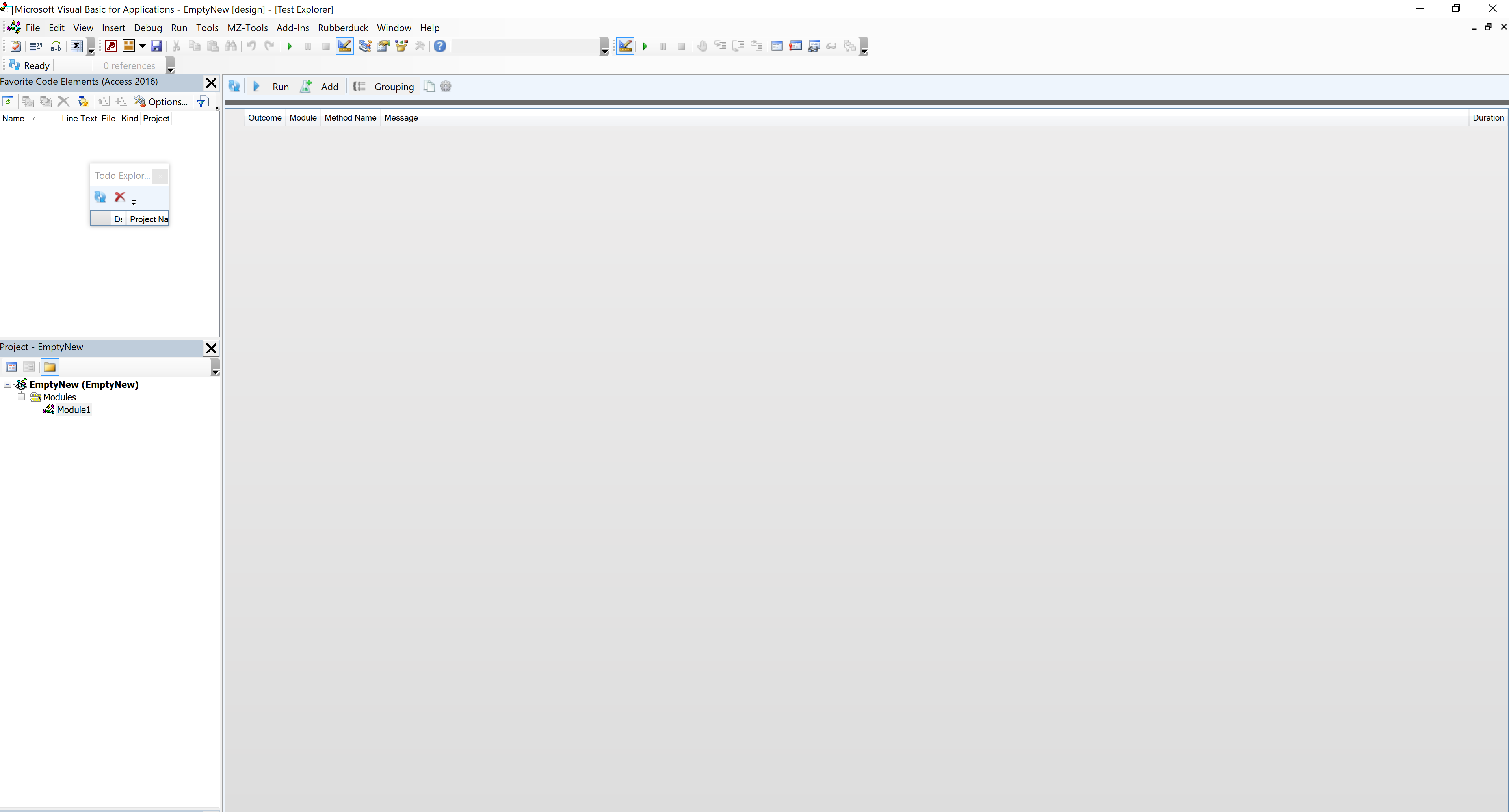
The Dockable and Hide context menu items are missing from context menu shown when right-clicking on toolbar Ruberduck tool windows.
Because of this, if user ever right-clicks on the docked tool window's docked mode titlebar and unchecks > Dockable, then the tool window gets moved to a document tab, and, unlike all built-in or other add-in tool windows, there is no way to change it back to Dockable ever, even after unloading, restarting Access, clicking menubar entry for the window, etc.
I have to go to registry and delete workspace layout in order to get it back at that point.
 PowerSheetAI
All 11 comments
I did this by mistake today, but knew to kill the host process before the changes were persisted to the registry.
 ThunderFrame
on 6 Sep 2017
ThunderFrame
on 6 Sep 2017
Shouldn't we just add this to the bottom of the context menu, as PE does:

Also, wondering why this is difficulty-03-duck, is there significant complexity known of?
 mansellan
on 8 May 2018
mansellan
on 8 May 2018
I’m assuming the difficulty label is because it’s related to the dockable windows. Dockable windows are notoriously picky, difficult, and require a fair bit of knowledge around the WinAPI. Now, not all tool window work is that difficult and this may not be, but in general working with the dockable windows isn’t easy.
 rubberduck203
on 9 May 2018
rubberduck203
on 9 May 2018
Just to note that though there is no command to Dock in VBIDE, it can be done by doing VBE.Windows(?).LinkedWindows.Add; so hopefully no win32 API is needed for that. Whether there's going to be any other fallback..... #NeedsTesting
 bclothier
on 9 May 2018
bclothier
on 9 May 2018
Yes, LinkedWindows.Add() should work, as detailed here.
Thanks for pointing that out, @bclothier.
PowerSheetAI
on 12 May 2018
OK, so I've been looking into this.
My hope was that we could useLinkedWindows to add "Dockable" (and also "Hide") to the end of each context menu, for a 1-1 match with the built-in toolwindow context menu.
This fails for 2 reasons:
The
LinkedWindowscollection doesn't seem to recognise our toolwindows. For example, directly after invoking_vbe.MainWindow.LinkedWindows.Add(codeExplorerToolWindow), the_vbe.MainWindow.LinkedWindowscollection will not containcodeExplorerToolWindow. This means we can't use it to determine current dock state.LinkedWindowsis not a direct analogue for the dockability status of a toolwindow. Rather, it records which windows are currently participating in a docking relationship. So removing aLinkedWindowis equivalent to dragging a docked window into free space - it's floating but still dockable. This is not the same as uncheckingDockable, which sets it floating and prevents it from docking again.
The upshot is that, whilst we can use LinkedWindows to recover from an undockable state, it's not the ideal solution. However, there must be a window message that handles the actual Dockable action and IsDocked queries, if we can find those we can send it directly to our windows.
mansellan
on 30 Aug 2018
I switched on logging of messages and events and then tried Project Explorer unchecking and rechecking the Dockable context menu item. Log attached:
PE dock log.txt
Of note are the Unknown windows messages which fall in the WM_USER range:
MSG: 1044 (Unknown), Hwnd 3C09D8 (wndclass_desked_gsk), wParam 00B5, lParam 0000
(Note, per the wiki, this corresponds to the Dockable action.)
MSG: 1043 (Unknown), Hwnd 3C09D8 (wndclass_desked_gsk), wParam 0000, lParam 0000
No info.
mansellan
on 30 Aug 2018
Woohoo! Thank You All, I've finally got it!
VBA code for 64 bit Office (for x32 you have to replace LongPtr by Long and remove PtrSafe):
Option Explicit

Declare PtrSafe Function FindWindow Lib "user32" Alias "FindWindowA" ( _
                   ByVal lpClassName As String _
                 , ByVal lpWindowName As String _
) As LongPtr

Public Declare PtrSafe Function SendMessageA Lib "user32" ( _
                          ByVal hWnd As LongPtr _
                        , ByVal wMsg As Long _
                        , ByVal wParam As LongPtr _
                        , lParam As Any _
) As LongPtr

Sub MakeDockableAgain()

   Dim hWndVBE As LongPtr
   Dim t As Single
   Const timeout = 3

   hWndVBE = FindWindow("wndclass_desked_gsk", vbNullString)

   If hWndVBE = 0 Then
      MsgBox "Sorry, VBE not found", vbCritical
   ElseIf vbYes = MsgBox("After you click YES you have " & timeout & " seconds" _
                      & " to click on pane you want to switch Dockable... Are you ready?" _
                      , vbYesNo) Then
      t = Timer
      Do
         DoEvents
      Loop While Timer < t + timeout

      SendMessageA hWndVBE, &H1044, &HB5, 0
      MsgBox "OK, check it! :)", vbInformation
   Else
      MsgBox "Operation is cancelled.", vbExclamation
   End If

End Sub
 ATolokolnikov
on 21 Nov 2018
ATolokolnikov
on 21 Nov 2018
Nice work @ATolokolnikov !
mansellan
on 21 Nov 2018
I thought I posted a solution to this, that doesn't involve sending messages or asking the user to click the toolwindow. It can be achieved by executing a CommandBarToggleButton and the ToolWindow state can be read using the CommandBarControl.
There was a small issue around the selection in the Toolwindow, where the CommandBarControl can't be relied upon if certain WPF controls are selected, but presumably RD can determine the parent Toolwindow for a given WPF selection?
Nonetheless, I'll retest the solution tomorrow, and post the Control's ID. It may be that a combination of solutions is viable here, particularly if the state can be read using Send message, as the CommandBarControl approach requires that the ToolWindow be active to read the state.
ThunderFrame
on 22 Nov 2018
@ATolokolnikov - Thanks, that worked for me. Had to make the modifications for 32-bit, but still worked perfectly. :+1:
 spinjector
on 21 Jan 2019
spinjector
on 21 Jan 2019
Related issues
 SteGriff
·
3Comments
SteGriff
·
3Comments
 Gener4tor
·
3Comments
Gener4tor
·
3Comments
 retailcoder
·
4Comments
retailcoder
·
4Comments
 Inarion
·
3Comments
retailcoder
·
3Comments
Inarion
·
3Comments
retailcoder
·
3Comments
Most helpful comment
Woohoo! Thank You All, I've finally got it!
VBA code for 64 bit Office (for x32 you have to replace
LongPtrbyLongand removePtrSafe):