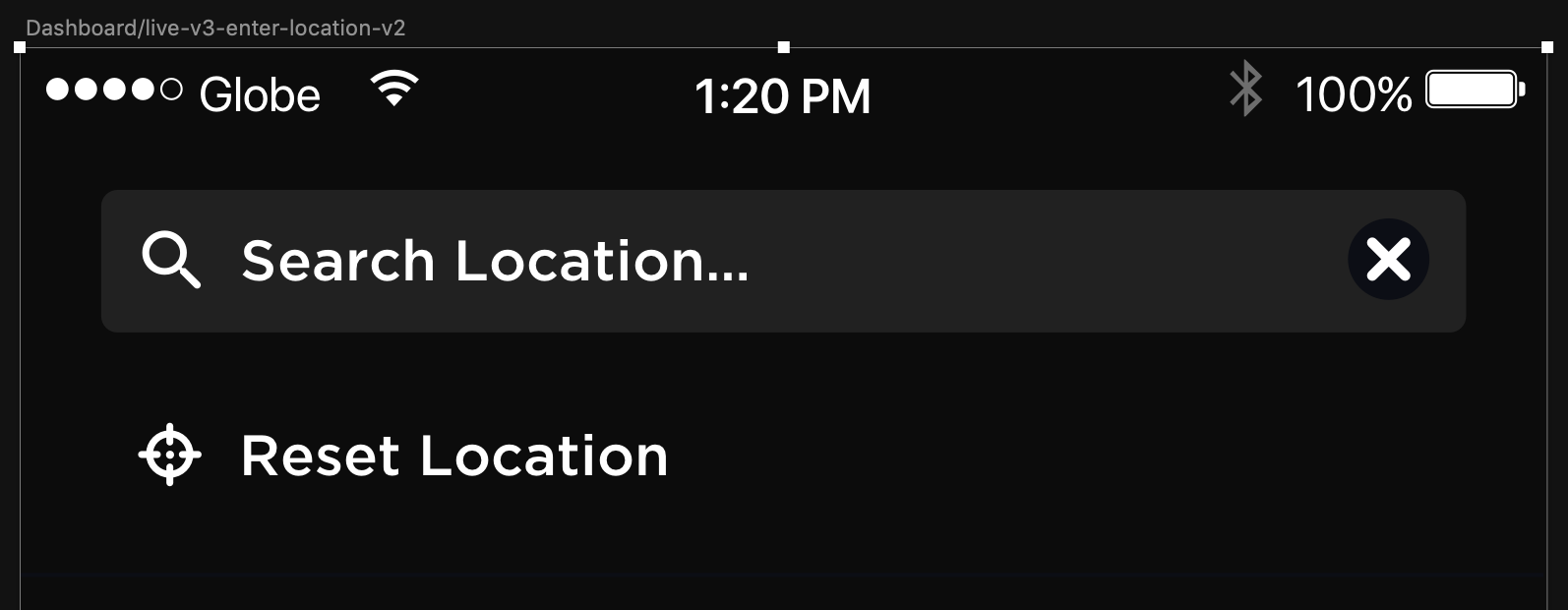
React-native-google-places-autocomplete: Is there anyway to add icon before the predefined location?
To achieve the layout below.
 tezahzulueta
👍4
👀1
All 3 comments
Places the search bar inside a wrapper, then style the textinput to have no borders. You can then add whatever extra component you want, typically with flexDirection set to row on the wrapper.
 stevieoj
on 5 Mar 2019
stevieoj
on 5 Mar 2019
👎1
Did you find a solution for it?
 ZeinabAwada
on 7 Mar 2019
ZeinabAwada
on 7 Mar 2019
You can achieve this layout by using the renderRow prop to put an icon before the predefined place and the renderLeftButton to put an image in the text input. You can also use pass in a custom TextInput component in textInputProps.
Example Code:
import React from 'react';
import { Text, View, Image } from 'react-native';
import { GooglePlacesAutocomplete } from 'react-native-google-places-autocomplete';
// import { Input } from 'react-native-elements';

const GOOGLE_PLACES_API_KEY = 'YOUR_GOOGLE_API_KEY';

const App = () => (
  <View style={{flex: 1}}>
    <GooglePlacesAutocomplete
      query={{
        key: GOOGLE_PLACES_API_KEY,
        language: 'en', // language of the results
        }}
      renderRow={results => {
        if (results.isPredefinedPlace) {
          return (
            <>
              <Image source="https://i.ya-webdesign.com/images/transparent-pin-google-2.png" style={{ width: 15, height: 25 }} />
              <Text>{results.description}</Text>
            </>
          );
        } else {
          return <Text>{results.description}</Text>
        }
      }}
      renderLeftButton={() => (
        <Image source="https://i.ya-webdesign.com/images/transparent-pin-google-2.png" style={{ width: 15, height: 25 }} />
      )}
      onPress={(data, details = null) => console.log(data)}
      onFail={error => alert(error)}
      // textInputProps={{
      //   InputComp: Input,
      //   leftIcon: { type: 'font-awesome', name: 'chevron-left' },
      //   errorStyle: { color: 'red' }
      // }}
        styles={{
          textInputContainer: {
            backgroundColor: 'rgba(0,0,0,0)',
            borderTopWidth: 0,
            borderBottomWidth: 0,
          },
          textInput: {
            marginLeft: 0,
            marginRight: 0,
            height: 38,
            color: '#5d5d5d',
            fontSize: 16,
          },
          predefinedPlacesDescription: {
            color: '#1faadb',
          },
        }}
    />
  </View>
)

export default App
 bell-steven
on 20 May 2020
bell-steven
on 20 May 2020
❤2
Was this page helpful?
0 / 5 - 0 ratings
Related issues
 yashwanth15
·
3Comments
yashwanth15
·
3Comments
 quandevelopment
·
4Comments
quandevelopment
·
4Comments
 GervaisYO
·
4Comments
GervaisYO
·
4Comments
 yasirdev
·
3Comments
yasirdev
·
3Comments
 diegothucao
·
3Comments
diegothucao
·
3Comments
Most helpful comment
You can achieve this layout by using the
renderRowprop to put an icon before the predefined place and therenderLeftButtonto put an image in the text input. You can also use pass in a custom TextInput component intextInputProps.Example Code: