Rawtherapee: Full-screen inspector: several issues
@rfranke Thank you for the work on the full-screen inspector in #5593. I like the idea very much, and the execution gets a thumbs up as well!
I have (only) just tested it, and I do have a few points of criticism, that I hope you can address:
Serious performance issue: you seem to update the preview as soon as you hover over an image in the file browser (preloading?). This takes up a lot of CPU time and even makes file selection noticeably slower. Since not all users use the preview, they should not experience any performance loss because of it. I would much rather have a preview screen that shows immediately when I press 'f' and then wait a few milliseconds before the image actually shows.Fixed in #5872
Side-note: didn't the 'old' inspector show the embedded JPEG? Maybe I missed it somewhere along the line, but why is the new inspector doing (partial) raw processing instead?My mistake, the JPEG is shown, as can be easily seen when looking at a UniWB file for example.I suppose the sudden lack of the 'Inspector' tab will raise a fair amount of questions to people who casually update RT and have been long time users. What is the best way to ease the transition in your opinion?You can now choose between the old mode and the new mode in Preferences.- There seems to be no indication in the GUI of the existence of the full-screen inspector (I find this a downside in darktable as well). Unless I am overlooking something... I think it is bad to have hidden functionality. Could we have a button (per thumbnail I guess?) to open the inspector? This is not without problems of its own...
There is a bug/feature: I expect to see a preview of the _selected_ image, but now it shows the preview of the _image over which the cursor is positioned_ when I press 'f'.Intended behavior, conclusion pending. See (8).- The behavior of hold-f-to-show and release-f-to-hide unexpectedly changes when you scroll or switch zoom-levels while in full-screen mode: if you do either of those, you enter a permanent full-screen preview and releasing your f or shift-f keys won't make the preview disappear. I don't find this intuitive. I would prefer to either make the preview always disappear as soon as you release the f key, or make the preview state a toggle (this is already mentioned in the PR). I can imagine the latter is also a much more accessibility friendly option.
[from the PR] Panning is possible with a second monitor for the inspector window by moving the mouse over the thumbnail on the first monitor.
- While it is a nice feature, this implementation would disrupt my usual workflow. I do not want to be forced to move my main window to my second screen to show a full-screen preview on my first screen. I would prefer to have an option in my preferences to indicate on which screen my full-screen preview should show up.
Edit:
- The documentation on RawPedia should eventually be updated to reflect the new situation. Mental note: this should be a standard thing whenever new functionality is pushed to dev...
 Thanatomanic
All 43 comments
w.r.t. my side-note in (1) and also (7), RawPedia mentions this "The "Inspect" tab shows a preview at a fixed scale of 100% of the image your mouse cursor is hovering over, which is either the largest JPEG image embedded in the raw file, or the image itself when hovering over non-raw images."
Thanatomanic
on 29 Jul 2020
I'm sorry, but where is Inspect panel? It was very usefull feature to literally inspect images, fast and without any additional actions (like pressing any of keys).
Especially if there are several serial images of one object and I need select the best one. I need exact 100% part of image under the cursor, not "an image in unknown scaling but fullscreen". How can I switch back?
I don't have second monitor (especially when I work with notebook) and I don't like this feature at all.
PS: Version: 5.8-2389-g57303d52b
 Kildor
on 31 Jul 2020
Kildor
on 31 Jul 2020
@Kildor Check this screenshot on RawPedia. The Inspect tab was one of the vertical options on the right.
http://rawpedia.rawtherapee.com/File:Rt_setm_fb.png
Thanatomanic
on 31 Jul 2020
@Thanatomanic, I know what is inspector panel. The problem is there is no more inspector panel in 5.8-2389-g57303d52b and I have to use F, or Shift-F hotkeys just to inspect the image. It used to be much simple action before the update and I hope the bug with missed panel will be fixed.
Kildor
on 31 Jul 2020
I agree that this is a rather big change. The assumption is that one wants to quickly preview the whole image without having to open it in the Editor -- I liked this particular feature e.g. in Darktable.
The panel only showed a fraction of the image, good for inspecting details, but not sufficient to decide which images to remove and which to keep.
There was another issue with MacOS: the panel was always binning 4 screen pixels into one. This made image previews and sorting rather unusable. The new full screen preview exploits the full resolution of a monitor. -- of course only an issue for Mac users ...
The current implementation considers two use cases:
- single monitor (e.g. laptop): show the image under the mouse on the whole screen when pressing "f" or "shift-f". Support zooming and panning. Hide the image upon release of the "f" key.
- dual monitor (e.g. laptop + external monitor): show the image on a dedicated monitor. Pin it there with a mouse click. Then update the image as the mouse moves over the thumbs -- as with the panel before.
The update behaviour should not have changed, compared to the side panel. Only the embedded jpeg is shown, not the edited image. CPU load should only increase when the preview is active.
The scaling is known. "f" fills the screen, whereas "Shift-F" is 100%. With a second monitor, the center of the 100% preview can be adjusted by hovering the mouse over the thumb -- as with the panel before, but on another monitor.
I did not do anything to explicitly select a monitor. My preview automatically opens on a second monitor if it was connected during start of RawTherapee. This is similar to e.g. Nikon ViewNX-i.
If people prefer to use the inspect panel, it might be re-added with a configuration option. Changing this option would require a restart of RawTherapee as it is set up during initialisation.
But please give this change a chance first. It does not come out of nothing, but is motivated two other programs I tried and where I found a quick full screen preview very helpful, namely Darktable and ViewNX-i.
 rfranke
on 2 Aug 2020
rfranke
on 2 Aug 2020
1. single monitor (e.g. laptop): show the image under the mouse on the whole screen when pressing "f" or "shift-f". Support zooming and panning. Hide the image upon release of the "f" key.
I am on a single monitor system. panning doesn't work. Zoomin via scrollwheel works only when pressing "Alt" key simultaniously. Scrollwheel alone scrolls vertically. There is no way to scroll horizontally. Panning via click+drag also doesn't work.
The update behaviour should not have changed, compared to the side panel. Only the embedded jpeg is shown, not the edited image. CPU load should only increase when the preview is active.
But then what is going on in the background? RT-5.8: moving the mouse over the thumbnails produces no real CPU spikes (max 3-4%), with inspect panel open CPU increases to around 100%. RT-dev: Moving the mouse over the thumbnails always increases CPU usage to 100%. I am on a single screen system, so there is no way the preview is shown currently - but this also seems to happen for multi-screen systems as reported by @Thanatomanic
If you want to have a look at art: it also modified the inspect feature, but in a different way. It reduces the file browser to 1 column giving the inspect panel way more space.
 ff2000
on 3 Aug 2020
ff2000
on 3 Aug 2020
I agree that this is a rather big change. The assumption is that one wants to quickly preview the whole image without having to open it in the Editor -- I liked this particular feature e.g. in Darktable.
The panel only showed a fraction of the image, good for inspecting details, but not sufficient to decide which images to remove and which to keep.
Fully agree here.
The update behaviour should not have changed, compared to the side panel. Only the embedded jpeg is shown, not the edited image. CPU load should only increase when the preview is active.
I recorded two video's of the same situation before https://github.com/Beep6581/RawTherapee/commit/c4e21438a1da2e880f6e041669b993225a3f7e2f (found after bisecting this issue) and of the current dev situation. See this filebin: https://filebin.net/db1sluiuvvf2brol
Pay attention to the output in the console and the CPU usage in File manager (N.B. the total CPU power is high overall because I record the screencast).
Like @ff2000 mentions, clearly the situation is different after that particular commit and processing is happening even though I only hover over images. Interestingly it doesn't seem to happen to all images.
did not do anything to explicitly select a monitor. My preview automatically opens on a second monitor if it was connected during start of RawTherapee. This is similar to e.g. Nikon ViewNX-i.
This is not happening in my case. I cannot show this, because I'm not home atm, but I have two displays and both RT and the preview showed on the same display.
In case of a single display setup, the preview becomes much less useful than the old inspector window, because there is no way to easily browse through your images (you can't point to them). In darktable you can use the mouse scrolling to move forward and backward. Since you've used scrolling for panning, is there any other way to implement going forward/backward?
If people prefer to use the inspect panel, it might be re-added with a configuration option. Changing this option would require a restart of RawTherapee as it is set up during initialisation.
But please give this change a chance first. It does not come out of nothing, but is motivated two other programs I tried and where I found a quick full screen preview very helpful, namely Darktable and ViewNX-i.
I don't think we necessarily need to reintroduce the Inspect panel, but I also think the current situation is too obscured to be found without reading the manual. That is a bad thing imo.
I need to go now, but I want to come back and discuss the behavior of f / shift-f some more as well.
Thanatomanic
on 3 Aug 2020
OK, I see. At the moment the inspector window is always treated as active, in order to always have the most up to date information when opened. This draws a lot of CPU power indeed. I will fix this.
rfranke
on 3 Aug 2020
Regarding zooming and panning: my primary input device was a touchpad found on Mac and newer Windows laptops.
Additionally I tested a mouse with scroll wheel under desktop Linux. My mouse supports left and right click on the scroll wheel that generates horizontal events. Details of event assignment can be changed. The only limitation is that, whenever mouse events and trackpad events overlap, then gestures on a trackpad should work as intended.
rfranke
on 3 Aug 2020
@rfranke , just for information, not only related to your change (which I personally appreciate, despite of the increas in CPU usage ;-):
I will make some tries on a HP convertible (touch screen) to see how we can use gestures to zoom in/out and so on
 heckflosse
on 3 Aug 2020
heckflosse
on 3 Aug 2020
Hello everyone,
Just tested yesterday's build (RawTherapee_dev_5.8-2397-ge0d3353d7_20200802) on Windows 10
IMHO, this feature is really useful.
Thanks a lot for working on it.
I confirm, on Windows 10, single monitor, the "bug" about the lack of panning when you press F or shift+F.
As already pointed out, to zoom into the image, you need to also press ALT while you rotate your mouse's wheel. It is a bit unconvenient because it adds an extra-step (Alt key).
These are minor glitches and I hope they might be fixed :-)
 SilvioGrosso
on 3 Aug 2020
SilvioGrosso
on 3 Aug 2020
PR #5872 should solve the performance issue.
I also checked the panning issue. Under OSX, a two finger swipe on the touchpad creates GDK_SCROLL_SMOOTH events. This currently results in panning as with any other program.
My mouse with scroll wheel creates GDK_SCROLL_UP/DOWN/LEFT/RIGHT events. The resulting behaviour could be changed to zoom in this case (no need for ALT key anymore). I don't know if this would help under Windows or Linux -- need to know which GDK_SCROLL_ events a scroll wheel generates.
I find it disturbing that the RT Editor currently translates two finger swipes to zooming -- this should be panning. Zooming should be initiated by moving two fingers further away or closer to each other -- just think of your smartphone.
@heckflosse: looking forward to hearing about your experiences with an HP convertible. The translation of user actions to GDK events is sometimes quite tricky on different systems.
rfranke
on 4 Aug 2020
@heckflosse: looking forward to hearing about your experiences with an HP convertible.
It will take a while though, as it's my wife's ;-)
heckflosse
on 4 Aug 2020
Two further commits implement panning with mouse drag and zooming with scroll wheel.
Tested under OSX. Please check the latter in particular, i.e. if your scroll wheel emits GDK_SCROLL_UP/DOWN/LEFT/RIGHT events on your system.
rfranke
on 4 Aug 2020
The zooming behavior isn't quite right. I'm assuming the desired behavior is that the center of expansion is where the cursor is, but currently the center is a little bit off. I tested using the most recent commit, using the ALT key for zooming.
 Lawrence37
on 4 Aug 2020
Lawrence37
on 4 Aug 2020
Zooming should be around the pointer position. However, if you reduce the size of an image below the size of the monitor, it will be gradually shifted to fill the monitor, in order to avoid unnecessary black areas. Zooming down will end when the monitor shows the full image centered. Is this what you observed?
rfranke
on 5 Aug 2020
The zooming is a bit off even when the visible region is far away from the image edges.
Lawrence37
on 5 Aug 2020
Tested the PR. Performance is great (back to normal), panning with mouse-drag works.
:+1:
ff2000
on 5 Aug 2020
But how can I preview the images without additional keys? I often need to quick inspect several photos (for example a serie of insect or bird) and I need exactly "a fraction of the image, good for inspecting details". I used to view this fraction selected with mouse and do not need image overwiev.
The best idea would be showing this screen by key and having a panel as it was before, without removing existing and working feature.
Kildor
on 5 Aug 2020
@Kildor: your requirement reminds me to point 3 by @Thanatomanic above: "There seems to be no indication in the GUI ... I think it is bad to have hidden functionality. Could we have a button (per thumbnail I guess?) to open the inspector?".
We might place a button somewhere to open the inspector window.
I'm typically using a second monitor for detailed inspections. With one monitor you can do the following at the moment:
- press Shift-F to open an 100% inspect view and click on it
- change the inspector window from full screen to a regular window (top left green circle under OSX)
- place the windows to you liking and inspect images by either hovering over RT filebrowser or pan/zoom in the inspector window (Shift-F to return to 100% view)
Points 1 and 2 might be combined with new button to open the inspector window.

rfranke
on 5 Aug 2020
2. change the inspector window from full screen to a regular window (top left green circle under OSX)
I am on linux and unfortunately fullscreen means borderless, the content covers the whole screen, no titlebar, no window control buttons.
I personally also would prefer to be able to fully control the applications via mouse. I need to be able to hide my keyboard. I usually refer to this as "cat-mode". I have several cats and they like to visit my desk from time to time. I then only have my right hand free which controls the mouse. I actually like to view and edit photos in those situations as writing isn't possible ;) And from what I read in the past I am not the only one with this "problem" ;)
ff2000
on 5 Aug 2020
Didn't know that. Under OSX the border appears when moving the mouse to the upper edge of the fullscreen view. Under Linux the F11 key seems to be used to toggle fullscreen view (just tested with RT and with Chrome under Ubuntu 20.04). Could possibly implement this key binding -- but it wouldn't help in "cat-mode" :(
rfranke
on 5 Aug 2020
Hello @rfranke
I have tried to test your latest changes (in essence, panning) on Windows 10 (with yesterday's build) but il looks like they are not available (panning stuff not implemented yet).
In ART (RawTherapee fork) the Inspector is also useful for judging side by side two similar images. It is useful for focus stacking purposes with images where the sharpness differs from one image to another in the stack.
Alberto Griggio has added in the 1.4 version a "Split View" button to compare 2 images, side by side, in the Inspector. This option is still a little bit "rough around the edges" but, all in all, it works.
This feature (Split view) is not available in RawTherapee but in case someone decides to borrow it from ART you would need the Inspector back to make it working :-)
Here is a screenshot of ART with the "split view"

This being said, thanks a lot indeed for your work.
Having the option to press F and get a full screen of the image is extremely cool
SilvioGrosso
on 5 Aug 2020
@SilvioGrosso the changes are made here #5872. To test this PR, do git fetch origin pull/5872/head:issue5867 (or any other name you want after the colon).
@rfranke Thank you for taking the time to fix and discuss 👍 I will update my initial post to reflect the outcome of the discussion and changes.
Some comments after testing your commits in #5872:
I am on linux and unfortunately fullscreen means borderless, the content covers the whole screen, no titlebar, no window control buttons.
This is the same on Windows.
My mouse with scroll wheel creates GDK_SCROLL_UP/DOWN/LEFT/RIGHT events. The resulting behaviour could be changed to zoom in this case (no need for ALT key anymore). I don't know if this would help under Windows or Linux -- need to know which GDK_SCROLL_ events a scroll wheel generates.
Scrolling pans vertically on my Windows machine. If I click and drag either of my mouse buttons I can pan freely. Works nicely.
The zooming is a bit off even when the visible region is far away from the image edges.
Like @Lawrence37 I think that zooming is not working as expected with regards to where the mouse is pointing. I made a short screencast to demonstrate: https://filebin.net/pig8ddafm8e8cj75. My expectation is that the position of my cursor remains the center point while zooming in, however it quickly shifts.
did not do anything to explicitly select a monitor. My preview automatically opens on a second monitor if it was connected during start of RawTherapee. This is similar to e.g. Nikon ViewNX-i.
This is not happening in my case. I cannot show this, because I'm not home atm, but I have two displays and both RT and the preview showed on the same display.
I have made a screencast to demonstrate that no matter what the initial monitor is that RT starts on, the preview always shows on the same screen. The wide-screen display is my main monitor btw, so in normal circumstances, RT and the preview are on the same window. This is on Windows 10. https://file.io/HsBlVwzxITnz
Finally, I think that how the desired functionality for the preview window is currently tied to key and mouse actions can/should be improved.
- Fact: the cursor position determines which thumbnail is previewed and what area of the thumbnail is previewed when zoomed-in.
- Because of (1) it can be quite challenging to choose the area of interest a high resolution monitor and/or tiny thumbnails.
- In the case of a single monitor setup, because of (1) and the removal of the Inspect-tab, there is no easy way to browse-preview continuously anymore. To browse-preview you have to press 'f'/'shift-f' for each individual image. __Solution A:__ allow browsing while in preview mode (either scroll behavior like darktable, or e.g. with arrow keys). To prevent weird combinations of multiple key-presses, this solution would require a toggled preview imo. __Solution B:__ bring back the docked Inspect-tab. Solutions A and B could be implemented together as well.
- Because of (1) whenever a mouse is not available or usable (either when working on a tablet computer or for disability reasons), the preview cannot be triggered. __Solution:__ In particular on a tablet computer a toggled preview (maybe even with simple culling options) would be of use. In that sense, the old Inspect-tab and the ART-improvements would make sense to keep/implement.
- Fact: the preview is shown only when pressing 'f' or 'shift-f'. Releasing the keys hides the preview _except_ when you have clicked on the preview. Only in that case the preview becomes persistent and allows further manipulation. The preview can then only be hidden by pressing 'esc'.
- Fact: zooming is implemented through the use of alt-scroll.
- Because (5) and (6), in order to zoom, you must first click the preview. Because of (1) and (4) and in the case of a multi-monitor setup, you will very likely never reach the preview before you have hovered over another thumbnail, triggering a preview update. This makes zooming almost impossible to use. __Solution A:__ Bind scrolling to zooming, instead of alt-scroll. __Solution B:__ Make a toggled preview.
Thanatomanic
on 6 Aug 2020
Also, because the preview is tied to the cursor position, you can do this https://file.io/1r5VPYB2zryX
It's a bit counter intuitive because the hover text already tells you you are at a different file, though the preview only updates after you actually hover over the image part of the 'thumbnail card'.
Thanatomanic
on 6 Aug 2020
Current dev on Debian Testing (any architecture I have at hand):
When starting RT, a little "RawTherapee ..." window frame without content appears at the center of the screen nearly immediately for several seconds until the main GUI opens. Perhaps the inspector window is shown too early?
 Floessie
on 8 Aug 2020
Floessie
on 8 Aug 2020
Hi everyone, here is a word from a humble hobby user of RT:
1) Inspect tab and largest available thumbnails (wish we had even larger ones) combined provide great workflow:
a) See main composition in thumbnail (just like it will be seen in social network feeds)
b) Select sharpest image from sequence (as I am a quite poor hobbyist, I do not have professional equipment set and have to shoot in sequences to maximize great picture chances)
c) Paste conversion profile from last picture, see in thumbnail if additional correction is needed, if not go to the next sequence
This workflow allows to chew through huge amounts of photos (especially if they have been shot in same environment in manual mode with fixed setting) fast and very efficiently. It has a great feature that key presses and reaction waiting times are very few in comparison with alternative approaches.
2) I do like full screen preview idea, but current implementation is unusable:
a) New windows takes about 250-400 ms to open and even more to load image
b) It requires keypresses to open and to close (on my system it does not close after second "f" button press, only after "Esc" button press)
c) It can not be moved because of full-screen approach (it literally has no window borders)
d) It provides no benefits in terms of detail evaluation over inspect tab due to same scaling 1:1
and lack of fast and precisely positioned scale change
e) It has no ability to switch images in preview. I have tested arrow buttons, space, backspace, Enter, mouse scroll with no effect. So to check a sequence of photos I have to open and close preview window multiple times.
3) In my humble opinion the greatest benefit can be achieved via combination of fast switchable preview window (with rating and paste conversion profile buttons) and Inspect tab for sharpness and noise review. This approach can provide both composition evaluation and detail sharpness demonstration. In future inspect window can be outfitted with eye detection algorithm and automatically show important part of picture.
4) Is it possible to return back to default inspect tab while full screen preview is being perfected? Compiling old version is not very fun for many of us.
I am running RT version "1:5.6-git20200805-2001~ubuntu18.04.1" from https://launchpad.net/~dhor/+archive/ubuntu/myway repository in Linux Mint 19.3 amd64 with Mate desktop environment.
Thanks in advance :)
 madarexxx
on 9 Aug 2020
madarexxx
on 9 Aug 2020
Current
devon Debian Testing (any architecture I have at hand):When starting RT, a little "RawTherapee ..." window frame without content appears at the center of the screen nearly immediately for several seconds until the main GUI opens. Perhaps the inspector window is shown too early?
I don't see that. Probably it has to do with startup-notifications? Which DE/WM are you using? Does it support disabling startup-notifications?
What I see is for a split second a second entry in the window list labeled "RawTherapee Inspector", just before the mainwindow shows up.
ff2000
on 9 Aug 2020
b) Select sharpest image from sequence (as I am a quite poor hobbyist, I do not have professional equipment set and have to shoot in sequences to maximize great picture chances)
I never found that small stripe the inspector offers to allow for a QUICK way to go through several photos. This is caused by 1) the thumbnails don't offer enough area and detail to select the area of interest, especially when dealing with highres photos and 2) moving the mouse on a small thumbnail while NOT having an eye on it (but the inspector stripe) and 3) the context switch when having to move your eyes to the left, find hovered image, hover next image, and look back on the inspector tab (without jittering and unintentionally selecting a different image...) and then finding the areas of interest to inspect.
That's why I switched to geeqie for such tasks: It allows groupung of RAW+JPEG, tagging, quick image switching (keeps the area you zoomed in!!!) etc which REALLY allows for quickly finding the best shots even when dealing with hundreds of photos.
2. I do like full screen preview idea, but current implementation is unusable:
   a) New windows takes about 250-400 ms to open and even more to load image
I have an ancient laptop with slow spinning disk + crippled iGPU (i3 SandyBridge) - the image seems to load BEFORE the window goes up, and still it is up close to instant. There is no additional delay to load the preview.
Perhaps a bug in your graphics driver?
   b) It requires keypresses to open and to close (on my system it does not close after second "f" button press, only after "Esc" button press)
   c) It can not be moved because of full-screen approach (it literally has no window borders)
were already mentioned
   d) It provides no benefits in terms of detail evaluation over inspect tab due to same scaling 1:1
   and lack of fast and precisely positioned scale change
It allows zooming beyond 1:1, the linked PR implements panning which should be more precise than moving your mouse on small thumbnail. It is better as it shows a bigger area which allows inspecting a larger part of the image without having to move the selection (by carefully moving the mouse by pixels in order to not move too far - thumbnail is quite small ;))
In future inspect window can be outfitted with eye detection algorithm and automatically show important part of picture.
LOL
I think there is no need to completely rework the inspector. Just enhance it and it IMO will be more usable than the current inspector tab.
a) add a way to open it using just the mouse. Overlay and buttons don't allow selecting a spot to inspect, right and left mouse buttons are occupied, so why not "open inspector with middle mouse button click (scroll wheel)?" preferrably at 100% (or go the far way and make inspect zoom value configurable, so pixel peepers can instantly inspect at 400%?)
b) close inspector via middle mouse click (for consistency with a))
c) quick way to zoom between "fit" and "100%". How do you like "right mouse button" for that?
((( optionally ---
d) add a graphical panning helper like gwenview has:

bottom right corner)))
a)-c) should be easy enough, IMO just some event handling, no heavy algorithms.
On top of that we can further enhance it to become a perfect culling view. Add an expandable sidebar with thumbs+filters+rating, histogram (for quick evaluation of RAW exposure, not just the crap the camera jpeg engine did to the image), (synchronized) split view of unlimited photos.
Also add a happy Clippit-like Assistant that turns into a sad Clippit when you hover the same photo for the third time...
But small steps first: get the PR #5872 merged, then enhance its usability, then we can talk about crazy ideas.
Unfortunately calling this unusable (repeatedly) and requesting face-recognition will scare @rfranke away and probably will lead to reenabling the inspector tab, making this basically great idea invisible and rot. :/
ff2000
on 9 Aug 2020
Two new commits of PR #5872 do:
- add F11 key binding to toggle fullscreen status on systems where the windows manager does not already support this (ironically the F11 key is reserved for something else under OSX per default, but there it's not needed)
- add entry to context menu to open inspector window without fullscreen mode, showing the image at the current mouse position. This makes the existence of the inspector window visible in the GUI and it allows to permanently place it somewhere on the screen. Translations of the context menu item should be added afterwards if it will remain there.
@Thanatomanic: your screencast shows the behaviour until the image fills the full screen. In this case it is centered to avoid unnecessary black areas. You should not have the problem once the image is larger than the screen.
@madarexxx: the open delay is the tradeoff for reducing the CPU load before the window is shown (see discussions in this ticket). The delay is also hardware dependent. But these updates should allow you to work as before.
@Floessie: didn't notice such a window under Ubuntu 20.04
@SilvioGrosso, @ff2000: thank you for bringing up further interesting ideas. I agree that we should focus on all the issues already raised for now.
rfranke
on 9 Aug 2020
@ff2000
I don't see that. Probably it has to do with startup-notifications? Which DE/WM are you using? Does it support disabling startup-notifications?
I'm using XFCE 4.14 on X. I haven't changed any notification settings and I honestly don't think it's related to startup-notifications.
Unfortunately calling this unusable (repeatedly) and requesting face-recognition will scare @rfranke away and probably will lead to reenabling the inspector tab, making this basically great idea invisible and rot. :/
Well said, Franz!
Floessie
on 9 Aug 2020
I also see a frame for a fraction of a second when starting RT in Windows
heckflosse
on 9 Aug 2020
Is this possibly related to your improvement:
https://github.com/Beep6581/RawTherapee/pull/5593#issuecomment-570550601
?
rfranke
on 9 Aug 2020
@rfranke
This patch moves the flickering (frame showing for a short while) from the start of RT to the first time I press the f-key on a thumb to open Inspector.
Maybe that helps...
diff --git a/rtgui/inspector.cc b/rtgui/inspector.cc
index 7d5d44e44..c7e585a27 100644
--- a/rtgui/inspector.cc
+++ b/rtgui/inspector.cc
@@ -98,7 +98,6 @@ Inspector::Inspector () : currImage(nullptr), scaled(false), scale(1.0), zoomSca
     gestureZoom->signal_scale_changed().connect(sigc::mem_fun(*this, &Inspector::on_zoom_scale_changed));

     window.add(*this);
-    window.show_all();
     window.set_visible(false);
     active = true; // always track inspected thumbnails
 }
@@ -111,6 +110,7 @@ Inspector::~Inspector()
 void Inspector::showWindow(bool scaled)
 {
     this->scaled = scaled;
+    window.show_all();
     window.fullscreen();
     window.set_visible(true);
     pinned = false;
Ingo
heckflosse
on 9 Aug 2020
I really do not understand one thing. Here, in RT, there are many things to reach the same aim different ways. And you can select the best fitted for you. Why this feature comlpetele destroy previous? The inspector tab was more than usable and it had several advantages over this window.
I never found that small stripe the inspector offers to allow for a QUICK way to go through several photos. This is caused by 1) the thumbnails don't offer enough area and detail to select the area of interest, especially when dealing with highres photos and 2) moving the mouse on a small thumbnail while NOT having an eye on it (but the inspector stripe) and 3) the context switch when having to move your eyes to the left, find hovered image, hover next image, and look back on the inspector tab (without jittering and unintentionally selecting a different image...) and then finding the areas of interest to inspect.
I do not understand you. It was easy, just move the mouse over images and look to the panel. It was very usable when you need to select an image from serial shooting, especially in nature photographing. You don't need to overview over all images, they are almost the same. But you need to view the details of bird, or insect, to select the best. And if you can do it without accord on the keyboard, it is good.
Kildor
on 10 Aug 2020
@rfranke Here's a video showing the zoom on my computer. https://filebin.net/ez569qaivx7mvvmc
The video also shows a black rectangle behind the picture. Its size changes while zooming and when resizing the inspector window.
Lawrence37
on 10 Aug 2020
I really do not understand one thing. Here, in RT, there are many things to reach the same aim different ways. And you can select the best fitted for you. Why this feature comlpetele destroy previous? The inspector tab was more than usable and it had several advantages over this window.
rfranke already said that it is easy to restore the tab + add an option. But before doing so he really would like people to give it a shot, so that he can improve it.
I never found that small stripe the inspector offers to allow for a QUICK way to go through several photos. This is caused by 1) the thumbnails don't offer enough area and detail to select the area of interest, especially when dealing with highres photos and 2) moving the mouse on a small thumbnail while NOT having an eye on it (but the inspector stripe) and 3) the context switch when having to move your eyes to the left, find hovered image, hover next image, and look back on the inspector tab (without jittering and unintentionally selecting a different image...) and then finding the areas of interest to inspect.
I do not understand you. It was easy, just move the mouse over images and look to the panel.
Tell my dad how easy it is... You can try to adapt to it but that doesn't mean the way it works is userfriendly. Shifting your view away from the mouse pointer and start moving it without watching the pointer can be hard for certain people (old, disabled, etc)
It was very usable when you need to select an image from serial shooting, especially in nature photographing. You don't need to overview over all images, they are almost the same. But you need to view the details of bird, or insect, to select the best. And if you can do it without accord on the keyboard, it is good.
If you have just one subject it might be easy. If you have several it gets harder.
But sharpness is not the only thing I want to judge. e.g. water in long exposures looks different in every shot, and it can cover a larger area. To get an impression the small inspector tab is too narrow, but the thumbnail is too small ;) Also to sort out images with distractions (like people walking through the image etc.) the inspector-tab wasn't too useful, but this new inspector window certainly is.
And don't forget to check PR #5872 - there already are fixes for some of the issues mentioned here (menu entry for control without keyboard - zooms to where you click with the RMB - yeah! -- non-fullscreen-view to get window controls on other platforms than MAC)
ff2000
on 10 Aug 2020
I just quickly want to add to try and keep to the topic (those specifically addressed in my first post). Requesting new enhancements and indicating further issues is best done in a new thread. The current one contains a few separate things as well and the discussion to find a resolution is already a bit muddled.
@rfranke I think it is safe to assume the original inspector window should return before we may think about transitioning to an entirely new way to preview. The full screen option can live along side it for a while.
In RT 6.0 (somewhere in the future) we may delete the inspect tab after all.
Thanatomanic
on 10 Aug 2020
@heckflosse
This patch moves the flickering (frame showing for a short while) from the start of RT to the first time I press the f-key on a thumb to open Inspector.
Thanks. Now RT starts like it used to. :+1:
Floessie
on 10 Aug 2020
PR #5872 now re-adds the inspector tab, configurable through Preferences and options.inspectorWindow (default: false).
The second new preference options.zoomOnScroll (default: true) configures the use of a scroll wheel for zooming. This option can be set to false when using a trackpad where scrolling (two finger swipe) should translate to panning. This works along with the zoom gesture (move two fingers away or closer to each other). Currently this is only implemented for the inspector window, but in the future I'd love to see it for the Editor window as well -- configurable through the same new options.zoomOnScroll.
rfranke
on 11 Aug 2020
@rfranke I can also confirm that the blinking frame on startup is gone.
Thank you for making the preview a preference. That solves my initial remark (2). However, why make it a choice? Is it impossible to have both the inspector pane _and_ the full screen preview enabled?
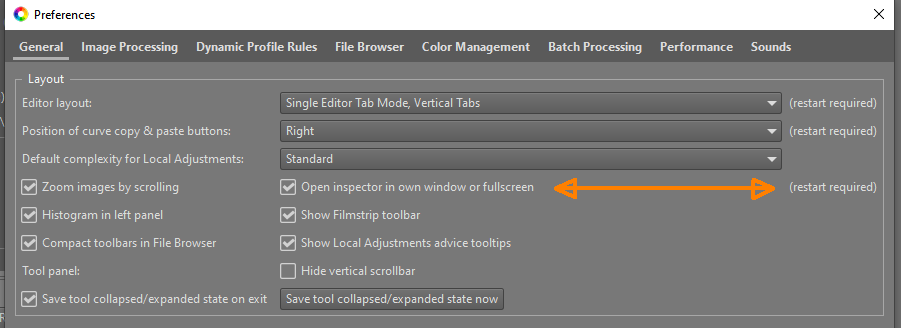
Can this be changed so that it's more obvious that a restart is required?
I even think it may be beneficial to make an entirely new groupbox for the Inspector. The 'Zoom images by scrolling' now seems a very important preference (being the top checkbox), but it specifically for the inspector window.
Thanatomanic
on 14 Aug 2020
Hmm. Currently there is only one DrawingArea that can either be placed into the tab or in a separate window. This is why restart required. A second DrawingArea would be needed to support both at the same time. Note that the separate inspector window can also be opened as pop-up window with the context menu on a thumb (or by pressing F11 on the fullscreen view). This further reduces the need for the preview tab.
When looking for an appropriate place for the new preferences, I was missing a kind of "User Experience" groupbox. Many preferences under General could be placed there, like "Editor layout", but not e.g. "Default complexity for Local Adjustments".
The new preference "Zoom images by scrolling" should not only apply to the inspector window. The alternative zoom gesture should be supported at other places as well, like in the Editor and for thumb size in the filebrowser -- at least under OSX; on newer Windows laptops and devices with touchscreen as well. This is why it may make sense to place this preference in a prominent place under "User Experience". It's a kind of configuration whether a mouse with scroll wheel or a touchpad is used as input device.
rfranke
on 14 Aug 2020
Hmm. Currently there is only one DrawingArea that can either be placed into the tab or in a separate window. This is why restart required. A second DrawingArea would be needed to support both at the same time.
One reason for this seems to be caused by how the separate window is managed: by the drawingarea itself - so essentially the child manages its parent. This approach also makes it harder to extend the whole inspector. Refactoring out the window in its own class IMO would be helpful in any case, if we now decide to go with both windowed+paneled inspector or not.
If you want I can do that (would give me some practice with GTK...).
ff2000
on 17 Aug 2020
Related issues
heckflosse
·
3Comments
heckflosse
·
5Comments
 Hombre57
·
3Comments
heckflosse
·
4Comments
Hombre57
·
3Comments
heckflosse
·
4Comments
 elecprog
·
5Comments
elecprog
·
5Comments
Most helpful comment
PR #5872 now re-adds the inspector tab, configurable through Preferences and
options.inspectorWindow(default: false).The second new preference
options.zoomOnScroll(default: true) configures the use of a scroll wheel for zooming. This option can be set to false when using a trackpad where scrolling (two finger swipe) should translate to panning. This works along with the zoom gesture (move two fingers away or closer to each other). Currently this is only implemented for the inspector window, but in the future I'd love to see it for the Editor window as well -- configurable through the same newoptions.zoomOnScroll.