Powerlevel9k: Powerlevel9k theme incompatible with Terminal in Intellij IDEA
Hi,
I have the issue with embedded Terminal in IntelliJ IDEA when using powerlevel9k theme:

But when I switch to agnoster both terminals (iTerm2 v3 + embedded) display font in correct way:

Could someone help me with this problem, please?
zsh 5.0.8 (x86_64-apple-darwin15.0)
IntelliJ IDEA: 2016.2.2
.zshrc:
# Path to your oh-my-zsh installation.
export ZSH=/Users/moleksiuk/.oh-my-zsh

# Set name of the theme to load.
# Look in ~/.oh-my-zsh/themes/
# Optionally, if you set this to "random", it'll load a random theme each
# time that oh-my-zsh is loaded.
ZSH_THEME="powerlevel9k/powerlevel9k"
# ZSH_THEME="agnoster"

POWERLEVEL9K_MODE='awesome-patched'
POWERLEVEL9K_LEFT_PROMPT_ELEMENTS=(context dir vcs)
POWERLEVEL9K_RIGHT_PROMPT_ELEMENTS=(status)
POWERLEVEL9K_TIME_FORMAT="%D{%H:%M:%S} \UE12E"


# Uncomment the following line to use case-sensitive completion.
# CASE_SENSITIVE="true"

# Uncomment the following line to use hyphen-insensitive completion. Case
# sensitive completion must be off. _ and - will be interchangeable.
# HYPHEN_INSENSITIVE="true"

# Uncomment the following line to disable bi-weekly auto-update checks.
# DISABLE_AUTO_UPDATE="true"

# Uncomment the following line to change how often to auto-update (in days).
# export UPDATE_ZSH_DAYS=13

# Uncomment the following line to disable colors in ls.
# DISABLE_LS_COLORS="true"

# Uncomment the following line to disable auto-setting terminal title.
# DISABLE_AUTO_TITLE="true"

# Uncomment the following line to enable command auto-correction.
# ENABLE_CORRECTION="true"

# Uncomment the following line to display red dots whilst waiting for completion.
# COMPLETION_WAITING_DOTS="true"

# Uncomment the following line if you want to disable marking untracked files
# under VCS as dirty. This makes repository status check for large repositories
# much, much faster.
# DISABLE_UNTRACKED_FILES_DIRTY="true"

# Uncomment the following line if you want to change the command execution time
# stamp shown in the history command output.
# The optional three formats: "mm/dd/yyyy"|"dd.mm.yyyy"|"yyyy-mm-dd"
# HIST_STAMPS="mm/dd/yyyy"

# Would you like to use another custom folder than $ZSH/custom?
# ZSH_CUSTOM=/path/to/new-custom-folder

# Which plugins would you like to load? (plugins can be found in ~/.oh-my-zsh/plugins/*)
# Custom plugins may be added to ~/.oh-my-zsh/custom/plugins/
# Example format: plugins=(rails git textmate ruby lighthouse)
# Add wisely, as too many plugins slow down shell startup.
plugins=(git)

# User configuration

# export PATH="/usr/bin:/bin:/usr/sbin:/sbin:$PATH"
# export MANPATH="/usr/local/man:$MANPATH"

export PATH=$PATH:/usr/local/opt/go/libexec/bin
export GOPATH=$HOME/Workspaces/go

source $ZSH/oh-my-zsh.sh
[[ -s "$HOME/.rvm/scripts/rvm" ]] && source "$HOME/.rvm/scripts/rvm" # Load RVM into a shell session *as a function*

# You may need to manually set your language environment
# export LANG=en_US.UTF-8

# Preferred editor for local and remote sessions
# if [[ -n $SSH_CONNECTION ]]; then
#   export EDITOR='vim'
# else
#   export EDITOR='mvim'
# fi

# Compilation flags
# export ARCHFLAGS="-arch x86_64"

# ssh
# export SSH_KEY_PATH="~/.ssh/dsa_id"

# Set personal aliases, overriding those provided by oh-my-zsh libs,
# plugins, and themes. Aliases can be placed here, though oh-my-zsh
# users are encouraged to define aliases within the ZSH_CUSTOM folder.
# For a full list of active aliases, run `alias`.
#
# Example aliases
# alias zshconfig="mate ~/.zshrc"
# alias ohmyzsh="mate ~/.oh-my-zsh"

DEFAULT_USER=`whoami`

# The next line updates PATH for the Google Cloud SDK.
source '/Users/moleksiuk/DevTools/google-cloud-sdk/path.zsh.inc'

# The next line enables shell command completion for gcloud.
source '/Users/moleksiuk/DevTools/google-cloud-sdk/completion.zsh.inc'

test -e "${HOME}/.iterm2_shell_integration.zsh" && source "${HOME}/.iterm2_shell_integration.zsh"
 moleksyuk
All 12 comments
It looks like the front that the IntelliJ terminal is using doesn't support powerline/awesome. Even in the screenshot where agnoster works it doesn't look like it's using powerline or awesome icons. Are you able to change the font used in that terminal?
 rjorgenson
on 17 Aug 2016
rjorgenson
on 17 Aug 2016
@rjorgenson
I can not change font only for terminal, only for the whole application 😢 and SourceCodePro+Powerline+Awsome Regular is not comfort for development for me.
And it still have some problems with displaying text:

moleksyuk
on 18 Aug 2016
It looks like their builtin terminal doesn't honor double width font characters either =/ I'm not sure there's anything that can be done about that.
rjorgenson
on 18 Aug 2016
Thanks @rjorgenson probably will report to JetBrains about this and will see what they tell.
moleksyuk
on 18 Aug 2016
@moleksyuk did you ever get this working?
 polothy
on 13 Dec 2016
polothy
on 13 Dec 2016
@mrmark nope, I switched back to ZSH_THEME="agnoster"
moleksyuk
on 20 Dec 2016
@mrmark @moleksyuk This post making-powerline-fonts-work-inside-intellij-idea-terminal works for font inside embedded Terminal in IntelliJ IDEA, though a little tricky.
 KitKat7
on 10 Jan 2018
KitKat7
on 10 Jan 2018
The best solution I can find and most easy to do is the last comment by thsaravana appeared in @KitKat7's link.
I am using IntelliJ iDEA 2018 and it’s possible to change Terminal Font via “Editor -> Color Scheme -> Console Font”, and Terminal Colors via “Editor -> Color Scheme -> Console Colors”.
 Zingoer
on 16 Aug 2018
Zingoer
on 16 Aug 2018
In IntelliJ and PyCharm you can change color of terminal fonts (while using powerlevel9k with zsh)
Terminal Colors via “Editor -> Color Scheme -> Console Colors”. then change ANSI fonts to get better contrast.
 sgauri
on 11 Sep 2018
sgauri
on 11 Sep 2018
The best solution I can find and most easy to do is the last comment by thsaravana appeared in @KitKat7's link.
I am using IntelliJ iDEA 2018 and it’s possible to change Terminal Font via “Editor -> Color Scheme -> Console Font”, and Terminal Colors via “Editor -> Color Scheme -> Console Colors”.
Agree. In my case just switching ANSI White and ANSI Black works like charm.
 etherealyn
on 19 Dec 2018
etherealyn
on 19 Dec 2018
I am using IntelliJ iDEA 2018
But which front should I change?
 DinoStray
on 24 Jan 2019
DinoStray
on 24 Jan 2019
But which front should I change?
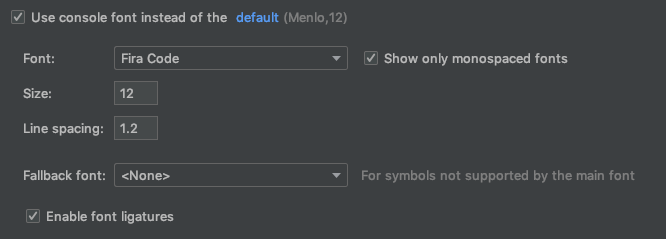
I would recommend Fira Code. Here are the installation instructions.
Here are the console font settings I use:
 SwiftWinds
on 16 Oct 2019
SwiftWinds
on 16 Oct 2019
Related issues
 controversial
·
4Comments
controversial
·
4Comments
 hackerwin7
·
4Comments
hackerwin7
·
4Comments
 iiison
·
3Comments
iiison
·
3Comments
 xufab
·
4Comments
xufab
·
4Comments
 OATOMO
·
4Comments
OATOMO
·
4Comments
Most helpful comment
The best solution I can find and most easy to do is the last comment by thsaravana appeared in @KitKat7's link.