Play-games-plugin-for-unity: Authentication always fails
###I follow guide.
My app shows green dialog but Authentication may be faild and 'test' scene loading dose not happen
though I registered my gmail in play console tester.

first init code

and auth code

what is the problem?
sorry for my bad english
thank you for reading
 leehotae
All 32 comments
I'm having the same problem here. This problem is due to new updates on Google Play Console.
 wixmax
on 30 Jun 2017
wixmax
on 30 Jun 2017
@wismax
thanks for reply
Do you find any solution?
leehotae
on 30 Jun 2017
Same problem. Anyone has an ETA of the fix?
 interpol-kun
on 30 Jun 2017
interpol-kun
on 30 Jun 2017
@leehotae
I found the solution here
It works successfully
wixmax
on 1 Jul 2017
@wixmax
thank you
but I think it did not work for me
In my case
default setting capture


In your link
He says default sha1 in credential is upload certificate sha1 (2D:E3:15:F4:F2:5A...) and replace with app certificate sha1 (62:4E:D0:B7:8E...)
but in my case
default sha1 in credential is equal to app certificate sha1
Is it right for my understanding your link article?
leehotae
on 1 Jul 2017
It didn't help me too.
App is still trying to log in, but nothing happens.
interpol-kun
on 1 Jul 2017
@interpol-kun
Is your default sha1 in credential equal to app certificate sha1?
leehotae
on 1 Jul 2017
@leehotae
Yes, it is. I have attempting-login-window like you showed on the 1st screenshot, but there is no top pop-up gravity of successfull login, and Social.ShowAchievementsUI() doesn't work as well.
UPD:
That test piece of code shows me, that login is always failing.

interpol-kun
on 1 Jul 2017
@leehotae
Listen carefully. Copy SHA-1 from "Upload certificate", not "App signing certificate".
Now it works fine!
interpol-kun
on 1 Jul 2017
@leehotae
Yes, as he said @interpol-kun
Replace SHA-1 in https://console.developers.google.com/ with this

wixmax
on 1 Jul 2017
@interpol-kun
thank you
it works fine too
leehotae
on 2 Jul 2017
@wixmax
thank you
it works fine too
leehotae
on 2 Jul 2017
Change your SHA1 and
Create your APK with .Keystore. If you dont use .keystore login not success.
 haydin20
on 3 Jul 2017
haydin20
on 3 Jul 2017
Problem is, you copied your application's SHA-1 key to your API credentials. You need the upload certification SHA-1 key instead.
 eyho
on 14 Jul 2017
eyho
on 14 Jul 2017
Not working here. Same problem.
My SHA-1 is right.
It's the good "upload certification SHA-1" from the google play console, that I can find, already well written, on the API console with the good App ID and package name.
When I build directly from Unity to my phone, the login to Google Play Games works.
But when I download the game from the Closed Beta Play Store, the login always fails.
I really don't know where to look after now to correct this.
 GuillaumZ
on 19 Jul 2017
GuillaumZ
on 19 Jul 2017
i solved the problem
follow this
https://github.com/playgameservices/play-games-plugin-for-unity/issues/1842
haydin20
on 20 Jul 2017
Yes, thank you, I'm putting here too my screenshot because the screenshot in korean, that we can see
above, is WRONG (for me) (or maybe because it's in Korean I can't see it's upside down and I've been tricked)
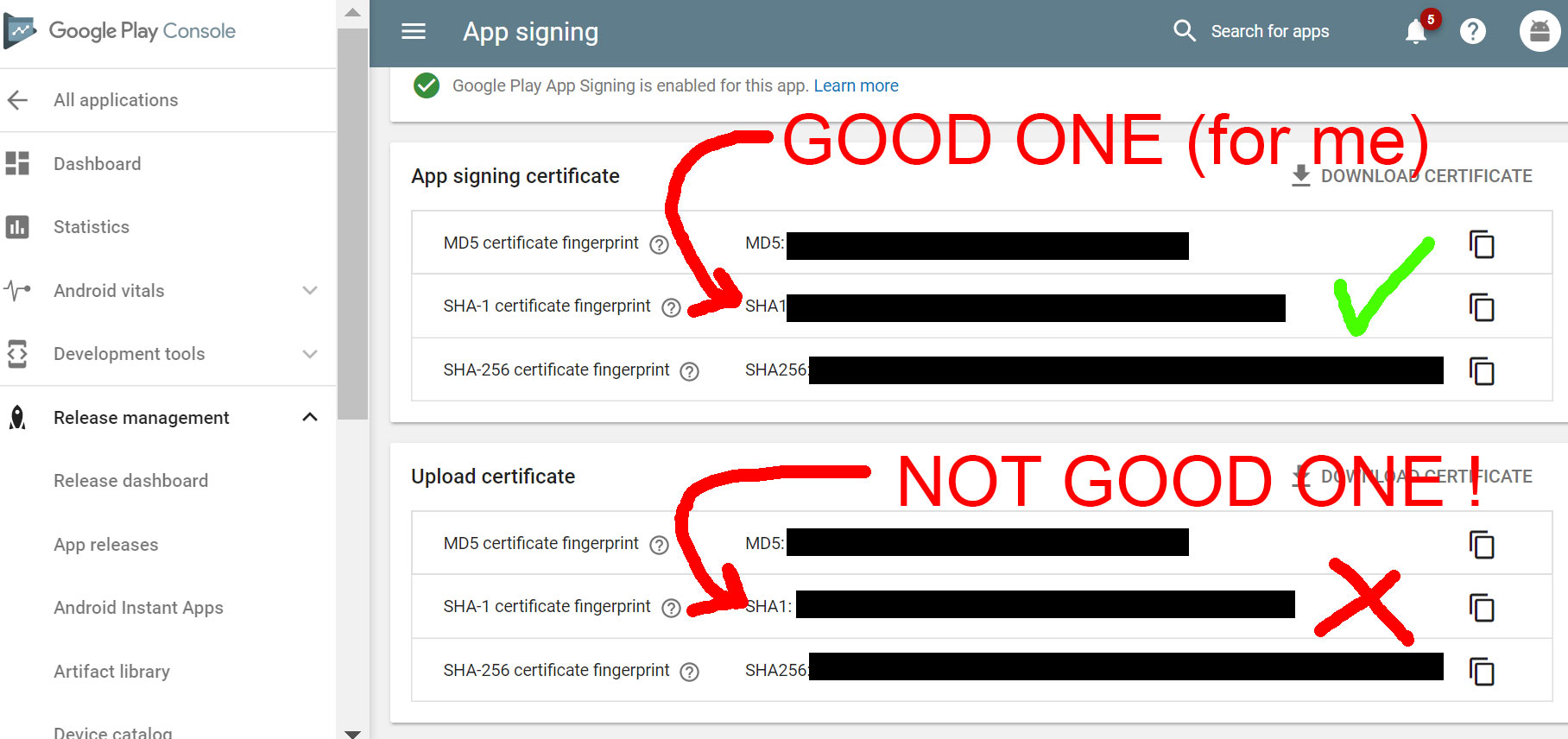
GuillaumZ
on 20 Jul 2017
I am having the same problem. When I linked my app It had App signing SHA1 in API manager by default. Then the app was trying to sign in but failing every time. I replaced Upload Certificate with App Signing Certificate, now even signing in screen doesn't pop up.
One more question, are you guys using API key feature from API manager(the option above OAuth 2.0 client ID)?
 ki4chan
on 2 Aug 2017
ki4chan
on 2 Aug 2017
@interpol-kun said Listen carefully. Copy SHA-1 from "Upload certificate", not "App signing certificate".
Thanks buddy, it helped me and I got it fixed!
 MTaimurAzhar
on 8 Dec 2017
MTaimurAzhar
on 8 Dec 2017
Doesn't work to me. I replaced both "App signing certificate" and "Upload certificate", still always fails.
 rico345100
on 3 Mar 2018
rico345100
on 3 Mar 2018
Actually putting upload certificate into credentials works for an uploaded version.
MTaimurAzhar
on 3 Mar 2018
This helped me.
https://github.com/playgameservices/play-games-plugin-for-unity/issues/2217#issuecomment-417619382
Can confirm this works:
open template-AndroidManifest.txt
"\ APP_ID" to "\u003__APP_ID__"
setup GPGS from Unity (press Window/Google Play Services/Setup)
True, after the correction, I received the error "Authentification failed". But it was a problem with SHA-1. It was decided when I did
keytool -exportcert -keystore user.keystore -list -v
And put the correct SHA-1 in https://console.developers.google.com/apis/credentials in the application settings.
 abramovks
on 19 Oct 2018
abramovks
on 19 Oct 2018
Does it mean that in:
Google Play Console > Game services > My application > Linked apps,
deleting the Android app authorized with the old OAuth2 Client ID (App signing certificate),
and then adding a new Android app authorized with the new OAuth2 Client ID (Upload certificate)?
I still cannot fix it after that. Anyone helps?
 kk3hi3123
on 26 Nov 2018
kk3hi3123
on 26 Nov 2018
I tested both Upload certificate and app signing certificate and with both of them, I can not sign in.
My app sha1 (keystore) is the same as upload certificate. I changed sha1 in console.developers.google.com to Upload certificate sha1 and app signing certificate sha1.
 mohammadmahdi123
on 8 Dec 2018
mohammadmahdi123
on 8 Dec 2018
I tried "Upload Certificate" previously and able to authenticate, but it's failed after few install. My final solution is to have both "Upload Certificate" and "App Signing Certificate" sha-1 in the google console and it's working fine now
 tekminewe
on 10 Dec 2018
tekminewe
on 10 Dec 2018
Under your Linked Apps section in Google Play Console -> Game Services you need to add 2 apps, 1 for production (the one that gets released via Google Play) and use the "App Signing" SHA-1,
and the second app is for testing (where you build directly to your phone) and for that one use the "Upload Certificate" SHA-1.
 SniperED007
on 11 Jan 2019
SniperED007
on 11 Jan 2019
Under your Linked Apps section in Google Play Console -> Game Services you need to add 2 apps, 1 for production (the one that gets released via Google Play) and use the "App Signing" SHA-1,
and the second app is for testing (where you build directly to your phone) and for that one use the "Upload Certificate" SHA-1.
This should be mentioned on the setup instructions. Worked for me. Not sure yet if it had any side effects.
 rafaelf82
on 13 Mar 2019
rafaelf82
on 13 Mar 2019
Social.localUser.Authenticate was working fine for me.
However, since the last couple of days, it has suddenly stopped working (authentication failing). I didn't change anything at all. Is someone else also experiencing the same issue?
 arsalankhanji
on 12 Apr 2019
arsalankhanji
on 12 Apr 2019
Same Problem here, @arsalankhanji, have you found what the fix is?
 smokinpuppy
on 4 May 2019
smokinpuppy
on 4 May 2019
hello I was having this issue last 3 days and I found the solution.
so if you are downloading the app from google play use the signin sha1. if not use the uploading sha1.
and the thing that you shouldn't ignore is to update the oauth consent screen


update one of those fileds and hit save and boom the google play services works :wink:
 dzad
on 4 Jun 2019
dzad
on 4 Jun 2019
I had a simillar problem, when I was using Saved Games. My problem was that I didn't tell Google Services that I want to use Saved Games. Solution was to find this option "Saved Games" (or something like that) in Google Services in Google Play Developer Console.
 NullOne01
on 13 Jun 2019
NullOne01
on 13 Jun 2019
Taken from Cross Platform Native Plugins
But, the info here is very general and works with any plugins.
Why sign in fails?
For Google Play Services to sign in successfully, you need to make sure the apk from where you are logging in should be allowed to make requests to google servers.
How to make the APK authorized to make requests to google servers?
Each apk built with a keystore has a SHA fingerprint. You need to make sure the SHA fingerprint is added in the google cloud.
You can fetch it with keytool command (check here on how to get SHA for each environment )
How many SHA fingerprints I need to add for successful authentication?
One per each environment. In total 3 environments (dev, release and production)
- Development build uses android default debug keystore.
Release build uses the keystore you set in publishing settings of player settings
Google play store build which uses google play signing.
If you want all the above builds to authenticate successfully, add all 3 fingerprints. Else only the required environment.
How to get each environment's SHA?
Debug ( keytool -list -v -keystore "PATH_TO_DEBUG_KEYSTORE" -alias androiddebugkey -storepass android -keypass android)
Release (Get from Google play console -> Your App -> Setup -> App signing -> Upload key certificate )
Apk/AAb downloaded from Google play store (Get from Google play console -> Your App -> Setup -> App signing -> App signing key certificate )
Where to add these SHA fingerprints?
Google Play Console. Check here for details on how to add a SHA fingerprint.
Why it fails only when Saved Games is on?
This is because one of the following reasons
- Saved games feature is not ON in Google Play Console
- You are not listed as a tester in Google play console
How to enable Saved Games?
- Navigate to your app in Google play console
- Select Play Game Services section on left side bar under Grow
- In Setup and Management, select configuration
- Click on Edit Properties
- Set Saved Games to On
- Click on Save Changes
 manwithsteelnerves
on 12 Dec 2020
manwithsteelnerves
on 12 Dec 2020
Related issues
 EspectroDK
·
5Comments
EspectroDK
·
5Comments
 cataHHH
·
4Comments
cataHHH
·
4Comments
 marcus13345
·
3Comments
marcus13345
·
3Comments
 bibbis
·
4Comments
bibbis
·
4Comments
 RafikTSG
·
4Comments
RafikTSG
·
4Comments
Most helpful comment
@leehotae
Listen carefully. Copy SHA-1 from "Upload certificate", not "App signing certificate".
Now it works fine!