Pengwin: CLion cannot detect Pengwin
Describe the bug
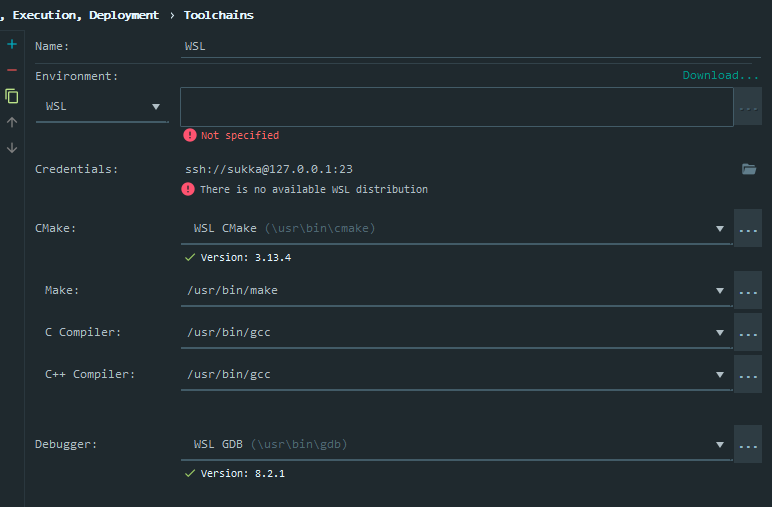
After I update from wlinux to pengwin, CLion give me an error that wlinux.exe is not found. So I thought I have to reconfigure the toolchain. But CLion can not detect Pengwin as a WSL Distro.
To Reproduce
- Open CLion
- Files - Settings - Build, Execution, Deployment - Toolchains
- Environment using
WSL Pengwinis not available in the menu.
Expected behavior
Pengwin should be detectable for CLion.
Screenshots

Additional context
I have checked, and I am damn sure that C:\Users\${username}\AppData\Local\Microsoft\WindowsApps\pengwin.exe exists.
Basic Troubleshooting Checklist
- [x] I have searched Google for the error message.
I found #370 through google, and I might suggest to reopen that issue.
- [x] I have checked official WSL troubleshooting documentation: https://docs.microsoft.com/en-us/windows/wsl/troubleshooting#confirm-wsl-is-enabled.
- [x] I have searched the official Microsoft WSL issues page:
I am using CLion as a keyword like this but I can not find anything useful.
- [x] I have searched the Pengwin issues page:
I still want to know why you guys close the #370
- [ ] I have reset Pengwin: Settings->Apps->Apps & features->Pengwin->Advanced Options->Reset.
- [ ] I have disabled and re-enabled WSL in Windows Features.
- [x] I have run Windows 10 updates and restarted.
Windows Settings says I am using the latest Windows.
Pengwin Version
Find: Settings->Apps->Apps & features->Pengwin->Advanced Options->Version.
Insert here: 1.2.3.0
Windows Build
Run 'systeminfo | findstr /C:"OS"' in Command Prompt and insert here:
OS Name:                   Microsoft Windows 10 Enterprise
OS Version:                10.0.18362 N/A Build 18362
OS Manufacturer:           Microsoft Corporation
OS Configuration:          Standalone Workstation
OS Build Type:             Multiprocessor Free
BIOS Version:              LENOVO R0PET54W (1.31 ), 2019/3/11
For help on retrieving: https://docs.microsoft.com/en-us/windows/wsl/troubleshooting#check-your-build-number
 SukkaW
All 16 comments
Great... I follow the checklist to reset the Pengwin, now Pengwin can not launch any more... I have to uninstall and reinstall now, hope it will solve the issues.
SukkaW
on 26 Apr 2019
Hello,
Restarting your PC should make your pengwin alive again.
We will check this because it is entirely possible that the change in the exe could cause this.
 crramirez
on 26 Apr 2019
crramirez
on 26 Apr 2019
@crramirez
Now I have uninstall & reinstall the Pengwin, but it is still not shown in CLIon's menu.
SukkaW
on 26 Apr 2019
I have the exact same problem with PyCharm.
EDIT: A workaround is to use a remote interpreter accessed through SSH in IntelliJ/PyCharm/CLion.
 thibaudmartinez
on 27 Apr 2019
thibaudmartinez
on 27 Apr 2019
@thibaudmartinez I am using remote host as a workaround as well, but it is much more slower.
SukkaW
on 27 Apr 2019
Hello,
We are working on a solution for this.
crramirez
on 27 Apr 2019
I think the problem is how CLion (and PhpStorm/WebStorm too) detects available WSL distros.
As I suppose, it looks for hardcoded executive files (ubuntu.exe, wlinux.exe, etc.) or names with substrings like "linux" or "ubuntu" in C:\Users\<UserName>\AppData\Local\Microsoft\WindowsApps.
I've solved it by placing hardlink via cmd.exe running as admin:
mklink /H C:\Users\<UserName>\AppData\Local\Microsoft\WindowsApps/wlinux.exe C:\Users\<UserName>\AppData\Local\Microsoft\WindowsApps/pengwin.exe
 Zakhse
on 28 Apr 2019
Zakhse
on 28 Apr 2019
Excellent. Meanwhile, I filled a bug report in JetBrains' issue tracker:
crramirez
on 28 Apr 2019
@Zakhse Yes, it work!
SukkaW
on 29 Apr 2019
Hello,
There is an issue about it in the current CLion or another JetBrains product.
Workaround until JetBrains makes the fix: Open the file %USERPROFILE%\.CLion2019.2\config\options\wsl.distributions.xml. Look for <id>PENGWIN</id> and change from <microsoft-id>Pengwin</microsoft-id> to <microsoft-id>WLinux</microsoft-id> (line 67).
Save the file and restart CLion.
Thank to: https://youtrack.jetbrains.com/issue/CPP-11852#focus=streamItem-27-3045100.0-0
We will publish a fix in pengwin-setup soon
Regards
crramirez
on 27 Aug 2019
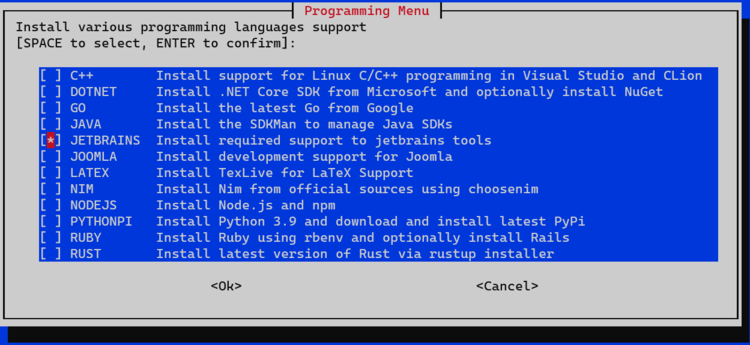
with this patch https://github.com/WhitewaterFoundry/pengwin-setup/pull/198 next time you run pengwin-setup -> PROGRAMMING -> C++ it will patch your wsl.distributions.xml file
crramirez
on 27 Aug 2019
This is an issue for all JetBrains products. I'm on PhpStorm and had to make the change in wsl.distributions.xml. Is there an easy way to get pengwin-setup to patch all installed JetBrains IDEs?
 valorin
on 19 Apr 2020
valorin
on 19 Apr 2020
We can modify it to patch all.
crramirez
on 19 Apr 2020
Still seeing this issue in CLion 2021.1, which is odd as Goland works perfectly, running WSL2 on Windows 10 21376.1. I combined the above hacks of making a hard link for WLinux to Pengwin listed above as well as modifying the xml file to get it working. I'm still not sure why Goland has no problems though. On Goland I can seamlessly debug on WSL, even debug individual unit tests on WSL.
 SlowPokeInTexas
on 18 May 2021
SlowPokeInTexas
on 18 May 2021
Hello @SlowPokeInTexas
Did you try running the fix that is included in pengwin-setup? It is on PROGRAMMING section.
About why it works on some products and others no. This is because with Intellij 2021 they introduced a new way to discover WSL distros. This was ported from Intellij to some other products but others are using the old way like Rubymine.
Regards,
Carlos
crramirez
on 18 May 2021
btw @valorin pengwin-setup now has the ability to fix all JetBrains products: https://www.whitewaterfoundry.com/blog/2020/7/29/pengwin-2070-released-see-whats-new-w5jw3-pbatl-2rwjl
crramirez
on 19 May 2021
Related issues
 patmolloy
·
4Comments
patmolloy
·
4Comments
 BhavyaJain7
·
3Comments
BhavyaJain7
·
3Comments
 pnelsonsr
·
5Comments
pnelsonsr
·
5Comments
 alanfluff
·
3Comments
alanfluff
·
3Comments
 AceHack
·
4Comments
AceHack
·
4Comments
Most helpful comment
Hello,
There is an issue about it in the current CLion or another JetBrains product.
Workaround until JetBrains makes the fix: Open the file %USERPROFILE%\.CLion2019.2\config\options\wsl.distributions.xml. Look for
<id>PENGWIN</id>and change from<microsoft-id>Pengwin</microsoft-id>to<microsoft-id>WLinux</microsoft-id>(line 67).Save the file and restart CLion.
Thank to: https://youtrack.jetbrains.com/issue/CPP-11852#focus=streamItem-27-3045100.0-0
We will publish a fix in pengwin-setup soon
Regards