Pengwin: VSCode not launchable. Installed through wlinux-setup
Describe the bug
VSCode doesn't run.
To Reproduce
Install wlinux.
Run wlinux-setup
Select Editors: Code; GUI
Let everything install and update
Run code --verbose
Output:
[313:0102/190516.356994:ERROR:bus.cc(395)] Failed to connect to the bus: Failed to connect to socket /var/run/dbus/system_bus_socket: No such file or directory
shared memfd open() failed: Function not implemented
Expected behavior
Functional VSCode.
Basic Troubleshooting Checklist
- [x] I have searched Google for the error message.
- [x] I have checked official WSL troubleshooting documentation: https://docs.microsoft.com/en-us/windows/wsl/troubleshooting#confirm-wsl-is-enabled.
- [x] I have searched the official Microsoft WSL issues page: https://github.com/Microsoft/WSL/issues.
- [x] I have searched the WLinux issues page: https://github.com/WhitewaterFoundry/WLinux/issues.
- [x] I have reset WLinux: Settings->Apps->Apps & features->WLinux->Advanced Options->Reset.
- [x] I have disabled and re-enabled WSL in Windows Features.
- [x] I have run Windows 10 updates and restarted.
WLinux Version
1.1.27.0
Windows Build
OS Name:                   Microsoft Windows 10 Education
OS Version:                10.0.17763 N/A Build 17763
OS Manufacturer:           Microsoft Corporation
OS Configuration:          Standalone Workstation
OS Build Type:             Multiprocessor Free
BIOS Version:              Insyde F.45, 10/16/2018
 PGAnonamous
All 33 comments
I can confirm that.
 michalkvasnicka
on 5 Jan 2019
michalkvasnicka
on 5 Jan 2019
First things first, I think the latest batch of Debian updates broke this, not Windows / WSL updates, nor WLinux updates.
Note that:
eval $(dbus-launch --auto-syntax)seems to start dbus-daemon as normal, but running/usr/bin/codegives the same error and exits.
ps aux | grep codeyields nothing.
sudo service dbus startnow seems to take forever, but eventually succeeds (just give it minutes)
After that, runningcode --verbose --log traceexits almost immediately with no output
ps aux | grep codenow yields
duybui 8109 0.0 0.0 199520 24692 ? Sl 00:22 0:00 /usr/share/code/code --type=gpu-process --disable-features=ColorCorrectRendering --no-sandbox --supports-dual-gpus=false --gpu-driver-bug-workarounds=9,27,84 --disable-gl-extensions=GL_KHR_blend_equation_advanced GL_KHR_blend_equation_advanced_coherent --disable-accelerated-video-decode --gpu-vendor-id=0x0000 --gpu-device-id=0x0000 --gpu-driver-vendor --gpu-driver-version --gpu-driver-date --service-request-channel-token=6A9688FDA241CE1B24F276A5ECE
duybui 8174 0.0 0.0 199520 24684 ? Sl 00:23 0:00 /usr/share/code/code --type=gpu-process --disable-features=ColorCorrectRendering --no-sandbox --supports-dual-gpus=false --gpu-driver-bug-workarounds=9,27,84 --disable-gl-extensions=GL_KHR_blend_equation_advanced GL_KHR_blend_equation_advanced_coherent --disable-accelerated-video-decode --gpu-vendor-id=0x0000 --gpu-device-id=0x0000 --gpu-driver-vendor --gpu-driver-version --gpu-driver-date --service-request-channel-token=3B3887EF71C377592CB08122E4E
duybui 8224 0.1 0.0 199520 24692 ? Sl 00:23 0:00 /proc/self/exe --type=gpu-process --disable-features=ColorCorrectRendering --no-sandbox --supports-dual-gpus=false --gpu-driver-bug-workarounds=9,27,84 --disable-gl-extensions=GL_KHR_blend_equation_advanced GL_KHR_blend_equation_advanced_coherent --disable-accelerated-video-decode --gpu-vendor-id=0x0000 --gpu-device-id=0x0000 --gpu-driver-vendor --gpu-driver-version --gpu-driver-date --service-request-channel-token=F9EF62BD6FA3DC6B454543F23E47FF37
duybui 8310 0.1 0.0 199520 24700 ? Sl 00:25 0:00 /usr/share/code/code --type=gpu-process --disable-features=ColorCorrectRendering --no-sandbox --supports-dual-gpus=false --gpu-driver-bug-workarounds=9,27,84 --disable-gl-extensions=GL_KHR_blend_equation_advanced GL_KHR_blend_equation_advanced_coherent --disable-accelerated-video-decode --gpu-vendor-id=0x0000 --gpu-device-id=0x0000 --gpu-driver-vendor --gpu-driver-version --gpu-driver-date --service-request-channel-token=927D6781C56F0324B41ADE4B0E7
But no VSCode window appears in X410.
PS: Oh, and of course, I produced this result from a brand new installation of WLinux with NOTHING but VSCode installed from wlinux-setup.
 khuongduybui
on 5 Jan 2019
khuongduybui
on 5 Jan 2019
I'm on Kali, same shit:
tommyvct@TOMMYVCT:~$ code --verbose --log trace
[8197:0105/023830.562373:ERROR:bus.cc(395)] Failed to connect to the bus: Failed to connect to socket /var/run/dbus/system_bus_socket: No such file or directory
shared memfd open() failed: Function not implemented
tommyvct@TOMMYVCT:~$ sudo service dbus start
[ ok ] Starting system message bus: dbus.
tommyvct@TOMMYVCT:~$ code --verbose --log trace
shared memfd open() failed: Function not implemented
My dbus works just fine, started in seconds.
so the only problem is memfd, especially the open() function.
PS i cannot find the log file of vscode, where is it?
 tommyvct
on 5 Jan 2019
tommyvct
on 5 Jan 2019
On a fresh installation of Ubuntu though, I can start vscode 1.30 even without dbus running. It does give an error message that it cannot connect to dbus but carries on anyway.
khuongduybui
on 5 Jan 2019
I tried atom, another editor based on Electron framework, same error.
I deleted kali and now I'm trying to figure out how to get desktop running on ubuntu....
tommyvct
on 6 Jan 2019
I think found it out:
Run the start script in admin mode. Done.
memfd error is not critical, it didn't stop these apps from starting.
tommyvct
on 6 Jan 2019
I think found it out:
Run the start script in admin mode. Done.
memfderror is not critical, it didn't stop these apps from starting.
@ws1034106504 May you be a bit more specific. What start script? Please list an exact command.
PGAnonamous
on 6 Jan 2019
@ws1034106504 Would you mind telling us how you solved this issue? step by step. much appreciated.
 C-proton
on 7 Jan 2019
C-proton
on 7 Jan 2019
https://token2shell.com/howto/x410/running-xfce-desktop-on-kali-linux-wsl/
change x410 and kali to whatever you need
tommyvct
on 7 Jan 2019
Oh... So what he really meant is run WSL as Windows Administrator
khuongduybui
on 7 Jan 2019
IDK how this worked, but it seems even with dbus shutdown Visual Studio Code still works.
Look at the console when you startup xfce, you will find a lot of memfd shit and it didn't prevent xfce from running.
tommyvct
on 7 Jan 2019
@tommyvct thanks for replying. But issues persist. There is not workaround yet.
C-proton
on 8 Jan 2019
Actually, code seems to be running, but no window appeared for me:
% ps ax | grep code !95
8542 ? Sl 0:00 /usr/share/code/code --type=gpu-process --disable-features=ColorCorrectRendering --no-sandbox --supports-dual-gpus=false --gpu-driver-bug-workarounds=9,27,84 --disable-gl-extensions=GL_KHR_blend_equation_advanced GL_KHR_blend_equation_advanced_coherent --disable-accelerated-video-decode --gpu-vendor-id=0x0000 --gpu-device-id=0x0000 --gpu-driver-vendor --gpu-driver-version --gpu-driver-date --service-request-channel-token=610B19A2437DE237FB4F4C8A4F4
 wari
on 8 Jan 2019
wari
on 8 Jan 2019
Hate to say, but did you tried completely start over, including Windows?
tommyvct
on 8 Jan 2019
Here's my latest try (which works):
- Reset WLinux (same as uninstall & reinstall from Microsoft Store)
- Whatever happens, DO NOT EVER RUN
apt upgrade - Install VSCode manually using official instructions.
#! /bin/bash
# From https://code.visualstudio.com/docs/setup/linux
wget --no-check-certificate -qO - https://packages.microsoft.com/keys/microsoft.asc | gpg --dearmor | sudo apt-key add -
echo "deb [arch=amd64] https://packages.microsoft.com/repos/vscode stable main" | sudo tee /etc/apt/sources.list.d/vscode.list
sudo apt update -y
sudo apt install -y code
echo "fs.inotify.max_user_watches=524288" | sudo tee -a /etc/sysctl.conf
sudo sysctl -p
- Set up variables
DISPLAY = :0,LIBGL_ALWAYS_INDIRECT = 1,NO_AT_BRIDGE = 1 - Run VSCode simply by
code(without even the need to rundbus-daemon).
Right now apt is reporting that the following 80 packages on my WLinux instance have not been upgraded. I am willing to bet the new versions of some of them will break VSCode from launching.
- apt-transport-https/testing,unstable 1.8.0~alpha3 all [upgradable from: 1.8.0~alpha2]
- apt-utils/testing,unstable 1.8.0~alpha3 amd64 [upgradable from: 1.8.0~alpha2]
- apt/testing,unstable 1.8.0~alpha3 amd64 [upgradable from: 1.8.0~alpha2]
- bsdutils/testing,unstable 1:2.33-0.2 amd64 [upgradable from: 1:2.32.1-0.1]
- dash/testing,unstable 0.5.10.2-4 amd64 [upgradable from: 0.5.10.2-1]
- e2fsprogs/testing,unstable 1.44.5-1 amd64 [upgradable from: 1.44.4-2]
- fdisk/testing,unstable 2.33-0.2 amd64 [upgradable from: 2.32.1-0.1]
- fonts-noto-mono/testing,unstable 20181227-1 all [upgradable from: 20171026-2]
- ghostscript/testing,unstable 9.26~dfsg-2 amd64 [upgradable from: 9.26~dfsg-1]
- grep/testing 3.1-3 amd64 [upgradable from: 3.1-2]
- groff-base/testing 1.22.4-1 amd64 [upgradable from: 1.22.3-10]
- gzip/testing,unstable 1.9-3 amd64 [upgradable from: 1.9-2.1]
- init-system-helpers/testing,unstable 1.56+nmu1 all [upgradable from: 1.56]
- init/testing,unstable 1.56+nmu1 amd64 [upgradable from: 1.56]
- iproute2/testing,unstable 4.19.0-2 amd64 [upgradable from: 4.18.0-2]
- iptables/testing,unstable 1.8.2-3 amd64 [upgradable from: 1.8.2-2]
- isc-dhcp-client/testing,unstable 4.4.1-2 amd64 [upgradable from: 4.3.5-4+b1]
- isc-dhcp-common/testing,unstable 4.4.1-2 amd64 [upgradable from: 4.3.5-4+b1]
- libapparmor1/testing,unstable 2.13.2-3 amd64 [upgradable from: 2.13.1-3+b1]
- libapt-inst2.0/testing,unstable 1.8.0~alpha3 amd64 [upgradable from: 1.8.0~alpha2]
- libapt-pkg5.0/testing,unstable 1.8.0~alpha3 amd64 [upgradable from: 1.8.0~alpha2]
- libassuan0/testing,unstable 2.5.2-1 amd64 [upgradable from: 2.5.1-2]
- libblkid1/testing,unstable 2.33-0.2 amd64 [upgradable from: 2.32.1-0.1]
- libcairo2/testing,unstable 1.16.0-2 amd64 [upgradable from: 1.16.0-1]
- libcap-ng0/testing,unstable 0.7.9-1+b1 amd64 [upgradable from: 0.7.9-1]
- libcom-err2/testing,unstable 1.44.5-1 amd64 [upgradable from: 1.44.4-2]
- libcups2/testing,unstable 2.2.10-3 amd64 [upgradable from: 2.2.9-2]
- libcupsfilters1/testing,unstable 1.21.6-2 amd64 [upgradable from: 1.21.4-1]
- libcupsimage2/testing,unstable 2.2.10-3 amd64 [upgradable from: 2.2.9-2]
- libdebconfclient0/testing,unstable 0.246 amd64 [upgradable from: 0.245]
- libedit2/testing,unstable 3.1-20181209-1 amd64 [upgradable from: 3.1-20180525-1]
- libelf1/testing,unstable 0.175-2 amd64 [upgradable from: 0.170-0.5]
- libext2fs2/testing,unstable 1.44.5-1 amd64 [upgradable from: 1.44.4-2]
- libfdisk1/testing,unstable 2.33-0.2 amd64 [upgradable from: 2.32.1-0.1]
- libgcrypt20/testing,unstable 1.8.4-4 amd64 [upgradable from: 1.8.4-3]
- libglib2.0-data/testing,unstable 2.58.2-3 all [upgradable from: 2.58.1-2]
- libgmp10/testing,unstable 2:6.1.2+dfsg-4 amd64 [upgradable from: 2:6.1.2+dfsg-3]
- libgpg-error0/testing,unstable 1.33-3 amd64 [upgradable from: 1.32-3]
- libgs9-common/testing,unstable 9.26~dfsg-2 all [upgradable from: 9.26~dfsg-1]
- libgs9/testing,unstable 9.26~dfsg-2 amd64 [upgradable from: 9.26~dfsg-1]
- libharfbuzz0b/testing,unstable 2.3.0-1 amd64 [upgradable from: 2.1.1-1+b1]
- libip4tc0/testing,unstable 1.8.2-3 amd64 [upgradable from: 1.8.2-2]
- libip6tc0/testing,unstable 1.8.2-3 amd64 [upgradable from: 1.8.2-2]
- libiptc0/testing,unstable 1.8.2-3 amd64 [upgradable from: 1.8.2-2]
- libjansson4/testing,unstable 2.12-1 amd64 [upgradable from: 2.11-1]
- libk5crypto3/testing,unstable 1.16.2-1 amd64 [upgradable from: 1.16.1-1]
- libldap-2.4-2/testing,unstable 2.4.47+dfsg-1 amd64 [upgradable from: 2.4.46+dfsg-5+b1]
- libldap-common/testing,unstable 2.4.47+dfsg-1 all [upgradable from: 2.4.46+dfsg-5]
- libmount1/testing,unstable 2.33-0.2 amd64 [upgradable from: 2.32.1-0.1]
- libnghttp2-14/testing,unstable 1.35.1-1 amd64 [upgradable from: 1.34.0-1]
- libopenjp2-7/testing,unstable 2.3.0-1.1 amd64 [upgradable from: 2.3.0-1]
- libpango-1.0-0/testing,unstable 1.42.4-6 amd64 [upgradable from: 1.42.4-4]
- libpangocairo-1.0-0/testing,unstable 1.42.4-6 amd64 [upgradable from: 1.42.4-4]
- libpangoft2-1.0-0/testing,unstable 1.42.4-6 amd64 [upgradable from: 1.42.4-4]
- libpaper-utils/testing,unstable 1.1.26 amd64 [upgradable from: 1.1.24+nmu5]
- libpaper1/testing,unstable 1.1.26 amd64 [upgradable from: 1.1.24+nmu5]
- libperl5.28/testing,unstable 5.28.1-3 amd64 [upgradable from: 5.28.1-1]
- libpixman-1-0/testing,unstable 0.36.0-1 amd64 [upgradable from: 0.34.0-2]
- libsmartcols1/testing,unstable 2.33-0.2 amd64 [upgradable from: 2.32.1-0.1]
- libss2/testing,unstable 1.44.5-1 amd64 [upgradable from: 1.44.4-2]
- libudev1/testing,unstable 240-2 amd64 [upgradable from: 239-13]
- libxcb-render0/testing,unstable 1.13.1-2 amd64 [upgradable from: 1.13.1-1]
- libxcb-shm0/testing,unstable 1.13.1-2 amd64 [upgradable from: 1.13.1-1]
- libxtables12/testing,unstable 1.8.2-3 amd64 [upgradable from: 1.8.2-2]
- libzstd1/testing,unstable 1.3.8+dfsg-3 amd64 [upgradable from: 1.3.5+dfsg-1]
- lsb-base/testing,unstable 10.2018112800 all [upgradable from: 9.20170808]
- mount/testing,unstable 2.33-0.2 amd64 [upgradable from: 2.32.1-0.1]
- perl-base/testing,unstable 5.28.1-3 amd64 [upgradable from: 5.28.1-1]
- perl-modules-5.28/testing,unstable 5.28.1-3 all [upgradable from: 5.28.1-1]
- perl/testing,unstable 5.28.1-3 amd64 [upgradable from: 5.28.1-1]
- python3-pycurl/testing,unstable 7.43.0.2-0.1 amd64 [upgradable from: 7.43.0.1-0.2+b1]
- rsyslog/testing,unstable 8.40.0-1 amd64 [upgradable from: 8.38.0-1+b1]
- sed/testing,unstable 4.7-1 amd64 [upgradable from: 4.5-2]
- sysvinit-utils/testing 2.93-2 amd64 [upgradable from: 2.92~beta-2]
- tzdata/testing,unstable 2018i-1 all [upgradable from: 2018g-1]
- ucf/testing,unstable 3.0038+nmu1 all [upgradable from: 3.0038]
- udev/testing,unstable 240-2 amd64 [upgradable from: 239-13]
- util-linux/testing,unstable 2.33-0.2 amd64 [upgradable from: 2.32.1-0.1]
- xdg-user-dirs/testing,unstable 0.17-2 amd64 [upgradable from: 0.17-1]
- xxd/testing,unstable 2:8.1.0693-2 amd64 [upgradable from: 2:8.1.0549-1]
khuongduybui
on 9 Jan 2019
Maybe give Ubuntu a try?
I'm using Ubuntu now, it works just fine.
Install Ubuntu, follow these instructions https://token2shell.com/howto/x410/customizing-xfce-desktop-for-ubuntu-wsl/ then install vscode.
I already tried 2 times according to this guide, both of systems works well, VSCode launching as expected. Except the debugger is not working with vscode C++ plugin, and that's only thing won't work within VSCode so far. Actually it is that crappy C++ plugin's fault, if you use old version of C++ plugin it will work.
I even update the system to 1810, still works just fine.
VSCode need neither dbus nor memfd to launch. There are something under the hood crushed and the process just hang there, with approximately
12MB of RAM occupied in your memory. You can check this out in windows task manager.
I also tried atom, another editor build on Electron framework back a few days ago when I'm still on Kali, same result as vscode on Kali: hang, 12MB RAM.
I didn't try atom on my current Ubuntu WSL yet, I will try that tomorrow. If atom runs, then my conclusion is there are something wrong in the upper stream, in either the Electron framework, chromium, Node.js, or just with Kali or Wlinux.
By the way, chromium and Firefox can be launched in my Ubuntu WSL, but with serious hangs and FC. My laptop only have 4GB of RAM and intel i3-6100U processor, and I think my weak laptop is also a constraint.
tommyvct
on 9 Jan 2019
I narrowed it down. Upgrading udev & libudev1 from 239-13 to 240-2 seems to be the breaking change.
Why would the latest udev break launching Electron-based apps is still a mystery.
In the mean time, force-installing 239 version of udev & libudev1 seems to fix the issue.
https://packages.debian.org/stretch-backports/amd64/udev/download
https://packages.debian.org/stretch-backports/amd64/libudev1/download
khuongduybui
on 10 Jan 2019
I narrowed it down. Upgrading udev & libudev1 from 239-13 to 240-2 seems to be the breaking change.
Why would the latestudevbreak launching Electron-based apps is still a mystery.In the mean time, force-installing 239 version of udev & libudev1 seems to fix the issue.
https://packages.debian.org/stretch-backports/amd64/udev/download
https://packages.debian.org/stretch-backports/amd64/libudev1/download
I think you are right. I just find out my ubuntu 'udev' version is '239-7', and that's the reason why ubuntu works and WLinux and Kali don't.
Could you tell me how do you narrow this down?
Like how do you get more verbose output from vscode?
tommyvct
on 10 Jan 2019
Unfortunately I didn't get any useful output from vscode...
I wrote a script that upgrades each package and launches code until it breaks.
khuongduybui
on 10 Jan 2019
Thanks, Finally the moment of truth.
I think we should start another issue on this.
tommyvct
on 10 Jan 2019
Unfortunately I didn't get any useful output from vscode...
I wrote a script that upgrades each package and launches code until it breaks.
Haha excellent. A lot of hard work
 crramirez
on 10 Jan 2019
crramirez
on 10 Jan 2019
Summarizing your findings. The following commands must be executed in order for Visual Studio Code to be operational again:
echo 'deb https://deb.debian.org/debian stretch-backports main' | sudo tee /etc/apt/sources.list.d/stretch-backports.list
sudo apt-get -y  update
sudo apt-get install -y --allow-downgrades -t stretch-backports udev=239-12~bpo9+1 libudev1=239-12~bpo9+1
sudo apt-mark hold udev libudev1
Summarizing your findings. The following commands must be executed in order for Visual Studio Code to be operational again:
echo 'deb https://deb.debian.org/debian stretch-backports main' | sudo tee /etc/apt/sources.list.d/stretch-backports.list
sudo apt-get -y  update
sudo apt-get install -y --allow-downgrades -t stretch-backports udev=239-12~bpo9+1 libudev1=239-12~bpo9+1
sudo apt-mark hold udev libudev1
This has indeed got it up and running again.
PGAnonamous
on 10 Jan 2019
Seems to be a result of a change in udev:
https://github.com/systemd/systemd/issues/11293
 sirredbeard
on 10 Jan 2019
sirredbeard
on 10 Jan 2019
A workaround was added to wlinux-setup based on your findings. This will ensure that new installs won't have the problem and anyone with the problem just run wlinux-setup again.
Thank you everyone for the help
crramirez
on 10 Jan 2019
A workaround was added to
wlinux-setupbased on your findings. This will ensure that new installs won't have the problem and anyone with the problem just runwlinux-setupagain.Thank you everyone for the help
Thank you!
PGAnonamous
on 10 Jan 2019
Wow. You saved my day! Thank you!
 ghost
on 17 Jan 2019
ghost
on 17 Jan 2019
@crramirez
HI! Thanks for your solution.
But it is not working for me. I get errors
E: Version '239-12~bpo9+1' for 'udev' was not found
E: Version '239-12~bpo9+1' for 'libudev1' was not found
and honestly I couldn't find 239 on the web either.
the two commands above ran with no error and warning.
Do you think I'm doing anything wrong?
I have:
uname -a:
Linux MY_PC_NAME 4.4.0-17763-Microsoft #253-Microsoft Mon Dec 31 17:49:00 PST 2018 x86_64 x86_64 x86_64 GNU/Linux
lsb_release -a:
No LSB modules are available.
Distributor ID: Ubuntu
Description: Ubuntu 18.04.2 LTS
Release: 18.04
Codename: bionic
code --verbose:
shared memfd open() failed: Function not implemented
Thanks!
 aghArdeshir
on 11 Mar 2019
aghArdeshir
on 11 Mar 2019
Hello,
You are not running the latest version of wlinux-setup please update it, and try again to install vs code.
If it doesn't work please run it in this way wlinux-setup --debug. This will generate a verbose output that you can send to us for diagnostics.
Regards
crramirez
on 11 Mar 2019
THANKS @crramirez for your fast response!
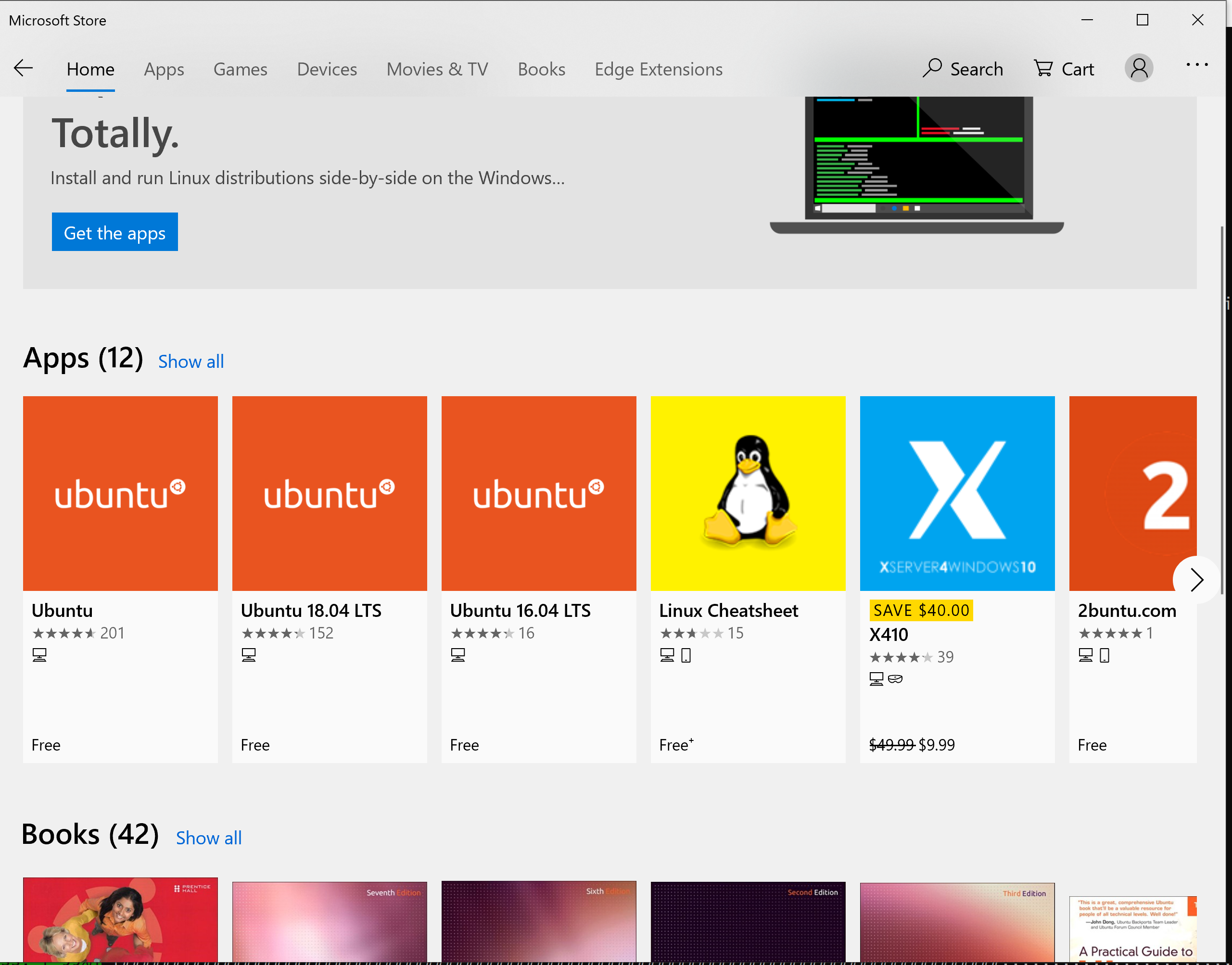
Yep! Installing that other Ubuntu in Store fixed it!
But why isn't it updateable like any other app? Am I thinking wrong? : )
BTW, don't bother! I'm fine and everything is great
aghArdeshir
on 11 Mar 2019
Ok when you run wlinux-setup it ask you if you want to update it. Say yes. Then install VS Code using wlinux-setup
crramirez
on 11 Mar 2019
I noticed this issue is closed however the Microsoft Store version of pengwin is still affected by this:
code --verbose
[6343:0504/164739.241844:ERROR:bus.cc(394)] Failed to connect to the bus: Failed to connect to socket /var/run/dbus/system_bus_socket: No such file or directory
Also mentioned fix with udev does no longer work as these packages are no longer available in stretch backports.
 sudo apt-get install -y --allow-downgrades -t stretch-backports udev=239-12~bpo9+1 libudev1=239-12~bpo9+1
Reading package lists... Done
Building dependency tree
Reading state information... Done
E: Version '239-12~bpo9+1' for 'udev' was not found
E: Version '239-12~bpo9+1' for 'libudev1' was not found
This is fresh out of the box install of pengwin on fresh windows 10. VSCode works out of the box on ubuntu images.
 JayDoubleu
on 4 May 2019
JayDoubleu
on 4 May 2019
I am having this problem as well, running up to date pengwin-setup does not fix this. This was working last week, broke after I updated my version of git using apt.
 jvanderberg
on 10 May 2019
jvanderberg
on 10 May 2019
Related issues
 AceHack
·
4Comments
AceHack
·
4Comments
 pnelsonsr
·
5Comments
pnelsonsr
·
5Comments
 ket000
·
5Comments
ket000
·
5Comments
 WSLUser
·
4Comments
WSLUser
·
4Comments
 alanfluff
·
3Comments
alanfluff
·
3Comments
Most helpful comment
Summarizing your findings. The following commands must be executed in order for Visual Studio Code to be operational again: