Pengwin: ValidateAppxPackage Failed while building WLinux
I am trying to build WLinux, but every time that i run build.bat, I get the error:
   "C:\Users\andre\Downloads\WLinux-master\DistroLauncher.sln" (Build target) (1) ->
   "C:\Users\andre\Downloads\WLinux-master\DistroLauncher-Appx\DistroLauncher-Appx.vcxproj.metaproj" (default targe
   t) (3) ->
   "C:\Users\andre\Downloads\WLinux-master\DistroLauncher-Appx\DistroLauncher-Appx.vcxproj" (default target) (4) ->
   (_ValidateAppxManifest target) ->
     C:\Program Files (x86)\Microsoft Visual Studio\Preview\Community\MSBuild\Microsoft\VisualStudio\v15.0\AppxPack
   age\Microsoft.AppXPackage.Targets(2624,5): warning : This project uses the 'runFullTrust' capability.  You shoul
   d use the Windows Application Packaging Project to produce the store and sideload packages. See https://go.micro
   soft.com/fwlink/?linkid=871803 for more information. [C:\Users\andre\Downloads\WLinux-master\DistroLauncher-Appx
   \DistroLauncher-Appx.vcxproj]


   "C:\Users\andre\Downloads\WLinux-master\DistroLauncher.sln" (Build target) (1) ->
   "C:\Users\andre\Downloads\WLinux-master\DistroLauncher-Appx\DistroLauncher-Appx.vcxproj.metaproj" (default targe
   t) (3) ->
   "C:\Users\andre\Downloads\WLinux-master\DistroLauncher-Appx\DistroLauncher-Appx.vcxproj" (default target) (4) ->
   (_ValidateAppxPackage target) ->
     C:\Program Files (x86)\Microsoft Visual Studio\Preview\Community\MSBuild\Microsoft\VisualStudio\v15.0\AppxPack
   age\Microsoft.AppXPackage.Targets(3132,5): error APPX0002: Task 'ValidateAppxPackage' failed. Could not find fil
   e 'C:\Users\andre\Downloads\WLinux-master\DistroLauncher-Appx\Package.StoreAssociation.xml'. [C:\Users\andre\Dow
   nloads\WLinux-master\DistroLauncher-Appx\DistroLauncher-Appx.vcxproj]
   C:\Program Files (x86)\Microsoft Visual Studio\Preview\Community\MSBuild\Microsoft\VisualStudio\v15.0\AppxPackag
   e\Microsoft.AppXPackage.Targets(3132,5): error APPX0002:  [C:\Users\andre\Downloads\WLinux-master\DistroLauncher
   -Appx\DistroLauncher-Appx.vcxproj]
I have tried rebuilding the solution but the same thing happens.
 imaandrew
All 19 comments
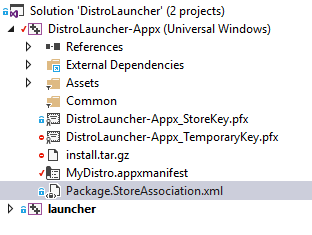
exclude Package.StoreAssociation.xml from project in Visual Studio then you can build it.
 patrick330602
on 27 Sep 2018
patrick330602
on 27 Sep 2018
Let me know if that worked for you @ThatWeirdAndrew. If not we can re-open and look again.
Thank you again for contributing to the project and supporting open source.
 sirredbeard
on 27 Sep 2018
sirredbeard
on 27 Sep 2018
for me it worked but now i have an error while building :
 P.S. sorry if i'm italian but it says that it can't access "C:\Users\hayden\Documents\Builds\DistroLauncher-Appx_1.1.17.0_Debug_Test" even if hayden is not my username and C:\Users\ isn't my users directory it's I:\
 Dustmix
on 27 Sep 2018
Dustmix
on 27 Sep 2018
Huh. Must be a path hard set somewhere in VS. I am going to re-open for others who are more familiar with the VS process to look into.
sirredbeard
on 27 Sep 2018
well i found a file called _pkginfo.txt with that directory i will try an build it with that directory changed tomorrow
Edit: i found that while building the code changes the file to that directory
Dustmix
on 27 Sep 2018
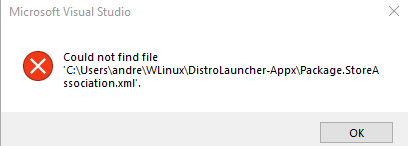
I have noticed that there is a file called Package.StoreAssociation.xml in the Solution but it can't find the file in the source code.
imaandrew
on 28 Sep 2018
I also get the error: Payload file 'C:\Users\andre\WLinux\x64\Debug\DistroLauncher-Appx\wlinux.exe' does not exist.
I just copy wlinux.exe from \WLinux\x64\Debug to \WLinux\x64\Debug\DistroLauncher-Appx\ and that seems to work, but i'm not sure.
EDIT: It also says: This project uses the 'runFullTrust' capability. You should use the Windows Application Packaging Project to produce the store and sideload packages. See https://go.microsoft.com/fwlink/?linkid=871803 for more information.
Don't know what it means though.
imaandrew
on 28 Sep 2018
@ThatWeirdAndrew I believe you can exclude Package.StoreAssociation.xml as local build do not need it
patrick330602
on 28 Sep 2018
Following @patrick330602's instructions, I was able to successfully build WLinux. However, I was unable to install it due to a certificate issue.
Either a new certificate must be installed for this app package or you need a new app package with trusted certificates. Your system administrator or the app developer can help. A certificate chain was processed but terminated in a root certificate that isn't trusted (0x800B0109)
imaandrew
on 28 Sep 2018
@ThatWeirdAndrew Have you generated a new test certificate?
patrick330602
on 28 Sep 2018
For those with "hayden" folder trouble, execute the "Developer Command Prompt for VS 2017" as Admin. Then, run build.bat. It worked for me.
 Plics0
on 28 Sep 2018
Plics0
on 28 Sep 2018
hmm interesting now i think it builded but i can't find the certificate
never mind i found it at C:\Users\hayden\Documents\Builds\DistroLauncher-Appx_1.1.17.0_Debug_Test
it does not work anyways
Dustmix
on 28 Sep 2018
I'm having the same issue as @xXDavidx I've managed to build the project with no errors, I've installed both the certificate found in the C:\Users\hayden\Documents\Builds\DistroLauncher-Appx_1.1.20.0_Debug_Test folder aswell as the DistroLauncher-Appx_TemporaryKey.pfx certificate found at WLinux\DistroLauncher-Appx. even after installing both I am not able to install either the appx package found at C:\Users\hayden\Documents\Builds\DistroLauncher-Appx_1.1.20.0_Debug_Test or at WLinux\x64\Debug\DistroLauncher-Appx.
 KrazySoft
on 28 Sep 2018
KrazySoft
on 28 Sep 2018
I was finally able to install by installing the DistroLauncher-Appx_1.1.17.0_x64_Debug.cer certificate and then installing the DistroLauncher-Appx_1.1.17.0_x64_Debug.appxbundle file.
imaandrew
on 28 Sep 2018
For anyone unable to find the certificate I found a work around
The first answer here:
https://stackoverflow.com/questions/23812471/installing-appx-without-trusted-certificate
describes how to find the certificate of an app package and install it, after following those steps I managed to install it
EDIT: I am going to copy the instructions here just incase anything happens to that question:
Obtain the Certificate that signed the App
- Right click on APPX file
- Click Properties
- Click Digital Signatures
- Select Signature from the list
- Click Details
- Click View Certificate
- Click Install Certificate
After installing that certificate you should be able to simply double click the appx file to install WLinux
KrazySoft
on 28 Sep 2018
@KrazySoft thanks for the work around anyways it worked
but now it gives me another error  it says cannot find the specified directory and with admin it does not work ether
P.S. sorry if i'm a noob to programming and even after re building it doesn't work
Dustmix
on 28 Sep 2018
@KrazySoft
Thank you so much. I just wanted to warn everyone building from source that 1.1.20 is a tad buggy, you may want to download the 1.1.17 release final if you don't want to help debug.
@xXDavidx
Are you trying to run it from a non-C:\ drive, by chance?
https://github.com/Microsoft/WSL/issues/3232
https://github.com/Microsoft/WSL/issues/3324
sirredbeard
on 28 Sep 2018
@xXDavidx
I am closing this thread because a workaround has been posted for the primary issue.
If you continue to have problems after reviewing the threads above, please open a new issue.
We now have a dedicated issue template for bash errors such as these with troubleshoot steps: https://github.com/WhitewaterFoundry/WLinux/issues/new/choose
sirredbeard
on 28 Sep 2018
well yeah it worked, i don't know what to say i thinked the apps on the I:\ drive were disabled but i was wrong well thanks again @sirredbeard
Dustmix
on 28 Sep 2018
Related issues
 laurin1
·
4Comments
laurin1
·
4Comments
 mikart143
·
5Comments
mikart143
·
5Comments
 rdmueller
·
3Comments
rdmueller
·
3Comments
 ozzcodes
·
3Comments
ozzcodes
·
3Comments
 AceHack
·
4Comments
AceHack
·
4Comments
Most helpful comment
exclude
Package.StoreAssociation.xmlfrom project in Visual Studio then you can build it.