I am trying to setup a process to essentially stamp values at certain spots on an existing PDF file (a completion certificate for a user of our software). Pretty easy to get going and I have a basic working sample. What I have not been able to figure out is how to center text on the page (or right align) when the text is a variable length.
What is the best approach to handle this?
Thanks!
 btt423
All 12 comments
This is possible to do with _embedded fonts_, but not (currently) when using one of the standard fonts. There is not currently a nice API in pdf-lib for centering or measuring text, but this is something I plan to add in the future. That being said, here's how to do it:
1. Embed a font in your document:
const pdfBytes = // ...some Uint8Array for a PDF...
const fontBytes = // ...some Uint8Array for a font...
const pdfDoc = PDFDocumentFactory.load(pdfBytes);
// We need the first element of the tuple to reference this font in a
// content stream. We'll use the second element to measure text.
const [fontRef, fontObj] = pdfDoc.embedFont(fontBytes);
2. Implement a function to measure a string of text in the embedded font:
I'm just going to hand wave the details of this, such as what advanceWidth is and where the number 1000 comes from. Eventually pdf-lib should make these available to you after you embed a font, rather than requiring you to implement them yourself.
const getCodePointWidth = (codePoint) =>
fontObj.font.glyphForCodePoint(codePoint).advanceWidth;
/* Returns the width of a string in the embedded font with a given font size. */
const getStringWidth = (string, fontSize) =>
string
.split('')
.map((c) => c.charCodeAt(0))
.map((c) => getCodePointWidth(c) * (fontSize / 1000))
.reduce((total, width) => total + width, 0);
3. Get a reference to the page of the document you wish to modify:
Since this is an existing page and we haven't chosen its width and height, we'll need to pull those values out. The PDFPage class doesn't currently expose nice methods for this, but it can still be done:
const pages = pdfDoc.getPages();
const page1 = pages[0];
// NOTE: Please see the **UPDATE** below...
const PAGE_WIDTH = page1.get('MediaBox').array[2];
const PAGE_HEIGHT = page1.get('MediaBox').array[3];
const EMBEDDED_FONT = 'EmbeddedFont';
UPDATE: Please use the getPageDimensions() function defined here to obtain the width and/or height of a page. The page1.get('MediaBox').array[...]; calls used here do not work on all documents.
4. Create a new content stream and use the drawText operator to draw text in the embedded font on the page:
const contentStream = pdfDoc.createContentStream(
drawText('Right Aligned', {
font: EMBEDDED_FONT,
size: 48,
x: PAGE_WIDTH - getStringWidth('Right Aligned', 48),
y: PAGE_HEIGHT - 48,
colorRgb: [1, 0, 0],
}),
drawText('Centered', {
font: EMBEDDED_FONT,
size: 48,
x: (PAGE_WIDTH - getStringWidth('Centered', 48)) / 2,
y: PAGE_HEIGHT - (48 * 3),
colorRgb: [1, 0, 0],
}),
);
page1
.addFontDictionary(EMBEDDED_FONT, fontRef)
.addContentStreams(pdfDoc.register(contentStream));
 Hopding
on 4 Jul 2018
Hopding
on 4 Jul 2018
I created a sample Node script that downloads a PDF from this GitHub repo and modifies it by adding right aligned and centered text to the first page. It then saves the modified file alongside the script. The resulting PDF looks like this.
Here's the sample script: string-width-example.zip
To run it, just download the zip file and execute:
unzip string-width-example.zip
cd string-width-example
npm install
node index.js
The script will log the location of the modified PDF.
Hopding
on 4 Jul 2018
Andrew - thanks so much! That worked perfectly. I really appreciate you building this library, it fills a huge need.
btt423
on 5 Jul 2018
Andrew - I just got back to the point of finishing out the implementation of generating a PDF. When I use the Ubuntu font that you used in the example here, the centering works like a champ. I tried a couple other fonts and the centering is off - the 2 other fonts I chose calculated the x position a good bit to far to the left of the document. Is there something special about the Ubuntu font? Maybe only certain fonts can be embedded when trying to calculate the width of a string?
btt423
on 12 Jul 2018
One thing I just figured out is that the PDFFontFactory that comes back from embedFont has a getCodePointWidth function that is slightly different than the one in the example here. I used that function and the centering started working. Makes sense after seeing the code of that function. I did notice that using .ttf fonts seems to be way more reliable than trying to use a woff2 font.
Thanks again!
btt423
on 12 Jul 2018
Glad you were able to get this working! I've also found .otf and .ttf to be the most reliable font formats.
This is good info to have. I'd appreciate if you can share the code you used for creating your document, as well as the fonts that did/didn't work (if possible). As I mentioned, I'd like to return a simple function that can be used to measure a string's width after embedding a font. But I'd also like that function to work regardless of the particular font. So any additional info you can provide will be useful to test against when I get around to implementing this feature.
Hopding
on 13 Jul 2018
Sure thing - the code is below. It is being used in an Angular 6 app. The fonts I tried with outcomes are also below. I'll be happy to help with testing as you make changes.
- Ubuntu Regular (TTF): Worked consistently across standard browsers
- Calibri (TTF): Worked consistently across standard browsers once I started using the getCodePointWidth within PDFFontFactory (scaling seems to be the difference here)
- Open Sans Regular (TTF): Worked consistently across standard browsers once I started using the getCodePointWidth within PDFFontFactory (scaling seems to be the difference here)
- Ubuntu Normal 400 weight (WOFF2): Centered correctly with PDFFontFactory getCodePointWidth, but all the letters were stacked on top of each other. The only font I experienced the stacking with.
- Roboto Normal 400 weight (WOFF2): Centered correctly with PDFFontFactory getCodePointWidth, but was inconsistent across browsers with Firefox and Chrome showing the text with a default font instead of Roboto. When downloading the PDF and opening in Acrobat, Acrobat gave an error that it could not extract the embedded font.
- OpenSans Normal 400 weight (WOFF2): Same as Roboto WOFF2
```javascript
buildPDF(personName: PersonName, testScore: TestScore): Observable
// using pdf-lib to generate the library... https://github.com/Hopding/pdf-lib
// pulling down and using a custom font file instead of using an embedded font since that
// makes it possible to calculate font widths for centering text
// forkJoin allows us to run multiple calls to the API and subscribe to the results
// only after all are complete
return forkJoin(
this.getBasePdf(),
this.getFont()
)
.pipe(
map(([pdf, font]) => {
let pdfDoc = PDFDocumentFactory.load(pdf);
// Now we embed a font (only embedded fonts can let us center and right align)
let [fontBytes,fontFlags] = pdfDoc.embedFont(font);
// Returns the "advanceWidth" for a code point
let getFontCodePointWidth = (codePoint) =>
fontFlags.font.glyphForCodePoint(codePoint).advanceWidth;
// Returns the width of a string in the embedded font with a given font size. This is
// needed for centering text
let getFontStringWidth = (string, fontSize) =>
string
.split('')
.map((c) => c.charCodeAt(0))
.map((c) => fontFlags.getCodePointWidth(c) * (fontSize / 1000))
.reduce((total, width) => total + width, 0);
let pages = pdfDoc.getPages();
let page1 = pages[0];
let mediaBox: PDFArray = page1.get("MediaBox");
let PAGE_WIDTH: any = mediaBox.array[2];
let PAGE_HEIGHT = mediaBox.array[3];
let FONT_NAME = 'CJO-FONT';
let formattedName = this.buildName(personName);
let fontwidth = getFontStringWidth(formattedName, 26);
let xval = (PAGE_WIDTH - getFontStringWidth(formattedName, 26)) / 2;
const contentStream1 = pdfDoc.createContentStream(
drawText(formattedName, {
x: (PAGE_WIDTH - getFontStringWidth(formattedName, 26)) / 2,
y: 250,
font: FONT_NAME,
size: 26,
}),
drawText(formatDate(testScore.testDate, "MM/dd/yyyy", "en-US"), {
x: 157,
y: 105,
font: FONT_NAME,
size: 18,
}),
drawText(formatDate(testScore.expirationDate, "MM/dd/yyyy", "en-US"), {
x: 545,
y: 105,
font: FONT_NAME,
size: 18,
})
);
// Here we (1) register the content stream to the PDF document, and (2) add the
// reference to the registered stream as the page's content stream.
page1
.addFontDictionary(FONT_NAME, fontBytes)
.addContentStreams(pdfDoc.register(contentStream1));
return PDFDocumentWriter.saveToBytes(pdfDoc);
})
);
}
```
btt423
on 13 Jul 2018
Version 0.6.0 is now published. It adds new methods to measure the width and height of text in standard and embedded fonts (example). The full release notes are available here.
You can install this new version with npm:
npm install [email protected]
It's also available on unpkg:
Hopding
on 30 Dec 2018
@Hopding The example link here is broken now. Is there an example for getting aligned text?
 MarcelloTheArcane
on 26 Feb 2020
MarcelloTheArcane
on 26 Feb 2020
Hello @MarcelloTheArcane!
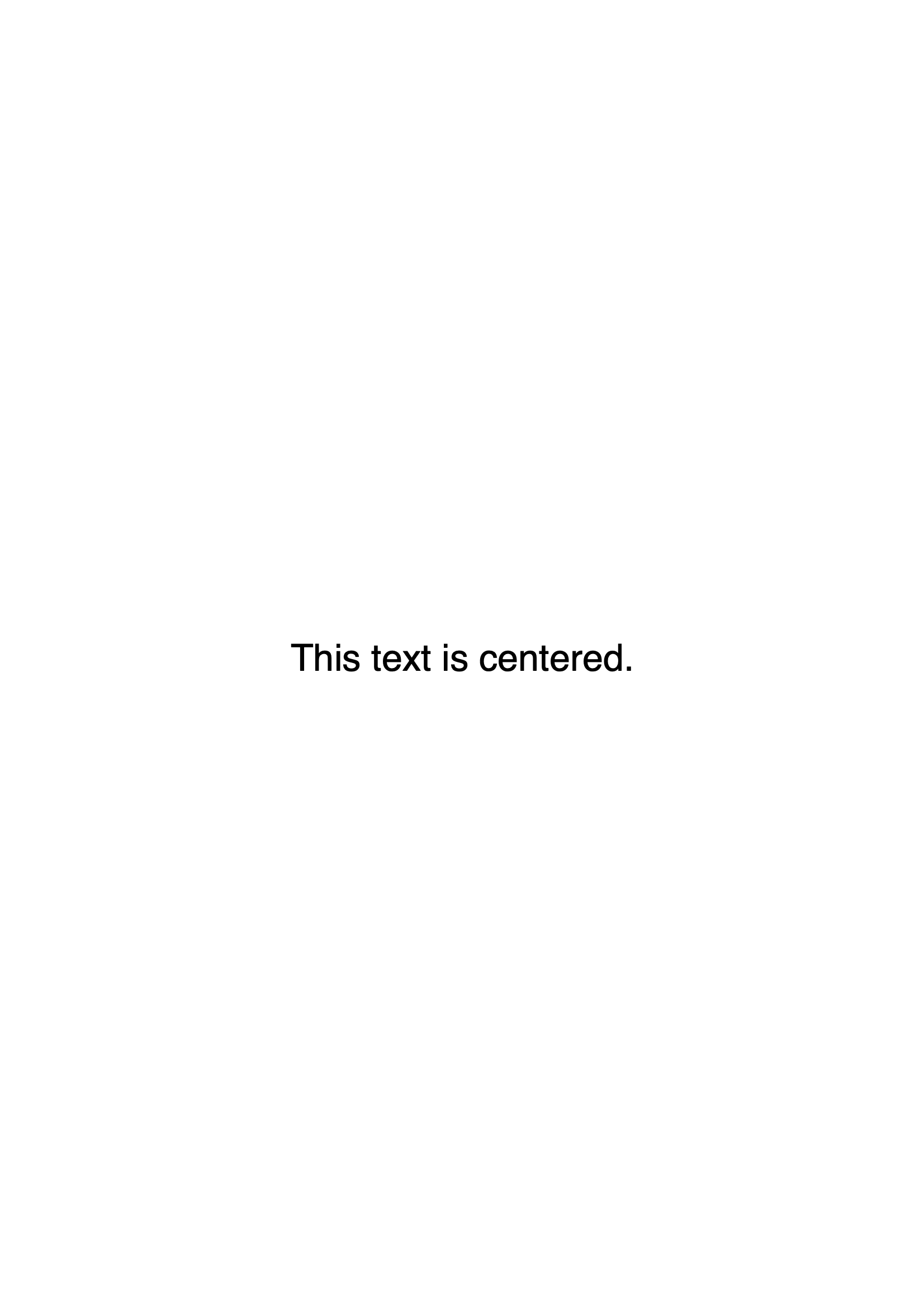
Here's an updated example that centers a piece of text vertically and horizontally:
const pdfDoc = await PDFDocument.create();

const helveticaFont = await pdfDoc.embedFont(StandardFonts.Helvetica);

const page = pdfDoc.addPage();

const text = 'This text is centered.';
const textSize = 24;
const textWidth = helveticaFont.widthOfTextAtSize(text, textSize);
const textHeight = helveticaFont.heightAtSize(textSize);

page.drawText(text, {
  x: page.getWidth() / 2 - textWidth / 2,
  y: page.getHeight() / 2 - textHeight / 2,
  size: textSize,
  font: helveticaFont,
});

const pdfBytes = await pdfDoc.save();
And here's the result:
Hopding
on 1 Mar 2020
@Hopding Hi Andrew, I am having a little bit problem here, Is there a straight forward way to make the text is still in the center (from the example above) while having a 45 degree or -45 degree rotation?
 gregorymayo
on 13 Jul 2020
gregorymayo
on 13 Jul 2020
@Hopding Thanks for the great work.
 khanhubgit
on 23 Sep 2020
khanhubgit
on 23 Sep 2020
Related issues
 keyhoffman
·
4Comments
keyhoffman
·
4Comments
 dhollenbeck
·
4Comments
dhollenbeck
·
4Comments
 emilsedgh
·
5Comments
emilsedgh
·
5Comments
 ihmc3jn09hk
·
4Comments
ihmc3jn09hk
·
4Comments
 msvargas
·
6Comments
msvargas
·
6Comments
Most helpful comment
Hello @MarcelloTheArcane!
Here's an updated example that centers a piece of text vertically and horizontally:
And here's the result: