Parlai: Running ParlAI Project on Server
Dear @stephenroller, @klshuster
I am using ParlAI project on my thesis project and I need to run the chatbot on a server.
I read the documentation, https://parl.ai/docs/tutorial_chat_service.html. Then, on the websocket part I was redirected to the https://github.com/facebookresearch/ParlAI/tree/master/parlai/chat_service/services/browser_chat link.
What I understand is, "browser_chat" is an extension of "websocket" for servers, is that correct? If I want to run the chatbot on a server, I need to use "browser_chat"?
However, there is only one example is for "browser_chat" and whenever I run it, it prints "Please connect to the link: "http://localhost:8080" on my local computer.

Can you tell me where and how should I add my server IP?
Thanks a lot in advance!
Best regards,
 Ufukdogann
All 6 comments
I was running the code as in the tutorial, using 10002 port number. But the connection link is still "localhost:8080", I do not know how to connect the chatbot from my server. So, I have tried to connect both links by changing their port number at the end. However, it did not work, I could not see the chatbot web page on the links.
Screenshot of <serverip>:10002

This is the screenshot of which tasks are using port 10002

Ufukdogann
on 17 Nov 2020
Then, I have tried to run the commands on 8080 port. In the beginning when I do lsof -i :8080 to check is this port used, it showed empty.
So, I run the first command that is python parlai/chat_service/services/browser_chat/run.py --config-path parlai/chat_service/tasks/chatbot/config.yml --port 8080
Everything seems correct for the first part.
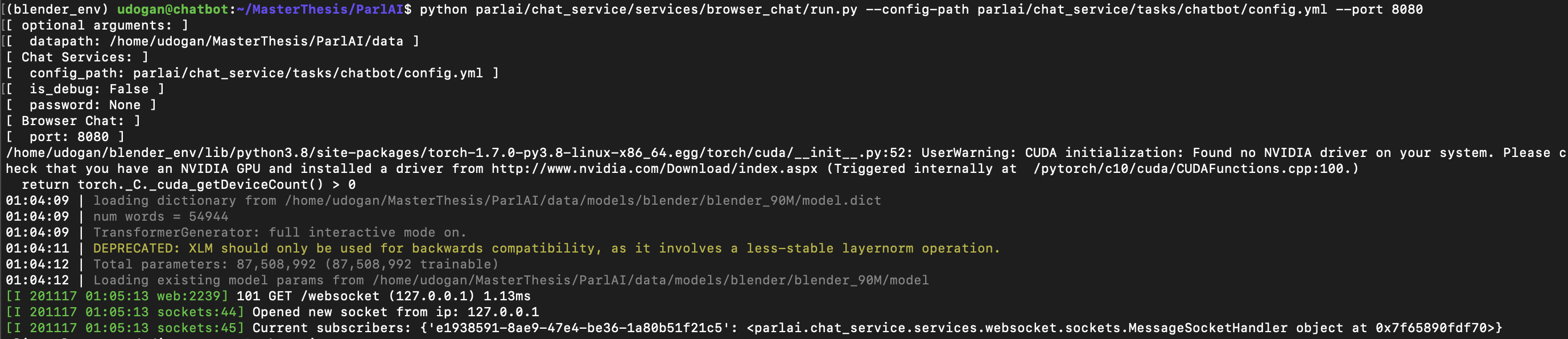
Then I tried to run the second command that is python parlai/chat_service/services/browser_chat/client.py --port 8080
The result was;

It gave Address already in useerror. However, only the first command was using the port 8080 at that time. Should not I use the same port for these two commands?
Best regards,
Ufukdogann
on 17 Nov 2020
Hi @Ufukdogann - IIRC the browser webapp will be running on the port labelled serving_port, in this case 8080, and the model server will be running at your other specified port, port. So in this case you'll want to visit <serverip>:8080. The system should be configured to then forward requests to the model to the provided port.
 JackUrb
on 17 Nov 2020
JackUrb
on 17 Nov 2020
Dear @JackUrb,
Today I have made some research about it and I found that post.
https://github.com/facebookresearch/ParlAI/issues/2397
Then I have tried to run in the other server like 8081, in order to do that, in the client.py file I have changed the port to 8081 as well.
This is what it shows after running both commands with using 8081.
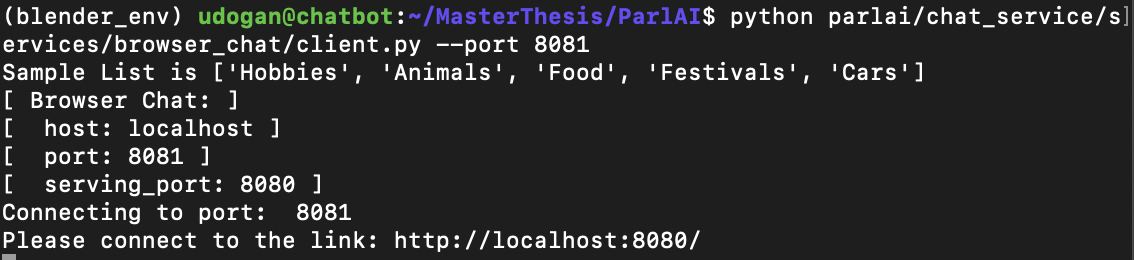
Then, I checked the status of the opened services. The result was like this,
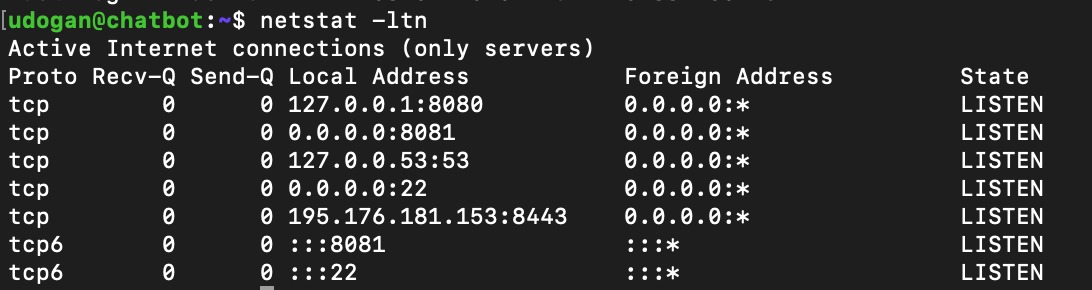
On 8443 port I am running the landing page of my thesis project.
Then I did what you said, I went to the http://195.176.181.153:8080/ to see the chatbot web browser however I did not see anything in there.
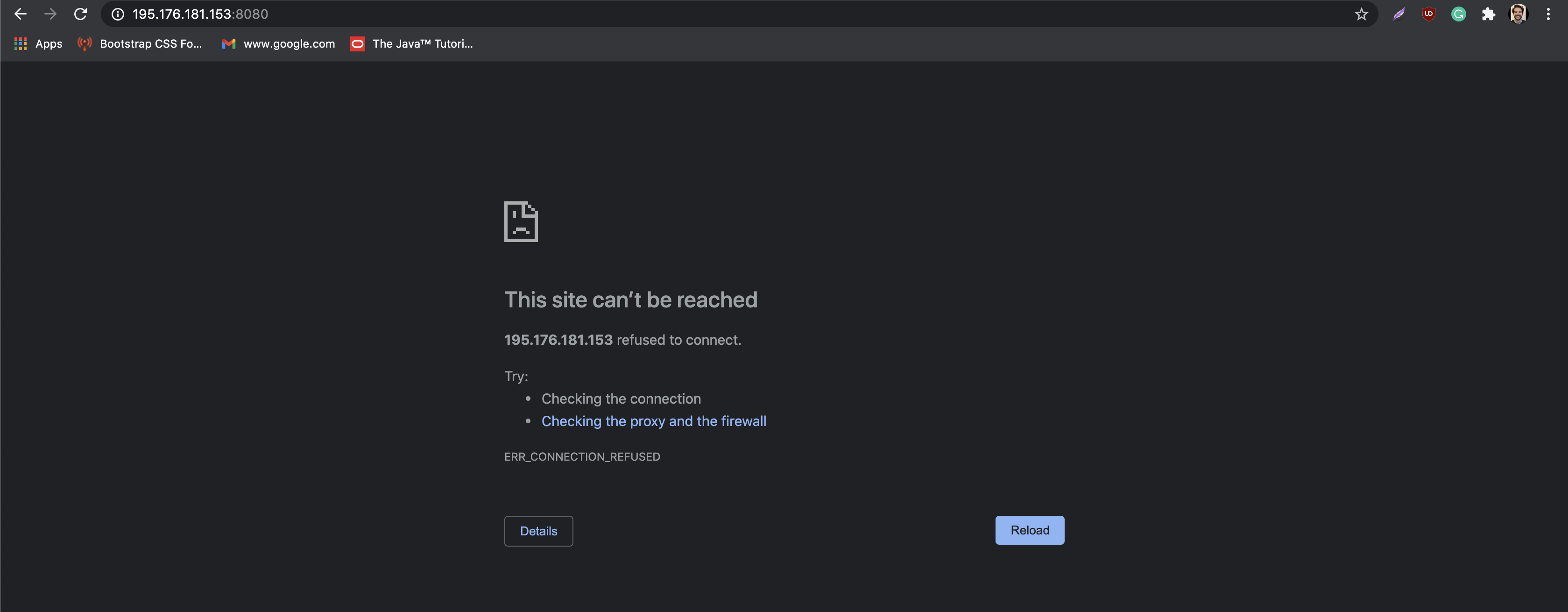
So, I still do not know which URL should i go to see the browser chatbot.
I hope with screenshots I explain my problem better right now.
Thanks in advance!
Best regards,
Ufukdogann
on 17 Nov 2020
You may need to also specify the --host argument. This defaults to localhost, but 0.0.0.0 should allow all connections, and putting your actual IP may work as well.
Beyond this I don't really have enough experience with chat services to suggest more, and will defer back to @klshuster if this doesn't work.
JackUrb
on 17 Nov 2020
@JackUrb thanks a lot.
In the second command when I add the --host parameter it started working under the 8080 port.
Best regards, hats off!
Ufukdogann
on 17 Nov 2020
Related issues
 pcgreat
·
5Comments
pcgreat
·
5Comments
 zhaoguangxiang
·
5Comments
zhaoguangxiang
·
5Comments
 chadleong
·
6Comments
Ufukdogann
·
6Comments
chadleong
·
6Comments
Ufukdogann
·
6Comments
 nihiluis
·
7Comments
nihiluis
·
7Comments
Most helpful comment
You may need to also specify the
--hostargument. This defaults tolocalhost, but0.0.0.0should allow all connections, and putting your actual IP may work as well.Beyond this I don't really have enough experience with chat services to suggest more, and will defer back to @klshuster if this doesn't work.