Openshot-qt: Openshot preview does not match exported clip (1/4 speed slice not exporting correctly)
System Details:
- Operating System / Distro: Windows 10 1920x1080 NVidia GeForce 1060 3GB, intel i7-700, RAM 16 GB
- OpenShot Version: 2.4.1
Issue Description and steps to reproduce:
Using prerecorded nvideo shadowplay clips of PUBG game, I do the following: - Enter 1 clip as track 0
- Enter 2nd (very large clip) as track 1
- Slice track 1 first keeping right side
- Align tracks
- Slice track 1 keeping left side
- Copy track 1 and place copy in track 2
- Set track 2 to slow 1/4 speed
- Export clip
Exported clip shows a stopped stuttered frame where the 1/4 speed track 2 should be and it's about 15 seconds before track 2 slice should be beginning.
Here is a youtube clip showing entire process: https://youtu.be/YdCV-dmZ7GQ
 jmollo310
All 48 comments
I am not so sure about the issue itself but could you perhaps please give the latest daily build a shot? Please head over to the download page and click on 'daily builds' button and grab the latest one; uninstall the current OpenShot version and install the latest build, and see if this still persists in the latest version. Thanks!
 peanutbutterandcrackers
on 30 Mar 2018
peanutbutterandcrackers
on 30 Mar 2018
P. S: Thank you for the good report. It is very thorough. I'm sure it will help the devs understand the issue really well (and hopefully fix it really soon).
peanutbutterandcrackers
on 30 Mar 2018
Will give it a try later this evening. Lol, I work as a senior software
engineer, so, used to doing bug reports.
On Thu, Mar 29, 2018 at 9:32 PM, peanutbutterandcrackers <
[email protected]> wrote:
P. S: Thank you for the good report.
—
You are receiving this because you authored the thread.
Reply to this email directly, view it on GitHub
https://github.com/OpenShot/openshot-qt/issues/1438#issuecomment-377442704,
or mute the thread
https://github.com/notifications/unsubscribe-auth/AfXFVeRZClLYyRbG9WZCrxNv5OmiccLlks5tjbVegaJpZM4S_9Lj
.
jmollo310
on 31 Mar 2018
I installed the latest build and recreated the steps and the issue remains.
On Thu, Mar 29, 2018 at 9:32 PM, peanutbutterandcrackers <
[email protected]> wrote:
I am not so sure about the issue itself but could you perhaps please give
the latest daily build a shot? Please head over to the download
https://www.openshot.org/download/ page and click on 'daily builds'
button and grab the latest one; uninstall the current OpenShot version and
install the latest build, and see if this still persists in the latest
version. Thanks!—
You are receiving this because you authored the thread.
Reply to this email directly, view it on GitHub
https://github.com/OpenShot/openshot-qt/issues/1438#issuecomment-377442672,
or mute the thread
https://github.com/notifications/unsubscribe-auth/AfXFVWIEAXwWGCBqZ4qxj12PdG5aPzZUks5tjbVKgaJpZM4S_9Lj
.
jmollo310
on 31 Mar 2018
Also, if you have a ftp site, I have the actually files that I can upload. One is 8 GB though and the other only 100 MB
jmollo310
on 31 Mar 2018
@jmollo310 - Perhaps can you upload the 100MB zip somewhere and provide us a link?
 DylanC
on 31 Mar 2018
DylanC
on 31 Mar 2018
I can not reproduce the issue with smaller clips. The two mp4 files are
100 MB and 8 GB respectively. And, they zip into approx. 8.1 GB. Even my
google drive won't take a file of that size. Anyone know of any other
option?
On Sat, Mar 31, 2018 at 1:35 AM, DylanC notifications@github.com wrote:
@jmollo310 https://github.com/jmollo310 - Perhaps can you upload the
100MB zip somewhere and provide us a link?—
You are receiving this because you were mentioned.
Reply to this email directly, view it on GitHub
https://github.com/OpenShot/openshot-qt/issues/1438#issuecomment-377676922,
or mute the thread
https://github.com/notifications/unsubscribe-auth/AfXFVa3gwMRQpjjBzjFbIKYzIQ4tzugjks5tjz_OgaJpZM4S_9Lj
.
jmollo310
on 31 Mar 2018
@jmollo310 - Dropbox, perhaps? o.O
@DylanC - You sure you are willing to test that big file, Cap'ain? :D
peanutbutterandcrackers
on 6 Apr 2018
@peanutbutterandcrackers - Of course! :)
DylanC
on 6 Apr 2018
Please try this link to download. These will be the same files used.
https://www.dropbox.com/s/yef20vampv3ythl/PlayerUnknown%27s%20Battlegrounds.zip?dl=0
. Dropbox is saying I am all out of space so I'm not sure if I will need
to upgrade the account before the link works.
On Fri, Apr 6, 2018 at 12:26 AM, DylanC notifications@github.com wrote:
@peanutbutterandcrackers https://github.com/peanutbutterandcrackers -
Of course! :)—
You are receiving this because you were mentioned.
Reply to this email directly, view it on GitHub
https://github.com/OpenShot/openshot-qt/issues/1438#issuecomment-379171315,
or mute the thread
https://github.com/notifications/unsubscribe-auth/AfXFVZgMafIyUsFqxIyEixR5audPssSKks5tlxjAgaJpZM4S_9Lj
.
jmollo310
on 7 Apr 2018
I think the link works as it lets me start the download.
jmollo310
on 16 Apr 2018
@DylanC - Cap'ain? We need your help here, good sir!
peanutbutterandcrackers
on 16 Apr 2018
@peanutbutterandcrackers I'll have a look.
DylanC
on 17 Apr 2018
@jmollo310 - Do you have a smaller example? Maybe 2Gb or something? I have the folder downloaded but not enough disk space to extract it.
DylanC
on 18 Apr 2018
The zip file did not really do much compression if any. So, in it there
would be 2 files of 100MB and 8.3 GB.
I can try to split the video using ffmpeg. Something like this to retain
original format: ffmpeg -i myfile.mp4 -c copy -ss 00:01:30 -to 00:03:00
newfile.mp4
I just tried a test to see if I can reproduce it with a 200 MB and 1.8 GB
file and there was so no issue albeit they were different recordings by the
same software shadowplay. And, think the issue may occur because of the
file size.
Can you get a flash drive over 9 GB to extract it into?
On Wed, Apr 18, 2018 at 1:27 AM, DylanC notifications@github.com wrote:
@jmollo310 https://github.com/jmollo310 - Do you have a smaller
example? Maybe 2Gb or something? I have the folder downloaded but not
enough disk space to extract it.—
You are receiving this because you were mentioned.
Reply to this email directly, view it on GitHub
https://github.com/OpenShot/openshot-qt/issues/1438#issuecomment-382307082,
or mute the thread
https://github.com/notifications/unsubscribe-auth/AfXFVaZThiAgBYaOUy3VD0wePDrTR7CHks5tpvjXgaJpZM4S_9Lj
.
jmollo310
on 18 Apr 2018
@jmollo310 - I think I'm just a little bit short on storage then. 😆 I used to have lots of flash drives but they seem to be missing. I do have a 2Gb flash drive on hand which is of no use really. I think its time to buy some new flash drives or use my external backup hard drive temporarily.
DylanC
on 18 Apr 2018
@jmollo310 - Hi there, I've tried this tonight. I had to follow the youtube video as the instructions were kinda confusing. I made something kinda similar with the video clips you provided:

However, the Exported video turned out to be the same as the preview inside Openshot. Not sure what else I could try here. @peanutbutterandcrackers - Keeping you in the loop here.
DylanC
on 23 Apr 2018
@jmollo310 - I should mention I was using the latest daily build instead of v2.4.1. Maybe you could give that a try?
DylanC
on 23 Apr 2018
I tried it on v2.4.1-dev1 a couple weeks ago. It didn't work.
Are you using windows 10 to run Open Shot?
On Mon, Apr 23, 2018 at 2:38 PM, DylanC notifications@github.com wrote:
@jmollo310 https://github.com/jmollo310 - I should mention I was using
the latest daily build instead of v2.4.1. Maybe you could give that a try?—
You are receiving this because you were mentioned.
Reply to this email directly, view it on GitHub
https://github.com/OpenShot/openshot-qt/issues/1438#issuecomment-383731653,
or mute the thread
https://github.com/notifications/unsubscribe-auth/AfXFVeqYYon0xxVnQA8NFt087TFluVAMks5trknSgaJpZM4S_9Lj
.
jmollo310
on 25 Apr 2018
@jmollo310 - Yes, I tested on Windows 10 but it was a daily build and not the v2.4.1 release. Did you try out a daily build?
DylanC
on 25 Apr 2018
I just tried the most recent daily build and still had the issue. Here is
the youtube clip of me going through the steps with this build:
https://youtu.be/I9tXsXdpzSA
On Wed, Apr 25, 2018 at 1:06 AM, DylanC notifications@github.com wrote:
@jmollo310 https://github.com/jmollo310 - Yes, I tested on Windows 10
but it was a daily build and not the v2.4.1 release. Did you try out a
daily build?—
You are receiving this because you were mentioned.
Reply to this email directly, view it on GitHub
https://github.com/OpenShot/openshot-qt/issues/1438#issuecomment-384197793,
or mute the thread
https://github.com/notifications/unsubscribe-auth/AfXFVRyA9Sps8esuyW9_hKTsLMnsHCR3ks5tsC6jgaJpZM4S_9Lj
.
jmollo310
on 26 Apr 2018
I wonder if the issue has to do with the export being at a different frame rate than the project itself.
The project profile is HDV 720 24p (24 fps) but you export at 25 fps with profile HD 1080p 25fps.
Try creating a new project and change the project profile to HD 1080p 25fps before adding any of the clips to the timeline.
 N3WWN
on 26 Apr 2018
N3WWN
on 26 Apr 2018
I just tried setting the profile and it had no effect.
On Thu, Apr 26, 2018 at 5:52 AM, Richard Alloway notifications@github.com
wrote:
I wonder if the issue has to do with the export being at a different frame
rate than the project itself.The project profile is HDV 720 24p (24 fps) but you export at 25 fps with
profile HD 1080p 25fps.Try creating a new project and change the project profile to HD 1080p
25fps before adding any of the clips to the timeline.—
You are receiving this because you were mentioned.
Reply to this email directly, view it on GitHub
https://github.com/OpenShot/openshot-qt/issues/1438#issuecomment-384630072,
or mute the thread
https://github.com/notifications/unsubscribe-auth/AfXFVTm5olDMripHQJQz2B8AozmuZOrVks5tscMbgaJpZM4S_9Lj
.
jmollo310
on 26 Apr 2018
Did you set the profile BEFORE adding anything to the timeline or AFTER adding items to the timeline?
I just replicated your issue exactly by following the steps in your YouTube video and posted the result here:
The rendered video had no sound and the slow motion portion was static, just as you described.
Taking the exact same project, hitting the red render button and immediately hitting the Export Video resulted in the rendered video working exactly as expected, as you can see here:
If you're going to change the frame rate of the rendered video, you must do it as the very first thing that you do with the project. The issue is with how keyframes are set and stored in the projects. When you export/render at a different frame rate, the location of the keyframes changes. This is mentioned in other issues, such as #519 , #640 , #1034 , #1041 and #1098 . It is a known bug that does not yet have a solution.
As a little more depth into the issue, the long clip was at position 20.86s (at the end of the clip on Track 0 aka frame 500.64) and you cut it at 23:42:11 and 23:47:24. Those were at frame 34139 and 34258 of the project, respectively, at 24 frames per second.
Project frame 34139 is clip frame 33638.36.
Project frame 34258 is clip frame 33757.36.
When you exported, you changed the frame rate to 25 frames per second, which shifts the keyframes by 1 frame for every second. At exactly 23min42sec into the timeline, we're talking about a -1422 frame offset at 25 fps for keyframes set at 24 fps. That is why the frame that is static is from earlier in the clip than the cut section should include.
FYI, the static frame is from 22:50:24 (frame 32904) on the timeline, which is visible before the slices were made.
I'm not familiar enough with the internal math to predict which frame will be selected at different frame rates or to explain why the frame is static, especially when time dilation is involved. 😉
N3WWN
on 26 Apr 2018
@N3WWN - Your ability to reproduce issues like this one is truly amazing!
DylanC
on 26 Apr 2018
@DylanC Thank you, sir! 🙇
N3WWN
on 26 Apr 2018
That fixed it! Thank you very much!
On Thu, Apr 26, 2018 at 9:08 AM, Richard Alloway notifications@github.com
wrote:
@DylanC https://github.com/DylanC Thank you, sir! 🙇
—
You are receiving this because you were mentioned.
Reply to this email directly, view it on GitHub
https://github.com/OpenShot/openshot-qt/issues/1438#issuecomment-384698125,
or mute the thread
https://github.com/notifications/unsubscribe-auth/AfXFVbnHU56HoetvqjxwSt6b-iUxTxpEks5tsfDqgaJpZM4S_9Lj
.
jmollo310
on 26 Apr 2018
Also, I don't think I rebooted when I did the last test thus resulting in
it not working.
On Thu, Apr 26, 2018 at 11:43 AM, John Mollo jmollo@gmail.com wrote:
That fixed it! Thank you very much!
On Thu, Apr 26, 2018 at 9:08 AM, Richard Alloway <[email protected]
wrote:
@DylanC https://github.com/DylanC Thank you, sir! 🙇
—
You are receiving this because you were mentioned.
Reply to this email directly, view it on GitHub
https://github.com/OpenShot/openshot-qt/issues/1438#issuecomment-384698125,
or mute the thread
https://github.com/notifications/unsubscribe-auth/AfXFVbnHU56HoetvqjxwSt6b-iUxTxpEks5tsfDqgaJpZM4S_9Lj
.
jmollo310
on 27 Apr 2018
@N3WWN - Do you think this issue is not fixable? I feel like I've seen many similar issues like this one before. (possibly the ones you have listed) Even if we can just do this:
Save the profile selected originally before any clips are dropped to timeline.
Do not allow a profile change at all or alert the user the profile cannot be changed and give the option to change it back.
DylanC
on 27 Apr 2018
@DylanC Those are good questions. @ferdnyc has definitely looked further into how keyframes are stored than I have, so he may have some insight here. I would say that it should be fixable, although it may require a LOT of work since it involves how projects and the included components (profile, clips, effects, keyframes, transitions, etc) are stored.
Unless we have a means of correctly converting projects from one profile to another, I don't like the idea of disabling profile changes after clips are on the timeline. The reason being that some folks use different profiles while working on a project for improved performance and then set the final profile for export. This is showcased here: https://www.youtube.com/watch?v=aci-ViWAEqs
But, if we have the ability to convert between project profiles, I think we should just include it as part of the changes implemented when a new profile is selected instead of making it external.
The alert is probably a good idea. I can look into adding an alert if we're not close to resolving the issue.
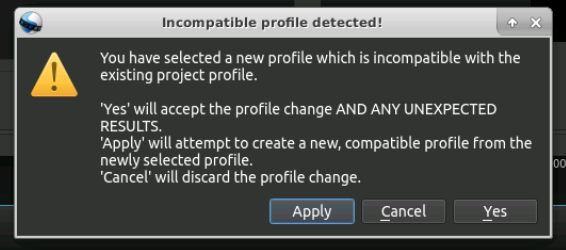
Another option (that I just thought of) may be better: If the profile is changed to one that has a different frame rate, warn the user that the profile is incompatible (frame rate is different) and that this could have unexpected results. Along with that warning, offer to create a new profile in the .openshot_qt/profiles directory under the user's info.HOME_PATH which will maintain the current frame rate but will otherwise change profiles.
Something like this:
N3WWN
on 27 Apr 2018
The "correct" solution to this, honestly, isn't going to be pleasant, but I think is necessary and the right approach.
Keyframe positions can't be stored by frame#. They need to be stored by time index, just like every other piece of project data OpenShot tracks.
As long as keyframing is managed by frame number, changing the project framerate will be impossible without unpleasant side effects. OpenShot could try to manage these (updating the frame#s of existing keyframes when the project framerate is changed, for instance) but it's always going to be a fragile and messy process, and (as we've seen) still doesn't solve the problem of exporting at a different frame rate than the project was configured for, and that the keyframe values assume. The user doesn't expect their keyframe points to move around if they alter the frame rate, but that's currently what unavoidably happens.
Now, just stating it like that it sounds like a simple thing, but this is a pretty sweeping change that would require changes across big chunks of OpenShot, both in terms of code and logic, and any approach taken to do it would not be without its own complications. The most fundamental one being: If keyframes are stored by time signature, then changing the project frame rate can result in keyframes placed at time signatures which don't correspond to _any_ frame boundary; they're somewhere between two frames. Right now that's not possible, so none of the code that deals with keyframes has any support for it. Plus, since OpenShot currently uses the playhead to manage keyframe values, and the playhead can only be positioned at frame boundaries, the off-boundary keyframes become inaccessible (and therefore unmodifiable, undeletable, etc.) without additional changes.
There are two solutions to this, really.
Option A: Disconnect parameterization from frame positioning
The harder solution is for fixed values of interpolated parameters to be manageable as separate entities, directly interacted with, instead of being incidentally attached to a particular frame. See Audacity for a good example of that: Its envelope tool allows the user to adjust a clip's audio amplitude parametrically by setting "control points" at arbitrary locations, and interpolating the values at all points between.
In some ways it's more limited than OpenShot's keyframing, because it isn't possible to adjust the curve shape: Interpolation is computed based on a fixed function. (Their docs claim it's exponential, but as anyone who looked at my zoom PR saw exponential functions are usually _much_ steeper than theirs. Regardless, it's not quite linear, and it can't be changed.) In the ideal version of this feature OpenShot (and Audacity itself) would combine Audacity's envelope control points with something like the GIMP's path tool. The GIMP allows paths to be constructed out of a series of vertices connected by a Bézier curve, just like OpenShot's parameterization. But unlike OpenShot, the GIMP displays the curve visually, and has an interface for modifying it similar to Audacity's envelope tool. Instead of limiting the path to a predefined curve function, though, two handles on each path vertex allow for direct manipulation of the input and output curve.
That would provide the maximum possible flexibility for defining interpolation curves and inspecting them visually, and would make OpenShot's curve presets menu largely redundant (or useful as a set of presets that could then be further adjusted manually). Of course, also unlike Audacity, OpenShot would theoretically have to support multiple envelope curves per clip, one for each keyframed parameter.
Because all that would be at least as much effort as it sounds like, in even the medium term we'd probably have to settle for a different, relatively simple solution.
Option B: Redefine "a frame" as a span of time, instead of a point in time
Compared to the above, this is a cakewalk, though it would still take significant effort to implement.
Right now, both OpenShot's code and our conceptual model treat the idea of "a frame" as a point in time which corresponds to the moment when that frame is displayed. The "next frame" is the point in time when the following frame is shown.
But it probably makes more sense, and better matches the reality of the situation, to think of "a frame" as the entire range of time during which that frame is on-screen. So "frame 1" (in our current numbering) isn't "located at 00:00:00.000" on the timeline. Rather, it occupies the entire span of the timeline _from_ 0.000 seconds _to_ 0 + (fps_den ÷ fps_num) seconds. (That's the inverse of the framerate fraction, with the denominator placed above the numerator, which expresses the frame _duration_ in seconds.)
Any keyframe value located at a time signature in that range should therefore be considered to be defined on the current frame. Any adjustments to the corresponding parameter which are subsequently made at that frame position would therefore modify or delete the existing keyframe value, rather than creating a new one, _even if_ the existing value wasn't positioned precisely at the start of the frame. (It could perhaps be moved to the time signature of the frame boundary as it's updated, but whether that makes sense partly depends on how the next part of the process is handled.)
When it comes time for OpenShot to export video, it needs to be able to map the keyframe values to frame numbers in the output. Actually, it needs to be able to map parameter values in general, even the interpolated ones, by applying the Bézier curve functions defined at the key frame numbers. That's the reason _why_ the keyframe positions are stored by frame#, as in some ways it makes this process easier. But it's also why exporting with a frame rate that doesn't match the project breaks: The frame#s used in the project file don't match the frame numbers in the video being generated, so the interpolation is done incorrectly. So, frame-based positioning is only a convenience compared to time-signature positioning if those frame numbers correspond to your output framerate.
If your positions don't directly correspond to output frame numbers (which will often be the case with time signatures, but _always_ be true when changing frame rate) then the positions have to be mapped accordingly. It's actually harder to map a set of frame _numbers_ in one frame rate to frame numbers in completely different one, than to just map time signatures to a given frame rate. (The only way to do frame#:frame# mapping, really, is to convert input frame# into a time value, then convert that time value back into the nearest output frame#. So really, you end up mapping from time signatures to frame numbers either way.)
Which is why, _even though_ frame-number positioning makes things easier in the simple case where the frame rate doesn't change, ultimately the solution to supporting arbitrary export frame rates is to store keyframe values at time signature positions. But to apply those parameter values they still have to be mapped onto individual export frames, which means one of two things is necessary:
- Either the export process needs to learn the same concept of a frame as the interface ("a keyframe value is located on a given frame if its time signature falls between the frame's start time and the start time + the frame duration"
frame_t <= keyframe_t < frame_t + (fps_den ÷ fps_num)), or - OpenShot performs a "pre-export" step where it makes a copy of the keyframe list and conforms it to the output frame rate, converting all of the time signatures into output frame positions (or even frame numbers). Note that this would be done on a copy of the "portable" (time-signature-based) keyframe list, and discarded when the export is complete because it's only valid for the export frame rate.
My gut tells me that the second approach is not only simpler, but it's also better. I'm not sure exactly where the parameter interpolation is performed (I don't even know whether it's OpenShot or libopenshot that's computing parameter values), but regardless where the math is done converting keyframes from a list of [value, time] tuples into a frame-rate-aware [value, frame#] list _immediately before export_, instead of storing them that way in the project file, means that frame rate issues can be solved without having to change how the existing export code works in order to make it aware of time-signature positioning.
 ferdnyc
on 28 Apr 2018
ferdnyc
on 28 Apr 2018
Another option (that I just thought of) may be better: If the profile is changed to one that has a different frame rate, warn the user that the profile is incompatible (frame rate is different) and that this could have unexpected results. Along with that warning, offer to create a new profile in the .openshot_qt/profiles directory under the user's info.HOME_PATH which will maintain the current frame rate but will otherwise change profiles.
I have to say I don't like this idea. The profiles exist for a _reason_, and arbitrary frame rates aren't valid for every format. If you have a project set up with some 15fps profile, and you change to one of the 1080p HD profiles, creating a 15fps 1080p profile is doing the user a disservice. 15fps is not a legal frame rate for ATSC or HDV video so that autogenerated profile is invalid.
ferdnyc
on 28 Apr 2018
Yeah, so... this part?
It's actually harder to map a set of frame numbers in one frame rate to frame numbers in completely different one, than to just map time signatures to a given frame rate. (The only way to do frame#:frame# mapping, really, is to convert input frame# into a time value, then convert that time value back into the nearest output frame#. So really, you end up mapping from time signatures to frame numbers either way.)
Completely, _gloriously_ false. I could not possibly have said something more wrong, unless perhaps I'd asserted that 2 + 2 = 5. I forgot that we were dealing with linear frame numbers, not a combined time-signature+frame-number format. (Like 00:00:00.nn where nn is a frame# within that second of video in the range 0 – (fps-1).)
When you're dealing with linear frame numbers, converting from one rate to another is a simple matter of multiplying every frame number by the ratio of target rate to source rate. So, to convert from 24fps to 60fps, you simply multiply every frame number by 60 ÷ 24 = 2.5 and then round. Or, in our case, to account for the 1-based numbering the formula is (frame# - 1) × 2.5 + 1. (And, yes, that adjustment makes me _further_ sympathetic to the argument that our frame numbering should be 0-based.)
So, given that reality, _technically_ it does present a third option for dealing with this.
Option C: Adjust frame#-based keyframes on project fps change, copy-and-align on export
This would leave the existing frame-number-based method of storing keyframe positions, but borrows the copy-and-conform idea I presented in Option B above, as a way of dealing with export rate mismatches.
Nothing changes about how the keyframe data is stored. Whenever the project frame rate is changed, the parameter list is walked, and every keyframe position _adjusted_ using the formula (frame# - 1) × (new_fps/old_fps) + 1. At every export, the parameter list is _copied_, walked to update every keyframe position to (frame# - 1) × (export_fps/project_fps) + 1, and then the copied-and-adjusted parameter list is interpolated and applied to the exported video.
...Honestly, I don't know. The idea of frame#-based positioning still makes me uneasy, as we've seen how fragile it can be. But, if managed correctly it's not completely unworkable. And while the playhead is being used as the interface to adjust parameter values, it _does_ make some things simpler to position them by frame# instead of time. In the short-to-middle term, this is _probably_ the least work of all the options, and requires touching the least code.
Update: Fixed a stupid confusion regarding the parameter (not "effects") list.
ferdnyc
on 30 Apr 2018
@ferdnyc - Should this issue be closed or marked as an enhancement? Not quite sure where this 33 comment issue stands anymore. 😆
DylanC
on 2 May 2018
IMHO, marked as a bug. OpenShot's handling of frame-rate changes is broken. If the frame rate on an existing project is changed, any previously-set parameter keyframe locations get smeared across the timeline. If the project is exported into a video format with a frame rate that doesn't match the project frame rate, the export is performed incorrectly.
ferdnyc
on 2 May 2018
Another option (that I just thought of) may be better: If the profile is changed to one that has a different frame rate, warn the user that the profile is incompatible (frame rate is different) and that this could have unexpected results. Along with that warning, offer to create a new profile in the .openshot_qt/profiles directory under the user's info.HOME_PATH which will maintain the current frame rate but will otherwise change profiles.
I have to say I don't like this idea. The profiles exist for a reason, and arbitrary frame rates aren't valid for every format. If you have a project set up with some 15fps profile, and you change to one of the 1080p HD profiles, creating a 15fps 1080p profile is doing the user a disservice. 15fps is not a legal frame rate for ATSC or HDV video so that autogenerated profile is invalid.
I had not considered that only certain profiles are valid. I know that some profiles are more optimal for some services/devices due to being native resolution/refresh rate/etc, but that was as far as I knew.
In https://github.com/OpenShot/openshot-qt/issues/519#issuecomment-385900388 , someone asked if we could simply grey out profiles which are incompatible. Right now, "incompatible" is likely only a profile with a different frame rate.
The end-game solution is to be able to freely change frame rates mid-project or during export, but until then, I wonder if this wouldn't be a good stopgap measure?
N3WWN
on 2 May 2018
On export, almost certainly. Except for perhaps the most basic case where the timeline consists of only a single clip, you can't export to any video format with a fps that doesn't match the project frame rate, or the export will break. So we shouldn't let the users try, since we know the video that comes out will be incorrect. If they want to export at a certain frame rate, they need to set the project to that frame rate.
And there's the rub. As far as allowing the user to change the project rate... that's trickier. Because, yes, the solution to exporting is that you SHOULD set the project rate to the export rate, before doing the export. And AIUI currently (and I don't imagine that my understanding of all the issues here is complete, as it is a nebulous problem) ...AIUI currently, changing the project framerate is _sometimes_, but not _always_ a problem.
It's a problem when there are parameters with existing keyframe points on the timeline, as they won't be updated correctly. If the timeline consists only of clips, changing the frame rate shouldn't break anything. If the user hasn't set any manual keyframes, but their project consists of both clips and transitions/effects (which are positioned on the timeline by time index, but may have keyframe points set that control the progress of the effect/transition — or may not? does every effect/transition set keyframes?)... I'm not sure how/if we can predict when it'll be problematic.
But I think if OpenShot were to disallow ever changing the project frame rate, we'd get complaints from equally frustrated users who _need to_, and now have no recourse but to start recreating their entire project from scratch. So, while doing that may "cover our asses" in terms of allowing the user to not perform unsafe operations, I'm not sure it's really any better for them.
ferdnyc
on 3 May 2018
And I'm just realizing, now, that I never tested whether my add/remove track fix in #1546 properly handles effects and transitions. Off to do that...
ETA: Glad I checked. Effects are fine, because they're anchored to a particular clip. But transitions need to be updated on add/remove track just like clips. And now they are.
ferdnyc
on 3 May 2018
Hey guys,
This issue came up for me because I was not educated enough on the product
to know to set the frame rate before using. I assumed that I could simply
import my files and then export to which ever resolution and fps I wanted.
Generally speaking, as a newbie on this product, those would be common
formats such as 1080p 25 fps type ones.
A couple questions based upon what I've heard so far and hope it doesn't
sidetrack the conversation:
- If you save a project at the wrong settings. Can you change those
settings then reopen? - What prevents one from remapping the export resolution and rate to the
current project? If the clip times, transitions, effects etc are save
merely as data, couldn't that be applied to any resolution and rate? - Perhaps there is a need for a "New Project" wizard where the settings
are created based upon the expectation of what type of export the user
wants to create. - There are cases where software bugs have been left open as training
issues until there is time and funding for the fix especially if it would
require major changes. Perhaps, for the time being, for us new folks,
there can be extra educationly popups or enforcement of the expected export.
Regards,
John
On Wed, May 2, 2018 at 8:19 PM, Frank Dana notifications@github.com wrote:
On export, almost certainly. Except for perhaps the most basic case where
the timeline consists of only a single clip, you can't export to any video
format with a fps that doesn't match the project frame rate, or the export
will break. So we shouldn't let the users try, since we know the video that
comes out will be incorrect. If they want to export at a certain frame
rate, they need to set the project to that frame rate.And there's the rub. As far as allowing the user to change the project
rate... that's trickier. Because, yes, the solution to exporting is that
you SHOULD set the project rate to the export rate, before doing the
export. And AIUI currently (and I don't imagine that my understanding of
all the issues here is complete, as it is a nebulous problem) ...AIUI
currently, changing the project framerate is sometimes, but not always
a problem.It's a problem when there are parameters with existing keyframe points on
the timeline, as they won't be updated correctly. If the timeline consists
only of clips, changing the frame rate shouldn't break anything. If it
consists only of clips and transitions/effects (which are positioned on
the timeline by time index, but may have keyframe points set that control
the progress of the effect/transition — or may not? does every
effect/transition set keyframes?), but no manually-adjusted parameter
keyframes... I'm not sure how/if we can predict when it'll be problematic.But I think if OpenShot were to disallow ever changing the project frame
rate, we'd get complaints from equally frustrated users who need to,
and now have no recourse but to start recreating their entire project from
scratch. So, while doing that may "cover our asses" in terms of allowing
the user to not perform unsafe operations, I'm not sure it's really any
better for them.—
You are receiving this because you were mentioned.
Reply to this email directly, view it on GitHub
https://github.com/OpenShot/openshot-qt/issues/1438#issuecomment-386182044,
or mute the thread
https://github.com/notifications/unsubscribe-auth/AfXFVbWw_nW-hm8SQuwvqsJUmijjc-Pqks5tunc2gaJpZM4S_9Lj
.
jmollo310
on 3 May 2018
Also one more item:
- Perhaps there could be a basic and advanced mode where the basic mode
requires setting the project resolution and framerate first and only allows
export to that. Advanced, would allow the user to set the project then
export differently.
On Wed, May 2, 2018 at 9:26 PM, John Mollo jmollo@gmail.com wrote:
Hey guys,
This issue came up for me because I was not educated enough on the product
to know to set the frame rate before using. I assumed that I could simply
import my files and then export to which ever resolution and fps I wanted.
Generally speaking, as a newbie on this product, those would be common
formats such as 1080p 25 fps type ones.A couple questions based upon what I've heard so far and hope it doesn't
sidetrack the conversation:
- If you save a project at the wrong settings. Can you change those
settings then reopen?- What prevents one from remapping the export resolution and rate to the
current project? If the clip times, transitions, effects etc are save
merely as data, couldn't that be applied to any resolution and rate?- Perhaps there is a need for a "New Project" wizard where the settings
are created based upon the expectation of what type of export the user
wants to create.- There are cases where software bugs have been left open as training
issues until there is time and funding for the fix especially if it would
require major changes. Perhaps, for the time being, for us new folks,
there can be extra educationly popups or enforcement of the expected export.Regards,
John
On Wed, May 2, 2018 at 8:19 PM, Frank Dana notifications@github.com
wrote:On export, almost certainly. Except for perhaps the most basic case where
the timeline consists of only a single clip, you can't export to any video
format with a fps that doesn't match the project frame rate, or the export
will break. So we shouldn't let the users try, since we know the video that
comes out will be incorrect. If they want to export at a certain frame
rate, they need to set the project to that frame rate.And there's the rub. As far as allowing the user to change the project
rate... that's trickier. Because, yes, the solution to exporting is that
you SHOULD set the project rate to the export rate, before doing the
export. And AIUI currently (and I don't imagine that my understanding of
all the issues here is complete, as it is a nebulous problem) ...AIUI
currently, changing the project framerate is sometimes, but not
always a problem.It's a problem when there are parameters with existing keyframe points on
the timeline, as they won't be updated correctly. If the timeline consists
only of clips, changing the frame rate shouldn't break anything. If it
consists only of clips and transitions/effects (which are positioned
on the timeline by time index, but may have keyframe points set that
control the progress of the effect/transition — or may not? does every
effect/transition set keyframes?), but no manually-adjusted parameter
keyframes... I'm not sure how/if we can predict when it'll be problematic.But I think if OpenShot were to disallow ever changing the project frame
rate, we'd get complaints from equally frustrated users who need to,
and now have no recourse but to start recreating their entire project from
scratch. So, while doing that may "cover our asses" in terms of allowing
the user to not perform unsafe operations, I'm not sure it's really any
better for them.—
You are receiving this because you were mentioned.
Reply to this email directly, view it on GitHub
https://github.com/OpenShot/openshot-qt/issues/1438#issuecomment-386182044,
or mute the thread
https://github.com/notifications/unsubscribe-auth/AfXFVbWw_nW-hm8SQuwvqsJUmijjc-Pqks5tunc2gaJpZM4S_9Lj
.
jmollo310
on 3 May 2018
Thanks for your input, John. You make some good points, and honestly it's really valuable having the input of less experienced users on these issues, since they (you) bring a perspective on OpenShot that isn't "tainted" by familiarity with its quirks and baked-in assumptions. To address some specifics:
- If you save a project at the wrong settings. Can you change those
settings then reopen?- What prevents one from remapping the export resolution and rate to the
current project? If the clip times, transitions, effects etc are save
merely as data, couldn't that be applied to any resolution and rate?
Currently no, on point 1, unfortunately. The core issue here is that, for various historical reasons, certain elements of OpenShot projects are stored positioned by their _frame number_ (a simple integer, like "frame 1074", for example), and... well, you can probably see what happens when you change the frame-rate, either in the project or on export. "Frame 1074" moves to a completely different place, and that isn't properly handled in OpenShot at this time. It _could_ and ultimately _should_ be, and that lack of correct handling is the core of the bug.
- Perhaps there is a need for a "New Project" wizard where the settings
are created based upon the expectation of what type of export the user
wants to create.
I think that's a good idea just in general, and ultimately an "enhancement" component of this issue, that may be the right way to go for OpenShot. (It would also allow us to do other "setup" things we may want to do, like create a project folder where all of the various files for the project are meant to be stored. Which would solve a lot of other problems we've been fighting with file locations, save paths, recovery, and the like.) But while that would allow us to set users' expectations better (which is certainly a valuable thing in its own right), it wouldn't get us any closer to giving users the ability to modify project frame rate which, ultimately, I think is an ability that has to be provided in _some_ form.
- Perhaps there could be a basic and advanced mode where the basic mode
requires setting the project resolution and framerate first and only allows
export to that. Advanced, would allow the user to set the project then
export differently.
If we can solve the export-at-a-different-frame-rate problem, then it'll be solved, and there will be no reason to prevent any users from doing that. Until it's solved, the problem is that any sort of "Advanced" mode like that isn't _possible_. It's our bug preventing users from successfully doing something that they _should_ be able to do, rather than a conscious decision to "restrict" any operations.
What we _really_ need is an "Advanced" version of the code where this bug is fixed. :grin:
ferdnyc
on 3 May 2018
John's questions did lead me to another thought (how Socratic!), regarding my Option C proposal above.
I'd been focused on being able to do the frame-rate conversions "live" whenever the user selected a different profile, whether in the project settings or on export. But what if it wasn't done on live data, but rather as a one-shot conversion process applied to a project file when loading? Here's my sketchy outline of a though:
Option D, maybe?
- We still remove the ability to export at a frame rate that doesn't match the project, because we know that's broken and will likely remain broken for the foreseeable future.
- When the user changes the project profile, choosing a profile with a different frame rate causes OpenShot to display a message reading something like, "Changing the project frame rate requires closing your current project and reloading with the new profile. OK to save your work now and convert this project to _[Profile Name]_?" with Cancel/Yes buttons. Cancel aborts the profile change. Yes causes the regular "File→Save Project" process to start (either saving to the existing file, or popping up a file chooser if they haven't yet selected a filename/location).
- Once the file is saved, OpenShot closes the project, then automatically reopens it and runs it through a modified version of the normal project-data import process. This process converts all of the stored frame numbers from the old profile FPS to the new one while it's loading the project.
- After conversion, the user is presented with their project timeline configured for the new profile, with all of the keyframe locations updated properly.
- (Maybe the save path of the project file is also cleared, and a message box comes up at the end of the conversion to report the process' success, _and_ to remind the user that their converted project data hasn't been saved to disk, so they should do that if they don't want to lose their work. It'll be their choice whether they overwrite the unconverted file, or they save the converted project to a different location.)
Sequestering the frame-number remapping process to one particular path in the code might make things simpler, and even moreso than my previous proposals, would allow the rest of the code to stay unchanged, remaining blissfully unaware of these issues.
The one possible complication here is the unordered-by-design nature of the project files' JSON data. I had initially thought of just setting a variable in the project file that says "convert me from _N_ fps to _M_ fps", which would be done the next time it's loaded. But since it may be difficult to guarantee that variable will be seen _before_ any of the frame-number-based data gets loaded in, I think the conversion process needs to be initiated by OpenShot itself when loading the file, rather than depending on any information contained within.
ferdnyc
on 3 May 2018
I have the code working perfectly to grey out the non-compatible profiles in the Profile dialog for existing projects. The only gotcha is someone who builds a whole project without saving it.
This may need to be modified to look for keyframed items in the project and only restrict the profiles based on if they really are incompatible or not.
I have the code working perfectly to grey out the non-compatible video profiles in the Simple and Advanced tabs in the Export dialog ONLY if the All Formats profile is selected (the default one). When selecting a specific profile (like Blu-Ray/AVDHD), the list of video profiles is pared down to a limited list and updating those to grey out incompatible video profiles is causing me some headaches.
If any of this is useful, I can keep working on it and/or submit a WIP PR for what I have working.
If any of this is not useful, I'll stop working on it and save my time for other items. 😉
I do think that changing frame rates ANYWHERE is problematic at this point and is probably the 2nd biggest complaint from the users (the first being performance, which should be much better in 2.4.2).
[Here's where the message gets long... please stick with me! 😊 ]
Live migration of the keyframes when profiles are changed is what I think would be "best", at least in my mind.
Could we add a property to the keyframed items as to whether they should be frame-accurate or time-accurate? Then, during conversion, if a keyframe is calculated to be mid-frame, the decision can be made to adjust to the closest frame or keep it at the time. Doing this, we could store all keyframes with a time-value in the project file, making project files profile-agnostic.
The type accuracy (frame or time) could be defaulted based on the type of keyframe; things like fades do not need to be frame accurate, but things like transitions may need to be frame accurate. The type of accuracy could be a toggle in the properties, too.
Another potential problem would be profile reversion with different results. For instance, converting from 30 fps to 100 fps to 60 fps to 29.97 fps to 30 fps should result in the keyframes being in the exact same position for both instances that the project is 30 fps. A possible workaround for this would be storing the "original" data next to the "current" data and only using the original data for calculations when the frame rate changes.
Start project at 30 FPS
- keyframe 1
- accuracy: frame
- original
- position: frame 100
- rate: 30
- current
- position: frame 100
- keyframe 2
- accuracy: time
- original
- position: 1m30s
- rate: 30
- current
- position: 1m30s
Convert to 100 FPS
- keyframe 1
- accuracy: frame
- original
- position: frame 100
- rate: 30
- current
- position: frame 1000
- keyframe 2
- accuracy: time
- original
- position: 1m30s
- rate: 30
- current
- position: 1m30s
- [Add] keyframe 3
- accuracy: frame
- original
- position: frame 300
- rate: 100
- current
- position: frame 300
Convert to 29.97 FPS
- keyframe 1
- accuracy: frame
- original
- position: frame 100
- rate: 30
- current
- position: frame 100 _(rounded down from 100.1 to be frame accurate)_
- keyframe 2
- accuracy: time
- original
- position: 1m30s
- rate: 30
- current
- position: 1m30s
- keyframe 3
- accuracy: frame
- original
- position: frame 300
- rate: 100
- current
- position: frame 90 _(rounded up from 89.91 to be frame accurate)_
Convert _back_ to 30 FPS
- keyframe 1
- accuracy: frame
- original
- position: frame 100
- rate: 30
- current
- position: frame 100 _(if we used 100.1 from the 29.97 frame rate, this would now accumulate to calculate as be 100.2)_
- keyframe 2
- accuracy: time
- original
- position: 1m30s
- rate: 30
- current
- position: 1m30s
- keyframe 3
- accuracy: frame
- original
- position: frame 300
- rate: 100
- current
- position: frame 90
This removes accumulated variation accrued with each frame rate change.
When a positional/chronological change is made to a keyframe, the new position and rate are stored as the "original" values for the keyframe. Value-only changes made to a keyframe don't impact where/when a keyframe exists, so the "original" value is left intact.
The actual method used to internally represent _when_ a keyframe exists on the timeline (it is a timeline after all) can be derived from the current position stored in the project.
N3WWN
on 3 May 2018
Could we add a property to the keyframed items as to whether they should be frame-accurate or time-accurate? Then, during conversion, if a keyframe is calculated to be mid-frame, the decision can be made to adjust to the closest frame or keep it at the time. Doing this, we could store all keyframes with a time-value in the project file, making project files profile-agnostic.
The type accuracy (frame or time) could be defaulted based on the type of keyframe; things like fades do not need to be frame accurate, but things like transitions may need to be frame accurate. The type of accuracy could be a toggle in the properties, too.
I feel like you may be overcomplicating some things here (and through the rest of the second half).
"Time-accurate" doesn't really mean anything, certainly not at a sub-frame level. Every keyframe needs to be "frame accurate", in the sense that it currently needs to be placed on some frame boundary or the interface has no idea what to do with it and it becomes unmodifiable. And given that, during conversion every keyframe position has to be rounded to the _nearest_ frame boundary at the new frame rate, which means some keyframes may have to shift slightly and there's nothing that can be done about that when switching frame rates: if they shift then it's because the old position _isn't_ a frame boundary anymore.
If someone goes from 29.97fps to 60fps to 24fps to 29.97fps, I feel it is _absolutely_ no problem if their keyframes don't all end up on exactly the same frame they started at. They should only shift by a frame or two, at most, and I don't feel it's worth the complexity to even try preventing that. If it's an issue for any users that they changed the frame rate three times and now their transition is starting on frame 174 when they initially set it on frame 173, then they're encouraged to buy Adobe Premiere Pro where exactly the same thing will probably still happen. :laughing:
But storing keyframes by _both_ time position _and_ frame position is like that proposal that the user be able to choose between 0-based and 1-based frame numbering: Trying to write code that can deal with _both_ is just a special kind of nightmare. In this case, we don't even have code that can deal with _one_ of these situations properly, so I think the focus should be on picking a horse and riding it.
Positioning keyframe points by time index is almost certainly the best way to do it. It's also _incredibly_ hard to do because there's no support in the interface for it. (If you have a "time-accurate" keyframe that falls between two frame boundaries, how do you adjust it? Or delete it? That was the entire problem in _both_ my Option A and B scenarios above, and why I ultimately rejected them as workable solutions, certainly for 2.4.2, and really for 2.4._anything_ at a minimum.) While I'd love for (all) keyframes to be positioned by time, and it would solve the problem of frame-rate conversion, it would introduce a whole host of other problems. (Probably even bigger problems, even though right now it doesn't seem like any problem could be bigger than this one because, currently, there _aren't_ any bigger problems.)
Until then, I still think (all) keyframes need to stay positioned by frame#, and the focus should be on getting that to work _right_ even when the frame rate changes. But by "right" I mean "doubling the frame rate no longer causes all of the keyframes to be positioned half as far up the timeline as they're supposed to be", not "worrying about whether keyframe positions might be forced to shift by tens of milliseconds when the frame rate changes".
ferdnyc
on 3 May 2018
...That being said, this:
I have the code working perfectly to grey out the non-compatible profiles in the Profile dialog for existing projects. The only gotcha is someone who builds a whole project without saving it.
This may need to be modified to look for keyframed items in the project and only restrict the profiles based on if they really are incompatible or not.
I have the code working perfectly to grey out the non-compatible video profiles in the Simple and Advanced tabs in the Export dialog ONLY if the All Formats profile is selected (the default one). When selecting a specific profile (like Blu-Ray/AVDHD), the list of video profiles is pared down to a limited list and updating those to grey out incompatible video profiles is causing me some headaches.
sounds awesome.
I really wish the step of disabling project frame-rate changes wasn't necessary, because it's going to screw up a _lot_ of people (and will probably become the new biggest complaint, simply for its prominence) — but at least for 2.4.2, it probably is necessary. In reality they'll be complaining about no longer being able to do something that, for the most part, would've been silently _screwing up_ their projects when they were allowed to do it in the past, so even though the complaints may be louder it should hopefully cause fewer actual problems.
ferdnyc
on 3 May 2018
I feel like you may be overcomplicating some things here (and through the rest of the second half).
You're probably right! I haven't looked at any of the keyframing code yet... just kinda thinking out loud. hehe
I suppose the magnitude of the accumulated errors (or rather, the lack thereof) is not worth taking into consideration. Even going from 25fps to 60fps to 100fps to 29.97 fps and back to 25fps couldn't accumulate more than about 4 frames of positioning error (it would actually be much less than that), which is 0.16s during playback at most.
While I think my idea of storing the original position and associated frame rate is still a good idea (or at least has _some_ merit, perhaps it would only be workable in a new project which claims to be that accurate versus crowbarring it into this existing project. 😉
sounds awesome ... so even though the complaints may be louder it should hopefully cause fewer actual problems.
This was my basic thought, too. I think it'd be an easier pill to swallow for users to complain "I can't export the project that I invested 10 hours working on at the frame rate I want. 😞" versus "I spent 10 hours working on this project, changed the profile to a different frame rate and now I have to start over from scratch! 😠"
I'll submit a WIP PR for profile.py, which is working, and will continue to look at export.py. I need to get my head further around how the profile lists are updated and pared down to get that one working properly.
N3WWN
on 4 May 2018
TL;DR Set the export frame rate before working on any clips or changing speeds.
Work Around: Export video with initial frame rate.
This is a really nasty bug been causing me trouble for months. Should not be hidden in this monstrous thread.
 justdoityourself
on 19 Feb 2020
justdoityourself
on 19 Feb 2020
This workaround worked for me.
 jortel
on 1 Aug 2020
jortel
on 1 Aug 2020
Related issues
 mnally8
·
3Comments
mnally8
·
3Comments
 ghost
·
3Comments
ghost
·
3Comments
 carlosnewmusic
·
3Comments
carlosnewmusic
·
3Comments
 BofingerRick
·
3Comments
BofingerRick
·
3Comments
 gbbbbb
·
3Comments
gbbbbb
·
3Comments
Most helpful comment
TL;DR Set the export frame rate before working on any clips or changing speeds.
Work Around: Export video with initial frame rate.
This is a really nasty bug been causing me trouble for months. Should not be hidden in this monstrous thread.