Notebook: Zero active kernels. In the browser, it says "Kernel Busy" all the time
C:Users\xyz\Desktop\New folder>jupyter notebook
[I 16:58:08.424 NotebookApp] Serving notebooks from local directory: C:Users\xyz\Desktop\New folder
[I 16:58:08.428 NotebookApp] 0 active kernels
[I 16:58:08.434 NotebookApp] The IPython Notebook is running at: http://localhost:8888/
[I 16:58:08.436 NotebookApp] Use Control-C to stop this server and shut down all kernels (twice to skip confirmation).
[I 16:58:31.400 NotebookApp] Creating new notebook in
[I 16:58:33.505 NotebookApp] Kernel started: 8ee26780-b3a1-4634-8f6b-7faec73c4718
[W 17:00:05.696 NotebookApp] WebSocket ping timeout after 90009 ms.
[I 17:00:33.332 NotebookApp] Saving file at /Untitled2.ipynb
What can be possibly wrong. Though not much information in this log.
Note: Python(2.7.3 32 bit) installation is new along with jupyter.
 bibekchitrakar
All 17 comments
WebSocket ping timeout after 90009 ms.
This mean you likely have something that block websocket connections: Firewall, antivirus ...
From the browser perspective, a blocked webscoket, and a busy kernel are (almost) indistinguishable, so the UI says "busy kernel".
Try to find what's blocking websocket, and you should be good to go.
 Carreau
on 11 Dec 2015
Carreau
on 11 Dec 2015
I uninstalled antivirus, disabled firewall too. Still same.
This is the logs after running in debug mode.
[D 21:11:22.831 NotebookApp] Starting kernel: ['d:\python35\python.exe', '-m', 'ipykernel', '-f', 'C:Users\dell\AppData\Roaming\jupyterruntime\kernel-f8439a
2-35bc-414e-be8e-aa6783fa92a1.json']
[D 21:11:22.837 NotebookApp] Connecting to: tcp://127.0.0.1:55518
[I 21:11:22.840 NotebookApp] Kernel restarted: f8439a32-35bc-414e-be8e-aa6783fa92a1
[D 21:11:22.841 NotebookApp] 200 POST /api/kernels/f8439a32-35bc-414e-be8e-aa6783fa92a1/restart (127.0.0.1) 717.04ms
[D 21:11:23.173 NotebookApp] Initializing websocket connection /api/kernels/f8439a32-35bc-414e-be8e-aa6783fa92a1/channels
[D 21:11:23.178 NotebookApp] Opening websocket /api/kernels/f8439a32-35bc-414e-be8e-aa6783fa92a1/channels
[D 21:11:23.179 NotebookApp] Connecting to: tcp://127.0.0.1:55515
[D 21:11:23.181 NotebookApp] Connecting to: tcp://127.0.0.1:55516
[D 21:11:23.182 NotebookApp] Connecting to: tcp://127.0.0.1:55517
[W 21:11:42.451 NotebookApp] WebSocket ping timeout after 90000 ms.
bibekchitrakar
on 12 Dec 2015
I am not sure if this can be helpful.
Screen shot from "Resource Monitor"

bibekchitrakar
on 21 Dec 2015
@bibekchitrakar Could you share the output of the following commands:
python --version
which python
python3 --version
which python3
pip list
jupyter notebook --version
Thanks. Hopefully, a bit more detail will help us guide you to resolving your issue.
 willingc
on 21 Dec 2015
willingc
on 21 Dec 2015
@willingc, here are the details
C:Users\xyz\Desktop\ML>python --version
Python 3.5.1
C:Users\xyz\Desktop\ML>pip list
decorator (4.0.6)
ipykernel (4.2.1)
ipython (4.0.1)
ipython-genutils (0.1.0)
ipywidgets (4.1.1)
Jinja2 (2.8)
jsonschema (2.5.1)
jupyter (1.0.0)
jupyter-client (4.1.1)
jupyter-console (4.0.3)
jupyter-core (4.0.6)
MarkupSafe (0.23)
mistune (0.7.1)
nbconvert (4.1.0)
nbformat (4.0.1)
notebook (4.0.6)
path.py (8.1.2)
pickleshare (0.5)
pip (7.1.2)
Pygments (2.0.2)
pyzmq (15.1.0)
qtconsole (4.1.1)
setuptools (18.2)
simplegeneric (0.8.1)
tornado (4.3)
traitlets (4.0.0)
virtualenv (13.1.2)
virtualenvwrapper-win (1.2.1)
C:Users\xyz\Desktop\ML>jupyter notebook --version
4.0.6
I tried with python2.7.3. Restored firewall settings to default. Temporarily disabled antivirus as well. But didn't worked.
"""The weird part is it works if I login into Guest account with administrator privilege for cmd prompt.""
bibekchitrakar
on 21 Dec 2015
@bibekchitrakar Let's try to get this working for you using Python 3.5.
First, double check the python version using python --version. You should see 3.5.1. If you do not see that, there is likely an issue with your PATH settings.
Please install the latest release of Jupyter notebook using this command:
python -m pip install notebook --pre --upgrade
After executing that command, jupyter notebook --version should return 4.1.0rc1.
Now, run by typing on command line (i.e. Windows Powershell) jupyter notebook.
Hopefully, this will work.
If you are still having an issue, I would create and activate a virtualenv substituting the correct path to your Python 3.5 installation:
C:\Python35\python -m venv myvenv
myvenv\Scripts\activate
Next you should pip install Jupyter notebook in the virtual environment:
pip install --upgrade pip
pip install jupyter
Run jupyter notebook from the command line.
Good luck! Please let us know how it goes.
willingc
on 23 Dec 2015
@willingc, I did all the steps you told. Its not working. As per mentioned by @Carreau, it must be something that is blocking the websocket. Any way to find the websocket usuage?
bibekchitrakar
on 23 Dec 2015
@bibekchitrakar Just to clarify. It did not work when a virtualenv was created and activated and then jupyter notebook was run inside the virtualenv.
When you say it's not working, do you mean jupyter notebook --version is not working? jupyter notebook? And are you getting the same errors as previously reported?
willingc
on 24 Dec 2015
I created the virtual environment, activated and tried running inside virtualenv as per you instruction.
jupyter notebook --version gives 4.1.0rc1
jupyter notebook is running but in the browser when I hover mouse just below the python logo,
"kernel busy" message is popped.
Also no results are returned,

bibekchitrakar
on 24 Dec 2015
Thanks @bibekchitrakar. I'm glad that you were able to install the latest release. So we've pretty much ruled out notebook installation as the root cause of "kernel busy". I thank you for being patient.
@minrk @carreau @takluyver Can you suggest specific steps for troubleshooting why "kernel busy" message is happening? Thanks.
willingc
on 24 Dec 2015
Most likely cause is a failure to properly establish the websocket connection. The root cause of that on Windows can be bad firewalls or AV software. One option is to specify jupyter notebook --ip 127.0.0.1 to force localhost-by-ip instead of by name. That works on some systems.
 minrk
on 25 Dec 2015
minrk
on 25 Dec 2015
Its working but I don't know how.
I did following
installed python to 2.7.11 (64 bit)
pip install virtualenvwrapper-win
created a virtual environment and installed latest jupyter
Finally, jupyter notebook is working
Note: I am running xampp with administrative privilege. Previously xampp was not installed.
Problem is still unknown but its solved. Thankyou all.
bibekchitrakar
on 26 Dec 2015
@bibekchitrakar I'm glad you have gotten it working. I suspect that when you installed xampp with administrative privileges that it gave permission to establish websocket connections that were being blocked before. We hope you enjoy using Jupyter.
Thanks @minrk and @carreau for your tips and help too. I'm closing this issue.
willingc
on 26 Dec 2015
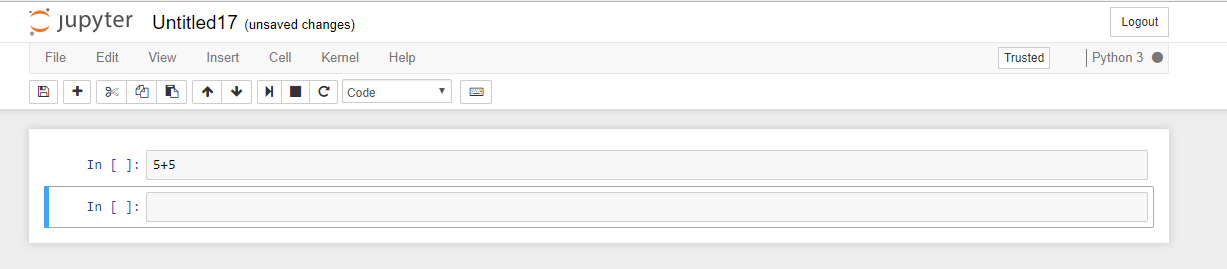
@willingc hi i cant get the out put of the cells.also kernel remains busy.
 mdhar006
on 6 Jul 2018
mdhar006
on 6 Jul 2018
My Jupyter notebook is working pretty good but when using Keras and Tenforflow it's says kernel busy and it will re-start automatically but never and I can't import Keras and Tenforflow, please I need your help please
 ghost
on 17 Aug 2018
ghost
on 17 Aug 2018
Yeah, I met the same problem, I hope there are some one could help me ...
 HzcIrving
on 11 Dec 2018
HzcIrving
on 11 Dec 2018
Did anyone got any solution
 makingpassion
on 14 Jul 2020
makingpassion
on 14 Jul 2020
Related issues
 Foadsf
·
3Comments
Foadsf
·
3Comments
 mowe96
·
3Comments
mowe96
·
3Comments
 qnicole-zakka
·
3Comments
qnicole-zakka
·
3Comments
 ehossain1982
·
3Comments
ehossain1982
·
3Comments
 mikepqr
·
3Comments
mikepqr
·
3Comments
Most helpful comment
Most likely cause is a failure to properly establish the websocket connection. The root cause of that on Windows can be bad firewalls or AV software. One option is to specify
jupyter notebook --ip 127.0.0.1to force localhost-by-ip instead of by name. That works on some systems.